


September 5, 2026
Why Do Photos Sent Through Messenger Look Softer Than the Original?

Why Do Photos Sent Through Messenger Look Softer Than the Original?
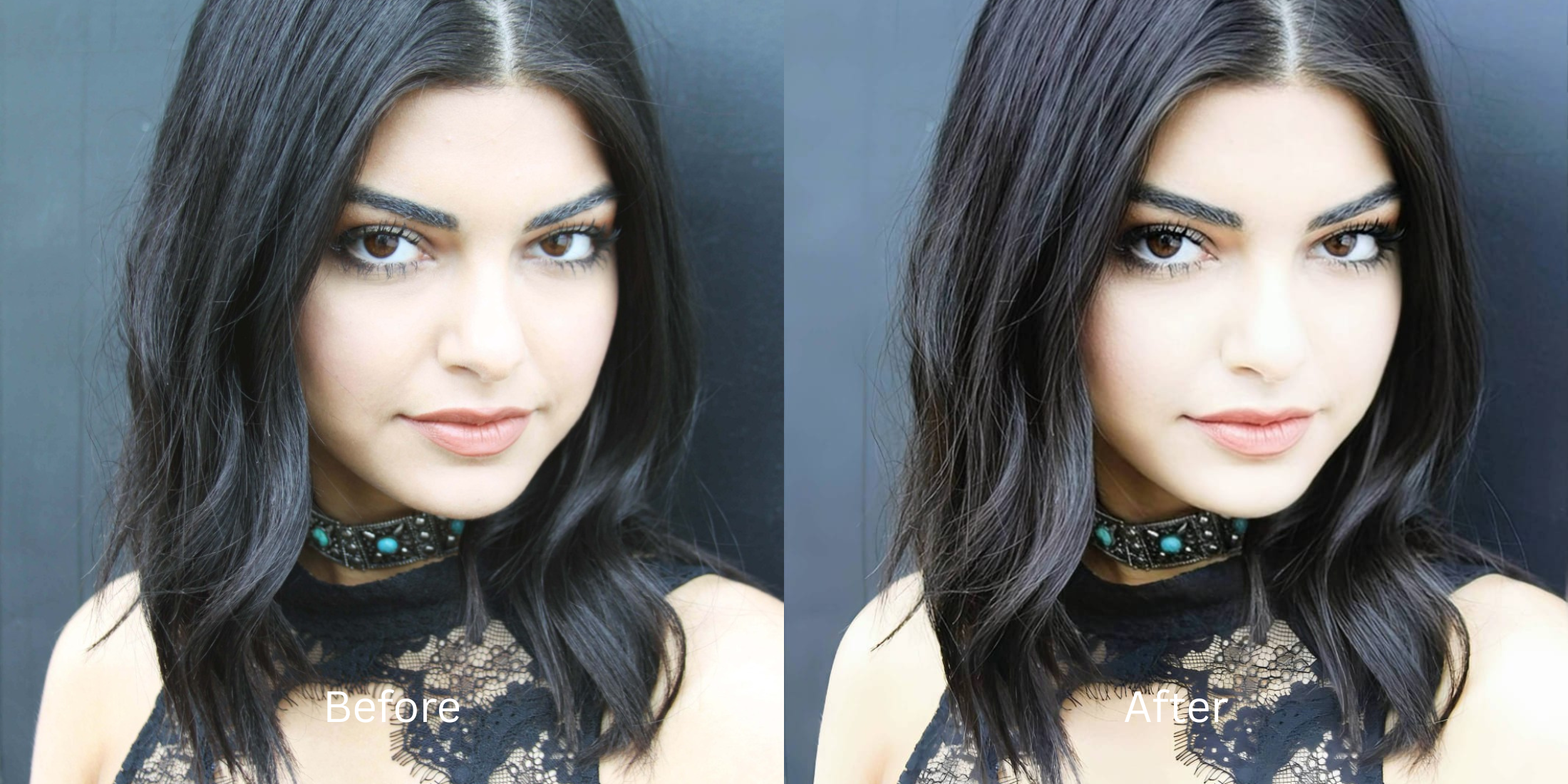
You just sent a razor-sharp, perfectly lit portrait to a friend on Facebook Messenger. But when you tap the photo in the chat log, it looks entirely different. The fine details in your hair, the texture of your clothes, and the natural pores on your skin have melted away, leaving your face looking like a soft, mushy watercolor painting. This is not a mistake; it is a highly engineered optical compromise. To transmit billions of photos instantly across slow cellular networks without lagging the app, Messenger shrinks your image resolution drastically. However, to prevent the shrunken image from looking like a blocky, pixelated JPEG from 2005, Messenger's servers apply an incredibly heavy "Denoise and Smoothing" algorithm. This algorithm literally smears adjacent pixels together to hide compression blocks. The result is the infamous "watercolor effect," where edges are lost and skin looks artificially painted. If you try to fix this by using a "Sharpen" slider, you are just sharpening the smear, which creates crunchy, deep-fried artifacts. To recover your real face, you need an optical engine that can rebuild geometric pixel density *underneath* the denoise filter.
Messenger photos look soft because the app applies a heavy "denoise" algorithm to hide the pixelation caused by shrinking the file size. To reverse this watercolor effect natively, use Citrus AI. Instead of adding crunchy artificial sharpness, Citrus mathematically rebuilds the geometric density of your skin and features so your photo looks crisp and authentic.
Understanding the "Real-Time Denoise & Watercolor" Trap
The core issue with chat app compression is that algorithms prioritize speed over texture. When the server shrinks your 4K portrait, it smears the data to hide the damage. To learn how to restore photo sent through messenger servers, you must focus on rebuilding physical density rather than dragging fake contrast sliders.
- Applying noisy contrast halos to a smeared image, resulting in a crunchy, deep-fried texture
- Leaving the "watercolor" effect intact on your skin, making you look like a poorly rendered painting
- Using fake AR beauty filters as an alternative overprocessed beauty editors rely on, ruining your identity
- Proving the stats seen in the upload damage database facebook snapchat report about texture loss
- Using advanced optical models to mathematically rebuild the baseline resolution destroyed by the downscale
- Acting as the ultimate tool to unblur face photo without overediting or generating fake details
- Biometrically isolating the skin to replace the muddy watercolor smear with authentic, seamless texture
- Serving as a fix pixelated face photos workflow that actual photographers trust
When a messaging algorithm smears your file to hide compression, adding chaotic noise is the worst thing you can do. Shifting to an optical workflow helps you make bad photo good enough to save, ensuring your downloaded chat photos stay defined, high-quality, and incredibly crisp.
Reverse the Messenger watercolor effect natively. A structured optical enhancement restores true geometric density and clean skin texture in seconds.
A 5-Step Test: Reversing the Messenger Watercolor Effect
Save the compressed photo from your chat log
Download the exact photo from your Messenger thread that looks soft and mushy. Starting with this file is essential to see how a true free app fix blurry face engine interprets algorithmic smear damage.

Let the instant preview map structural density
Citrus provides an instant baseline correction immediately. Instead of just adding a blanket noise layer, Citrus analyzes the structural geometry of the face, identifying exactly where the denoise algorithm melted the pixels.
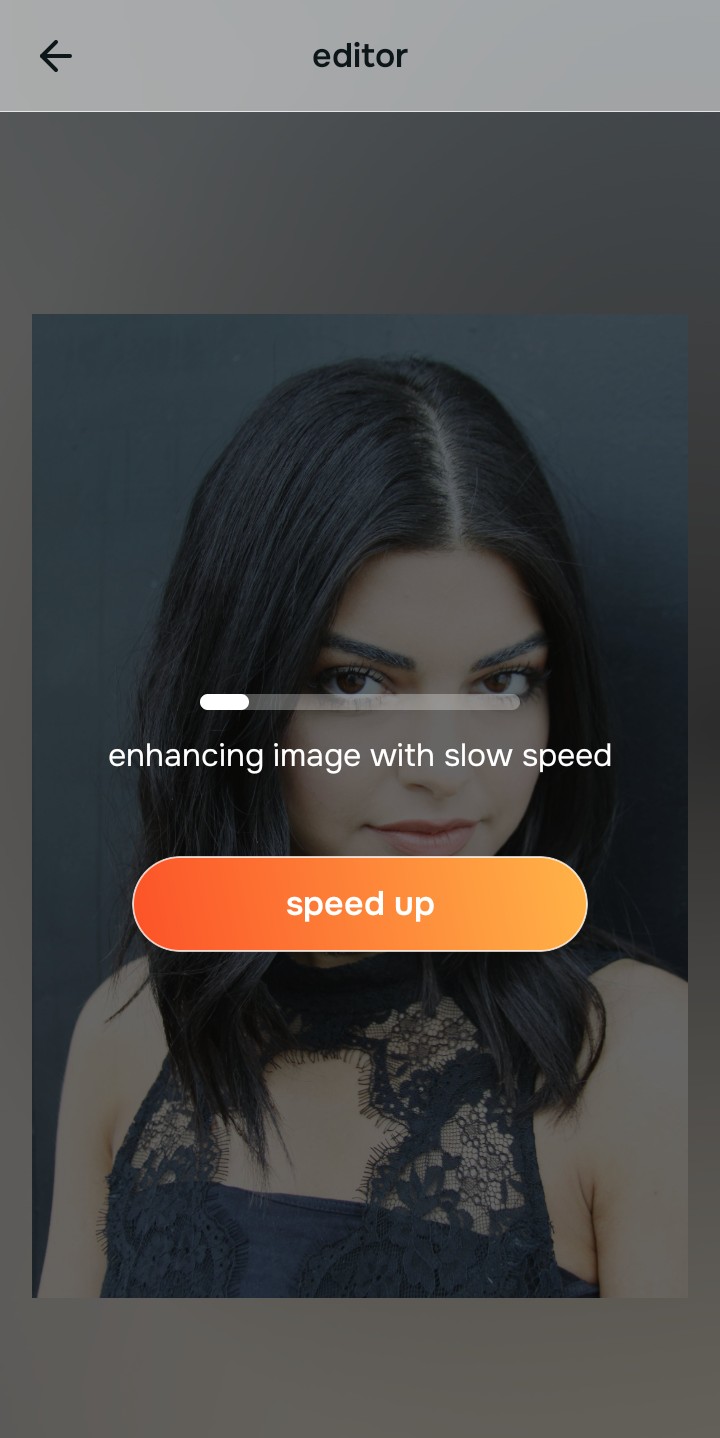
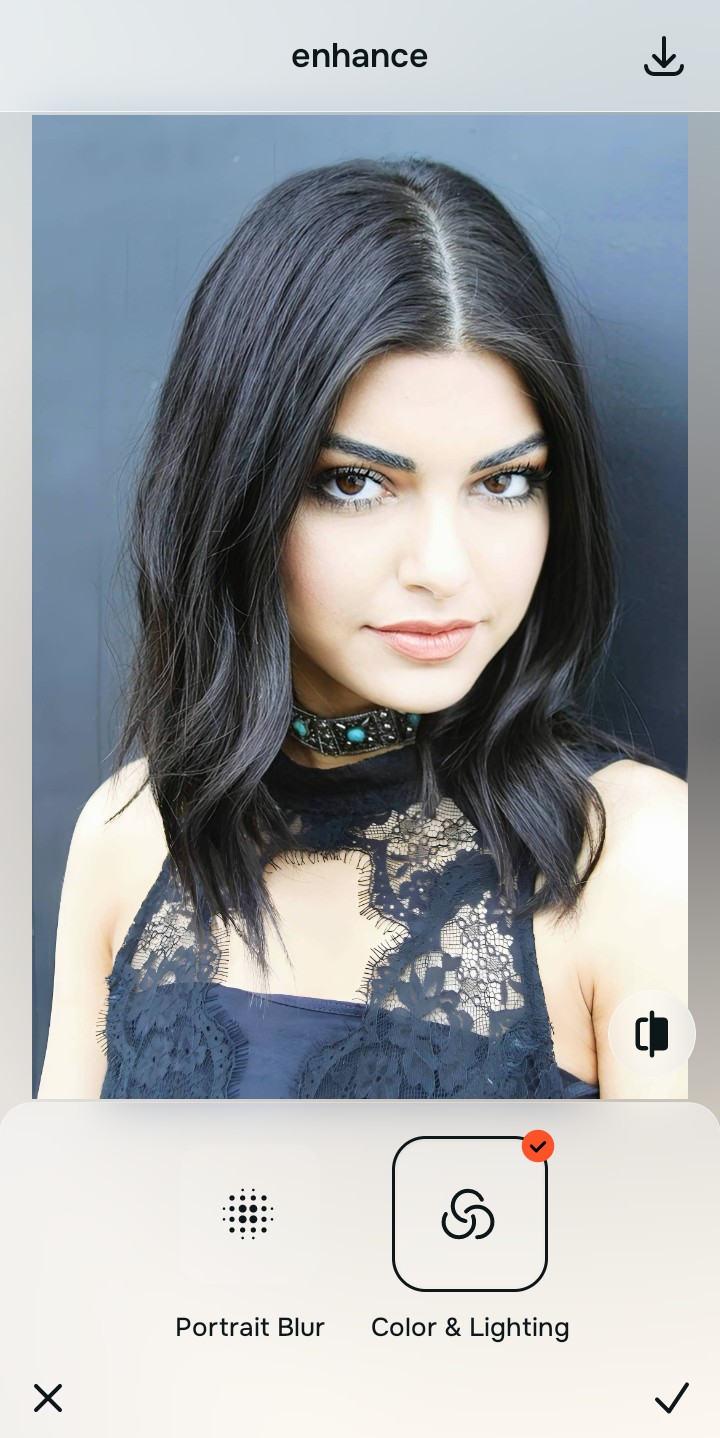
Tap Enhance and choose Colors & Lighting
You cannot fix a watercolor smear without dense baseline data. In Citrus, tap Enhance → Colors & Lighting. This mathematically rebuilds the structural resolution of the file. By restoring the pixel density that Messenger discarded, the image regains its foundational sharpness without relying on noisy contrast halos.

Always structure the baseline resolution before fixing skin texture. Increasing optical density mathematically ensures subsequent enhancements have real data to work with.
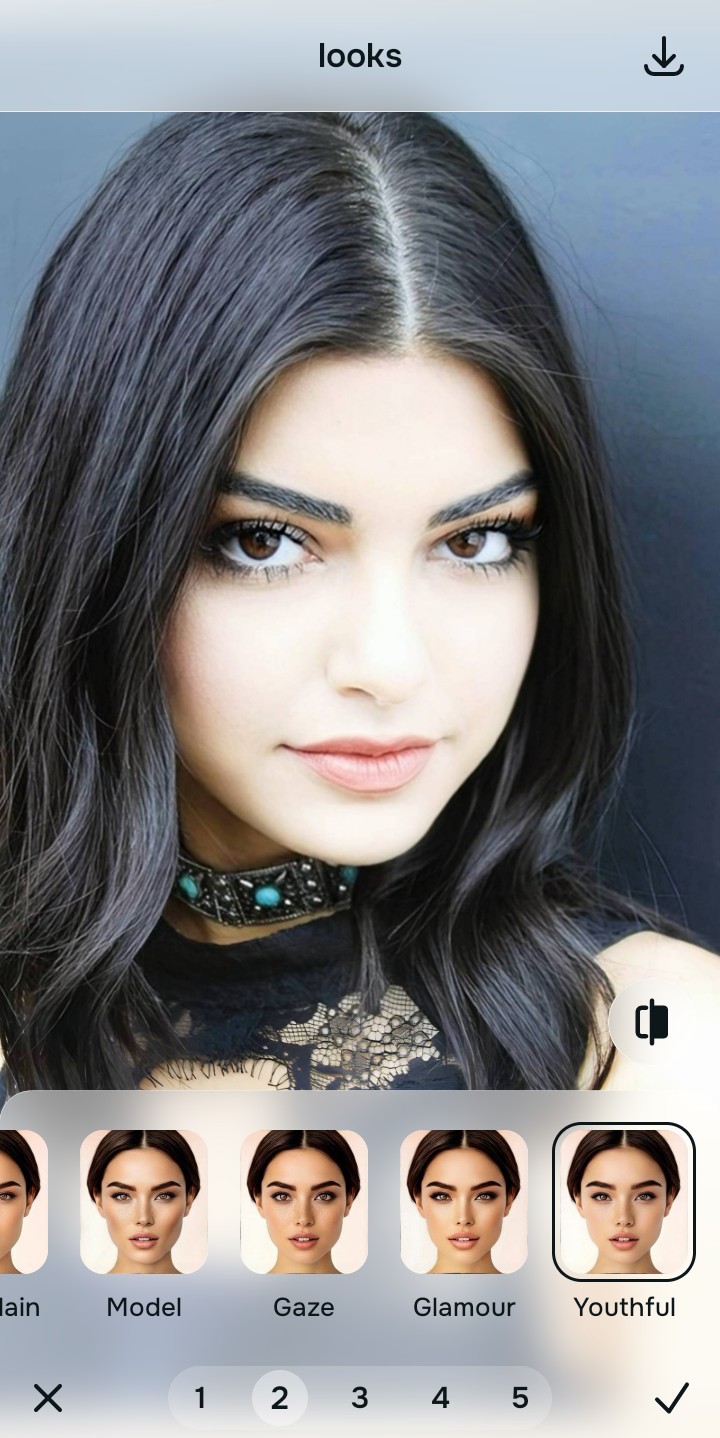
Tap Looks and select Youthful for crisp vitality
Messenger's aggressive smoothing leaves the entire face looking flat, dull, and completely devoid of high-value micro-contrast. Tap Looks → Youthful in Citrus. Select your preferred value from Level 1–5. This biometrically injects photogenic vitality and crisp radiance back into the portrait, lifting the flat "mushy" vibe instantly.
Tap Face and select Glass Skin to erase the smear
The worst casualty of the Messenger watercolor effect is human skin, which gets turned into a patchy, artificial blur. Tap Face → Glass Skin. Citrus isolates the biometric skin planes to strip away the algorithmic smear, restoring authentic, seamless hydration and real skin texture.

How does the denoise filter ruin your photo?
Identify your primary optical hurdle to select the exact automated pathway in Citrus.
Aligning Your Edits with the Citrus Taxonomy
Instead of guessing how much to artificially sharpen your photo before ruining it, Citrus categorizes enhancement into three distinct, mathematically safe pathways:
“Chat photo enhancement should never require you to deep-fry your photo with artificial sharpening. It must mathematically rebuild the geometric density that the server washed away so you look crisp and authentic—effortlessly.”
Why Density Rebuilding Beats Generic Sharpening
There is a massive structural difference between authentic optical upscaling and dragging a "Sharpen" slider in a basic photo editor. When you turn up the sharpness on a heavily denoised photo, the software creates thick white and black halos around the smeared, watercolor edges. It literally sharpens the blur. This creates a highly artificial, crunchy, "deep-fried" look that is instantly recognizable as a bad edit.
Citrus is built specifically to prevent this. By constraining adjustments to mathematically calibrated Level 1–5 settings across Enhance, Looks, and Face, it physically increases the geometric density of the image *underneath* the smear. It rebuilds the clean, high-resolution structural baseline that Messenger deleted. You get a crisp, vibrant portrait in one tap without the crunch.