


May 13, 2026
Free AI Tool to Fix Pixelated Face Photos
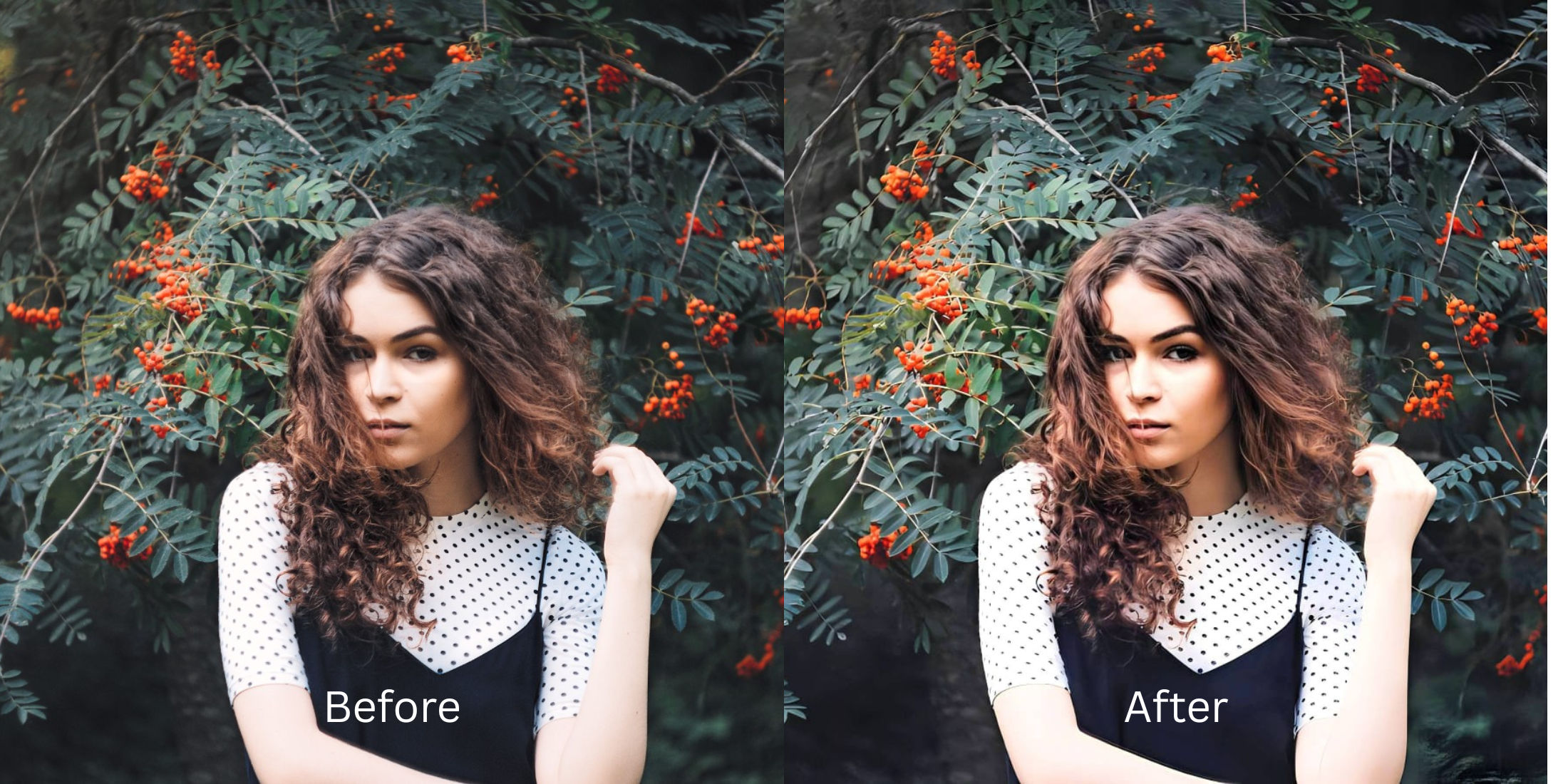

Free AI Tool to Fix Pixelated Face Photos
Nothing ruins a perfect photo faster than heavy pixelation that blurs your unique features into a blocks of digital noise. Most "restoration" apps promise a fix but hit you with a $40 paywall the second you try to save your memory. If you want a best ai photo enhancer that rebuilds your face for free, you must choose a tool that reconstructs lost pixel depth instead of just smearing the image with a fake blur filter.
To fix a pixelated face for free, you must rebuild the image resolution and restore deep contrast. In Citrus, skip the heavy generative masks and tap Enhance -> Colors & Lighting to automatically recover structural clarity from low-resolution files. Once the baseline is sharp, use Face -> Big Eyes to ensure the focal point of your face remains crystal clear without hitting a paywall.
Why low-resolution photos look so pixelated
Pixelation usually happens when a photo is compressed too heavily or captured on a low-megapixel sensor. The camera misses the fine details of your skin and eyes, creating jagged blocks of color. Learning to make blurry photos clear means using software that can intelligently guess and rebuild that missing data. Finding an enhancer for blurry pictures is the first step toward reclaiming your rejected captures.
- Paying expensive monthly subscriptions just to export a rescued memory
- Using heavy generative AI that replaces your loved ones with fake clones
- Having massive watermarks stamped across your face on free tiers
- Compressing already degraded files even further upon saving
- Getting professional-level pixel reconstruction without hidden fees
- Restoring lost focus to counteract old, low-megapixel camera sensors
- Exporting your final, high-resolution photo instantly for free
- Keeping your facial structure and unique identity completely real
If your final image looks perfectly sharp but you seem like a digital avatar, the software failed. Choosing improve photo without changing face dynamics ensures your history remains trustworthy and authentic.
Restore lost pixels instantly. A smart edit keeps reality intact.
How to un-pixelate your face for free in 5 steps
Select a pixelated or low-res selfie
Find the picture where the resolution was too low. You do not need to settle for a dull photo. Relying on free apps to look better allows you to bring the real depth back in seconds.

Let the instant preview analyze the noise
Citrus provides a first correction immediately without asking for a credit card. This ensures that the pixel gaps are recognized before you start attempting any facial refinements.
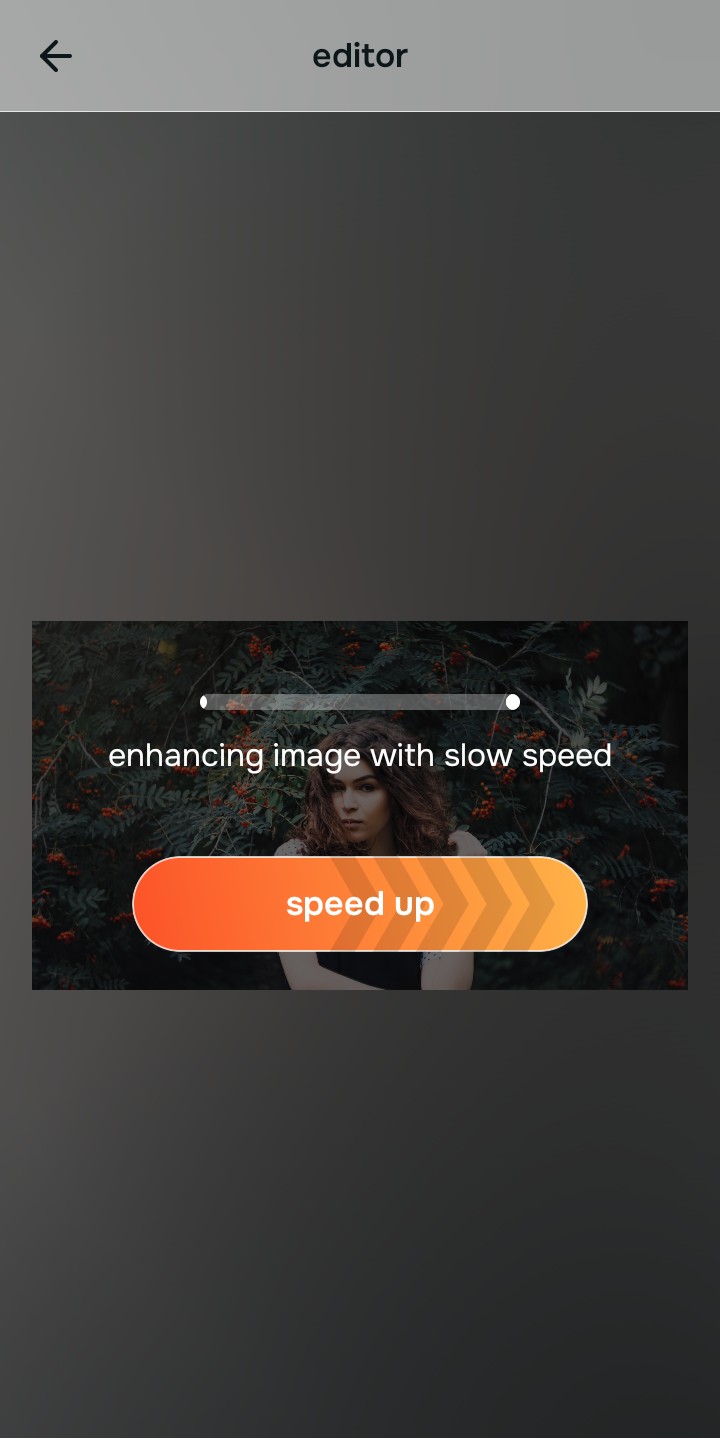
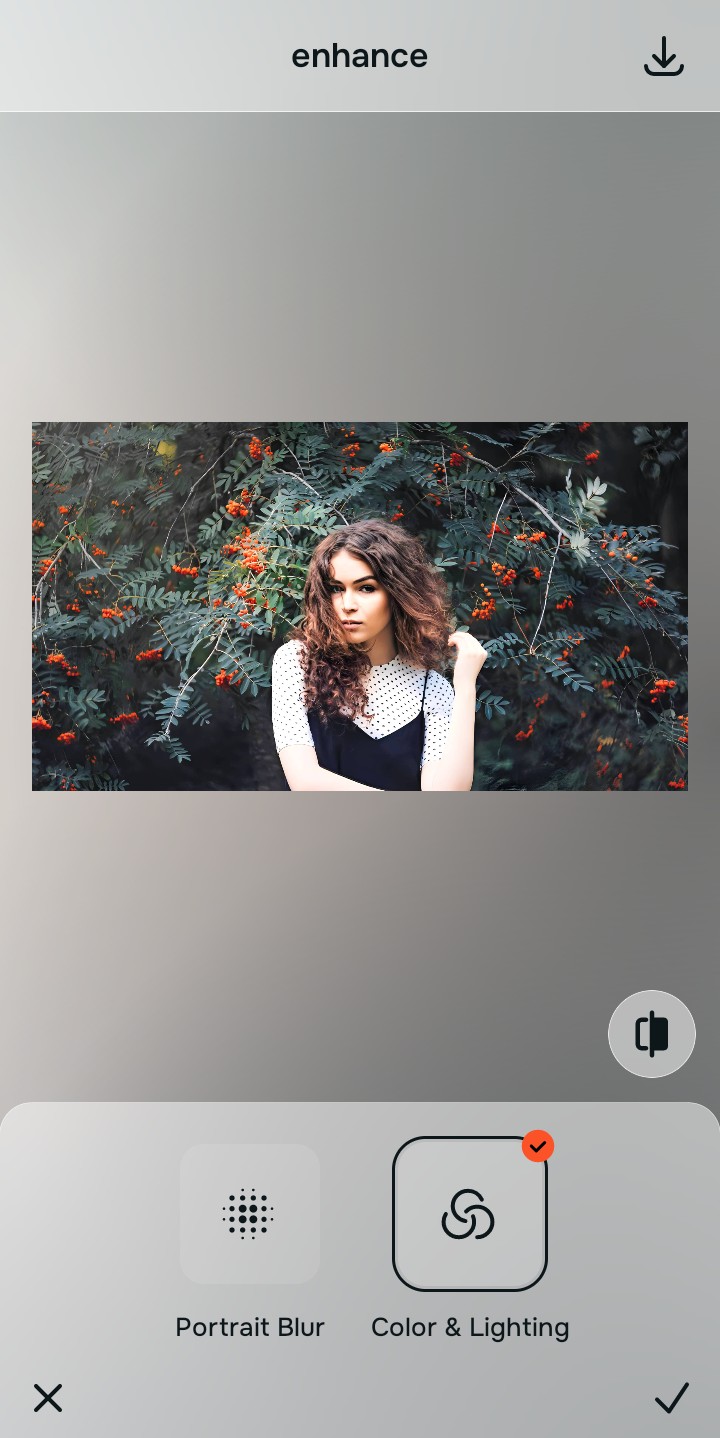
Use Enhance to fix Colors & Lighting first
Because pixelation is a fundamental data problem, tap Enhance -> Colors & Lighting. This rebuilds the lost pixel depth and restores shadows. It is the absolute fastest way to enhancers for low-light selfies that actually work.

Always fix the pixel data before using a beauty tool. Tap the Enhance options to build a strong photographic foundation first.
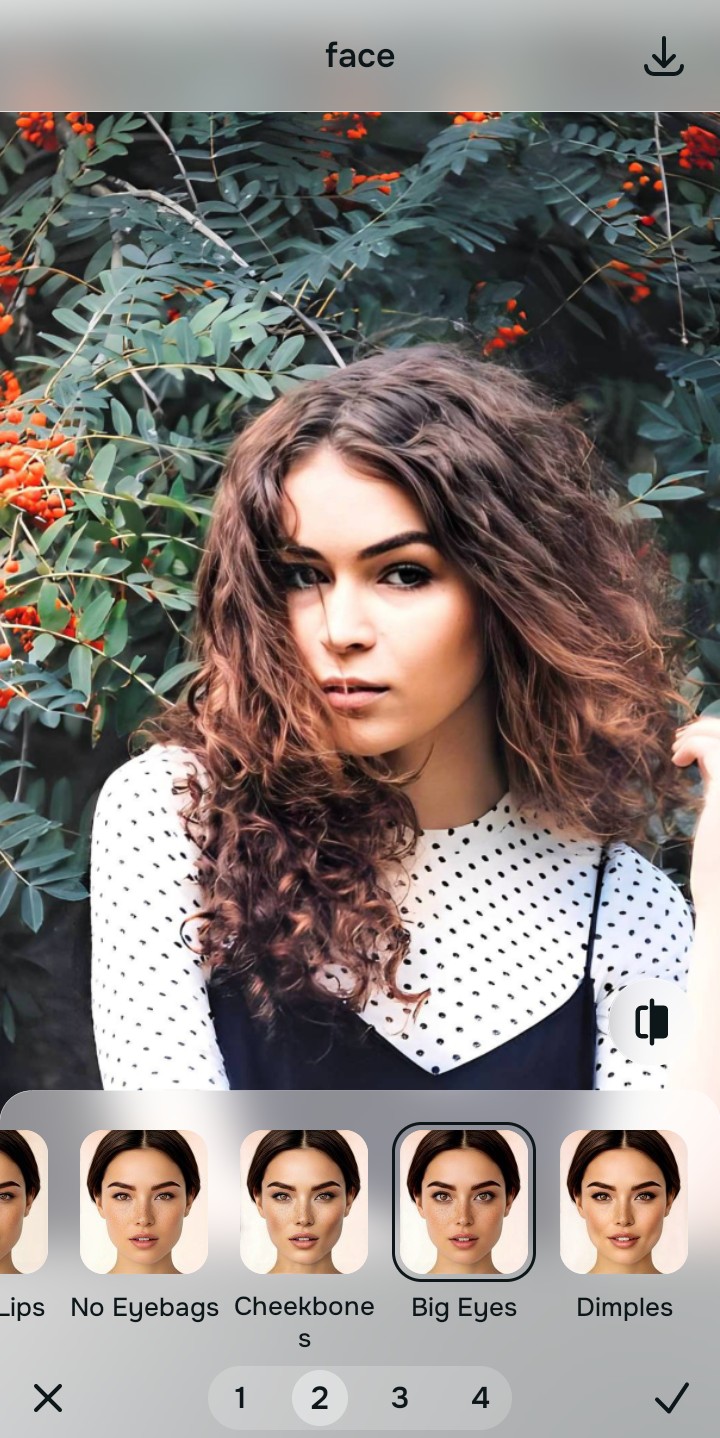
Apply Face tools to sharpen focal features
Once the pixel gaps are filled, you can safely bring clarity back to your eyes and smile. Tap Face -> Big Eyes to subtly sharpen the focal point. This ensures you can make a bad photo good while keeping your pores and real character visible.
Save the high-resolution photo instantly
Unlike premium apps that charge you to export a rescued memory, you can save your results for free. Enjoy a high-resolution, watermark-free save that is ready for posting immediately.

Why is this selfie so blurry?
Choose the description that fits best. Your starting point changes depending on what is actually destroying your resolution.
Which free Citrus tool delivers the best resolution finish
Different levels of degradation require entirely different pathways. The goal is to get a professional result by matching the tool to the actual photographic failure. This stops you from ruining a good memory with an automated, paid filter.
| Tool | What it helps fix | When to use it |
|---|---|---|
| Enhance Start here | Jagged pixels, missing data, and missing visual depth | Use this first when the whole image is low-res. Choose Colors & Lighting to rebuild the pixel structure for free. |
| Looks | Photos that are sharp but lack a professional, high-end impression | Use this after Enhance when the issue is a dead vibe. Tap Model for a cohesive high-res energy instantly. |
| Face | Specific soft features, blurry eyes, or camera-roll exhaustion | Use this last, applying targeted tools like Big Eyes to restore facial symmetry and sharpness safely. |
“Fixing pixelation isn't about blurring the image. It is about recovering the structural data so you look as sharp on the screen as you did in person.”
Why pixel reconstruction beats heavy beauty filters
There is a massive difference between adding dimension and wiping out reality. When you use an aggressive, paid beauty algorithm to hide a low-res face, you turn the entire image into a flat plastic wash. The human brain instantly recognizes this loss of detail as a cheap edit.
Real quality comes from correcting the underlying data instantly. Choosing a free solution ensures you get high-resolution results without the premium subscription trap. This allows you to look polished and ready for posting while you stay true to your unique human identity.