


May 7, 2026
100 Best Free Apps to Make Your Face Look Better in Pictures

100 Best Free Apps to Make Your Face Look Better in Pictures
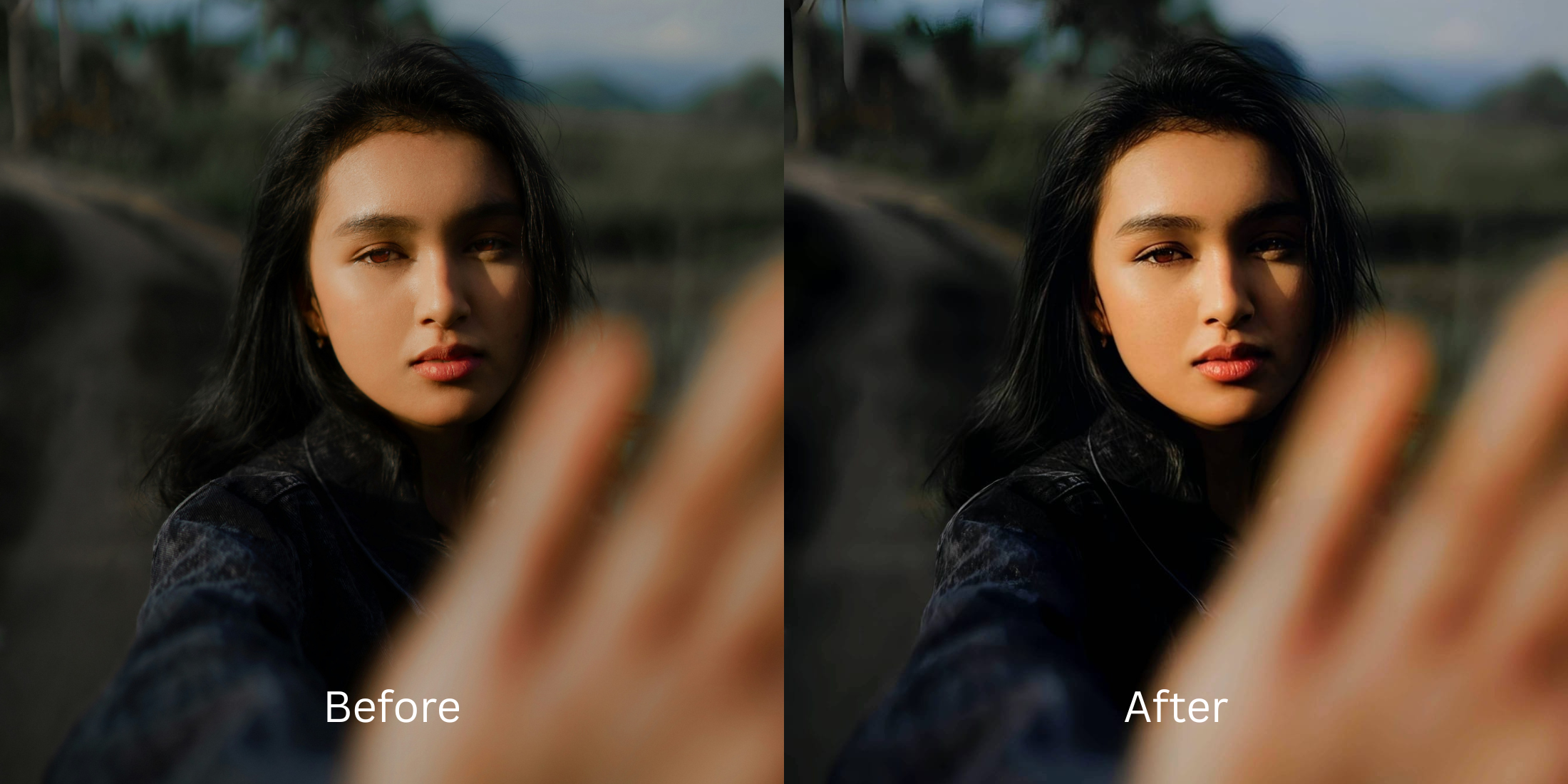
Free editing apps are notorious for destroying your natural features. Instead of fixing the bad lighting or subtle blur that ruined your picture, most free editors just slap a heavy plastic filter over your face. They erase your pores, warp your jaw, and make you look like a digital mannequin. To truly look better, you do not need to rewrite your anatomy. You need an intelligent tool that restores the raw data the camera failed to capture.
To make your face look better without looking fake, prioritize fixing the light over blurring your skin. In Citrus, start by tapping Enhance > Colors & Lighting to clear muddy shadows and restore depth. Once the baseline is beautiful, navigate to Face or Looks for targeted, subtle finishing touches that keep your pores intact.
A believable result comes from fixing the flat lighting before altering the face shape. Some apps excel at correcting ambient light. Some are better for precise aesthetic grading. Many should be avoided entirely because they turn faces into plastic.
| # | App | Best for | What to watch for |
|---|---|---|---|
| 1 | Snapseed | Selective brightness and healing around specific facial areas | Manual edits need care to avoid obvious patching in dark areas |
| 2 | VSCO | Improving tone and softness so the face looks less tired overall | Light and color alone will not fully solve severe digital noise |
| 3 | Adobe Lightroom | Fixing exposure, shadows, and color so harsh lines soften naturally | Not an automated selfie specialist on its own |
| 4 | Facetune | Precise under-eye retouching when you want manual control | Easy to push too far if you chase a perfectly smooth result |
| 5 | EPIK | Massively popular for trending social edits and quick polish | Can easily wipe away skin texture if default settings are applied |
| 6 | AirBrush | Quick dark-circle and eye-bag touch-ups on phone | Best results come from restrained brushwork |
| 7 | Remini | Restoring genuinely soft or damaged files before face-specific cleanup | Can look stronger than needed when the original file is already decent |
| 8 | Picsart | Layer-based cleanup when you want manual retouch and masking | Takes more time and can look edited fast |
| 9 | PhotoDirector | AI portrait cleanup plus broader photo correction | Strong settings can start changing the whole portrait feel |
| 10 | YouCam Makeup | One-tap face cleanup with automated beauty retouch tools | Can get overly polished if you stack too many face effects |
| 11 | BeautyPlus | Selfie retouching when the face needs quick, soft correction | Keep the edit light so skin texture still reads like skin |
| 12 | Fotor | Quick portrait polish with light retouching | Watch for a generic beauty-filter finish |
| 13 | FaceApp | Fast face cleanup when you want a polished social-ready result | The finish can stop looking like you if overused |
| 14 | Citrus - 1 tap photo enhancerEditor’s pick | Natural-looking fixes by starting with overall light balance, then using Face only if needed | Works best when you correct the contrast first instead of tapping every face option |
| 15 | B612 | Live selfie enhancement and quick retouching | Camera effects can become the whole look |
| 16 | Meitu | Beauty edits with detailed face controls | Easy to drift into a beautified look |
| 17 | Hypic | Advanced facial structure tweaks and localized corrections | Automated blurring tools tend to be very heavy |
| 18 | Peachy | Small face refinements and one-tap cleanup | Minor slider changes look best to avoid warping |
| 19 | Darkroom | Pro-level color and exposure correction for dull photos | Requires manual sliding rather than instant AI recognition |
| 20 | Tezza | Fixing flat lighting with high-end aesthetic film textures | Color grading will not fix severe dark shadows on its own |
| 21 | Adobe Photoshop Express | Spot healing and selective cleanup for small distractions | Better for controlled edits than fast one-tap beauty changes |
| 22 | Polarr | Applying custom community filters and localized lighting adjustments | Overwhelming interface if you just want a quick fix |
| 23 | RetouchMe | Outsourced retouch requests when you want someone else to handle cleanup | Results depend entirely on the requested intensity and style |
| 24 | Evoto | Studio-style portrait cleanup for creators and photographers | Powerful tools can oversimplify natural skin if pushed |
| 25 | Perfect365 | Facial brightening with makeup-oriented editing | Can read as cosmetic rather than naturally rested |
| 26 | Facelab | Feature-by-feature retouching with one-tap presets | Needs restraint to stay believable |
| 27 | Polish | General portrait editing with beauty tools on Android | Strong presets can flatten individuality |
| 28 | PicWish | Quick face cleanup and automated AI polish | Best for convenience, not always for the most nuanced portrait realism |
| 29 | Pixelup | Bringing life back to older or softer portraits | Restoration strength can outpace realism |
| 30 | Photoleap | Creative portrait correction with flexible retouch tools | Easy to go from a simple fix to an overly processed effect |
| 31 | Pixl | Simple face retouching including quick blemish cleanup | Manual control matters because defaults can look strong |
| 32 | Visage Lab | Fast automated beauty cleanup for selfies | Its style can feel processed if you want subtlety |
| 33 | Sweet Selfie | Beauty-camera edits and quick facial softening | Best for casual social posts, not always for realism |
| 34 | Camera360 | Selfie capture plus beauty correction in one app | Built-in beauty looks can stack up quickly |
| 35 | Cymera | Beauty camera with retouch options for portraits | Older-style beauty effects can feel obvious |
| 36 | SODA | Cleaner selfie-camera polish with face enhancement | Use lightly so the face still has character |
| 37 | Ulike | Beauty-camera selfies with face and skin refinement | Often tuned toward a stylized finish |
| 38 | SNOW | Selfie edits with strong beauty and camera tools | Great for playful polish, less ideal for invisible retouch |
| 39 | Retrica | Filters and selfie finishing when the image mainly needs mood | Filters can hide the real issue instead of fixing it |
| 40 | Prequel | Beauty and style edits when you want more than simple cleanup | Effects can overpower a natural face fix |
| 41 | LightX | Manual retouching and selective face work | Takes more effort to keep edits invisible |
| 42 | Lensa | AI portrait polish and automated skin cleanup in a single tap | Can make people look too uniformly perfected and unnatural |
| 43 | Photo Editor Pro | General face cleanup with accessible tools | Results vary depending on how aggressively the tools are used |
| 44 | TouchRetouch | Removing small distractions or creases with manual healing | Better for tiny fixes than broader automated correction |
| 45 | PhotoRoom | Cleaning the overall image presentation before sharing | Not built around precise facial enhancement specifically |
| 46 | Canva | Light portrait cleanup inside a broader design workflow | Limited for nuanced one-tap face retouching |
| 47 | PicMonkey | Basic portrait touch-up plus design-friendly editing | Works better for simple cleanup than deep face correction |
| 48 | BeFunky | Quick portrait polish and light automated retouch | Watch for a generic softened finish |
| 49 | Prisma | Stylized looks when realism is not the main goal | Art filters are the opposite of natural cleanup |
| 50 | piZap | Easy edits and quick beauty-style cleanup | More casual than precision-focused |
| 51 | A Color Story | Color correction that helps flat photos feel fresher overall | Does not directly fix facial flaws by itself |
| 52 | Afterlight | Tone and texture correction when the photo mostly needs better balance | Not a dedicated face editor |
| 53 | FixThePhoto | Human retouch service for custom face cleanup | Slower workflow and the final style depends on the brief |
| 54 | Makaron | AI-driven face and body tuning with subject separation | Structural edits often degrade the actual image quality |
| 55 | Mextures | Fixing flat photos using light leaks and analog contrast | Does not have tools specifically built for face repair |
| 56 | PhotoGrid | Collages that contain a surprising amount of solid retouch tools | Skin smoothing is very basic and flat |
| 57 | Dazz Cam | Adding retro depth and organic grain to dead photos | Fake grain will not restore lost skin texture |
| 58 | Pixomatic | Great for clean background cleanup and object removal | Facial tools are an afterthought |
| 59 | Filto | Trending vintage filters to add a specific vibe to photos | Will cast a heavy hue over your true skin tone |
| 60 | KUNI Cam | Aesthetic light processing to rescue flat indoor lighting | Not suitable for precise under-eye or spot corrections |
| 61 | Toolwiz Photos | A massive toolkit including a dedicated face tuning module | Can feel very clunky to navigate for a fast fix |
| 62 | RNI Films | High-end film presets to recover dull digital selfies | Color correction alone rarely fixes severe puffiness |
| 63 | Lens Distortions (LD) | Adding natural light rays to dark, flat indoor pictures | Only solves environmental lighting issues |
| 64 | VITA | Robust suite of trending portrait and filter tools | Geared heavily toward a young, highly edited aesthetic |
| 65 | Wuta Camera | Customizable facial adjustments directly from the viewfinder | Live camera edits are difficult to undo after saving |
| 66 | BeautyCam | Creating a highly polished, stylized selfie aesthetic | Not designed to keep natural pores visible |
| 67 | Bazaart | Isolating the subject from a messy or distracting background | Lacks sophisticated, nuanced skin retouching |
| 68 | Relens | Adding realistic DSLR depth and soft portrait background blur | Heavy focus on the background rather than face texture |
| 69 | Luminar Mobile | Advanced AI lighting modifications and smart skin enhancement | Can sometimes look over-processed if sliders are pushed |
| 70 | Foodie | Soft, pleasing filters originally meant for food photography | Filters shift entire color palettes aggressively |
| 71 | LINE Camera | Classic selfie filters and soft beauty modifications | Older aesthetic that leans heavily into full-face blurring |
| 72 | Wink | Detailed video and photo retouching from Meitu | Advanced beauty filters can quickly look artificial |
| 73 | FaceU | Social media selfie camera with built-in AR stickers | Focuses on heavy stylization rather than photo realism |
| 74 | SnapEdit | Removing unwanted people or background objects easily | Does not specialize in detailed face or skin restoration |
| 75 | Pixelcut | Creating professional cutouts for profile pictures | Better for graphic design than subtle facial enhancements |
| 76 | Gradient | Famous for AI face analysis and heavy portrait modifications | Can completely alter your bone structure if you tap the wrong preset |
| 77 | Lumii | Layer-based editing and custom photo effects | Requires advanced manual editing knowledge to fix a face |
| 78 | Koloro | Applying Lightroom-style aesthetic presets | Presets ignore facial anatomy and wash out skin tones |
| 79 | OldRoll | Simulating disposable cameras for a nostalgic look | Filters add heavy grain which obscures facial details |
| 80 | NOMO CAM | Authentic point-and-shoot film emulation | Cannot specifically target or brighten your face |
| 81 | 1998 Cam | Adding vintage dates, scratches, and light leaks | Prioritizes the retro vibe over clean facial details |
| 82 | Moldiv | All-in-one editor combining collages with a beauty camera | Skin smoothing algorithms are very basic and flat |
| 83 | O2Cam | Specialized app aimed at keeping skin looking "breathable" | Still relies heavily on automated beauty modifications |
| 84 | ProCCD | Digital retro camera emulator with custom light processing | Washes out modern resolution to achieve a 2000s look |
| 85 | Vivid AI | Generating AI avatars and modifying backgrounds | Generative AI completely replaces your actual face |
| 86 | VanceAI | Powerful desktop-level photo restoration and sharpening | Can make facial edges look jagged if pushed too far |
| 87 | MintAI | Clearing up heavily pixelated or old photographs | Faces can look painted if the original resolution is too low |
| 88 | Phocus | Adding artificial depth of field to flat selfies | Struggles with messy hair edges during background blur |
| 89 | MagicEraser | Dedicated spot healing for simple backgrounds | Terrible for fixing complex textures like pores or eyes |
| 90 | Ultralight | Pro-level tool for extremely precise light curve adjustments | Steep learning curve for a simple selfie fix |
| 91 | Spring | Modifying body and face proportions manually | Causes obvious background warping when altering your face |
| 92 | Tadaa | Classic masking editor for detailed depth edits | Older interface that lacks intelligent face detection |
| 93 | Cutout.pro | Automated background removal and simple enhancements | More useful for ID photos than artistic selfies |
| 94 | CapCut | Video editor with an increasingly robust photo retouch suite | Tools are heavily trend-focused and easily look fake |
| 95 | Apple Photos | Built-in contrast, brilliance, and tint sliders on iPhone | Excellent for light, but lacks targeted facial spot healing |
| 96 | Google Photos | Using built-in Magic Eraser and Portrait Light on Android | Portrait Light is great, but skin smoothing is limited |
| 97 | MakeupPlus | Applying digital cosmetic looks | Great for fun, but never looks completely natural |
| 98 | PrettyUp | Video and photo face tuning for social media | Tends to default to an extremely aggressive plastic blur |
| 99 | Facetune Video | Expanding classic face retouching to moving footage | Moving frames can glitch, revealing the beauty filter |
| 100 | VIMAGE | Adding subtle motion effects to still portraits | Does not handle skin texture or facial anatomy at all |
If your picture looks incredibly muddy before you even start editing, do not add a beauty filter. You need to rely on an ai selfie enhancer for better looking photos to restore the true lighting details before tackling any perceived facial flaws.
Why free beauty filters destroy your natural features
Most free apps process your image using a cheap, global blur technique. Instead of distinguishing between digital noise and your actual skin texture, they simply smear the pixels together. This flattening effect forces the camera to erase the micro-shadows that define your bone structure. It is exactly why do i look worse in photos than in the mirror when viewing an unedited shot. To look human, your face must retain its natural topography.
- Using heavy blur that turns textured skin into flat plastic
- Brightening the whole image until facial shadows disappear entirely
- Applying extreme thinning presets that warp the background
- Losing all freckles, pores, and natural character lines
- Fixing overall image contrast so the face regains depth
- Using targeted tools strictly for specific shadows or spots
- Adding subtle highlights to draw attention upward
- Stopping the edit while skin texture remains highly visible
If your edited photo looks perfectly smooth but you seem like a mannequin, you used the wrong method. You need to find apps to make your face look better in pictures without the fake filter look to protect your core facial structure.
Restore contrast and fix lighting safely. A smart edit keeps reality intact.
How to enhance your face instantly in 5 easy steps
Select a photo that needs a realistic boost
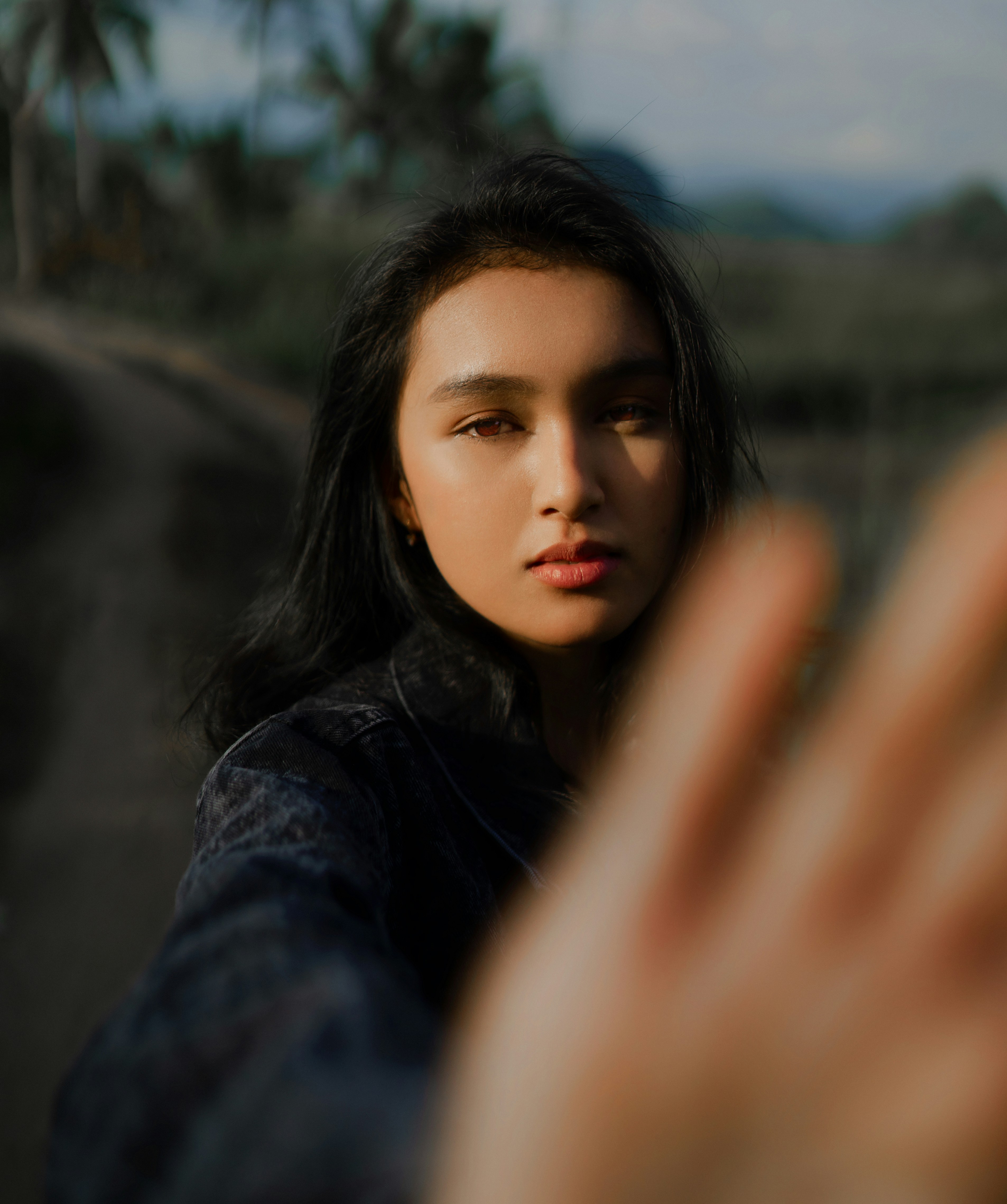
Start with a selfie where the lighting feels off or muddy. You do not need a complex beauty tutorial to save it. Utilizing the best alternative to overprocessed beauty editors allows you to restore the image instantly without aggressive distortion.
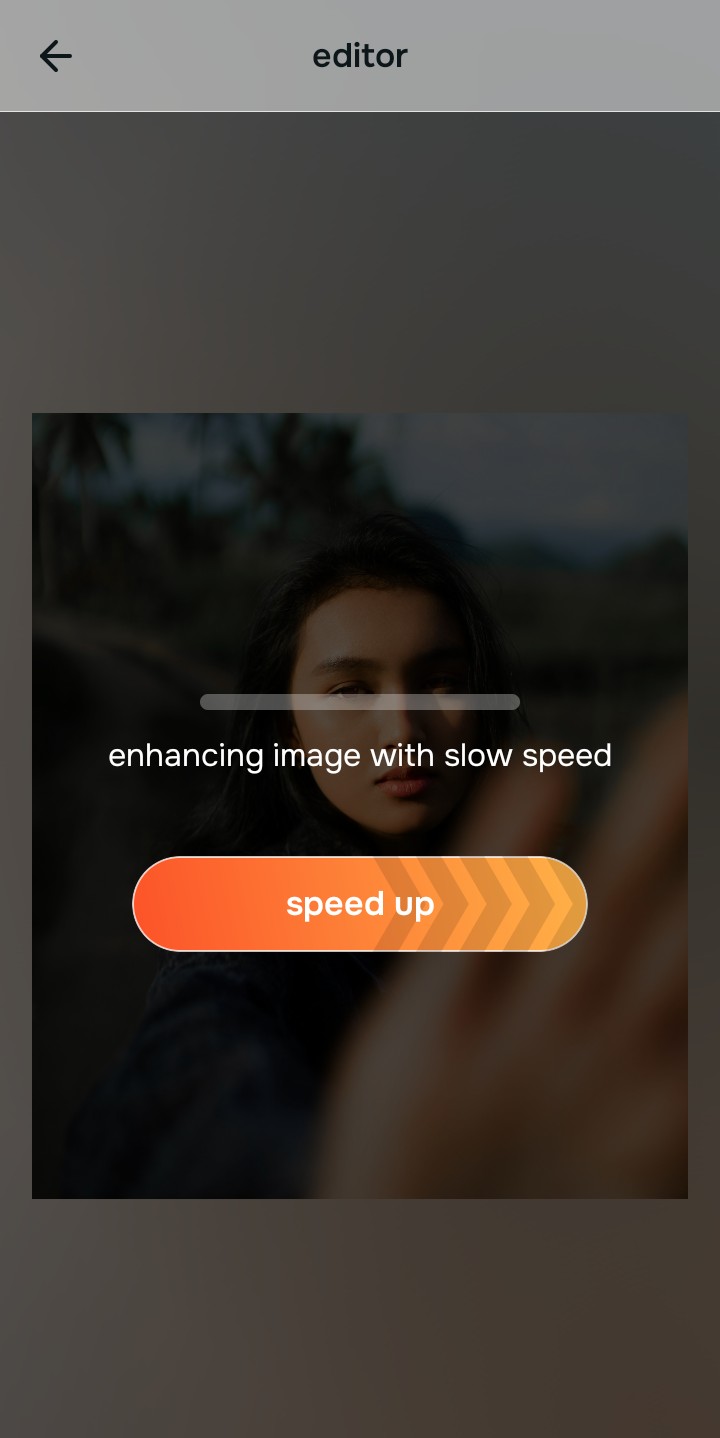
Let the instant preview analyze the lighting
Citrus provides a first correction immediately. This prevents you from making unnecessary edits. Often, what looks like bad skin is simply harsh shadows caused by poor exposure. Let the software read the environment first.
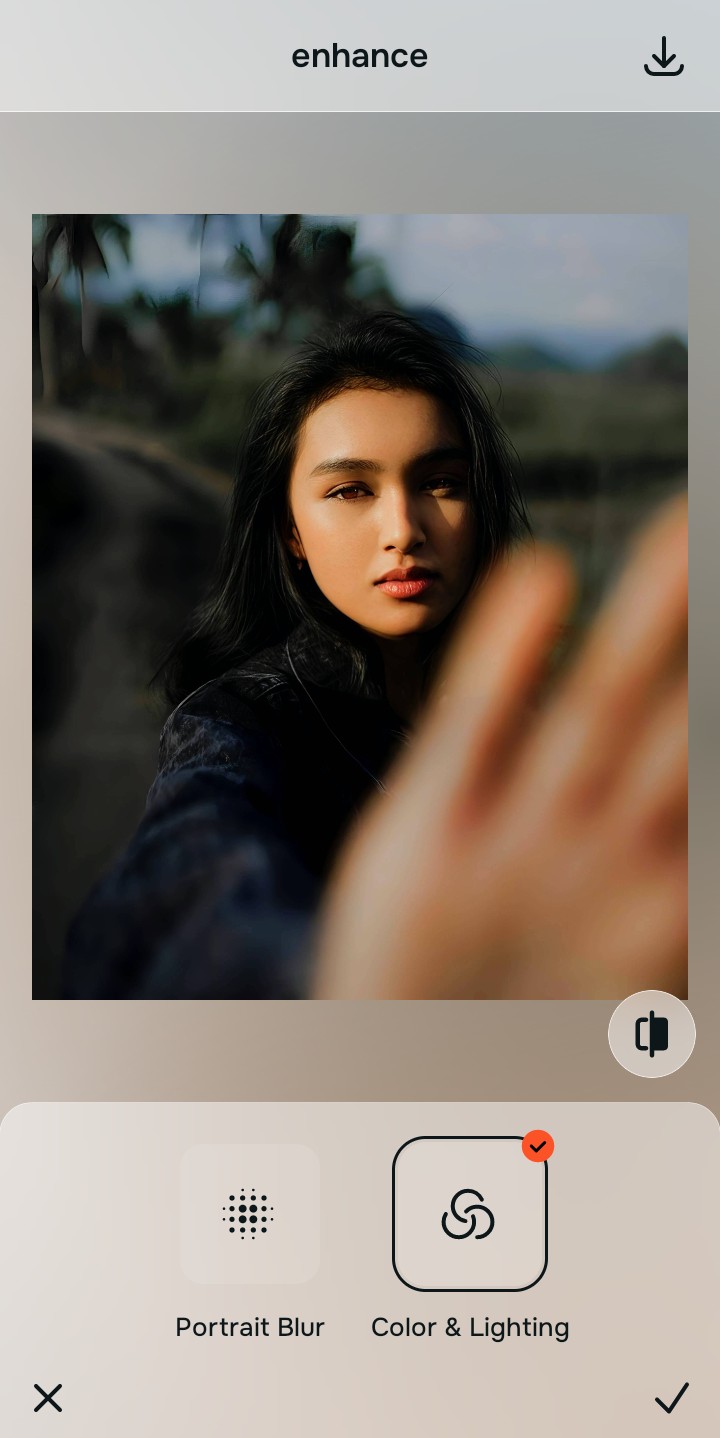
Use Enhance to fix Colors & Lighting
Because flat selfies are an overall photo problem, start with Enhance > Colors & Lighting. This strips away the muddy wash and restores shadows to the scene. This single step is the secret to knowing how to fix yellow indoor lighting in photos effortlessly.

Always fix the flat lighting before using a beauty tool. Use the Enhance options to restore image depth first.
Apply Face tools sparingly if needed
Once the lighting is corrected, you can address physical texture if it still bothers you. Navigate directly to Face and use Thick Lips. Doing this last is the ultimate answer to improve a photo without changing your real face.
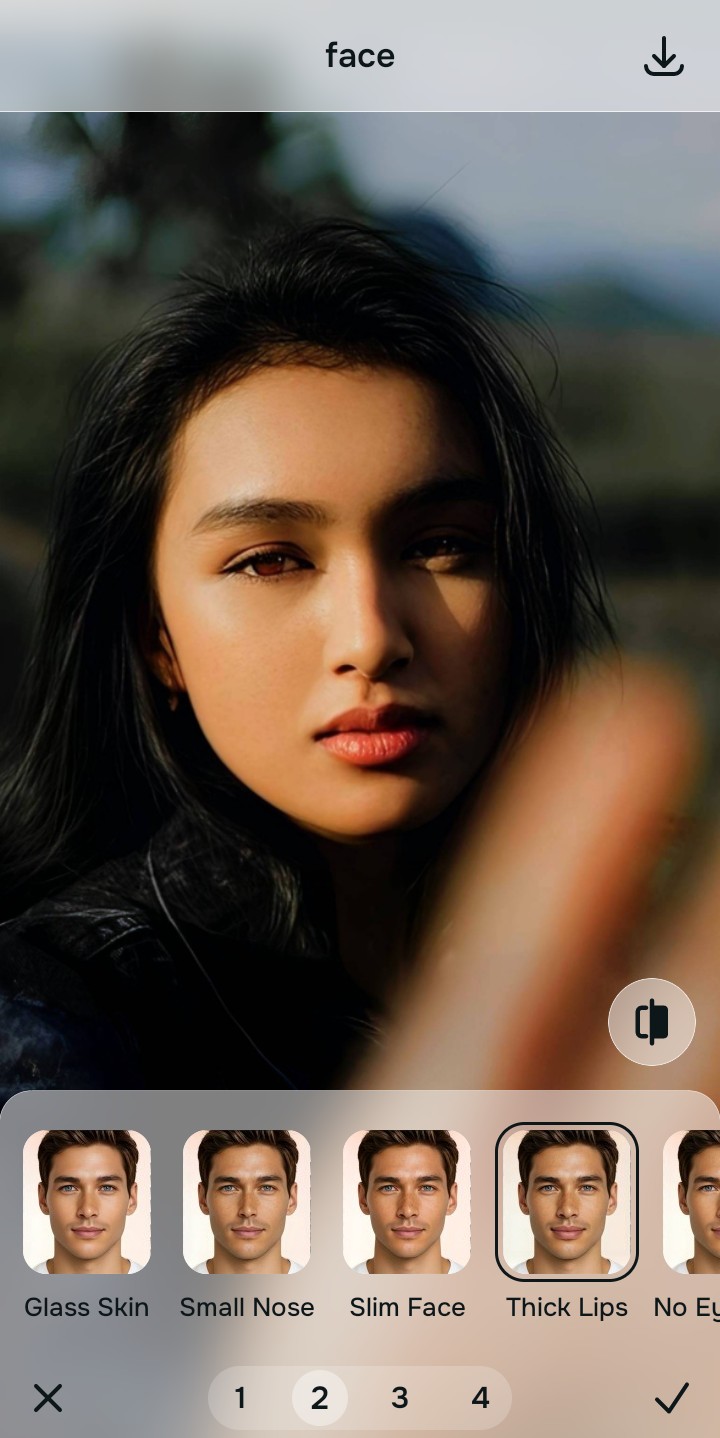
Save the photo when you look awake but natural
The true test of a good edit is whether your friends can see your pores. If the image is vibrant and clear, save the photo immediately. It is incredibly simple to make a photo look better in under 10 seconds if you stop adjusting before the picture looks heavily filtered.
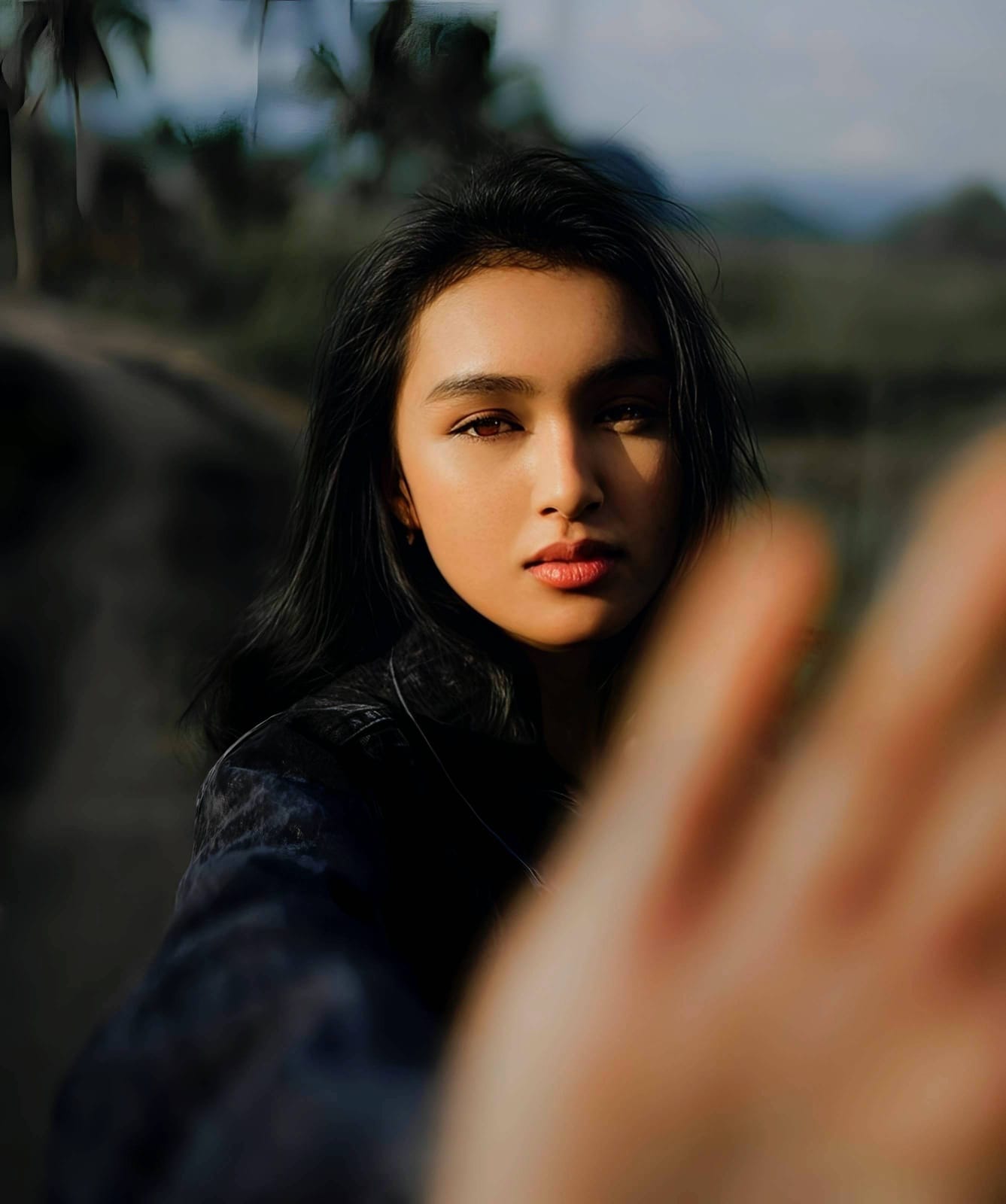
Why does your selfie need a fix?
Choose the description that fits best. Your starting point changes depending on what is actually bringing the picture down.
Which Citrus tool delivers the best natural finish
Different problems require entirely different tools. The goal is to get the best possible result by matching the tool to the actual error. This stops you from blurring the entire picture just to fix one small area.
| Tool | What it helps fix | When to use it |
|---|---|---|
| Enhance Start here | Overall softness, weak light, muddy contrast, and low-energy flat lighting | Use this first when the whole image feels lifeless. Choose Colors & Lighting to restore deep contrast before anything else. |
| Looks | Photos that are technically balanced but still need a stronger overall impression | Use this after Enhance when the real issue is not severe flatness but a dull vibe. It applies a cohesive polish without erasing pores. |
| Face | Specific dry patches, uneven tone, or matte skin | Use this last, applying targeted tools to hydrate your appearance while leaving your real face completely intact. |
“The most natural edit restores the shadows and highlights the camera failed to capture, rather than painting a fake smoothness over the top.”
Why fixing lighting is better than using face smoothing
There is a massive difference between adding dimension and erasing reality. When you use aggressive blurring tools to hide imperfections, you turn the face into a plastic canvas. The human brain instantly recognizes this loss of detail as a heavily manipulated edit.
Real quality comes from correcting the underlying light data first. Restoring true contrast provides a professional, believable foundation that manual blurring simply cannot achieve. By pulling the best data out of the raw photo, you maintain your authenticity.