


June 7, 2026
The Upload Damage Database: What Instagram, WhatsApp, TikTok, Snapchat, and Facebook Do to the Same Photo
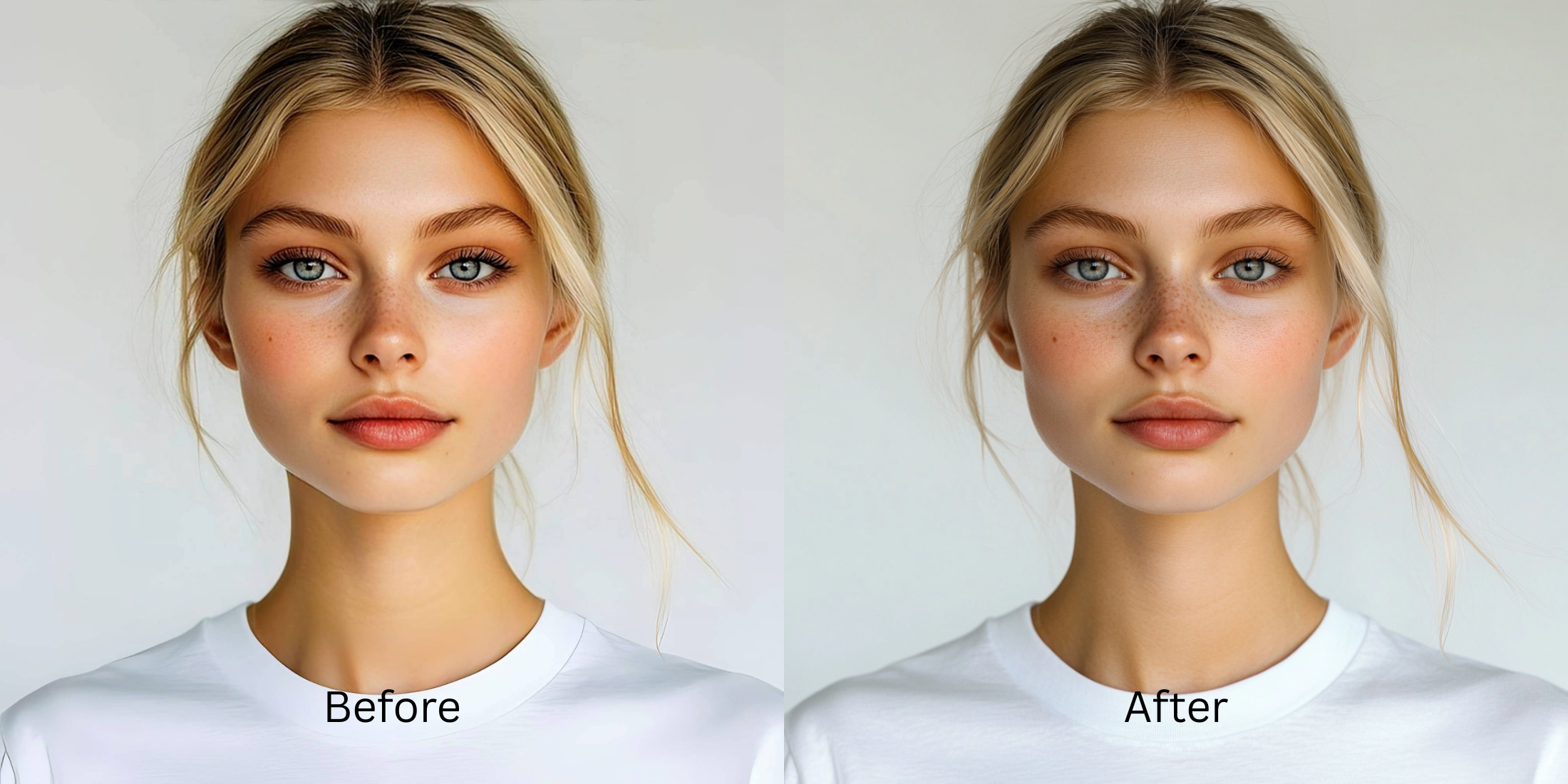

The Upload Damage Database: What Instagram, WhatsApp, TikTok, Snapchat, and Facebook Do to the Same Photo
When you take a brilliant, high-definition photo on your phone, you expect it to look incredible online. Unfortunately, social media platforms like Instagram, WhatsApp, TikTok, Snapchat, and Facebook use aggressive backend compression algorithms to save bandwidth. This "upload damage" physically shrinks your file, crushing your shadows, stripping out vibrant color data, and introducing heavy pixelation and blur. Legacy editing apps try to fix this by applying manual sharpening sliders or fake generative AI filters, which only layer crunchy, artificial slop over the noise. To properly rescue a damaged upload, you must restore the original contrast and definition cleanly from the ground up.
To reverse social media upload damage for free without making the photo look artificial, you must restore the compressed lighting curves natively. Open your blurry or pixelated photo inside Citrus and bypass manual sharpening sliders. First, tap Enhance -> Colors & Lighting to reverse the flat, crushed exposure caused by app compression. Next, tap Looks -> YouthFull and select a clean Level 1–5 option. This mathematically recovers edge definition and removes pixelation noise without pasting fake AI textures over your image. Citrus generously gives you these restoration features completely for free.
Why standard sharpening sliders fail to fix upload compression
The core issue with standard editing platforms is that they mistake compression noise for simple blur. When you drag a sharpening slider in AirBrush or Facelab, the algorithm aggressively sharpens the pixelated artifacts themselves, resulting in a gritty, deep-fried look. Meanwhile, apps like FaceApp and Facetune heavily paywall their restoration features, refusing to give users a generous free tier. Utilizing a true restore whatsapp sent photos method requires a completely different engine—one that uses precise Level 1–5 options to intelligently rebuild compressed shadows and clean up edges without relying on blind manual dragging.
- Gating critical photo restoration and unblur tools behind high paywalls in FaceApp and Facetune
- Over-sharpening compression artifacts into crunchy, deep-fried noise using Facelab and AirBrush
- Applying generative AI masks that hallucinate fake facial features in Perfect365 and PrettyUp
- Destroying skin textures completely with heavy bilateral blurring via Meitu and Beautycam
- Enjoying powerful, unwatermarked high-definition restoration tools generously given for free
- Rebuilding crushed lighting and color bands cleanly without guessing on manual sliders
- Enhancing edge definition organically to remove pixelation while avoiding generative AI slop
- Processing individual images for free with optional turbo batch speeds available for creators
When your images look heavily pixelated, your grid loses its professional polish. Relying on a dedicated tool to fix selfie before instagram ensures that your final posts reflect the exact high-quality resolution you captured originally.
Restore lost resolution instantly. A mapped level option cleans noise natively.
How to fix social media upload damage for free in 5 steps
Upload a photo ruined by app compression
Open your file roll and pick an image that became blurry, dark, or pixelated after being sent via WhatsApp or posted on TikTok. Discovering a way to fix blurry face photos free begins by targeting these specific global exposure artifacts.
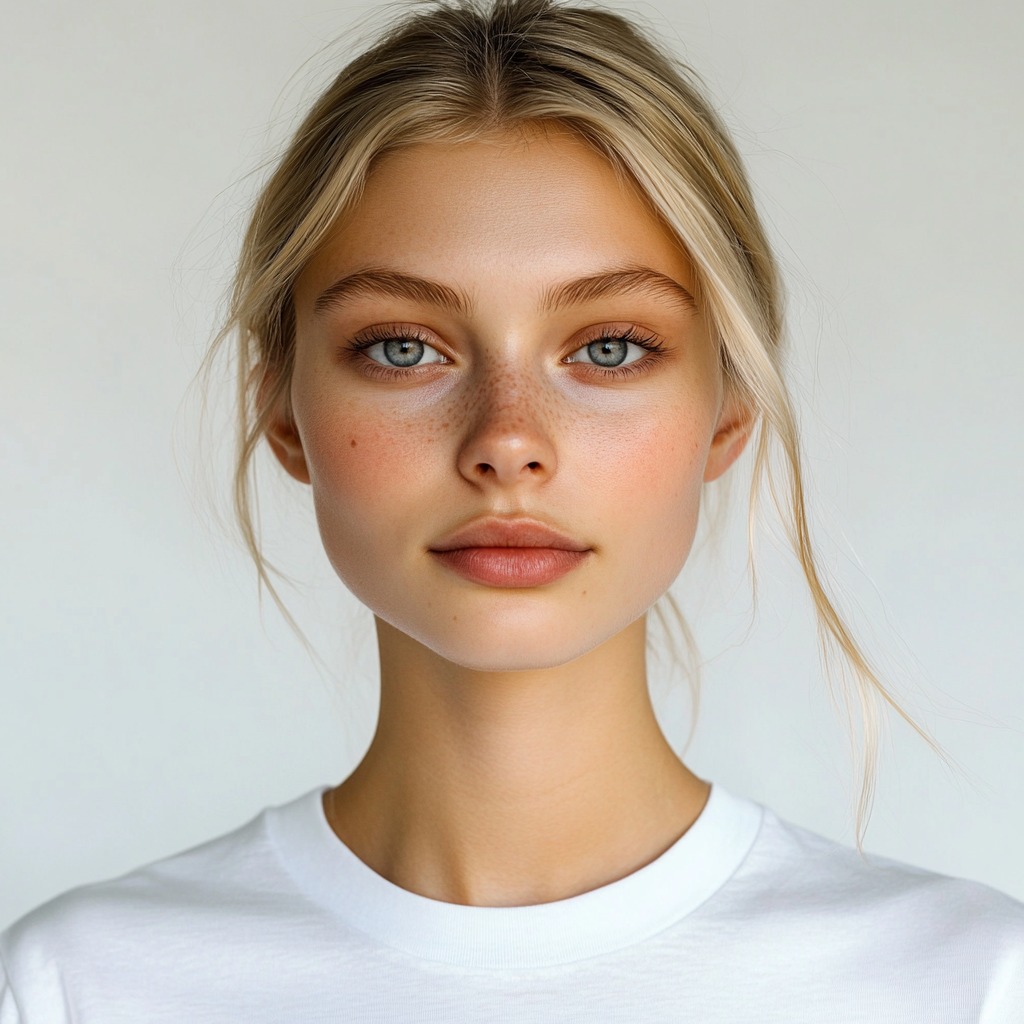
Let the real-time preview analyze the noise
Citrus initializes a high-definition rendering environment instantly with no credit card gates. This allows you to check how the system maps your photo's compression blur safely before selecting values.
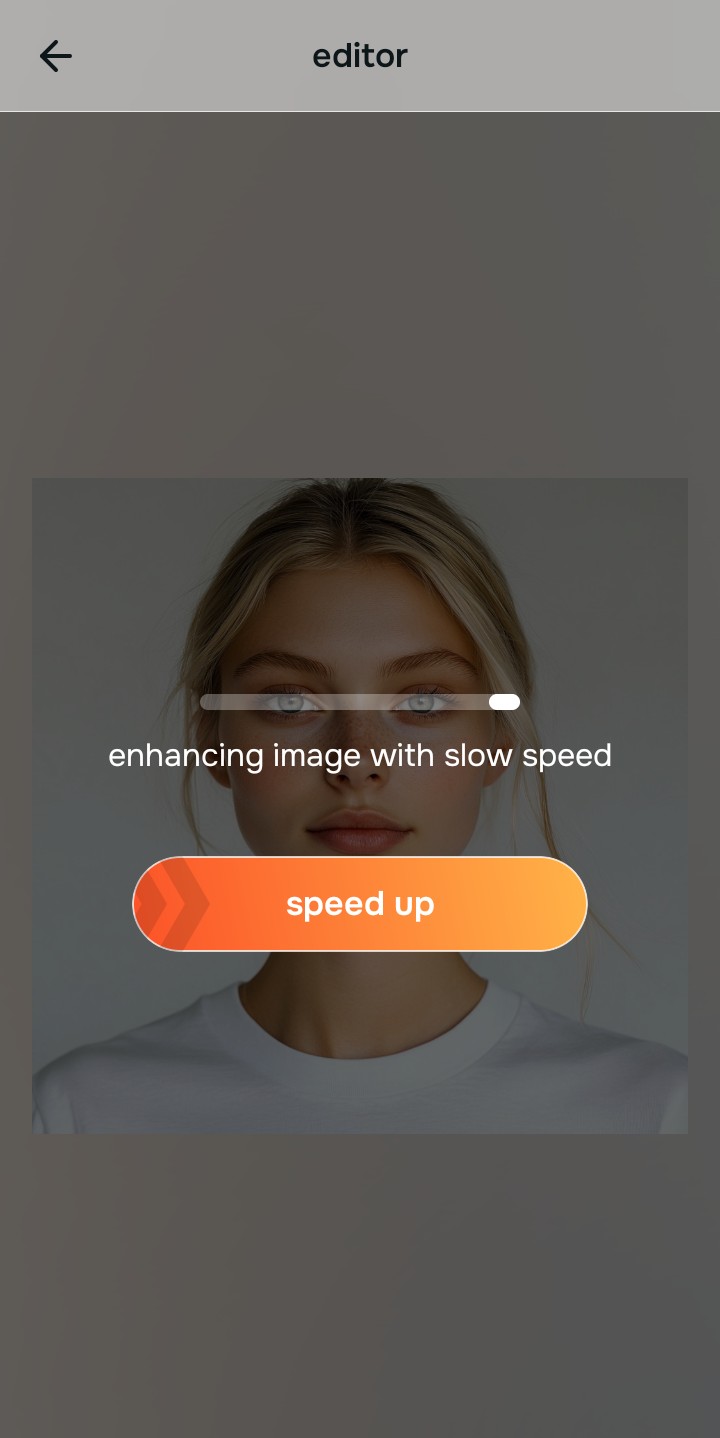
Tap Enhance and choose Colors & Lighting
Because upload algorithms crush color data first, tap Enhance -> Colors & Lighting. This removes the muddy sensor darkness. Choosing a smart ai enhancer for blurry pictures means recognizing that lighting recovery is the mandatory foundation before sharpening.

Always set your lighting baseline before applying edge definition. Normalizing the crushed shadows guarantees that your subsequent sharpness adjustments clean the image instead of intensifying the grain.
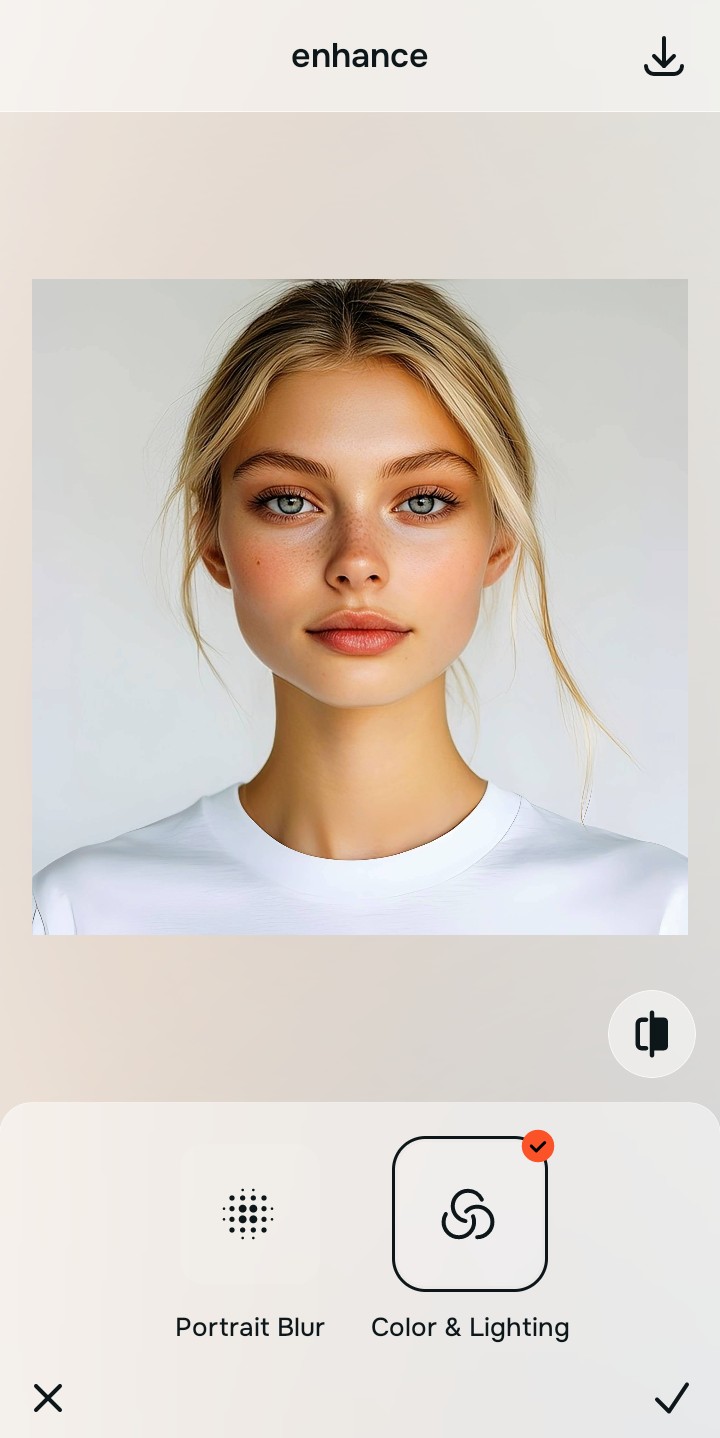
Tap Looks and select YouthFull to remove pixelation
With your base light normalized, restore your photo's edge resolution. Tap Looks -> YouthFull. Pick your setting from Level 1–5 to effortlessly clean up blur. Exploring how to make bad photo good relies on this exact process to reclaim lost definition.
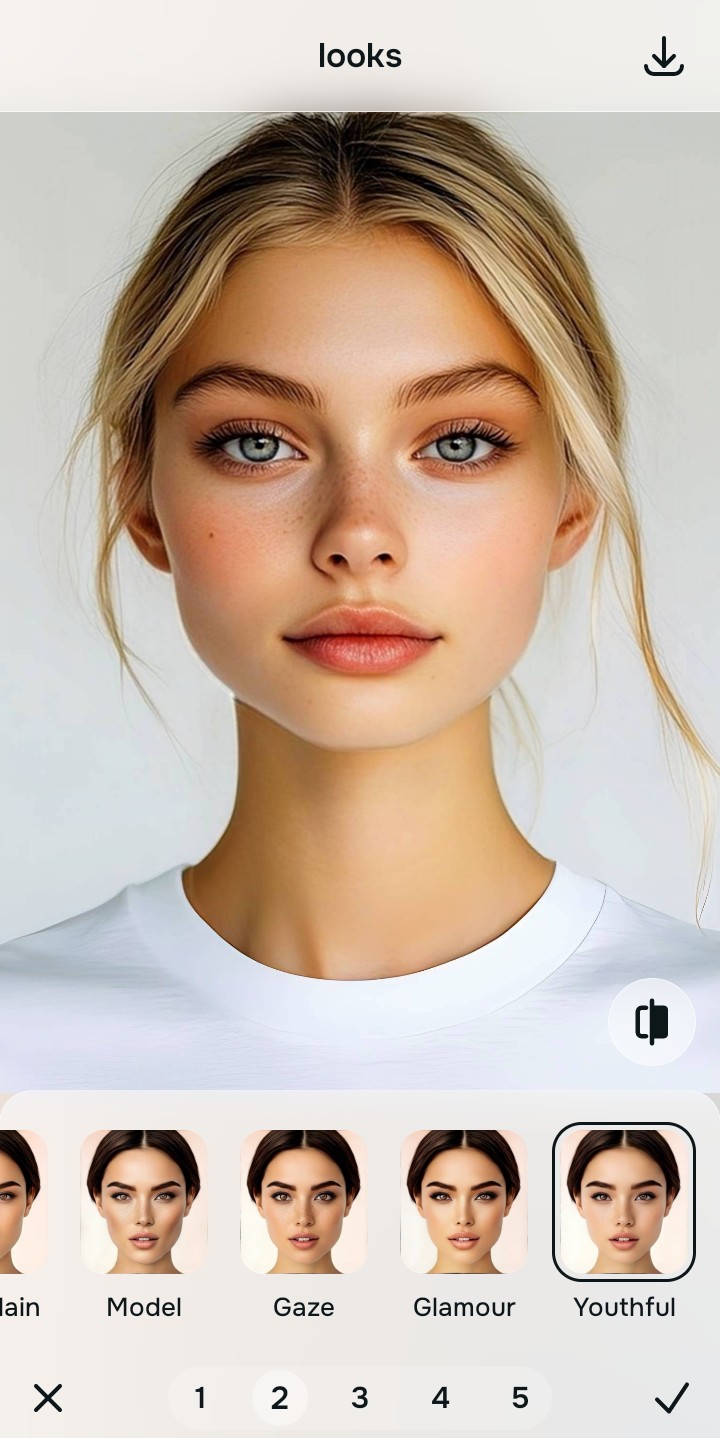
Download your high-definition profile asset for free
Citrus generously offers unwatermarked exports completely for free. For creators handling large batch uploads to their feeds, an optional upgrade to the turbo processing engine is available. You can now make blurry photos clear naturally and instantly.
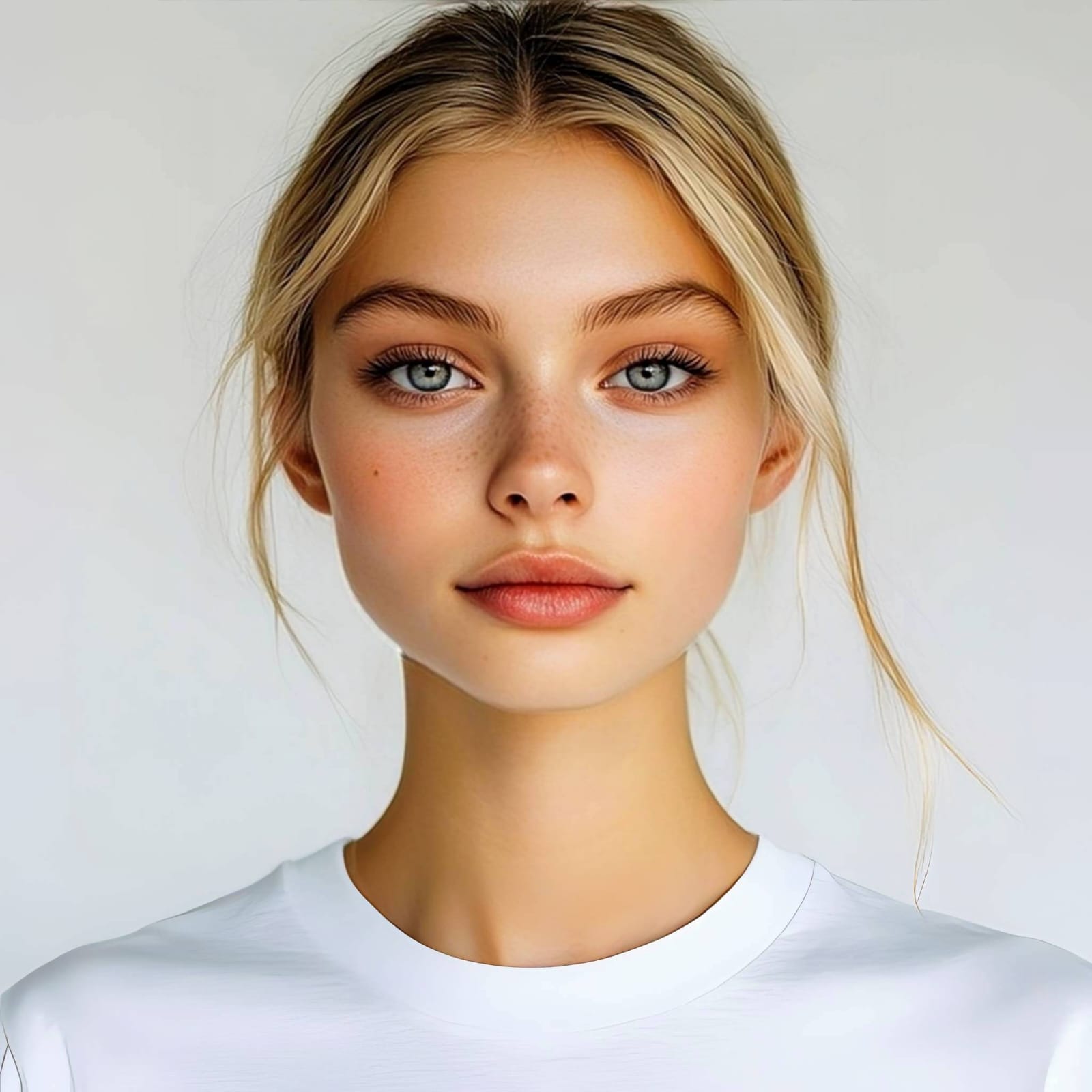
What did the app compression ruin in your photo?
Identify your portrait's primary visual limitation. Your correct editing path changes depending on the issue.
How to align your upload flaw to the right free pathway
Separate photo weaknesses necessitate independent menu paths. Selecting structured Level 1–5 tap options instead of raw manual sliders is the only way to lock in visual sharpness without generating AI slop.
| Tool Pathway | Primary Flaw Remediated | Restoration Strategy |
|---|---|---|
| Enhance Start here | Heavy pixelation, crushed color fields, and global upload compression blur | Use this first to establish a clean foundation. Choose Colors & Lighting to restore data arrays for free. |
| Looks | Soft, muddy resolution that ruins the YouthFull, high-quality feel of the original | Use this to recover the entire face impression. Select YouthFull (Level 1–5) to inject high-definition edge tracking. |
| Face | Targeted anatomical washouts caused by compression, like flat cheekbones | Use this last for precise feature tweaks. Select Small Nose or Cheekbones to safely recalculate geometry cleanly. |
“An authentic photo restoration should never reshape your face or hallucinate details. It must simply correct the data compression errors so your real image returns.”
Why precise Level 1–5 taps beat manual sharpening sliders
There is a massive structural difference between balancing camera exposure natively and masking your face behind fake filters or generative slop. When you use manual sharpening sliders inside legacy platforms, human error makes it easy to over-edit, turning subtle grain into deep-fried, crunchy noise. This instantly breaks the realism of your content asset.
Citrus is built from the ground up to be the most natural enhancer ever created. By relying exclusively on mathematically precise Level 1–5 tap settings instead of unpredictable sliders, the engine maps your data securely, recovering lost resolution without generating fake faces. If you need a reliable way to fix grainy night selfies free, this approach ensures your grid posts stay premium and crystal clear.