


May 30, 2026
How to Slim Your Face in Photos Without Warping Your Jaw, Hair, or Background
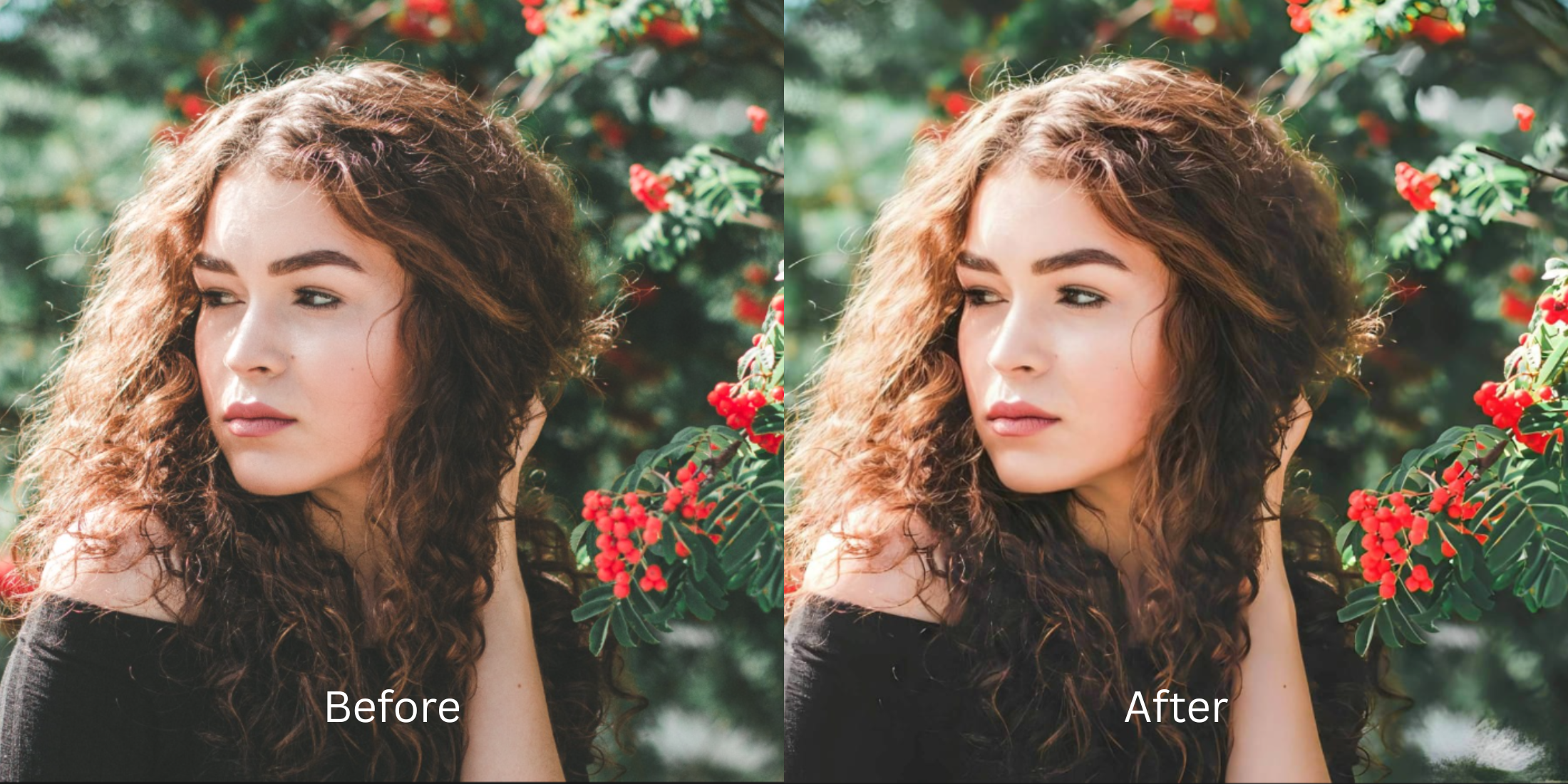

How to Slim Your Face in Photos Without Warping Your Jaw, Hair, or Background
Taking a selfie with a smartphone naturally makes your face look wider than it is in real life. This is a physical problem caused by the front-facing wide-angle lens. When held at arm's length, the lens distorts the center of your face, ballooning your nose and pushing your cheekbones and jaw outward. When you try to fix this distortion using manual "liquify" or "push and pull" sliders in standard beauty apps, disaster strikes. You accidentally warp the doorframes behind you, bend the walls, and pull your hair into unnatural shapes. The result is obvious, embarrassing AI slop. To slim your face accurately, you need a tool that natively corrects the lens mapping without ever touching your background.
To reverse wide-angle lens distortion for free without warping your background, you must use targeted facial mapping instead of manual sliders. Open your photo in Citrus. To cleanly separate your face from the room, tap Enhance -> Portrait Blur. Next, tap Face -> Slim Face and choose a precise Level 1 to 5 option. This safely pulls your jawline back to its natural, real-life proportions without bending any lines behind your head. Citrus generously provides these core tools completely for free.
Why manual sliders and liquify tools create fake, embarrassing edits
The human eye detects bent background lines instantly. When you drag a manual slider to push your jaw inward, the software blindly drags every pixel next to it—including the wall, your collar, and your hair. This creates a warped, funhouse mirror effect. Citrus is engineered to be the most natural enhancer ever built. Instead of relying on manual sliders, it uses strict Level 1-5 tap options based on facial geometry. If you want to improve photo without changing face authenticity, abandoning the liquify tool is mandatory.
- Using manual sliders that pull your hair and bend the doorframes behind you
- Applying fake generative AI filters that make your jawline look unnatural and plastic
- Dealing with aggressive paywalls just to save an edit without obvious watermarks
- Leaving harsh, wide-angle lens distortion completely uncorrected
- Getting generous free access to the most natural lens correction tool ever built
- Using precise Level 1-5 taps instead of frustrating, messy manual sliders
- Safely reversing camera distortion without moving a single pixel in the background
- Exporting a proportionate, high-definition portrait instantly without AI slop
When your background is bent, your profile loses all credibility. Finding facetune alternatives that look natural guarantees your edits remain invisible, allowing you to project a confident, authentic image.
Reverse wide-angle distortion instantly. A mapped correction protects your background.
How to safely slim your face for free in 5 steps
Select a selfie distorted by your phone lens
Open your gallery and select a photo taken at arm's length where your face looks wider than reality. Utilizing the right selfie enhancer that doesn't change your true identity begins with addressing lens compression.
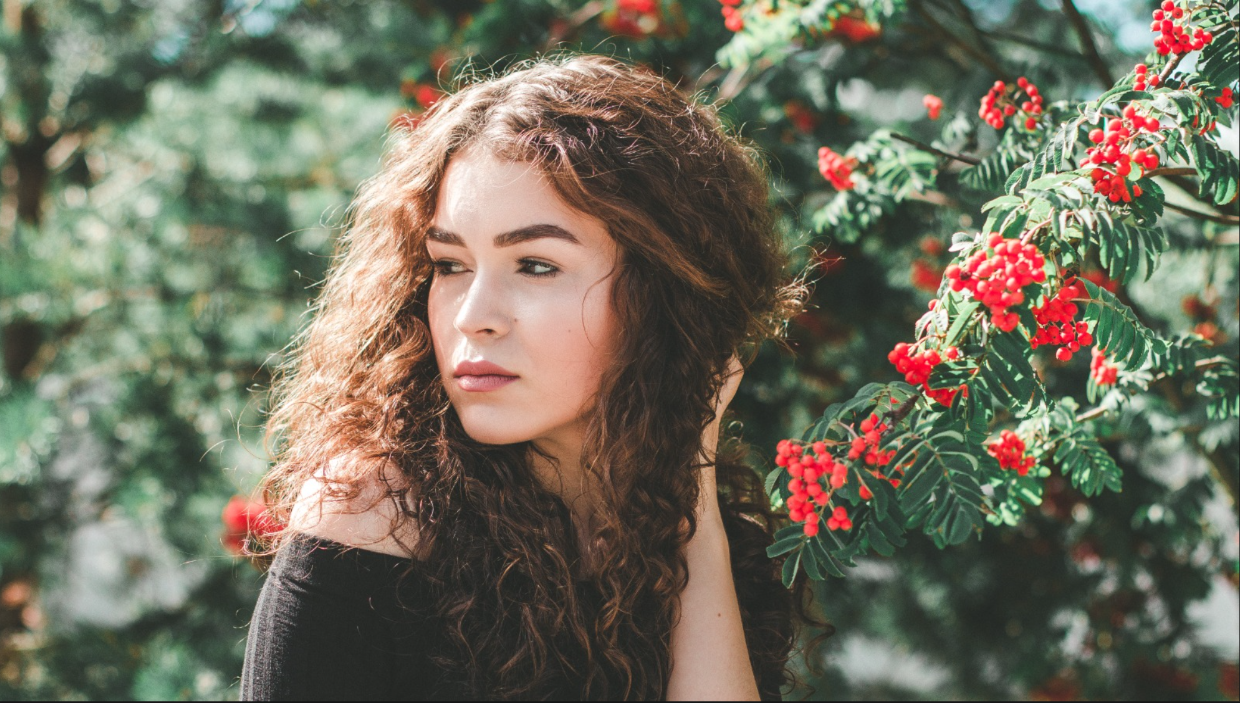
Let the instant preview map your facial geometry
Citrus provides a generous free preview instantly. This allows you to observe how the software isolates your jawline from the background elements before applying any Level 1-5 correction.
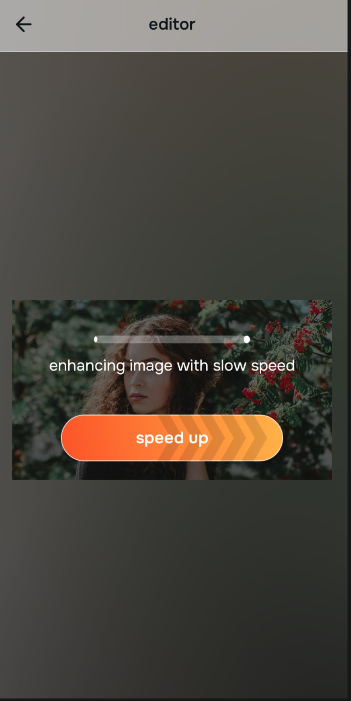
Tap Enhance and choose Portrait Blur
Because background distortion is the primary risk, tap Enhance -> Portrait Blur. This creates a soft, professional depth-of-field that separates your head from the wall behind you. If your photo needs overall cleanup, this is how you make camera roll photos better before applying targeted face tools.

Always separate the background before adjusting specific face features. Establishing depth-of-field guarantees that any structural correction to your jawline applies cleanly without dragging the room with it.
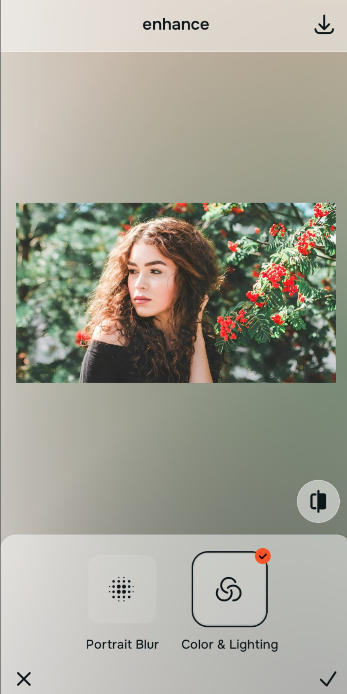
Tap Face and choose Slim Face
With your background safely isolated, target the lens distortion. Tap Face -> Slim Face. Select a precise Level 1-5 option to smoothly pull the jawline inward to its natural proportion. Exploring jawline enhancement apps for natural refinement highlights why mapped AI completely outperforms manual sliders.
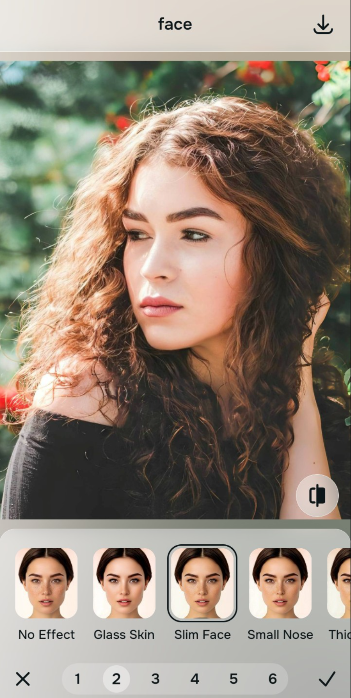
Save your proportionate portrait instantly (Free or Turbo)
Citrus generously offers high-resolution downloads for free. For users processing large batches of selfies at once, an optional upgrade to the turbo processor is available. You can now post a confident, proportionate photo with zero warped lines.
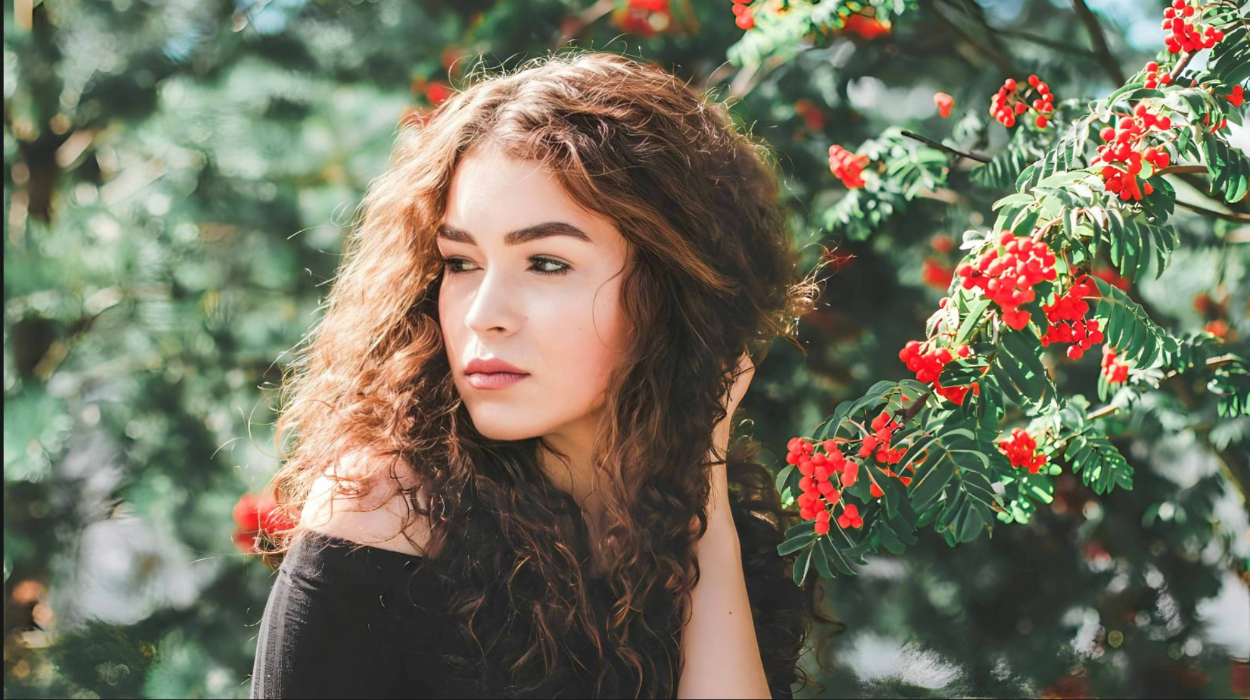
Why does your face look wrong in this picture?
Identify your photo's primary visual limitation. Your correct editing path changes depending on the issue.
How to match your specific photo flaw to the right free tool
Different image issues require specific processing steps. Utilizing Level 1-5 tap presets rather than variable manual sliders ensures your corrections are precise and invisible.
| Tool Pathway | Primary Flaw Remediated | Proportion Strategy |
|---|---|---|
| Enhance Start here | Cluttered backgrounds, flat lighting, and distracting overall environments | Use this first to separate the background from your face. Select Portrait Blur to isolate depth for free. |
| Looks | Dull tones, lack of facial contrast, and weak overall visual energy | Use this to update the general aesthetic vibe. Select Influencer to give your face a clean, high-end polish. |
| Face | Specific structural distortions like a wide jaw or ballooned nose from the lens | Use this for final corrections. Select Slim Face to safely counteract lens distortion without warping the walls behind you. |
“Authentic portrait editing isn't about using a liquify tool to build a fake jawline. It's about reversing the physical wide-angle distortion of your phone lens so you look like yourself.”
Why precise Level 1-5 taps beat manual liquify sliders
There is a fundamental physics problem with manual push-and-pull sliders. When you drag a slider to narrow your face, the software blindly drags every pixel next to it. This bends doorframes, pulls your hair, and creates an artificial "AI slop" look that ruins your credibility instantly.
Citrus is built from the ground up to be the most natural enhancer ever. By using strict Level 1-5 tap settings instead of unpredictable sliders, the engine maps your face independently from the background. If you want to make nose look smaller or slim your jaw, this approach guarantees your environment stays perfectly still.