


June 29, 2026
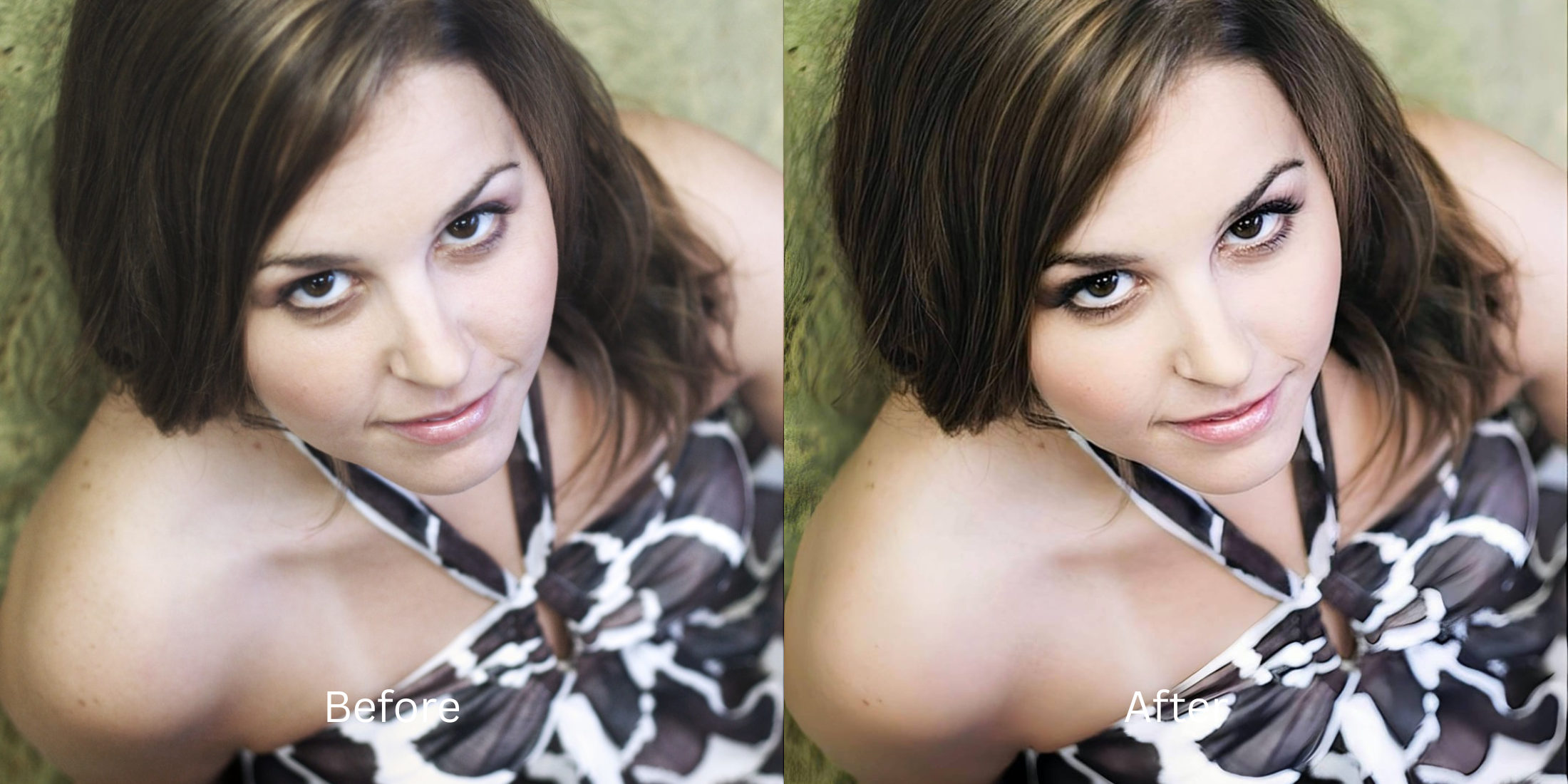
How to Make a Family Group Photo Look Better When You Only Care About One Face

How to Make a Family Group Photo Look Better When You Only Care About One Face
We have all been there: you are scanning through a massive family group photo from a reunion or holiday, and everyone looks great except you. Maybe you caught a bad shadow, look exhausted, or have harsh bags under your eyes. When you try to be slightly selfish and edit just your own face using a standard beauty app, disaster strikes. Dragging a manual blur brush often accidentally warps your sister's arm standing next to you. Hitting an automated preset blindly applies heavy digital makeup to your dad and the kids. To fix your own tired features without ruining the group dynamic or getting caught using a fake filter, you need a targeted, native approach.
To fix your own face in a group photo without warping the people next to you, prioritize precise target tools over manual brushes. Open the group photo inside Citrus. First, tap Enhance → Colors & Lighting to ensure the entire group's exposure is balanced so you don't look mismatched. Next, tap Looks → Hot and select Level 1–5. The algorithm will strictly target and lift the dark shadows under your eyes without applying a global blur mask to your family members.
Why manual brushes and global presets ruin group photos
The primary reason group photos look ridiculous after editing is the mechanical failure of legacy apps. Platforms like AirBrush and Facelab force you to drag manual liquify and smoothing sliders across your face. Because group photos are cramped, your finger inevitably drags the pixels of the person standing right next to you, warping their face or the background wall. Conversely, apps like Perfect365 or BeautyPlus use global presets that force heavy lipstick and blush onto every face it detects in the frame. Escaping this trap requires an improve without changing real face pipeline that uses safe, discrete target mapping.
- Warping your sibling's shoulder when dragging manual blur sliders across your face in AirBrush
- Pasting thick, heavy AI lipstick and blush onto your dad and uncles via YouCam and Perfect365
- Making your face look like synthetic AI while the rest of the family looks natural in FaceApp
- Applying a massive, global blur that turns everyone's skin into flat plastic via Meitu
- Safely balancing the entire group's ambient exposure so your targeted edits blend seamlessly
- Using mathematically calibrated Level 1–5 taps instead of dangerous manual finger-painting
- Targeting just your specific tired shadows without applying a global makeup mask to the family
- Processing complex multi-face portraits safely and quickly without paying a subscription fee
When your edited face looks obviously mismatched or the background is warped, you will get called out in the family group chat instantly. Relying on an advanced tool to provide a photo enhancers natural looking results workflow keeps your portrait crisp, professional, and entirely authentic.
Optimize your tired features safely. A structured level choice keeps the rest of the group completely intact.
How to fix your face safely in a group photo in 5 steps
Upload the group photo with bad lighting
Open your image library and select a family portrait where poor room exposure made you look exhausted while everyone else looks fine. When utilizing an improve photos before posting routine, a successful fix always begins with assessing the raw file.
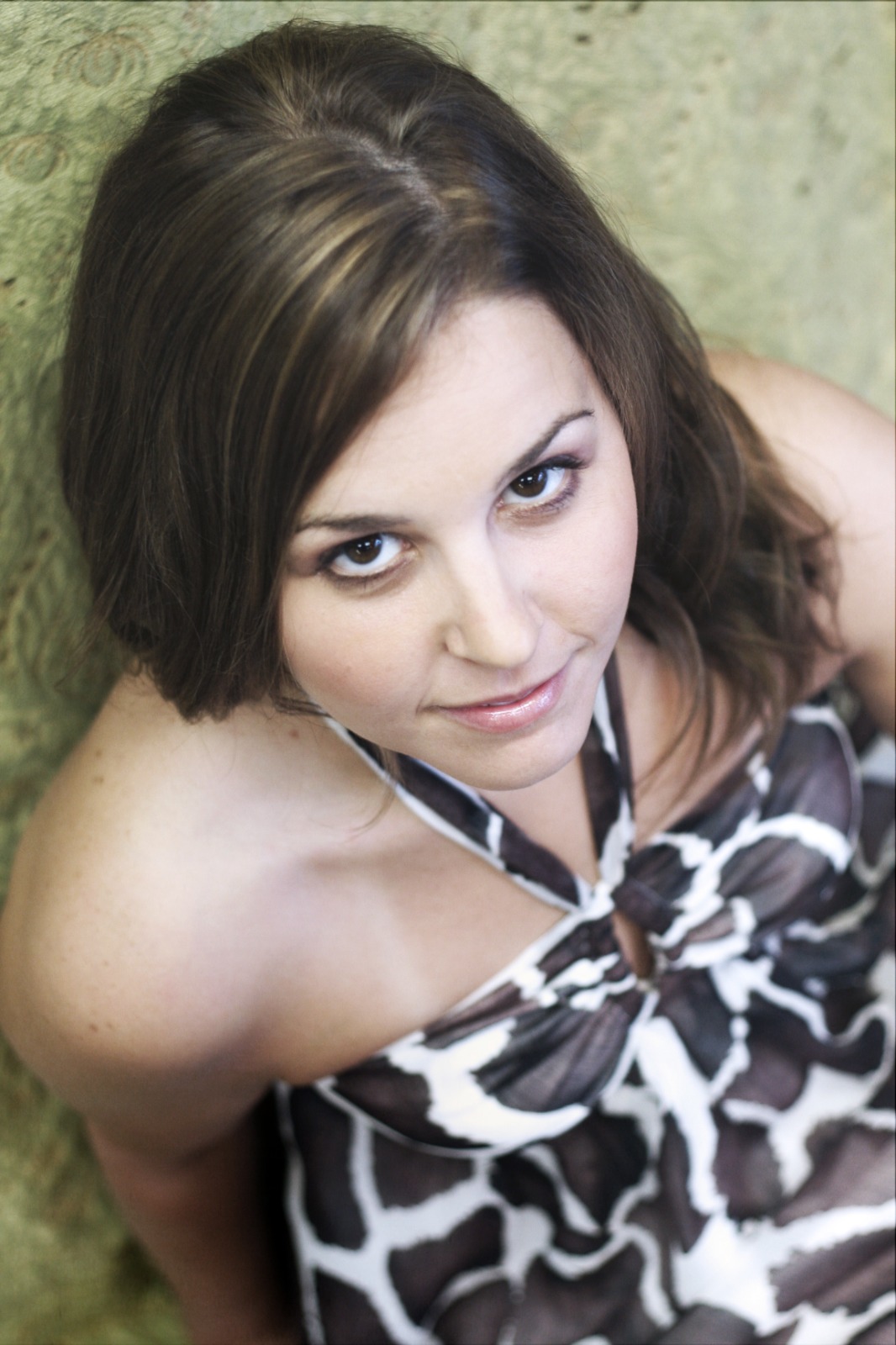
Let the real-time preview scan the faces
Citrus initializes its scanning framework instantly without forcing you through paywalled credit card registrations. This presents a preview window so you can safely examine how the engine isolates individual face mappings.
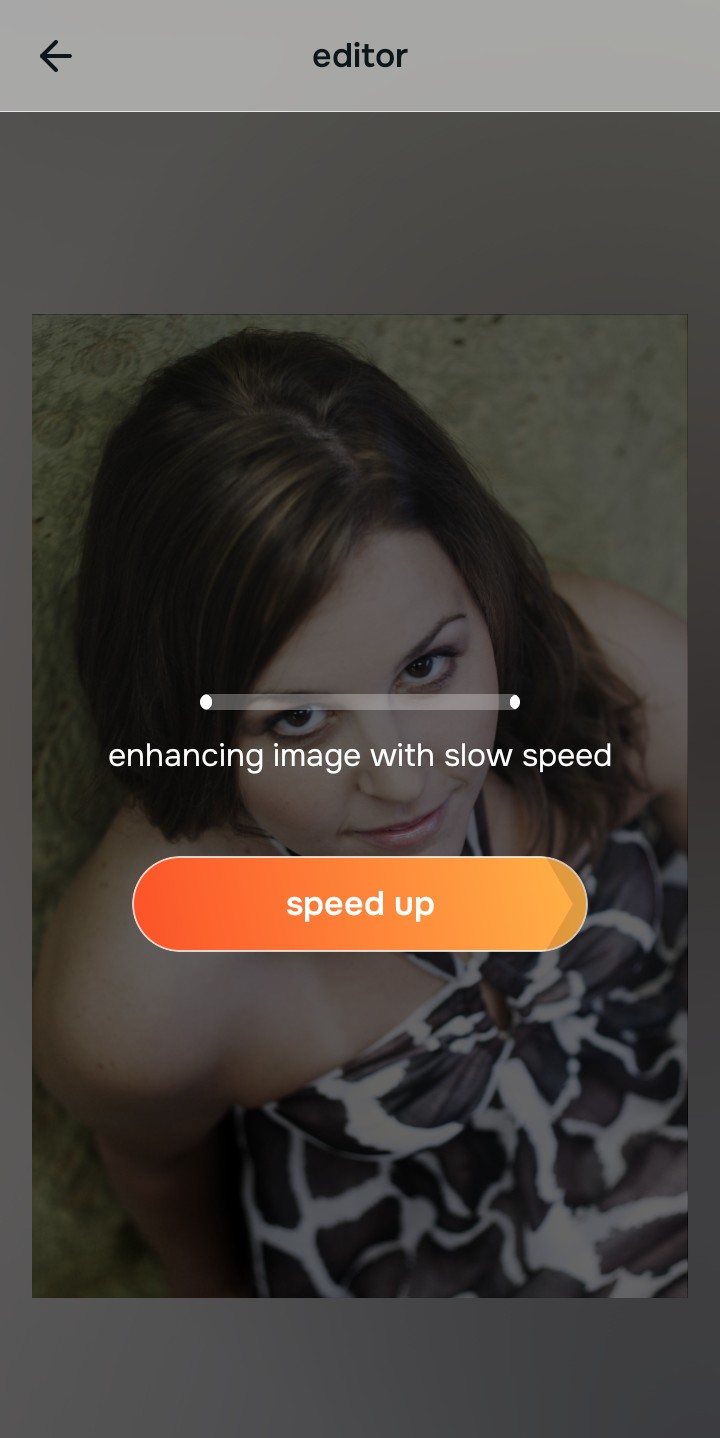
Tap Enhance and choose Colors & Lighting
Even if you only care about your face, you must tap Enhance → Colors & Lighting first to unify the group's baseline. Rebuilding this exposure layer is the hidden secret to executing a fix yellow indoor lighting strategy so your skin tone matches the room.

Always balance global lighting zones before applying isolated facial corrections. Fixing the environment ensures that when you edit your own face, you do not look like a glowing ghost pasted into a dark room.
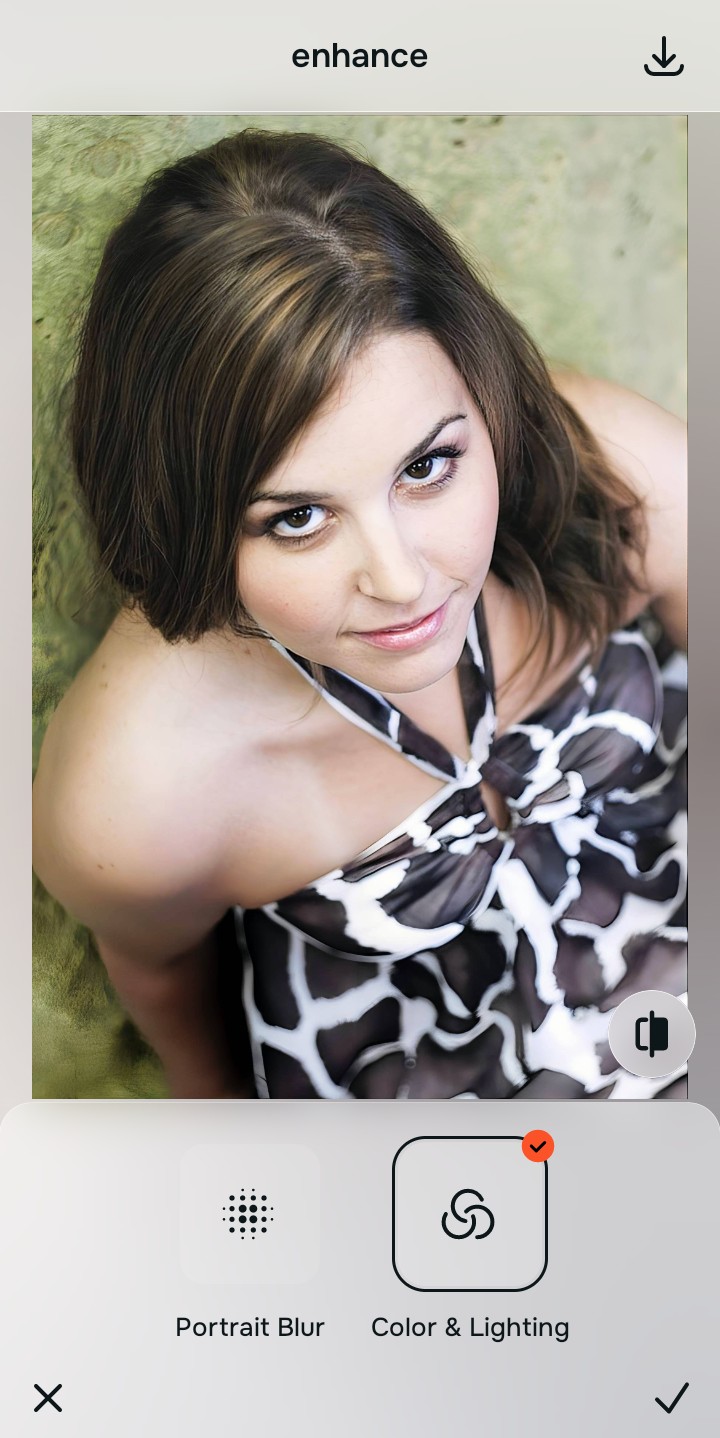
Tap Face and select Hot to lift your tired shadows
With the group lighting balanced, target your specific flaw. Tap Looks → Hot. Pick your setting from Level 1–5 to mathematically lift the deep shadows under your eyes. This is the safest apps like faceapp without filters method to look rested without warping anyone else.
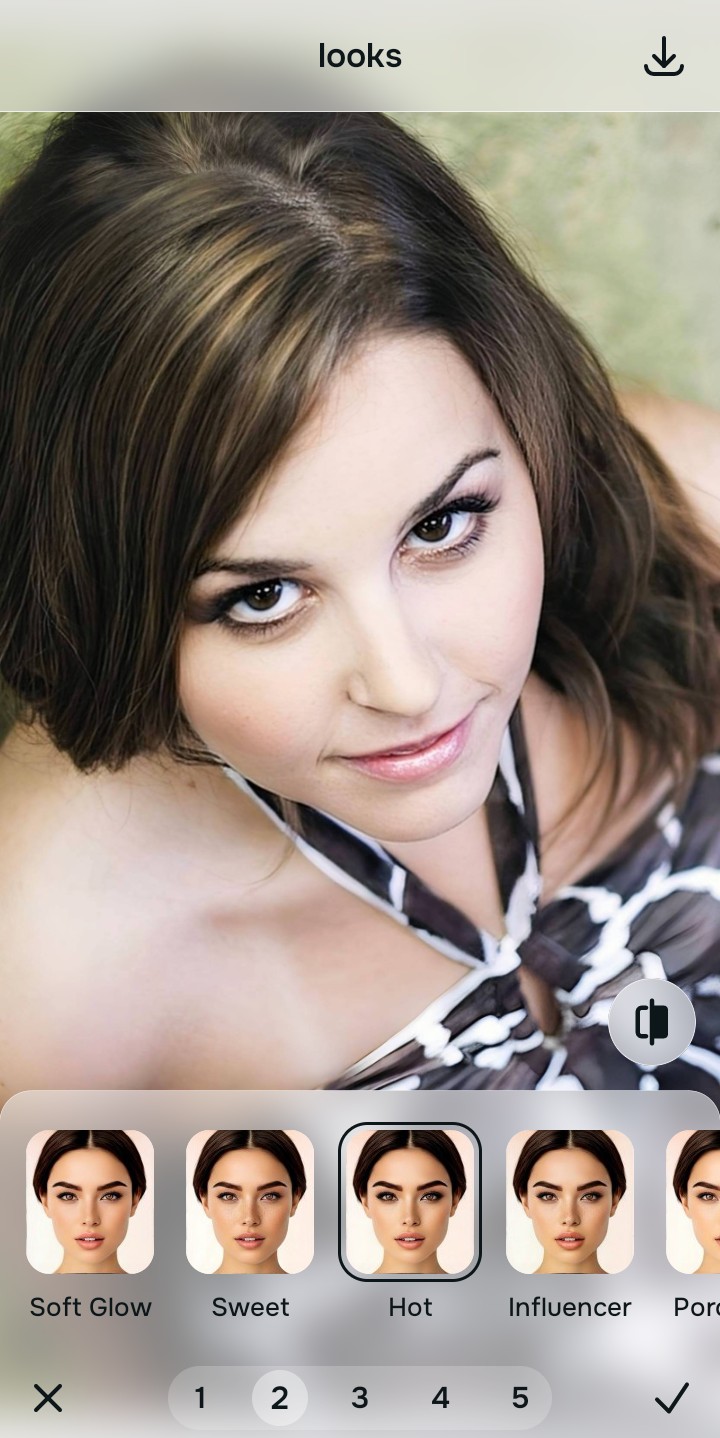
Export your unwatermarked family portrait
Citrus generously offers clean high-definition exports entirely for free with no hidden premium pop-ups. You can rely on this free app fix blurry photos path to save the entire group shot confidently without getting caught editing.
What is lowering your current portrait quality?
Identify your image's primary technical limitation. Your correct pathway updates automatically depending on the source error.
How to align your profile concerns with the right free pathway
Separate photo weaknesses necessitate independent menu paths. Selecting structured Level 1–5 tap options instead of raw manual sliders is the only way to lock in visual recovery without generating AI slop across the whole group.
| Tool Pathway | Primary Flaw Remediated | Automated Fix Strategy |
|---|---|---|
| Enhance Start here | Washed-out facial illumination, sensor noise, and compressed contrast fields | Use this first to establish a proper light foundation. Choose Colors & Lighting to balance layers for free. |
| Looks | Dull skin appearance, flat expressions, and tired overall image vibrancy | Use this to update the entire face impression. Select Soft Glow (Level 1–5) to coat your portrait in a radiant polish. |
| Face | Targeted anatomical washouts like deep eye bags on your specific face | Use this last for precise feature tweaks. Select Hot to safely lift localized shadows without warping the family. |
“Professional face adjustment should never warp the background or paste fake makeup on the group. It must simply normalize your specific shadows so your native features match the room perfectly.”
Why precise level taps protect human skin texture better than manual brushes
There is a massive structural difference between balancing camera exposure natively and masking your face behind fake filters or generative slop. When you use manual liquify or blur tools inside legacy platforms, human error makes it easy to over-edit, creating noticeable warped backgrounds or plastic streaks across your features. This instantly breaks the realism of your family memory.
Citrus is built from the ground up to be the most natural enhancer ever created. By relying exclusively on mathematically precise Level 1–5 tap settings instead of unpredictable sliders, the engine maps your face securely, optimizing highlight tracking without changing your real face shapes. Implementing a fix washed out selfies free pipeline guarantees that your presentation remains sharp, trusted, and beautifully proportioned.