


April 24, 2026
Best Apps Like FaceApp Without Heavy Filters
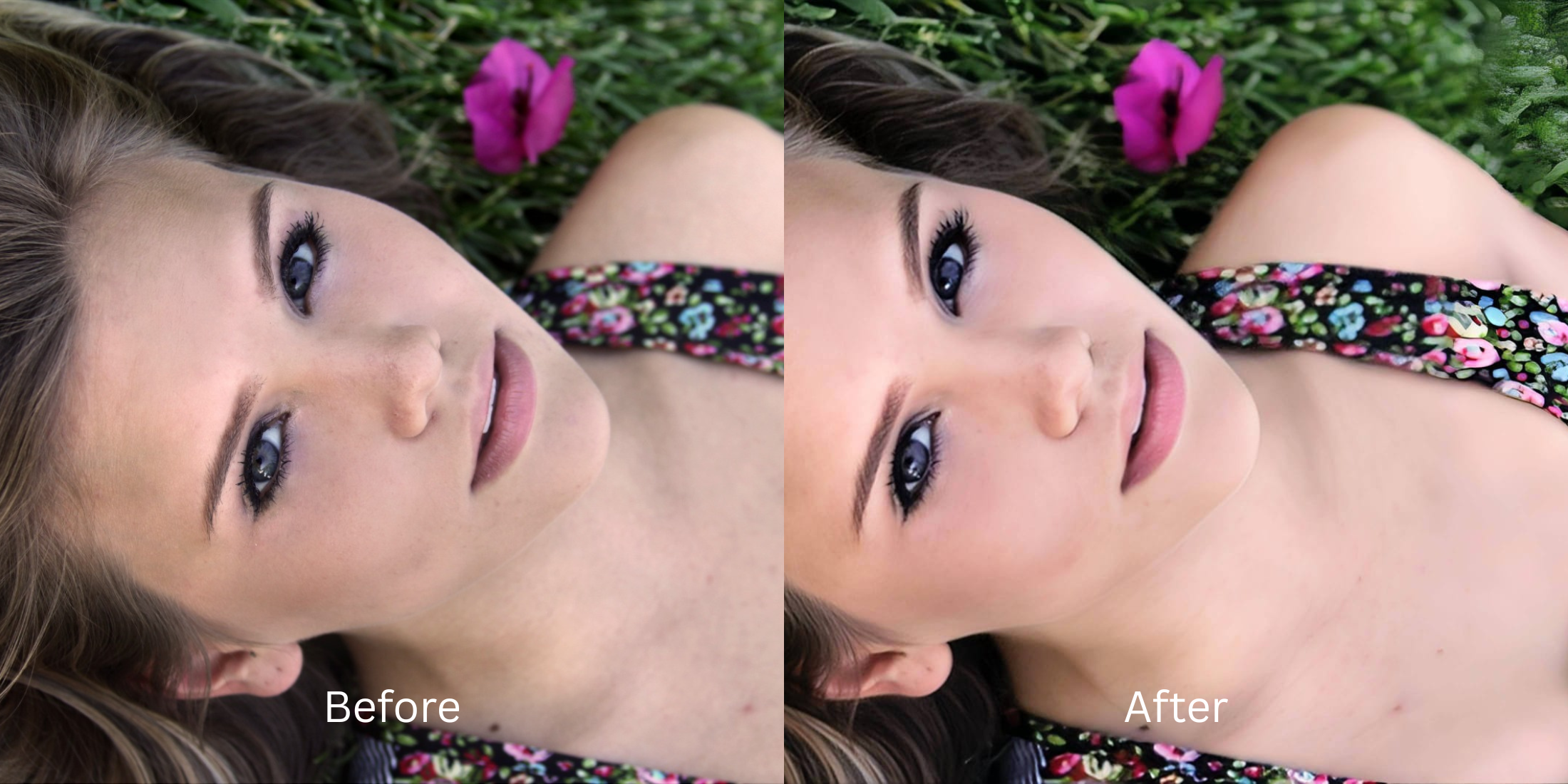

Best Apps Like FaceApp Without Heavy Filters
FaceApp popularized AI photo editing, but it comes with a major downside: it aggressively morphs your identity and applies a heavy, plastic filter. Users frequently complain that the app erases their natural texture and charges expensive subscription fees just to save a high-quality export. Finding an alternative that looks more natural ensures you get a professional polish for free, without losing your freckles or your actual bone structure.
To enhance a selfie for free without using heavy face-morphing filters, you must correct the camera's raw lighting data first. In Citrus, avoid global skin-blurring presets and tap Enhance -> Colors & Lighting to restore true depth. Once the shadows are cleared, use Looks -> Fresh for a cohesive, natural vibe that leaves your pores completely visible.
Why heavy face editors ruin your photos
The core problem with generative AI apps is that they rely on standardized beauty templates. When you try to smooth a blemish or fix bad lighting, the algorithm literally replaces your facial features, creating an artificial, cloned appearance. Choosing an app that helps keep real skin texture means abandoning these destructive masks and allowing intelligent software to recover the structural depth your phone camera missed.
- Paying expensive monthly subscriptions just to export without a watermark
- Using heavy generative AI that completely replaces your natural identity
- Warping background lines because the app stretches your jaw or eyes
- Looking like a plastic mannequin because all your pores were erased
- Getting professional-level lighting correction without hidden paywalls
- Using automated tools that elevate your vibe without morphing your bone structure
- Applying targeted adjustments that isolate your face naturally
- Stopping the edit while your real skin and freckles remain visible
If your edited picture looks perfectly smooth but you seem like a digital avatar, the software has gone too far. Discovering a free, structurally sound approach helps apps for no makeup selfie users reclaim their authentic photos safely.
Restore contrast and keep your real face. A smart edit keeps reality intact.
How to enhance your face naturally in 5 steps
Select a photo that needs a natural boost
Find a picture where the lighting makes your features look flat or exhausted. You do not need to settle for an aggressive template. Finding strong photo enhancers for low light lets you restore the original image data instantly.

Let the instant preview analyze your face
Citrus provides a first correction immediately without asking for a credit card. This ensures that any underlying contrast issues are recognized before you start trying to adjust your appearance.
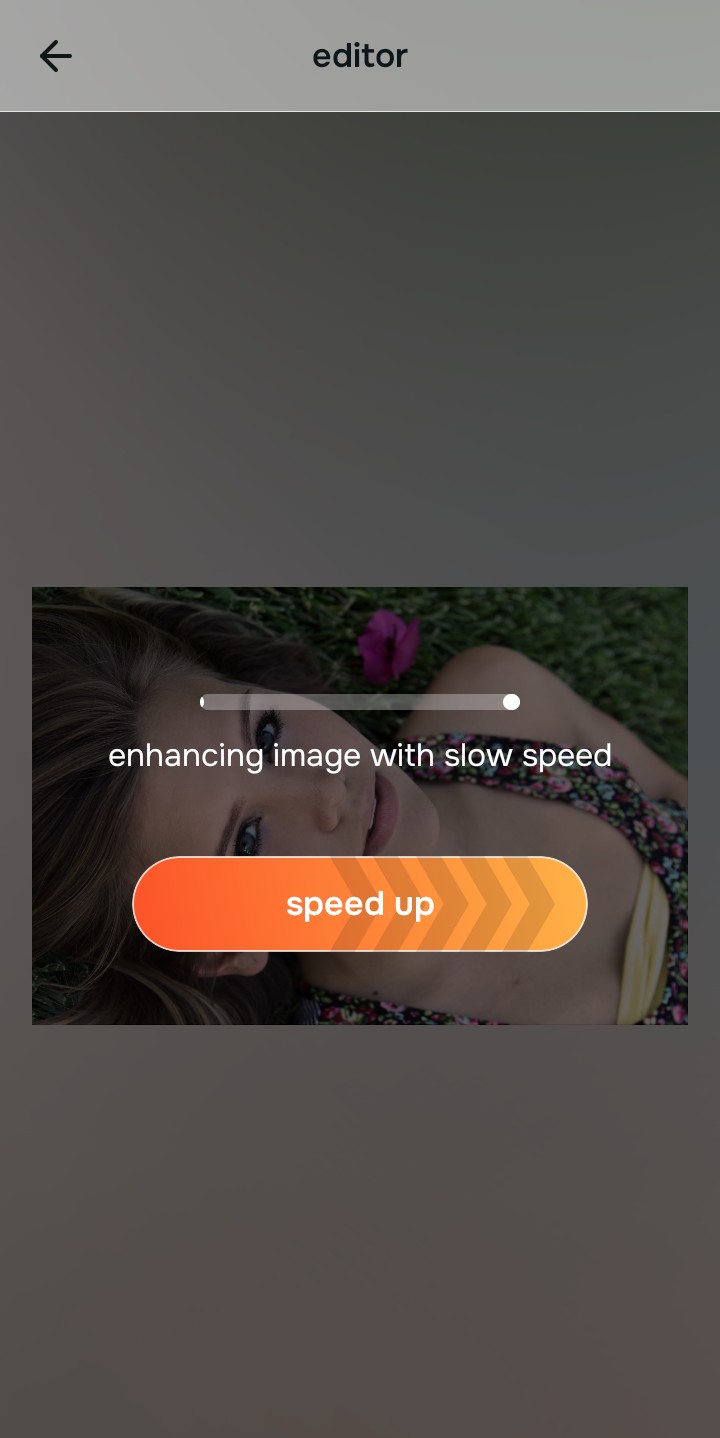
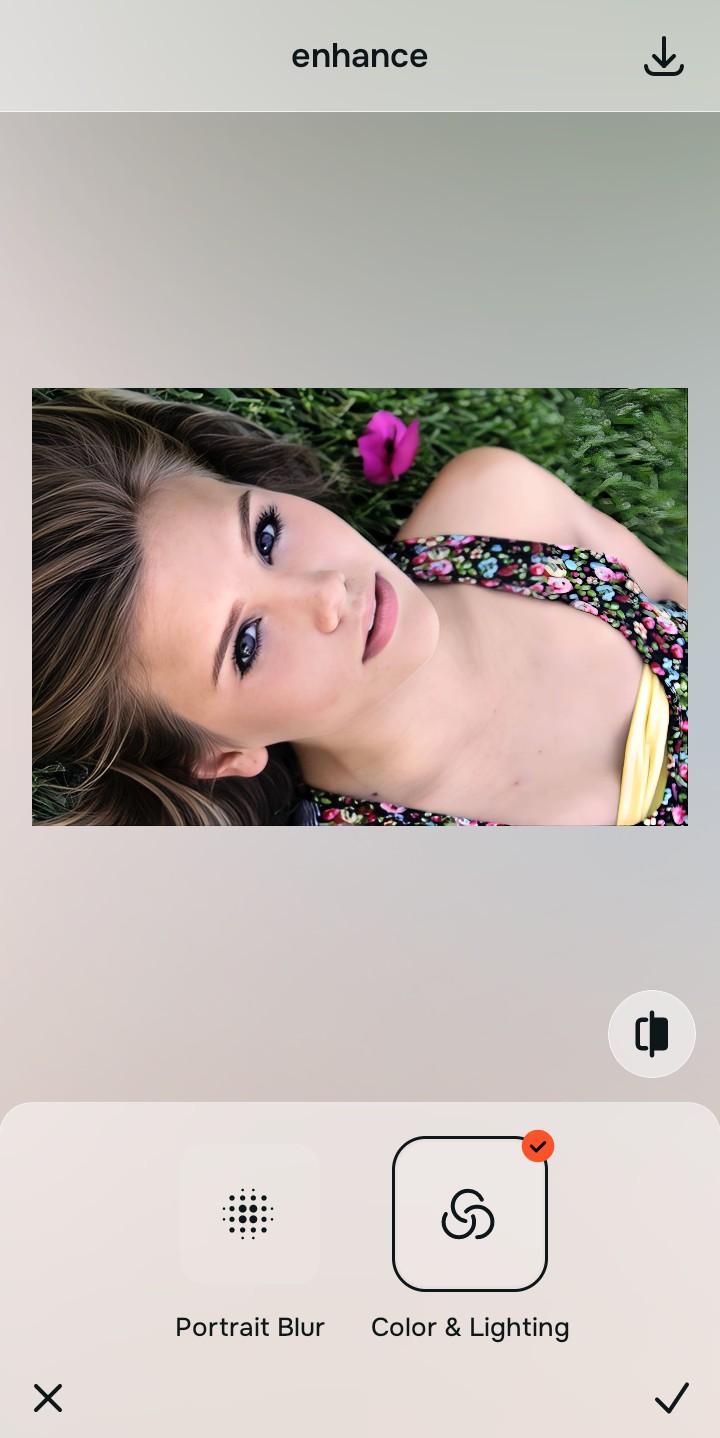
Use Enhance to fix Colors & Lighting first
Because dull skin is usually an overall photo problem, tap Enhance -> Colors & Lighting. This strips away the muddy wash and restores shadows to the scene. It is the absolute fastest way to clear up digital noise before using any targeted tools.

Always fix the flat lighting before using a beauty tool. Tap the Enhance options to restore image depth first.
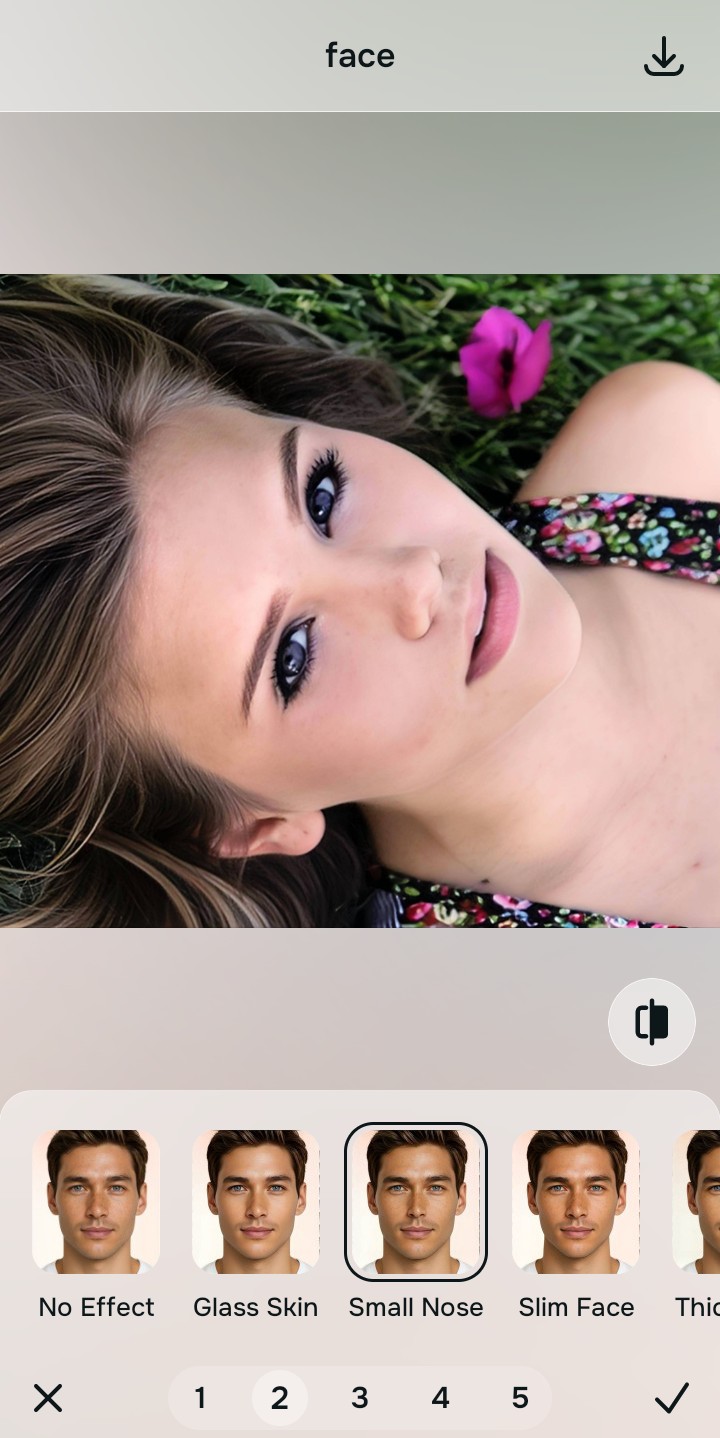
Apply Face tools to gently refresh your complexion
Once the lighting is balanced, you can skip the aggressive morphing templates entirely. Tap Face -> Small nose to gently even out your complexion and make your face look rested without turning into plastic.
Save the high-resolution photo instantly
Unlike premium apps that charge you a monthly fee just to export a clear photo, you can save your results instantly. You can make a photo look better in seconds and enjoy a high-quality save.

Why does your current editing app fail you?
Choose the description that fits best. Your starting point changes depending on what is actually flattening the picture.
Which free Citrus tool delivers the most realistic finish
Different problems require entirely different tools. The goal is to get the best possible result by matching the tool to the actual error. This stops you from ruining the entire picture with an automated, paid filter template.
| Tool | What it helps fix | When to use it |
|---|---|---|
| Enhance Start here | Overall darkness, weak light, muddy contrast, and lack of depth | Use this first when the whole image feels lifeless. Choose Colors & Lighting to restore depth and clear the sensor noise for free. |
| Looks | Photos that are technically balanced but still lack an attractive, cohesive impression | Use this after Enhance when the real issue is not severe darkness but a dull vibe. It creates a photogenic, Fresh glow instantly. |
| Face | Specific puffy areas, uneven skin tone, or looking exhausted | Use this last, applying targeted tools like Skin Tone to subtly refresh the face after the broader image already feels properly lit. |
“The most attractive edit recovers the lost light data instead of paying a monthly fee to let an AI paste an artificial mask over your features.”
Why automatic contrast correction beats heavy digital masks
There is a massive difference between adding dimension and wiping out reality. When you use an aggressive, generative beauty algorithm, you turn the entire image into a flat plastic wash. The human brain instantly recognizes this loss of detail as an untrustworthy, cheap edit.
Real quality comes from correcting the underlying light data instantly. Tapping into proper contrast helps you make your selfies look better safely, saving you money while ensuring you look authentic online.