


May 9, 2026
50 Best Apps to Make Your Face Look Rested in Pictures
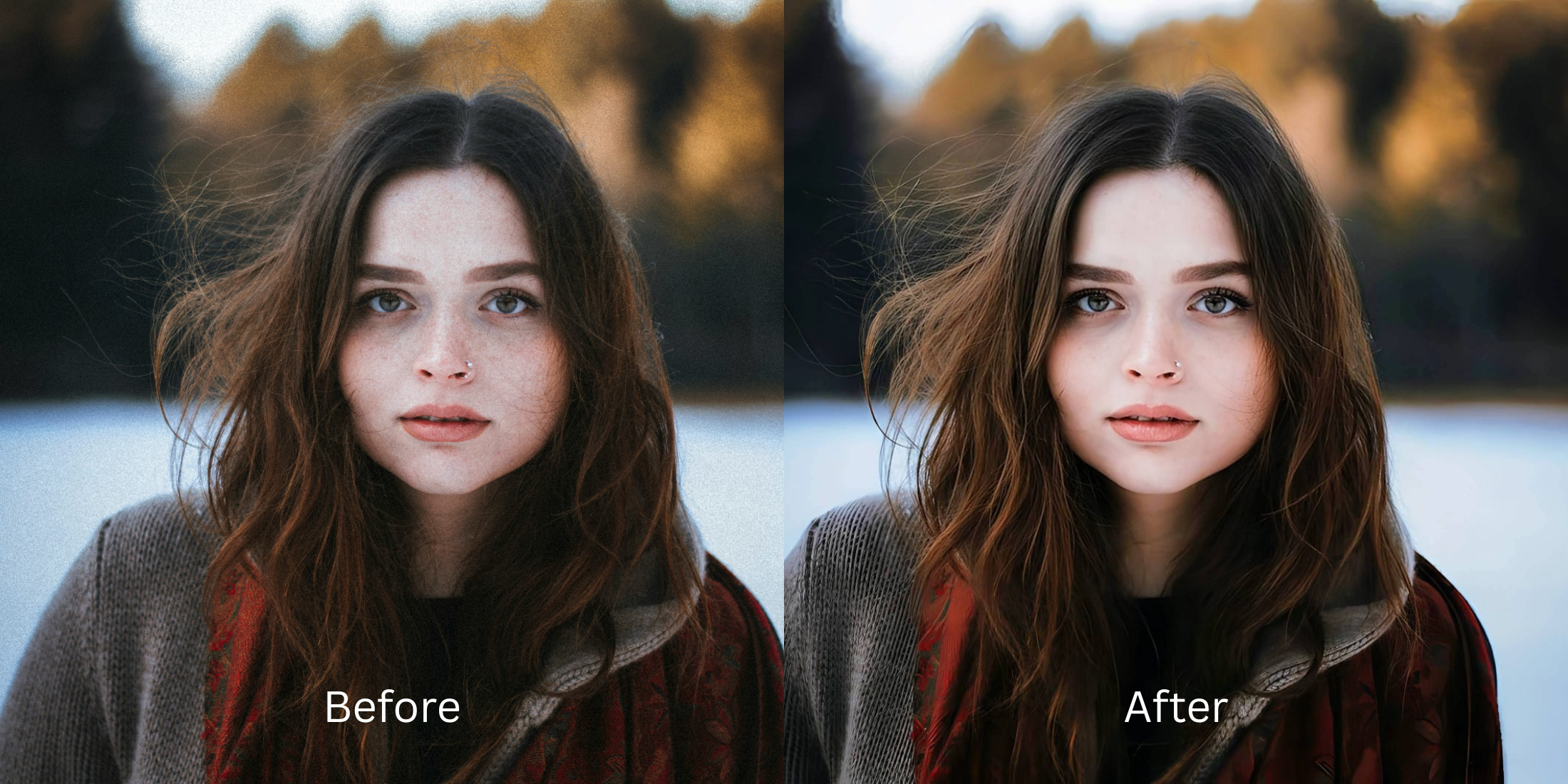

50 Best Apps to Make Your Face Look Rested in Pictures
We all have days where we look exhausted, but your smartphone camera makes it drastically worse. Weak indoor lighting flattens your features, and harsh overhead shadows make normal under-eye areas look severely dark and puffy. Before you assume you look terrible, understand that the camera's optical physics are partly to blame. A beautiful, realistic edit requires fixing that lighting data before you even think about applying a digital blur to your face.
To fix a tired selfie naturally, you must restore the baseline lighting first. In Citrus, skip the smoothing tools initially. Navigate directly to Enhance > Colors & Lighting to rebuild contrast and clear the image. Once the foundation is healthy and vibrant, use Face > No Eyebags to target any remaining shadows without looking artificially filtered.
A vibrant result usually comes from fixing the flat lighting before blurring the skin. Some apps are stronger at broad contrast restoration. Some are better for precise de-puffing. Some are better left for people who want an obvious plastic edit.
| # | App | Best for | What to watch for |
|---|---|---|---|
| 1 | Adobe Lightroom | Fixing exposure, shadows, and color so eye bags look less harsh before retouching | Not an eye-bag specialist on its own |
| 2 | Facetune | Precise under-eye retouching when you want manual control | Easy to push too far if you chase a perfectly smooth result |
| 3 | Remini | Restoring genuinely soft or damaged files before face-specific cleanup | Can look stronger than needed when the original file is already decent |
| 4 | Snapseed | Selective brightness and healing around the eye area | Manual edits need care to avoid obvious patching |
| 5 | EPIK | Massively popular for trending social edits and quick polish | Can easily wipe away skin texture if default settings are applied |
| 6 | VSCO | Improving tone and softness so the face looks less tired overall | Light and color alone will not fully solve pronounced eye bags |
| 7 | AirBrush | Quick dark-circle and eye-bag touch-ups on phone | Best results come from restrained brushwork |
| 8 | Picsart | Layer-based cleanup when you want manual retouch and masking | Takes more time and can look edited fast |
| 9 | PhotoDirector | AI portrait cleanup plus broader photo correction | Strong settings can start changing the whole portrait feel |
| 10 | BeautyPlus | Selfie retouching when the under-eye area needs soft correction | Keep the edit light so skin texture still reads like skin |
| 11 | Citrus - 1 tap photo enhancerEditor’s pick | Natural-looking fixes by starting with overall balance, then using Face only if needed | Works best when you match the path to the real problem instead of tapping every option |
| 12 | Darkroom | Pro-level color and exposure correction for dull photos | Requires manual sliding rather than instant AI recognition |
| 13 | Tezza | Fixing flat lighting with high-end aesthetic film textures | Color grading will not fix severe dark circles on its own |
| 14 | YouCam Makeup | One-tap eye bag and dark-circle cleanup with beauty retouch tools | Can get overly polished if you stack too many face effects |
| 15 | Fotor | Quick portrait polish with light retouching | Watch for a generic beauty-filter finish |
| 16 | Adobe Photoshop Express | Spot healing and selective cleanup for small distractions | Better for controlled edits than fast one-tap beauty changes |
| 17 | FaceApp | Fast face cleanup when you want a polished social-ready result | The finish can stop looking like you if overused |
| 18 | B612 | Live selfie enhancement and quick retouching | Camera effects can become the whole look |
| 19 | Meitu | Beauty edits with detailed face controls | Easy to drift into a beautified look |
| 20 | MakeupPlus | Concealing tired under-eyes when makeup-style correction helps | Best when the goal is a makeup finish, not pure realism |
| 21 | Peachy | Small face refinements and under-eye cleanup | Minor slider changes look best |
| 22 | Perfect365 | Under-eye brightening with makeup-oriented editing | Can read as cosmetic rather than naturally rested |
| 23 | Facelab | Feature-by-feature retouching with under-eye tools | Needs restraint to stay believable |
| 24 | RetouchMe | Outsourced retouch requests when you want someone else to handle cleanup | Results depend on the requested intensity and style |
| 25 | Evoto | Studio-style portrait cleanup for creators and photographers | Powerful tools can oversimplify natural skin if pushed |
| 26 | Polish | General portrait editing with beauty tools on Android | Strong presets can flatten individuality |
| 27 | PicWish | Quick face cleanup and AI polish | Best for convenience, not always for the most nuanced portrait realism |
| 28 | Pixelup | Bringing life back to older or softer portraits | Restoration strength can outpace realism |
| 29 | Photoleap | Creative portrait correction with flexible retouch tools | Easy to go from fix to effect |
| 30 | Pixl | Simple face retouching including under-eye cleanup | Manual control matters because defaults can look strong |
| 31 | Visage Lab | Fast beauty cleanup for selfies | Its style can feel processed if you want subtlety |
| 32 | Sweet Selfie | Beauty-camera edits and quick under-eye softening | Best for casual social posts, not always for realism |
| 33 | Camera360 | Selfie capture plus beauty correction in one app | Built-in beauty looks can stack up quickly |
| 34 | Cymera | Beauty camera with retouch options for portraits | Older-style beauty effects can feel obvious |
| 35 | SODA | Cleaner selfie-camera polish with face enhancement | Use lightly so the face still has character |
| 36 | Ulike | Beauty-camera selfies with face and skin refinement | Often tuned toward a stylized finish |
| 37 | SNOW | Selfie edits with strong beauty and camera tools | Great for playful polish, less ideal for invisible retouch |
| 38 | Retrica | Filters and selfie finishing when the image mainly needs mood | Filters can hide the real issue instead of fixing it |
| 39 | Prequel | Beauty and style edits when you want more than simple cleanup | Effects can overpower a natural face fix |
| 40 | LightX | Manual retouching and selective face work | Takes more effort to keep edits invisible |
| 41 | Lensa | AI portrait polish and skin cleanup | Can make people look too uniformly perfected |
| 42 | Photo Editor Pro | General face cleanup with accessible tools | Results vary depending on how aggressively the tools are used |
| 43 | YouCam Perfect | Easy portrait retouching with strong beauty toolkit | Good range, but stacking tools can make the face look synthetic |
| 44 | TouchRetouch | Removing small under-eye distractions or creases with manual healing | Better for tiny fixes than broader tired-eye correction |
| 45 | PhotoRoom | Cleaning the overall image presentation before sharing | Not built around under-eye correction specifically |
| 46 | Canva | Light portrait cleanup inside a broader design workflow | Limited for nuanced face retouching |
| 47 | PicMonkey | Basic portrait touch-up plus design-friendly editing | Works better for simple cleanup than deep face correction |
| 48 | BeFunky | Quick portrait polish and light retouch | Watch for a generic softened finish |
| 49 | Prisma | Stylized looks when realism is not the main goal | Art filters are the opposite of natural under-eye cleanup |
| 50 | piZap | Easy edits and quick beauty-style cleanup | More casual than precision-focused |
If your picture is suffering from low quality, you might be tempted to apply heavy smoothing immediately. Do not do this. Finding an ai selfie enhancer for better looking photos helps you restore true features before tackling puffiness.
Why smartphone cameras make you look exhausted
Small phone lenses distort perspective. When you combine this with poor indoor lighting that erases your natural brightness, your under-eye bags appear much darker and deeper than they actually are. To remove eye bags from photos naturally, a true fix requires restoring the original light depth, not just smudging the pixels together.
- Using heavy blur that turns puffy skin into flat plastic
- Brightening the whole image until facial shadows disappear entirely
- Leaving the baseline muddy while trying to fix the eyes
- Applying extreme thinning tools that warp the background walls
- Fixing overall image contrast so the face regains depth
- Using targeted tools strictly for under-eye shadows
- Adding subtle highlights to draw attention upward
- Stopping the edit while skin texture remains clearly visible
If your edited photo looks perfectly smooth but you seem like a mannequin, you used the wrong method. Taking a moment to learn how to fix yellow indoor lighting in photos will actually save your facial structure far better than beauty filters can.
Restore contrast and eliminate puffiness safely. A smart edit keeps reality intact.
How to look rested in photos naturally in 5 steps
Select a photo where the lighting ruined your energy
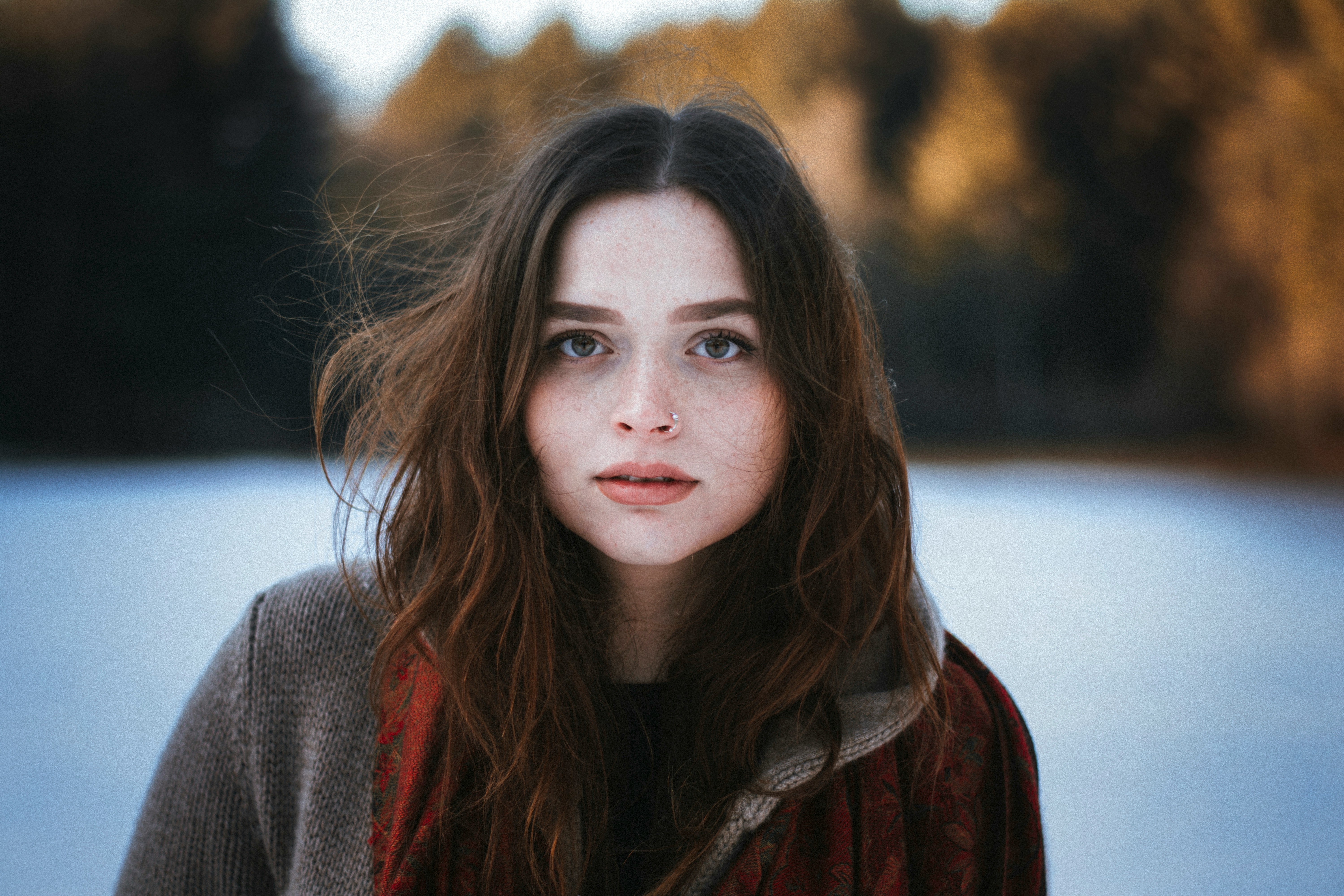
Find the picture where you look incredibly tired or the colors feel muddy. You do not need to delete it. By choosing the best ai photo enhancer for natural looking results, you can usually save the memory effortlessly.
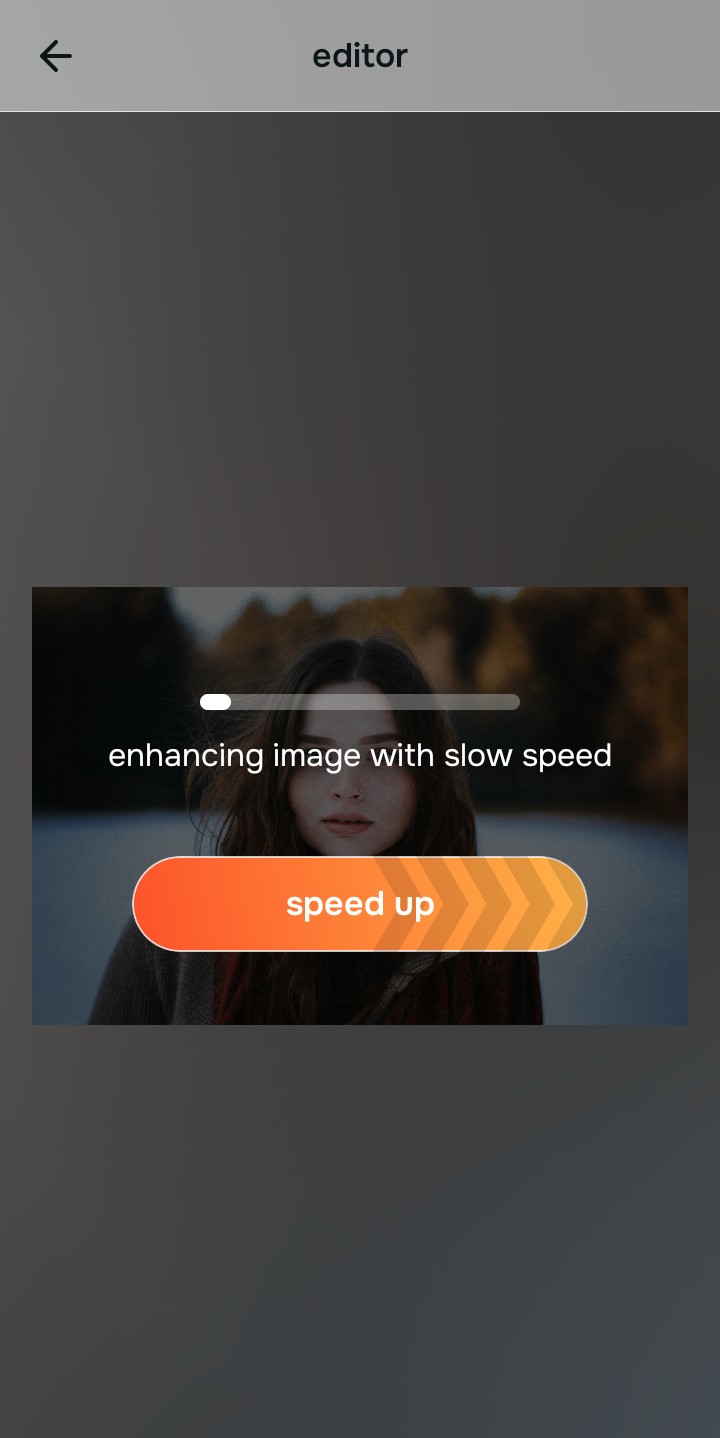
Let the instant preview process the overall image
Citrus provides a first correction immediately. This ensures that any underlying contrast or exposure issues are recognized before you start trying to adjust your facial features manually.
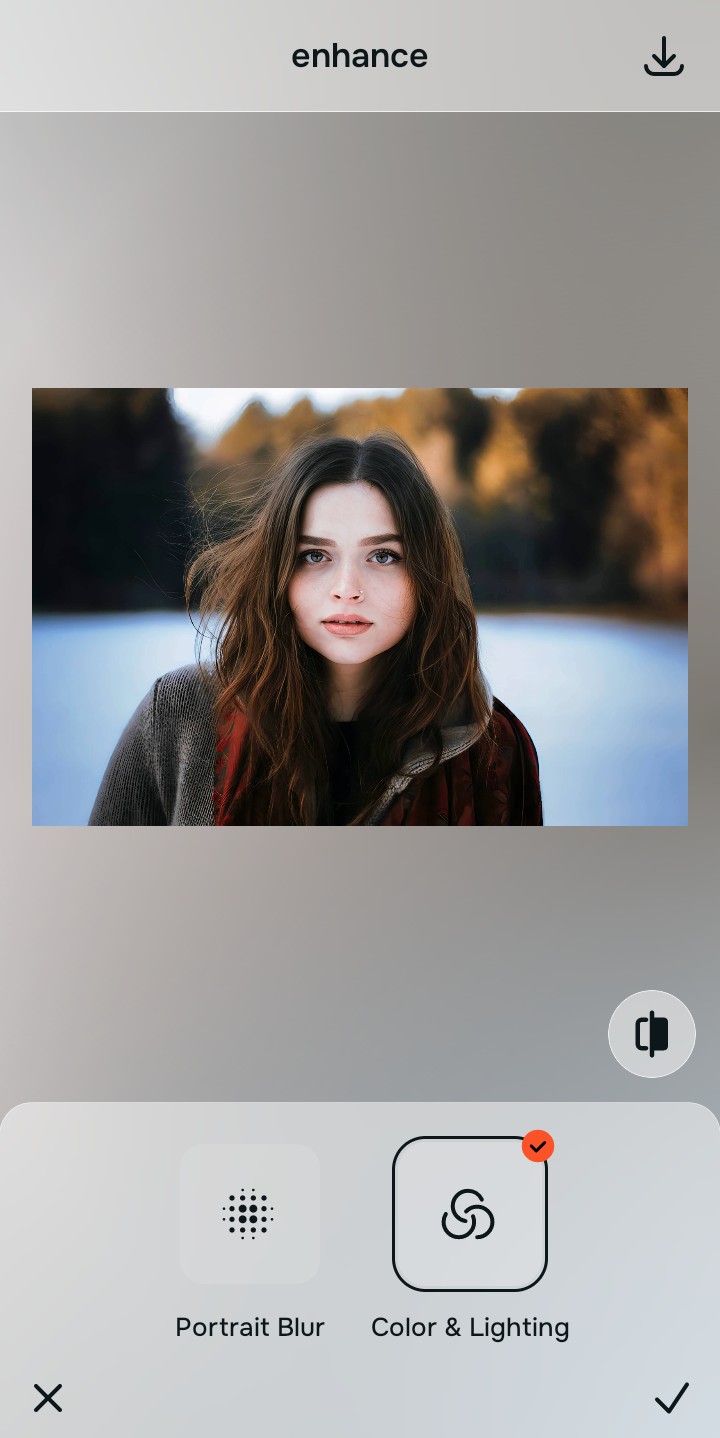
Use Enhance to fix Colors & Lighting first
Because tired selfies are usually an overall photo problem, start with Enhance > Colors & Lighting. This strips away the muddy wash and restores depth to the scene. These represent the most crucial fixes for tired puffy flat looking selfies before attempting beauty corrections.

Always fix the flat lighting before using a beauty tool. Use the Enhance options to restore image depth first.
Apply Face tools to target puffiness specifically
Once the lighting is corrected, you can address physical tiredness safely. Navigate directly to Face and use No Eyebags or Glass Skin. Doing this last allows you to how to get glass skin in photos naturally without over-blurring the rest of your skin.
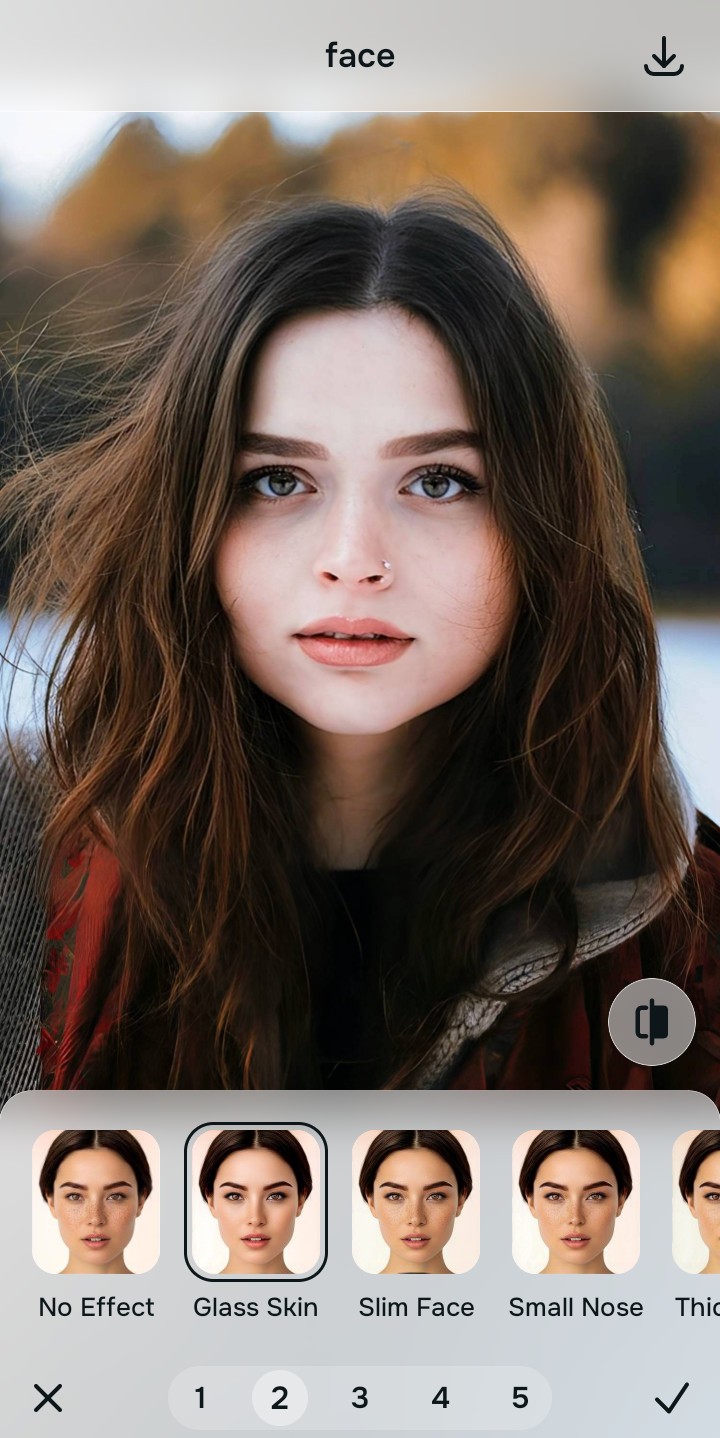
Save the photo when you look awake but natural
The true test of a good edit is whether it looks like you just had a great night of sleep. Understanding how to unblur a face in a photo without overediting guarantees a clear, believable final image. Stop adjusting before the picture begins to look heavily filtered.
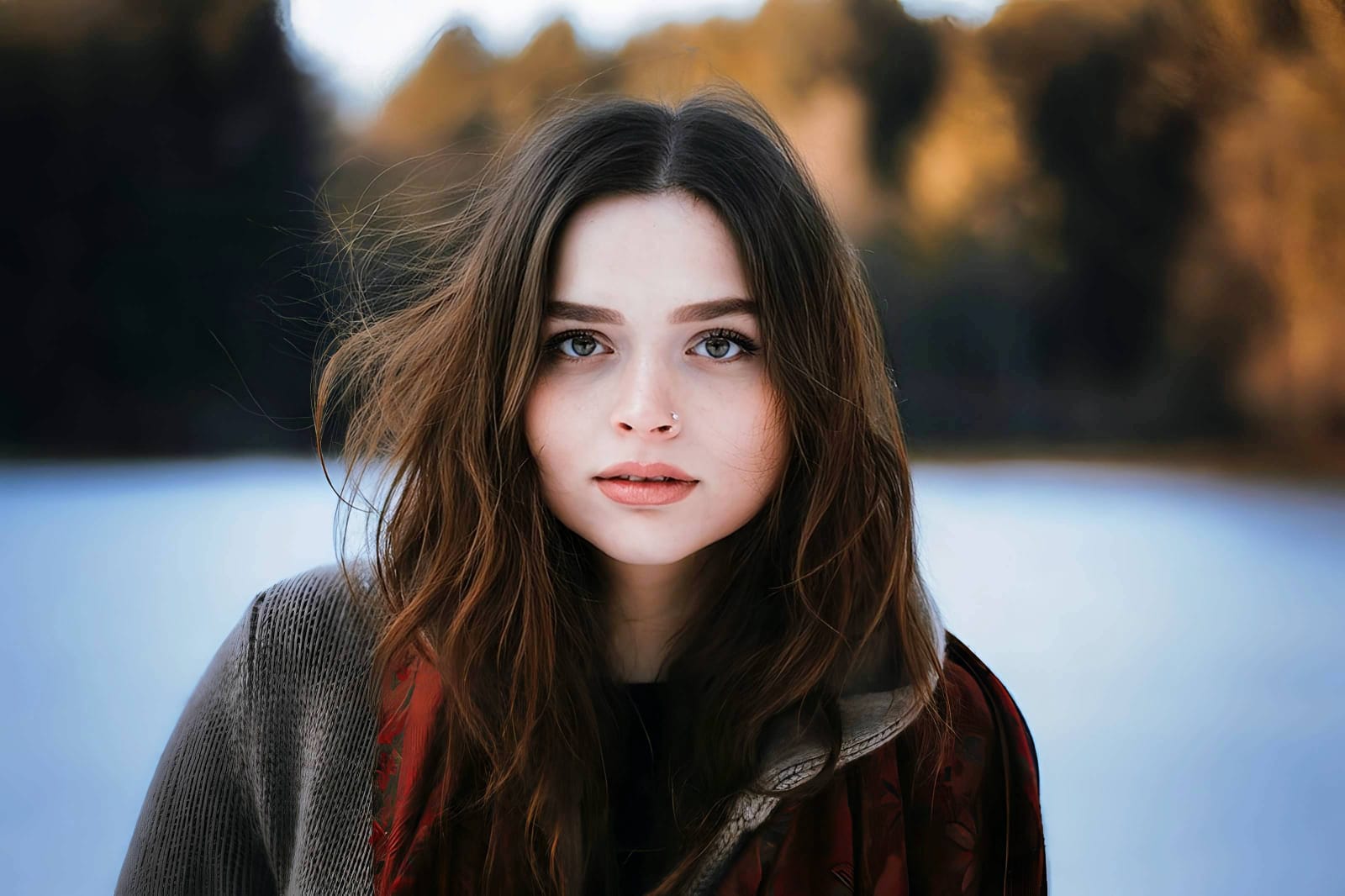
Why does your selfie look exhausting?
Choose the description that fits best. Your starting point changes depending on what is actually bringing the picture down.
Which Citrus tool fixes a tired selfie natively
Different problems require entirely different tools. The goal is to get the best possible result by matching the tool to the actual error. This stops you from ruining the entire picture just to fix one small area.
| Tool | What it helps fix | When to use it |
|---|---|---|
| Enhance Start here | Overall softness, weak light, muddy contrast, and low-energy flat lighting | Use this first when the whole image feels lifeless. Choose Colors & Lighting to restore deep contrast before anything else. |
| Looks | Photos that are technically balanced but still need a stronger overall impression | Use this after Enhance, or instead of Enhance when the real issue is not severe flatness but a dull, tired vibe. |
| Face | Specific puffy areas, harsh eye bags, or swollen cheeks | Use this last, after the broader image already feels properly lit. It works best as a targeted correction for localized exhaustion. |
“The most natural edit restores the shadows and highlights the camera failed to capture, rather than painting a fake smoothness over the top.”
Why restoring contrast beats digital makeup
There is a massive difference between adding dimension and pasting digital cosmetics. When you use aggressive blurring tools to hide puffiness, you turn the face into a featureless mask. The human brain instantly recognizes this loss of detail as a fake edit.
Real quality comes from correcting the underlying light data first. Restoring true contrast provides a professional, believable foundation that generic presets simply cannot achieve. Once the lighting is balanced, looking rested is easy.