


May 29, 2026
How to Improve 3 Photos at Once Before Posting
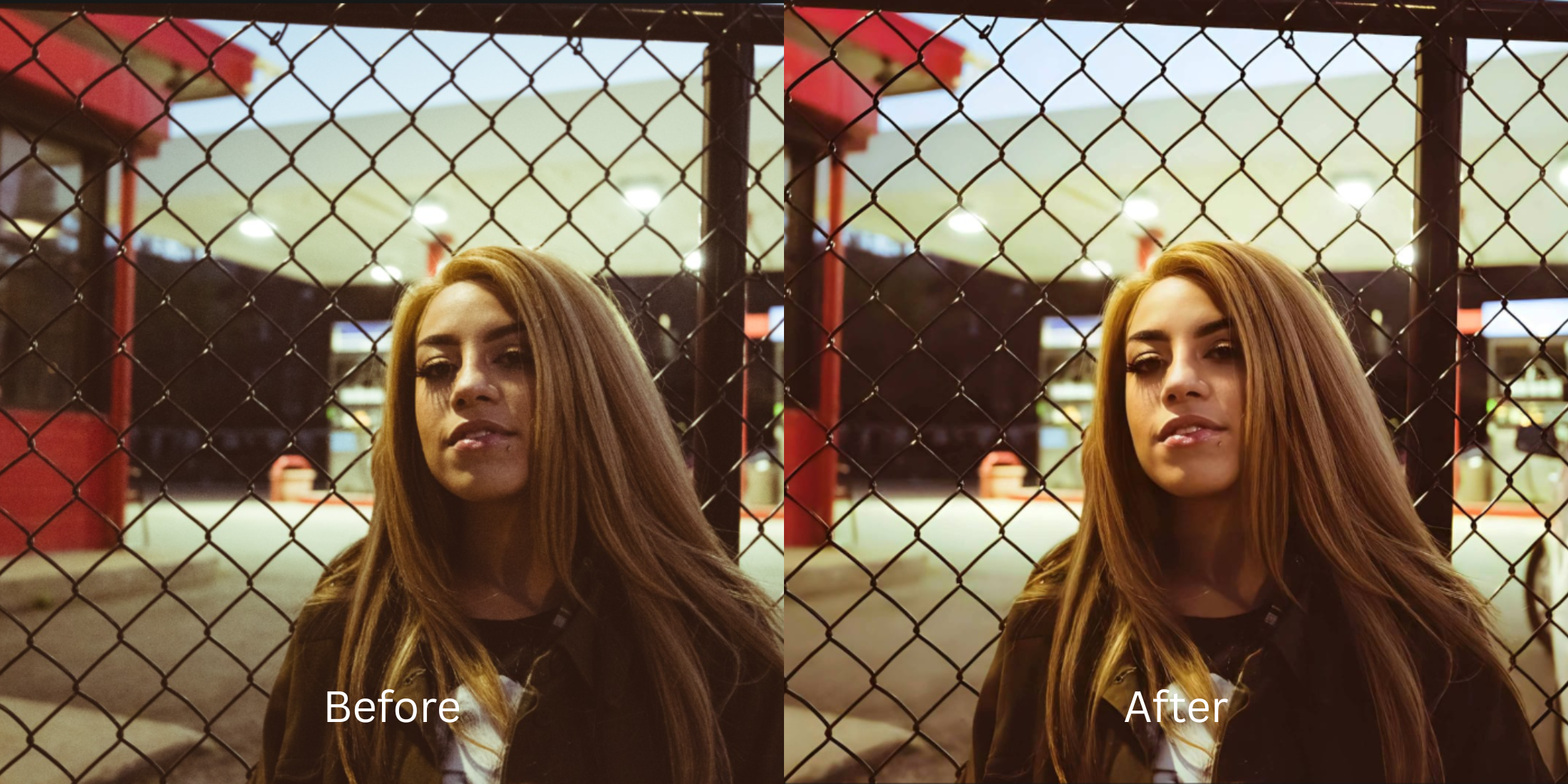

How to Improve 3 Photos at Once Before Posting
Posting a photo carousel or a multi-image dump is the standard for social media, but ensuring visual consistency is a nightmare. You might have 3 great photos, but one was taken in harsh sunlight, another in dull indoor shadows, and the third under yellow room lighting. When you try to fix them using manual sliders in a standard editor, you can never quite match the parameters. Applying a heavy, fake AI filter to the batch just layers "slop" over your face and destroys the natural vibe. To curate a perfect dump, you need an intelligent tool that normalizes the baseline lighting across the batch and applies a unified aesthetic with a single tap.
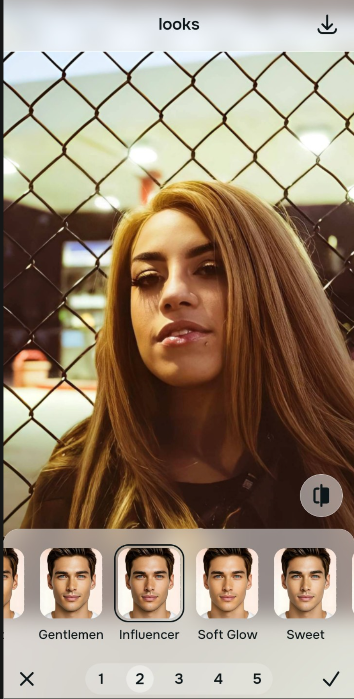
To make 3 photos perfectly consistent, you must normalize their lighting foundation without using manual sliders. Open your images in Citrus. Tap Enhance -> Colors & Lighting to automatically balance the different exposures. Next, tap Looks -> Influencer and select a simple Level 1-5 option to lock in a unified face impression across the entire set. Citrus generously provides these tools for free, with an optional turbo-batching upgrade available for instant multi-photo processing.
Why manual slider edits ruin carousel consistency
The human eye detects lighting mismatches instantly when swiping through a carousel. Trying to fix 3 different photos by manually dragging brightness, contrast, and saturation sliders guarantees inconsistency because the baseline light in each photo is different. If you use a basic natural looking results app that relies on fake AI generated overlays, the output feels synthetic. You need an enhancer that uses strict Level 1-5 tap inputs to ensure mathematical consistency across the entire batch, stripping away AI slop in favor of true pixel recovery.
- Using manual sliders that make it impossible to match the vibe across 3 photos
- Applying fake AI generated filters that turn your face into an artificial mask
- Spending 20 minutes tweaking individual settings just to post one quick dump
- Dealing with aggressive paywalls just to save a clean, cohesive layout
- Getting generous free access to the most natural enhancer ever built
- Using simple Level 1-5 tap options instead of frustrating manual sliders
- Normalizing lighting first so every photo shares the exact same foundation
- Opting into turbo batch processing to finish your entire carousel instantly
When your carousel feels fragmented, your engagement drops. Finding an face enhancer that looks real and applies identical aesthetic weight across multiple files ensures your grid stays flawless.
Balance multiple lighting scenarios instantly. A natural contrast baseline builds consistency.
How to edit a 3-photo carousel for free in 5 steps
Select your 3 mismatched photos
Open your gallery and select the photos you want to post. If one is too yellow from indoor bulbs, learning to fix yellow indoor lighting starts by addressing the overall exposure baseline first.
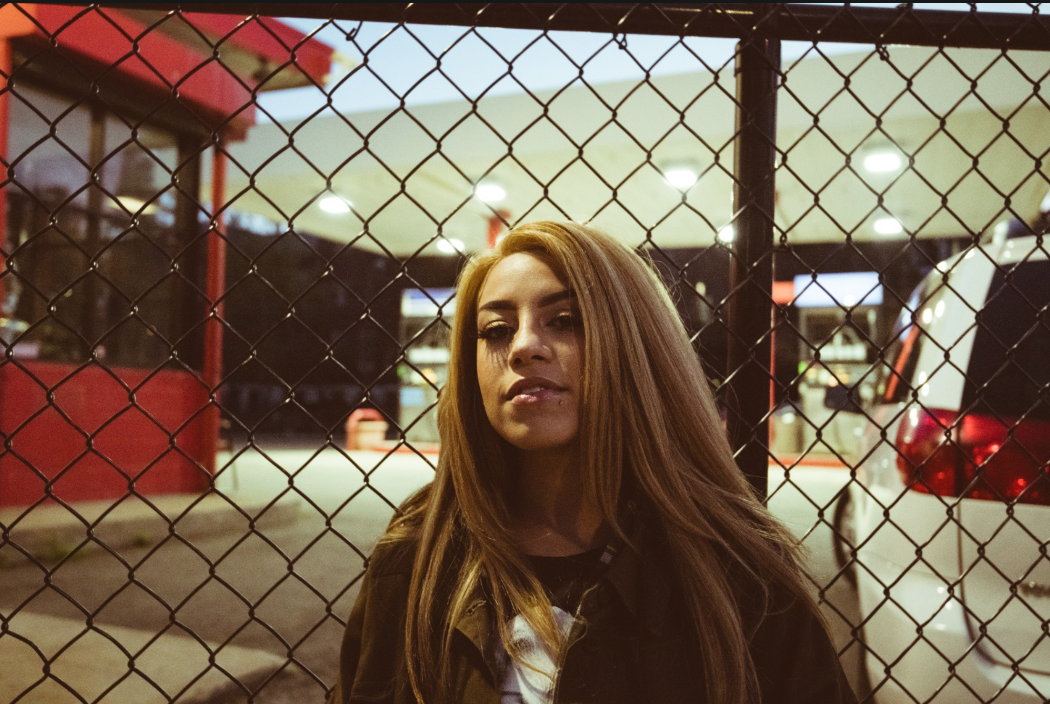
Let the instant preview analyze the baseline
Citrus provides a generous free preview instantly. This lets you observe how the engine calculates the unique lighting drops in each photo before you select your Level 1-5 processing intensity.
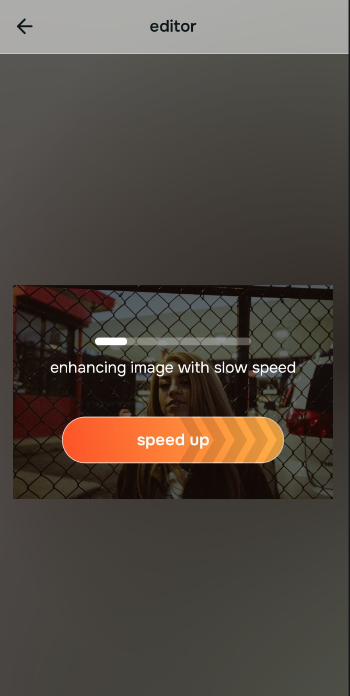
Tap Enhance and choose Colors & Lighting
Because mismatched photos are an overall image problem, tap Enhance -> Colors & Lighting. This strips away muddy sensor noise and normalizes the exposure natively. If you have flat looking selfies in the set, this step recovers their natural depth perfectly.

Always standardize light fields before using face impression tools. Bringing all 3 photos to the same exposure baseline ensures your final aesthetic tap applies evenly.
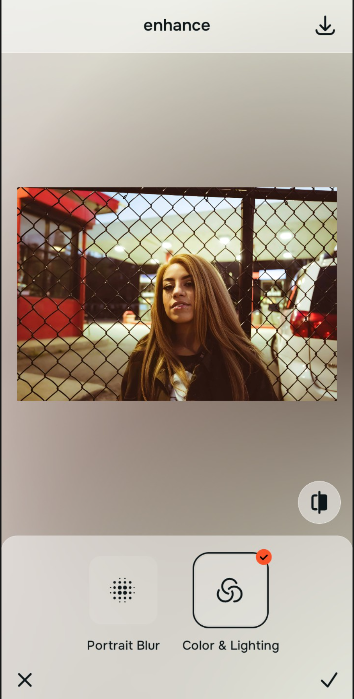
Tap Looks and choose Influencer for overall polish
Once your exposure baseline is even, tap Looks -> Influencer. Use the Level 1-5 tap option to apply the exact same weight to all 3 photos. Finding an option that looks more natural guarantees you avoid the fake, generated slop seen in heavy filters.
Save your set instantly (Free or Turbo)
Citrus generously offers high-resolution downloads for free. For users processing large dumps, an optional upgrade to the turbo batch processor is available. Using an enhancer that keeps skin texture ensures all 3 photos look premium.
Why does your 3-photo dump look mismatched?
Identify your set's primary visual limitation. Your ideal workflow choice changes depending on the issue.
Which free Citrus tool optimizes your carousel best
Separate photo weaknesses necessitate independent menu paths. Using Level 1-5 tap options rather than manual sliders is the only way to lock in visual consistency without generating AI slop.
| Tool Pathway | Primary Flaw Remediated | Multi-Photo Strategy |
|---|---|---|
| Enhance Start here | Clashing exposures, yellow indoor lighting, and varying shadow depth across photos | Use this first to normalize the overall image baseline. Select Colors & Lighting to restore contrast completely for free. |
| Looks | Inconsistent facial vibes, dull expressions, and fragmented aesthetic tones | Use this to update the overall face impression. Select Influencer (Level 1-5) to lock in a matching vibe across all 3 photos. |
| Face | Targeted anatomical limitations like heavy eye shadows in late-night shots | Use this last for precise feature tweaks. Select tools like No Eyebags to eliminate dark circles safely on a specific photo. |
“A great photo dump doesn't rely on fake generative AI filters. It simply normalizes the lighting foundation so the 3 photos share the same natural, crisp visual language.”
Why Level 1-5 taps beat manual sliders and fake filters
There is a massive distinction between balancing existing pixel data and masking your face with generative AI slop. When you use manual sliders across 3 photos, human error guarantees that the contrast and saturation will never match exactly. When you use fake AI overlays, the photos look like plastic renders.
Citrus is built for people who hate how filters look. By relying strictly on mathematically precise Level 1-5 tap options, you guarantee that the enhancement weight is applied flawlessly across every photo in your batch, ensuring a natural, professional finish.