


July 1, 2026
How to Get the Viral Retro Flash Look Without Instagram AI Changing Your Face

How to Get the Viral Retro Flash Look Without Instagram AI Changing Your Face
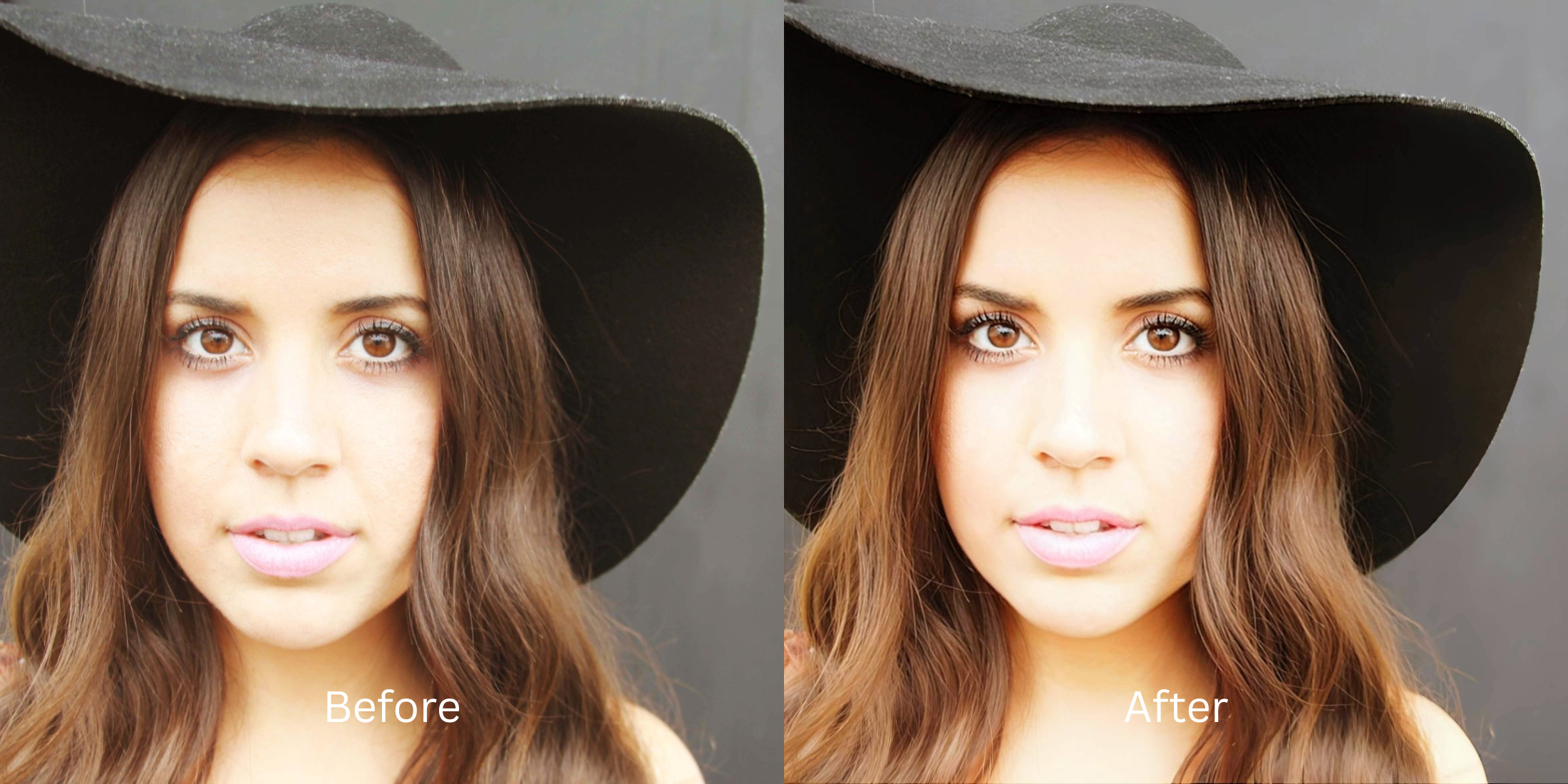
The raw, grainy night-party aesthetic of the "retro flash look" is completely dominating social media feeds. Everyone wants that ultra-vibrant, high-contrast flash appearance that looks like it was captured effortlessly on a casual disposable camera. However, achieving this style using Instagram's native camera or trending filters introduces a massive catch: the platform's background AI silently layers aggressive, creepy face-morphing masks onto your skull. It alters your jawline, thins your nose, and smooths your skin into waxy plastic slop. To secure this moody style while protecting your actual identity, you must rely on native exposure calibration rather than flat social filters.
To get a crisp retro flash look for free without letting social media AI modify your facial traits, prioritize raw shadow lifting over preset overlays. Open your low-light photo in Citrus and ignore face-morphing lenses entirely. First, tap Enhance → Colors & Lighting to automatically recalculate dark baseline contrast and stabilize grain fields. Next, navigate to Looks → Soft Glow and pick a clean Level 1–5 configuration. This mathematically locks in that sharp, high-definition camera flash pop while leaving your true facial features fully intact.
Why heavy social media filters and retro cam lenses destroy your realism
The core issue with trying to recreate a low-light flash aesthetic inside apps like Instagram, Snapchat, or vintage camera emulators like Dazz Cam and Huji is their destructive global compression. These filters apply an automated color tint that severely degrades image resolution, forcing heavy digital noise over facial lines to hide poor calibration. Even worse, mainstream platforms paywall their high-resolution processing workflows. Utilizing an app engineered as an authentic alternative overprocessed beauty editors solution allows you to apply level-driven increments, bypassing generic facial adjustments completely.
- Allowing embedded Instagram AI scripts to silently shrink your nose and warp your real bone structure
- Crushing file resolution by layering muddy color tints from vintage camera emulators
- Deep-frying pixel arrays when forcing manual flash curves inside paid premium suites
- Erasing all pore data and edge lines via global bilateral smoothing layers
- Accessing powerful, high-resolution low-light enhancement paths generously given for free
- Using mathematically calibrated Level 1–5 taps instead of texture-destroying manual adjustments
- Rebuilding vibrant night flash contrast natively without letting AI rewrite your facial traits
- Processing individual portraits in seconds with zero hidden onboarding costs or watermarks
When your export looks heavily altered or pixelated, you lose the effortless credibility that makes the retro aesthetic work. Shifting away from heavy social lenses to a targeted enhancer doesnt change your face architecture keeps your presentation crisp, moody, and completely real.
Optimize low-light contrast instantly. A structured level choice keeps your real skin texture completely intact.
How to automate a crisp retro flash look for free in 5 steps
Upload a selfie flattened by low-light camera compression
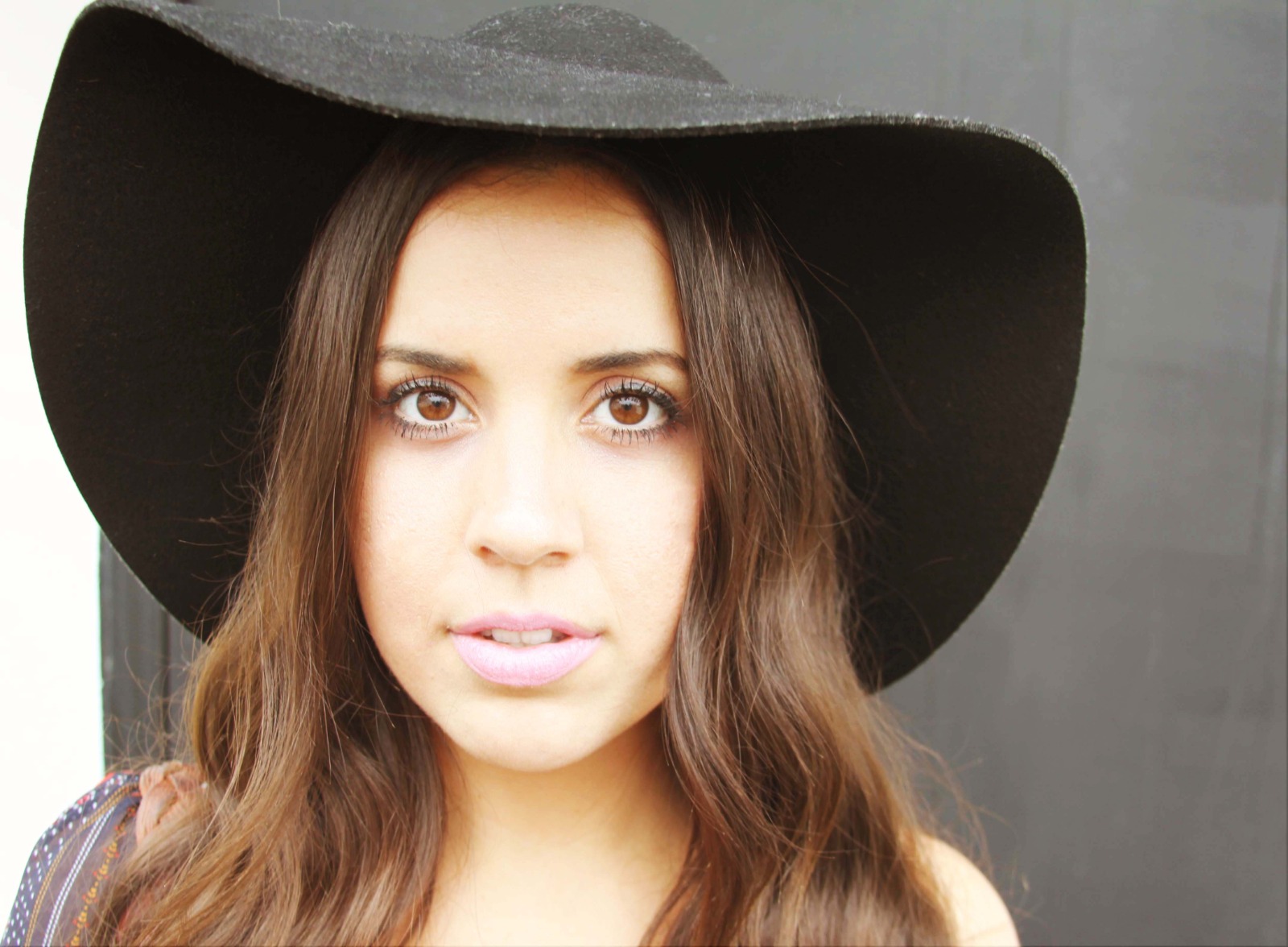
Open your file rollout and choose a raw picture that suffers from muddy underexposure or gray camera washout. Repairing this layout curve requires analyzing the original source via ai photo enhancers low light baselines.
Let the real-time preview map the contrast coordinates
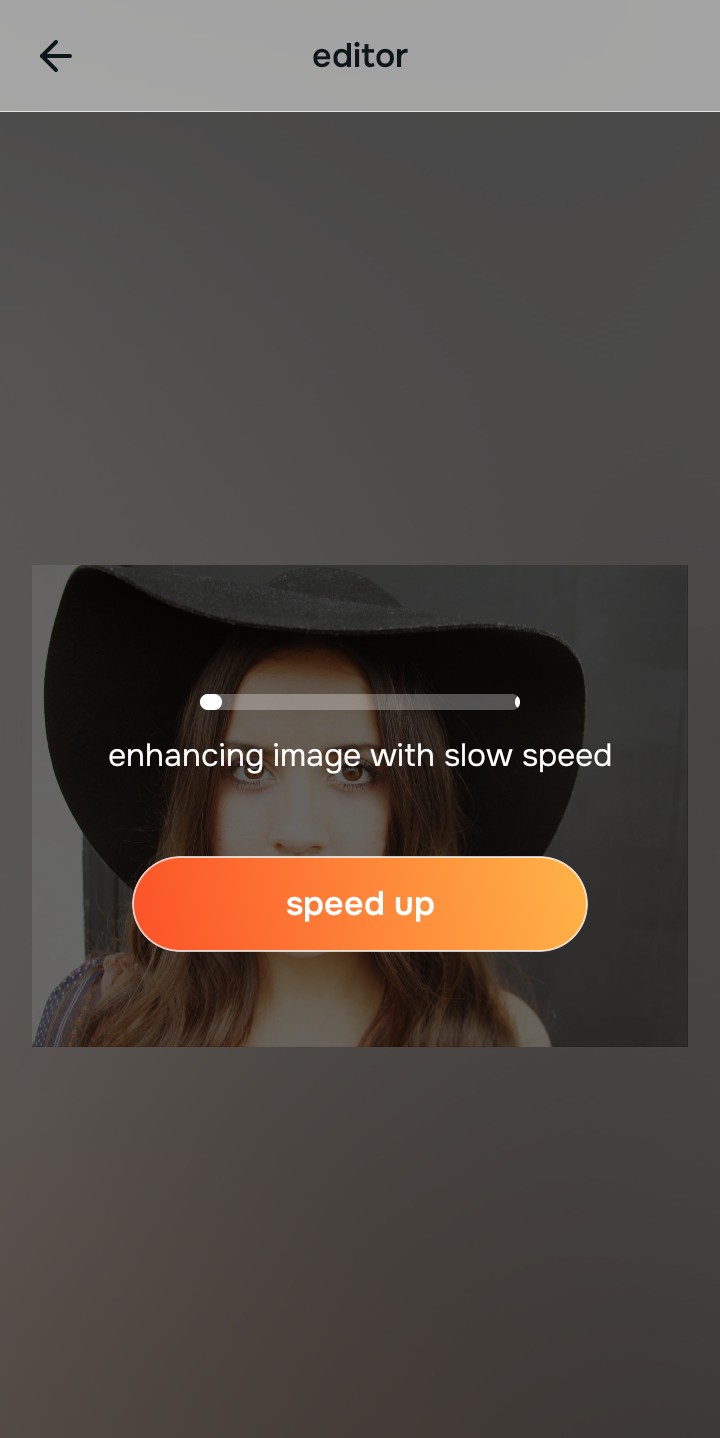
Citrus initializes its tracking grid instantly without forcing you through paywalled credit card registrations. This presents an active preview window so you can safely examine how the engine handles dark regions before processing.
Tap Enhance and choose Colors & Lighting
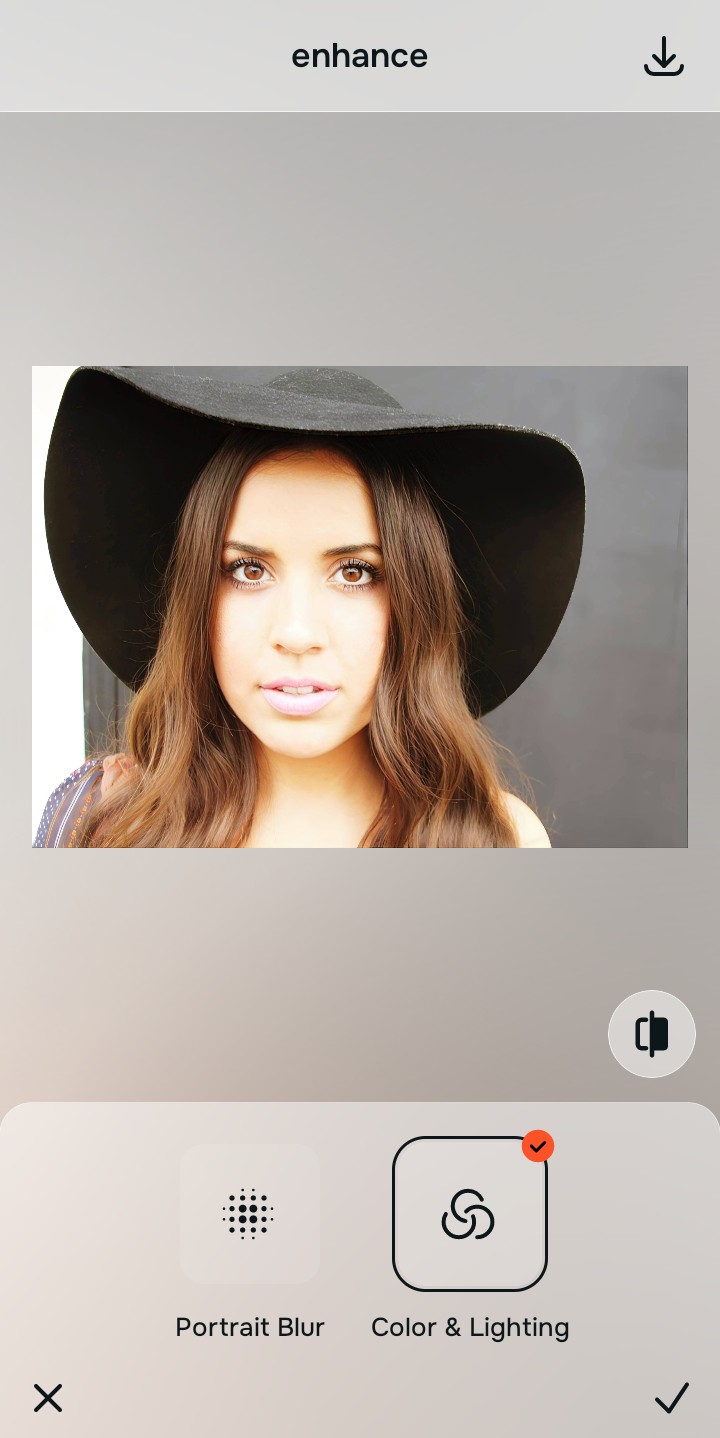
Because dull low-light selfies are caused by bad camera metering curves, tap Enhance → Colors & Lighting. This strips away muddy background noise cleanly. Resolving this exposure baseline is essential to building an ai face enhancer that still looks real presentation.

Always balance global lighting zones before applying facial corrections. Normalizing the base exposure map ensures subsequent aesthetic updates sit beautifully and invisibly without weird masking artifacts.
Tap Looks and select Soft Glow to inject sharp contrast
With your base light layers normalized, optimize your overall face impression natively. Tap Looks → Soft Glow. Select your preferred value from Level 1–5 to layer a crisp flash style. Utilizing an app engineered as an apps people hate filters option ensures your organic skin texture remains intact.
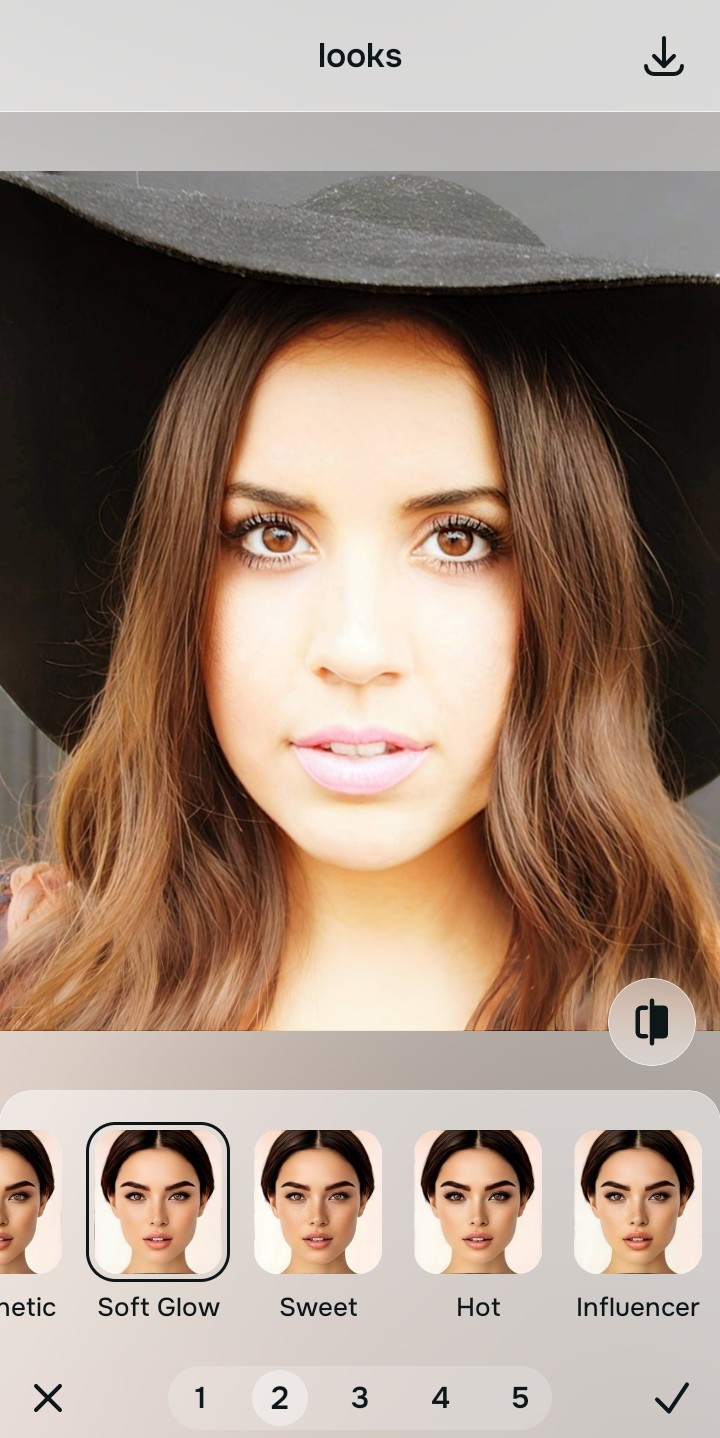
Export your high-resolution, unwatermarked portrait
Citrus generously offers clean high-definition exports entirely for free with no hidden premium pop-ups. For creators looking to process large night-out galleries at high speeds, an optional premium Turbo rendering tier is available. You can safely prepare instagram ready selfies enhancer files confidently.
What is lowering your current portrait quality?
Isolate your image's core mechanical issue. Your automated pipeline changes depending on the source error.
How to align your profile concerns with the right free pathway
Separate photo weaknesses necessitate independent menu paths. Selecting structured Level 1–5 tap options instead of raw manual sliders is the only way to lock in visual sharpness without generating AI slop.
| Tool Pathway | Primary Flaw Remediated | Automated Fix Strategy |
|---|---|---|
| Enhance Start here | Washed-out facial illumination, low-light noise, and compressed contrast fields | Use this first to establish a proper light foundation. Choose Colors & Lighting to balance layers for free. |
| Looks | Dull skin appearance, flat expressions, and tired overall image vibrancy | Use this to update the entire face impression. Select Soft Glow (Level 1–5) to coat your portrait in a sharp polish. |
| Face | Targeted anatomical washouts like deep eye bags or dark shadow pockets | Use this last for precise feature tweaks. Select No Eyebags to safely lift localized shadows without adding blur masks. |
“An authentic retro fix should never replace your face with an AI filter mask. It must simply correct the existing harsh light so your real character shines through clearly.”
Why precise level taps protect human skin texture better than social media lenses
There is a massive structural difference between balancing camera exposure natively and masking your face behind fake filters or generative slop. When you use manual sharpening, custom curve tools, or default social media lenses inside legacy platforms, the application compresses your data matrix, resulting in noticeable, blurry streaks across your skin features. This instantly ruins your file quality when cataloged in the upload damage database records.
Citrus is built from the ground up to be the most natural enhancer ever created. By relying exclusively on mathematically precise Level 1–5 tap settings instead of unpredictable sliders, the engine maps your face securely, optimizing highlight tracking without hallucinating new facial characteristics or shrinking your features. Finding high-end faceapp alternatives without heavy filters guarantees that your presentation remains sharp, trusted, and beautifully proportioned.