


April 19, 2026
Free AI Enhancer for Old Selfies and Memories
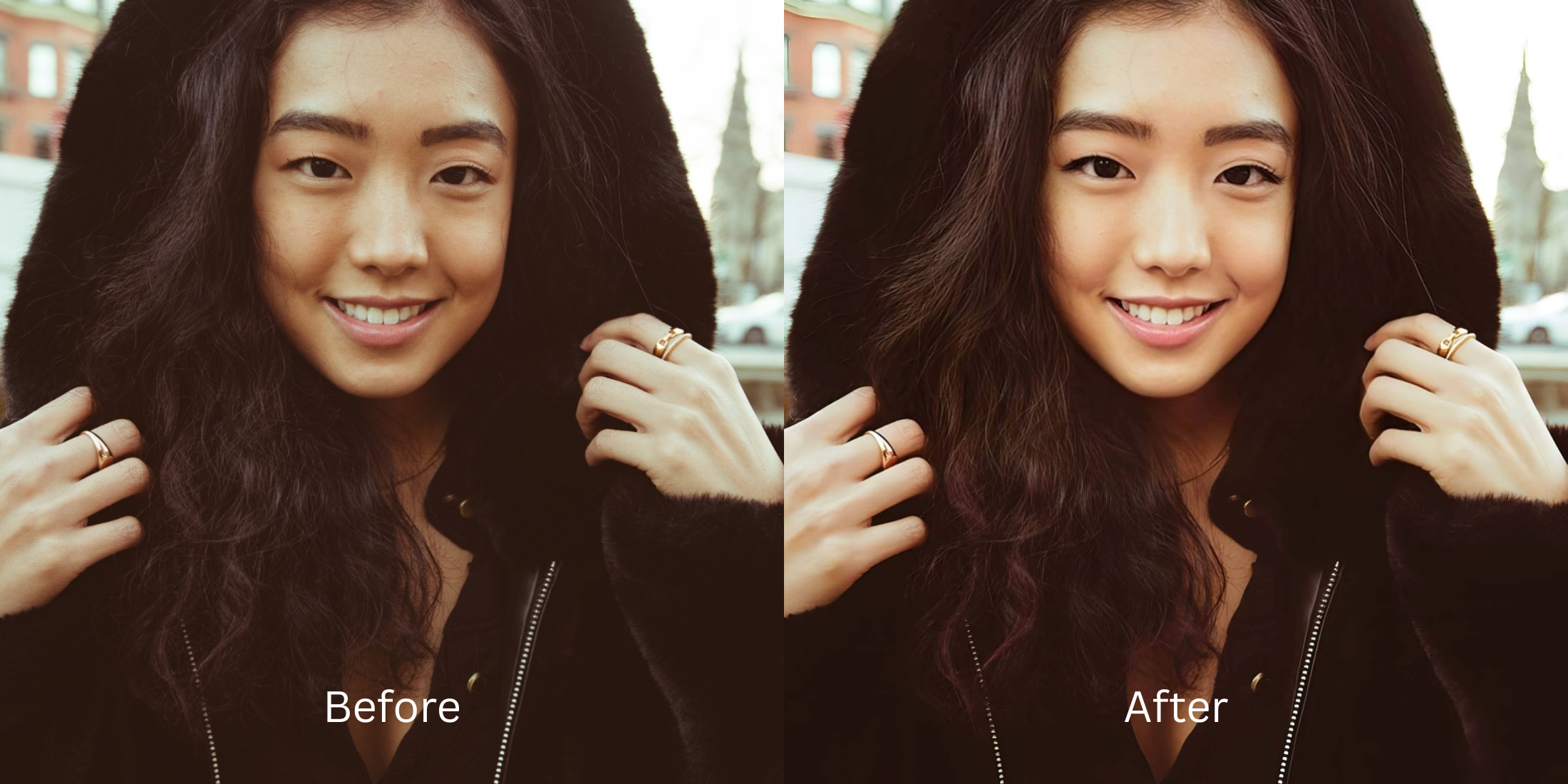

Free AI Enhancer for Old Selfies and Memories
Scrolling back years in your camera roll often reveals great memories trapped in terrible quality. Low-megapixel cameras from the past left us with faded colors, heavy pixelation, and blurry faces. When you try to rescue these photos, most modern apps either demand a steep subscription fee or use aggressive generative algorithms that completely change your features. To properly make blurry photos clear, you need a free structural enhancer that respects the original memory.
To rescue an old, degraded selfie for free without looking like a fake AI clone, you must reconstruct the lost pixel data rather than applying a digital filter. In Citrus, skip the generative beauty masks and tap Enhance -> Colors & lighting to instantly restore focus and resolution. Once the pixels are rebuilt, use Looks -> Youthful to safely bring color and energy back to the memory.
Why heavy AI editors ruin old memories
The fundamental problem with old photos is missing data. When heavy AI tools encounter pixelated or blurry faces, they guess what you looked like and literally paste a generic, airbrushed face over yours. This creates a terrifying "uncanny valley" effect where the person in the photo is no longer recognizable. You want to save the moment without changing your real face or destroying the historical authenticity of the capture.
- Using generative AI that completely replaces your loved ones with fake clones
- Paying expensive monthly subscriptions just to export a rescued memory
- Having massive watermarks stamped across your family photos on free tiers
- Compressing old, already degraded files even further upon saving
- Getting professional-level pixel reconstruction without hidden paywalls
- Restoring lost focus to counteract old, low-megapixel phone cameras
- Exporting your final, high-resolution photo instantly without watermarks
- Keeping your facial structure and original identity completely intact
If your restored picture looks incredibly sharp but you seem like a stranger, the software has ruined the memory entirely. Selecting true enhancers for low light selfies and old files guarantees that your history stays authentic.
Restore old memories instantly. A smart edit keeps reality intact.
How to restore an old selfie for free in 5 steps
Select a faded or pixelated memory
Find a picture from years ago where the camera failed to capture a clear image. You do not need to delete a cherished memory just because of low resolution or dead colors. It is entirely possible to fix yellow indoor lighting and pixel degradation simultaneously.

Let the instant preview analyze the degradation
Citrus provides a first correction immediately without asking for a credit card. This ensures that any underlying focus or color washout issues are recognized before you start attempting any facial refinements.
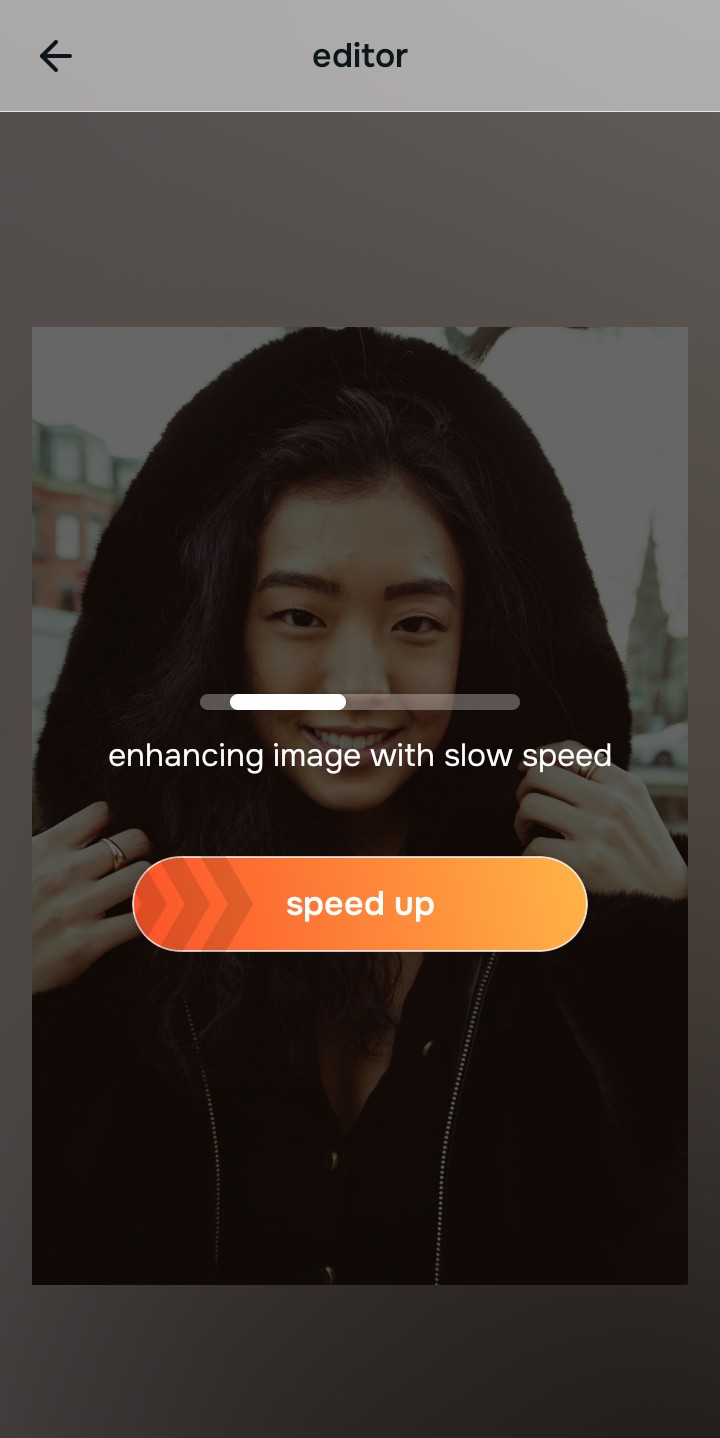
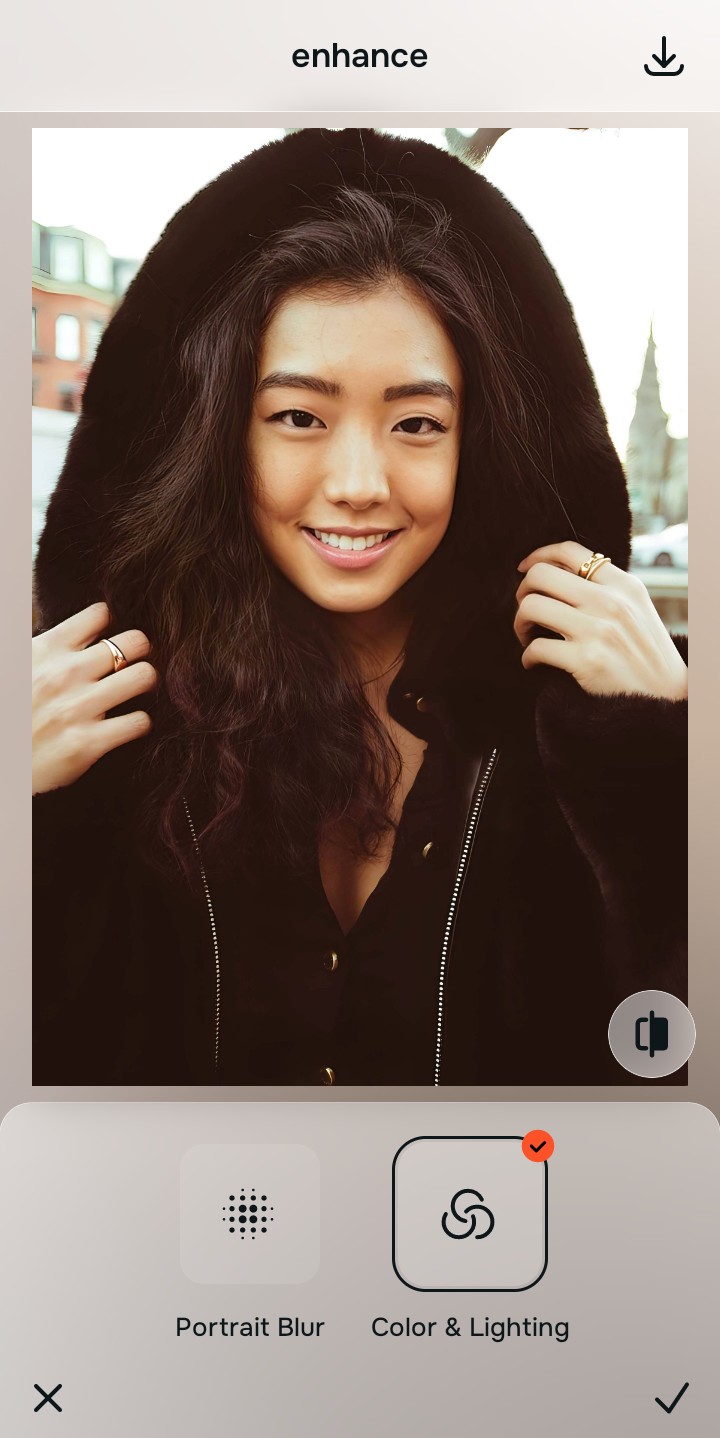
Use Enhance to fix the core resolution first
Because an old selfie is primarily a resolution problem, tap Enhance -> Colors & lighting. This rebuilds the lost pixel data and clears the fuzziness. It is the absolute fastest way to clear up severe degradation without paying a subscription.

Always fix the core resolution before applying any other tools. Tap the Enhance options to restore image clarity first.
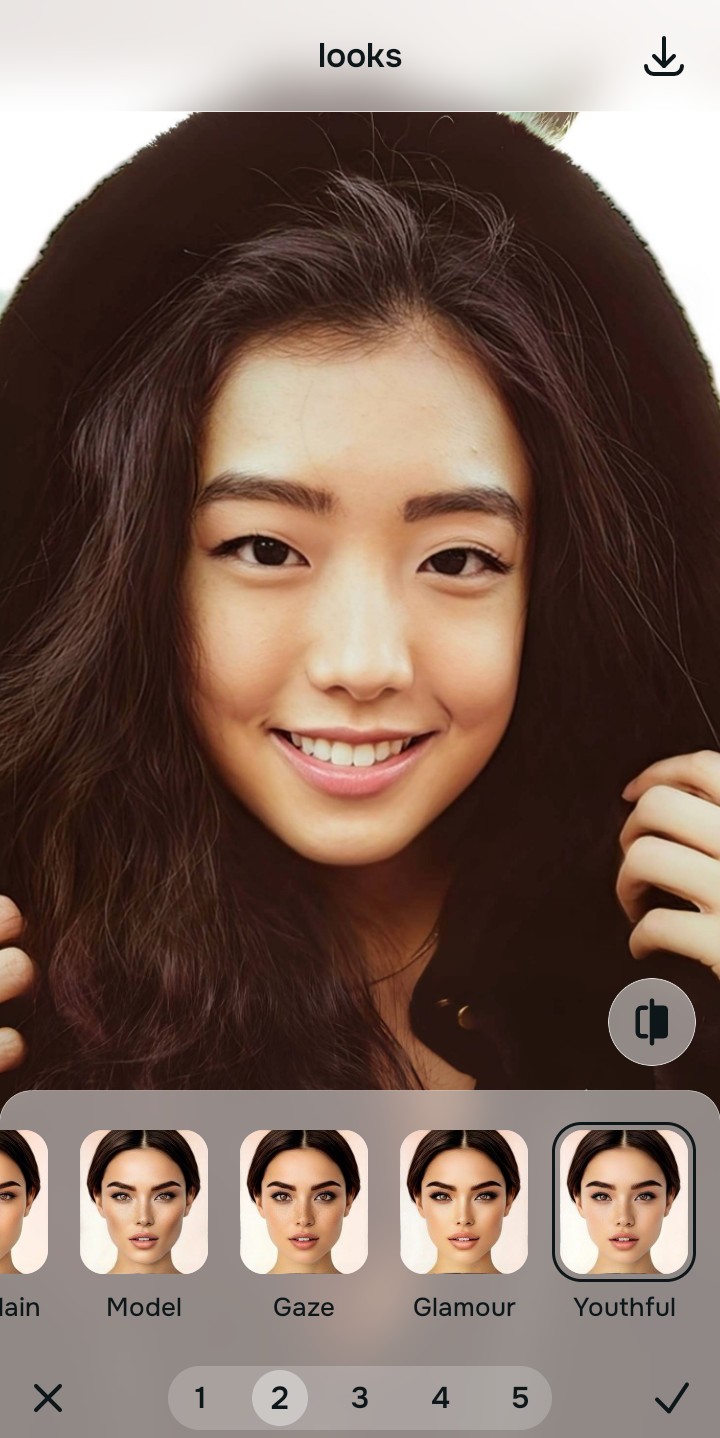
Apply Looks tools to restore vibrant energy
Once the pixel data is rebuilt, you can safely bring color back to the memory. Tap Looks -> Youthful to gently revive the atmosphere of the photo. This approach easily allows you to make flat photos look alive without looking artificial.
Save the high-resolution photo instantly
Unlike premium apps that charge you to export a rescued memory, you can save your results instantly for free. A strong enhancer for natural looking results guarantees your finished image stays free of watermarks.

Why does this old photo look bad?
Choose the description that fits best. Your starting point changes depending on what is actually ruining the picture.
Which free Citrus tool delivers the best memory rescue
Different problems require entirely different tools. The goal is to get the best possible result by matching the tool to the actual age-related error. This stops you from ruining a classic picture with a heavy, automated filter.
| Tool | What it helps fix | When to use it |
|---|---|---|
| Enhance Start here | Heavy blur, missing pixel data, severe grain, and low resolution | Use this first when the whole image is degraded. Choose Colors & lighting to reconstruct lost details and clear the focus for free. |
| Looks | Photos that are technically in focus but lack a vibrant, lively impression | Use this after Enhance when the real issue is a dead vibe. It creates a photogenic, Youthful glow instantly. |
| Face | Specific soft spots on the face, specifically targeting faded or pale complexions | Use this last, applying targeted tools like Skin Tone to subtly refresh your features after the broader image already feels clear. |
“The best way to rescue an old memory is to reconstruct the lost pixel data instead of paying a monthly fee to let an AI paste fake faces over your loved ones.”
Why pixel reconstruction beats fake AI generation
There is a massive difference between clearing blur and generating a completely new face. When you use aggressive AI tools on old photos, they often guess what you looked like and replace your eyes or teeth with generic templates. The human brain instantly recognizes this loss of authenticity as a disturbing, cheap edit.
Real quality comes from correcting the underlying data instantly. Finding proper fixes for tired puffy selfies from the past allows you to save money while ensuring your memories remain completely authentic, sharp, and free of paywalls.