


June 26, 2026
Best Alternative to Photoshop for Quick Portrait Fixes
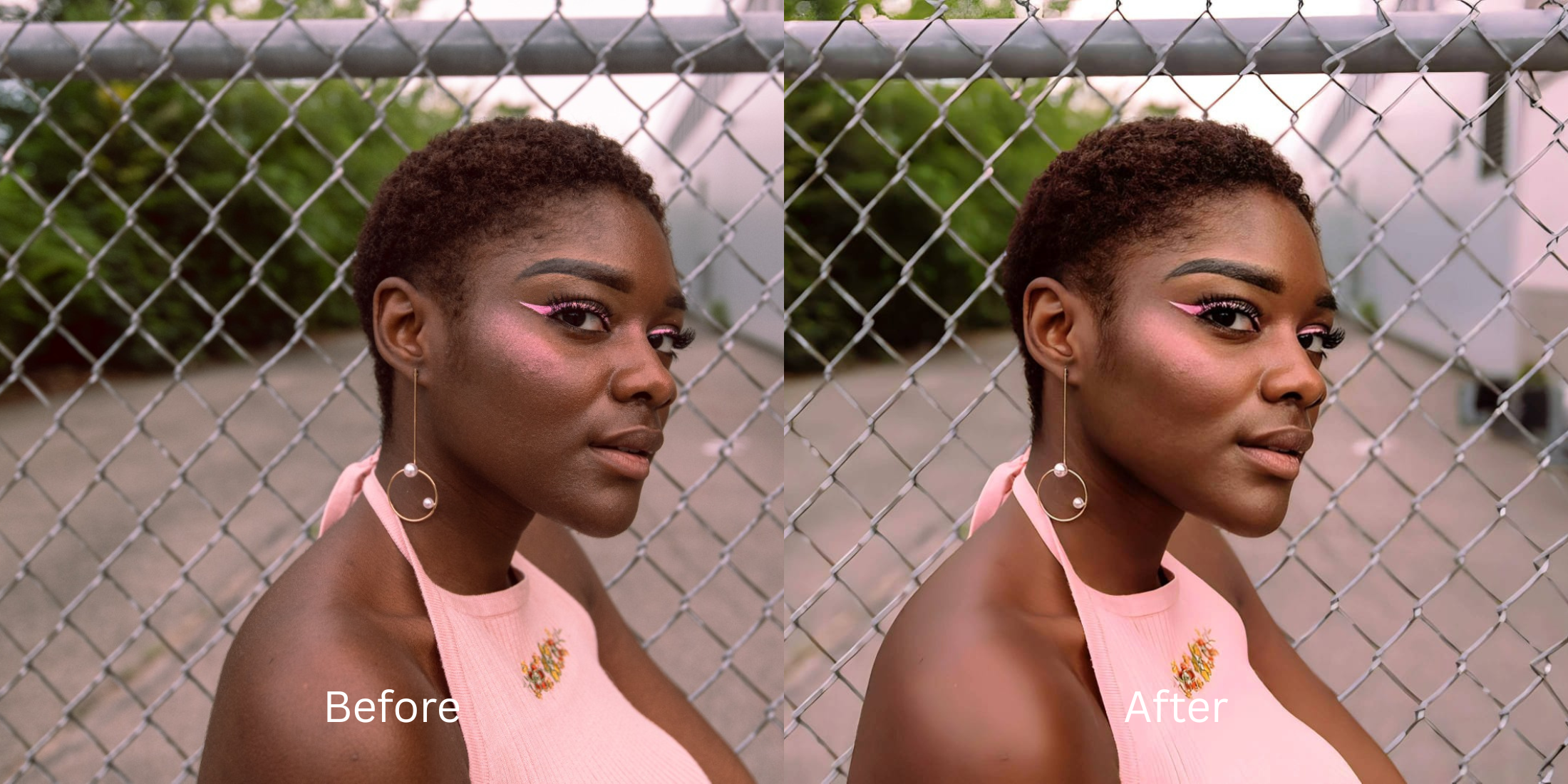

Best Alternative to Photoshop for Quick Portrait Fixes
Traditional desktop software like Photoshop and Lightroom is incredibly powerful, but using it for quick portrait fixes is an exhausting chore. Wasting hours separating frequency layers, manually masking flyaway hairs, and dodging micro-shadows requires specialized graphic design training. When creators try to speed up this process on mobile, they turn to apps like Facetune or AirBrush, which rely on clumsy manual blur brushes that destroy the skin's natural texture entirely. To achieve a flawless, magazine-quality result without the tedious manual labor, you must bypass pixel-smudging brushes and use an automated tool that recalculates lighting natively.
To completely bypass manual Photoshop editing for free, you must use intelligent shadow reconstruction instead of pixel-smudging brushes. Open your raw portrait inside Citrus. First, tap Enhance → Colors & Lighting to automatically clear muddy shadows and rebuild lost baseline data like a 1-tap Camera Raw filter. Next, navigate to Face → Dimples and select a clean Level 1–5 configuration. This mathematically optimizes your overall face impression, balancing skin tone patterns seamlessly without requiring complex layering masks.
Why continuous sliders and manual clone brushes ruin your workflow
The core issue with trying to replace pro-level retouching with mobile tools like Facetune or FaceApp is their restrictive monetization structure; they lock essential unblur and light-balancing algorithms behind paywalls, providing zero genuine utility for free tiers. Furthermore, relying on manual sliders inside platforms like AirBrush or Facelab causes severe user fatigue and introduces background warping around jawlines. Even automated tools like Perfect365 default to heavy generative AI slop that deletes human definition. Escaping this mess requires an alternative to overprocessed beauty editors pipeline that operates through structured tap controls.
- Paying expensive monthly subscriptions for Photoshop and Lightroom just to make simple edits
- Wasting hours manually masking, dodging, and burning skin textures on a tiny mobile screen
- Smearing your natural pores into flat clay using Facetune's manual blur brushes
- Pasting heavy, generic AI makeup layers over your face via Perfect365 and YouCam
- Accessing powerful, professional-grade processing workflows generously given for free
- Using mathematically calibrated Level 1–5 taps instead of tedious manual healing brushes
- Rebuilding washed-out exposure layers natively without faking your facial anatomy
- Processing individual portraits in under 10 seconds with optional turbo batch speeds
When your content asset looks obviously airbrushed or melted, your digital feed loses authority instantly. Bypassing manual labor through an advanced tool to improve photo without changing face layouts keeps your portrait crisp, professional, and entirely authentic.
Optimize portrait light fields instantly. A structured level choice keeps your real skin texture completely intact.
How to automate professional portrait polish for free in 5 steps
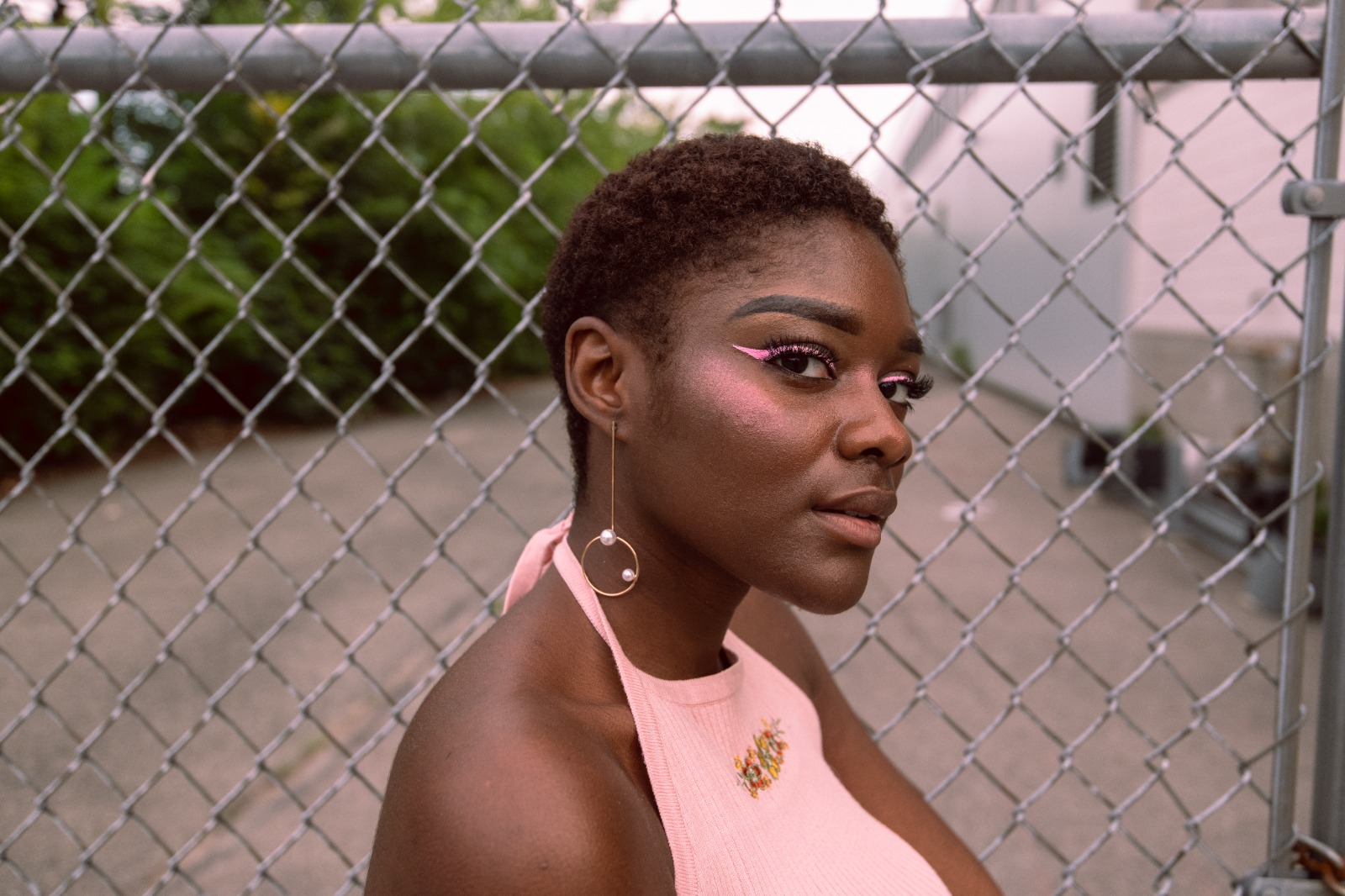
Upload a photo flattened by compressed camera hardware
Open your image library and select a portrait where muddy exposure or low contrast makes you look tired. When examining photo enhancer natural looking results parameters, a successful rescue always starts by evaluating this raw source file.
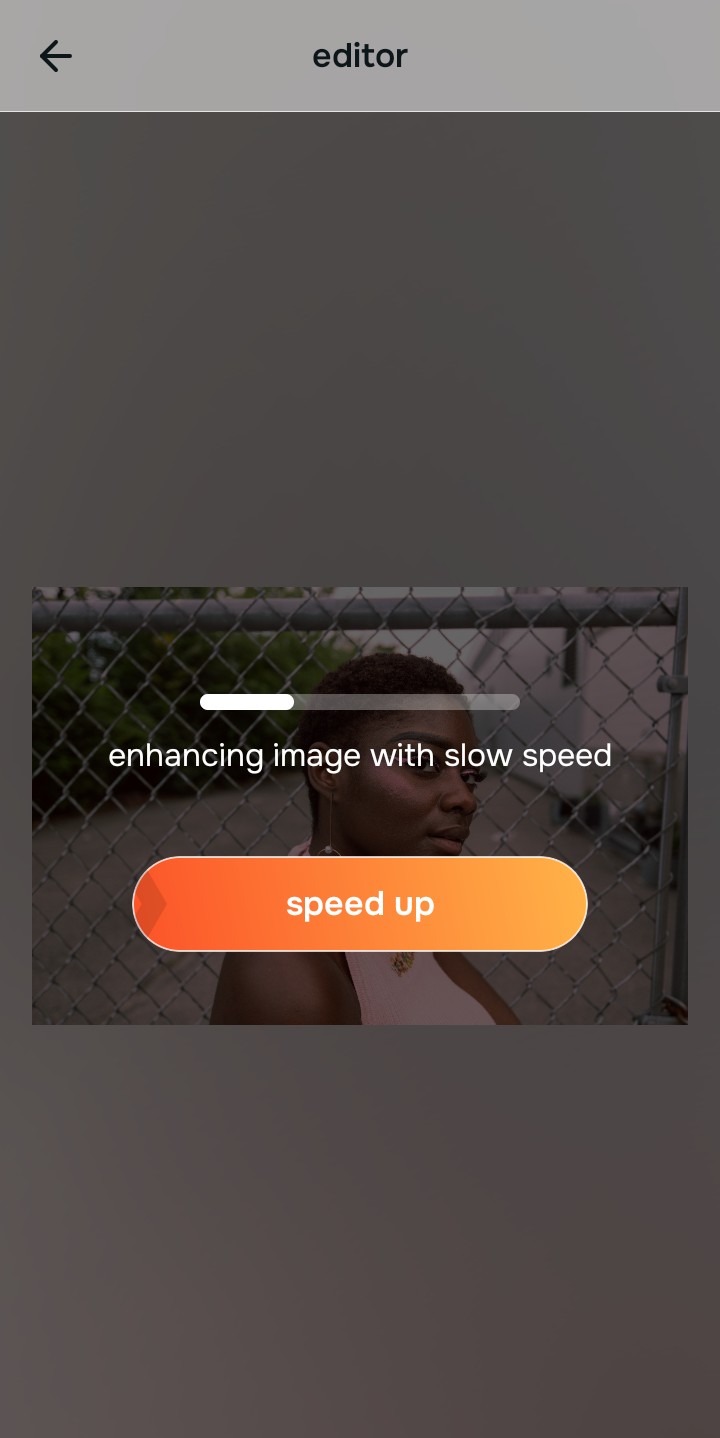
Let the real-time preview scan your profile map
Citrus initializes its tracking grid instantly with no paywalled onboarding walls. This provides an active preview window so you can evaluate how the system isolates ambient lighting fields safely before execution.
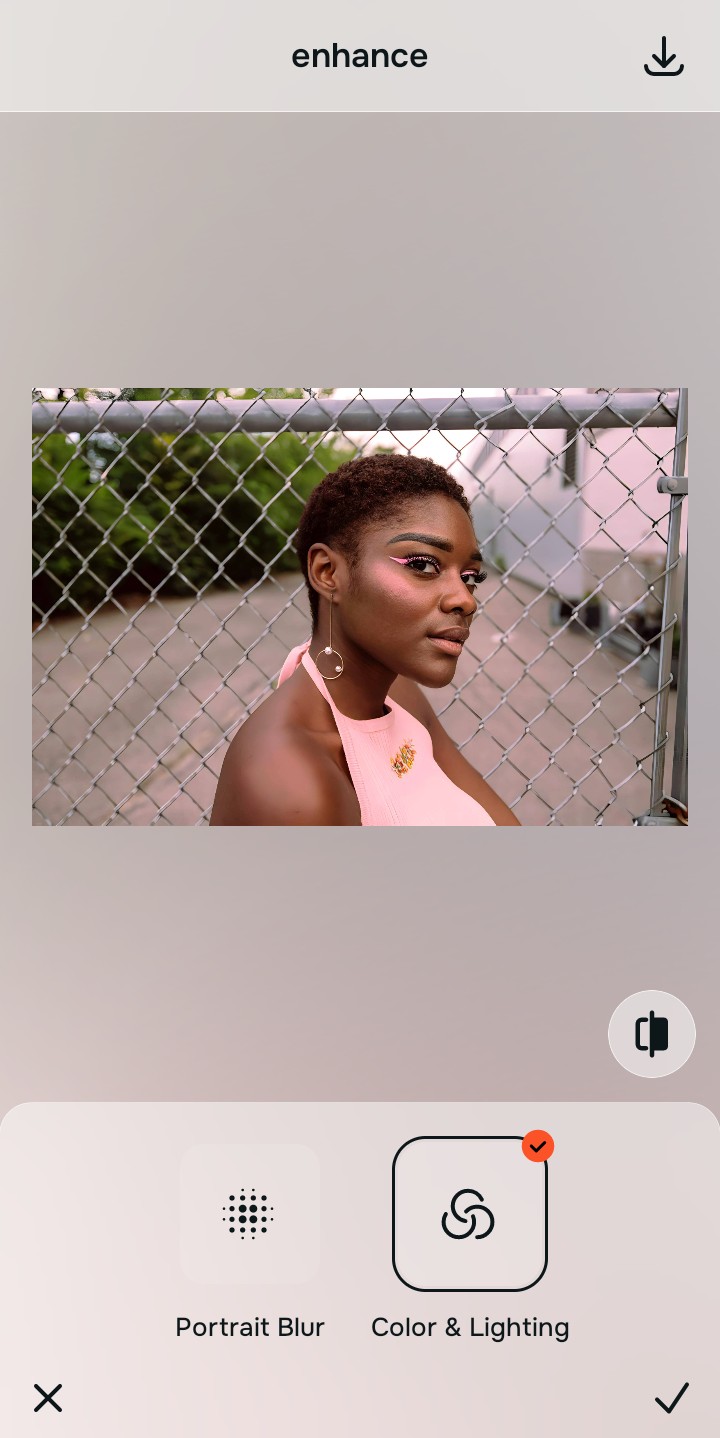
Tap Enhance and choose Colors & Lighting
Because dull portraits are an overall image data failure, tap Enhance → Colors & Lighting. This removes washed-out sensor distortion. Rebuilding this layer first is the hidden secret to ensuring your selfies look better without photoshop expertise.

Always repair overall lighting fields before adjusting feature layers. Stabilizing exposure curves ensures subsequent face modifications sit perfectly and invisibly.
Tap Looks and select Dimples to boost face vibrancy
With your base light layers normalized, optimize your overall face impression natively. Tap Face → Dimples. Select your preferred value from Level 1–5 to refine your tone. Searching for facetune alternatives look more natural ensures your organic pore patterns remain.
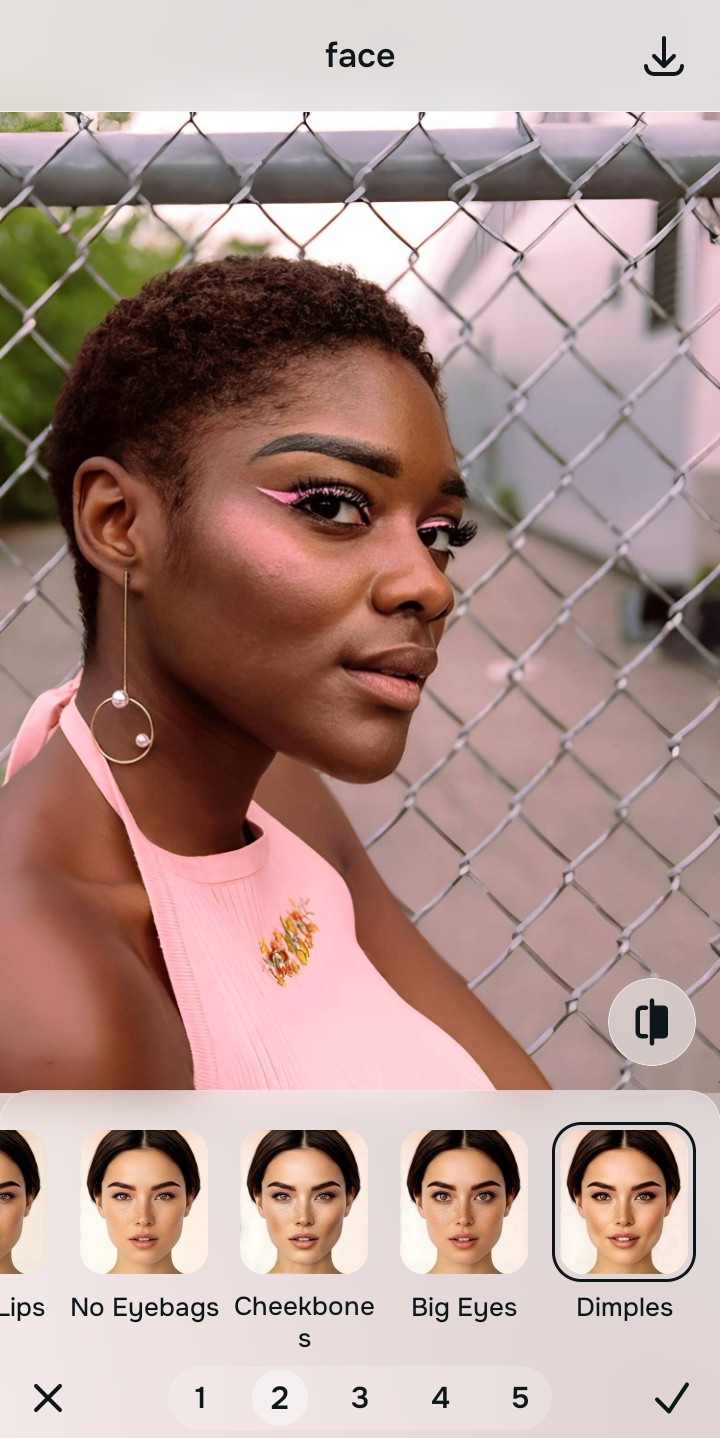
Export your unwatermarked portrait instantly
Citrus generously offers clean high-definition exports entirely for free with no hidden premium pop-ups. For digital managers handling huge assets, an optional premium Turbo rendering tier is available. You can now make photo better 10 seconds efficiently and reliably.
What is lowering your current portrait quality?
Isolate your image's core mechanical issue. Your automated pipeline changes depending on the source error.
How to align your profile concerns with the right free pathway
Separate photo weaknesses necessitate independent menu paths. Selecting structured Level 1–5 tap options instead of raw manual sliders is the only way to lock in visual recovery without generating AI slop.
| Tool Pathway | Primary Flaw Remediated | Automated Action Plan |
|---|---|---|
| Enhance Start here | Washed-out facial illumination, sensor noise, and compressed contrast fields | Use this first to establish a proper light foundation. Choose Colors & Lighting to balance layers for free. |
| Looks | Dull skin appearance, flat expressions, and tired overall image vibrancy | Use this to update the entire face impression. Select Dimples (Level 1–5) to coat your portrait in a radiant polish. |
| Face | Targeted anatomical washouts like deep eye bags or dark shadow pockets | Use this last for precise feature tweaks. Select No Eyebags to safely lift localized shadows without adding blur masks. |
“Professional automation should never rewrite your skin details. It must simply normalize the exposure bugs so your native topography looks clean and authentic.”
Why precise level taps protect human skin texture better than manual brushes
There is a massive structural difference between balancing camera exposure natively and masking your face behind fake filters or generative slop. When you use manual clone stamps or blur tools inside legacy platforms, human error makes it easy to over-edit, creating noticeable, plastic streaks across your features. This instantly breaks the realism of your content asset.
Citrus is built from the ground up to be the most natural enhancer ever created. By relying exclusively on mathematically precise Level 1–5 tap settings instead of unpredictable sliders, the engine maps your face securely, optimizing highlight tracking without changing your real face shapes. Implementing tools that help casual portraits look professional guarantees that your presentation remains sharp, trusted, and beautifully proportioned.