


May 9, 2026
Best AI Photo Enhancer for Profile Pictures
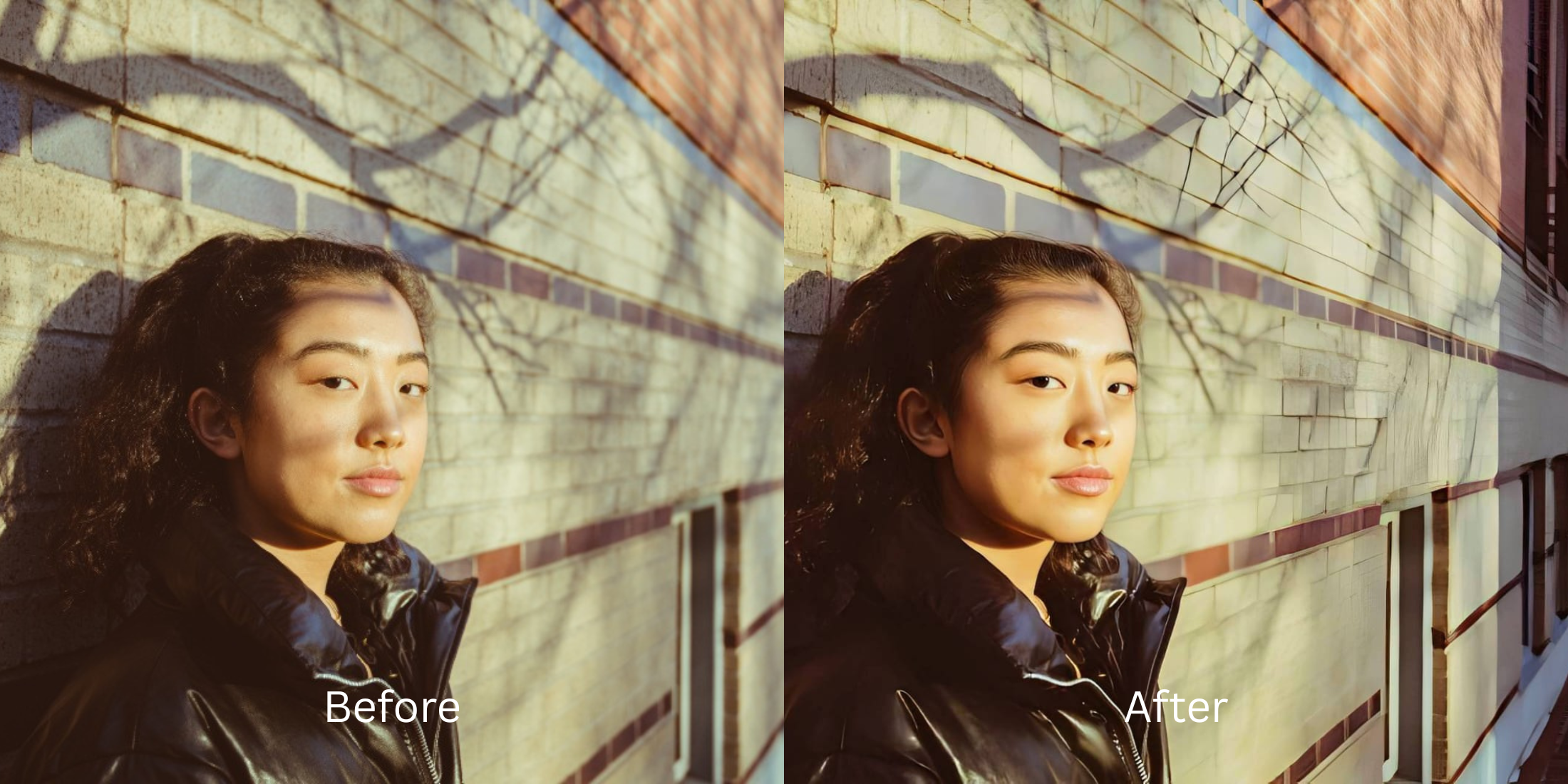

Best AI Photo Enhancer for Profile Pictures
Your profile picture is your digital handshake. When you use heavy beauty filters, the image immediately signals that it is highly manipulated, making you look less authentic to employers, colleagues, or dates. Unfortunately, raw phone cameras often distort your features and wash out your complexion. To achieve a high-quality, professional look, you need an AI face enhancer that fixes bad lighting while keeping you looking completely real.
The most professional way to enhance a profile picture is by restoring the lighting baseline first. In Citrus, skip the smoothing tools and tap Enhance -> Colors & Lighting. Once the contrast and depth are restored, navigate to Looks -> Glow Up to apply a subtle, cohesive polish that keeps your natural pores completely intact.
Why smartphone cameras distort your face and ruin profile pictures
Small phone lenses use a wide-angle perspective. When you hold the camera close for a headshot, it artificially widens your nose and flattens your cheeks. Combined with weak indoor lighting that erases your natural shadows, the result is a puffy, exhausted appearance. This optical failure is a massive reason why you might feel you look worse in photos than in the mirror. The solution is not to smudge the pixels, but to recover the actual depth.
- Using heavy blur that turns textured skin into flat plastic
- Brightening the whole image until vital shadows disappear
- Applying extreme thinning presets that warp the background walls
- Erasing natural freckles, pores, and character lines
- Fixing overall image contrast so the face regains true depth
- Using targeted tools strictly for specific problematic shadows
- Keeping your facial structure and eye shape completely real
- Stopping the edit while skin texture remains highly visible
If your final headshot looks perfectly smooth but you seem like a mannequin, you used the wrong editing method. A smart sequence helps you build a trustworthy image.
Restore contrast and keep your real face. A smart edit keeps reality intact.
How to improve your profile picture naturally in 5 steps
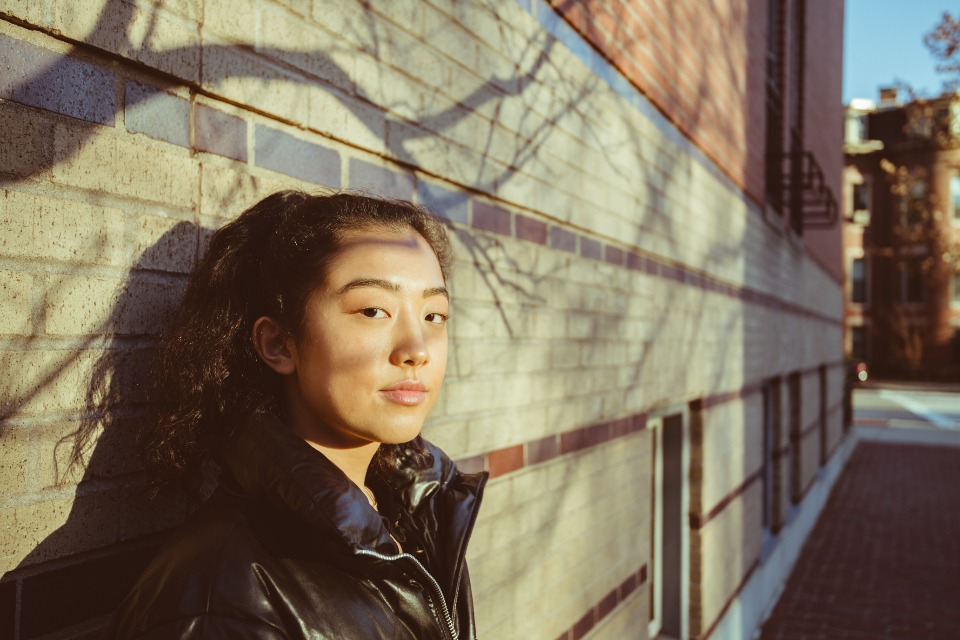
Select a photo where the lighting is the main issue
Find the picture where your expression is great, but the camera failed to capture the lighting properly. You do not need to settle for a dull image. Using the right tool allows you to improve bad camera lighting instantly by restoring the underlying raw data.
Let the instant preview process the overall image
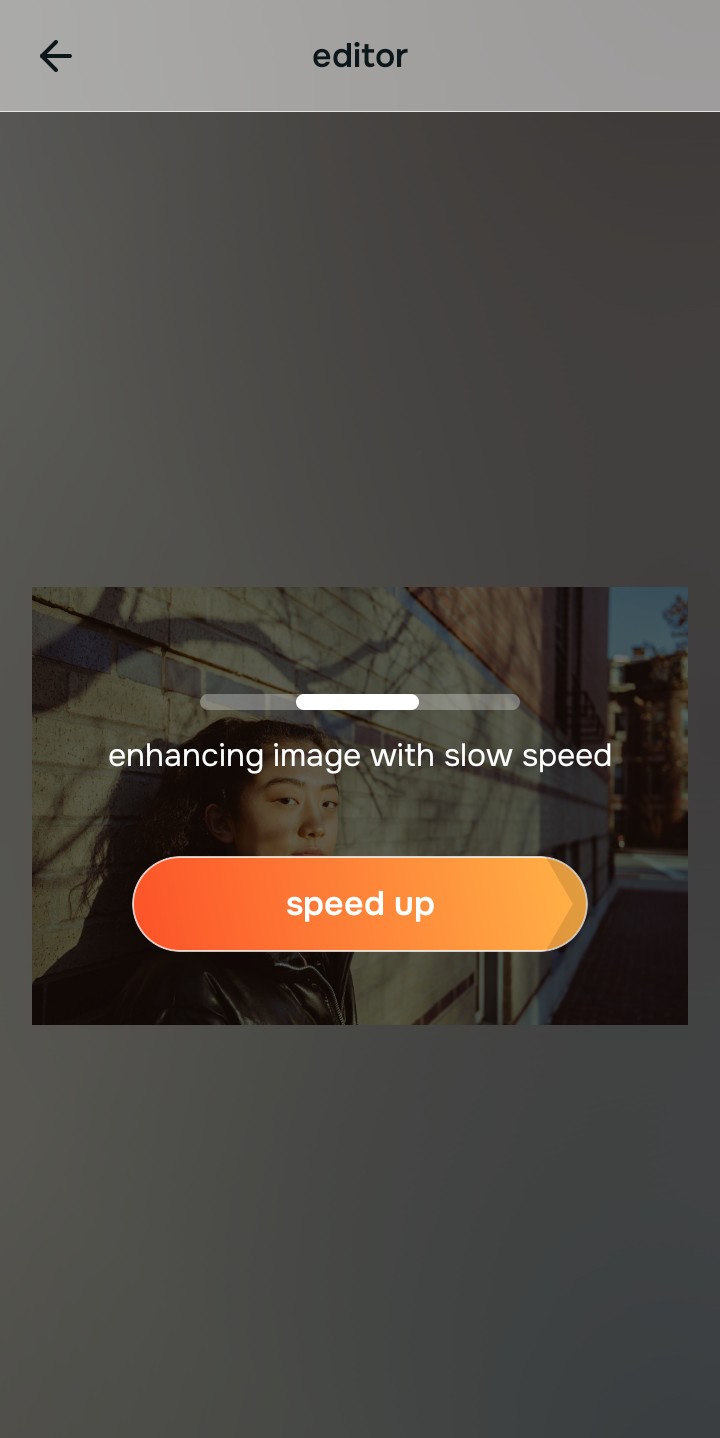
Citrus provides a first correction immediately. This ensures that any underlying contrast or exposure issues are recognized before you start trying to adjust your facial features manually.
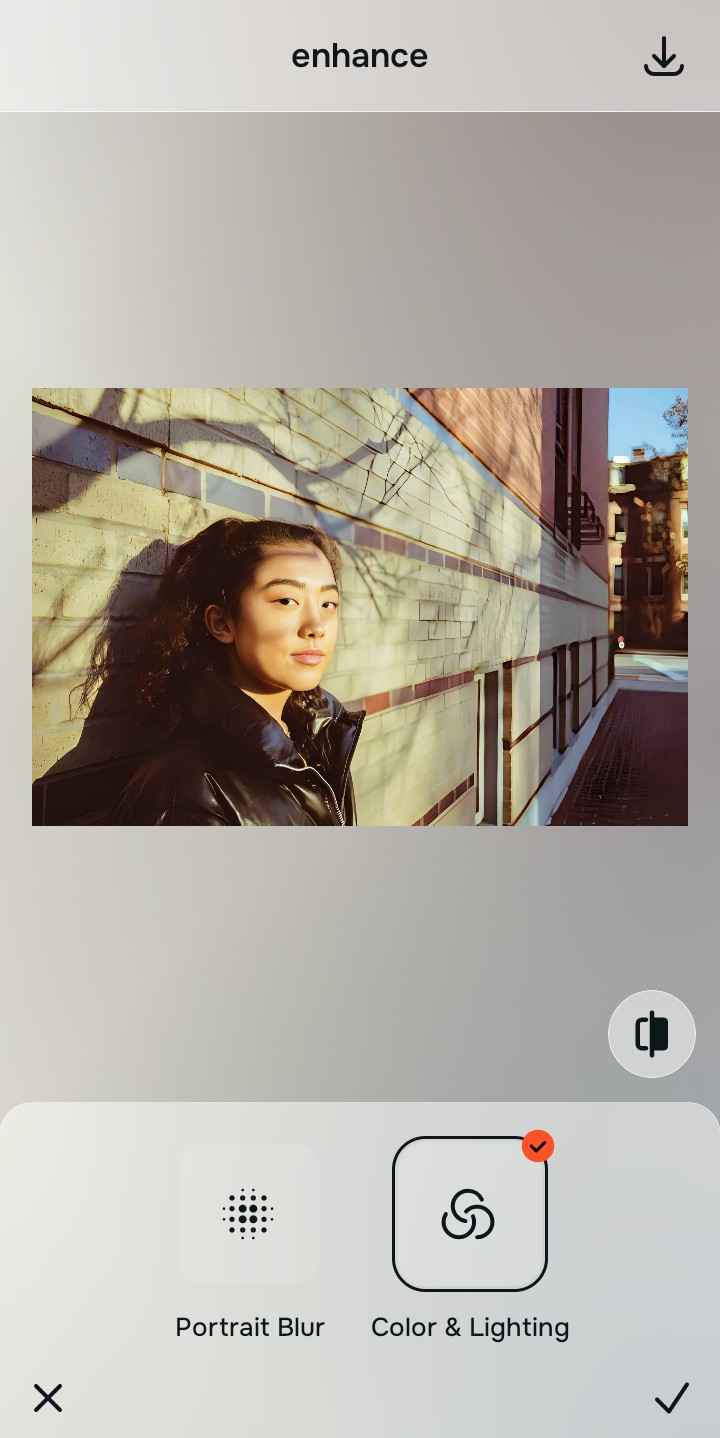
Use Enhance to fix Colors & Lighting first
Because dull selfies are an overall photo problem, tap Enhance -> Colors & Lighting. This strips away the muddy wash and restores shadows to the scene. To successfully achieve a glass skin effect without over-smoothing your features, rebuilding the photo's contrast here is absolutely mandatory.

Always fix the flat lighting before using a beauty tool. Tap the Enhance options to restore image depth first.
Apply Face tools to target specific distortions
Once the lighting is corrected, you can address the physical shape safely. If the camera widened your face, tap Face -> Small Nose or Slim Face to gently correct the lens distortion. Doing this last allows you to naturally make your nose look smaller without the weird distortion that affects the rest of your healthy skin.
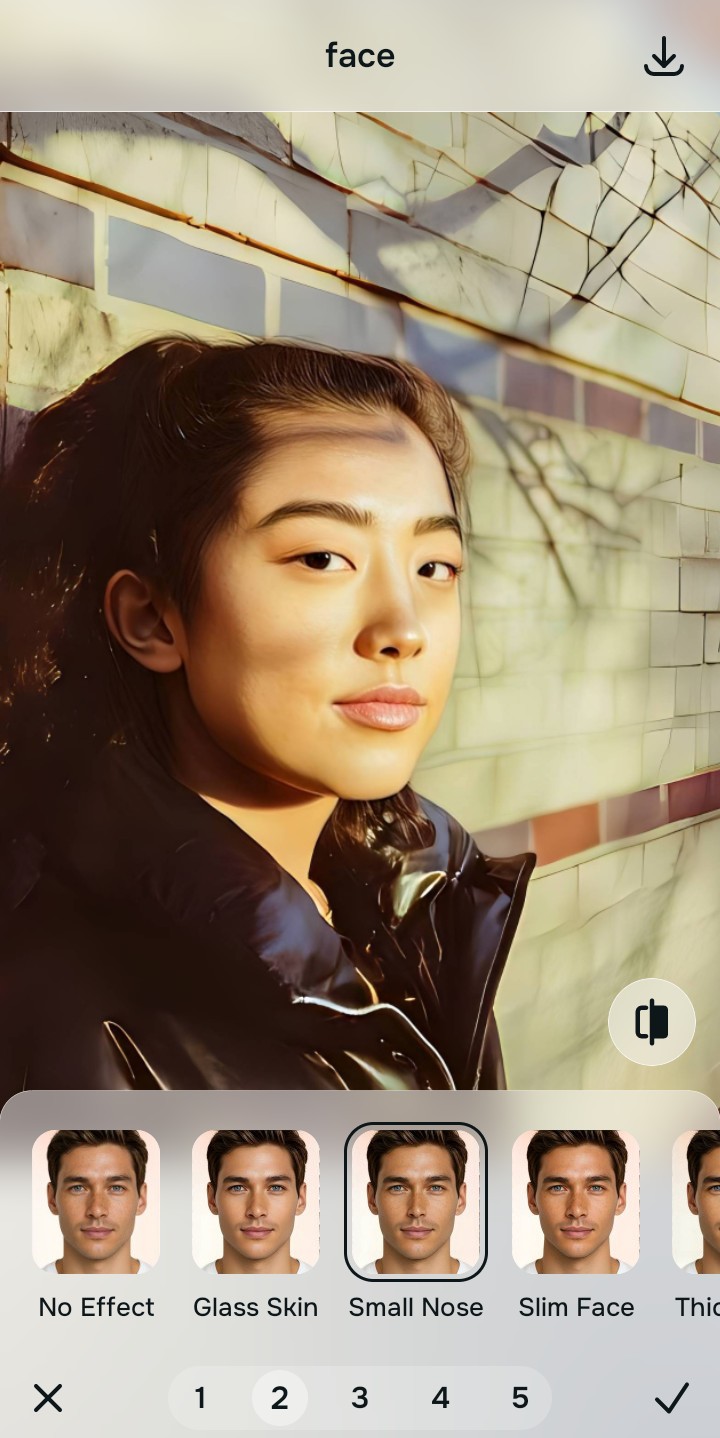
Save the photo when it still looks exactly like you
The true test of a good profile picture is whether your colleagues recognize you immediately. It is incredibly simple to make a photo look better in just a few seconds if you know when to stop adjusting before the picture begins to look heavily filtered or warped.
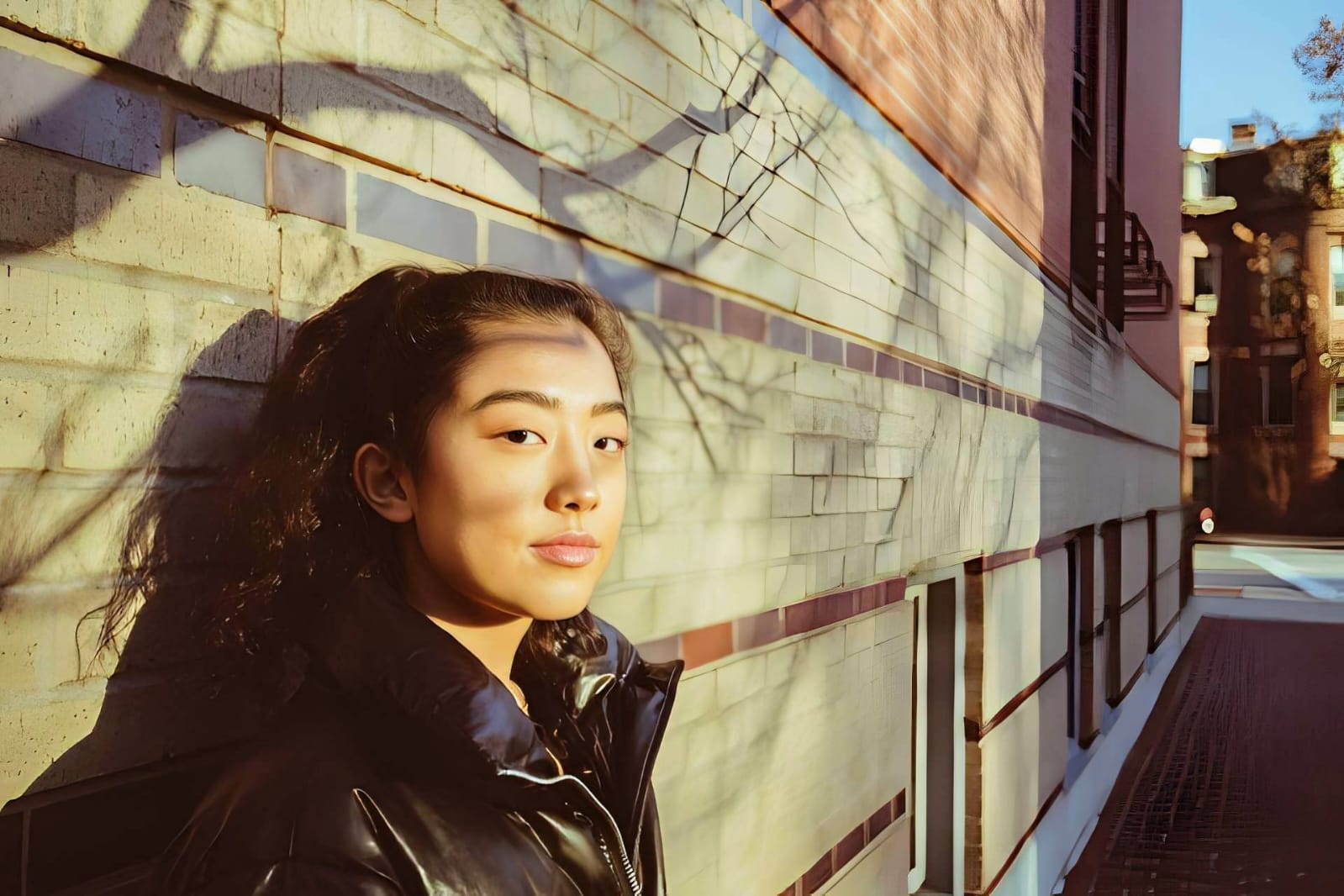
Why does your profile picture look off?
Choose the description that fits best. Your starting point changes depending on what is actually flattening the picture.
Which Citrus tool delivers the best professional finish
Different problems require entirely different tools. The goal is to get the best possible result by matching the tool to the actual error. This stops you from ruining the entire picture just to fix one small area.
| Tool | What it helps fix | When to use it |
|---|---|---|
| Enhance Start here | Overall darkness, weak light, muddy contrast, and lack of depth | Use this first when the whole image feels lifeless. Choose Colors & Lighting to restore depth and clear the sensor noise. |
| Looks | Photos that are technically balanced but still need a stronger overall impression | Use this after Enhance, or instead of Enhance when the real issue is not severe darkness but a dull vibe. |
| Face | Specific puffy areas, uneven skin tone, or flat bone structure | Use this last, applying targeted tools to subtly define the face after the broader image already feels properly lit. |
“The most natural edit recovers the lost light data instead of pasting an artificial blurring filter over your pores.”
Why restoring contrast beats global skin smoothing
There is a massive difference between adding dimension and wiping out reality. When you use an aggressive beauty slider, you turn the entire image into a flat plastic wash. The human brain instantly recognizes this loss of detail as an untrustworthy, cheap edit.
Real quality comes from correcting the underlying light data first. Those comparing natural photo enhancers against standard AI filters quickly realize that restoring true contrast provides a professional, believable foundation that manual blurring simply cannot achieve.