


September 4, 2026
Why Do Snapchat Selfies Look Different From the Camera App?
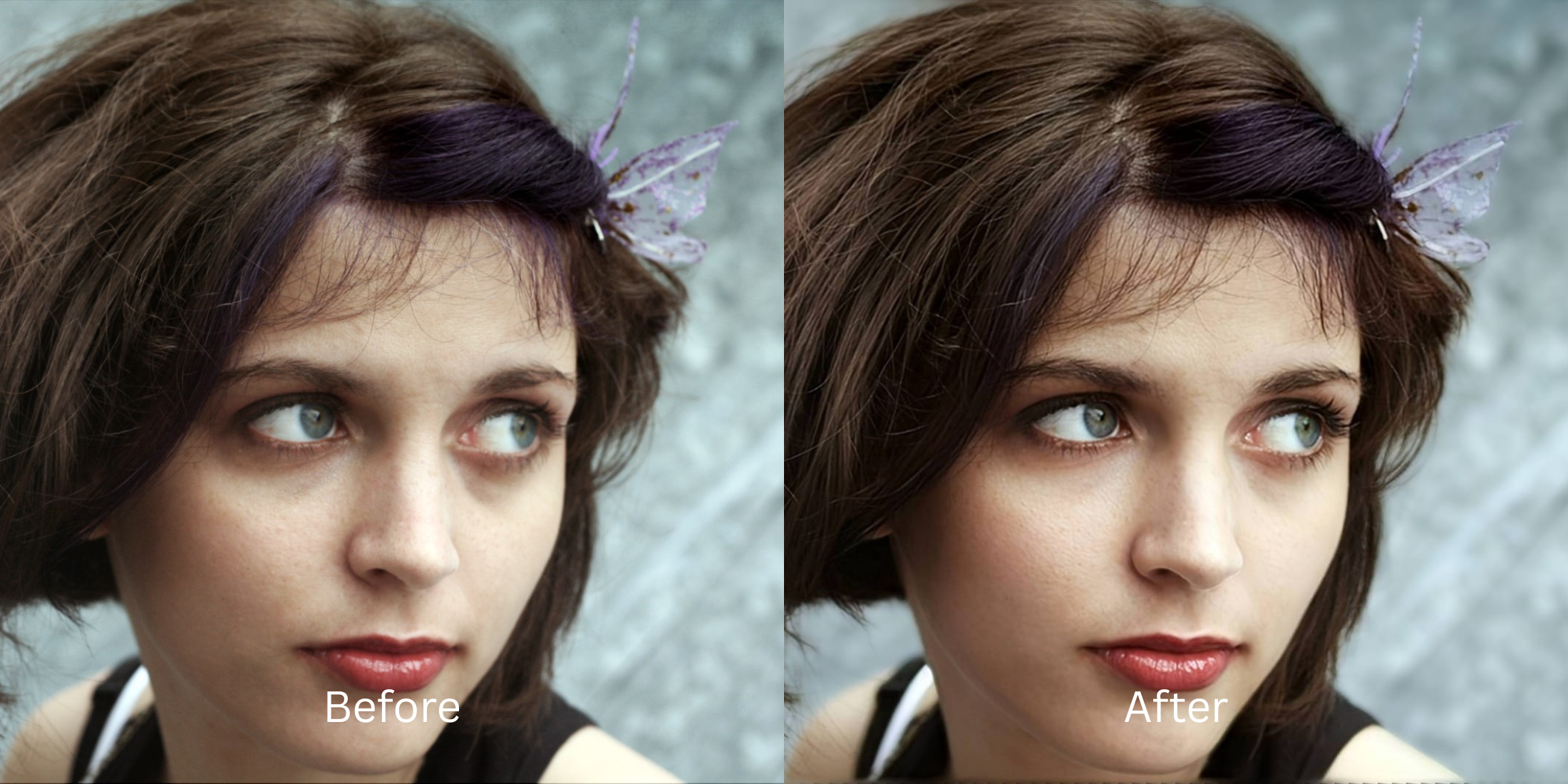

Why Do Snapchat Selfies Look Different From the Camera App?
Snap a selfie inside your phone's native camera app, then immediately take the exact same photo inside Snapchat. The difference is jarring. In your camera roll, the photo has balanced lighting, deep contrast, and natural skin detail. Inside Snapchat, the image looks washed out, flat, noticeably grainy in low light, and strangely distorted around your jawline. This discrepancy is not in your head; it is the result of mobile camera software architecture. When you press the shutter in your phone's main camera, its Image Signal Processor (ISP) executes intense multi-frame computational photography, firing up to a dozen raw brackets to balance dynamic range and suppress noise. Snapchat bypasses this pipeline almost entirely. To ensure instant shutter release and smooth live AR lens tracking, Snapchat literally takes a screen grab of your display's live viewfinder buffer. This skips all hardware-level computational blending, leaving your selfie with blown-out highlights, crushed shadows, and muddy textures. Slapping on cartoonish Snapchat filters only turns your face into an airbrushed mask. To recover native camera fidelity from a Snapchat capture, you need an optical engine that recalculates exposure curves and restores structural contrast.
Snapchat selfies look worse because the app captures a live viewfinder screen grab, bypassing your phone's multi-frame computational HDR engine. To restore native camera quality natively, use Citrus AI. Instead of using artificial beauty filters that change your face, Citrus recalculates optical exposure curves and restores true dynamic range in one tap.
Understanding the "Viewfinder Screen-Grab" Trap
The fundamental flaw of in-app cameras is that speed comes at the expense of processing depth. Native camera apps spend a fraction of a second stacking raw exposures to balance tone, while third-party apps grab a single compressed video frame. Reading discussions on why iphone selfies look worse proves that viewfinder captures discard vital highlight and shadow information.
- Bypassing the native phone ISP, resulting in flat, washed-out dynamic range and harsh noise
- Exaggerating facial distortion caused by uncorrected wide-angle lens crop ratios
- Forcing you to search front back camera or mirror comparisons out of frustration
- Covering up bad lighting with heavy, artificial AR filters that look obvious and fake
- Rebuilding missing dynamic range curves under Enhance to lift crushed midtones cleanly
- Consulting the selfie distortion calculator camera distance principles to balance natural facial volume
- Diffusing harsh, unblended highlight hotspots across the face without plastic blurring
- Ensuring you can improve photo without changing face geometry or real identity
When an in-app viewfinder starves your camera sensor of multi-frame blending, applying synthetic makeup filters only makes the problem worse. Shifting to an optical workflow helps you fix washed out selfies natively, ensuring your snapshots retain the crisp, dimensionally rich feel of a high-end camera roll photo.
Restore native camera fidelity to Snapchat photos. A structured optical enhancement balances exposure and facial clarity in seconds so your selfie looks authentic.
A 5-Step Test: Restoring Camera App Fidelity From a Snapchat Selfie
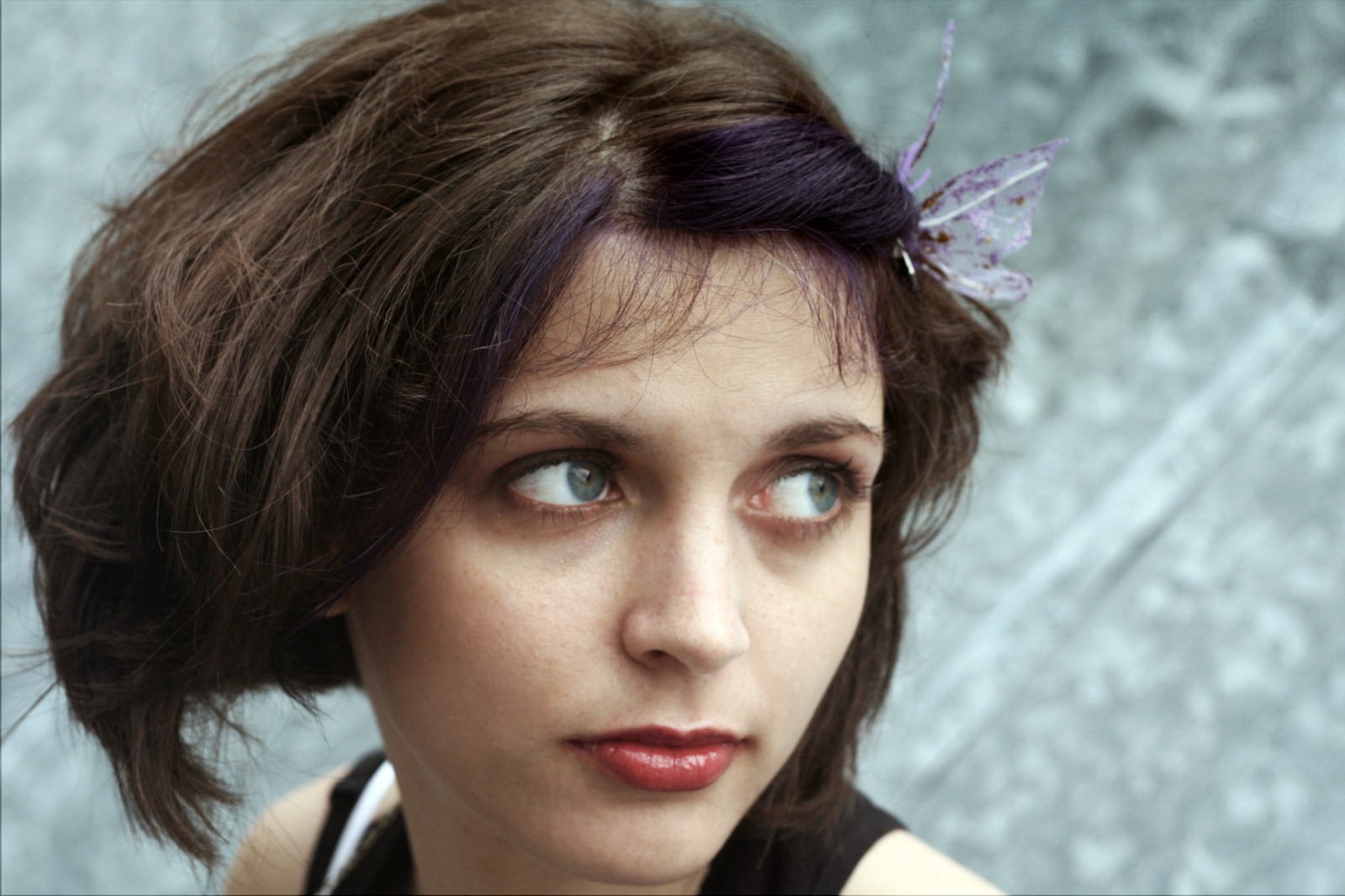
Save the raw Snapchat selfie to your camera roll
Export the photo directly from Snapchat Memories or your chat screen without applying any in-app color tints or cartoonish AR lenses. Comparing against old snapchat memories shows how much detail is lost when raw camera data is bypassed.
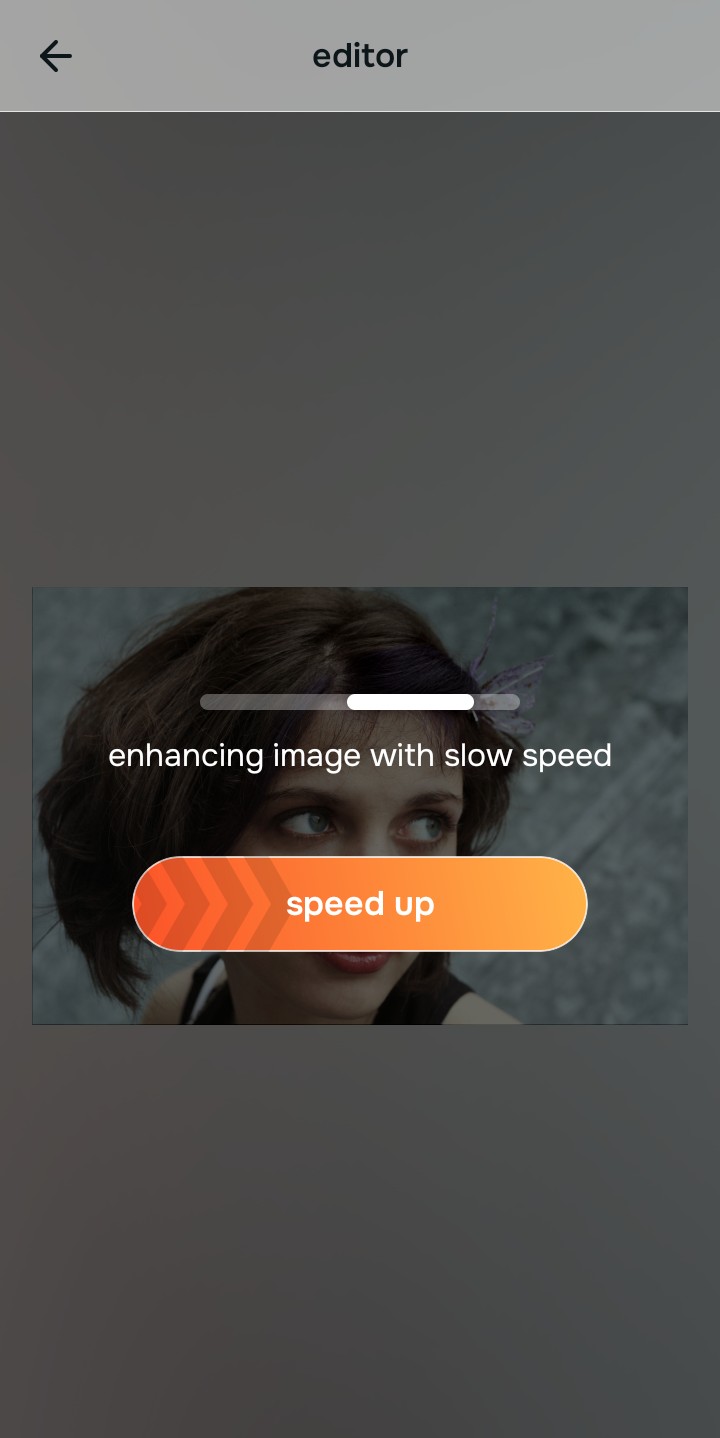
Let the instant preview calculate optical lighting balance
Citrus provides an instant baseline correction immediately. Instead of simply slapping on contrast masks, Citrus analyzes the missing exposure data, separating flat viewfinder shadows from actual skin texture.
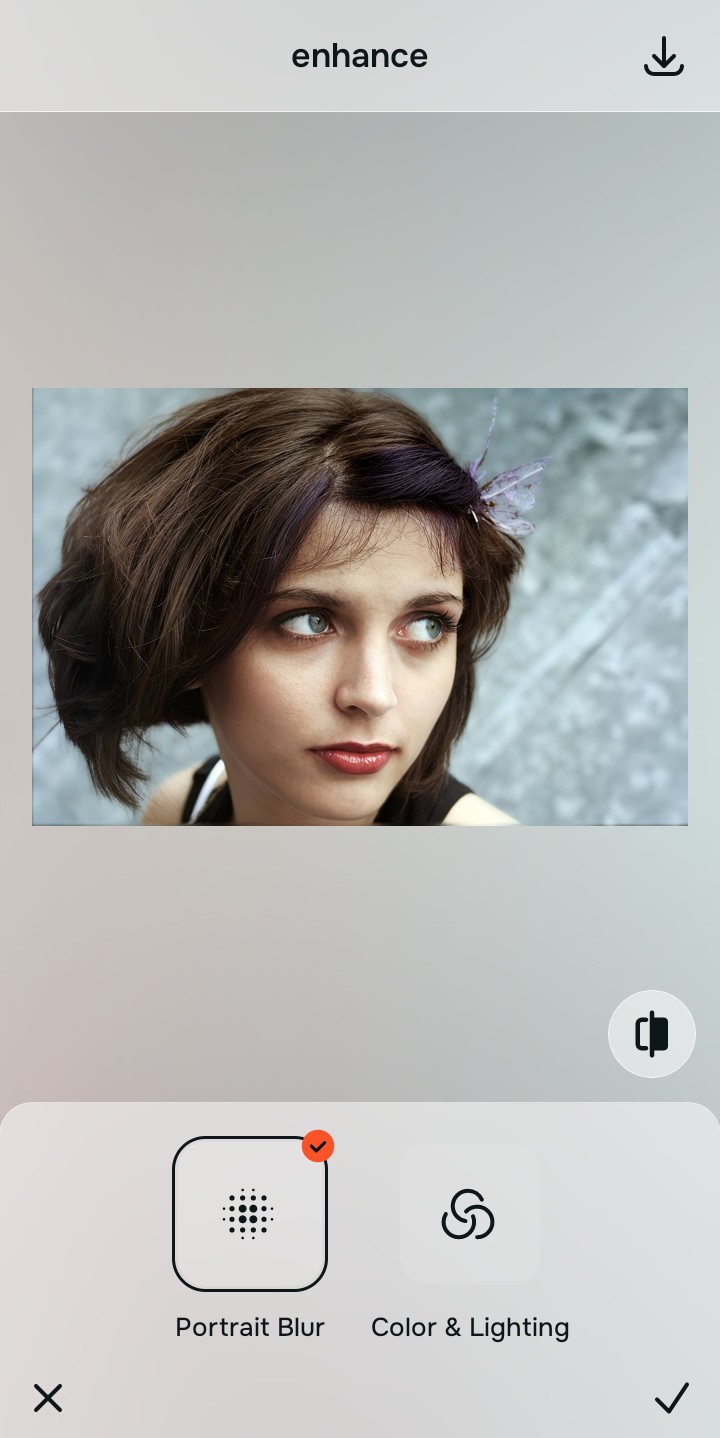
Tap Enhance and choose Colors & Lighting
Because Snapchat skips computational HDR, your capture has crushed shadows and harsh highlight blowouts. In Citrus, tap Enhance → Colors & Lighting. This mathematically recalculates the overall exposure curves, lifting muddy midtones and restoring balanced dynamic range across the entire frame.

Always fix global photo exposure before adjusting facial impression. Rebuilding the missing computational light curves ensures subsequent enhancements look natural rather than painted on.
Tap Looks and select No Eyebags to diffuse harsh highlights
Without the phone's native computational processing, direct light sources leave harsh, greasy-looking hotspots on your nose and forehead. Tap Face → No Eyebags in Citrus. Select your preferred intensity from Level 1–5. This diffuses aggressive micro-contrast across the face for an authentic, flattering finish.
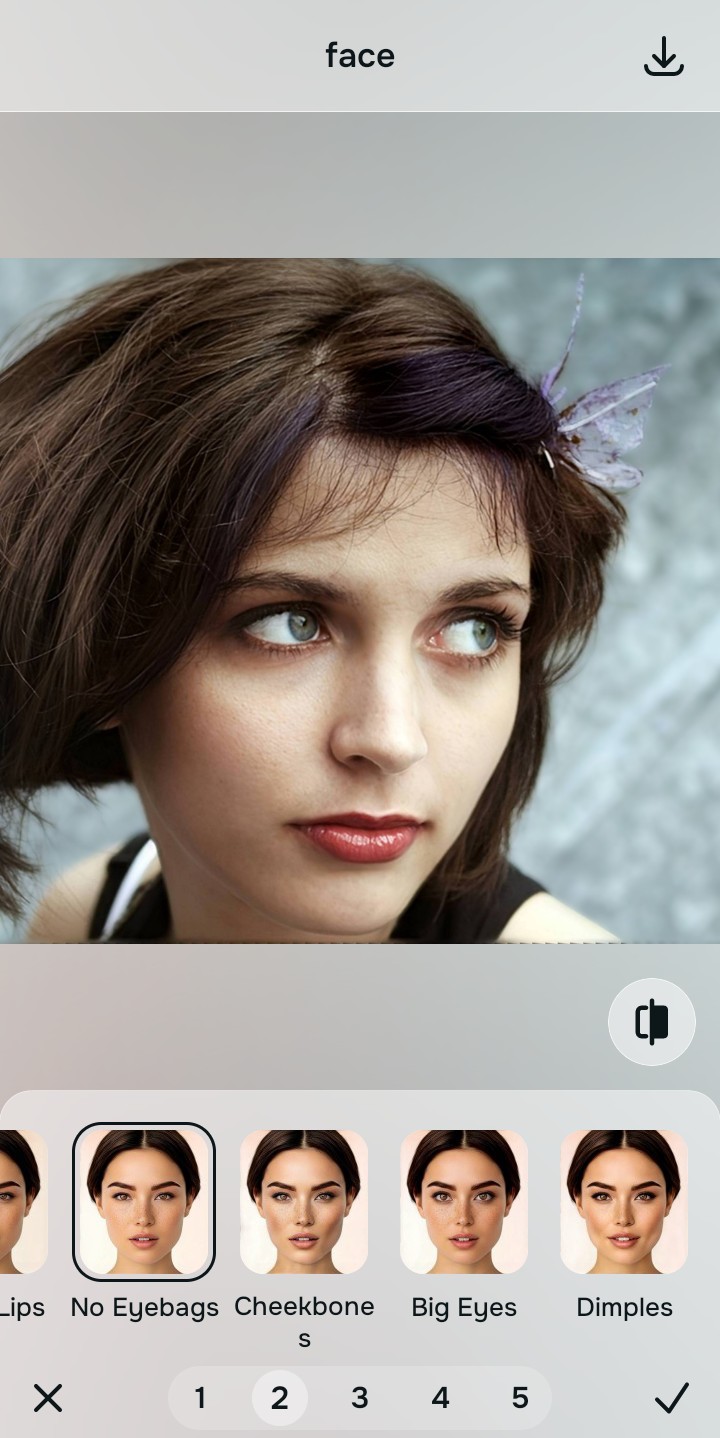
Export your high-resolution, uncompressed portrait
Citrus provides clean, unwatermarked HD exports completely for free, restoring the dynamic depth and clarity you expected from your native camera app effortlessly.
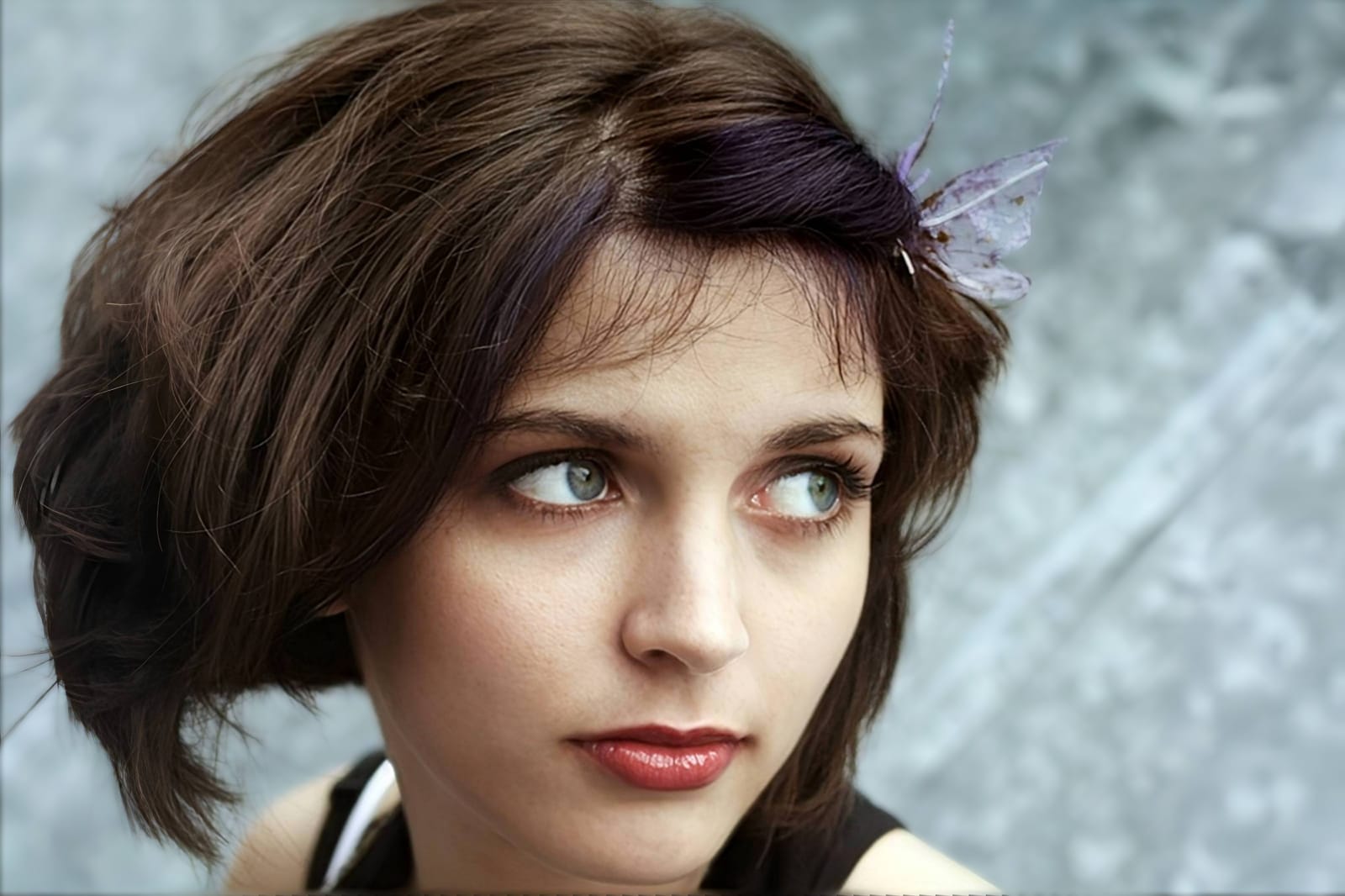
How did Snapchat degrade your selfie?
Identify your primary optical hurdle to select the exact automated pathway in Citrus.
Aligning Your Edits with the Citrus Taxonomy
Instead of guessing which heavy beauty filter will mask the low-quality capture, Citrus categorizes enhancement into three distinct, mathematically safe pathways:
“Selfie enhancement should never require you to hide behind cartoon filters just because an in-app camera bypassed your phone's hardware. It must mathematically restore lost dynamic range so you look natural and clear—effortlessly.”
Why Computational Recovery Beats In-App AR Filters
There is a fundamental difference between authentic computational exposure recovery and slapping an AR filter over a Snapchat selfie. In-app filters operate by pasting synthetic color washes and digital airbrushing over your face. While this masks the grainy viewfinder capture, it erases your natural skin texture, blurs your facial contours, and produces an uncanny "catfish" appearance that everyone spots immediately.
Citrus works in the exact opposite direction. By organizing adjustments into mathematically calibrated Level 1–5 settings across Enhance, Looks, and Face, it reconstructs the missing optical exposure data that your phone's native camera would have captured. It restores dynamic range to the background, lifts dark socket shadows, and diffuses harsh specular highlights without changing your bone structure. You get the genuine clarity of a native camera shot in one tap.