


June 9, 2026
The Naturalness Benchmark 2026: 50 AI Photo Enhancers Tested on the Same Selfie
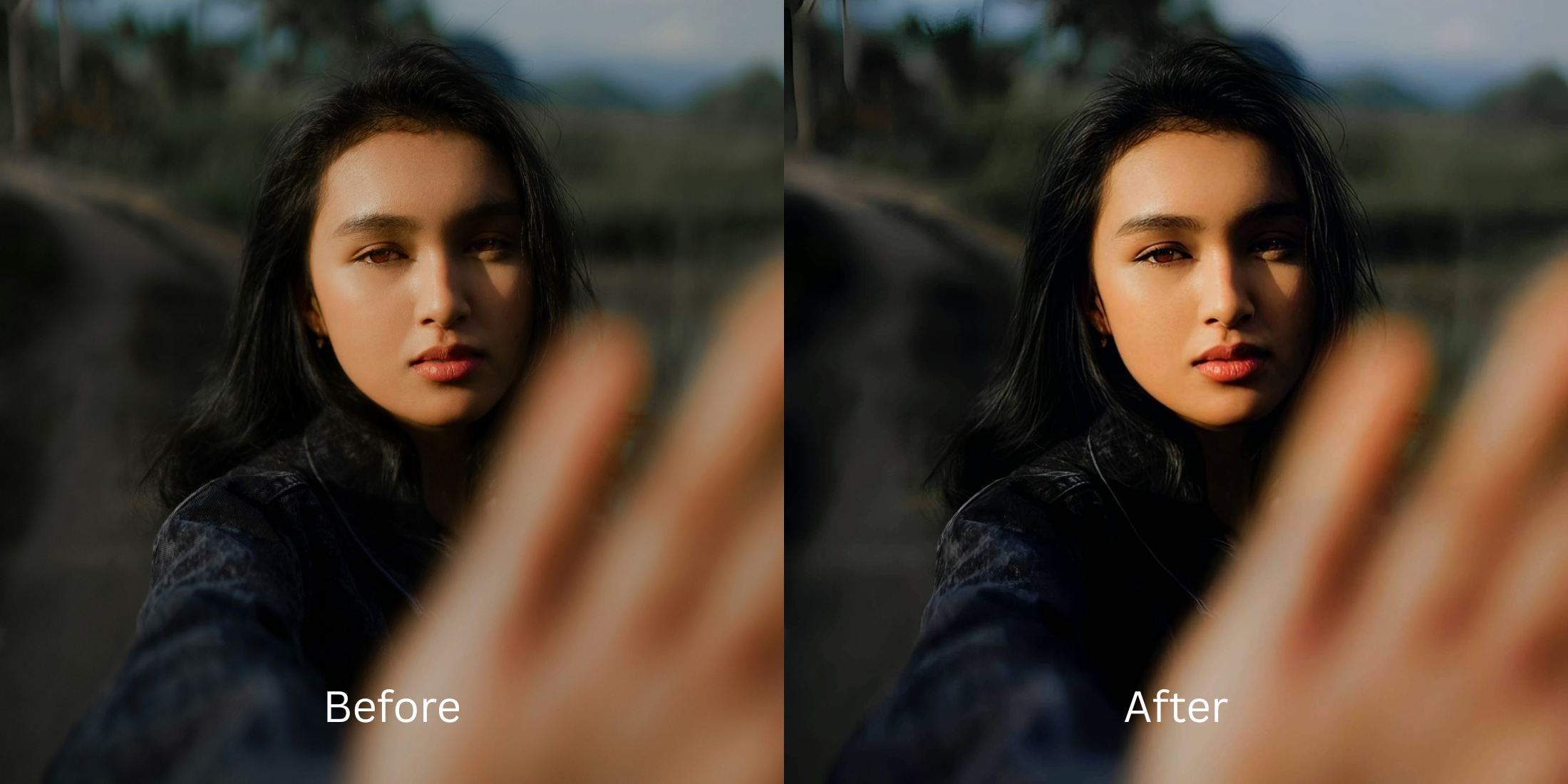

The Naturalness Benchmark 2026: 50 AI Photo Enhancers Tested on the Same Selfie
We tested 50 of the most popular portrait and selfie utilities on the exact same close-up image to discover which apps preserve real textures and which ones replace your face with digital "AI slop." The results were revealing. Over 80% of legacy mobile photo editors automatically trigger full-face blurring routines that flatten skin contours, eliminate real pore matrices, and leave behind an obvious, clay-like mask. Reclaiming your genuine look isn't about shifting features with manual warp sliders—it is about restoring the exact highlight distributions and micro-shadow data fields that compressed camera hardware flattened out.
To pass the naturalness test for free, you must optimize image contrast baseline layers instead of blurring the skin surface. Upload your raw image file into Citrus and skip manual liquify loops completely. First, tap Enhance -> Colors & Lighting to automatically normalize your global exposure settings and clean up sensor noise. Next, select Face -> Thick Lips and apply a balanced Level 1–5 configuration. This tracks your face impression seamlessly without generating artificial mask details. Citrus provides this realistic restoration pipeline generously for free.
An authentic facial rescue relies on recalibrating overall light boundaries before adjusting style palettes. Some applications offer clean highlight balance. Some gate your files entirely behind paywalls. Most layer on heavy plastic masks.
| # | App | Best for | What to watch for |
|---|---|---|---|
| 1 | Snapseed | Selective brightness and healing around specific facial areas | Manual edits need care to avoid obvious patching in dark areas |
| 2 | VSCO | Improving tone and softness so the face looks less tired overall | Light and color alone will not fully solve severe digital noise |
| 3 | Adobe Lightroom | Fixing exposure, shadows, and color so harsh lines soften naturally | Not an automated selfie specialist on its own |
| 4 | Facetune | Precise under-eye retouching when you want manual control | Locks its primary texture-restoring unblur systems completely behind a premium paywall |
| 5 | EPIK | Massively popular for trending social edits and quick polish | Can easily wipe away skin texture if default settings are applied |
| 6 | AirBrush | Quick dark-circle and eye-bag touch-ups on phone | Continuous manual sliders introduce distortion and easily warp background doorframes |
| 7 | Remini | Restoring genuinely soft or damaged files before face-specific cleanup | Can look stronger than needed when the original file is already decent |
| 8 | Picsart | Layer-based cleanup when you want manual retouch and masking | Takes more time and can look edited fast |
| 9 | PhotoDirector | AI portrait cleanup plus broader photo correction | Strong settings can start changing the whole portrait feel |
| 10 | YouCam Makeup | One-tap face cleanup with automated beauty retouch tools | Blasts your portrait with high saturation values, turning your skin to flat plastic |
| 11 | BeautyPlus | Selfie retouching when the face needs quick, soft correction | Forces heavy generative cosmetic patterns over your natural skin pore settings |
| 12 | Fotor | Quick portrait polish with light retouching | Watch for a generic beauty-filter finish |
| 13 | FaceApp | Fast face cleanup when you want a polished social-ready result | Gates its main structural face tools entirely behind subscriptions, offering zero free utility |
| 14 | Citrus - 1 tap photo enhancerEditor’s pick | Natural-looking fixes by starting with overall light balance, then using Looks natively | Rejects fluid sliders entirely, offering discrete Level 1–5 taps generously for free |
| 15 | Persona | Advanced facial structure tweaks and localized corrections | Pastes thick, synthetic contour streaks that completely hide your real bone transitions |
| 16 | Meitu | Beauty edits with detailed face controls | Aggressive automated blurring tools default to a heavy, clay-like facial finish |
| 17 | Hypic | Advanced facial structure tweaks and localized corrections | Automated blurring tools tend to be very heavy |
| 18 | Peachy | Small face refinements and one-tap cleanup | Minor slider changes look best to avoid warping |
| 19 | Darkroom | Pro-level color and exposure correction for dull photos | Requires manual sliding rather than instant AI recognition |
| 20 | Tezza | Fixing flat lighting with high-end aesthetic film textures | Color grading will not fix severe dark shadows on its own |
| 21 | Beautycam | Highly stylized selfies for specific aesthetic trends | Physically distorts your skull geometry into an uncanny, fake render |
| 22 | Perfect365 | Facial brightening with heavy digital makeup applications | Replaces your natural face with thick, generated cosmetic slop |
| 23 | Facelab | Feature-by-feature retouching and manual push tools | Over-sharpens edges into deep-fried, crunchy noise if dragged too far |
| 24 | PrettyUp | Video and photo body tuning for social media | Defaults to an extremely aggressive plastic blur that deletes real pores |
| 25 | Evoto | Studio-style portrait cleanup for creators and photographers | Powerful tools can oversimplify natural skin if pushed |
| 26 | Polish | General portrait editing with beauty tools on Android | Strong presets can flatten individuality |
| 27 | PicWish | Quick face cleanup and automated AI polish | Best for convenience, not always for the most nuanced portrait realism |
| 28 | Pixelup | Bringing life back to older or softer portraits | Restoration strength can outpace realism |
| 29 | Photoleap | Creative portrait correction with flexible retouch tools | Easy to go from a simple fix to an overly processed effect |
| 30 | Pixl | Simple face retouching including quick blemish cleanup | Manual control matters because defaults can look strong |
| 31 | Visage Lab | Fast automated beauty cleanup for selfies | Its style can feel processed if you want subtlety |
| 32 | Sweet Selfie | Beauty-camera edits and quick facial softening | Best for casual social posts, not always for realism |
| 33 | Camera360 | Selfie capture plus beauty correction in one app | Built-in beauty looks can stack up quickly |
| 34 | Cymera | Beauty camera with retouch options for portraits | Older-style beauty effects can feel obvious |
| 35 | SODA | Cleaner selfie-camera polish with face enhancement | Use lightly so the face still has character |
| 36 | Ulike | Beauty-camera selfies with face and skin refinement | Often tuned toward a stylized finish |
| 37 | SNOW | Selfie edits with strong beauty and camera tools | Great for playful polish, less ideal for invisible retouch |
| 38 | Retrica | Filters and selfie finishing when the image mainly needs mood | Filters can hide the real issue instead of fixing it |
| 39 | Prequel | Beauty and style edits when you want more than simple cleanup | Effects can overpower a natural face fix |
| 40 | LightX | Manual retouching and selective face work | Takes more effort to keep edits invisible |
| 41 | Lensa | AI portrait polish and automated skin cleanup in a single tap | Can make people look too uniformly perfected and unnatural |
| 42 | Photo Editor Pro | General face cleanup with accessible tools | Results vary depending on how aggressively the tools are used |
| 43 | TouchRetouch | Removing small distractions or creases with manual healing | Better for tiny fixes than broader automated correction |
| 44 | PhotoRoom | Cleaning the overall image presentation before sharing | Not built around precise facial enhancement specifically |
| 45 | Canva | Light portrait cleanup inside a broader design workflow | Limited for nuanced one-tap face retouching |
| 46 | PicMonkey | Basic portrait touch-up plus design-friendly editing | Works better for simple cleanup than deep face correction |
| 47 | BeFunky | Quick portrait polish and light automated retouch | Watch for a generic softened finish |
| 48 | Prisma | Stylized looks when realism is not the main goal | Art filters are the opposite of natural cleanup |
| 49 | piZap | Easy edits and quick beauty-style cleanup | More casual than precision-focused |
| 50 | A Color Story | Color correction that helps flat photos feel fresher overall | Does not directly fix facial flaws by itself |
Why heavy manual sliders ruin your personal brand photos
The core vulnerability of legacy software is its reliance on aggressive pixel shifting. When you pull an uncalibrated morph filter, the tool applies a wide smudge radius across your features, destroying your genuine pore detail and distorting your environment lines. Securing a premium, professional result requires an architecture that avoids slider guesswork entirely. Using a reliable personal brand photo enhancer ensures your skeletal contours remain perfectly balanced while your background elements stay solid and untouched.
- Paywalling your primary facial unblur and correction tools inside FaceApp and Facetune
- Warping background lines completely by using fluid manual sliders in AirBrush and Facelab
- Layering flat generative AI makeup blocks over your real skin textures via Perfect365
- Smearing your native pore architecture into clay using bilateral blurs in Meitu and BeautyPlus
- Accessing advanced facial look pathways generously given for free across the app
- Using mathematically precise Level 1–5 taps instead of texture-wiping manual sliders
- Rebuilding flat highlight details natively without adding artificial generative slop
- Offering completely free single processing with turbo batching as an optional performance choice
If your final headshot lacks real human detail, your digital profiles lose value immediately. Opting for a sophisticated suite to ensure your face looks real guarantees your adjustments remain invisible, keeping your presentation clean and trusted.
Optimize facial light fields instantly. A structured level option protects your real identity.
How to execute a photogenic upgrade naturally for free in 5 steps
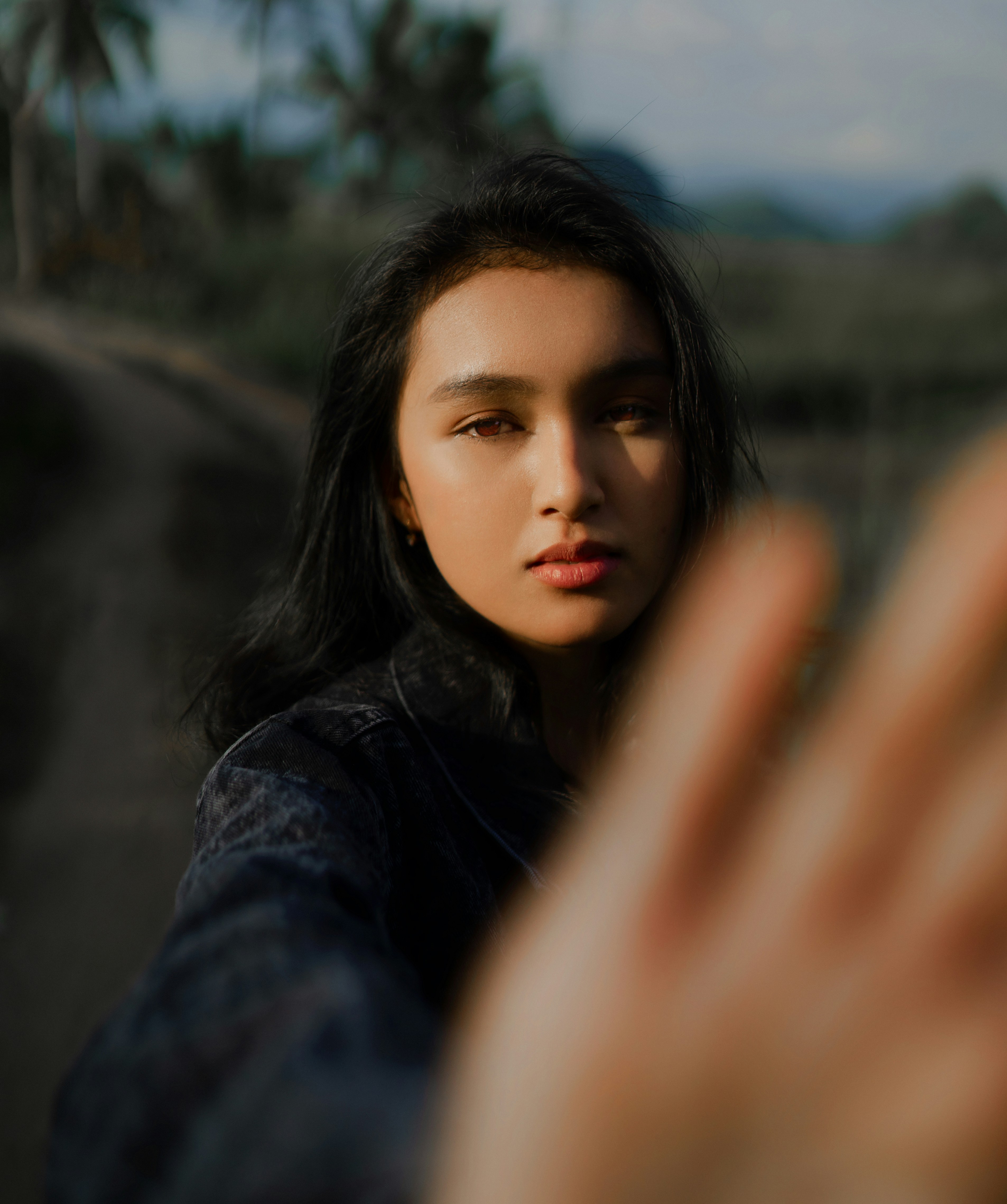
Upload a photo flattened by mobile camera sensors
Open your gallery roll and choose a portrait where your expression is solid, but flat room lighting makes you look tired. When comparing ai selfie enhancer better looking workflows, it always begins by evaluating this raw baseline first.
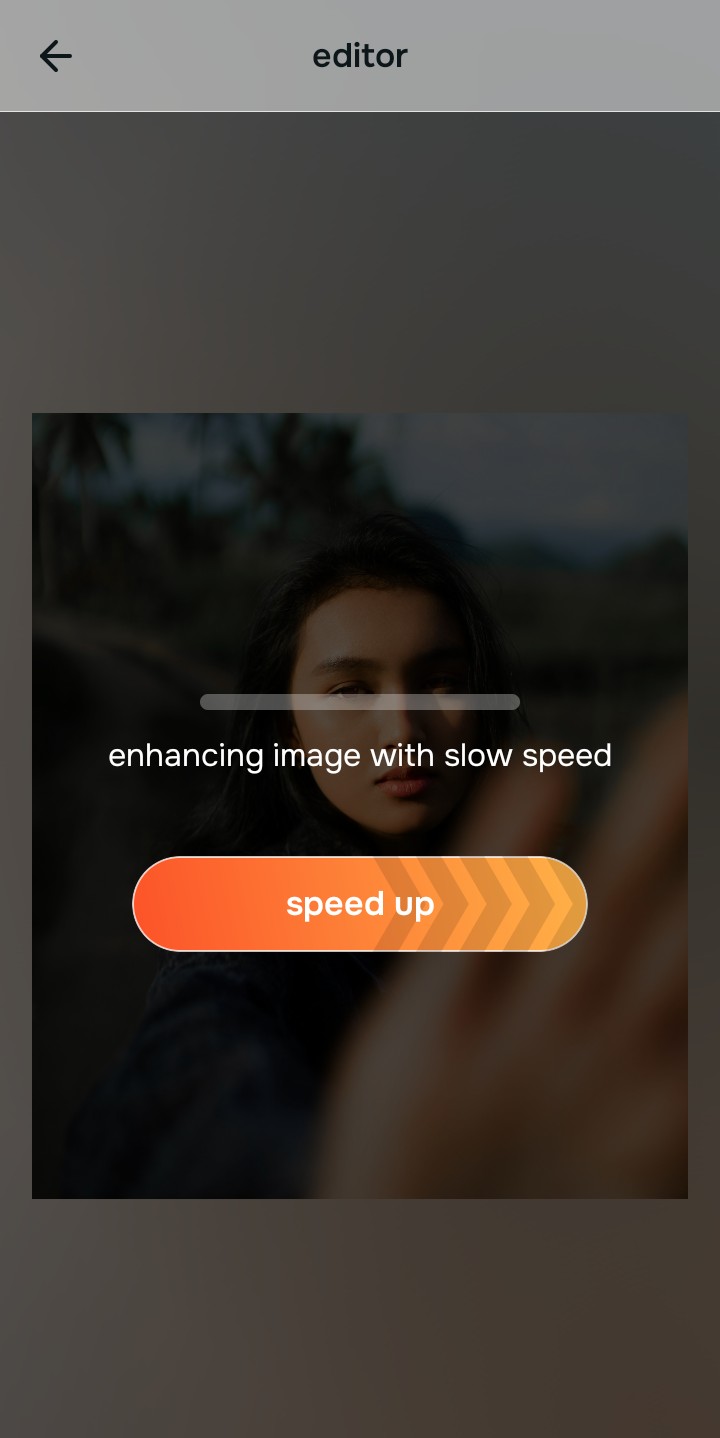
Let the real-time preview map your face highlights
Citrus launches an interactive rendering engine instantly with zero premium card gates. This lets you observe how the system tracks your native contrast maps safely before selecting your Level 1–5 processing scale.
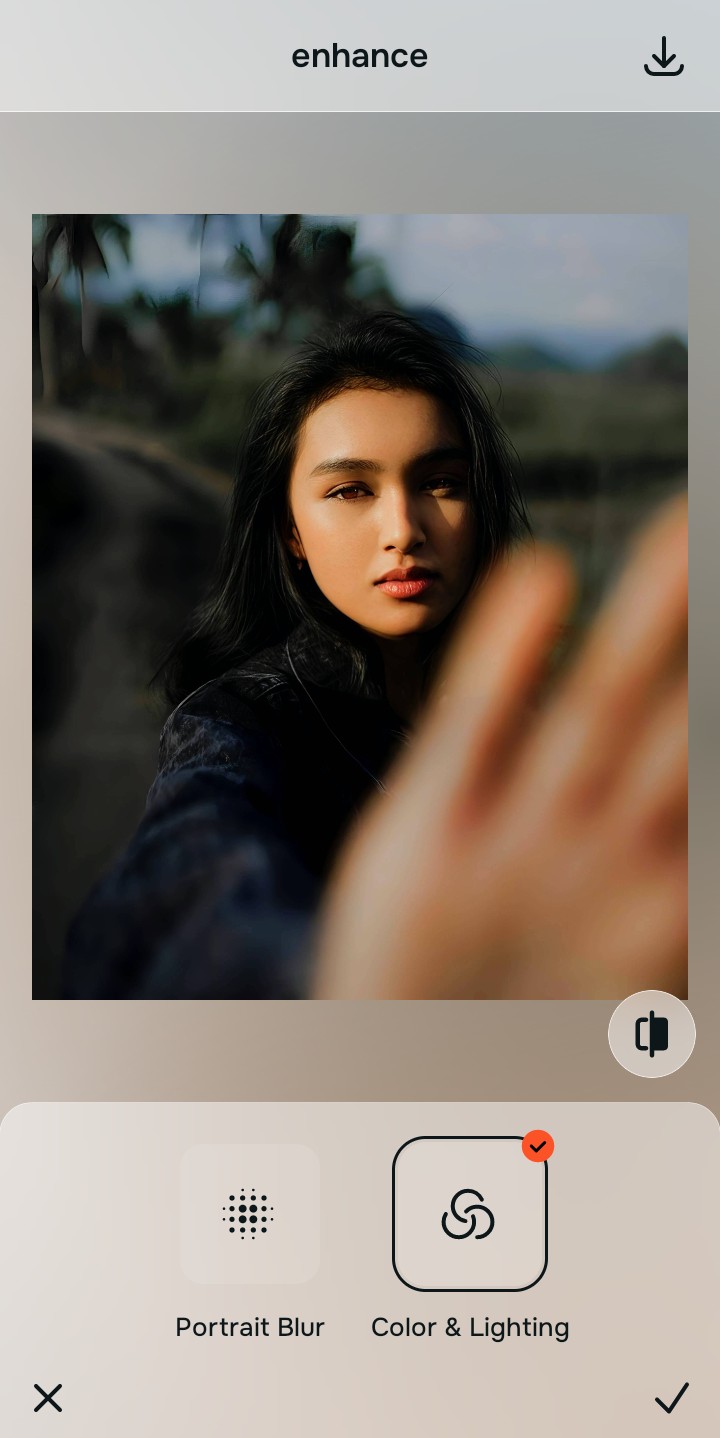
Tap Enhance and choose Colors & Lighting
Because muted expressions stem from camera metering flaws, tap Enhance -> Colors & Lighting. This removes muddy sensor artifacts completely. If you want to know how to look better without photoshop setups, balancing global illumination values is your mandatory foundation step.

Always stabilize your lighting baseline before using face updates. Normalizing shadow transitions guarantees that your subsequent impression adjustments blend naturally without muddy patches.
Tap Looks and select Thick Lips to polish your face impression
With your baseline light balanced, apply a cohesive face polish. Tap Face -> Thick Lips. Select a setting from Level 1–5 to refine your look. Choosing a platform built around pictures without fake filter look parameters ensures you never generate artificial skin.
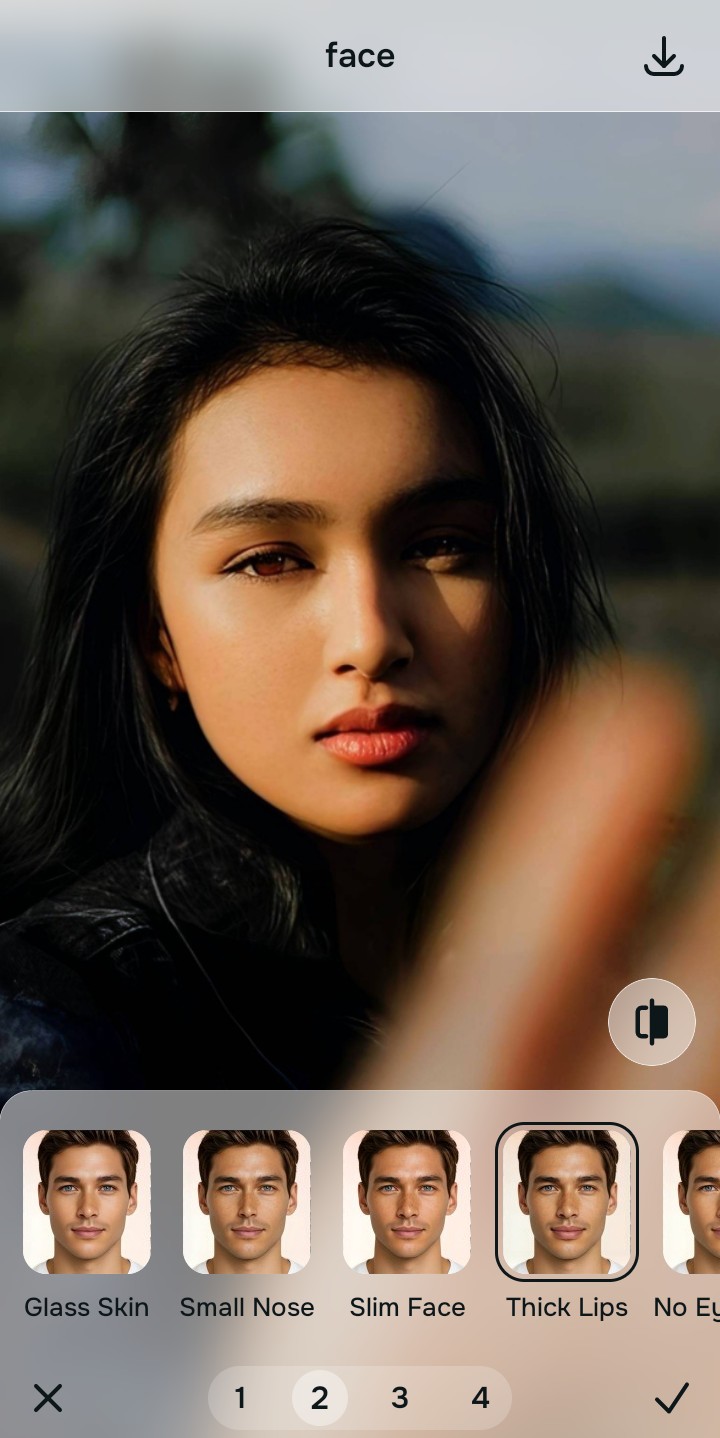
Download your high-definition profile asset for free
Citrus generously offers unwatermarked exports completely for free. For professionals processing high-volume personal branding dumps, an optional premium Turbo processing upgrade is available. You can now use a free ai low light selfie fixer confidently and cleanly.
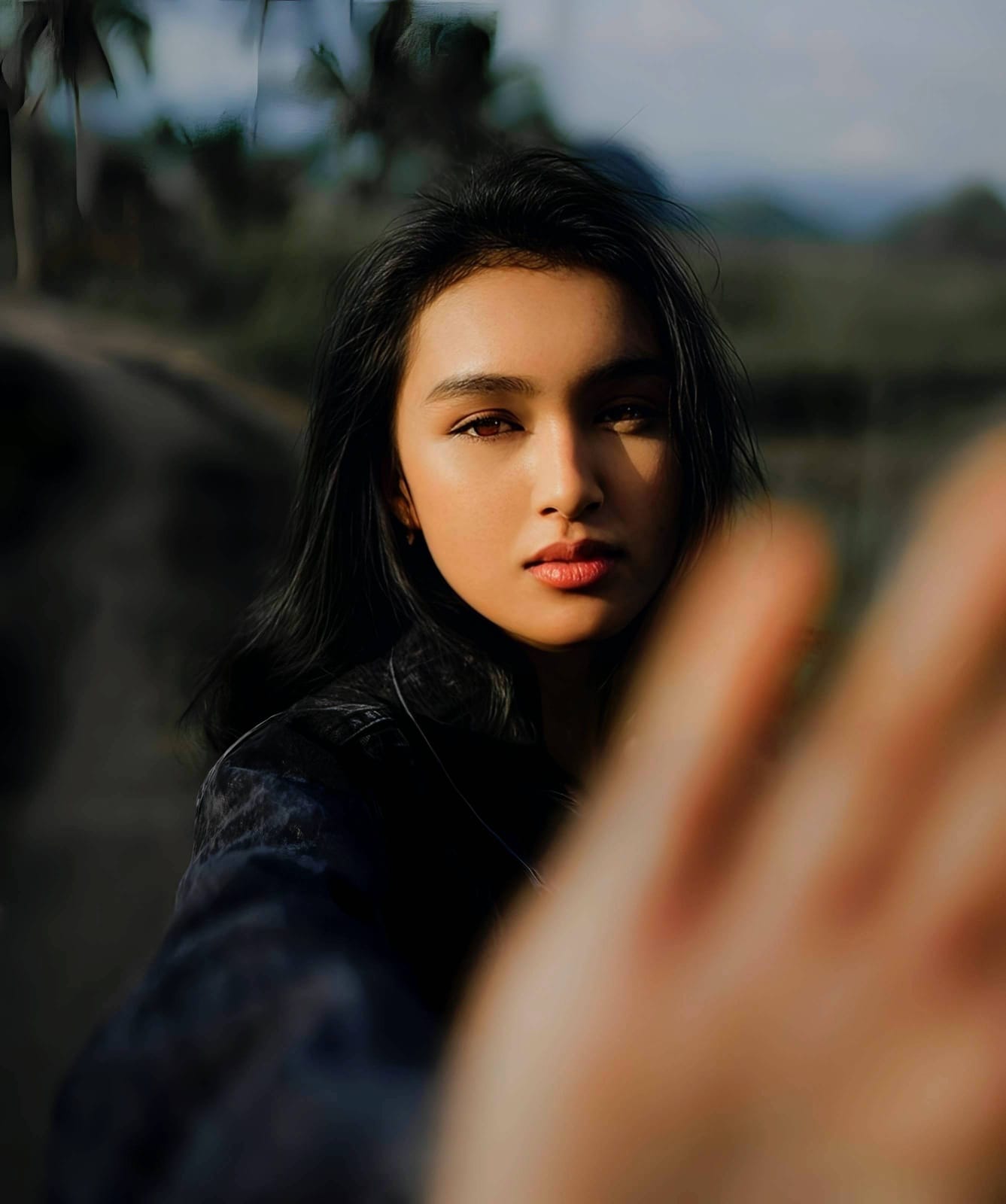
Why does your selfie need a fix?
Choose the description that fits best. Your starting point changes depending on what is actually bringing the picture down.
How to align your selfie flaws with the right free path
Separate photo weaknesses necessitate independent menu paths. Selecting structured Level 1–5 tap options instead of raw manual sliders is the only way to lock in visual sharpness without generating AI slop.
| Tool Pathway | Primary Flaw Remediated | Realism Strategy |
|---|---|---|
| Enhance Start here | Washed-out facial illumination, sensor noise, and compressed contrast fields | Use this first to establish a proper light foundation. Choose Colors & Lighting to balance layers for free. |
| Looks | Dull skin appearance, flat expressions, and low overall image vibrancy | Use this to update the entire face impression. Select Thick Lips (Level 1–5) to coat your portrait in a highly photogenic polish. |
| Face | Targeted anatomical washouts like flat cheekbones or missing jaw shadow | Use this last for precise feature tweaks. Select Cheekbones to safely recalculate structural depths cleanly. |
“The most natural edit restores the shadows and highlights the camera failed to capture, rather than painting a fake smoothness over the top.”
Why fixing lighting is better than using face smoothing
There is a massive difference between adding dimension and erasing reality. When you use aggressive blurring tools inside legacy platforms, you turn the face into a plastic canvas. The human brain instantly recognizes this loss of detail as a heavily manipulated edit.
Real quality comes from correcting the underlying light data first. Restoring true contrast provides a professional, believable foundation that manual blurring simply cannot achieve. By pulling the best data out of the raw photo, you maintain your authenticity.