


May 17, 2026
How to Improve Red-Hair Portraits Without Oversaturating Them
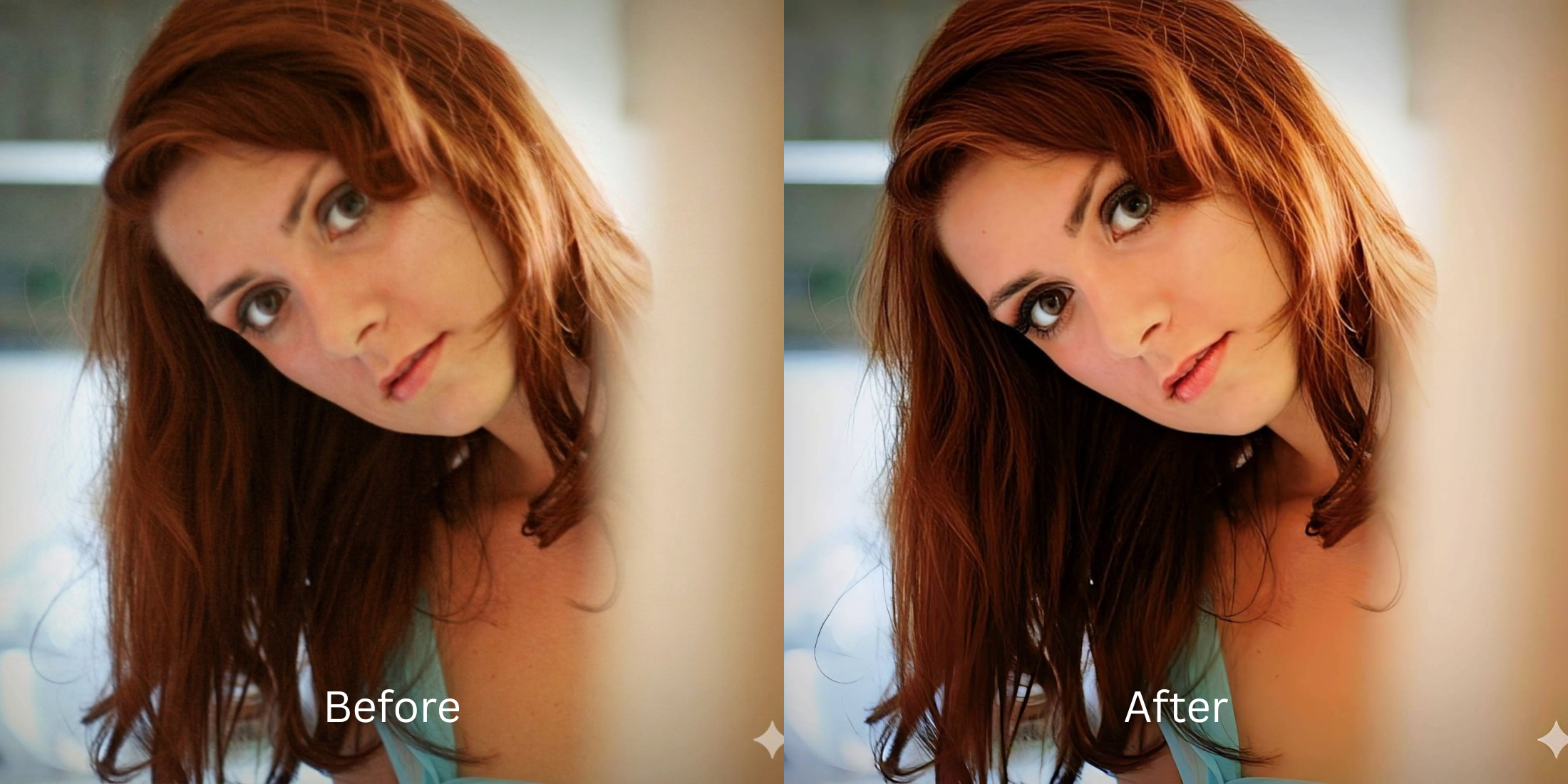

How to Improve Red-Hair Portraits Without Oversaturating Them
Red hair is incredibly striking in person, but it deeply confuses smartphone camera sensors. When you take a photo, the camera's auto white-balance attempts to "correct" the warmth of your hair, often overcompensating by plunging your skin into a dull gray or boosting global saturation until your hair looks neon orange. If you try to fix this with standard filters, turning down the color makes you look sickly, while turning it up turns your freckles into a cartoonish blur. To fix the exposure safely, you need software that balances raw lighting data without applying a global, destructive saturation mask.
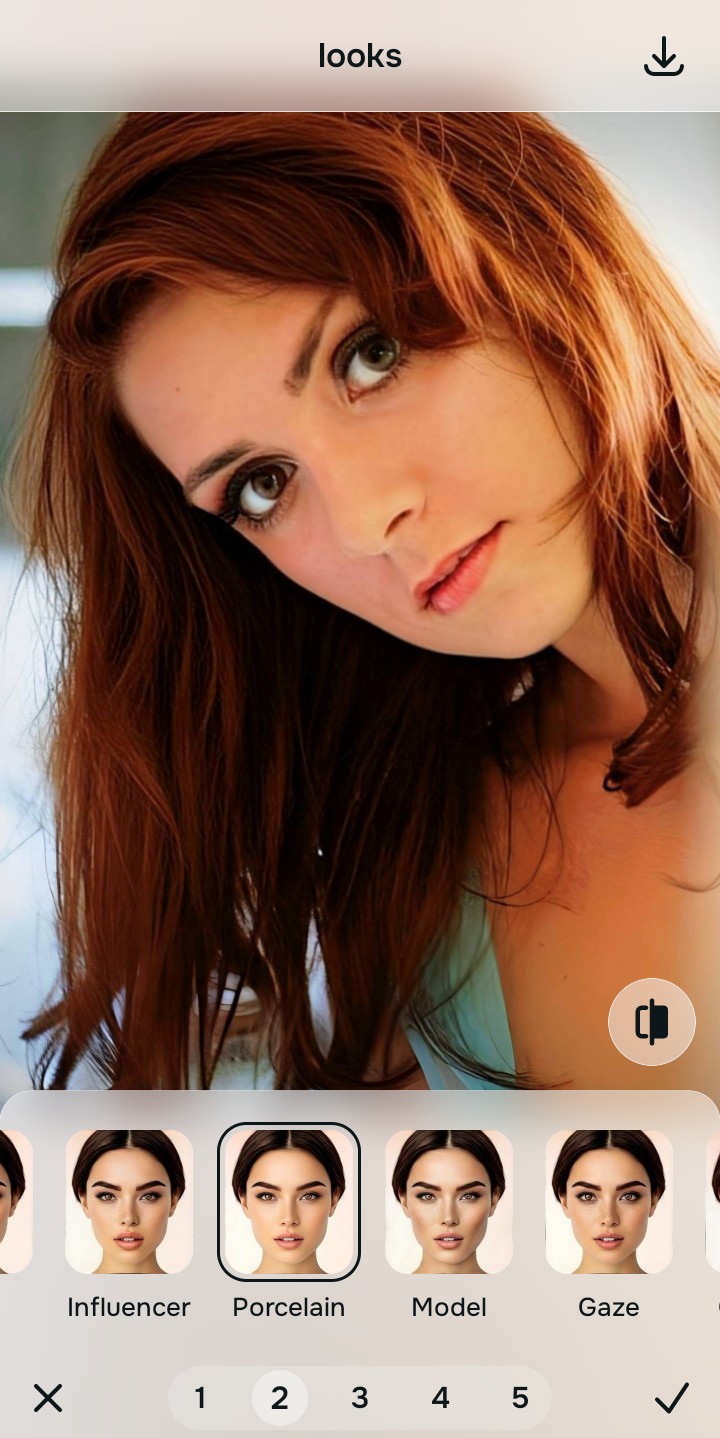
To fix a red-hair portrait for free without making the hair look neon, you must correct the camera's baseline contrast. In Citrus, skip the manual saturation sliders. Tap Enhance -> Colors & Lighting to instantly recover authentic shadow depth without artificial coloring. Then, use Looks -> Porcelain to hydrate your complexion, contrasting beautifully with your hair while keeping your natural freckles completely visible.
Why smartphone cameras ruin ginger and red tones
Your phone uses matrix metering to average the colors in a frame. Because red and ginger hair reflects so much warm light, the camera panics and attempts to cool the entire image down, resulting in muddy, flat photos. Finding a reliable way to fix yellow indoor lighting and bad exposure requires isolating the light from the color. If you just slap a beauty filter over the photo, you will destroy the micro-contrast that makes your hair and skin unique.
- Using global saturation sliders that turn natural red hair into a fake, glowing orange
- Paying expensive monthly subscriptions just to export a normally-lit photo
- Having massive watermarks stamped across your face on free app tiers
- Applying heavy smoothing filters that completely erase your natural freckles
- Getting professional-level lighting correction without any hidden paywalls
- Restoring natural shadow depth so the red hair looks rich, not neon
- Exporting your final, high-definition photo for free without watermarks
- Hydrating your complexion while leaving every single freckle perfectly intact
If your edited picture looks bright but your hair color seems artificial, the edit has failed. Using a face enhancer that looks real ensures that your unique coloring remains trustworthy and authentic to who you are.
Fix muddy exposure instantly. A smart edit keeps colors authentic.
How to rescue a red-hair portrait for free in 5 steps
Select a selfie where your hair color looks wrong
Find a picture in your gallery where your hair looks either dull and brown or artificially neon. You can easily improve photo without changing face structures by simply relying on the right structural tools.
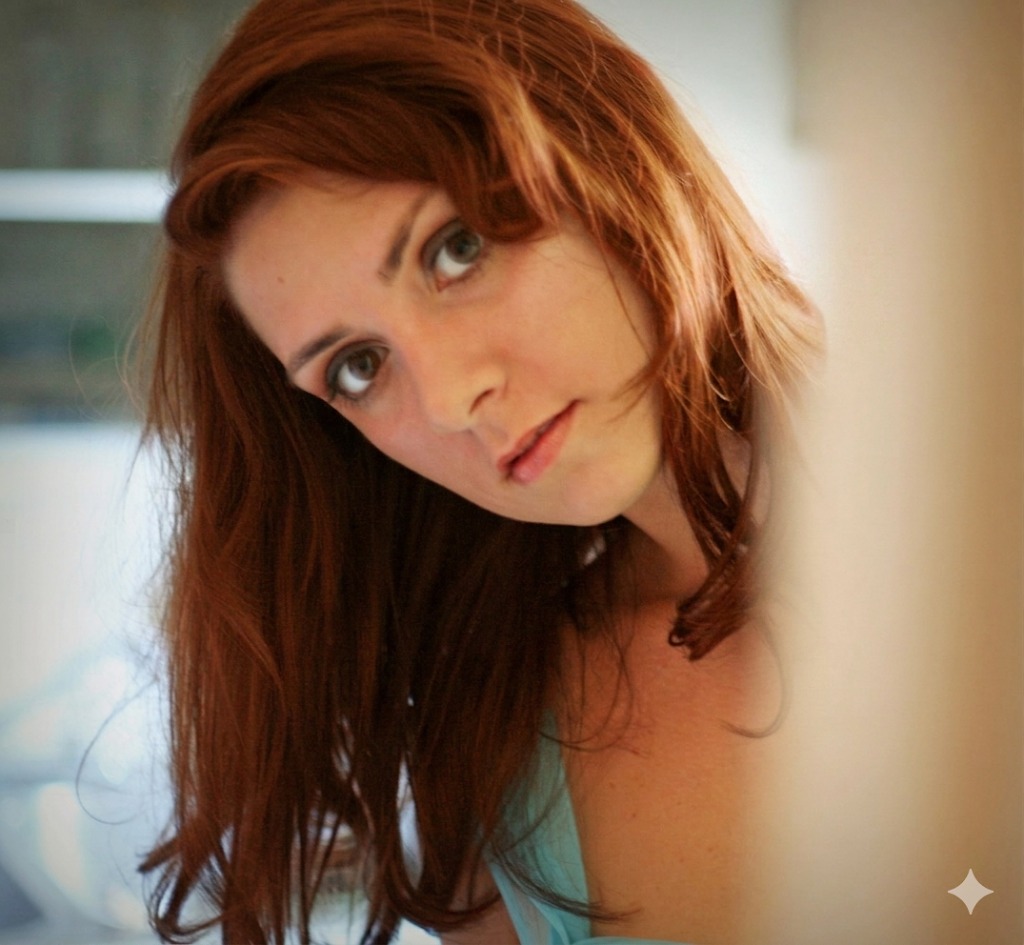
Let the instant preview analyze the lighting
Citrus provides a first correction immediately without asking for a credit card. This ensures that the specific exposure errors are recognized before you start attempting any aesthetic polishing.
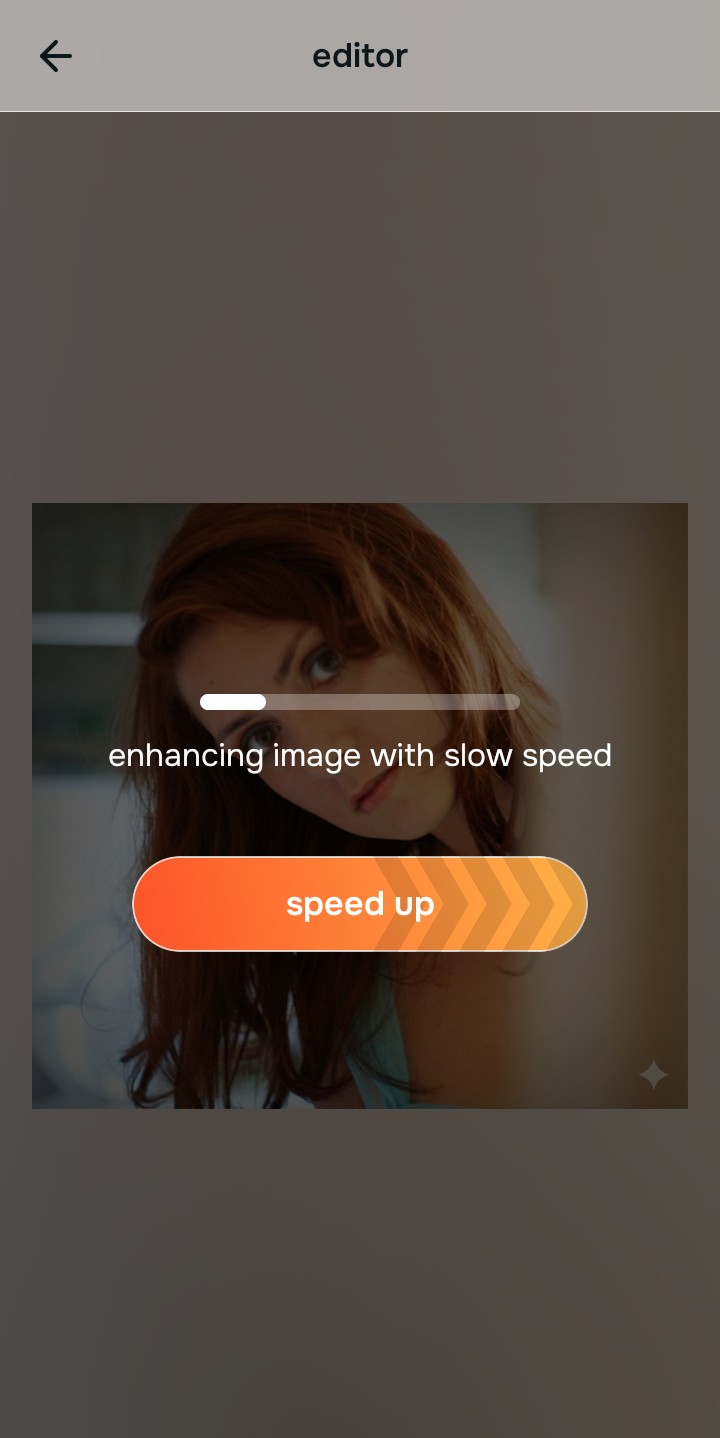
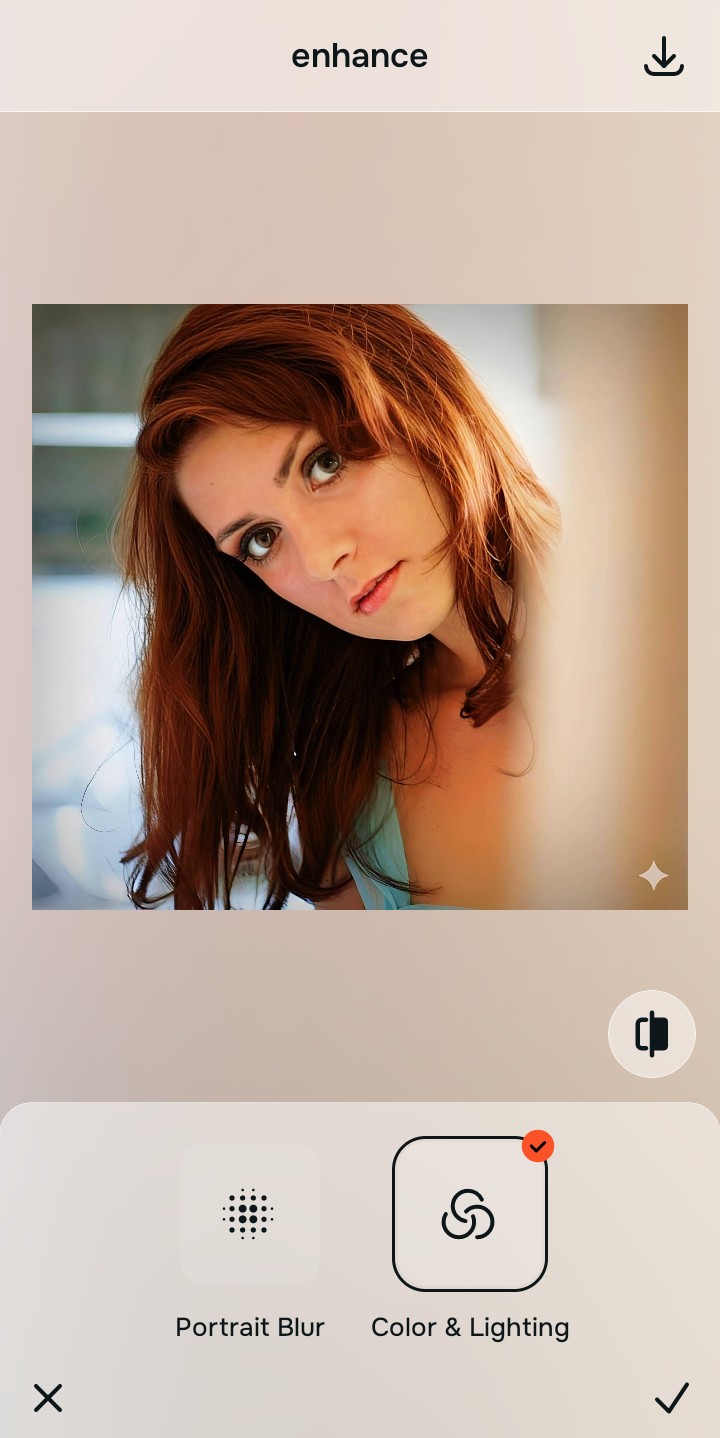
Use Enhance to fix Colors & Lighting first
Because bad color representation is a fundamental data problem, tap Enhance -> Colors & Lighting. This bypasses the phone's fake saturation and restores authentic shadow depth. Getting natural looking results requires fixing this baseline contrast before doing anything else.

Always fix the core contrast before using an aesthetic tool. Tap the Enhance options to build a strong, evenly lit foundation first.
Apply Looks tools to polish your complexion
Once the lighting is balanced, you can safely give your photo an aesthetic finish. Tap Looks -> Porcelain to hydrate fair skin naturally, providing a beautiful contrast against red hair. Finding editors that keep skin texture ensures your freckles remain entirely untouched.
Save the high-resolution photo instantly
Unlike premium apps that charge you a fee just to export a rescued memory, you can save your results instantly. To fix bad selfies naturally, simply stop the edit before the image looks filtered and save it for free.
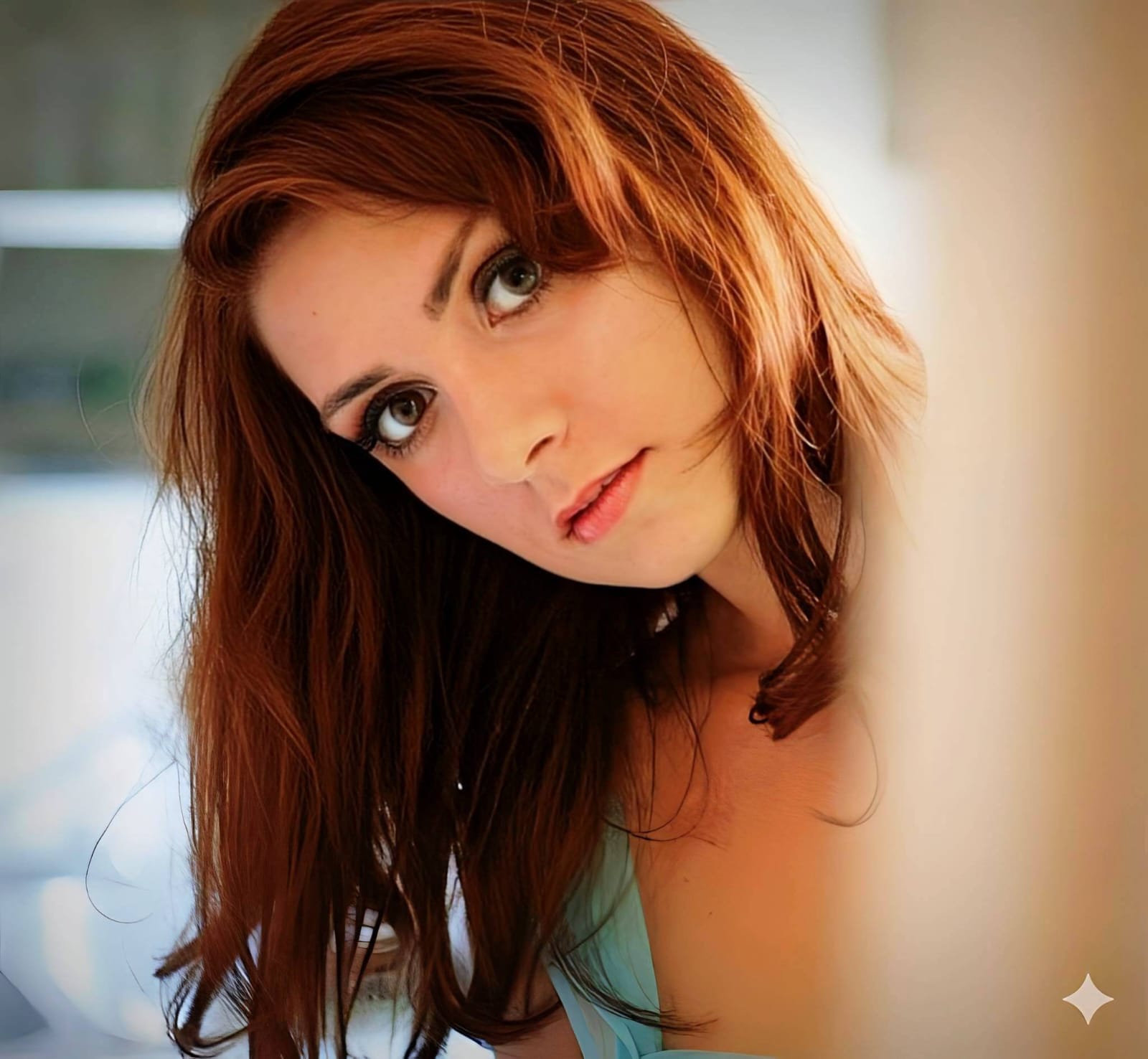
Why does your hair look bad in this selfie?
Choose the description that fits best. Your starting point changes depending on what is actually ruining the color.
Which free Citrus tool delivers the best color finish
Different photographic challenges require entirely different pathways. The goal is to get a professional result by matching the tool to the actual camera error. This stops you from ruining a beautiful portrait with an automated, paid filter.
| Tool | What it helps fix | When to use it |
|---|---|---|
| Enhance Start here | Bad auto white-balance, muddy contrast, and artificial saturation | Use this first when the hair color looks fake. Choose Colors & Lighting to restore the true structural depth for free. |
| Looks | Photos that are clear but lack a beautiful contrast between skin and hair | Use this after Enhance when the issue is a dull vibe. Tap Porcelain to hydrate fair skin naturally. |
| Face | Specific orange or red color reflections cast onto the jawline or cheeks | Use this last, applying targeted tools like Skin Tone to safely neutralize color casts without blurring your freckles. |
“A great red-hair selfie isn't about using a saturation slider. It is about recovering the lost contrast data so your hair looks as naturally vibrant on screen as it does in person.”
Why contrast recovery beats global saturation tools
There is a massive difference between defining color and faking it. When you use an aggressive, paid saturation slider on red hair, you turn the delicate tones into a flat, neon wash. The human brain instantly recognizes this loss of detail as a cheap edit that destroys the vibe of the photo.
Real quality comes from correcting the underlying lighting data instantly. Choosing a tool to make a bad photo good ensures you get high-resolution results without the premium subscription trap. This allows you to look incredibly sharp while you stay true to your human identity.