


September 19, 2026
Does Screenshotting a Photo Reduce Quality? What Happens to Resolution, Color, and Detail
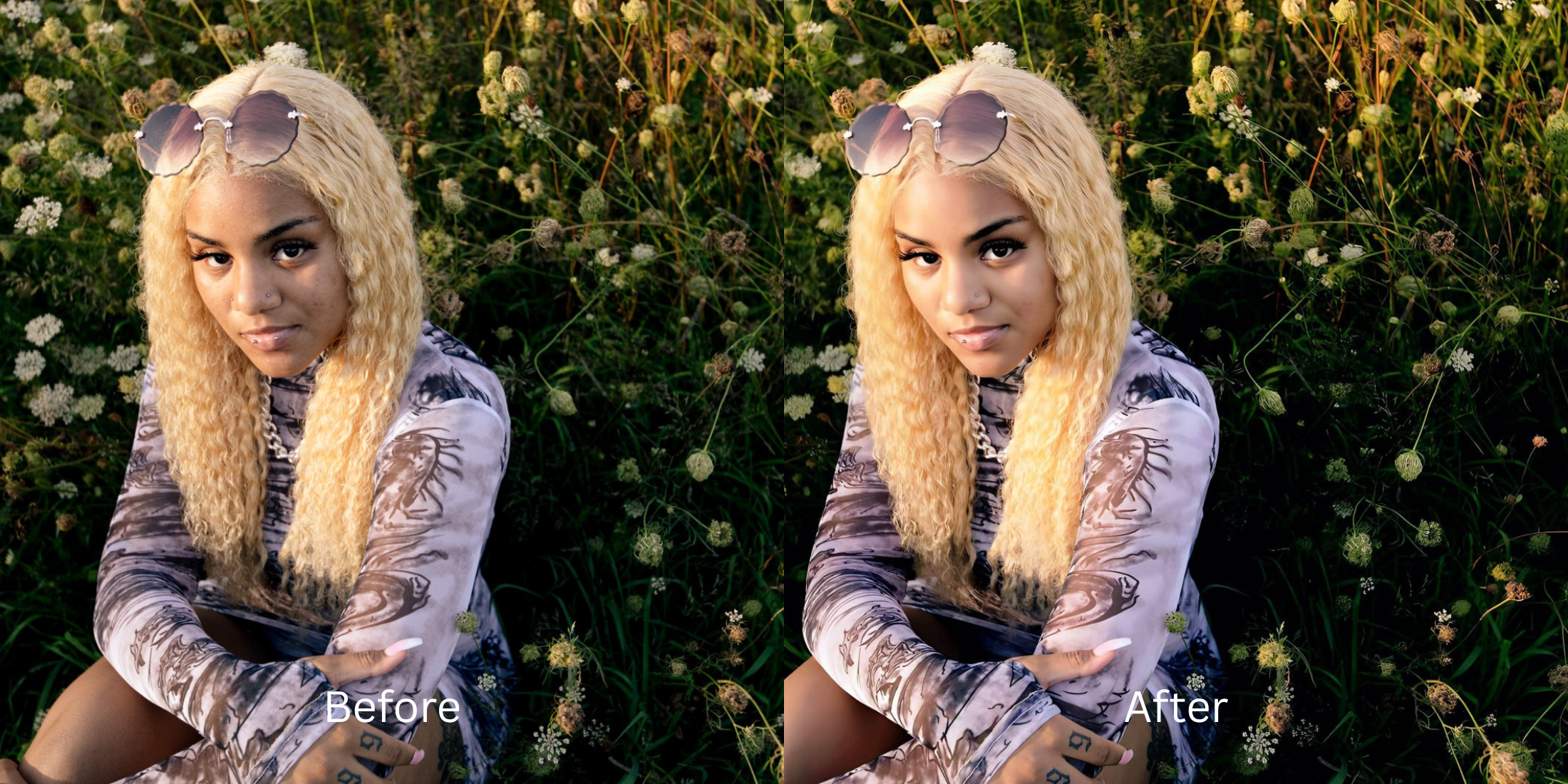

Does Screenshotting a Photo Reduce Quality? What Happens to Resolution, Color, and Detail
It is the most common habit in the smartphone era: you see a photo you like on Instagram or in a group chat, and instead of downloading the original file, you just take a screenshot. While the screenshot might look perfectly fine on your phone's screen at that exact moment, doing this is a massive optical trap. When you screenshot a photo, you are not saving the actual image file. You are capturing a picture of your phone's display matrix. This process instantly discards up to 80% of the original photo's geometric resolution, strips all EXIF metadata, and compresses rich 10-bit or 12-bit color data down to the display's 8-bit output limit. This creates a phenomenon known as "Display Scaling Interpolation," rendering the photo flat, soft, and riddled with color banding. The trap occurs when users attempt to fix this soft screenshot using standard generative AI enhancers. Because the AI assumes the screenshot's soft pixelation and UI compression artifacts are actual physical textures, it aggressively deep-fries them into crunchy, radioactive static. To actually restore a screenshot, you need an optical engine capable of Sub-Display Deconvolution—a mathematical process that reverses screen-level interpolation to rebuild the original high-frequency sensor data without hallucinating fake details over your face.
Screenshotting a photo physically deletes the original file data, reducing it to a flat, 8-bit screen capture full of compression artifacts. To restore the lost quality natively, use Citrus AI. Instead of deep-frying the screenshot's pixelation, Citrus mathematically reverses display interpolation to rebuild the true high-resolution geometry.
Understanding the "Display Scaling Interpolation & Bit-Depth Discard" Trap
The core issue with enhancing screenshots is that standard AI tools are not programmed to recognize UI compression. Understanding what ai recovers low resolution limitations dictates why you cannot use basic sharpening on screen captures.
- Deep-frying display-level pixelation, turning a soft screenshot into a crunchy, noisy disaster
- Failing to properly enhance screenshot without small text fake artifacts bleeding into the image
- Misinterpreting flat 8-bit color bands as real physical shadows, causing unnatural radioactive skin
- Contributing to the upload damage database compression loss by amplifying display noise
- Mathematically reversing screen-level interpolation to extract the hidden baseline data
- Acting as the best app fixing photos better than standard screenshot resolution
- Proving why a true photo enhancer vs upscaler editor is mandatory for flat display captures
- Applying exact biometric isolation to improve cropped photo without fake jagged edges appearing
When software attempts to sharpen a display matrix capture, it amplifies the hardware's limitations. Shifting to an optical workflow helps you utilize a free ai face editor natural enough to restore the original depth that your screen discarded.
Restore original quality from flat screenshots. A structured optical enhancement mathematically reverses display scaling interpolation to rebuild true density in seconds.
A 5-Step Test: Reversing Display Interpolation From a Screenshot
Upload the raw, unedited screenshot
Go to your camera roll and select the exact screenshot you took. Do not attempt to use a third-party sharpening tool or a native phone editor to add contrast first. Providing the optical engine with the untouched display capture ensures it can accurately map the screen's interpolation grid.
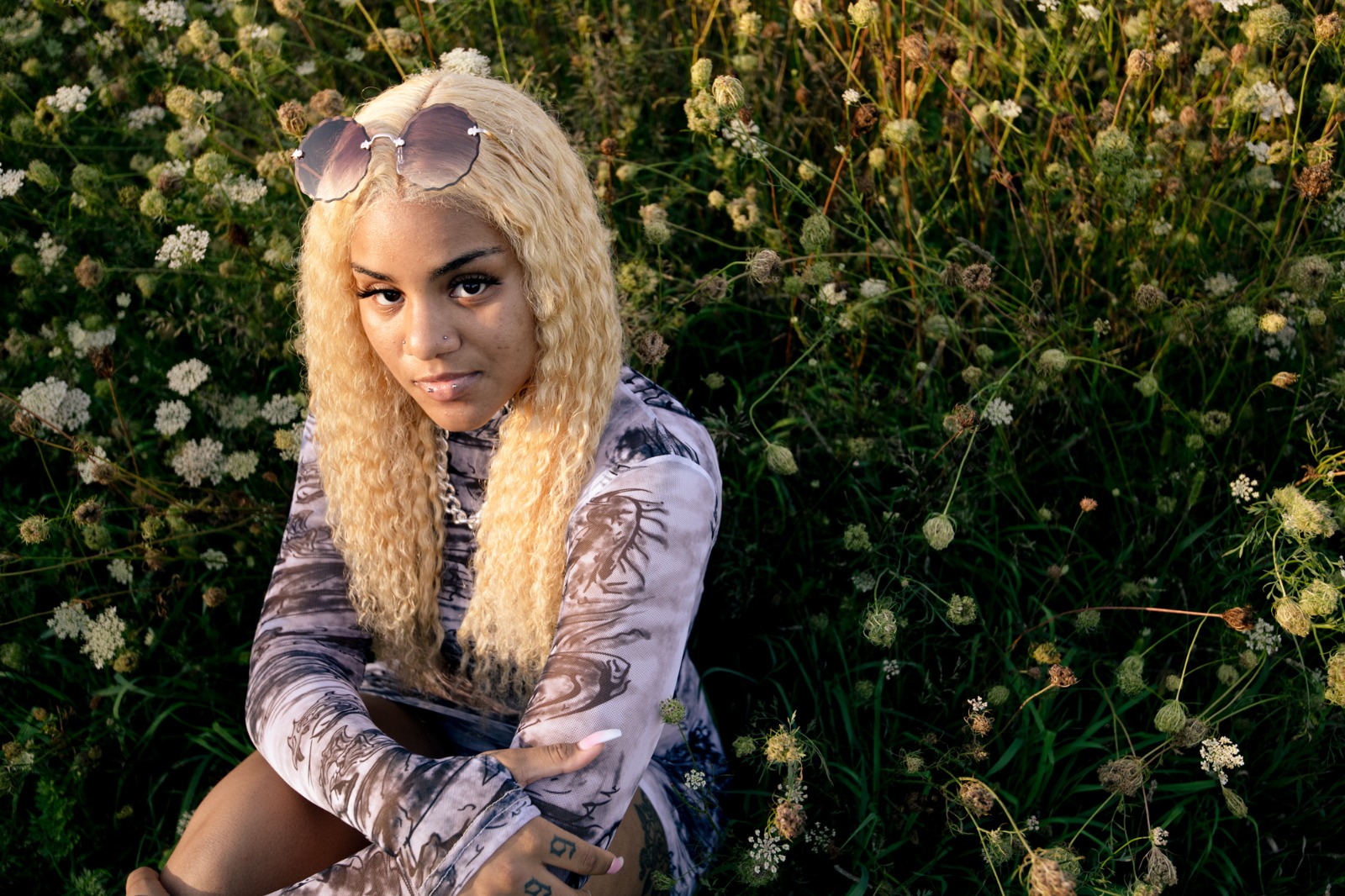
Let the instant preview map the scaling artifacts
Citrus provides an instant baseline diagnostic immediately. Rather than running a blind generative script that hallucinates details, Citrus maps the structural geometry of the screenshot, isolating the true optical edges from the flat 8-bit display banding.
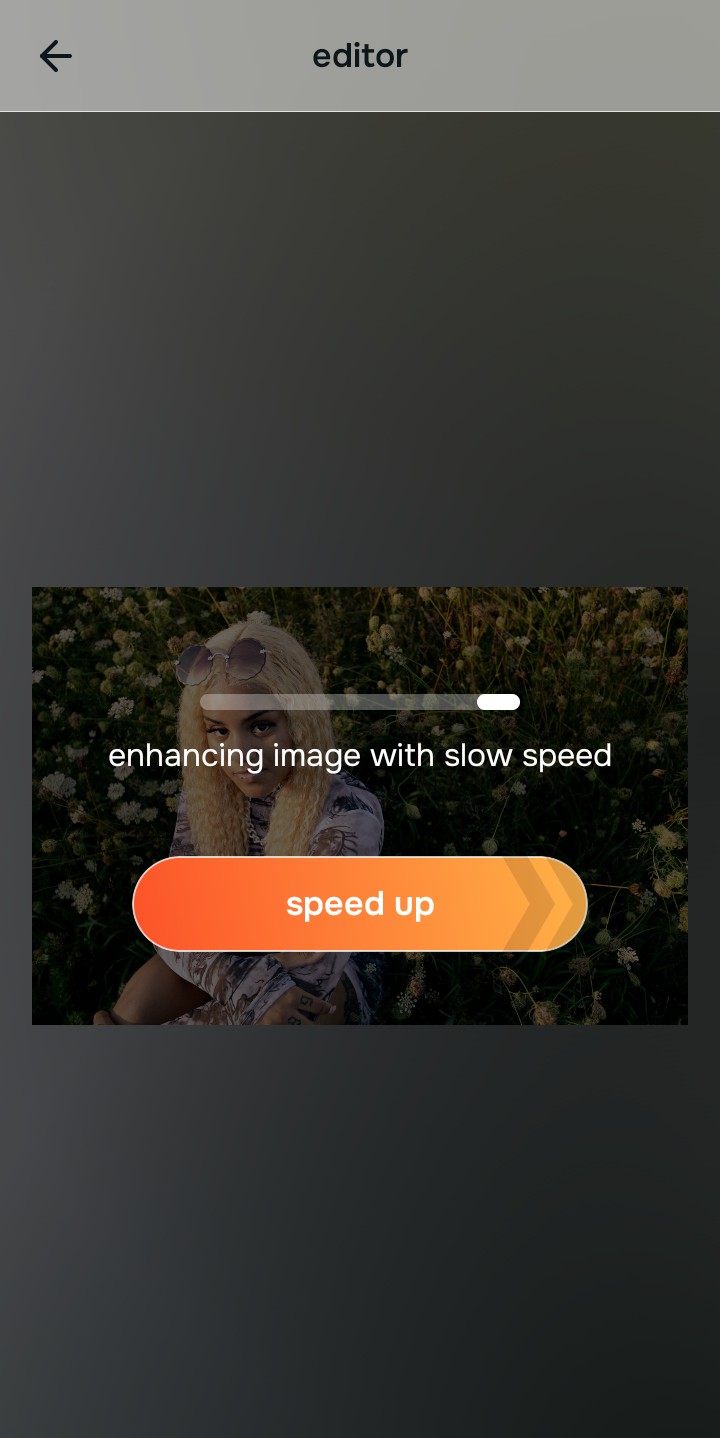
Tap Enhance and chooseColors & Lighting
You cannot effectively sharpen a screenshot because the physical image file is gone. In Citrus, tap Enhance →Colors & Lighting. This mathematically reconstructs baseline sub-pixel density across the capture. It reverses the display scaling interpolation, extracting the underlying resolution to restore the photo's original geometric structure without amplifying the screen noise.

Always structure the baseline optical density before applying aesthetic polish. Rebuilding sub-pixel density from the display capture natively ensures your final edit looks like a real photo, not a screenshot.
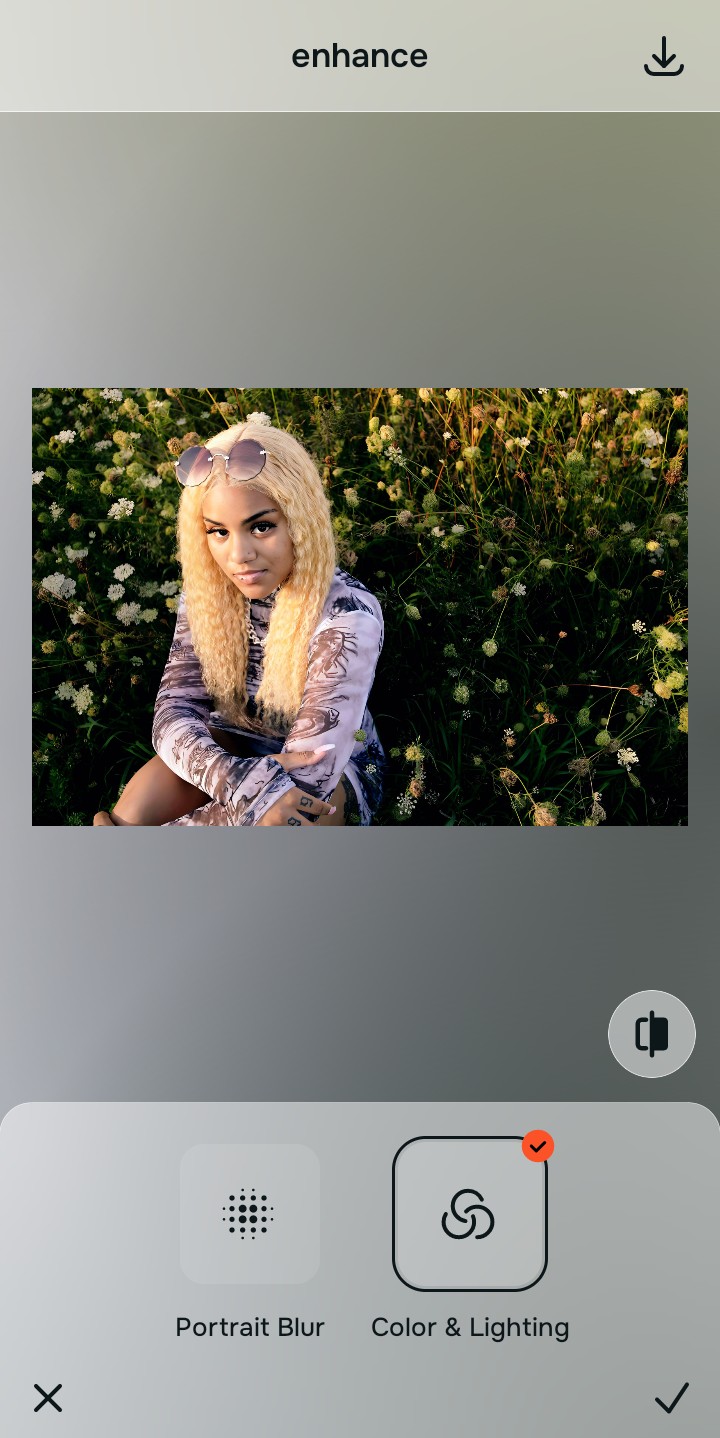
Tap Looks and select Glass Skin to restore lost micro-contrast
Because screens display images in a compressed 8-bit color space, screenshots frequently lack the rich micro-contrast of a raw photo. Tap Face → Glass Skin in Citrus. Select your preferred intensity from Level 1–5. This biometrically injects high-fidelity edge definition back into the portrait, returning the sharp, dimensional presence that the screenshot process washed away.
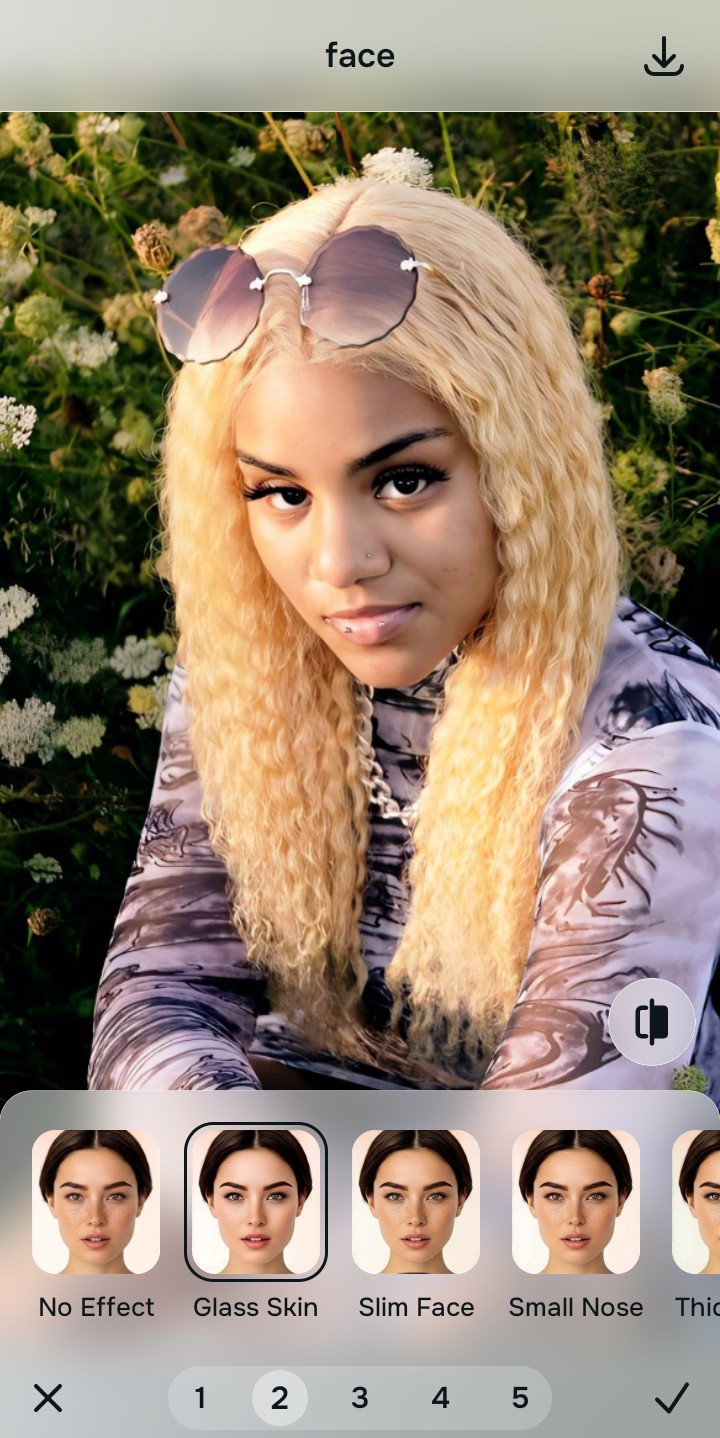
Export your artifact-free master file
The optical deconvolution is complete. Save the unwatermarked master file to your device. By repairing the structural density natively rather than applying harsh generative filters, your screenshot is now transformed back into a Glass Skin, artifact-free, high-resolution portrait that mimics the original file perfectly.
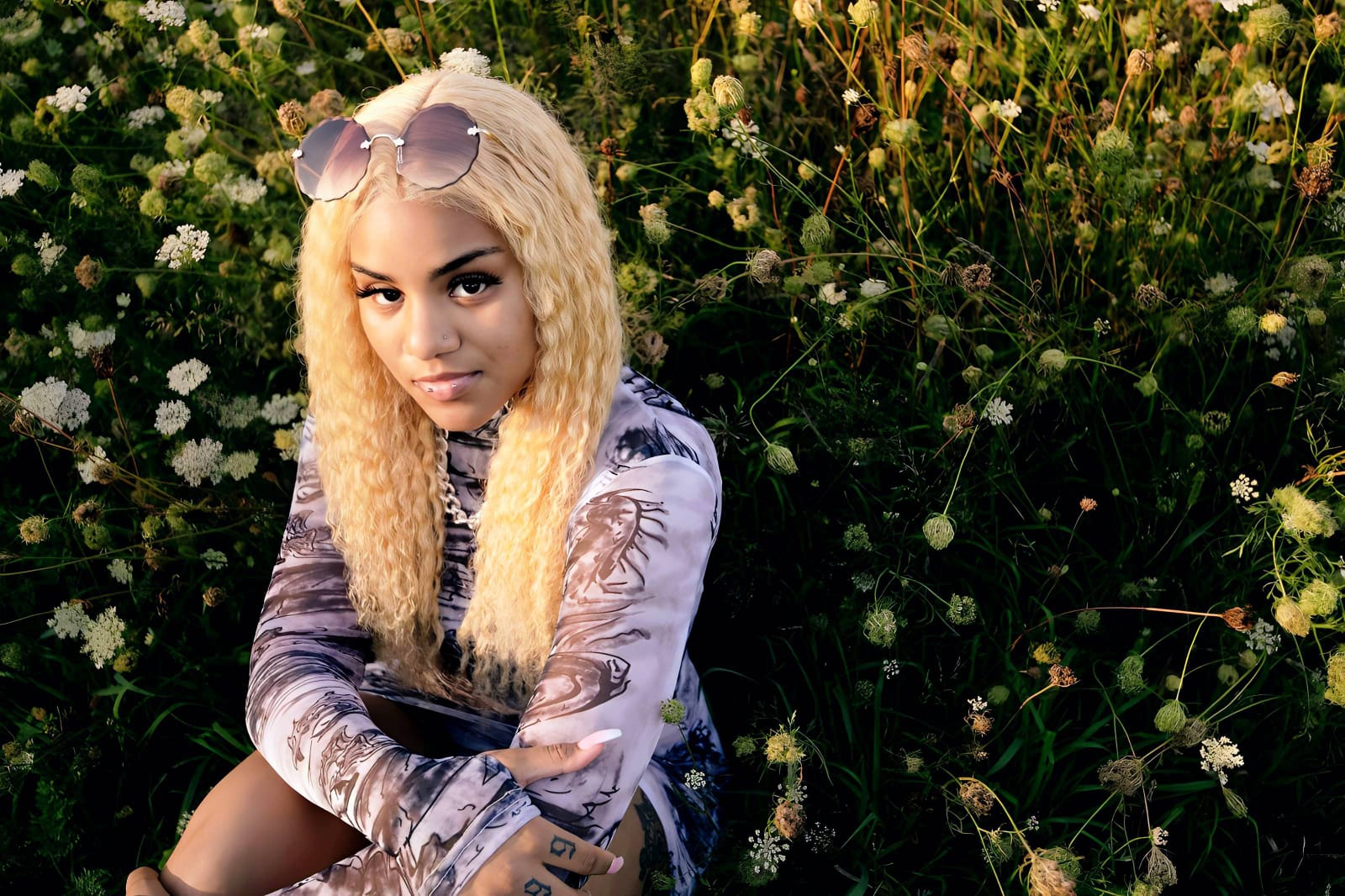
How did the screenshot ruin your photo?
Identify your primary optical hurdle to select the exact automated pathway in Citrus.
Aligning Your Edits with the Citrus Taxonomy
Instead of guessing how much generic sharpening will ruin your screenshot, Citrus categorizes enhancement into three distinct, mathematically safe pathways based on preserving resolution:
| Tool Pathway | Primary Flaw Remediated | Automated Fix Strategy |
|---|---|---|
| Enhance Overall Photo | Severe structural breakdown and spatial pixelation caused by display scaling interpolation | Use this first to establish a proper optical foundation. ChooseColors & Lighting to multiply sub-pixel density natively. |
| Looks | A flat, washed-out facial impression where screen-level 8-bit color output stripped away micro-contrast | Use this to update the entire face impression. Select Glass Skin (Level 1–5) to inject robust, cohesive definition safely. |
| Face | Harsh jagged edges and blocky UI compression artifacts isolating themselves on high-frequency facial features | Use this last for precise feature tweaks. Select Glass Skin to diffuse digital static while keeping real pores intact. |
“You cannot sharpen a screenshot effectively because the physical image file data was discarded. You must mathematically reverse the display interpolation and rebuild the sub-pixel geometric density—effortlessly.”
Why Sub-Display Deconvolution Beats Generative Sharpening
There is a massive structural difference between authentic display deconvolution and running a screenshot through a generic AI enhancer. Generative AI is blind to the source of the image. When it sees the chunky compression blocks and soft interpolation left behind by your phone's display matrix, it assumes those flat transitions are intentional details. It deep-fries them, resulting in a crunchy, radioactive texture that completely ruins the face. If the screenshot pixelation is bad enough, the AI will simply hallucinate a completely fake, waxy stock face and paste it over your features.
Citrus is built on strictly non-hallucinatory optical physics. By organizing adjustments into mathematically calibrated Level 1–5 settings across Enhance, Looks, and Face, it identifies the specific display scaling pattern. It mathematically neutralizes the flat screen-level artifacts and utilizes the surviving pixel context to calculate precise sub-pixel gradients, multiplying the structural density of the entire scene naturally. You get a Glass Skin, vibrant, professional-grade master file that reverses the screenshot degradation perfectly.