


September 7, 2026
How to Improve a Heavily Cropped Photo Without Making Edges Look Fake
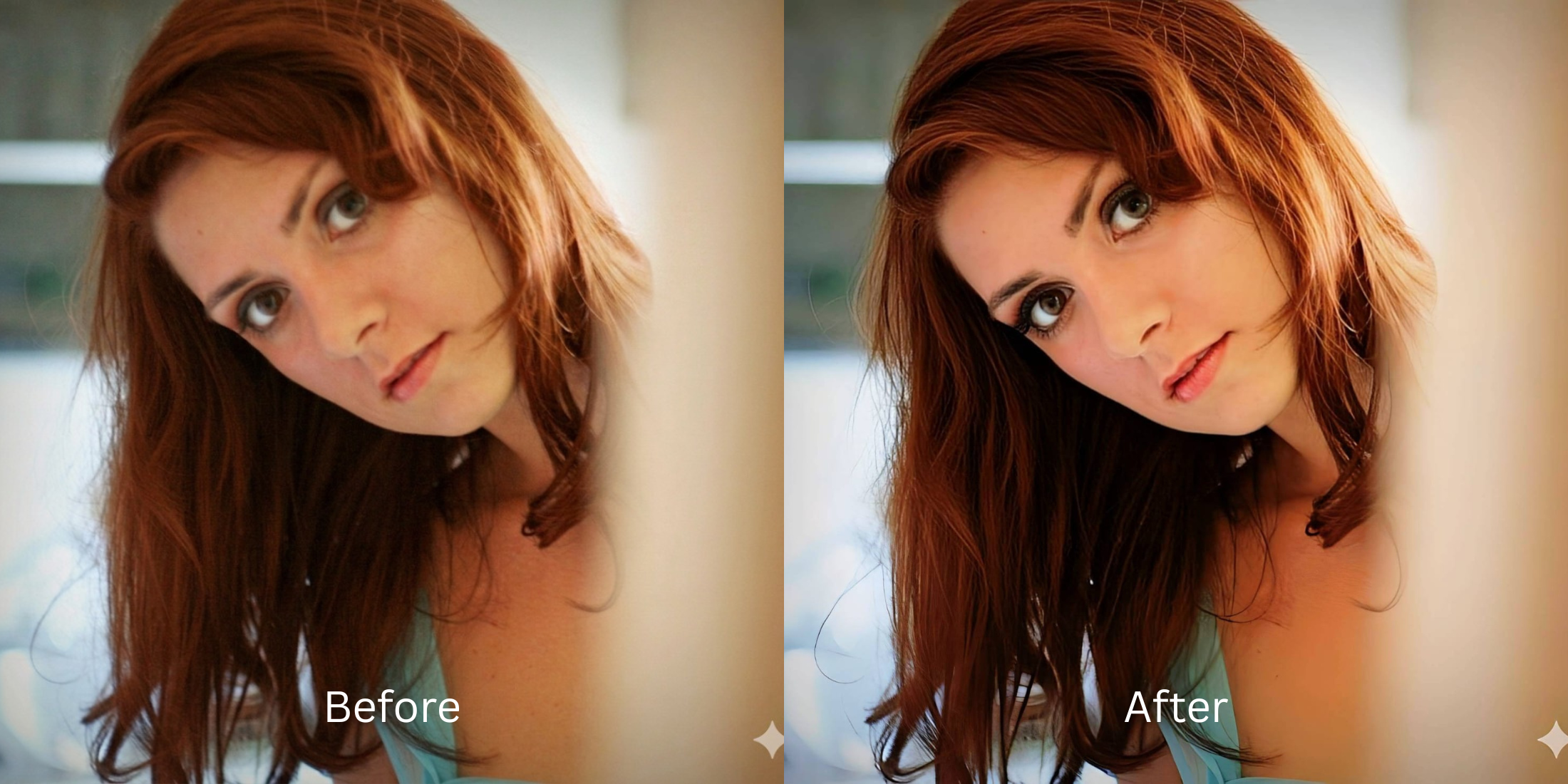

How to Improve a Heavily Cropped Photo Without Making Edges Look Fake
You took a great group photo, but you only want your face in the frame. You zoom in, crop the image heavily, and save it. Immediately, the result looks soft, fuzzy, and low-quality. This happens because cropping physically throws away 80% to 90% of your camera's pixel data. When your phone tries to display that tiny fragment on a big screen, it "upscales" the image using basic mathematical interpolation—literally stretching the remaining pixels to fill the gap. The trap happens when users try to fix this blur. Standard editing apps offer a "Sharpen" slider, which detects these stretched edges and attempts to create the *illusion* of crispness by painting thick, bright white and dark black lines next to them. This creates the dreaded "halo effect"—jagged, crunchy, radioactive-looking borders around your jawline, hair, and clothing that scream "heavily edited." To make a deep crop look like a naturally framed portrait, you need an optical engine capable of mathematically reconstructing sub-pixel density *before* edge contrast is applied.
Heavily cropped photos look blurry because you've deleted most of the pixel data, forcing the software to stretch what's left. To fix this natively, use Citrus AI. Instead of using a sharpening slider that creates fake, crunchy "halos" around your edges, Citrus mathematically rebuilds the missing geometric density so the crop looks like a true high-res photo.
Understanding the "Digital Zoom Interpolation & Edge Halo" Trap
The core issue with cropping is that stretching pixels destroys authentic edge definition. When you try to find out how to fix over sharpened phone photo edits, you quickly learn that generic sharpening masks only highlight the damage rather than repairing the structural resolution.
- Applying noisy contrast halos that create jagged, fake-looking white borders around your jaw and hair
- Failing to remove photo grain without smoothing, leaving cropped skin looking incredibly gritty
- Making delicate features like eyelashes look like thick, clumpy, pixelated blocks
- Leaving you unsure how to recover from low resolution photo crops without looking artificial
- Using advanced optical models to mathematically regenerate baseline resolution, avoiding fake contrast halos
- Serving as the ultimate photo enhancer alternative manual retouching workflow
- Biometrically isolating delicate boundaries so you can sharpen hair eyelashes and clothing cleanly
- Providing the exact photo enhancer vs upscaler technology needed to restore true density
When an interpolation algorithm stretches your file, adding chaotic noise is the worst thing you can do. Shifting to an optical workflow helps you to fix blurry face photos free and natively, ensuring your tight crops stay defined, natural, and incredibly crisp.
Restore original quality to heavy crops. A structured optical enhancement rebuilds lost pixel density and diffuses gritty texture in seconds.
A 5-Step Test: Rebuilding Density After a Heavy Crop
Save the heavily cropped photo to your camera roll
Crop the image exactly how you want it framed, and save that specific soft, stretched file. Starting with the exact crop helps the optical engine understand precisely how much interpolation stretching has occurred.

Let the instant preview map structural density
Citrus provides an instant baseline correction immediately. Instead of just adding a blanket noise layer, Citrus analyzes the structural geometry of the subjects, mapping out the stretched interpolation borders.

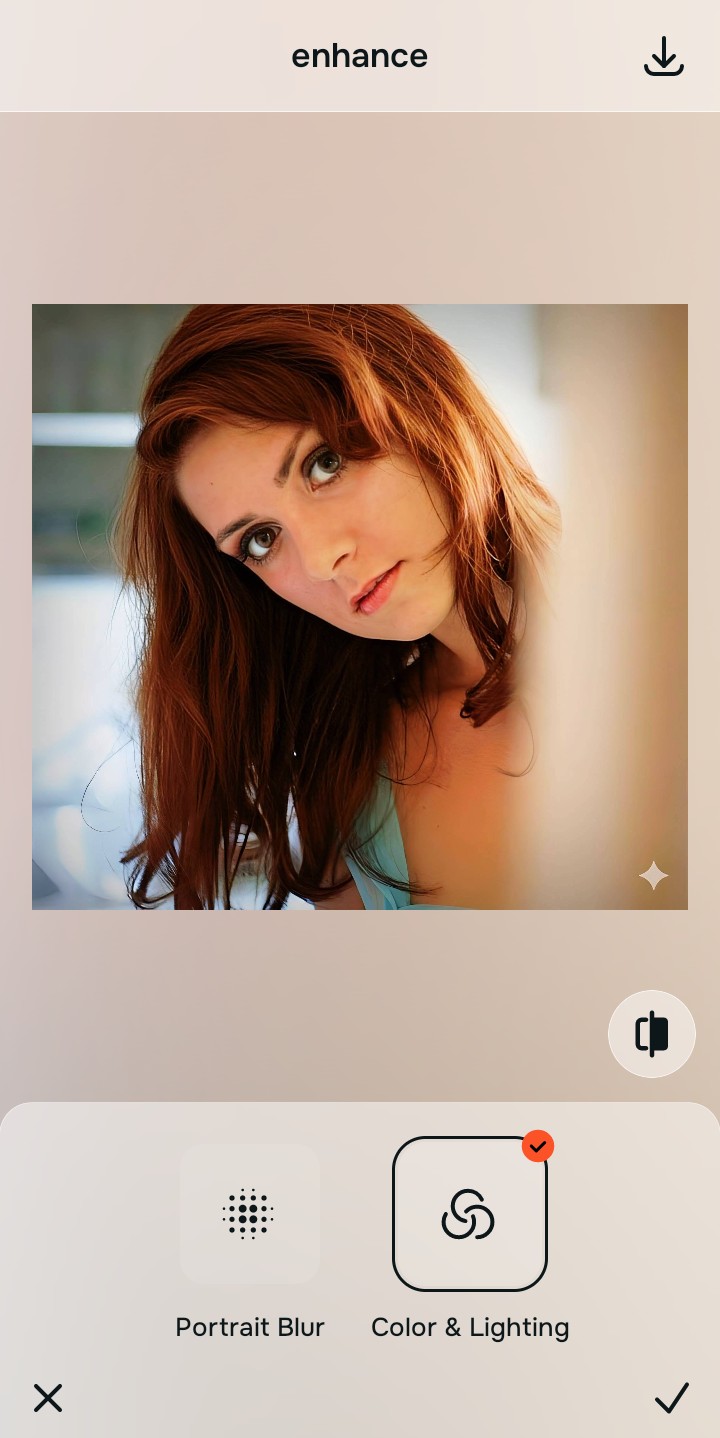
Tap Enhance and choose Colors & Lighting
You cannot fix a heavy crop without rebuilding dense baseline data. In Citrus, tap Enhance → Colors & Lighting. This mathematically generates sub-pixel structure. By restoring the physical pixel count that was cropped away, the image regains its foundational sharpness without relying on fake, jagged contrast halos.

Always structure the baseline resolution before trying to smooth the skin. Increasing optical density mathematically ensures subsequent enhancements have real data to work with.
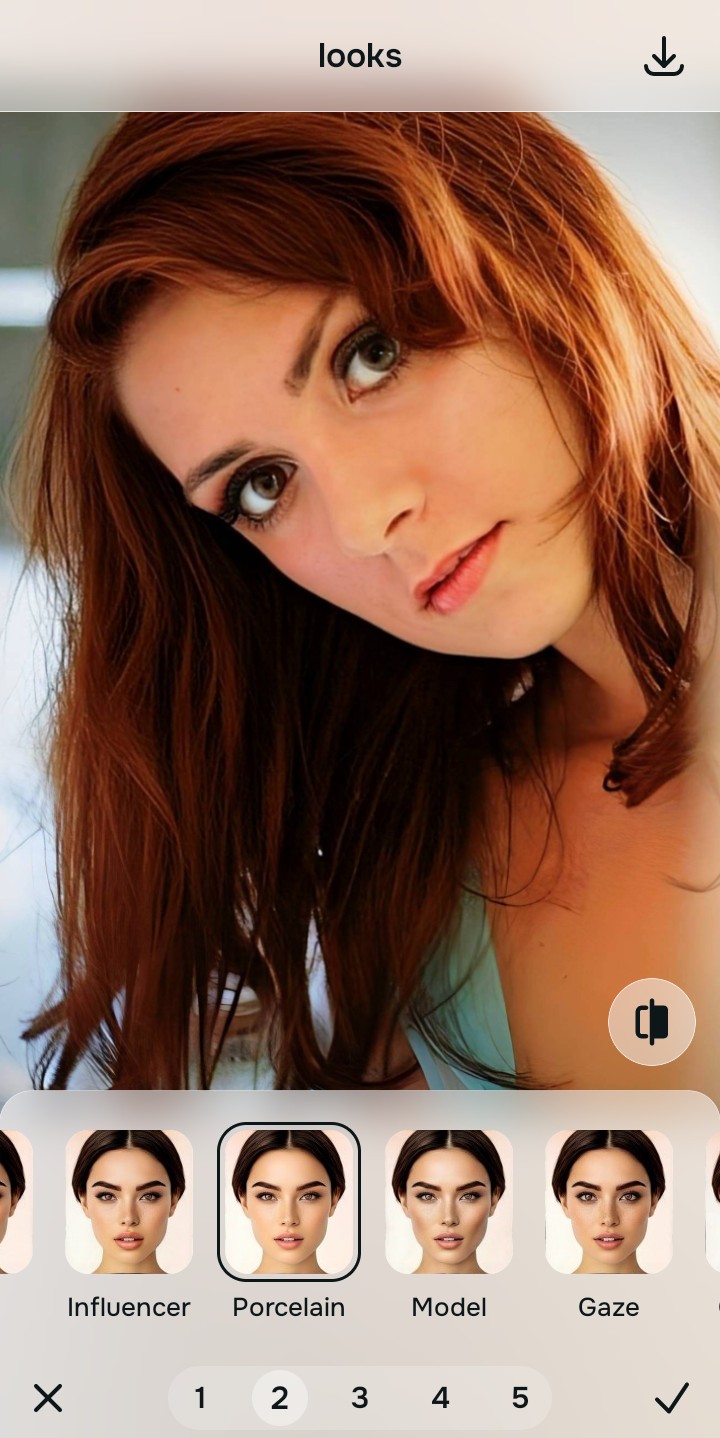
Tap Looks and select Porcelain to diffuse gritty skin
When you zoom in heavily, natural skin texture becomes stretched, making it look gritty and pixelated. Tap Looks → Porcelain in Citrus. Select your preferred value from Level 1–5. This biometrically diffuses the rough micro-contrast of the cropped skin, returning a smooth, editorial finish that looks high-res rather than "zoomed in."
Tap Face and select Micro Refine for clean eye detail
Heavy crops destroy delicate geometric boundaries, turning eyelashes and iris details into blocky, soft squares. Tap Face → Micro Refine. Citrus isolates these high-frequency biometric planes to restore authentic, microscopic edge definition without applying global halos to the rest of the image.

How does the heavy crop ruin your specific photo?
Identify your primary optical hurdle to select the exact automated pathway in Citrus.
Aligning Your Edits with the Citrus Taxonomy
Instead of guessing how much to artificially sharpen your photo before ruining it, Citrus categorizes enhancement into three distinct, mathematically safe pathways:
“Crop recovery should never require you to deep-fry your photo with artificial sharpening just to see the edges. It must mathematically rebuild the geometric density that was cropped away so you look crisp and authentic—effortlessly.”
Why Sub-Pixel Density Rebuilding Beats Edge Halos
There is a massive structural difference between authentic optical upscaling and dragging a "Sharpen" slider in a basic photo editor. When you turn up the sharpness on a heavily cropped photo, the software detects the stretched edges and paints thick white and black halos directly onto them. It doesn't add resolution; it just adds harsh, jagged contrast that creates a highly artificial, crunchy, "deep-fried" look.
Citrus is built specifically to prevent this. By constraining adjustments to mathematically calibrated Level 1–5 settings across Enhance, Looks, and Face, it physically builds new, accurate pixel data *before* edge contrast is applied. It generates the sub-pixel density needed to make a small crop behave like a massive, natively captured high-resolution portrait. You get a crisp, vibrant photo in one tap without the radioactive halo effect.