


September 5, 2026
Do iCloud Shared Albums Reduce Photo Quality? What Happens to Detail and Compression

Do iCloud Shared Albums Reduce Photo Quality? What Happens to Detail and Compression
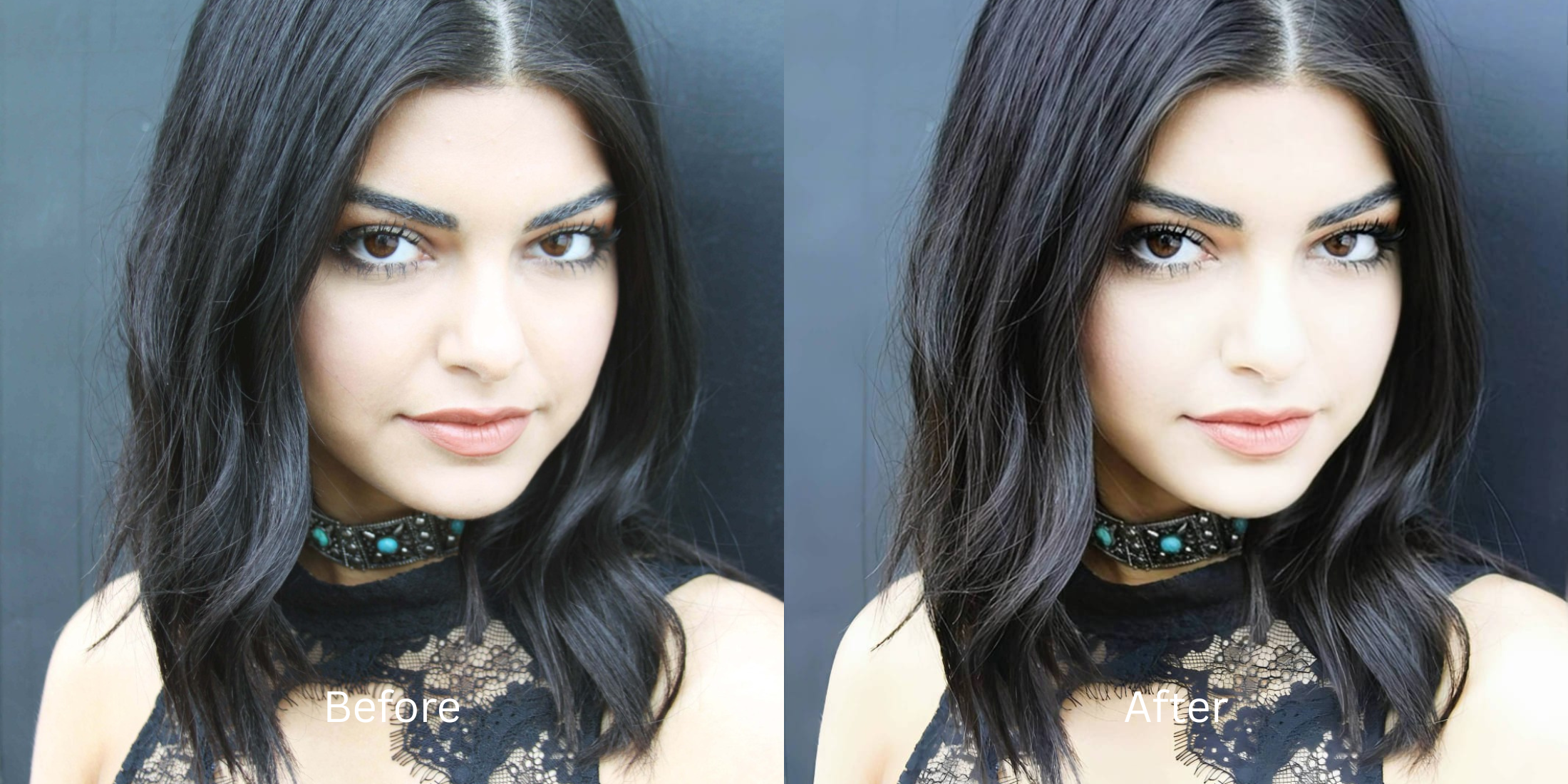
You just came back from a family vacation, and everyone dumped their camera roll into an iCloud Shared Album. On your phone, your original photos look incredibly sharp, with rich colors and Youthful 4K detail. But when you download the photos your relatives added to the shared album, they look soft, slightly mushy, and noticeably lower quality. This is not a glitch; it is the reality of Apple's cloud infrastructure. Many users assume that because "iCloud Backup" preserves original quality, "iCloud Shared Albums" do the same. This is false. To ensure shared photos sync instantly across millions of devices without eating up your storage quota (Shared Albums literally don't count against your iCloud limit), Apple's servers aggressively downsample every photo to a maximum of 2048 pixels on the longest edge. Videos are crushed down to 720p. Apple also applies a heavy lossy JPEG compression pass, stripping out the micro-contrast that makes faces look sharp. If you try to fix these downloaded photos using native editing sliders, you simply amplify the compression artifacts. To recover the original fidelity of these shared memories, you need an optical engine that structurally rebuilds the missing pixel density.
iCloud Shared Albums drastically reduce photo quality by downsampling every image to a maximum of 2048 pixels and applying heavy JPEG compression. To recover the lost detail natively, use Citrus AI. Instead of using native sharpening sliders that look crunchy, Citrus mathematically rebuilds the structural density of the file so your shared memories look Youthful and high-res again.
Understanding the "2048px Server Downsample" Trap
The core issue with cloud sharing ecosystems is that they prioritize speed and free storage over image fidelity. When Apple's servers shrink a 48MP iPhone 15 Pro photo down to a 2048px JPEG, it literally deletes millions of pixels. Figuring out how to recover from low resolution photo structures requires pre-conditioning your image geometry rather than applying destructive native sharpening.
- Using native iOS editing sliders that just add noisy contrast halos to an already compressed file
- Leaving the photo looking soft and mushy, especially when trying to print shared family photos
- Failing to understand apple photos vs citrus structural recovery limits
- Leaving group photos with blurry, undefined faces that force you to search how to fix blurry face group photo
- Using advanced optical models to mathematically upscale the 2048px file back to full, dense resolution
- Serving as a superior ai photo enhancer alternative to manual slider tweaks
- Biometrically fortifying focal edges (eyes, smiles) so group photos look clear and recognizable
- Allowing you to fix over sharpened phone photo artifacts created by bad previous edits
When Apple's servers throw away the high-frequency data in your memories, adding chaotic noise is the worst thing you can do. Shifting to an optical workflow helps you compare google photos vs citrus, ensuring your shared albums stay defined, high-quality, and incredibly Youthful.
Restore original quality from iCloud Shared Albums. A structured optical enhancement rebuilds lost pixel density and clean clarity to your downloaded photos in seconds.
A 5-Step Test: Rebuilding Resolution From an iCloud Shared Album
Save the compressed photo to your camera roll
Download the specific photo from the Shared Album that looks soft or mushy. Starting with this exact file lets the engine analyze exactly what pixel data the Apple server discarded.

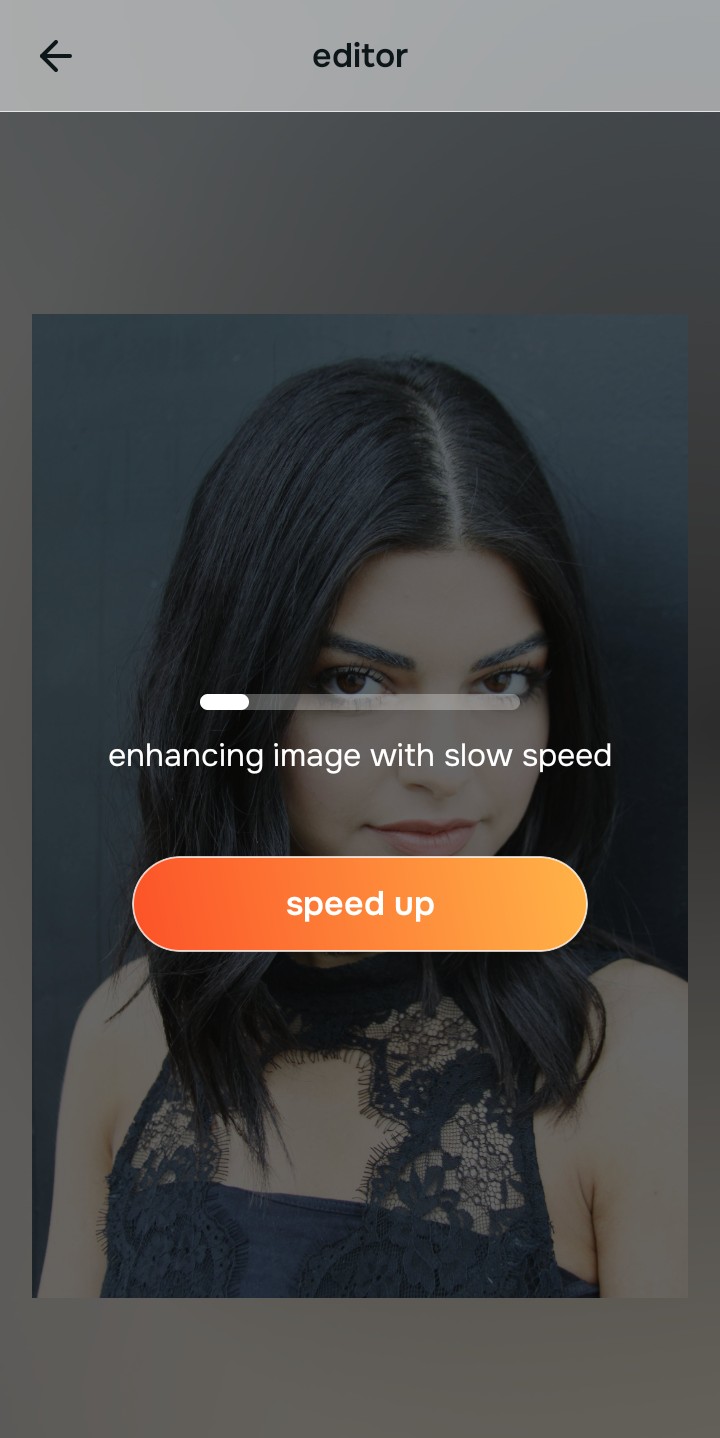
Let the instant preview map structural density
Citrus provides an instant baseline correction immediately. Instead of just adding a blanket noise layer, Citrus analyzes the structural geometry of the subjects, preparing it to handle the missing resolution.
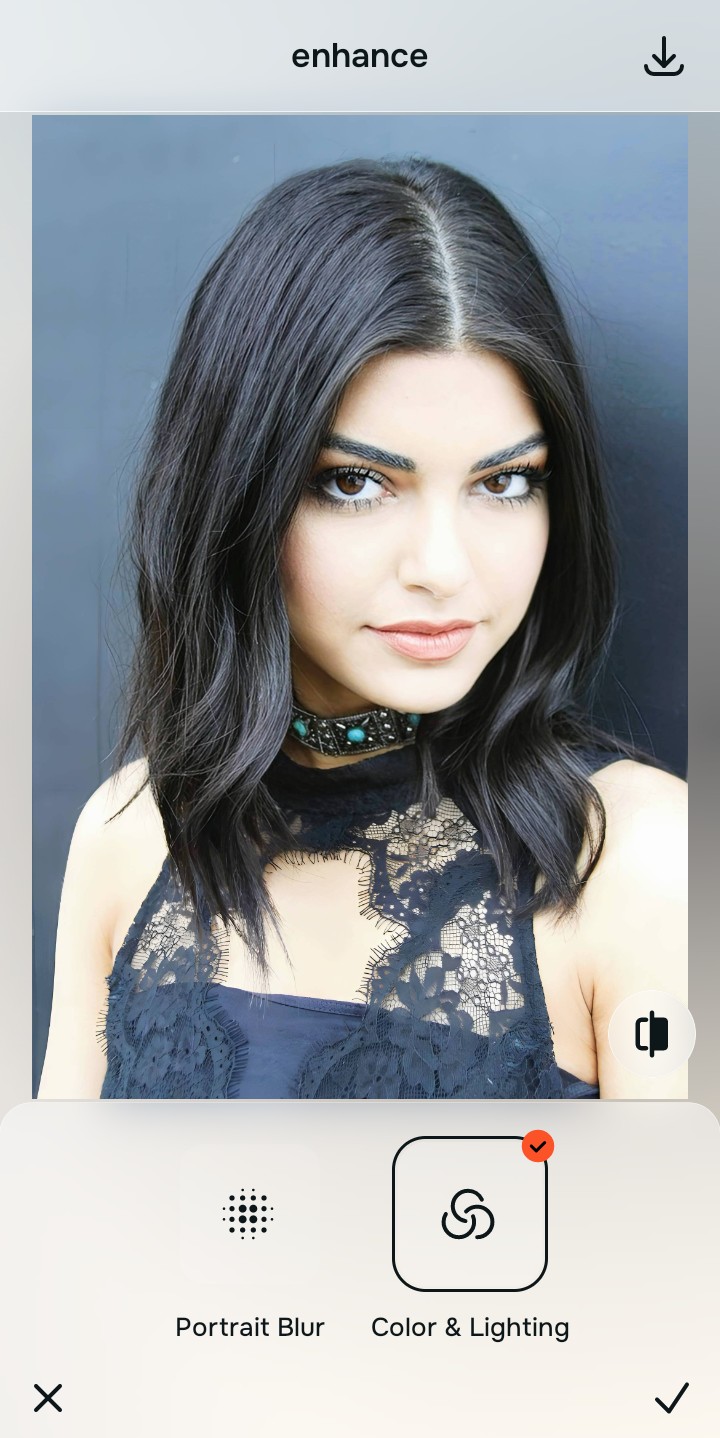
Tap Enhance and choose Colors & Lighting
You cannot fix a 2048px downsample without rebuilding dense baseline data. In Citrus, tap Enhance → Colors & Lighting. This mathematically increases the structural resolution of the file. By restoring the pixel density that the iCloud servers discarded, the image regains its foundational sharpness without relying on noisy contrast halos.

Always structure the baseline resolution before adding aesthetic polish. Increasing optical density mathematically ensures subsequent enhancements have real data to work with.
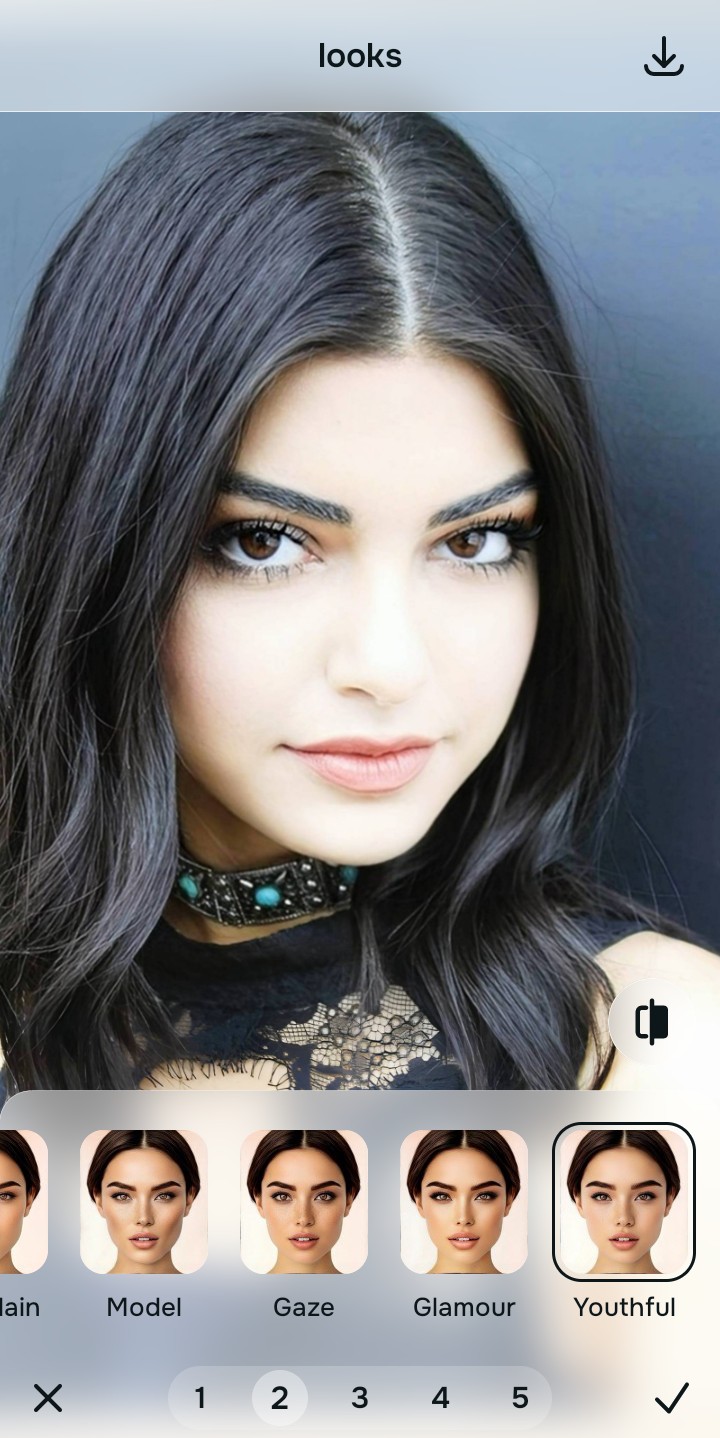
Tap Looks and select Youthful to restore editorial contrast
Apple's compression pass leaves shared photos looking slightly soft and lacking the "punch" of a raw camera file. Tap Looks → Youthful in Citrus. Select your preferred value from Level 1–5. This biometrically injects high-end, editorial micro-contrast back into the photo to make a photo look viral pinterest pin quality.
Tap Face and select Micro Refine for group photos
Shared albums are heavily used for weddings and family reunions. In a downsampled 2048px group photo, individual faces lose critical details. Tap Face → Micro Refine. Citrus isolates these biometric planes to restore sharp edge definition for individuals in the frame without blurring the rest of the shot.

How does the shared album ruin your specific photo?
Identify your primary optical hurdle to select the exact automated pathway in Citrus.
Aligning Your Edits with the Citrus Taxonomy
Instead of guessing how much to artificially sharpen your photo before ruining it, Citrus categorizes enhancement into three distinct, mathematically safe pathways:
“Cloud photo enhancement should never require you to deep-fry your memory with artificial sharpening just because Apple downscaled it. It must mathematically rebuild the geometric density that the server washed away so you look Youthful and authentic—effortlessly.”
Why Density Rebuilding Beats Native iOS Sharpening
There is a massive structural difference between authentic optical upscaling and dragging the "Sharpness" slider in the native Apple Photos app. When you turn up the sharpness on a photo that has already been compressed to 2048 pixels, the software creates thick white and black halos around the smeared, low-res edges. It literally sharpens the compression artifacts. This creates a highly artificial, crunchy, "deep-fried" look that ruins the photo for printing or framing.
Citrus is built specifically to prevent this. By constraining adjustments to mathematically calibrated Level 1–5 settings across Enhance, Looks, and Face, it physically increases the geometric density of the image *underneath* the compression. It rebuilds the clean, high-resolution structural baseline that the iCloud servers deleted to save space. You get a Youthful, vibrant portrait in one tap without the crunch.