


August 15, 2026
Apple Photos vs Citrus: Which Is Better for Fast, Natural iPhone Photo Fixes?
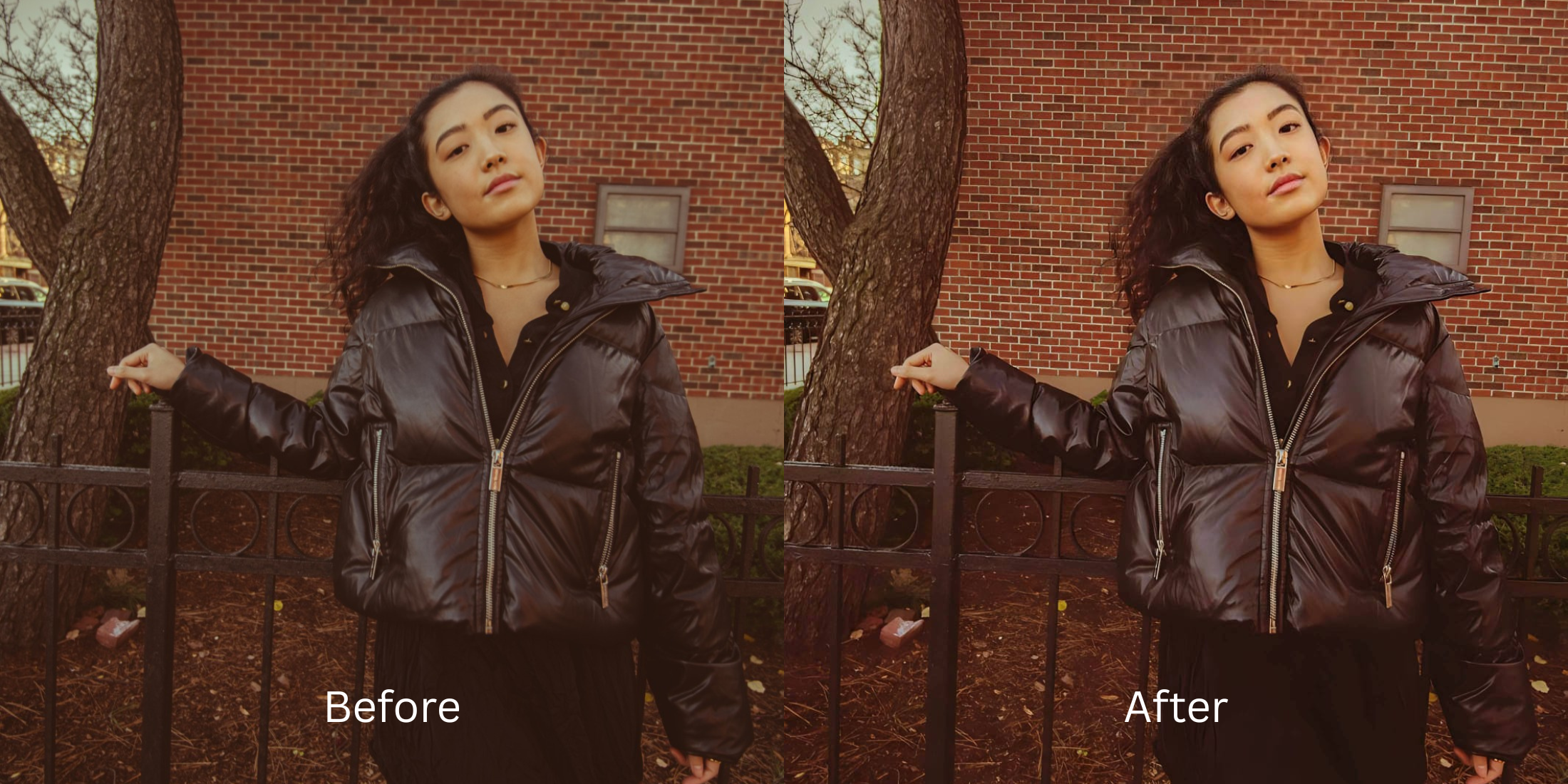

Apple Photos vs Citrus: Which Is Better for Fast, Natural iPhone Photo Fixes?
If you browse iOS and photography communities, you'll find a universal frustration with the native iPhone Photos app. Every iPhone user knows the "Auto" wand button in the Photos editor. For landscapes and architecture, it's convenient. But when you tap it on a selfie or portrait, it frequently ruins the shot. Apple's auto-fix operates on top of Smart HDR and Deep Fusion algorithms that already over-sharpen facial details, crank local brilliance, and crush natural skin tones. When you try to fix it manually using Apple's 15+ complex adjustment sliders (Brilliance, Highlights, Shadows, Black Point), you end up with slider fatigue. To get fast, photogenic iPhone photo fixes without the deep-fried, crunchy look, you need an optical engine that separates general exposure from human facial biometrics.
Apple Photos Auto is decent for general lighting, but Citrus is significantly better for natural portraits and selfies. While Apple Photos applies a blunt, global algorithm that over-sharpen pores and distorts skin highlights, Citrus AI uses dedicated optical modeling to balance raw lighting and gently elevate your facial radiance in one tap—keeping your natural skin texture 100% intact.
Why the Apple Photos Auto-Wand Fails on Portraits
The core limitation of Apple Photos' built-in editor is that its Auto tool treats human skin exactly like a landscape. It pulls shadows and pushes the "Brilliance" slider globally across the whole frame. This exaggerates fine lines, magnifies pores, and creates an unflattering, greasy shine across the forehead. Understanding this flaw explains why iphone selfies look worse right after taking them. A true portrait workflow requires isolating environmental exposure from skin texture.
- Cranking the "Brilliance" slider globally, creating harsh specular glare across your forehead
- Compounding Deep Fusion over-sharpening until skin looks like rough sandpaper
- Forcing you through 15 separate manual sliders just to make a simple indoor selfie look balanced
- Explaining why iphone camera skin harsh textures ruin candid moments
- Accessing the best ai photo enhancer iphone workflow for fast one-tap fixes
- Calibrating lighting and exposure curves without over-sharpening facial micro-contrast
- Diffusing harsh camera glare while keeping real human skin texture 100% visible
- Delivering authentic enhancer for natural looking results in under two seconds
When default gallery tools over-process your skin, you don't need heavy beauty filters to compensate. Shifting to an optical method to fix over sharpened phone photo files natively ensures your portraits stay soft, highly attractive, and completely human.
Optimize iPhone photos beyond generic sliders. A structured optical enhancement brings natural warmth and balanced exposure to your everyday snaps.
A 5-Step Test: Natural iPhone Photo Fixes Without Over-Processing
Upload the raw, unedited iPhone photo
Find the photo with flat indoor lighting or harsh Smart HDR contrast that Apple Photos failed to correct naturally. Learning how to fix selfie before instagram uploads requires starting with uncompressed raw data.
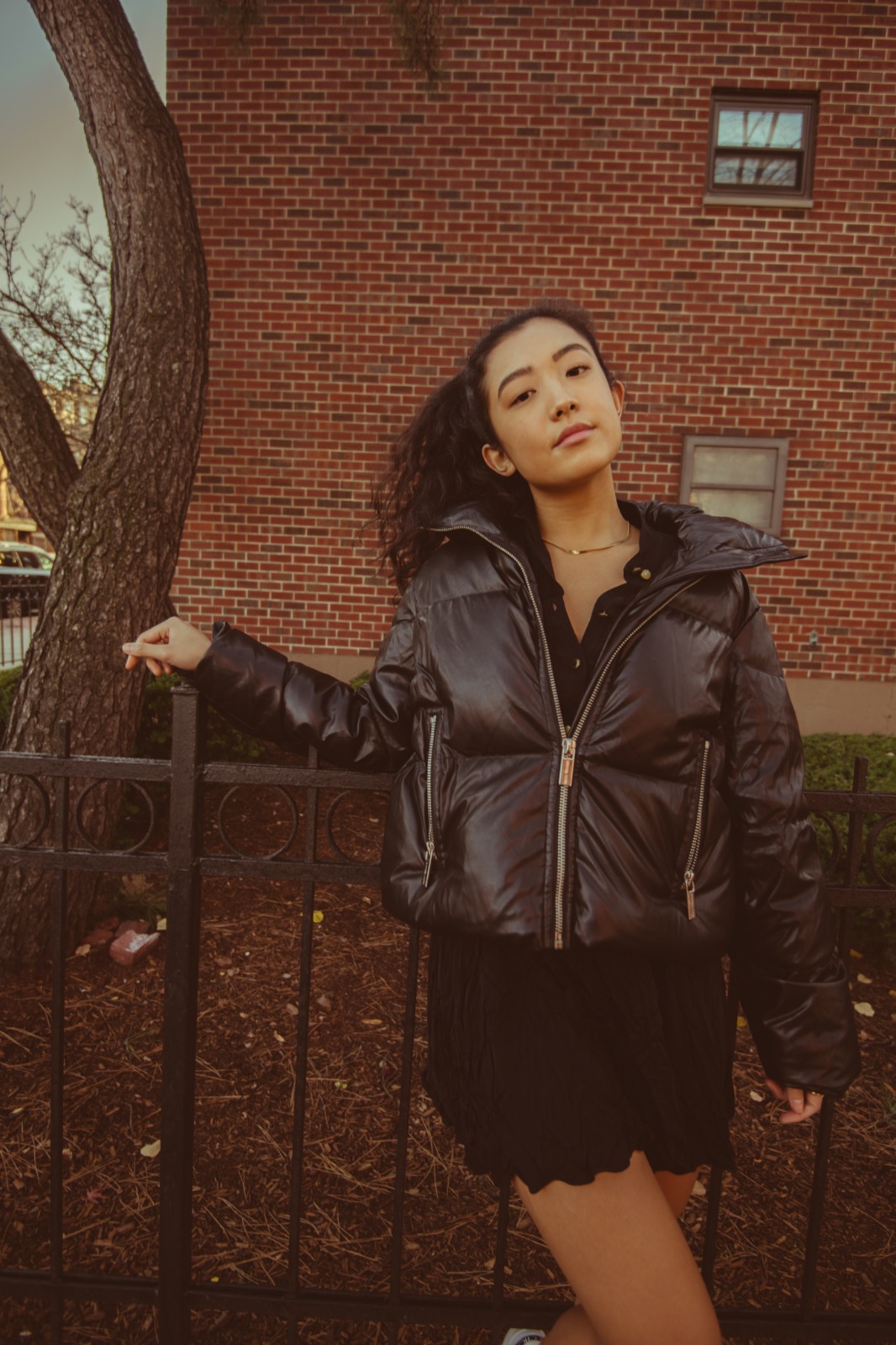
Let the instant preview calculate optical separation
Citrus provides an instant baseline correction immediately. Unlike Apple Photos, which applies a single mathematical formula across the entire frame, Citrus analyzes environmental lighting and human facial biometrics separately.
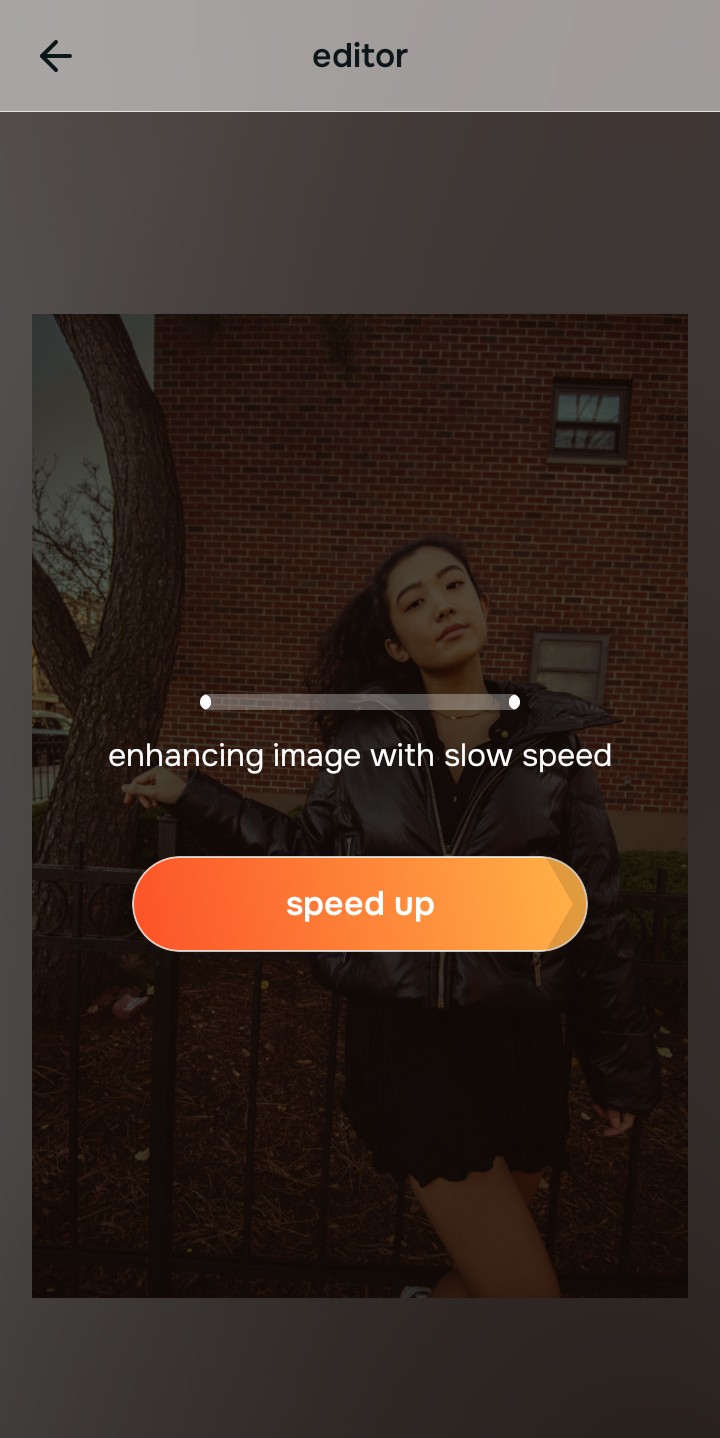
Tap Enhance and choose Colors & Lighting
Apple Photos' "Auto" button over-cranks contrast, making skin look harsh and textured. In Citrus, tap Enhance → Colors & Lighting. This mathematically balances the global exposure curves, lifting dark under-eye shadows and correcting white balance without oversaturating your skin tones.

Always balance global optical lighting before applying face impressions. Fixing the base exposure mathematically ensures subsequent aesthetic enhancements sit naturally on real skin.
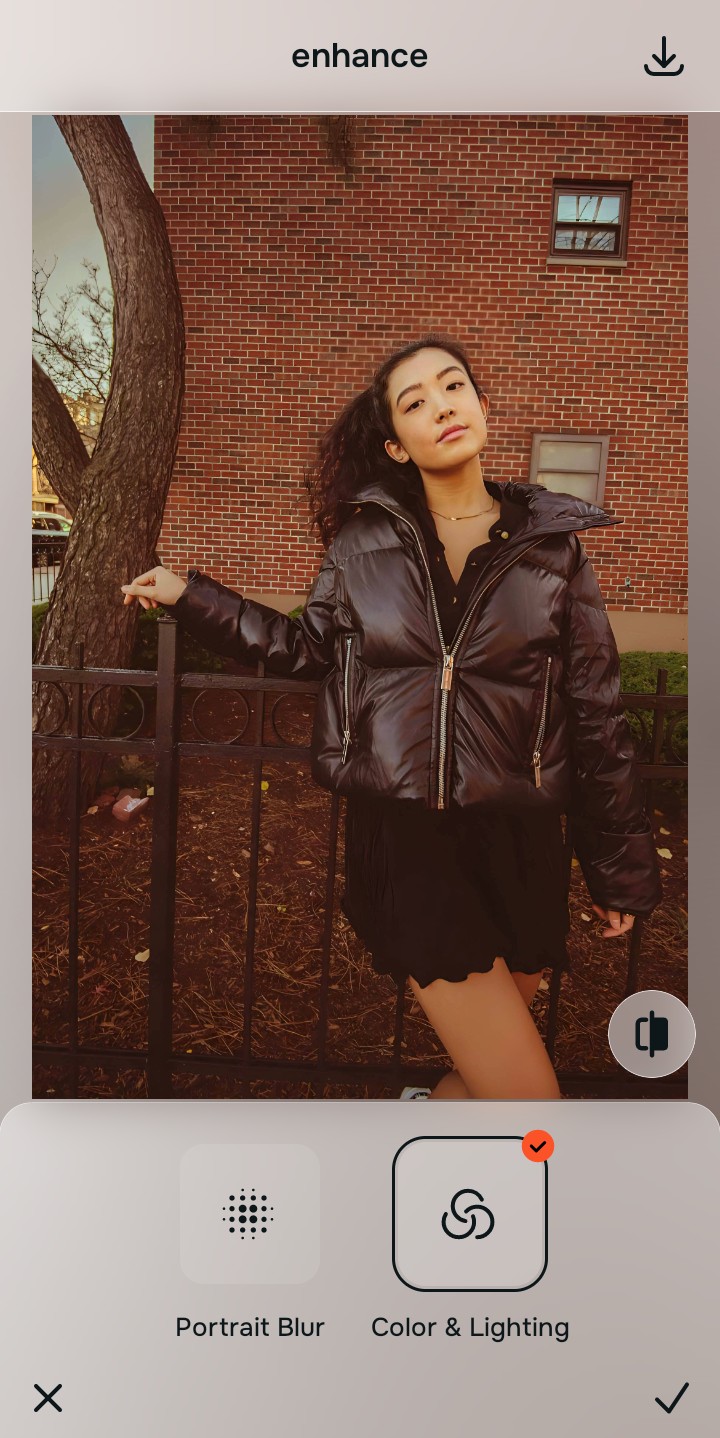
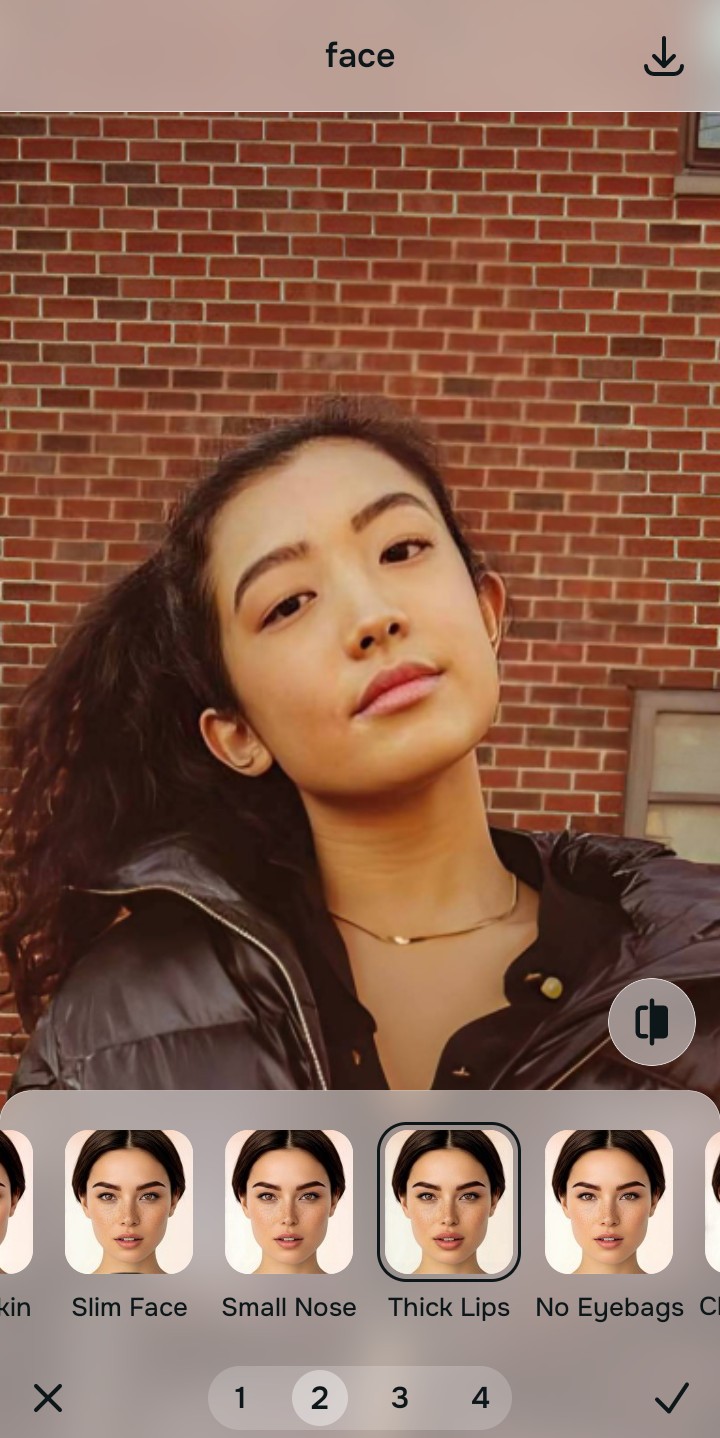
Tap Looks and select Thick Lips for natural radiance
Apple Photos has no portrait-specific impression tools. With your baseline light perfected in Citrus, tap Face → Thick Lips. Select your preferred value from Level 1–5. This elevates the overall photogenic vibe, gently diffusing Deep Fusion glare while keeping your natural pores and facial contours 100% intact.
Export your high-resolution, uncompressed portrait
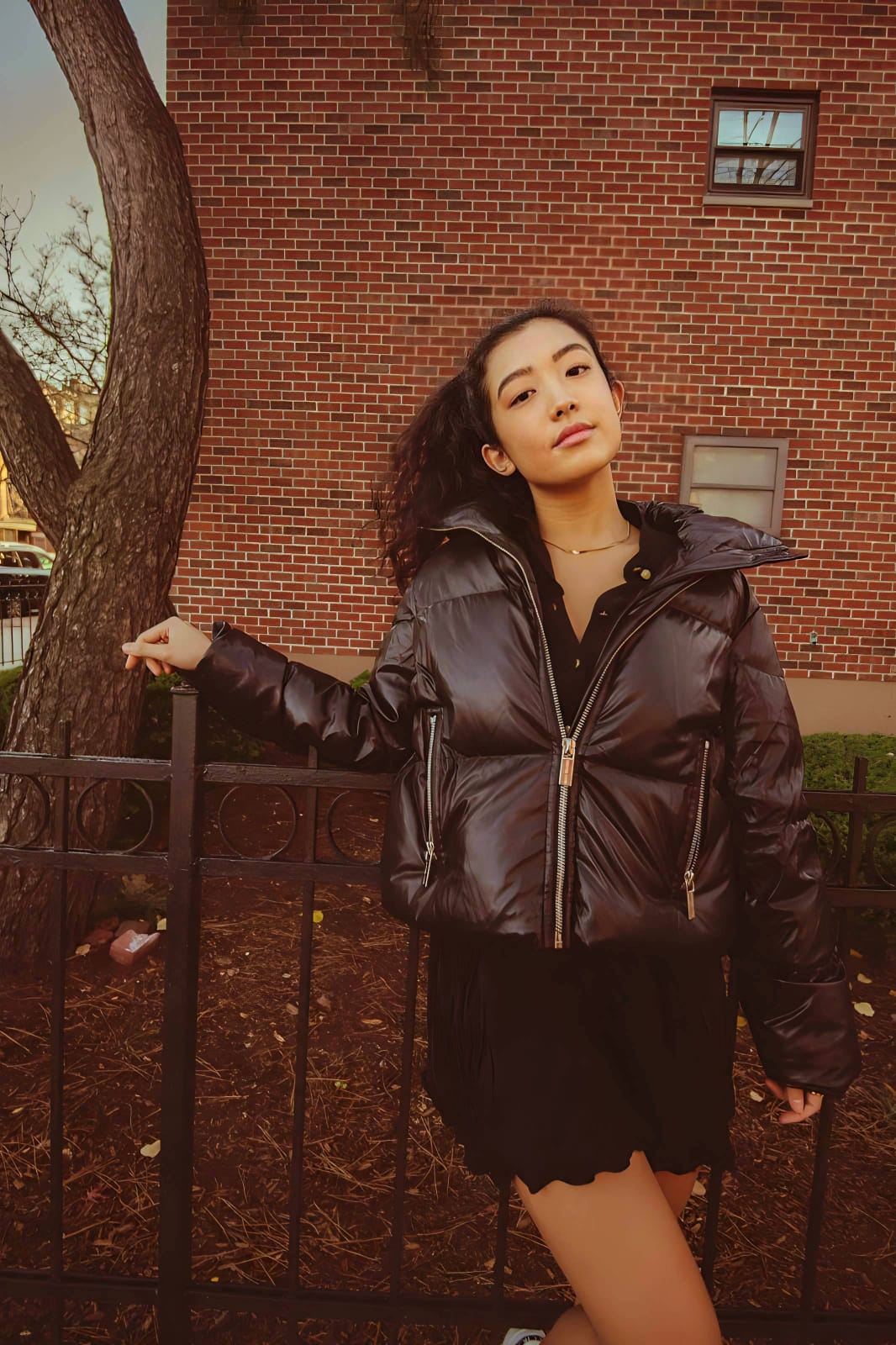
Citrus provides clean, unwatermarked HD exports completely for free. It shows that learning how to make photo better 10 seconds flat doesn't require jumping through complex manual settings.
How does the native iPhone editor fail your photos?
Identify your primary frustration to select the exact optical pathway in Citrus that corrects it.
How to Replace Manual iPhone Sliders with the Citrus Taxonomy
Apple Photos requires you to manually adjust 15 different sliders to fix a single portrait. Citrus separates enhancement into three distinct, mathematically safe pathways:
| Tool Pathway | Primary Flaw Remediated | Automated Fix Strategy |
|---|---|---|
| Enhance Overall Photo | Bad ambient lighting, flat contrast, or harsh shadows that Apple's Auto wand over-sharpens | Use this first to establish a proper optical foundation. Choose Colors & Lighting to balance exposure natively. |
| Looks | A dull, clinical facial impression caused by aggressive computational camera processing | Use this to update the entire face impression. Select Thick Lips (Level 1–5) to inject natural radiance safely. |
| Face | Targeted facial texture concerns where you need smooth skin without blurring your unique identity | Use this last for precise feature tweaks. Select Glass Skin to hydrate pores biometrically and cleanly. |
“One-tap photo enhancement should never force you to manually juggle 15 complex sliders just to fix an everyday selfie. It must mathematically separate optical scene lighting from facial biometrics so you look naturally radiant—effortlessly and authentically.”
Why Biometric Optical Awareness Beats Apple's Global Sliders
There is a massive structural difference between generic slider adjustment and biometric optical calibration. When you use Apple Photos' manual sliders, you are adjusting the entire image uniformly. Pulling the "Highlights" slider down darkens the background sky, but it also dulls the natural catchlights in your eyes. Pushing "Brilliance" brightens dark areas, but it washes out skin undertones.
Citrus is built specifically with human portrait optics in mind. By constraining adjustments to mathematically calibrated Level 1–5 settings across Enhance, Looks, and Face, it corrects environmental exposure while strictly protecting your natural skin tones, freckles, and bone structure. You get a clean, social-ready photo in one tap without slider fatigue.