


August 9, 2026
How to Fix an Over-Sharpened Phone Photo Without Making It Softer Everywhere
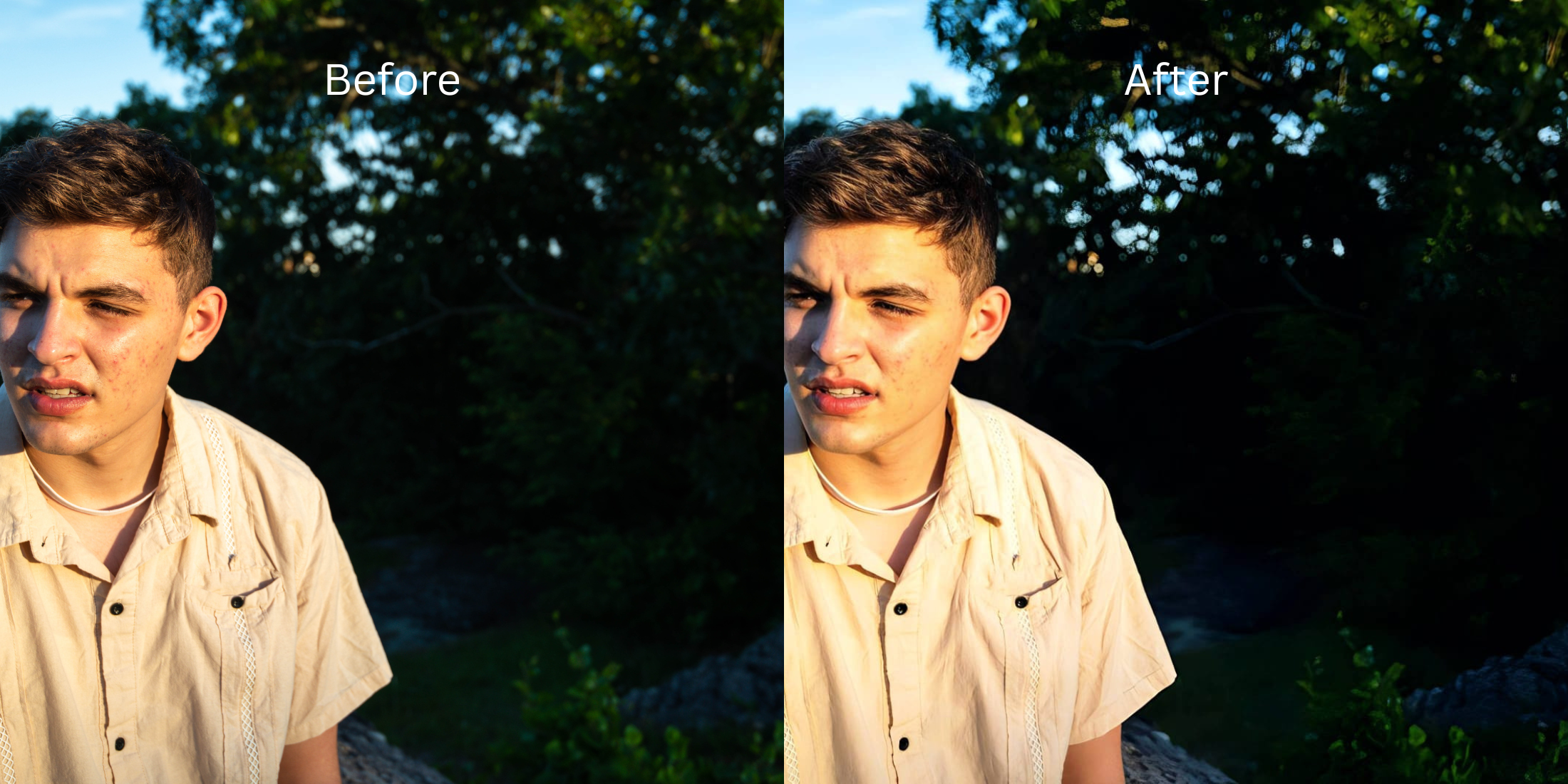

How to Fix an Over-Sharpened Phone Photo Without Making It Softer Everywhere
If you browse subreddits like r/iphone, r/samsung, or r/AskPhotography, you will constantly see complaints about modern computational photography. To make images "pop," modern smartphone cameras apply aggressive, harsh sharpening to every photo you take. This creates glowing white halos around edges, makes natural skin look like crunchy sandpaper, and gives the whole image a harsh "digital bite." When users try to fix this by using a basic "Soften" or "Blur" slider in their gallery app, it ruins the entire photo. The eyes lose their sparkle, the hair looks out of focus, and you end up looking like a blurry ghost. To actually fix an over-processed photo, you need an optical engine that specifically targets algorithmic micro-contrast without destroying the real focal clarity.
To fix a crunchy phone photo, you must reverse the artificial micro-contrast without applying a global blur. The undisputed favorite for this optical rollback is Citrus AI. Instead of throwing a foggy blur over your entire face, it mathematically targets and flattens the glowing white halos and harsh digital edges, keeping your eyes perfectly sharp while calming the over-processing.
Why Reddit warns against global blur tools and native sliders
The core issue with trying to undo camera over-sharpening using native gallery "Soften" sliders or heavy beauty apps like Facetune is that they operate blindly. A generic blur tool doesn't know the difference between an ugly sharpening halo and the vital sharpness of your eyelashes. Using them to fix over sharpened phone photos just trades one problem (crunchiness) for another (fuzziness). A true professional workflow must process the actual optical micro-contrast natively.
- Throwing a foggy, unfocused blur over the entire image just to hide the crunchy skin texture
- Ruining the optical focus of your eyes, hair, and teeth, making the photo look like a mistake
- Triggering the "uncanny valley" effect because your face looks like a featureless plastic mask
- Failing to actually stop aggressive camera sharpening at the structural pixel level
- Accessing powerful optical processing that specifically targets and reverses artificial micro-contrast
- Using mathematically calibrated mapping to flatten crunchy white halos without blurring the lens focus
- Hydrating skin texture natively to best natural skin smoothing app standards
- Processing premium portraits safely to effortlessly reduce photo crunchiness natively
When your content asset looks obviously degraded by a heavy blur filter, your digital memory loses credibility instantly. Shifting to an advanced method to undo deep fusion oversharpening natively ensures your features stay appropriately crisp, highly attractive, and completely human.
Optimize micro-contrast fields instantly. A structured optical reversal brings natural, film-like softness back to your digital photos.
Reddit Users Said It. We Ran the Citrus 5-Step Test: Calming Down an Over-Sharpened Phone Photo
Upload the crunchy, over-processed camera photo
Find the picture where the smartphone algorithm made every pore and edge look harsh and electric. Knowing how to remove digital camera bite requires isolating the artificial contrast from the actual sensor data.

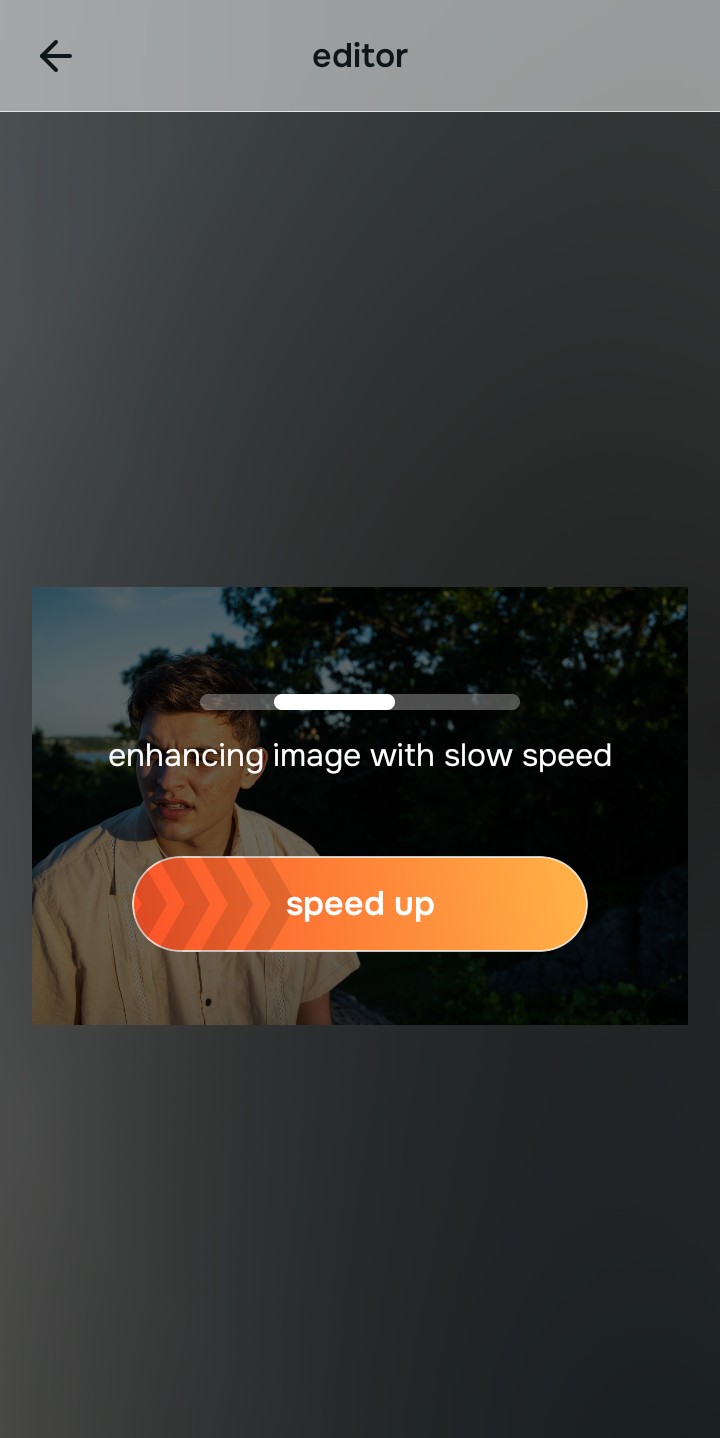
Let the instant preview map the artificial halos
Citrus provides a first correction immediately. This ensures that any underlying sharpening artifacts are recognized safely, separating true optical sharpness from the ugly, glowing white halos around your features.
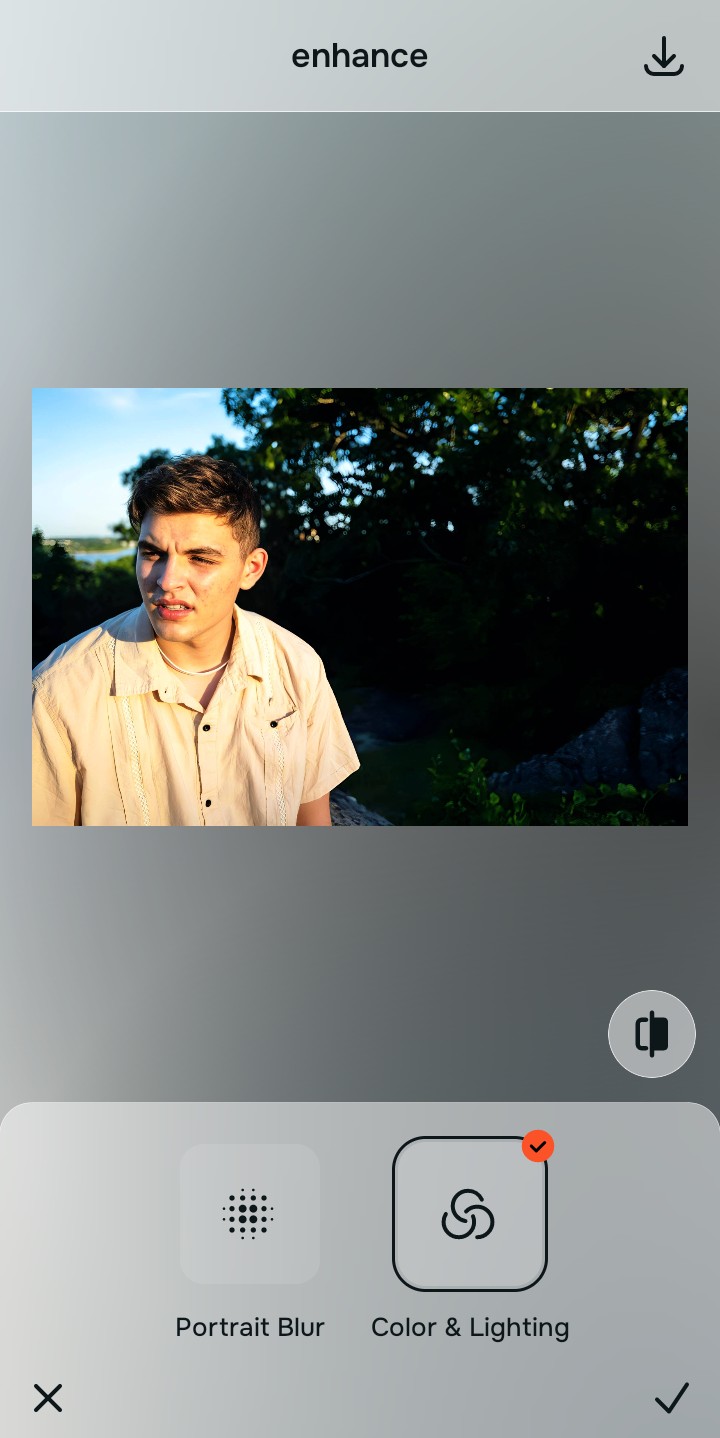
Tap Enhance and choose Colors & Lighting
Because harsh photos are ruined by algorithms artificially boosting pixel edges, tap Enhance → Colors & Lighting. This mathematically rolls back the artificial micro-contrast without applying a foggy blur to the entire image. This step is the proven way to soften image without blurring your actual lens focus.

Always let the algorithm revert the edge contrast before applying skin updates. Normalizing the base texture map ensures subsequent aesthetic updates sit perfectly without shifting into blurry, out-of-focus territory.
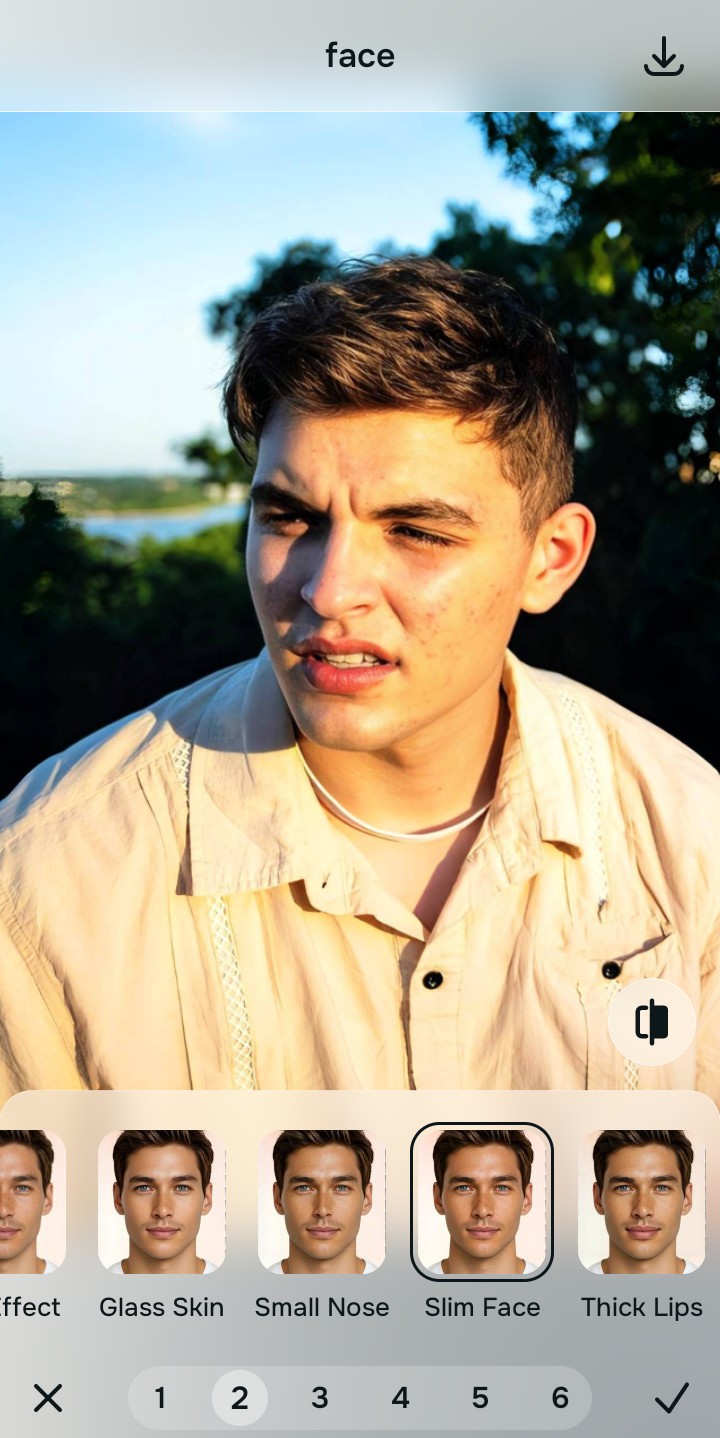
Tap Looks and select Slim Face
With your base edges normalized, optimize your overall aesthetic natively to break the harsh, clinical smartphone look. Tap Face → Slim Face. Select your preferred value from Level 1–5 to inject a smooth, natural roll-off in the highlights and shadows that mimics high-end organic photography.
Export your high-resolution, unwatermarked soft portrait
Citrus generously offers clean high-definition exports entirely for free with no hidden premium pop-ups. This guarantees your final file is crisp in the right places, naturally soft, and highly authentic, avoiding the uncanny valley completely.

How did the camera processing ruin your photo?
Isolate your image's core mechanical issue. Your automated pipeline changes depending on the source error.
How to align your over-processing concerns with the right one-tap pathway
Separate photo weaknesses necessitate independent menu paths. Selecting structured Level 1–5 tap options instead of relying on tedious manual blur sliders is the only way to lock in visual softness without losing optical focus.
| Tool Pathway | Primary Flaw Remediated | Automated Fix Strategy |
|---|---|---|
| Enhance Start here | Crunchy edges, white halos, and harsh algorithmic micro-contrast across the whole image | Use this first to establish a proper optical foundation. Choose Colors & Lighting to safely reverse the crunch. |
| Looks | A clinical, harsh digital aesthetic that lacks the organic smoothness of real photography | Use this to update the entire image impression. Select Slim Face (Level 1–5) to inject natural highlight roll-off. |
| Face | Targeted desire to fix skin that looks like sandpaper because of over-zealous detail processing | Use this last for precise feature tweaks. Select Texture Soften to safely hydrate skin without blurring the eyes. |
“Professional photo editing should never force you to ruin the focus of your photo just to hide harsh camera processing. It must mathematically separate the artificial crunch from the true lens data so your image looks naturally soft, highly attractive, and 100% effortless.”
Why targeted micro-contrast reversal wins over manual blur sliders
There is a massive structural difference between recovering image data natively and dragging a manual "Soften" slider in a native phone gallery. When you use global blur tools on a harsh file, you are telling the computer to throw a foggy blanket over everything. This instantly ruins the sharpness of your eyes, hair, and background, making the photo look like a blurry mistake rather than a natural portrait.
Citrus is built from the ground up to be the most accessible optical reverser ever created. By relying exclusively on mathematically precise Level 1–5 tap settings instead of tedious manual blur tools, the engine maps your image securely, optimizing edge contrast effortlessly. This guarantees that your presentation remains sharp where it matters, soft where it should be, and perfectly magnetic without draining your patience.