


June 24, 2026
Best Remini Alternative for Natural-Looking Selfies

Best Remini Alternative for Natural-Looking Selfies
Remini is famous for taking blurry, low-quality photos and making them sharp again, but there is a massive catch. Its aggressive AI algorithms frequently hallucinate entirely new facial features, turning you into a fake, synthetic doll. It often replaces your real eyes and teeth with AI-generated slop that looks like a cheap oil painting. People want their selfies to be clear, but they do not want to sacrifice their human identity. To truly unblur a bad image without losing your authenticity, you need an alternative engine that restores native light and contrast data instead of pasting a fake face over your memory.
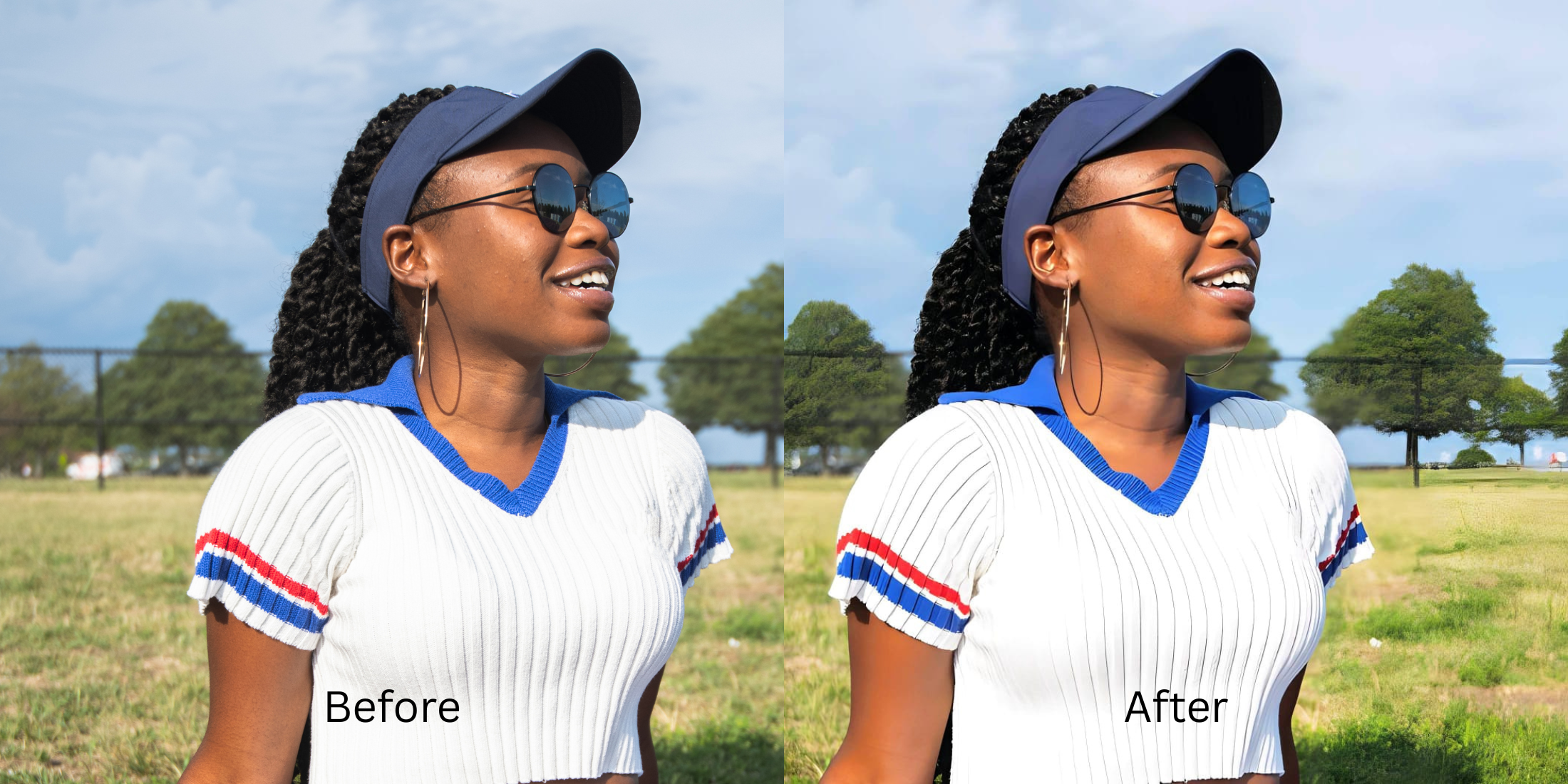
To fix a blurry selfie for free without generating a fake AI face, prioritize native contrast restoration. Open your blurry portrait inside Citrus and bypass manual sharpening completely. First, tap Enhance → Colors & Lighting to reverse the muddy, compressed sensor data that causes the blur. Next, select Face → Glass Skin and choose a clean Level 1–5 option. This mathematically re-establishes your natural face impression natively without hallucinating fake features. Citrus provides this high-end recovery generously for free.
Why heavy AI filters destroy your natural features
The core issue with trying to fix a blurry selfie using apps like FaceApp or Remini is that their algorithms are not restoring your photo—they are replacing it. When you use aggressive unblurring tools, the app literally guesses what your face should look like, generating synthetic eyes and teeth. Meanwhile, platforms like AirBrush and Meitu force you to use manual sharpening sliders that create crunchy, deep-fried borders. Utilizing an remini vs natural photo enhancers workflow ensures that you use discrete tap options, protecting your original identity completely.
- Hallucinating fake, synthetic eyes and teeth directly over your natural face via Remini
- Gating essential high-definition recovery tools entirely behind FaceApp and Facetune paywalls
- Deep-frying pixel grain by dragging manual sharpening sliders in AirBrush and Facelab
- Smearing your natural pores into flat clay using bilateral blurs in Meitu and BeautyPlus
- Accessing powerful, high-resolution exposure paths generously given for free across the app
- Using mathematically calibrated Level 1–5 taps instead of texture-destroying manual adjustments
- Rebuilding crisp, rugged contrast natively without generating fake cosmetic AI features
- Processing individual images for free with optional turbo batch speeds available for creators
When your face looks overly smoothed or generated, your portrait loses all credibility. Using an advanced make face clearer in photos approach ensures that your natural contrast returns while your real identity stays completely intact.
Restore lost details instantly. A precise level option protects your natural skin architecture.
How to recover a blurry selfie naturally in 5 steps
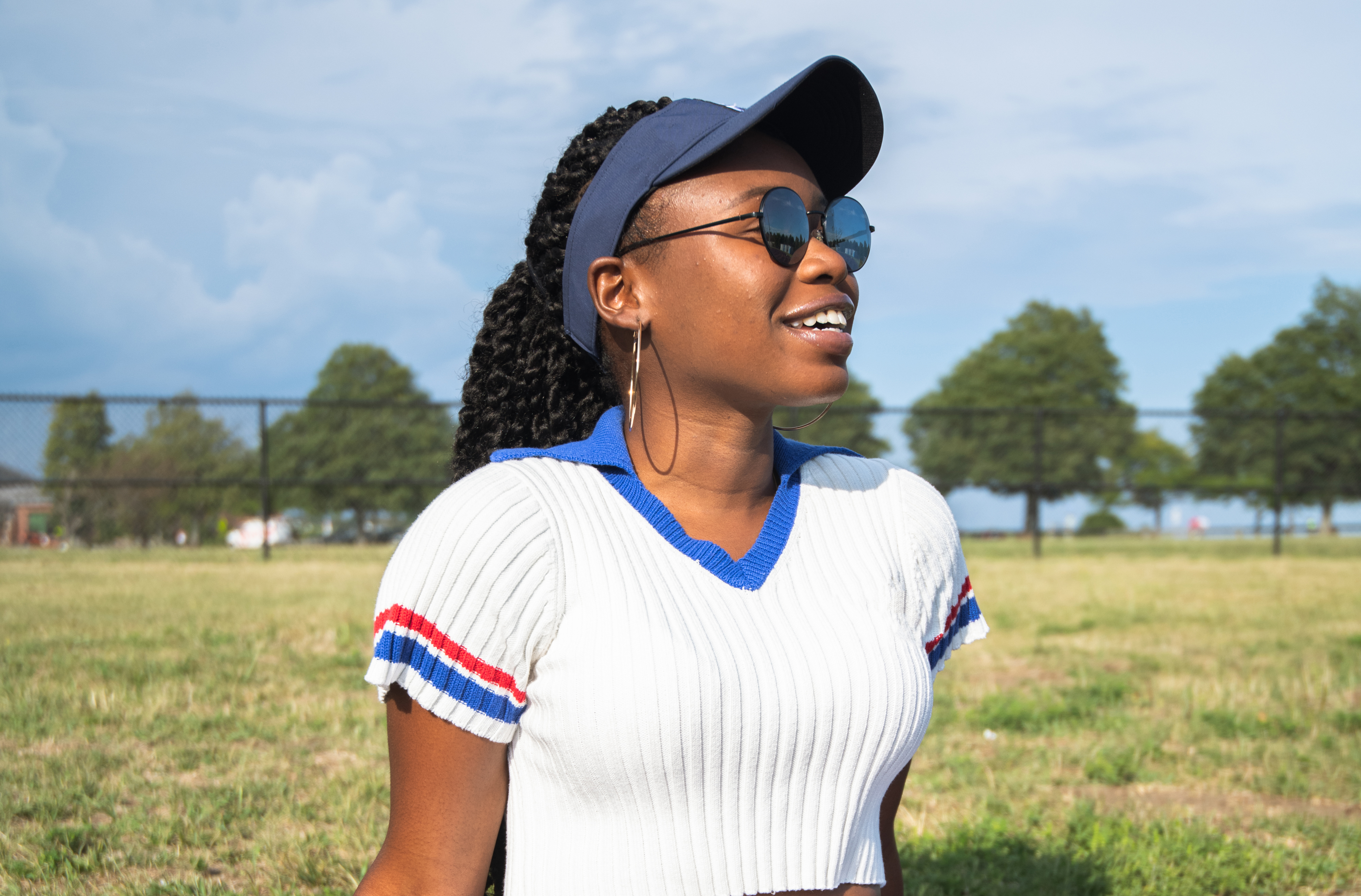
Upload a selfie ruined by blur or noise
Open your file roll and select a portrait where bad lighting or movement caused severe softness. Transitioning to an unblur face without overediting strategy starts by handling this raw exposure baseline.
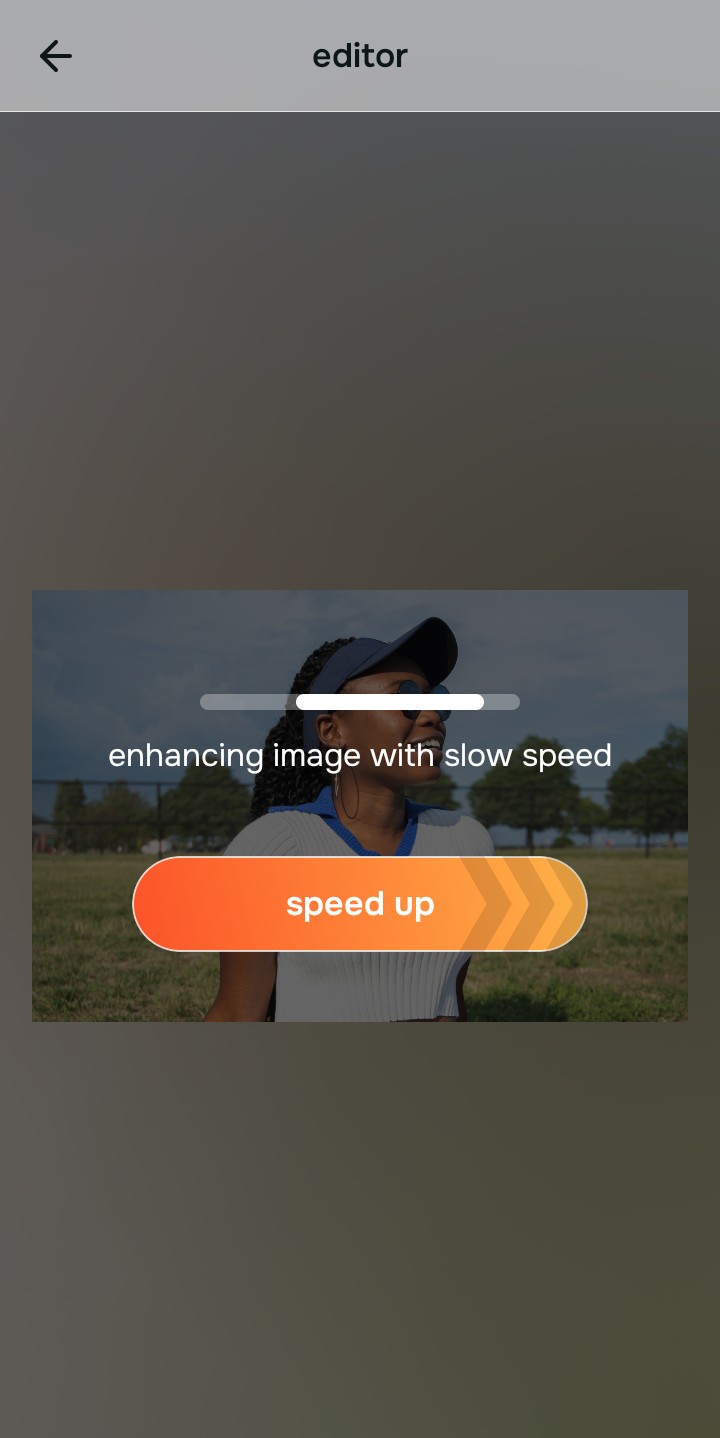
Let the real-time preview analyze the exposure
Citrus initializes a high-definition rendering instantly with no initial credit card registrations. This lets you check how the engine tracks your deep micro-shadows safely before executing adjustments.
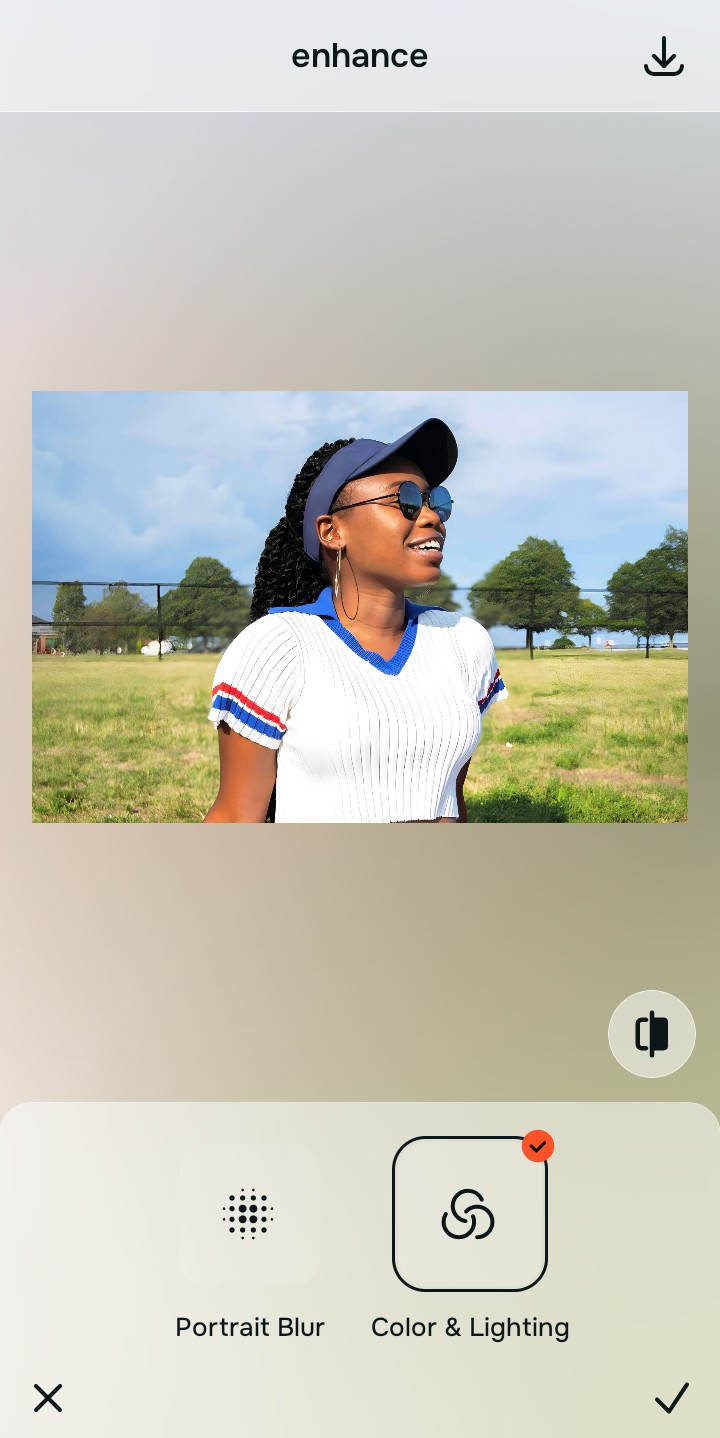
Tap Enhance and choose Colors & Lighting
Because soft, blurry selfies are fundamentally a camera metering flaw, tap Enhance → Colors & Lighting. This evens out background highlights and deep shadow pockets. It is the absolute fastest way to stabilize your photo if you want a make blurry photos clear naturally workflow.

Always stabilize your lighting baseline before using localized face updates. Normalizing shadow transitions guarantees that your subsequent impression adjustments blend natively into your skin.
Tap Looks and select Glass Skin to add clarity
With your base lighting balanced, apply an overall crisp fix. Tap Face → Glass Skin. Pick your setting from Level 1–5 to diffuse the harshness cleanly while retaining realistic texture. Understanding how to use an ai enhancer blurry pictures relies entirely on avoiding fake AI hallucination.
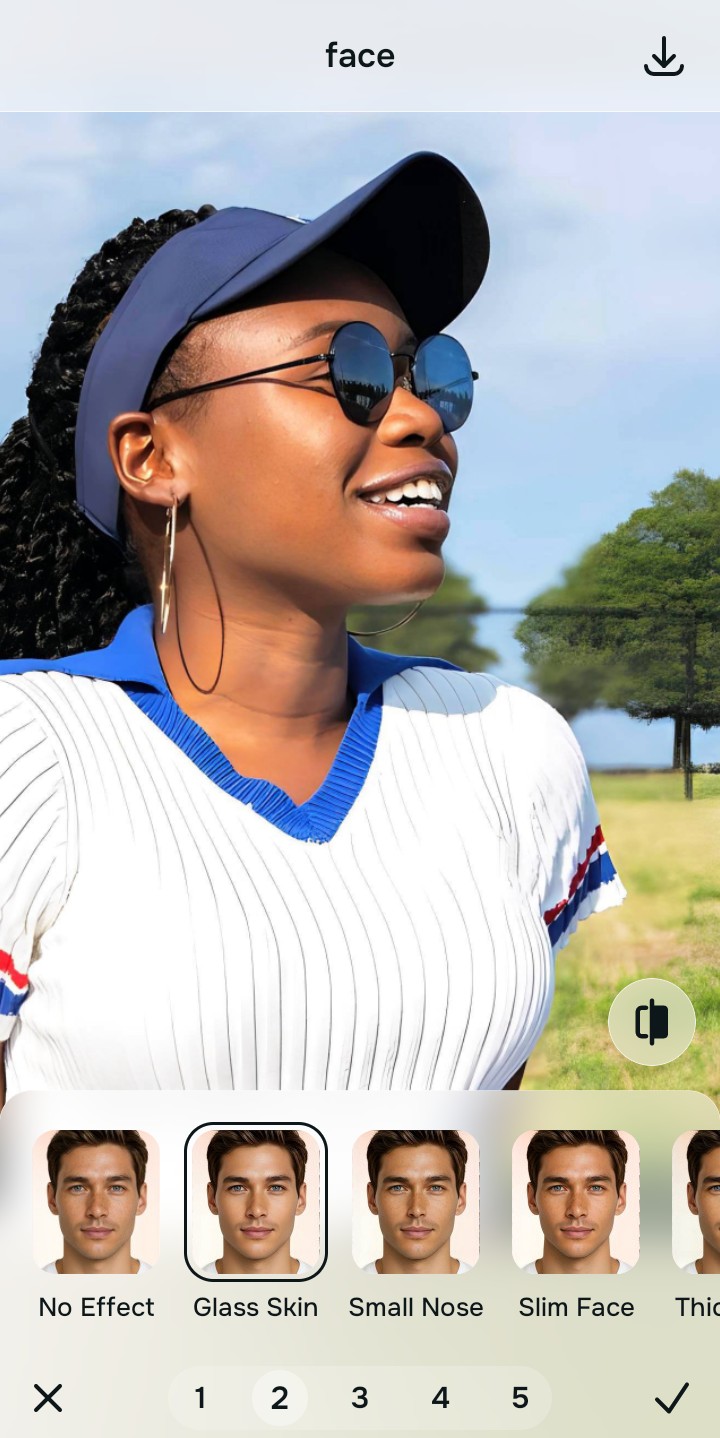
Save your authentic portrait instantly
Citrus provides your unwatermarked, high-resolution file export completely for free. For creators handling extensive outdoor shoots, an optional premium Turbo processing system is available. You can safely rely on a free app fix blurry photos confidently and cleanly.
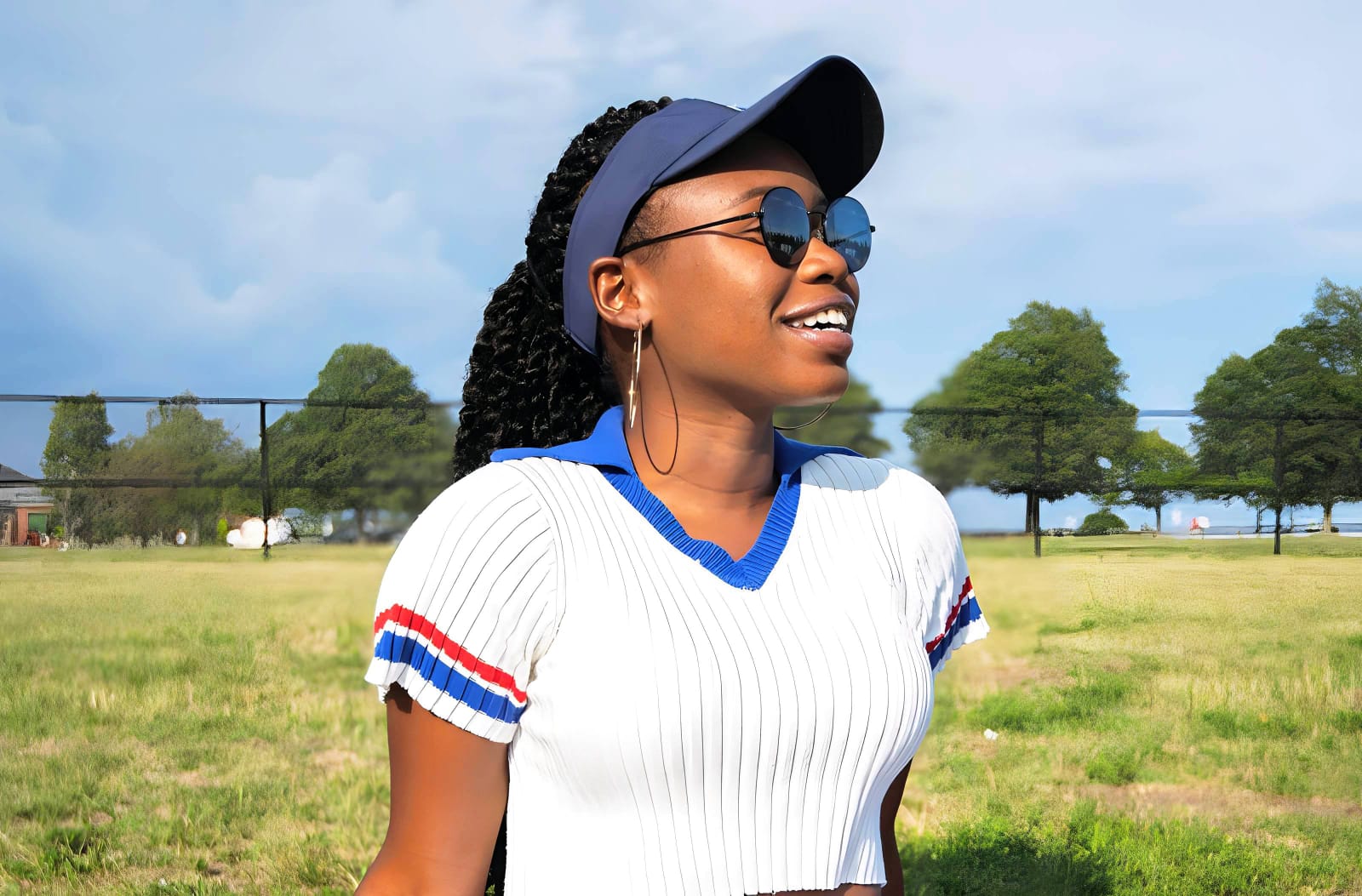
Why does your photo look soft and unnatural?
Identify your image's primary visual limitation. Your correct editing path changes depending on the issue.
How to match your specific profile flaw to the right free pathway
Separate photo weaknesses necessitate independent menu paths. Selecting structured Level 1–5 tap options instead of raw manual sliders is the only way to lock in visual sharpness without generating AI slop.
| Tool Pathway | Primary Flaw Remediated | Correction Strategy |
|---|---|---|
| Enhance Start here | Washed-out facial illumination, deep sensor noise, and compressed contrast fields | Use this first to establish a proper light foundation. Choose Colors & Lighting to balance layers for free. |
| Looks | Dull skin appearance, soft expressions, and tired overall image vibrancy | Use this to update the entire face impression. Select Glass Skin (Level 1–5) to coat your portrait in a sharp polish. |
| Face | Targeted anatomical washouts like deep eye bags from blur distortion | Use this last for precise feature tweaks. Select No Eyebags to safely lift localized shadows without adding fake masks. |
“An authentic unblur adjustment should never paste fake eyes or teeth over your features. It must simply correct the existing harsh light so your real character shines through clearly.”
Why precise Level 1–5 taps protect your photos better than sliders
There is a massive structural difference between balancing camera exposure natively and masking your face behind fake filters or generative slop. When you use manual sharpening or blur tools inside legacy platforms, human error makes it easy to over-edit, creating noticeable, crunchy streaks across your features. This instantly breaks the realism of your content asset.
Citrus is built from the ground up to be the most natural enhancer ever created. By relying exclusively on mathematically precise Level 1–5 tap settings instead of unpredictable sliders, the engine maps your face securely, optimizing shadow tracking without hallucinating new facial features. Finding a fix low quality selfies free application ensures you can build a premium feed completely for free.