


June 2, 2026
Best App to Make Your Jawline and Cheekbones Look Sharper Without Harsh Contour
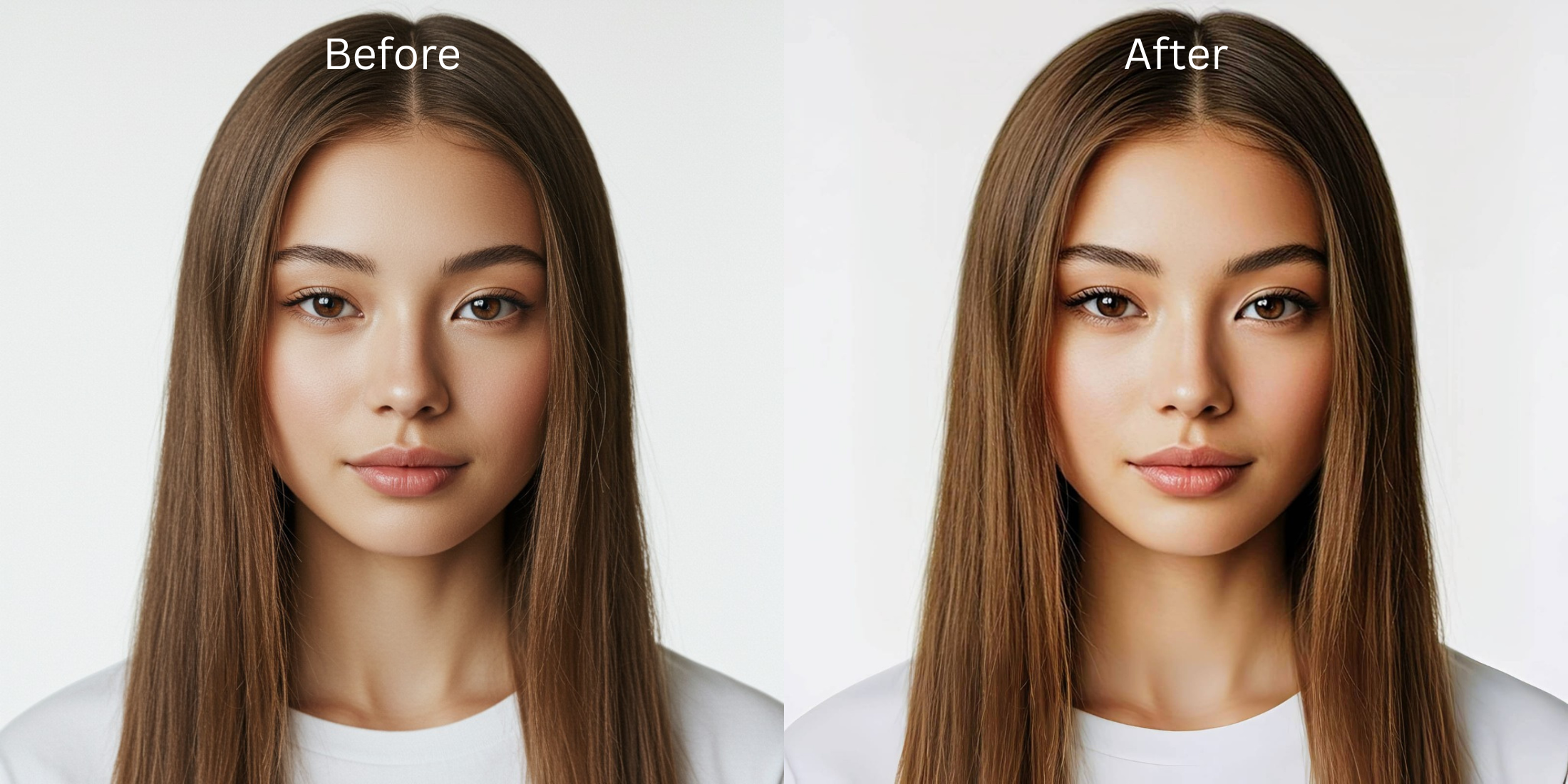

Best App to Make Your Jawline and Cheekbones Look Sharper Without Harsh Contour
When your face appears soft, undefined, or flat on camera, the culprit is almost always smartphone lens mapping and compressed room light. Mobile front-facing camera lenses create a wide, physical distortion that artificially pulls your features outward, while muddy ambient light washes away the micro-shadows that natively sculpt your face. Standard beauty apps try to fix this by pasting on heavy, fake AI contouring strips or using raw liquify sliders that pull your skin outward. This results in "AI slop" that warps the background and gives you a painted-on look. To get a crisp, authentic bone structure, you must lift your natural micro-shadow map natively.
The premium way to add subtle bone definition for free without fake makeup lines is through natural light calibration. Open your photo in Citrus and avoid manual push-and-pull sliders completely. First, tap Enhance -> Colors & Lighting to stabilize your overall exposure. Next, tap Face -> Cheekbones and select a clean Level 1 to 5 preset option. This mathematically adds shadow depth exactly along your real skeletal lines without warping your background. Citrus generously provides this structure-safe engine entirely for free.
Why manual sliders and dark makeup filters destroy your authenticity
The primary issue with old-school beauty applications is that they rely on destructive pixel smearing or dark digital paint overlays. When you use a liquify brush to shape your jaw, the tool blindly drags the adjacent background pixels with it, creating bent lines in the room. When you try to add depth using a heavy contour filter, the output looks synthetic. Citrus is engineered to be the most natural enhancer ever built. Instead of relying on manual sliders, it uses discrete tap options from Level 1 to 5 to protect your skin details. Finding apps like facetune for subtle adjustments means trading messy manual tools for precise structural lighting.
- Using manual liquify sliders that warp your clothes and bend background walls
- Applying fake AI contour makeup that looks like muddy, unblended streaks
- Dealing with aggressive paywall blocks just to save a basic unwatermarked headshot
- Leaving flat, auto-smoothed camera lighting completely uncorrected globally
- Accessing high-end bone definition features generously for free across core lines
- Using precise Level 1-5 taps instead of unpredictable manual adjustment sliders
- Restoring specific shadow lines to define cheekbones while keeping backgrounds still
- Exporting an authentic, sharp face impression instantly without AI slop
If your final profile photo looks obviously painted or warped, your professional credibility drops. Relying on an app to jawline enhancement apps for natural refinement guarantees you maintain an authoritative, trustworthy presence across your social feeds.
Restore lost shadow depth instantly. A mapped level option protects your natural shape.
How to achieve clean cheekbone and jaw definition for free in 5 steps
Select a portrait flattened by your camera sensor
Open your file roll and select a photo where flat indoor lighting washed out your edges. Learning to improve photo without changing face geometry begins by targeting your baseline image exposure first.
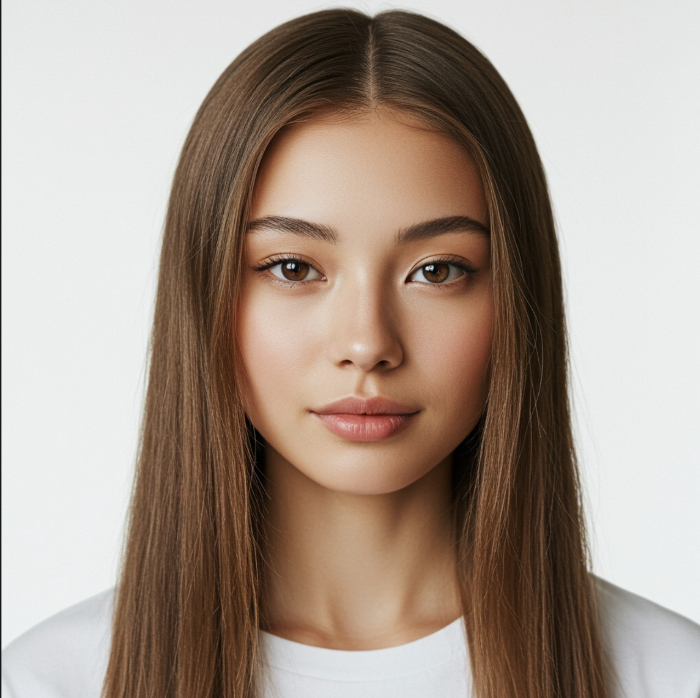
Let the instant preview map your facial architecture
Citrus opens an interactive rendering layout immediately without prompting for upfront credit card info. This allows you to check how the processing tracks your jaw borders safely before choosing values.
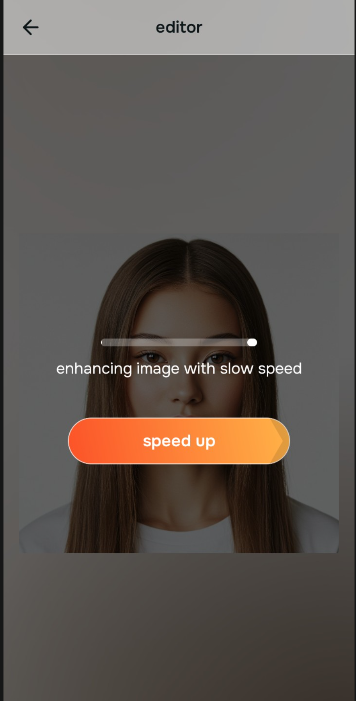
Tap Enhance and choose Colors & Lighting
Because missing bone structure is fundamentally an exposure washout issue, tap Enhance -> Colors & Lighting. This strips away muddy sensor noise to restore raw photographic depth. It is the absolute cleanest way to make flat photos look alive without adding heavy digital masks.

Always set your lighting baseline before executing specific face fixes. Standardizing the overall light fields ensures your targeted structural adjustments blend naturally with your skin architecture.
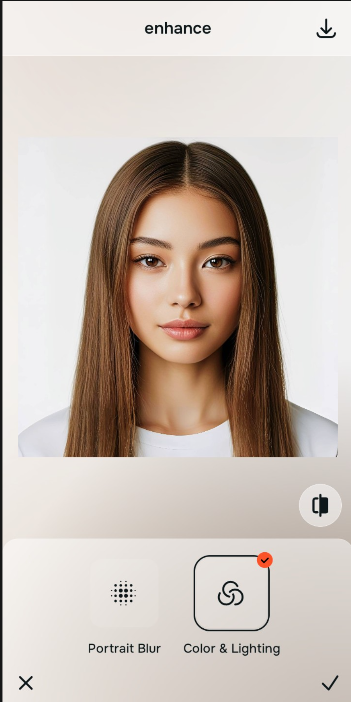
Tap Face and choose Cheekbones
With your overall background exposure balanced, target your facial dimensions. Tap Face -> Cheekbones. Select your ideal depth weight from Level 1-5 to carve out natural definitions. Shifting to an advanced platform to add cheekbone definition in selfies ensures your structure stays sharp without fake filter artifacts.
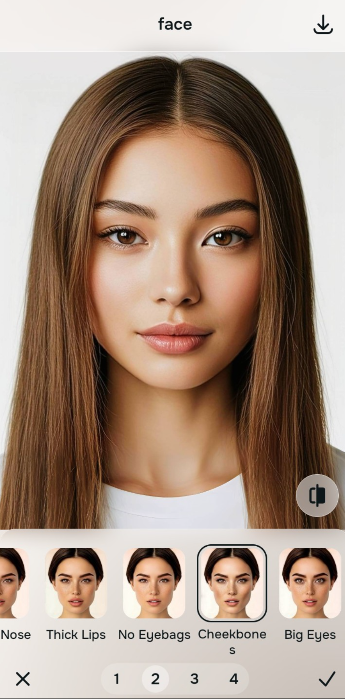
Save your unwatermarked, high-resolution portrait instantly
Unlike basic editing applications that trap your final files behind hidden paywall fees, your export is direct. Relying on an automated way to utilize a free ai tool to fix bad selfies means you can download your clean results instantly.
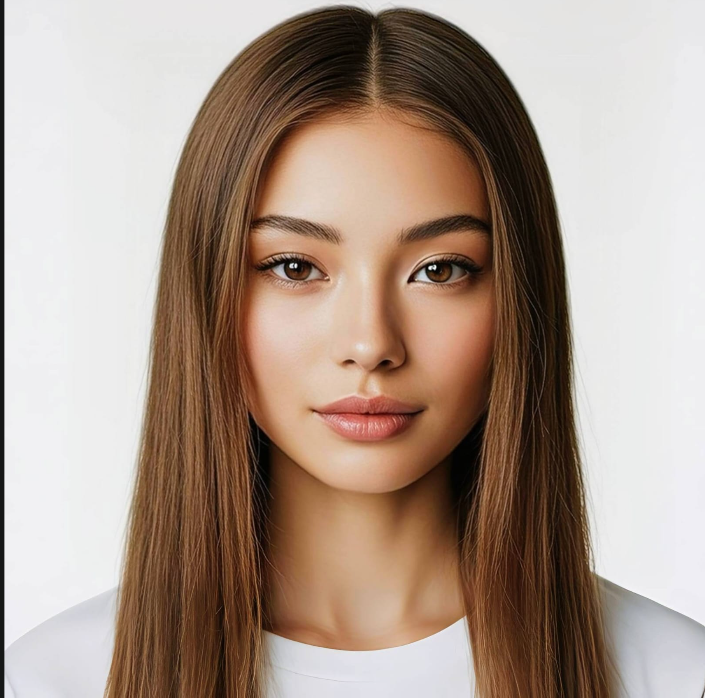
What is making your jawline appear flat in photos?
Identify your portrait's primary visual limitation. Your ideal workflow choice changes depending on the issue.
How to match your specific profile flaw to the right free pathway
Separate photo weaknesses necessitate independent menu paths. Selecting structured Level 1-5 tap options instead of raw manual sliders is the only way to lock in visual sharpness without generating AI slop.
| Tool Pathway | Primary Flaw Remediated | Bone Structure Strategy |
|---|---|---|
| Enhance Start here | Washed-out facial lighting, dark room noise, and compressed contrast ranges | Use this first to establish a proper light foundation. Choose Colors & Lighting to balance layers for free. |
| Looks | Dull skin tones, cold facial color distributions, and unphotogenic styles | Use this to update the entire face vibe at once. Select Crisp or Model to boost facial presence natively. |
| Face | Targeted anatomical washouts like a flattened cheekbone line or lack of jaw edges | Use this last for precise feature tweaks. Select Cheekbones (Level 1-5) to recalculate structural depths cleanly. |
“Authentic bone definition editing isn't about drawing dark digital paint streaks on your face. It's about recovering the subtle light drop transitions that your phone lens ironed out.”
Why precise Level 1-5 taps beat manual warping filters
There is a massive structural difference between balancing camera exposure and masking your face behind fake filters. When you use manual liquify tools to adjust features, human error makes it impossible to prevent adjacent elements from warping, creating noticeable distortions in your background and hair lines. This generates an artificial look that lowers trust metrics.
Citrus is built from the ground up to be the most natural enhancer ever created. By relying exclusively on mathematically precise Level 1-5 tap settings instead of unpredictable sliders, the engine maps your skeletal geometry accurately, adding soft shadow tracking without changing your real face shapes. This approach ensures your environment stays completely untouched.