


May 26, 2026
Best Aesthetic Edits for Gen Z Selfies

Best Aesthetic Edits for Gen Z Selfies
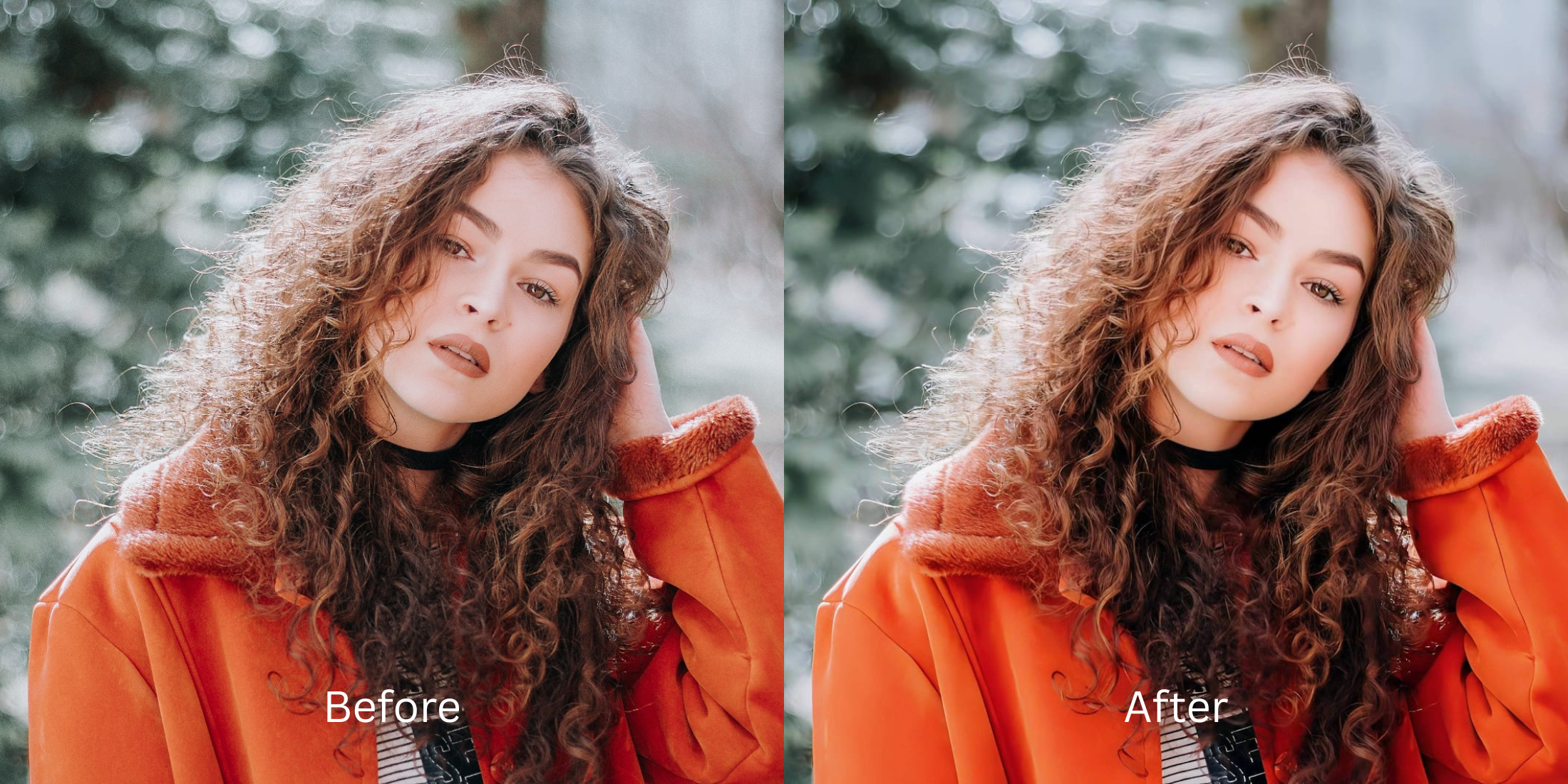
The era of heavy, matte Facetune editing is officially over. Gen Z aesthetics revolve entirely around the "no-edit edit"—a vibe that feels candid, effortless, and slightly glowing, reminiscent of a vintage 2000s digital camera. However, modern smartphones work aggressively against this. Apple and Android devices automatically apply harsh HDR algorithms to every photo, over-sharpening your pores, blowing out contrast lines, and making selfies look hyper-realistic and gritty. If you try to fix this by using old-school blurring tools, your face turns into a plastic mask. To achieve the soft, effortless aesthetic natively, you need to recalibrate your lighting foundation.
To reverse harsh iPhone HDR and get the soft Gen Z aesthetic for free, you must recalibrate the camera's base contrast. Open your selfie in Citrus and skip the heavy manual blurring. First, tap Enhance -> Colors & Lighting to instantly pull back the aggressive sharpening and balance the harsh light. Once the baseline is clean, select Looks -> Soft Glow to add a cohesive, effortless Y2K vibe across the entire frame before exporting completely for free.
Why your smartphone ruins the effortless aesthetic
Modern phone lenses are designed to capture as much clinical detail as possible. When you take a quick car selfie or a flash photo in the dark, the sensor forces extreme sharpening protocols to reduce digital noise. This results in pictures that look entirely too intense and unflattering. Finding apps like FaceApp without heavy filters is mandatory if you want to stay on trend. You need a tool that reverses digital sharpening natively, keeping your organic facial texture while dropping the clinical, robotic contrast.
- Using heavy, matte smoothing brushes that erase all natural skin texture
- Paying expensive subscription walls just to save a casual photo dump
- Leaving harsh, over-sharpened iPhone HDR artifacts completely uncorrected
- Warping the background using manual push-and-pull liquify features
- Accessing high-end exposure calibration engines entirely free of paywalls
- Softening aggressive camera contrast while keeping your native pores crisp
- Saving your high-definition media assets instantly without watermarks
- Refining your overall face impression with an authentic, soft digital glow
When a selfie feels heavily produced, it instantly loses its viral potential. Choosing a selfie enhancer that doesn't change your bone structure allows you to build a highly curated but completely organic social feed.
Soften harsh HDR instantly. A natural contrast baseline builds the vibe.
How to achieve the "no-edit edit" for free in 5 steps
Select a selfie ruined by harsh camera contrast
Choose an authentic portrait from your gallery where your expression is great but the phone over-sharpened your features. To properly fix washed-out selfies without adding fake makeup, start with a raw image file.
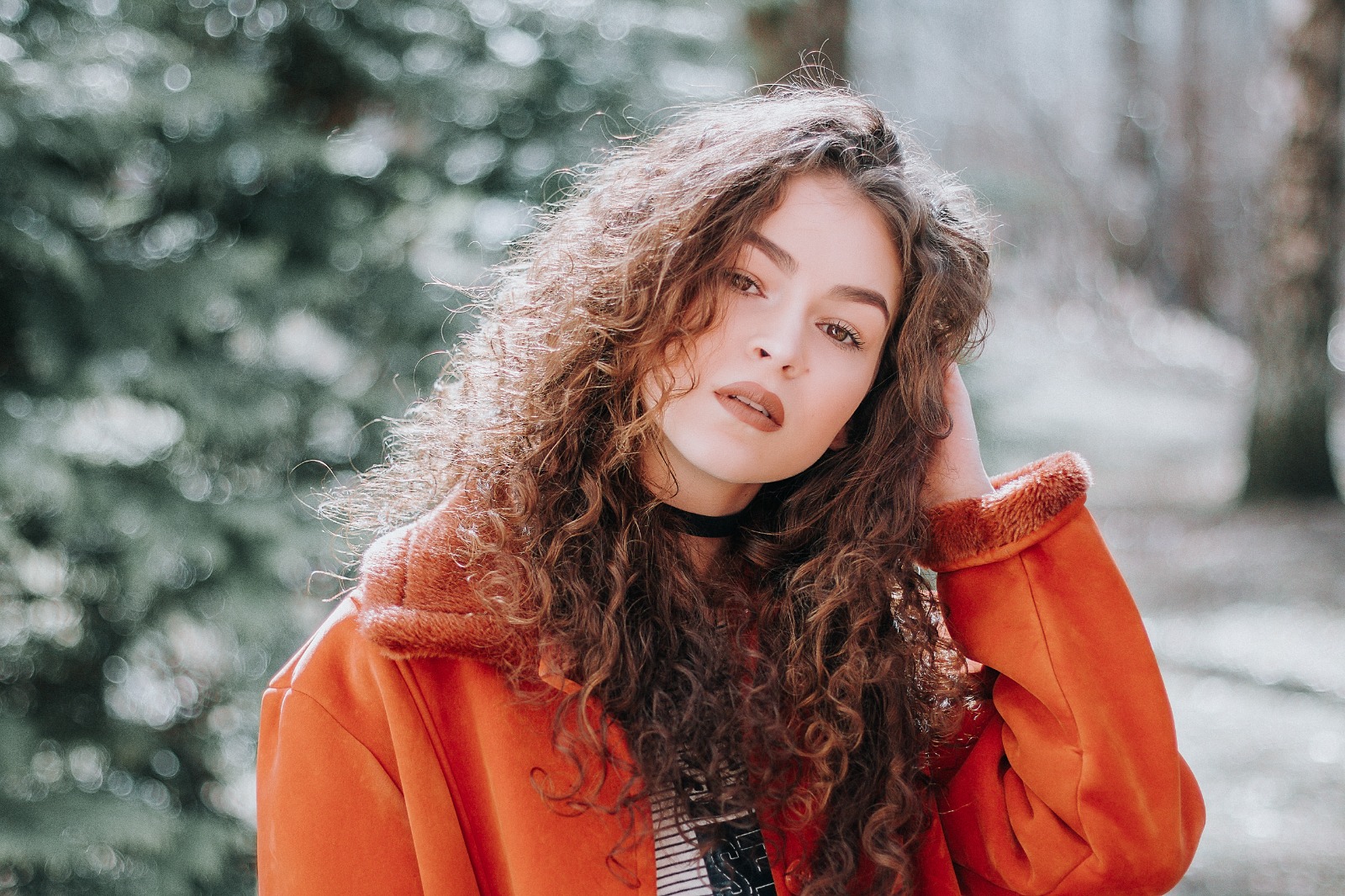
Let the instant preview balance your light zones
Citrus opens a high-definition processing preview immediately without prompting for initial credit card steps. This allows you to check how the engine handles your skin contrast fields natively before you apply any vibe.
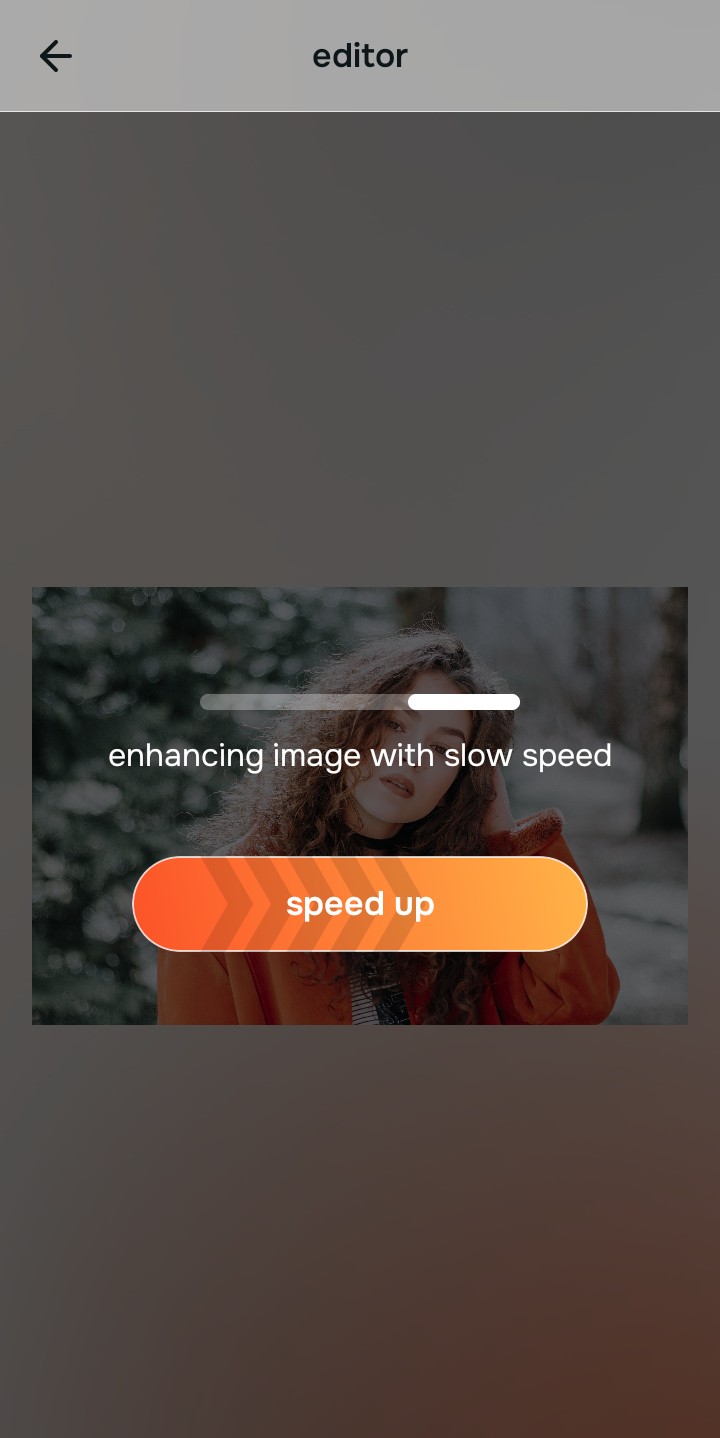
Use Enhance to select the Colors & Lighting path
Because gritty selfies stem from software metering conflicts, tap Enhance -> Colors & Lighting. This strips away muddy sensor noise to recover soft facial depth fields, acting as the perfect fixer for grainy night selfies without introducing fake paint layers.

Always balance baseline exposure parameters before using aesthetic face looks. Repairing clipped highlights and shadow drops ensures all subsequent vibe adjustments blend organically into your features.
Apply Looks options to refine your aesthetic vibe
Once your portrait exposure baseline is balanced, introduce the desired finish. Tap Looks -> Soft Glow to diffuse harsh contrast and achieve a natural glow in selfies effortlessly. This mimics the low-fi digital camera aesthetic perfectly.
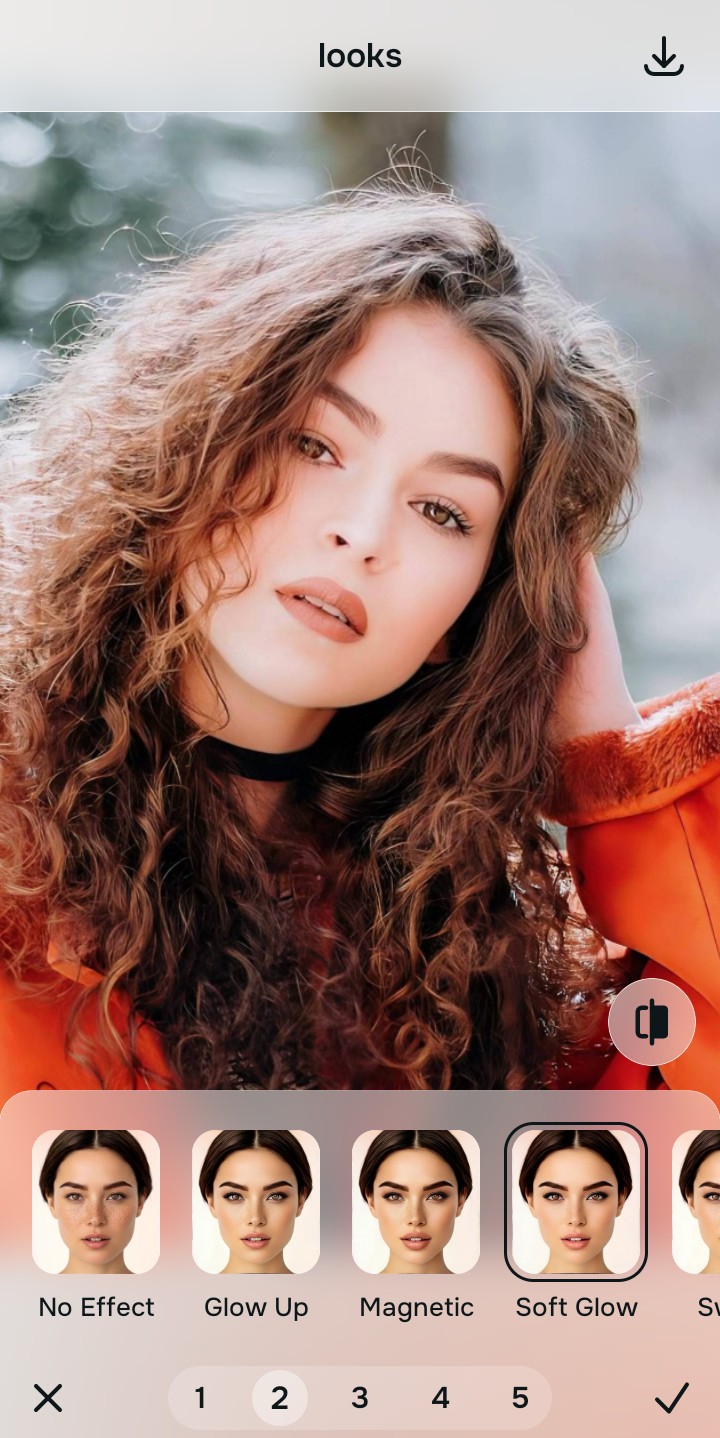
Save your high-resolution asset instantly
Unlike basic editing platforms that trap unwatermarked downloads behind paywall screens, your export is direct. Use this photo enhancer for instagram-ready dumps instantly without spending a dime.

What is ruining your selfie aesthetic?
Identify your image's primary visual limitation. Your ideal workspace choice changes depending on the issue.
Which free Citrus tool optimizes your layout best
Separate photo weaknesses necessitate independent menu paths. Aligning the correct workspace path to your specific portrait problem keeps your profile looking organic, preserving that highly-coveted candid energy.
| Tool Pathway | Primary Flaw Remediated | Aesthetic Application |
|---|---|---|
| Enhance Start here | Aggressive auto-HDR sharpening, bad camera exposure, and muddy digital grain | Use this first to eliminate clinical phone filters. Choose Colors & Lighting to restore contrast naturally for free. |
| Looks | Dull expressions, low facial color warmth, and unphotogenic framing results | Use this to update the entire face tone field at once. Select Soft Glow to achieve a Y2K digital camera aesthetic without altering shapes. |
| Face | Targeted anatomical limitations like heavy eye shadows or minor color casts | Use this last for precise feature tweaks. Select tools like No Eyebags to clear dark circles without wiping out real skin pores. |
“An authentic, trendy selfie shouldn't mute your human details under a heavy matte blur. It must simply soften the clinical sharpness of modern phone lenses to recover a glowing energy.”
Why exposure calibration beats heavy retro filters
There is a massive commercial distinction between softening your natural pixels and pasting a heavy, grainy vintage preset over the frame. When you use intense retro filters that add fake light leaks or heavy dust, the image instantly looks produced and dated. The "no-edit edit" relies on looking effortlessly flawless.
Real creator success relies on using a perfect enhancer for old selfies that handles structural light values natively. Restoring raw shadow fields provides studio-tier diffusion with no hidden paywalls. This ensures your final deliverables remain natural, premium, and perfectly aligned with current feed aesthetics.