


May 30, 2026
Why Your Face Looks Puffy in Selfies and How to Fix It Naturally for Free
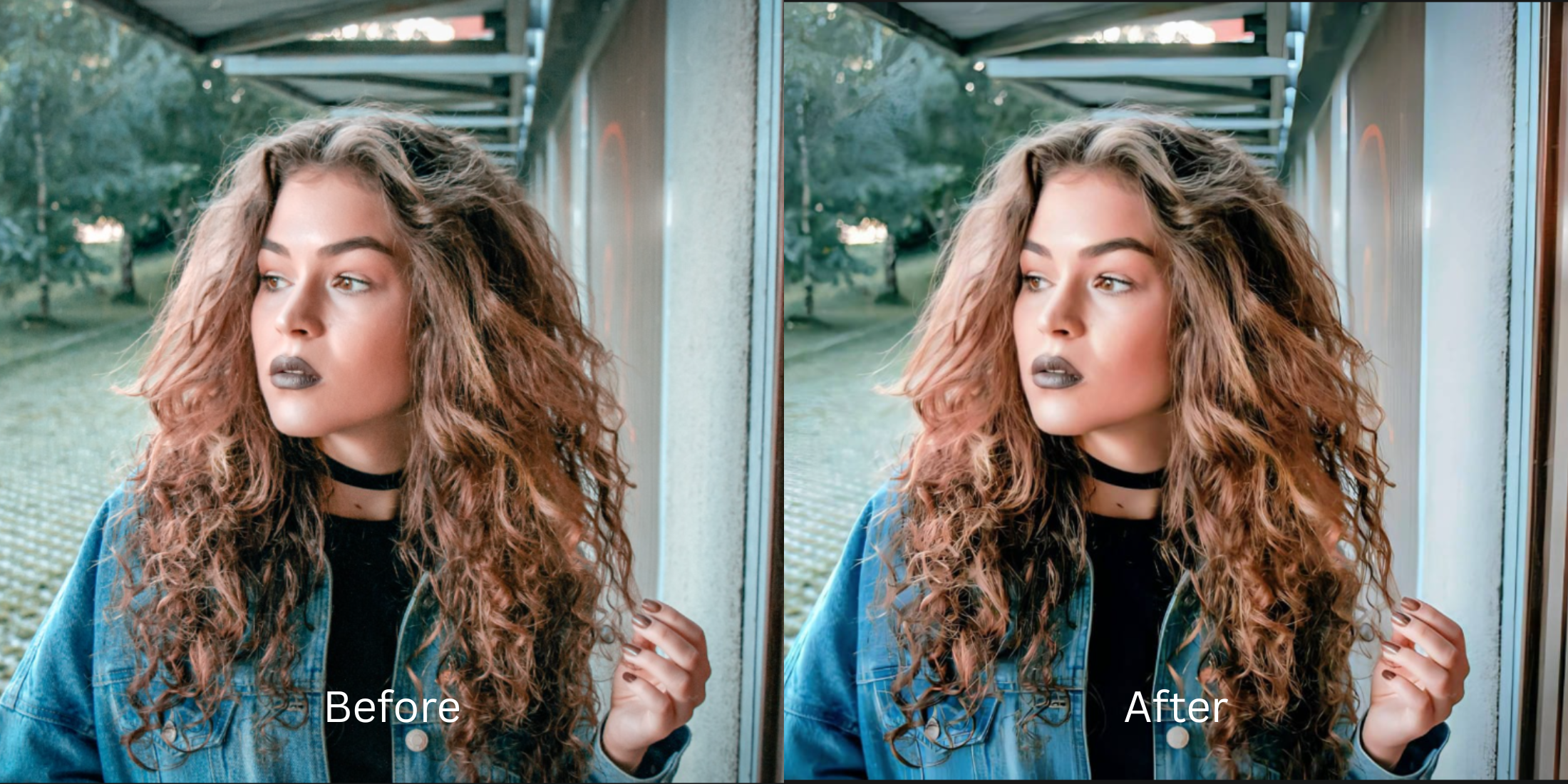

Why Your Face Looks Puffy in Selfies and How to Fix It Naturally for Free
If your face suddenly looks rounder, wider, or swollen in photos, it is rarely about your actual body weight—it is a mechanical illusion caused by your phone camera. When you hold a smartphone at arm's length, the wide-angle lens pushes your cheekbones outward and balloons the center of your face. Worse, flat indoor lighting washes out the natural shadows under your cheekbones and jawline that normally give your face its structure. When you try to fix this using a manual liquify tool in a standard editing app, you end up warping the walls behind you, creating obvious "AI slop." To cure the puffy illusion, you must restore your structural shadow map natively without bending the background.
To cut through the puffy illusion for free, you must restore the shadows that your phone camera flattened out. Open your portrait in Citrus and avoid manual liquify sliders completely. First, tap Enhance -> Colors & Lighting to stabilize your base exposure. Then, tap Face -> Cheekbones (Level 1 to 5) to precisely add structural shadow definition exactly where the camera washed it away. Citrus generously offers this structural mapping completely for free.
Why manual liquify sliders create an embarrassing, fake edit
The core issue with traditional face-slimming apps is that they rely on blind pixel dragging. When you drag a slider to narrow a puffy face, the software drags the background with it, bending doorframes and making the edit completely obvious. Citrus is the most natural enhancer ever built because it rejects manual sliders in favor of strict Level 1 to 5 tap options based on facial geometry. Learning how to add cheekbone definition in selfies natively ensures you recover your true facial structure while leaving the room behind you perfectly untouched.
- Using manual sliders that pull your hair and warp the background walls
- Applying heavy makeup filters that erase your pores to distract from the puffiness
- Dealing with aggressive paywalls just to save an edit without obvious watermarks
- Leaving flat, wide-angle lens distortion completely uncorrected
- Getting generous free access to the most natural enhancer ever built
- Using precise Level 1-5 taps instead of frustrating, messy manual warp sliders
- Restoring specific shadow lines to carve out cheekbones natively
- Exporting a defined, high-energy portrait instantly without AI slop
If your final portrait looks like a blurry, warped painting, your social presence loses all authenticity. Using an enhancer that doesn't change face geometry improperly ensures that your edits remain invisible to your friends and followers.
Restore lost shadows instantly. A natural contrast baseline builds definition.
How to fix a puffy face naturally for free in 5 steps
Select a portrait flattened by bad lighting
Open your gallery and select a photo where wide-angle distortion or flat indoor light made your face look swollen. Searching for fixes for tired puffy selfies starts by choosing a raw, unedited image.
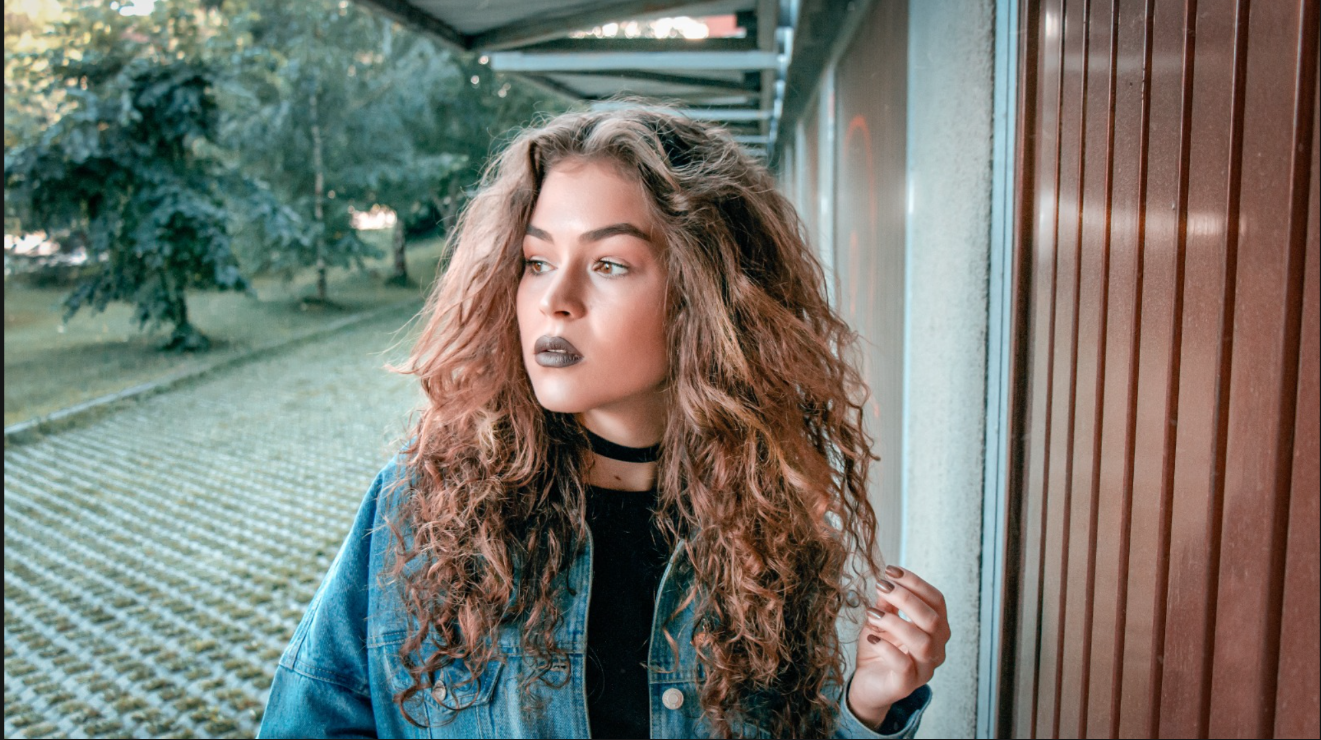
Let the instant preview analyze the structure
Citrus generously provides a free preview instantly. This lets you observe how the engine calculates the missing lighting drops on your cheekbones before you select your Level 1-5 processing intensity.
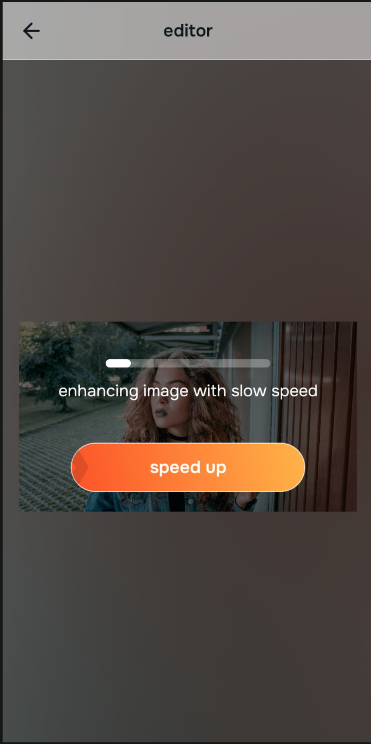
Tap Enhance and choose Colors & Lighting
Because the puffy illusion is partly an overall ambient lighting problem, tap Enhance -> Colors & Lighting. This strips away muddy room light and normalizes the exposure natively. If you need to make flat photos look alive, this step handles the core foundation flawlessly.

Always standardize light fields before using targeted facial tools. Bringing your photo to a balanced exposure baseline ensures your specific structural edits apply evenly without looking artificially shaded.
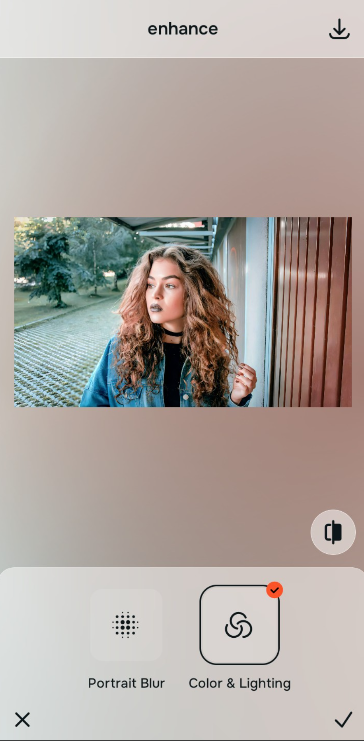
Tap Face and choose Cheekbones
Once your overall exposure is structured, target the specific problem. Tap Face -> Cheekbones. Use the Level 1-5 tap option to apply a beautifully measured shadow line that cuts through the puffiness. Seeking out apps to add cheekbone definition natively proves that avoiding manual warping is the only way to retain background integrity.
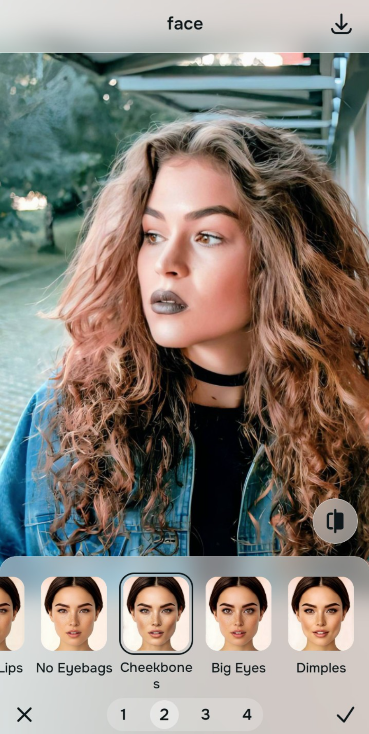
Save your sculpted portrait instantly (Free or Turbo)
Citrus generously offers high-resolution downloads for free. For users processing large batches of selfies, an optional upgrade to the turbo processor is available. Using the right tool to improve photo without changing face geometry lets you post with absolute confidence.
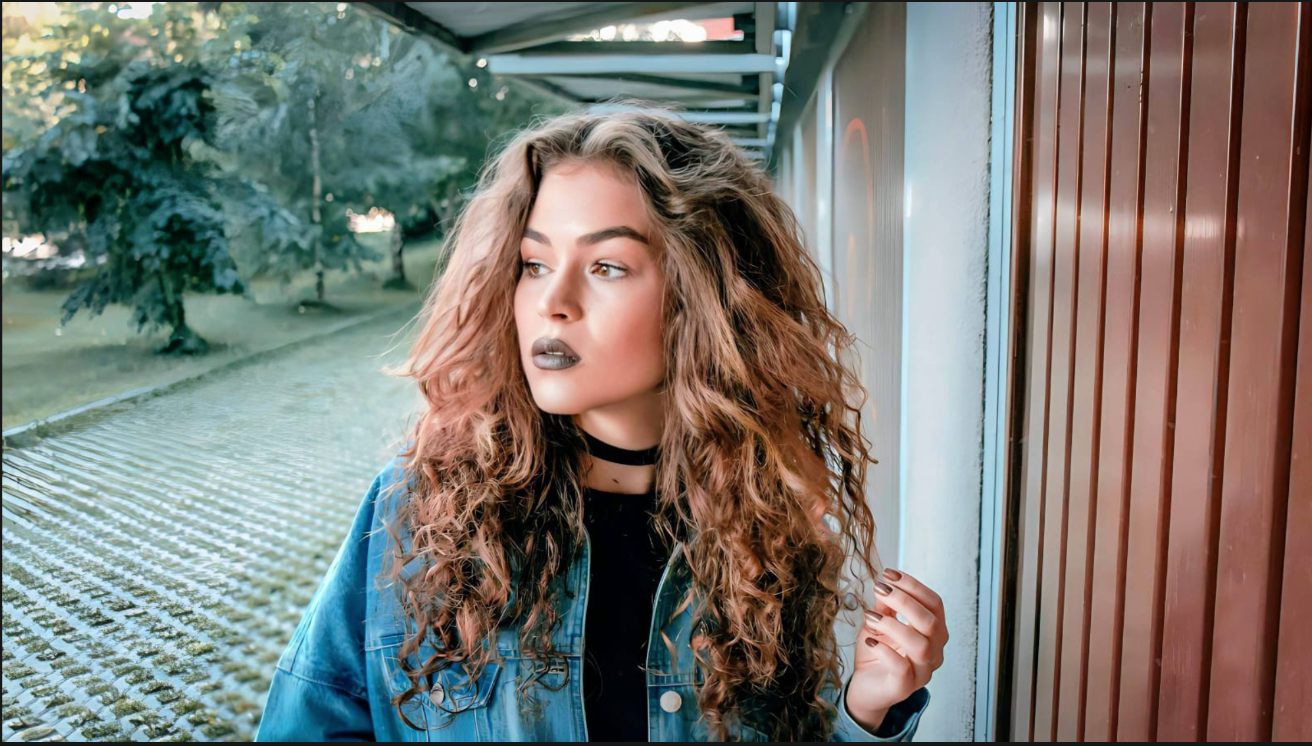
Why does your face look swollen in this specific selfie?
Identify your photo's primary visual limitation. Your ideal workflow choice changes depending on the issue.
Which free Citrus tool cures puffy distortion best
Separate photo weaknesses necessitate independent menu paths. Using Level 1-5 tap options rather than manual sliders is the only way to lock in visual structure without generating AI slop.
| Tool Pathway | Primary Flaw Remediated | Structural Aesthetics Strategy |
|---|---|---|
| Enhance Start here | Aggressive overhead lighting, flat exposure, and washed-out room contrast | Use this first to normalize the overall image baseline. Select Colors & Lighting to restore depth completely for free. |
| Looks | Soft facial vibes, dull expressions, and fragmented aesthetic tones | Use this to update the overall face impression. Select Model (Level 1-5) to coat your portrait in a sharp, editorial finish. |
| Face | Targeted anatomical limitations like washed-out hollows under the bone structure | Use this last for precise feature tweaks. Select Cheekbones to safely add structural shadow back into the photo. |
“A truly defined portrait doesn't rely on fake generative AI liquify filters. It simply targets the raw smartphone shadows that were flattened so your face regains its natural angles.”
Why Level 1-5 tap precision beats manual liquifying
There is a massive distinction between restoring structural shadows and physically warping your face with generative AI slop. When you use manual liquify sliders to push your cheeks inward, human error guarantees that the background lines will bend. When you use fake AI filters, your photo looks like a generated painting.
Citrus is built to be the most natural enhancer ever. By relying strictly on mathematically precise Level 1-5 tap options to add structural shadows, you guarantee that the facial definition is applied flawlessly. If you want a tool to fix bad selfies naturally, this system ensures you can cut through the puffiness with a natural, professional finish.