


August 26, 2026
Why Do Bathroom Selfies Make Skin Look Gray, Green, or Uneven?

Why Do Bathroom Selfies Make Skin Look Gray, Green, or Uneven?
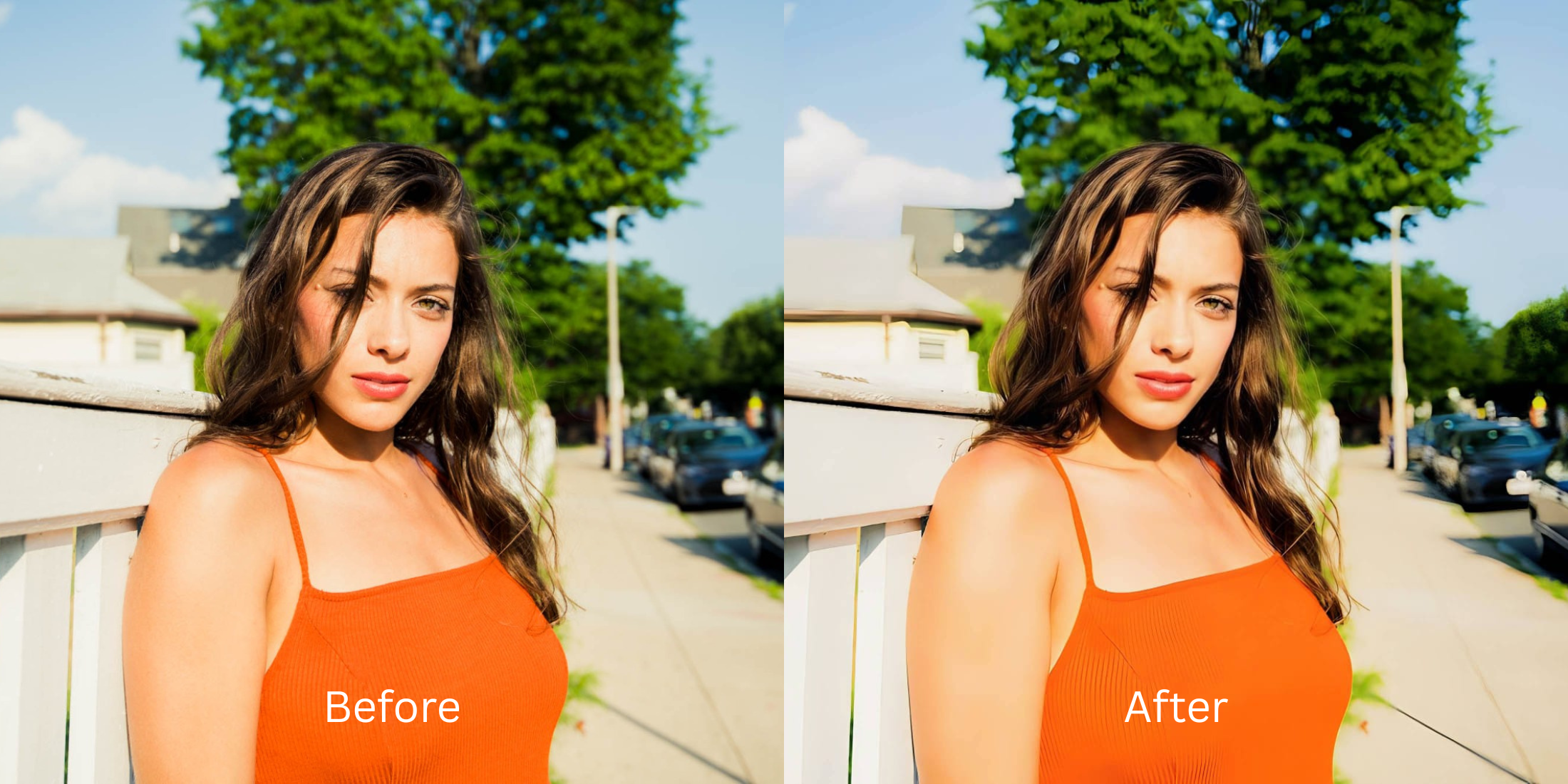
We've all done it: you step into a bathroom, check the mirror, and suddenly your skin looks sickly, green, or covered in dark, uneven shadows. You take a selfie, and the photo is even worse. This is not a problem with your skin—it is a failure of optical physics. Most bathrooms are lit by cheap fluorescent tubes or low-quality LED bulbs. These lights have a terrible Color Rendering Index (CRI), meaning they physically do not emit the red and warm wavelengths of light needed to make human skin look alive. Instead, they bounce green and gray light waves directly into your camera sensor. Furthermore, because these lights are usually positioned directly overhead, they cast harsh, downward shadows that exaggerate every pore, bump, and under-eye circle. Standard beauty filters try to "fix" this by slapping a heavy orange tint over your face, making you look painted. To look natural, you need a computational engine that neutralizes the sickly color cast and diffuses top-down shadow contrast.
Bathroom selfies look gray because fluorescent vanity lights lack warm red wavelengths and cast harsh overhead shadows. To neutralize this sickly color cast natively, use Citrus AI. Instead of painting a fake orange filter over your photo, Citrus mathematically restores missing warm light and diffuses harsh top-down shadows in one tap.
Understanding the "Fluorescent Color Spectrum" Trap
The core issue with indoor lighting is that the human eye auto-corrects bad color, but your smartphone sensor does not. When you stand under a fluorescent light, your camera accurately records the missing color spectrum, resulting in a cold, clinical image. Reviewing the data from the bad lighting lab bathroom selfies test proves that attempting to manually drag a "warmth" slider only turns the green pixels into muddy yellow ones.
- Applying blanket orange or yellow tint sliders that make you look like a painted Oompa Loompa
- Failing to fix yellow indoor lighting photos properly, leaving a muddy, jaundiced cast
- Using heavy blurring tools to hide the harsh overhead shadows, creating plastic skin
- Forcing you to fix too ai edited picture artifacts because the filter is so obvious
- Mathematically neutralizing the green/gray fluorescent tint without relying on fake orange paint
- Diffusing top-down micro-contrast to achieve glass skin without over smoothing
- Lifting harsh under-eye and cheekbone shadows cast by overhead vanity bulbs
- Ensuring your final export makes your skin look like real skin
When your camera is starved of natural light, slapping a generic filter on top won't save it. Shifting to an optical workflow helps you fix selfie before instagram upload naturally, ensuring your portraits stay radiant, highly attractive, and completely human.
Neutralize bad bathroom lighting instantly. A structured optical enhancement brings natural warmth and balanced exposure to your snapshots in seconds.
A 5-Step Test: Neutralizing Bathroom Light Without Looking Painted
Upload the raw, unedited camera roll photo
Find the photo taken in a bathroom or office where the lighting made your skin look gray, green, or unevenly textured. Using a dedicated soft glow filter harsh selfies tool requires starting with clean sensor data.

Let the instant preview calculate optical balance
Citrus provides an instant baseline correction immediately. Instead of just cranking the warmth slider, Citrus analyzes the environmental light spectrum and isolates the missing color channels.

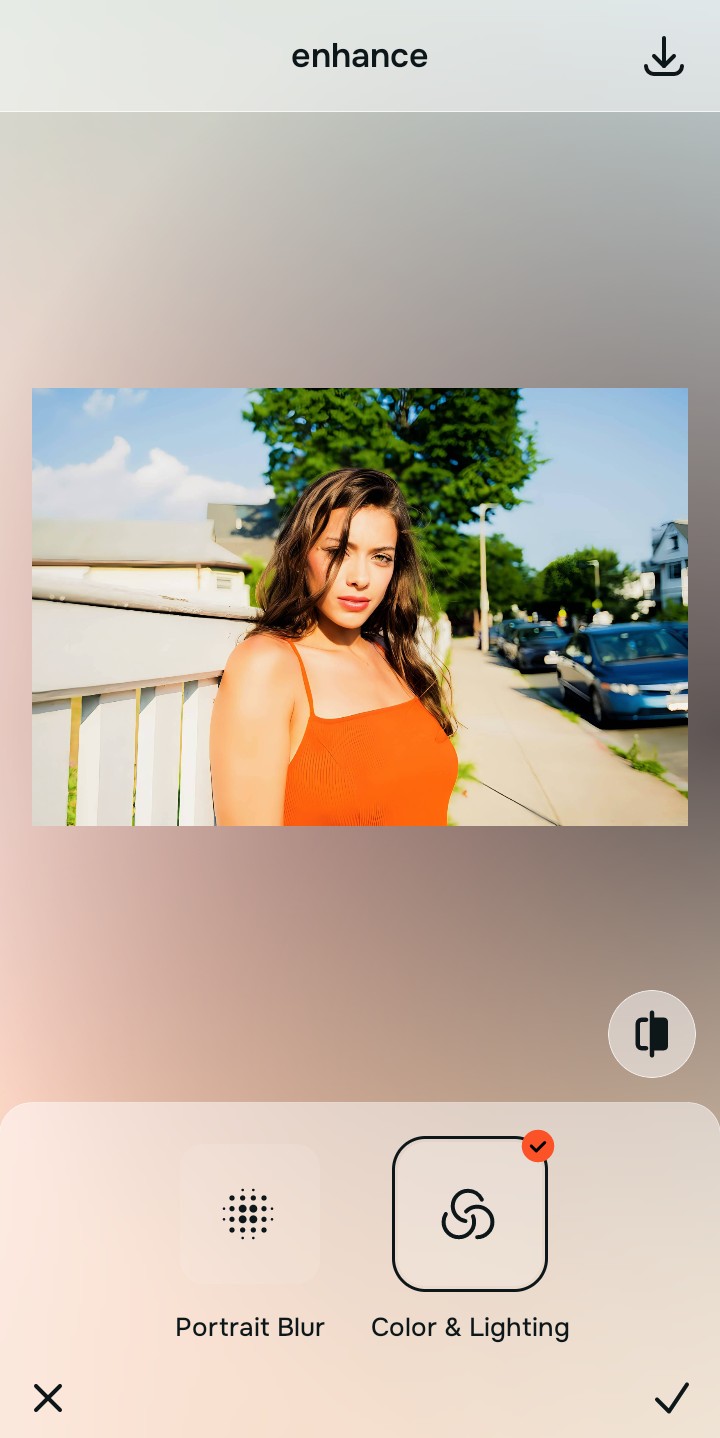
Tap Enhance and choose Colors & Lighting
You cannot fix bad skin until you fix the light spectrum hitting it. In Citrus, tap Enhance → Colors & Lighting. This mathematically balances the global exposure curves, neutralizing the fluorescent green/gray cast and restoring clean, true-to-life white balance.

Always balance global optical exposure before adjusting facial texture. Reversing the base spectral damage mathematically ensures subsequent aesthetic enhancements don't look painted on.
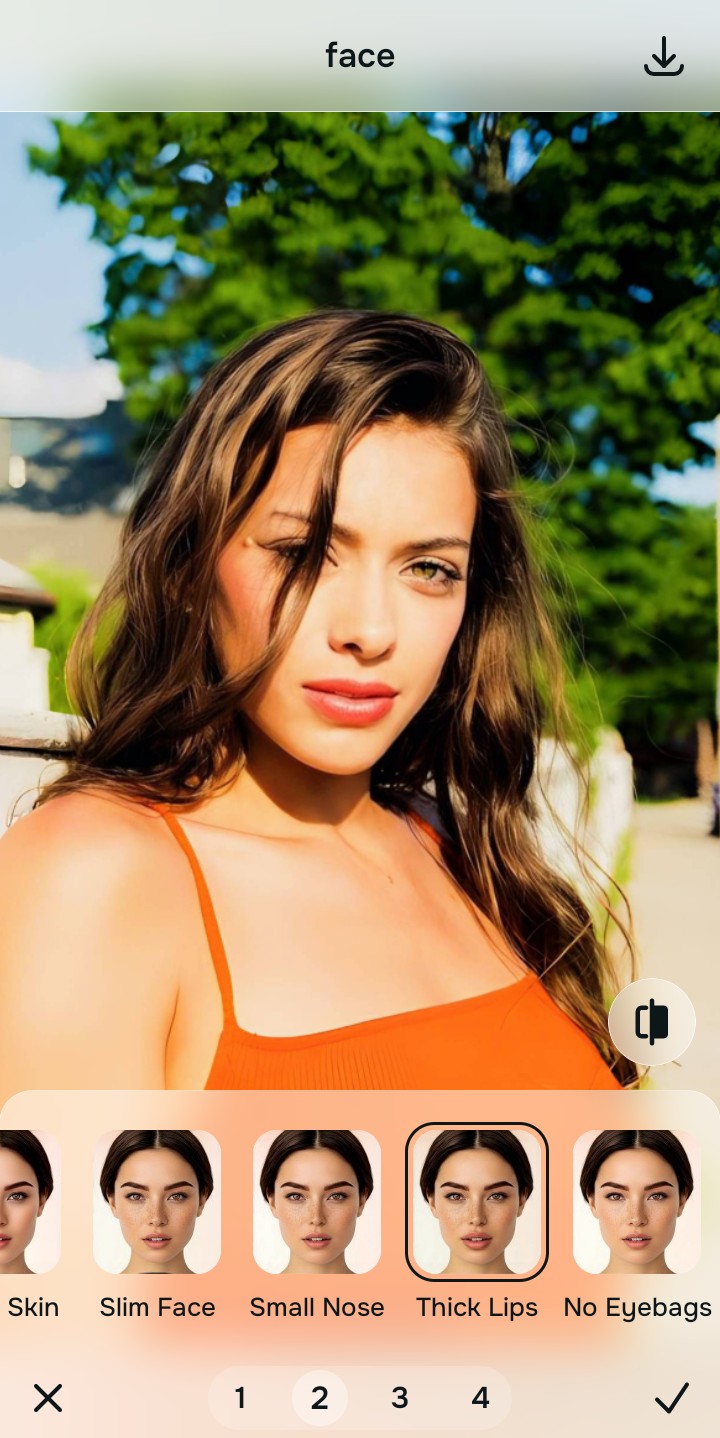
Tap Looks and select Porcelain to diffuse overhead shadows
Top-down vanity lights create harsh micro-shadows that magnify every pore. With your base lighting perfected, tap Face → Thick lips in Citrus. Select your preferred value from Level 1–5. This diffuses the aggressive overhead contrast, restoring a smooth, editorial finish without melting your features.
Export your high-resolution, uncompressed portrait
Citrus provides clean, unwatermarked HD exports completely for free, reversing the camera's processing errors effortlessly so your selfie looks like it was taken in natural daylight.

How did the bathroom lighting ruin your selfie?
Identify your primary optical hurdle to select the exact automated pathway in Citrus.
Aligning Your Edits with the Citrus Taxonomy
Instead of guessing which heavy orange filter will hide the green tint, Citrus categorizes enhancement into three distinct, mathematically safe pathways:
“Portrait enhancement should never require you to paint fake orange filters over your face. It must mathematically reconstruct the missing warm light spectrum so you look naturally radiant—effortlessly and instantly.”
Why Optical Calibration Beats Generic Tint Sliders
There is a massive structural difference between authentic optical color recovery and dragging a "Warmth" slider in a basic photo editor. When you use a warmth slider on a photo taken under green fluorescent light, you are simply adding yellow pixels on top of green pixels. This mixes together to form a muddy, jaundiced brown color.
Citrus is built specifically to prevent this. By constraining adjustments to mathematically calibrated Level 1–5 settings across Enhance, Looks, and Face, it neutralizes the specific green/gray frequency of the offending light source *before* restoring the natural red and orange tones of human skin. You get a clean, daylight-quality photo in one tap without the Oompa Loompa effect.