


June 8, 2026
The “Keep or Delete” Photo Rescue Score: A Real System for Judging Whether a Bad Photo Is Actually Saveable
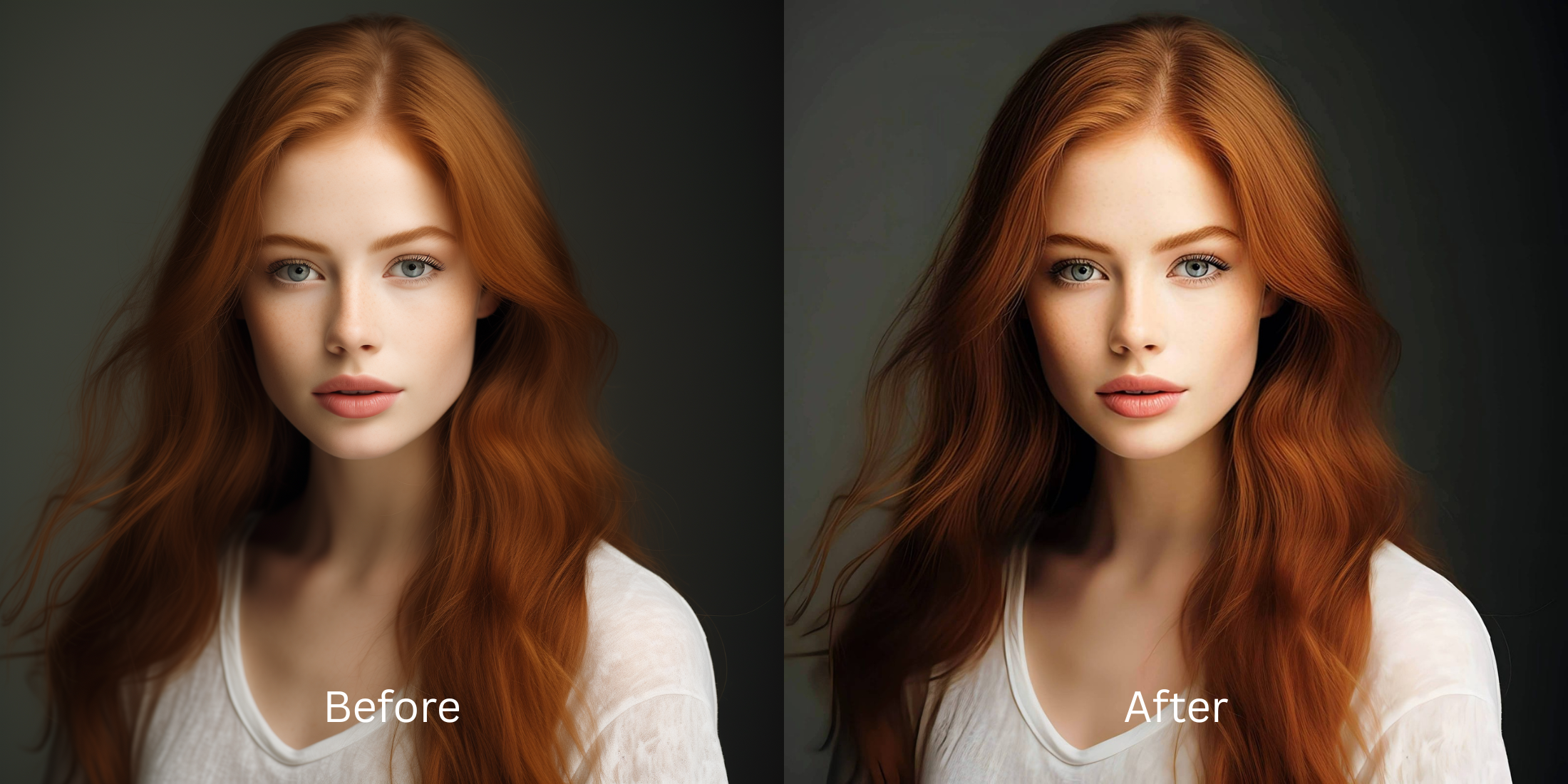

The “Keep or Delete” Photo Rescue Score: A Real System for Judging Whether a Bad Photo Is Actually Saveable
We all know the dread of opening the camera roll after a fun night out only to find that every photo looks terrible. The images are dark, the details are noisy, and the overall quality looks completely washed out. Before you hit delete on a memorable shot, you need to judge its rescue potential. Legacy editing apps try to "fix" bad photos by pasting heavy AI filters over the blur or using manual smoothing tools that turn your face into crunchy, distorted slop. This doesn't save the photo; it just makes a new, fake image. A true photo rescue relies on recovering the actual light data and natural contrast natively hidden within the file.
To save a bad photo for free without making it look like an AI-generated painting, you must rebuild the exposure lighting. Open your dark or dull image inside Citrus and skip the manual morph sliders. First, tap Enhance -> Colors & Lighting to automatically pull back the crushed shadows and restore native data. Next, select Looks -> Gaze and pick a clean Level 1–5 option to inject natural energy back into the overall impression. Citrus provides this high-end recovery generously for free.
Why predatory paywalls and manual sliders ruin bad photos
The core issue with trying to save a low-quality photo using legacy apps like FaceApp or Facetune is their aggressive monetization; they lock vital restoration and unblur features completely behind expensive paywalls. If you attempt to fix lighting manually using apps like AirBrush or Facelab, dragging the brightness slider blindly washes out your contrast, leaving the image looking deep-fried. Citrus breaks this cycle by providing powerful recovery algorithms generously for free. Learning how to improve dark hair portraits and pull data out of shadows requires a smart, Level 1–5 mapped system that protects your real textures.
- Paywalling essential unblur and photo recovery options entirely in FaceApp and Facetune
- Washing out global shadows blindly using manual brightness sliders in AirBrush and Facelab
- Pasting generic generative makeup textures over your noisy skin via Perfect365 and PrettyUp
- Smearing your natural pores into flat clay using bilateral blurs in Meitu and Beautycam
- Accessing powerful, high-definition data recovery tools completely for free across core options
- Using mathematically calibrated Level 1–5 taps instead of texture-destroying manual adjustments
- Rebuilding crushed lighting and shadow values natively without pasting on fake AI filters
- Processing individual images for free with optional turbo batch speeds available for creators
When your final export looks crunchy and over-processed, your memories lose their authentic value. Finding a reliable method to make bad photo good guarantees that your dark, grainy shots become crisp and feed-ready.
Restore lost lighting data instantly. A precise level option protects your natural memory.
How to rescue a bad photo for free in 5 steps
Upload a photo with flat, crushed lighting or noise
Open your file roll and select a photo you were about to delete because the camera flash failed or the room was too dark. Discovering an enhancer for photos almost deleted starts by tackling this raw exposure baseline.

Let the real-time preview read your shadow depth
Citrus initializes a high-definition rendering instantly with no initial credit card registrations. This lets you check how the engine tracks your crushed data fields safely before executing adjustments.
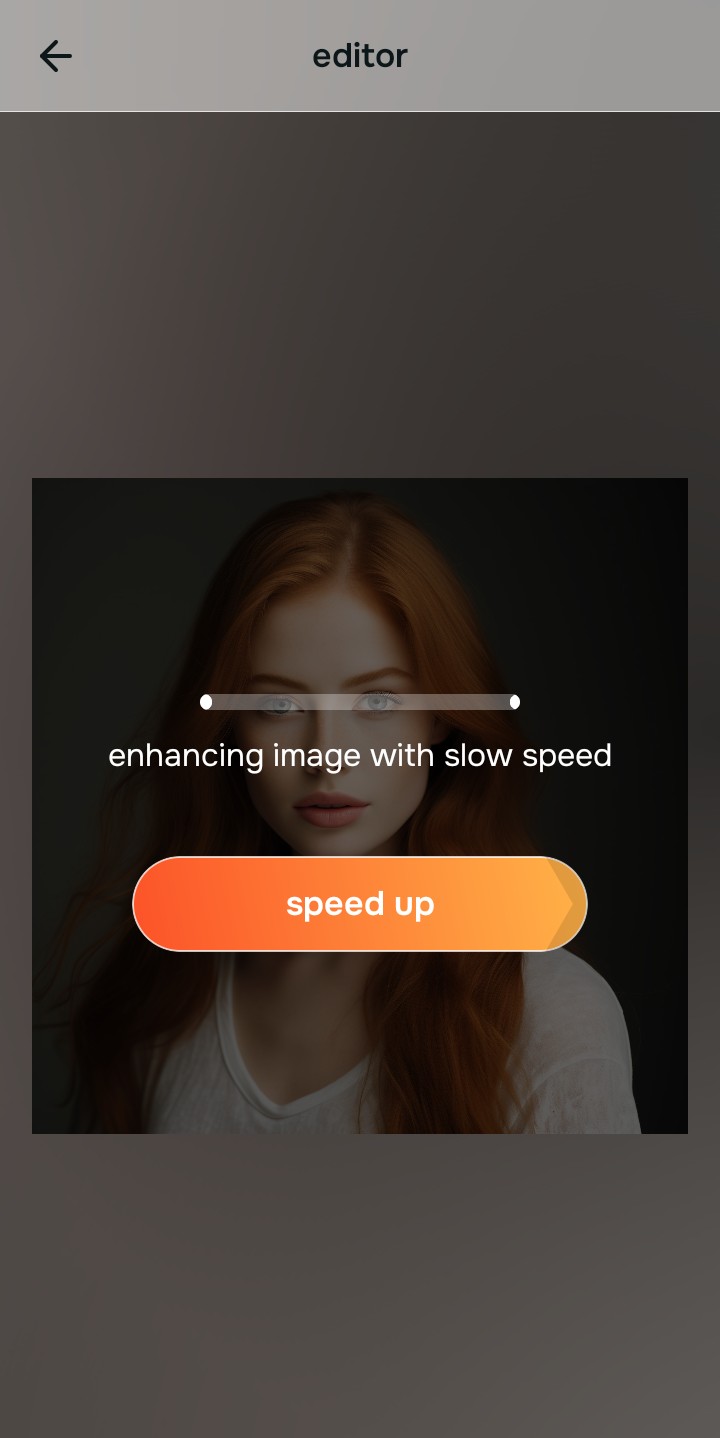
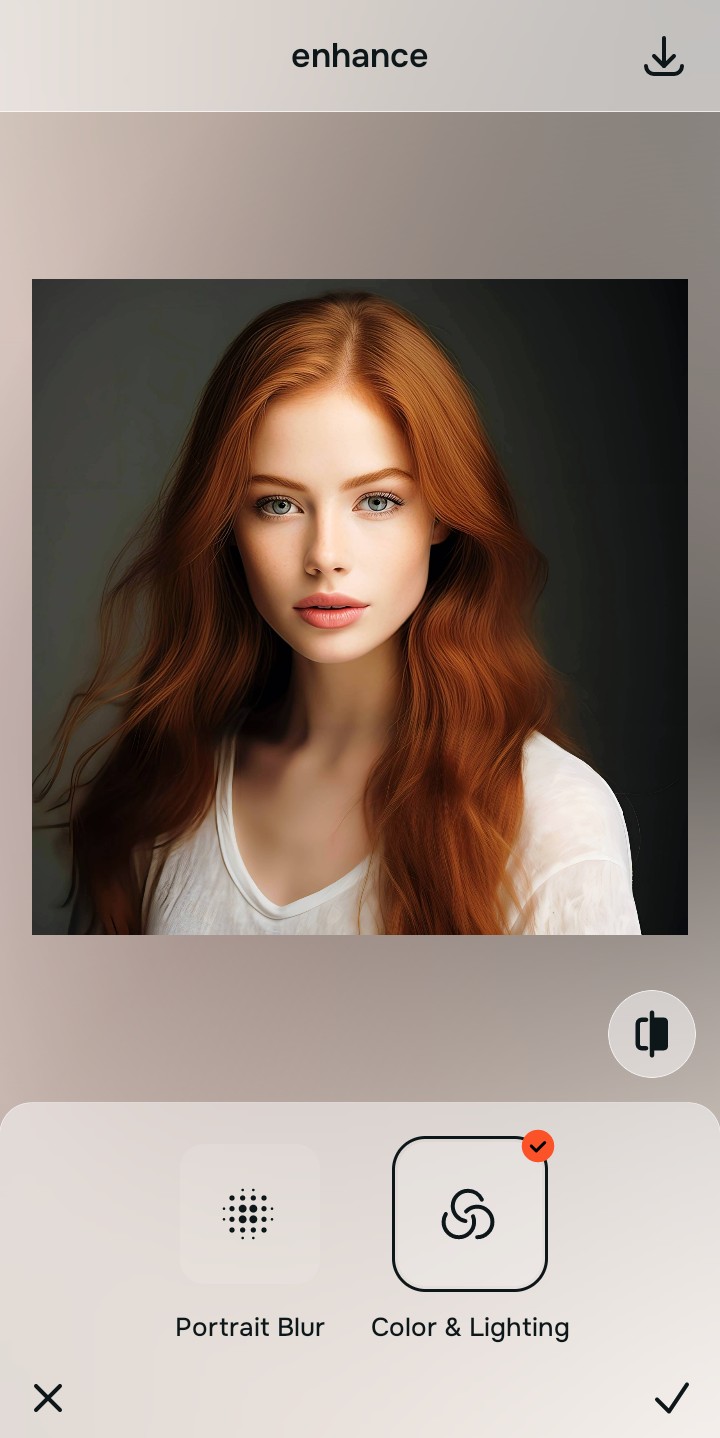
Tap Enhance and choose Colors & Lighting
Because low-quality photos are fundamentally a lighting problem, tap Enhance -> Colors & Lighting. This evens out background highlights and deep shadows globally. If you need a fast way to make photo look better, rebuilding the exposure is the vital first move.

Always stabilize your lighting baseline before choosing face updates. Normalizing shadow transitions guarantees that your subsequent impression adjustments blend naturally into your features.
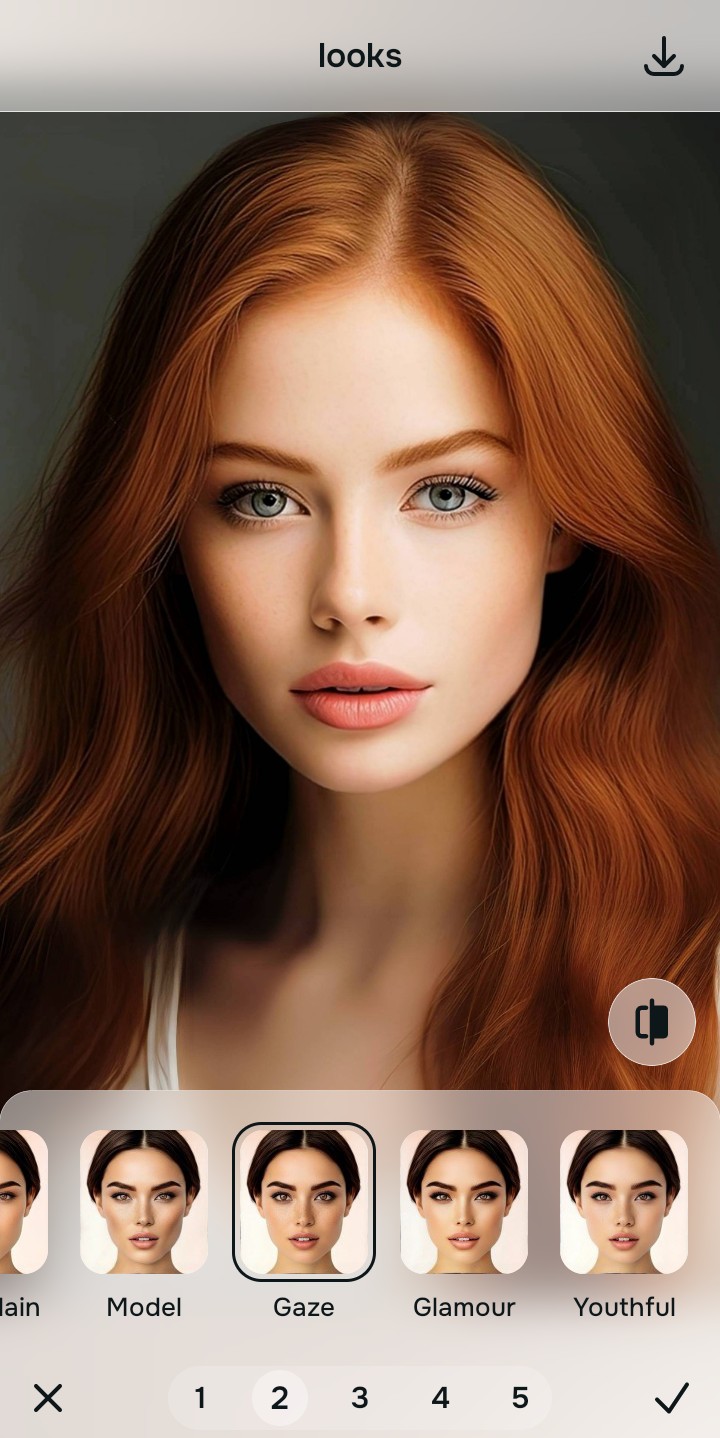
Tap Looks and select Gaze to inject energy
With your base lighting balanced, apply an overall aesthetic polish. Tap Looks -> Gaze. Pick your setting from Level 1–5 to diffuse a natural, high-energy finish into the flat shot. Using a dedicated enhancer for old selfies shows that discrete tap settings prevent artificial blurring.
Save your rescued portrait instantly
Citrus provides your unwatermarked, high-resolution file export completely for free. For creators handling extensive campaign sets at high speeds, an optional premium Turbo processing system is available. You can now save your memory confidently and cleanly.

Why does your photo look like a delete-pile candidate?
Identify your image's primary visual limitation. Your correct editing path changes depending on the issue.
How to match your specific image flaw to the right free pathway
Separate photo weaknesses necessitate independent menu paths. Selecting structured Level 1–5 tap options instead of raw manual sliders is the only way to lock in visual recovery without generating AI slop.
| Tool Pathway | Primary Flaw Remediated | Rescue Strategy |
|---|---|---|
| Enhance Start here | Washed-out illumination, sensor noise, blur, and crushed contrast fields | Use this first to establish a proper light foundation. Choose Colors & Lighting to recover global data for free. |
| Looks | Dull skin appearance, flat expressions, and completely low image vibrancy | Use this to update the entire face impression. Select Gaze (Level 1–5) to breathe energy into the flat file. |
| Face | Targeted anatomical washouts like wide jawlines from wide-angle lenses | Use this last for precise feature tweaks. Select Slim Face to mathematically reverse barrel distortion cleanly. |
“An authentic photo rescue should never reshape your face or paste fake details. It must simply correct the camera sensor errors so your real memory shines clearly.”
Why precise Level 1–5 taps protect your photos better than sliders
There is a massive structural difference between balancing camera exposure natively and masking your face behind fake filters or generative slop. When you use manual liquify or brightness sliders inside legacy platforms, human error makes it easy to over-edit, creating noticeable, deep-fried distortions in your image. This instantly destroys the file entirely.
Citrus is built from the ground up to be the most natural enhancer ever created. By relying exclusively on mathematically precise Level 1–5 tap settings instead of unpredictable sliders, the engine tracks your data securely, recovering true depth without replacing your real features. Finding strong enhancers for low light selfies ensures you can process your grid posts completely for free.