


July 9, 2026
How to Make Your Photo Look Like a Netflix True Crime Poster

How to Make Your Photo Look Like a Netflix True Crime Poster
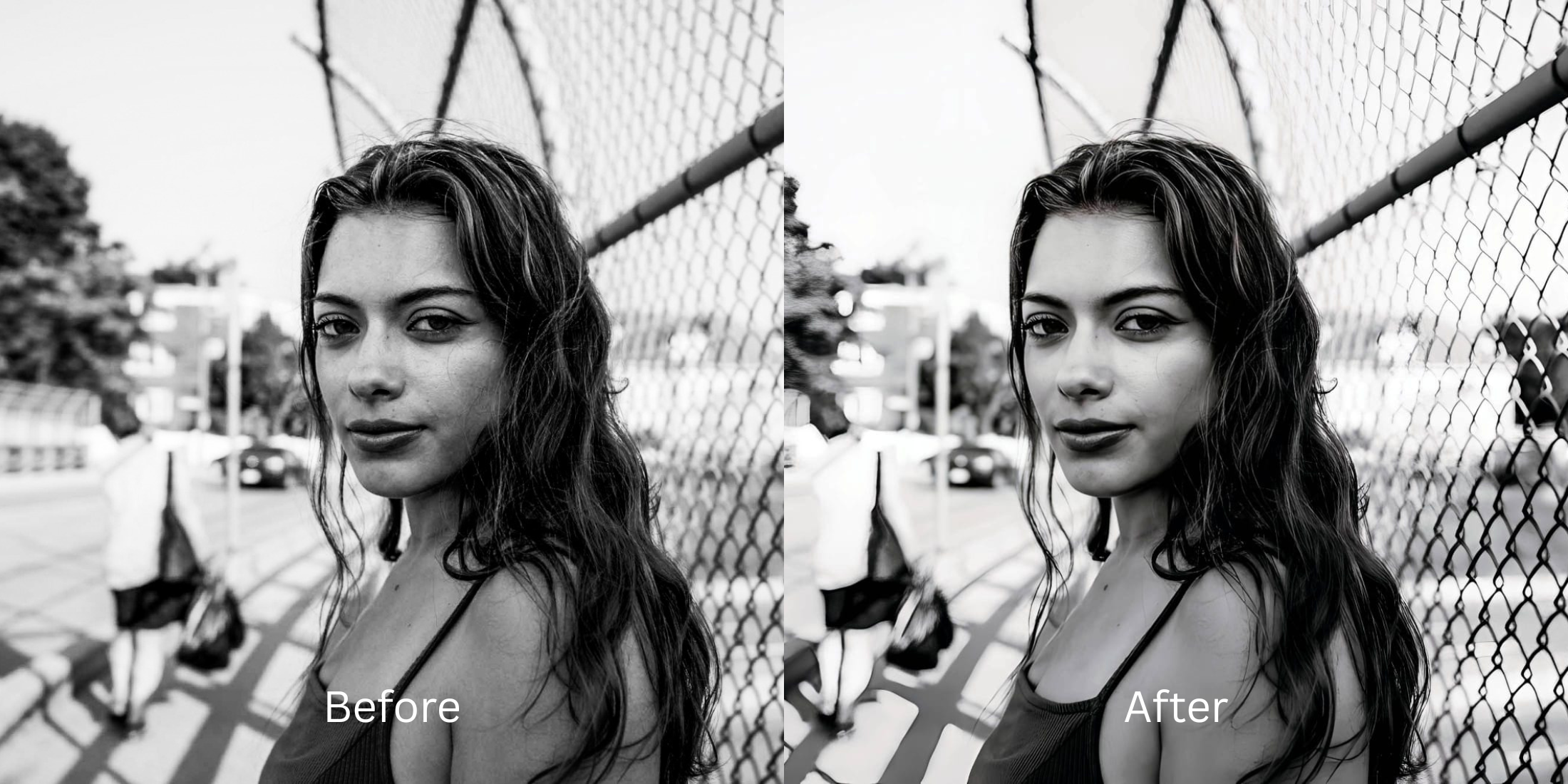
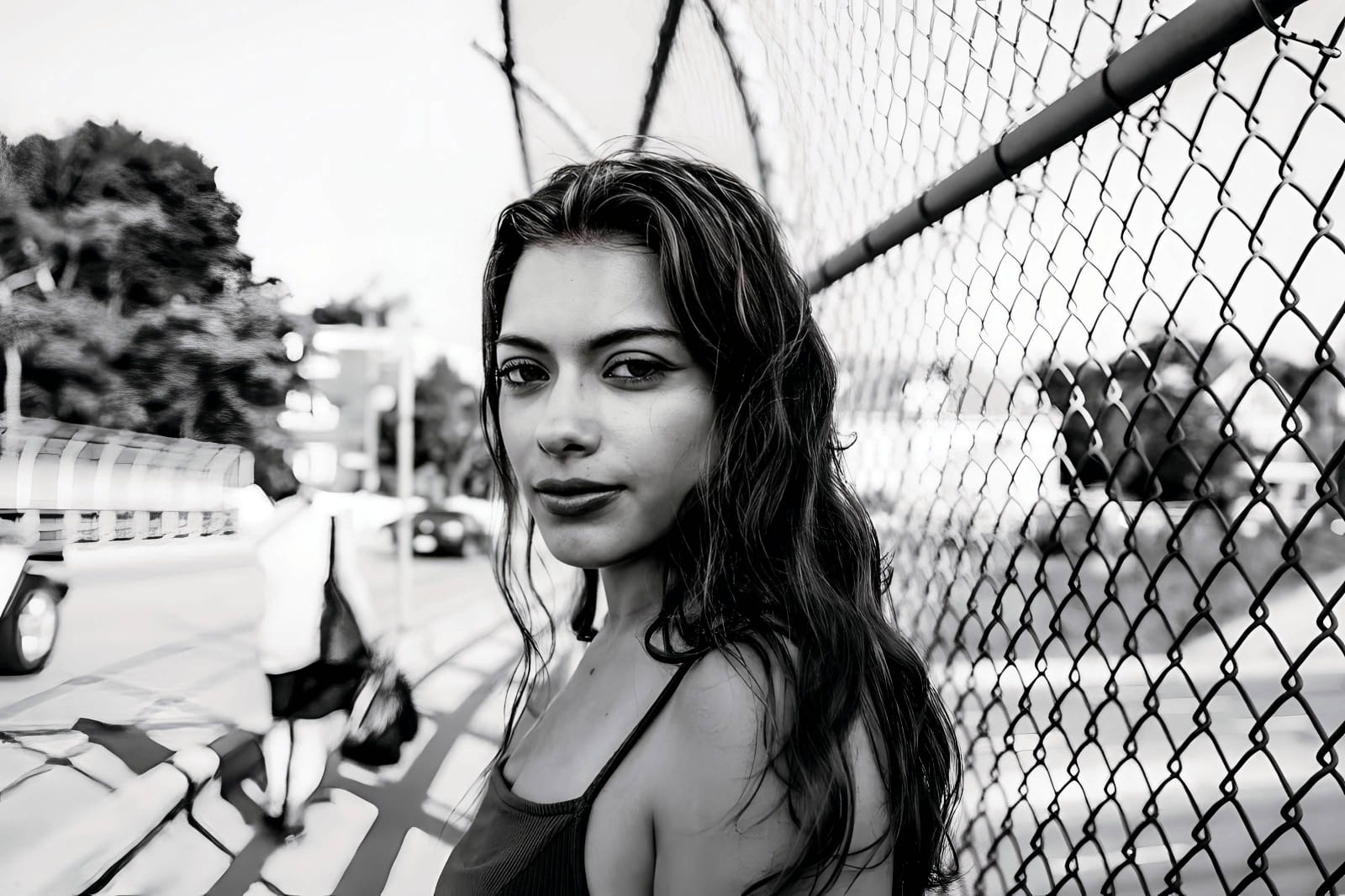
The "Netflix True Crime" aesthetic—seen in documentaries like Night Stalker or Making a Murderer—is incredibly popular right now for edgy, dramatic portraits. This aesthetic relies on deep, mysterious shadows, high-contrast lighting, and a sharp, highly textured facial structure that feels raw and serious. Modern smartphone cameras actively destroy this vibe. They are programmed to auto-brighten dark rooms, flattening shadows and making everything look happy and basic. If you try to fake the true crime look by pasting a red Netflix logo over a brightly lit, smiling selfie, it just looks like a cheap joke. To genuinely capture that terrifying, million-dollar documentary drama, you must natively reconstruct your photo's deep lighting and sharp texture.
To recreate the dark, gritty true crime poster aesthetic without looking like a meme, prioritize native contrast over cheap stickers. Open your flat selfie inside Citrus. First, tap Enhance → Colors & Lighting to automatically crush the bright, happy daylight and rebuild deep, cinematic shadows natively. Next, navigate to Face → No Eyebags and pick a clean Level 1–5 configuration. This mathematically structures a sharp, serious, hyper-detailed facial pop, giving you that raw documentary tension before you even add a title.
Why cheap text apps and fake AI ruin the cinematic vibe
The core issue with trying to curate a serious true crime poster using apps like Canva or Picsart is their reliance on pasted graphics. Throwing a red font over a badly lit, flat smartphone photo doesn't make it look dramatic; it makes it look like a YouTube thumbnail. Furthermore, if you rely on utility editors like FaceApp or Remini, they default to heavy generative AI beauty masks. Melting your skin into glossy plastic and pasting fake AI smiles completely destroys the gritty, terrifying realism that defines the genre. Escaping this low-quality trap requires finding a tool that makes your make photo crisp masculine and natively dramatic.
- Ruining the documentary illusion instantly by leaving flat, bright smartphone lighting in the background
- Replacing your real, serious features with highly synthetic, smiling generative AI beauty slop using FaceApp
- Deep-frying your photo resolution by forcing uncalibrated vignette and grain sliders to fake a dark room
- Making the photo look like a low-budget fan edit rather than a high-end cinematic release
- Accessing powerful, high-resolution aesthetic processing workflows generously given for free
- Using mathematically calibrated Level 1–5 taps instead of destructive, flat color overlays
- Rebuilding vibrant, moody contrast patterns natively while preserving your sharp, gritty facial features
- Processing premium documentary portraits in under 10 seconds without leaving a digital footprint
When your content asset looks obviously degraded by flat lighting or waxy AI smoothing, your digital feed loses that professional credibility instantly. Shifting to an advanced method to improve bad camera lighting natively ensures your features stay crisp, dramatic, and completely authentic.
Optimize moody light fields instantly. A structured level choice keeps your striking, serious texture completely intact.
How to automate a flawless true crime aesthetic natively in 5 steps
Upload a selfie flattened by boring phone lighting
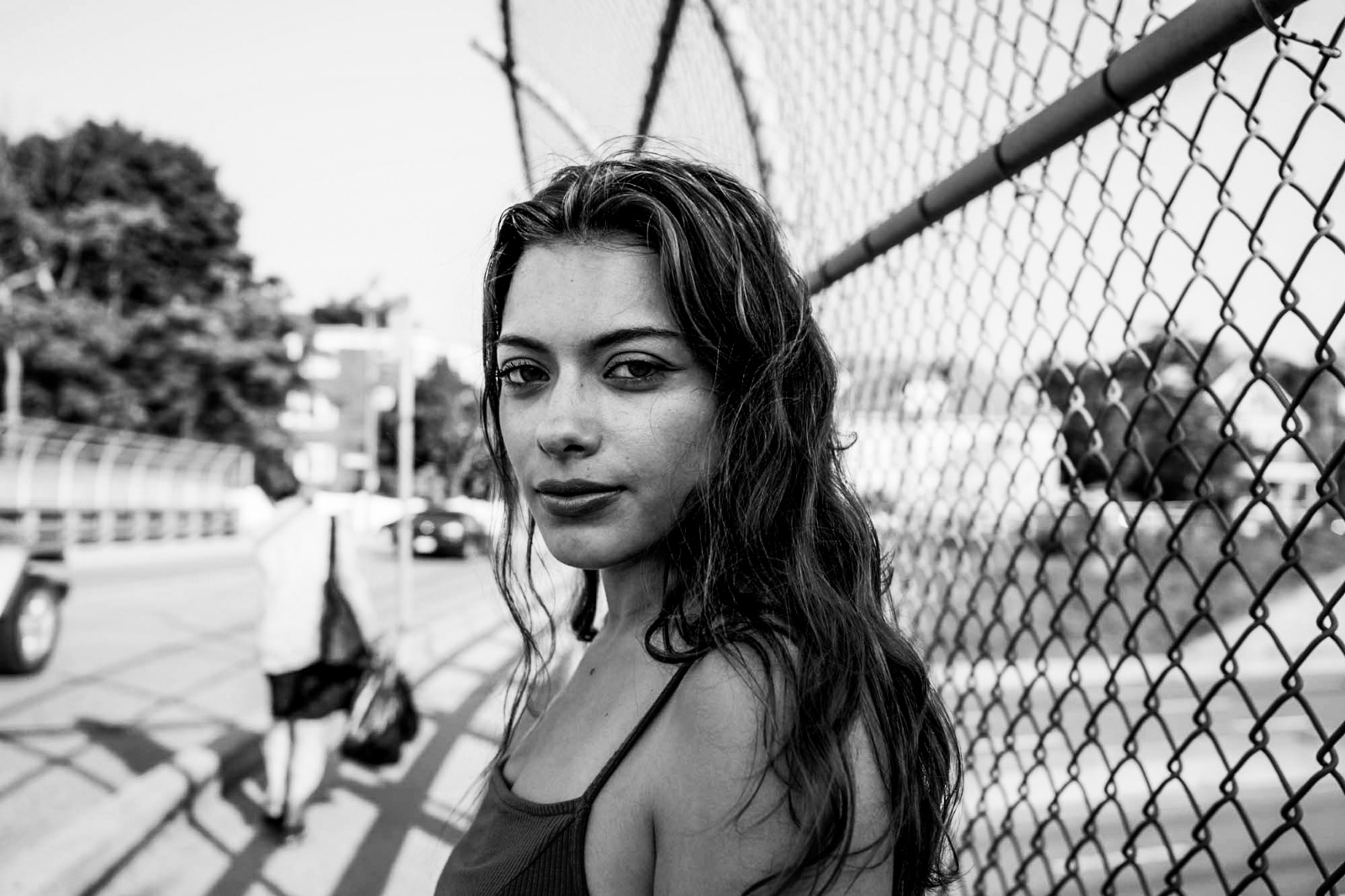
Open your file rollout and choose a raw picture that suffers from flat indoor lighting or overly bright camera washout. Securing a reliable alternative overprocessed beauty editors pipeline starts by managing this exposure baseline correctly.
Let the real-time preview map the contrast coordinates
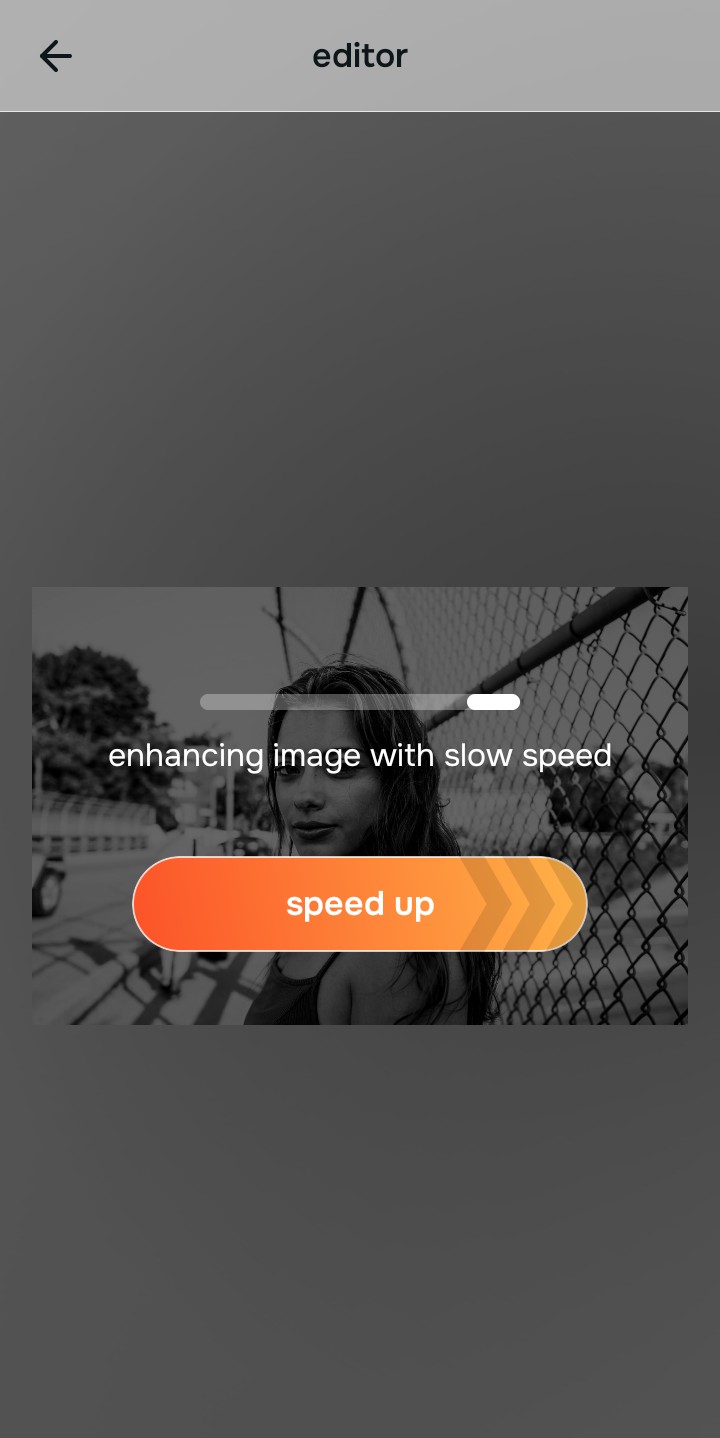
Citrus initializes its tracking grid instantly without forcing you through paywalled credit card registrations. This presents an active preview window so you can safely examine how the engine handles shadow regions before processing.
Tap Enhance and choose Colors & Lighting
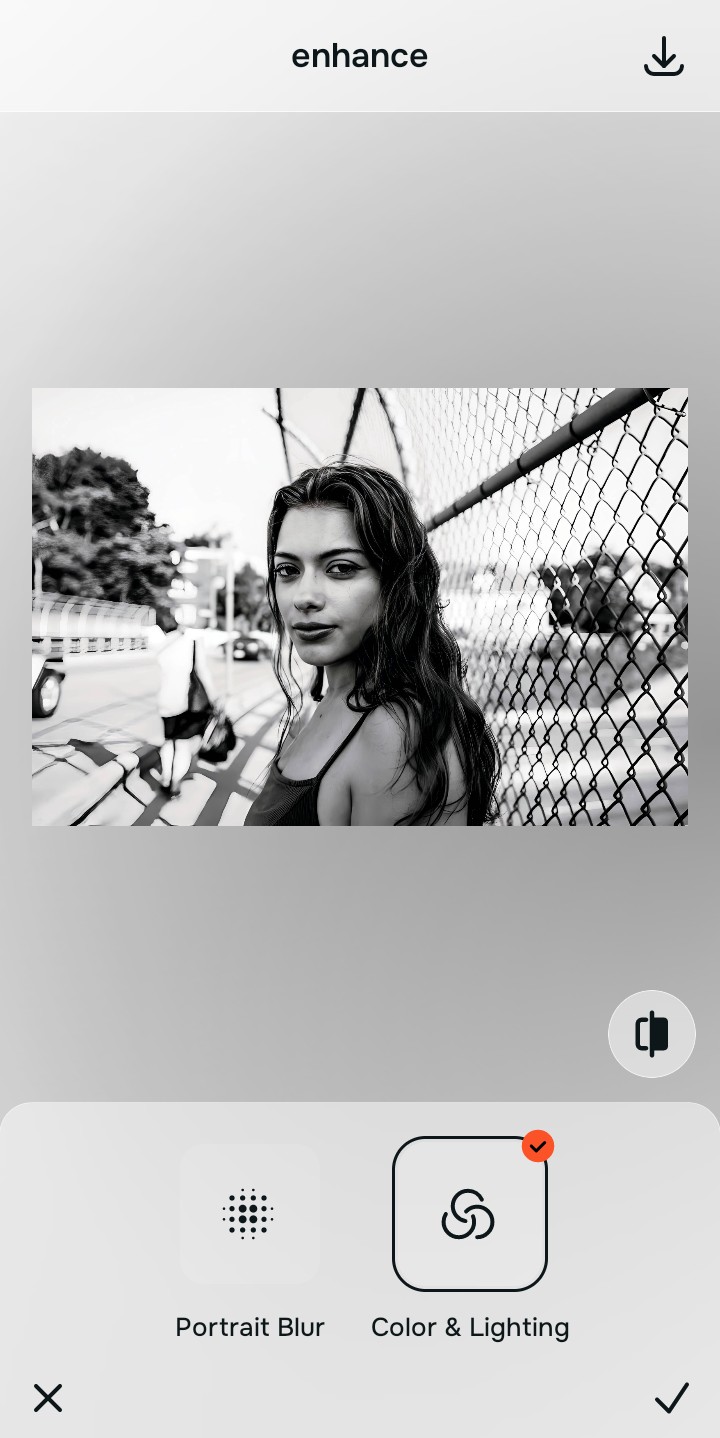
Because boring selfies are caused by bright global camera metering curves, tap Enhance → Colors & Lighting. This strips away the flat, happy daylight and injects deep, mysterious studio contrast cleanly. Rebuilding this exposure baseline is essential to fix pixelated face photos free of messy grain.

Always balance global photographic lighting before applying aesthetic vibes. Normalizing the base exposure map ensures subsequent dark updates sit beautifully and invisibly without weird masking artifacts.
Tap Looks and select Gentlemen to inject serious structure
With your base light layers normalized into dark contrast, optimize your overall face impression natively to break the glossy, plastic look. Tap Face → No Eyebags. Select your preferred value from Level 1–5 to layer a sharp, serious, hyper-detailed style that feels completely gritty. This is how you guarantee your casual portraits look professional.
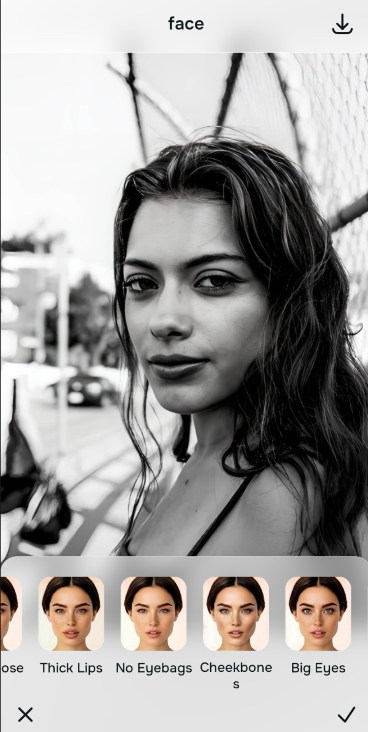
Export your high-resolution, unwatermarked poster base
Citrus generously offers clean high-definition exports entirely for free with no hidden premium pop-ups. For creators testing a face editor without overdone look workflow, an optional premium Turbo rendering tier is available for rapid batch processing.
What is ruining your true crime poster illusion?
Isolate your image's core mechanical issue. Your automated pipeline changes depending on the source error.
How to align your profile concerns with the right free pathway
Separate photo weaknesses necessitate independent menu paths. Selecting structured Level 1–5 tap options instead of glossy AI beauty filters is the only way to lock in visual sharpness without looking like a plastic mannequin.
| Tool Pathway | Primary Flaw Remediated | Automated Fix Strategy |
|---|---|---|
| Enhance Start here | Bright facial illumination, lack of deep shadows, and boring phone camera fields | Use this first to establish a proper dramatic foundation. Choose Colors & Lighting to balance layers for free. |
| Looks | Glossy skin appearance, over-smoothed expressions, and lack of gritty realism | Use this to update the entire face impression. Select Gentlemen (Level 1–5) to coat your portrait in a sharp, serious polish. |
| Face | Targeted anatomical washouts like unrefined jawlines or soft cheeks | Use this last for precise feature tweaks. Select Slim Face to safely structure localized areas without warping the walls. |
“Professional cinematic styling should never warp your background lines or melt your skin into plastic. It must simply normalize the lighting so your native topography looks gritty, clean, and effortlessly striking.”
Why precise level taps protect human skin texture better than manual filter apps
There is a massive structural difference between balancing camera exposure natively and pasting fake graphic filters over bright lighting. When you use manual color tints, uncalibrated vignette sliders, or cheap overlays inside legacy platforms, the application compresses your data matrix, resulting in noticeable, deep-fried streaks across your skin features. This instantly ruins your file quality and makes it look like a meme rather than a high-end poster.
Citrus is built from the ground up to be the most natural enhancer ever created. By relying exclusively on mathematically precise Level 1–5 tap settings instead of unpredictable sliders, the engine maps your face securely, optimizing highlight tracking without hallucinating new facial characteristics. Utilizing a targeted workflow natively guarantees that your presentation remains sharp, trusted, and beautifully proportioned.