


May 29, 2026
How to Make a Photo Look More Feminine and Glowy
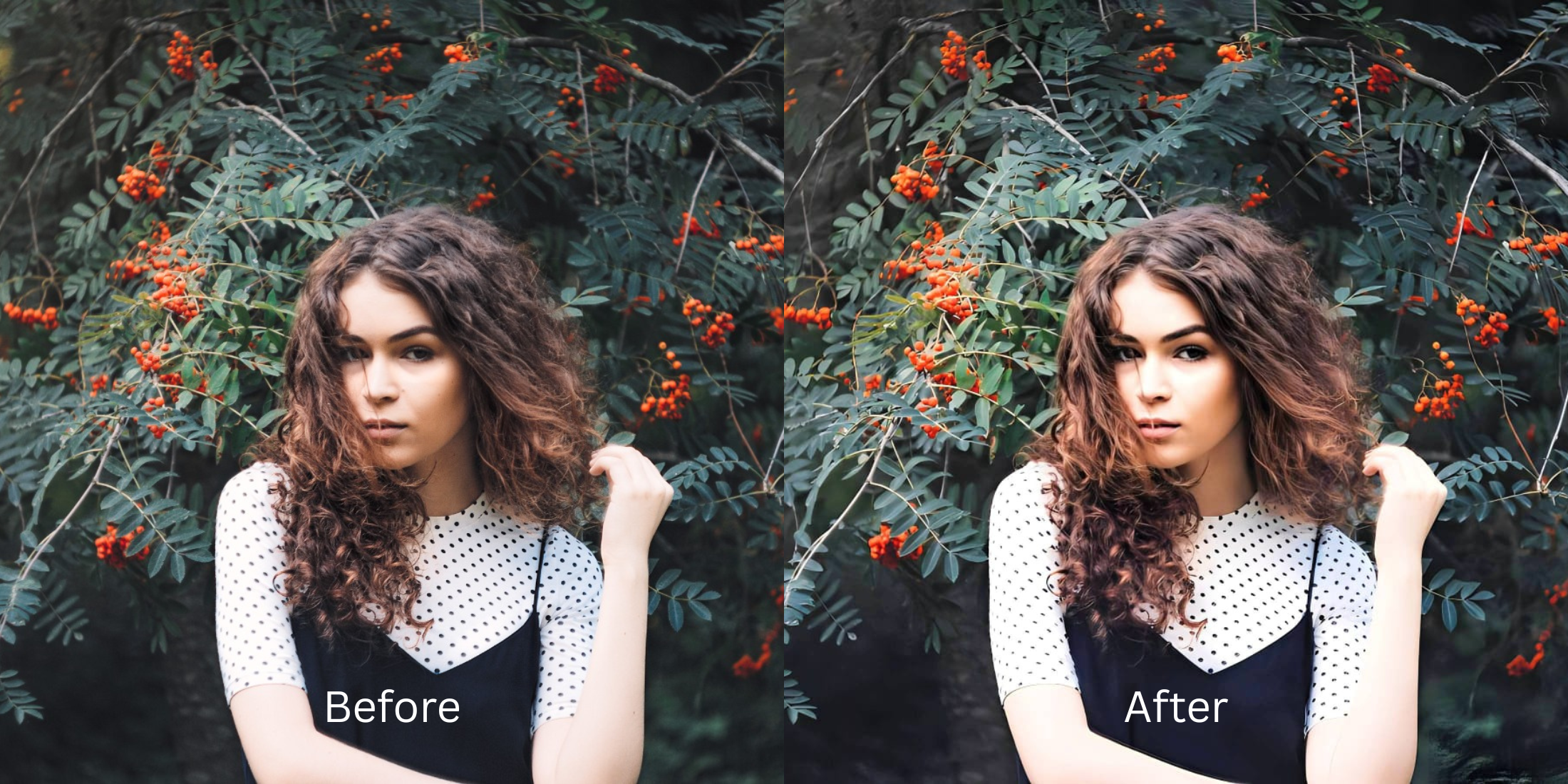

How to Make a Photo Look More Feminine and Glowy
If your selfies look harsh, sharp, or rigidly masculine, your smartphone camera is the culprit. Modern phone lenses utilize aggressive auto-HDR protocols that intentionally over-sharpen pores and cast dark, angular shadows across your jawline to increase digital contrast. This mechanical sharpening completely strips away the soft, diffused light necessary for a feminine glow. To compensate, many people turn to heavy beauty apps that generate fake AI makeup or apply plastic, sliding blurs over their faces. This results in "AI slop" that looks obviously edited. To get a truly glowing, feminine aesthetic, you must naturally recalibrate your contrast baseline.
To add a natural, feminine glow for free, you must remove the camera's harsh HDR shadows using simple tap options. Open your portrait in Citrus and avoid manual editing sliders. Tap Enhance -> Colors & Lighting to lift angular shadows and balance your skin tones natively. Once the harshness is gone, choose Looks -> Soft Glow (Level 1 to 5) to bathe your entire face in a cohesive, feminine warmth before saving instantly for free.
Why manual sliders and fake makeup apps ruin the glow
The human eye detects artificial lighting manipulation instantly. When you drag manual brightness or blur sliders across your face, you inevitably lose your natural skin texture, resulting in a plastic, fake look. To achieve natural glow in selfies, you must abandon the sliders. The most natural enhancer ever built utilizes strict Level 1 to 5 tap settings. This locks in mathematical precision, preventing the heavy-handed mistakes that generate fake AI masks.
- Using manual sliders that make your skin look like a blurry, plastic mask
- Generating fake AI makeup that misaligns with your natural facial features
- Dealing with aggressive paywalls just to save a decent, unwatermarked selfie
- Leaving harsh, angular smartphone shadows completely uncorrected
- Getting generous free access to the most natural enhancer ever built
- Using precise Level 1-5 taps instead of frustrating, messy manual sliders
- Normalizing harsh lighting first so your face recovers its natural softness
- Exporting a glowing, feminine portrait instantly without AI slop
When your edits look heavily generated, your confidence drops. Finding an app to help you achieve glass skin without over smoothing ensures your glow remains elegant, pristine, and entirely human.
Soften harsh HDR instantly. A natural contrast baseline builds warmth.
How to edit a feminine, glowing selfie for free in 5 steps
Select a portrait ruined by harsh camera contrast
Open your gallery and select a photo where your face looks overly sharp or shadowed. Utilizing a proper face editor without overdone look capabilities starts with addressing this raw exposure baseline.
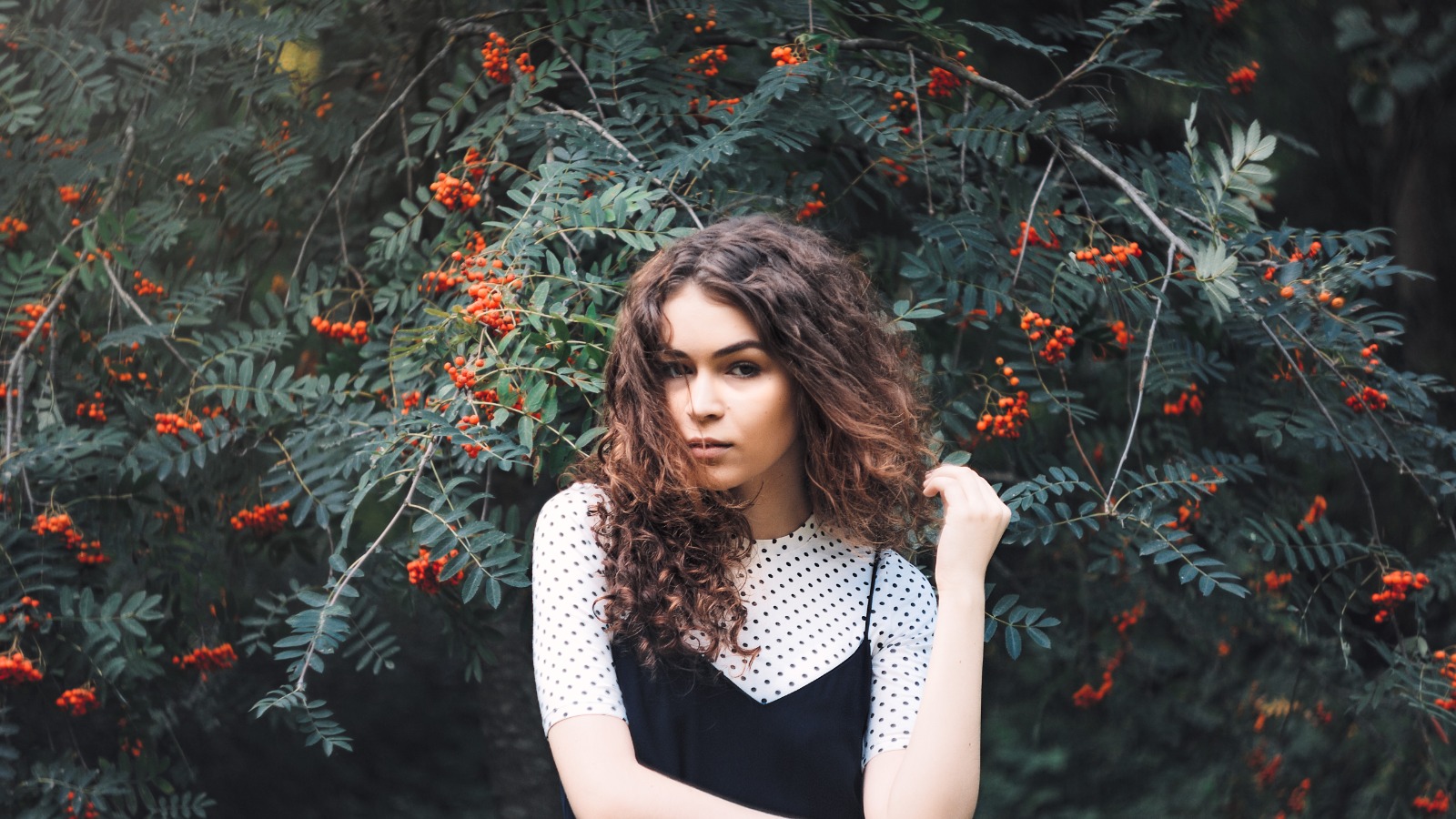
Let the instant preview analyze the baseline
Citrus provides a generous free preview instantly. This lets you observe how the engine calculates the harsh lighting drops on your face before you select your Level 1-5 processing intensity.
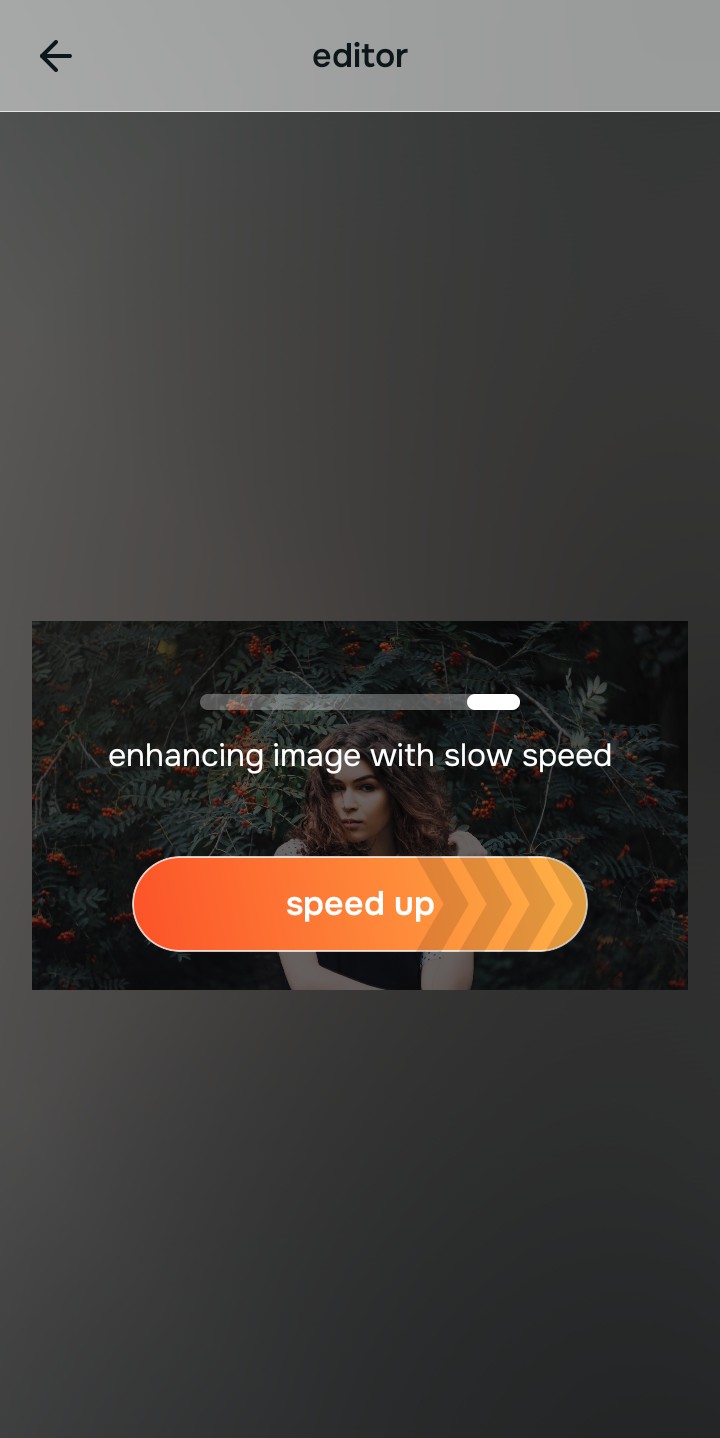
Tap Enhance and choose Colors & Lighting
Because harsh selfies are an overall image problem, tap Enhance -> Colors & Lighting. This strips away aggressive phone sharpening and normalizes the exposure natively. If you need to fix washed-out selfies, this step recovers their natural softness flawlessly.

Always standardize light fields before using face impression tools. Bringing your photo to a balanced exposure baseline ensures your final glowing aesthetic tap applies evenly without looking fake.
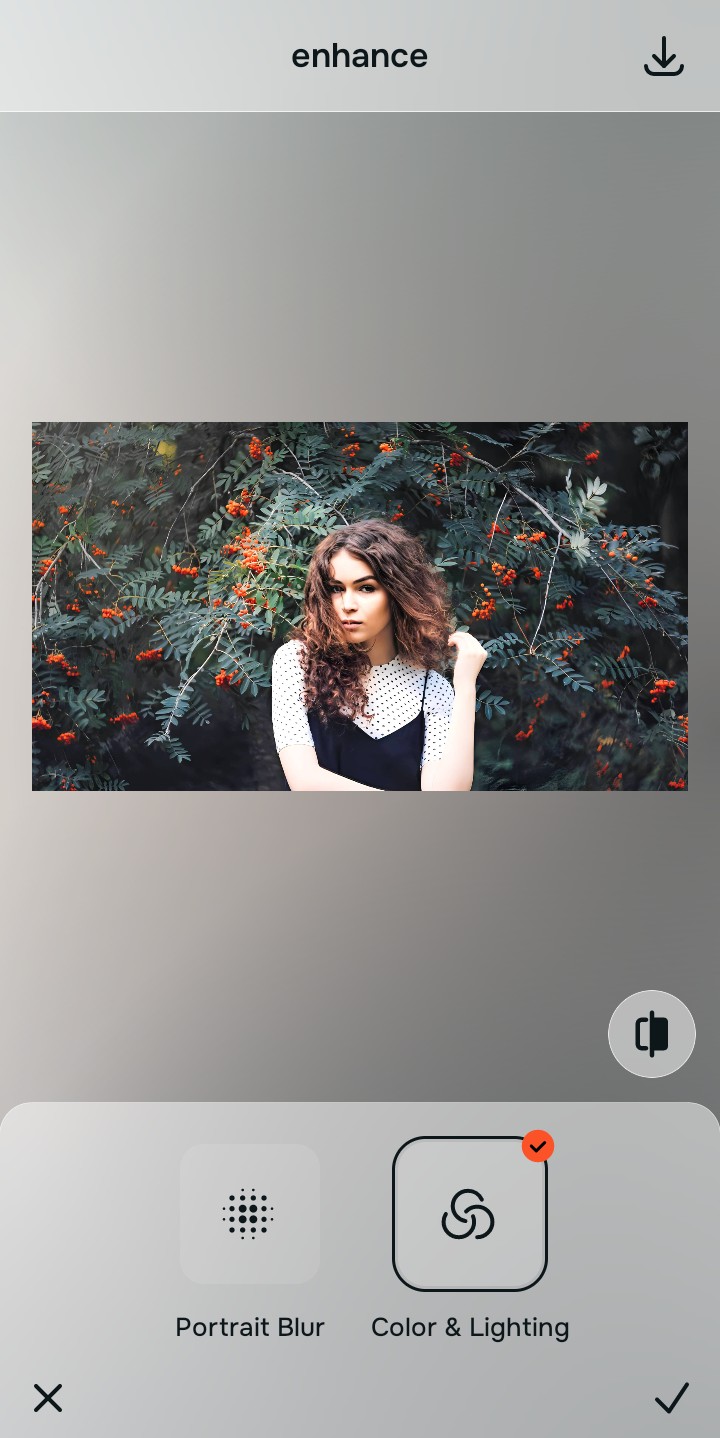
Tap Looks and choose Soft Glow for overall polish
Once your exposure baseline is softened, tap Looks -> Soft Glow. Use the Level 1-5 tap option to apply a beautifully measured feminine warmth. Choosing an excellent faceapp alternative for natural selfies guarantees you avoid the fake, generated slop seen in heavy filters.
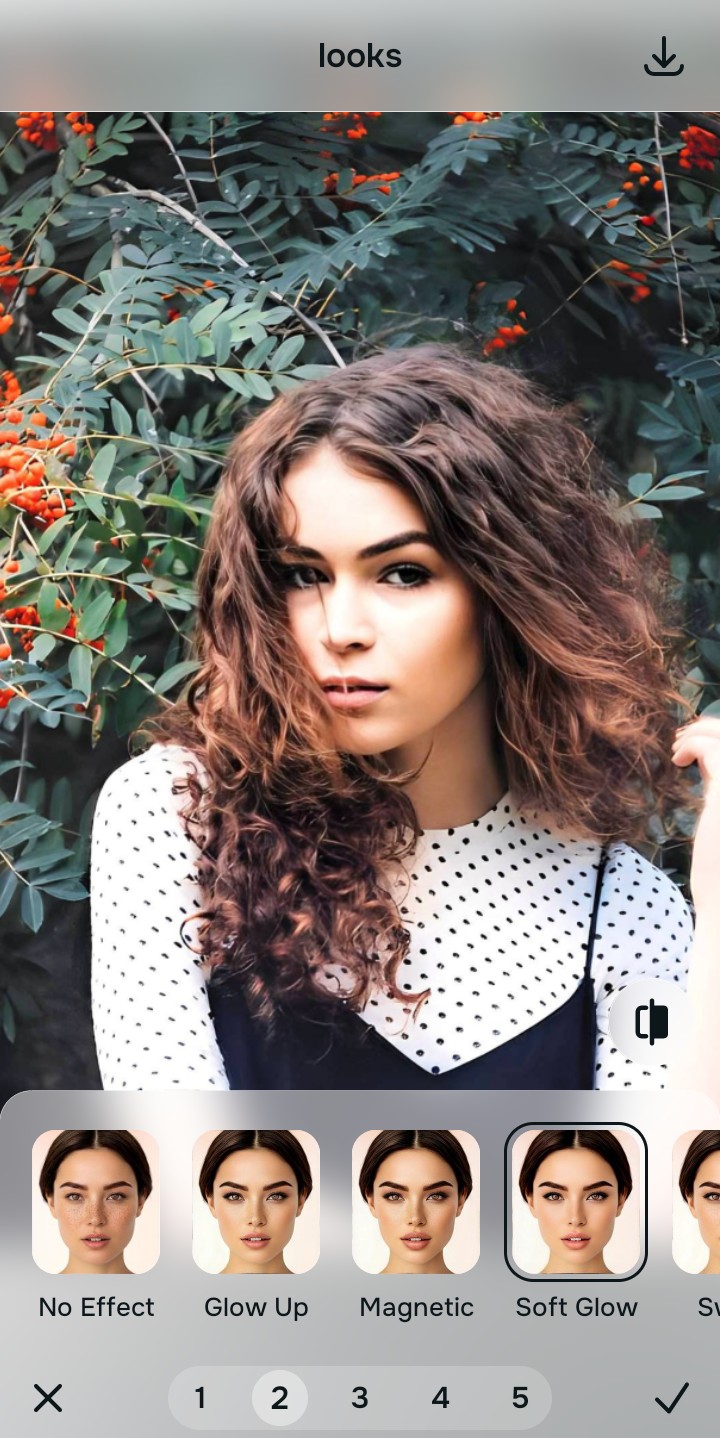
Save your glowing portrait instantly (Free or Turbo)
Citrus generously offers high-resolution downloads for free. For users processing large batches, an optional upgrade to the turbo processor is available. Taking the time to properly make lips look fuller and your skin glow naturally sets your profile apart.
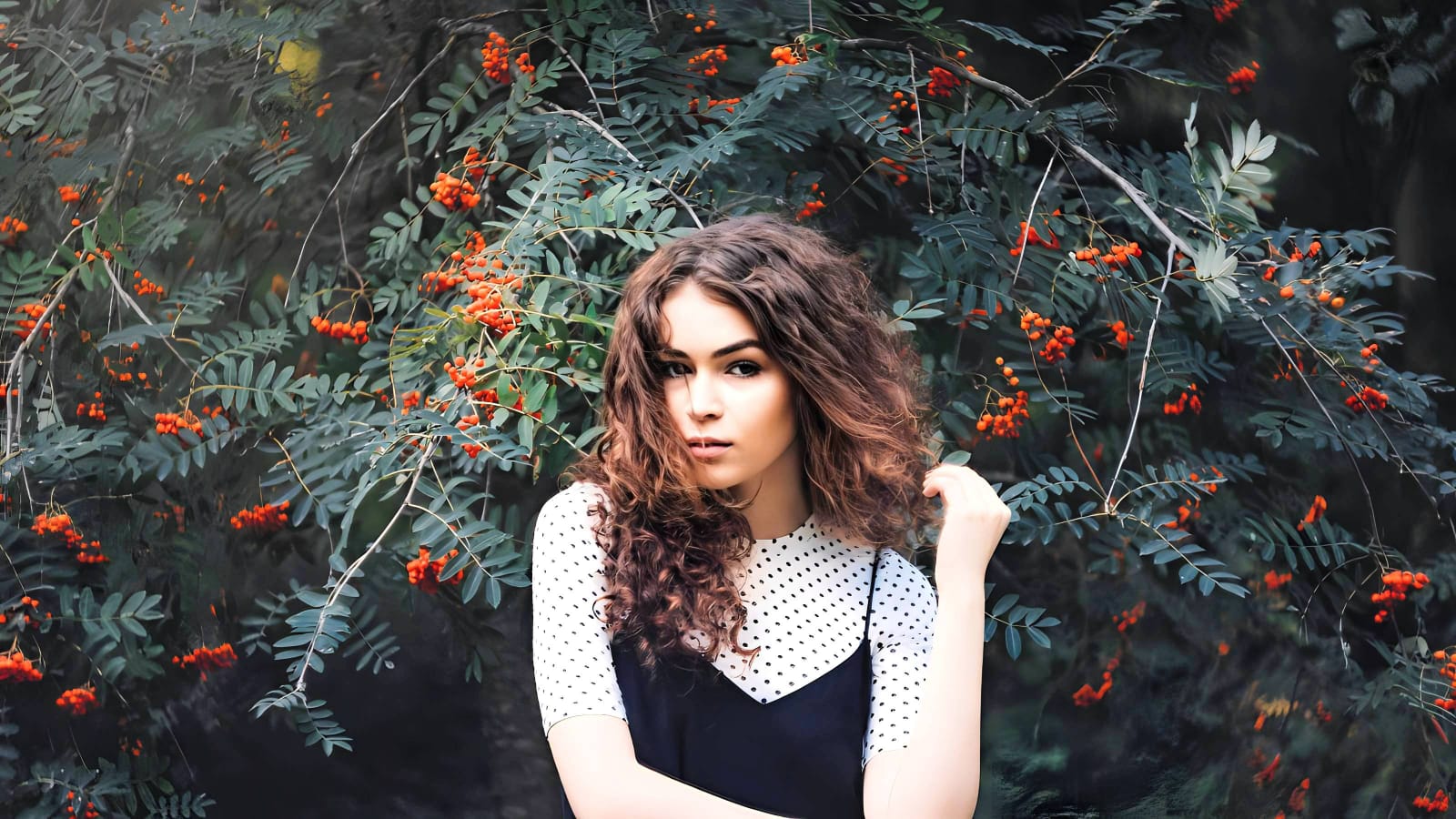
Why does your selfie look harsh or masculine?
Identify your photo's primary visual limitation. Your ideal workflow choice changes depending on the issue.
Which free Citrus tool optimizes your glow best
Separate photo weaknesses necessitate independent menu paths. Using Level 1-5 tap options rather than manual sliders is the only way to lock in visual softness without generating AI slop.
| Tool Pathway | Primary Flaw Remediated | Feminine Aesthetics Strategy |
|---|---|---|
| Enhance Start here | Aggressive phone HDR, angular dark shadows, and over-sharpened facial contrast | Use this first to normalize the overall image baseline. Select Colors & Lighting to restore softness completely for free. |
| Looks | Flat facial vibes, dull expressions, and fragmented aesthetic tones | Use this to update the overall face impression. Select Soft Glow (Level 1-5) to bathe your portrait in a cohesive feminine warmth. |
| Face | Targeted anatomical limitations like dry patches or harsh lines | Use this last for precise feature tweaks. Select tools like Glass Skin to safely hydrate the complexion on a specific photo. |
“A truly glowing, feminine portrait doesn't rely on fake generative AI filters. It simply normalizes the harsh smartphone lighting so your face radiates a natural, soft energy.”
Why Level 1-5 taps beat manual sliders and fake makeup
There is a massive distinction between balancing existing pixel data and masking your face with generative AI slop. When you use manual sliders, human error guarantees that the contrast and saturation will look overdone. When you use fake AI makeup overlays, your photo looks like a plastic render.
Citrus is built to be the most natural enhancer ever. By relying strictly on mathematically precise Level 1-5 tap options, you guarantee that the softening weight is applied flawlessly across your portrait, ensuring you make nose look smaller and your skin glow with a natural, professional finish.