


June 2, 2026
How to Add Cheekbone Definition in Selfies When Your Face Looks Flat on Camera
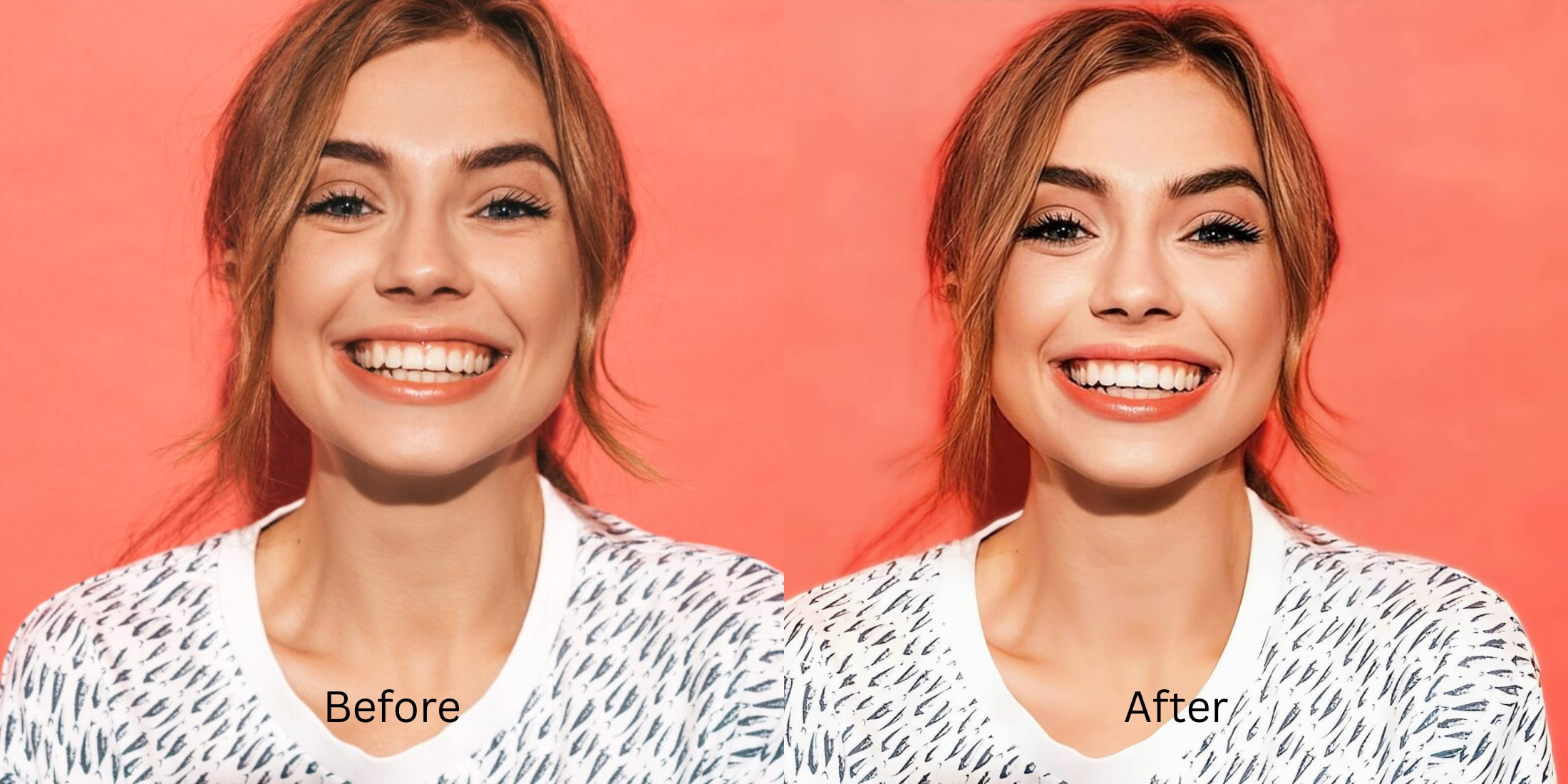

How to Add Cheekbone Definition in Selfies When Your Face Looks Flat on Camera
We have all looked in the mirror, loved our bone structure, and then taken a selfie only to see a flat pancake staring back at us. This is an optical lighting failure caused by your smartphone camera. Phones use aggressive noise reduction algorithms and flat flashes that completely erase the delicate micro-shadows directly under your cheekbones. Without those shadows, your face loses its 3D depth. When people try to fix this in standard beauty apps, they either use a "liquify" slider to push their cheeks inward—which warps the background walls—or they paint on heavy, fake AI contouring that looks like terrible stage makeup. To actually restore your cheekbones, you must recover the camera's lost shadow map naturally.
To safely add structural definition for free, you must restore the shadow contrast the camera flattened out. Open your portrait in Citrus and skip the liquify sliders. First, tap Enhance -> Colors & Lighting to recalibrate your base exposure natively. Next, tap Face -> Cheekbones and select a precise Level 1 to 5 option. This mathematically adds the exact shadow depth back to your bone structure without generating fake AI contouring. Citrus generously provides these structural tools completely for free.
Why manual liquify sliders and fake contouring ruin your photos
The fatal flaw in traditional photo editors is that they rely on blind pixel dragging or artificial paint. When you drag a slider to "carve" your cheeks, the algorithm pulls the doorframes and hair behind you, leaving embarrassing warped lines. When you apply fake AI makeup, your face looks like a generated, plastic render. To find a way to add cheekbone definition in selfies cleanly, you need the most natural enhancer ever built. Citrus rejects unpredictable sliders, using strict Level 1 to 5 tap settings to lock in geometric precision and prevent "AI slop."
- Using manual liquify sliders that pull your skin inward and warp the background
- Applying generative AI masks that paste dark, muddy makeup over your cheeks
- Dealing with aggressive paywall traps just to save an unwatermarked structural edit
- Leaving the flat, dimension-destroying ambient camera lighting totally uncorrected
- Getting generous free access to the most natural enhancer ever built
- Using precise Level 1-5 taps instead of frustrating, messy manual warp sliders
- Restoring the exact shadow depth natively to carve out real cheekbone structure
- Exporting a beautiful, high-definition portrait instantly without AI slop
If your face looks painted on, your photo loses all authenticity. Using the right apps to add cheekbone definition seamlessly ensures your depth boost remains totally invisible to the viewer.
Restore lost shadows instantly. A mapped level option protects your natural shape.
How to restore natural cheekbones for free in 5 steps
Select a portrait flattened by bad lighting
Open your gallery and pick a photo where harsh lighting or a smartphone sensor washed out your bone structure. If you want to know how to make flat photos look alive, you must start by addressing the baseline exposure.

Let the instant preview analyze the contrast
Citrus provides a generous free preview instantly. This allows you to observe how the software evaluates the missing depths on your cheekbones before applying any Level 1-5 correction.
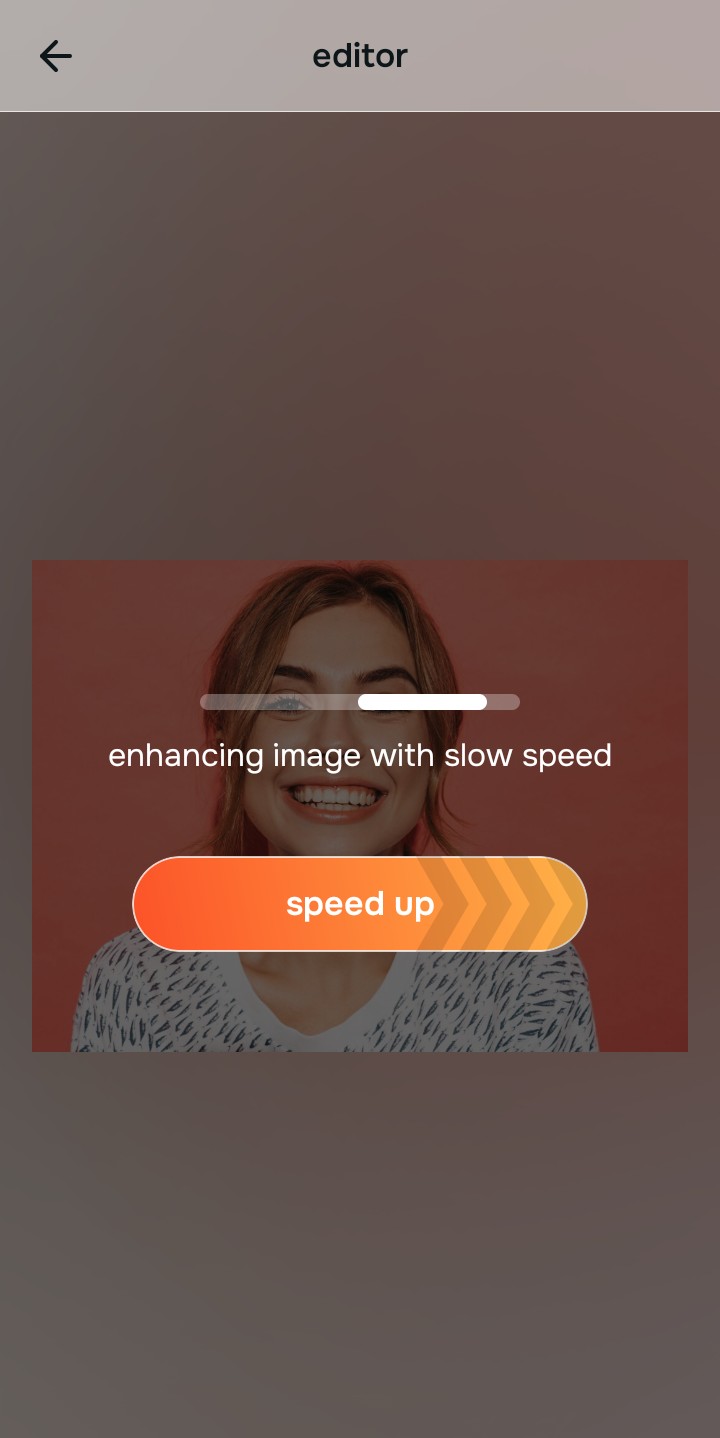
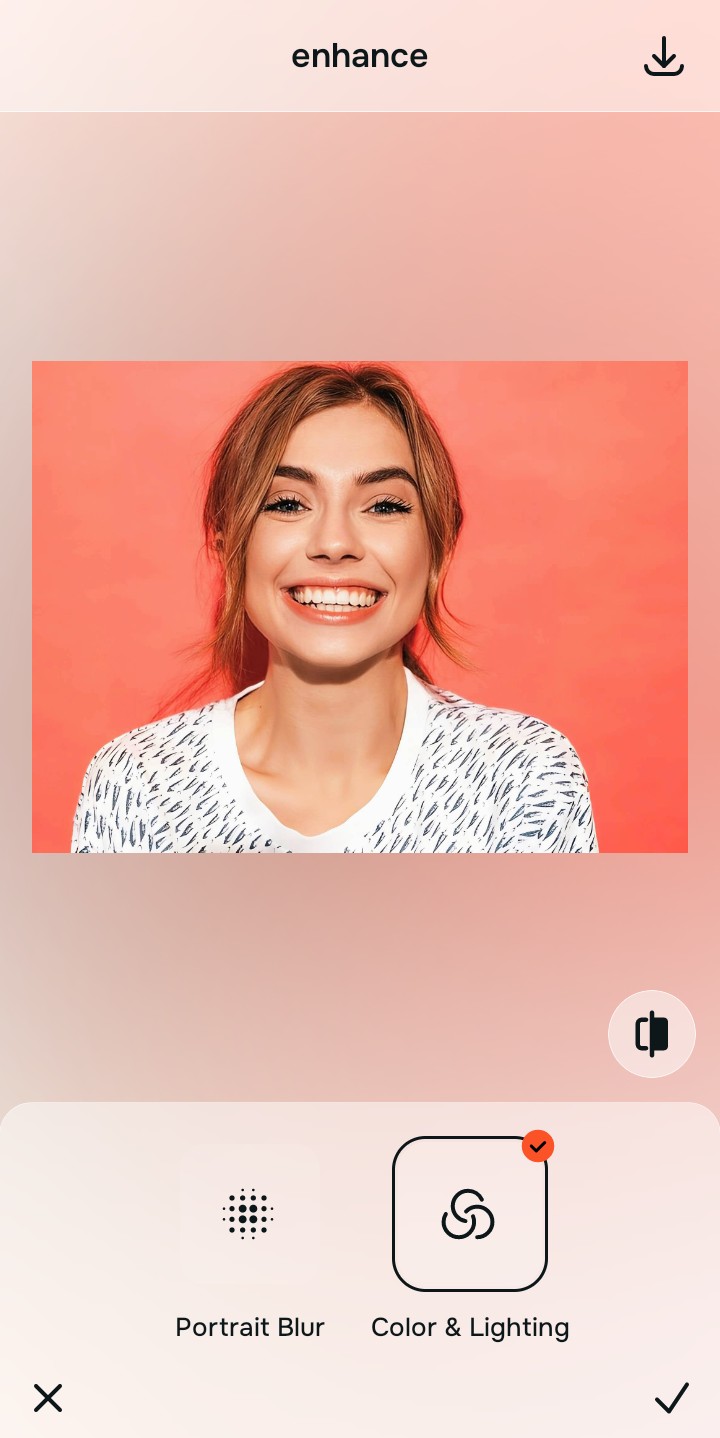
Tap Enhance and choose Colors & Lighting
Because missing definition is fundamentally a lighting problem, tap Enhance -> Colors & Lighting. This strips away muddy sensor noise and restores the structural depth of the photograph. When searching for natural looking results, resetting the base exposure is the vital first move.

Always set your lighting baseline before executing precise face fixes. Standardizing the exposure ensures that any shadow depth applies cleanly without looking artificially smeared or painted on.
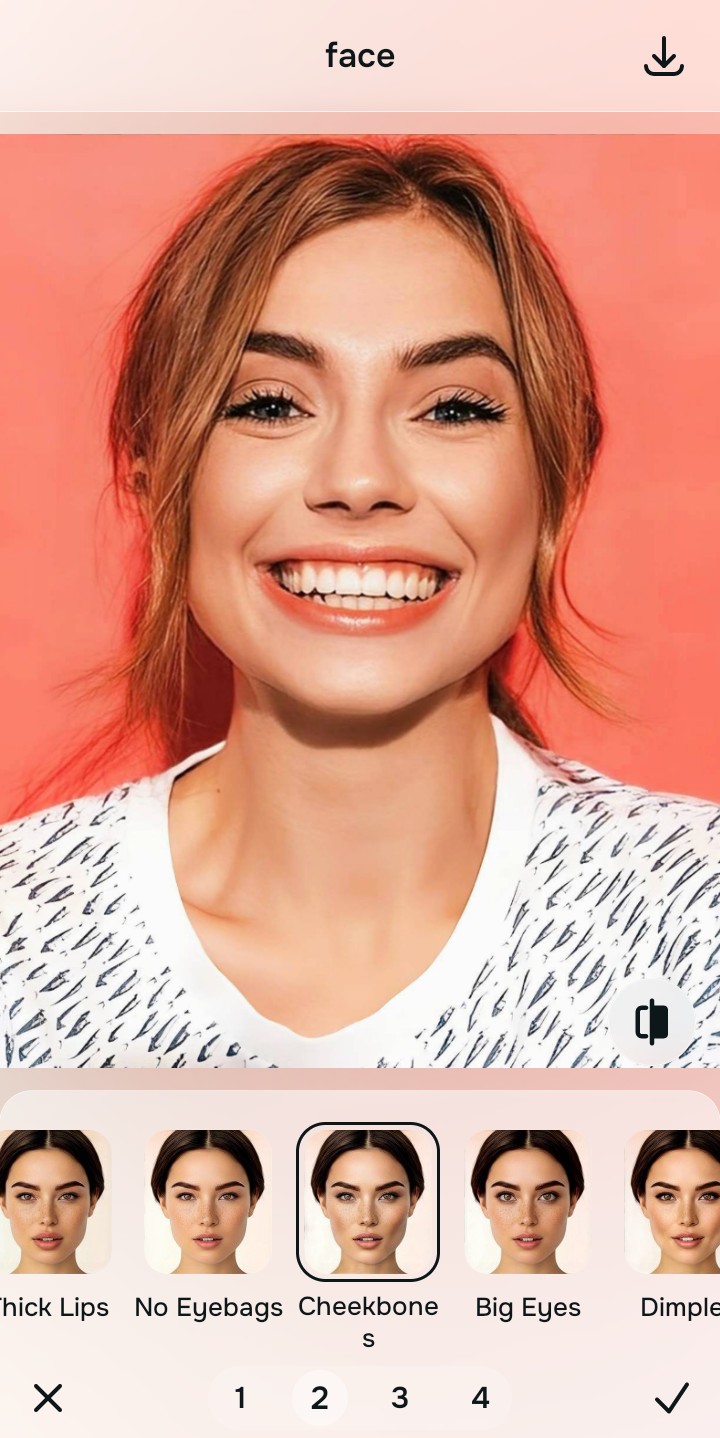
Tap Face and choose Cheekbones
With your baseline restored, target the specific structural depth. Tap Face -> Cheekbones. Select a precise Level 1-5 option to smoothly calculate the correct drop shadow underneath the bone. Utilizing fixes for flat looking selfies naturally guarantees you avoid AI-generated contour lines.
Save your high-definition file instantly
Citrus generously offers high-resolution downloads for free. For creators processing large batch sets, an optional upgrade to the turbo processing engine is available. Finding an app to fix bad selfies naturally means exporting clean, unwatermarked files right away.

Why do your features look flat in this picture?
Identify your portrait's primary visual limitation. Your correct editing path changes depending on the issue.
How to align your image flaws with the right free path
Varying camera limitations necessitate distinct menu paths. Selecting structured Level 1-5 tap options instead of raw manual sliders is the only way to retain your natural definition without warping the walls.
| Tool Pathway | Core Flaw Remediated | Proportion Strategy |
|---|---|---|
| Enhance Start here | Cluttered backgrounds, low frame depth, and flat indoor sensor noise | Use this first to reset the overall picture contrast. Select Colors & Lighting to restore depth fields for free. |
| Looks | Dull skin tones, flat facial contrast, and low overall image vibrance | Use this to balance the entire face vibe at once. Select Model or Glow Up to heighten features across the board. |
| Face | Specific structural washouts like flattened cheekbones or missing jaw shadow | Use this for precise feature fixes. Select Cheekbones (Level 1-5) to recalculate structural depth perfectly. |
“Authentic portrait editing isn't about using a liquify tool to build fake cosmetic structure. It's about recovering the physical shadow data that your phone camera wash flattened.”
Why precise Level 1-5 taps beat manual warping filters
There is a massive structural difference between balancing camera exposure and masking your face behind fake generative filters. When you use manual liquify tools to push your cheeks inward, human error makes it impossible to prevent adjacent elements from warping, creating noticeable distortions in the doorframes and background walls.
Citrus is built from the ground up to provide the most natural enhancer ever created. By relying exclusively on mathematically precise Level 1-5 tap settings, the software locks in your authentic architecture while safely recalculating depth. If you want to improve without changing real face identity, this approach guarantees your environment stays pristine.