


May 13, 2026
Free AI Selfie Retouching Without the Fake Filter Look

Free AI Selfie Retouching Without the Fake Filter Look
We have all experienced the frustration of downloading a new retouching app, applying a quick fix, and suddenly looking like a plastic mannequin. Heavy filters rely on outdated blurring technology that erases your pores, alters your bone structure, and creates a highly unnatural aesthetic. If you want to touch up your photos without the fake filter look while keeping your budget at zero, you must abandon aggressive skin-smoothing entirely.
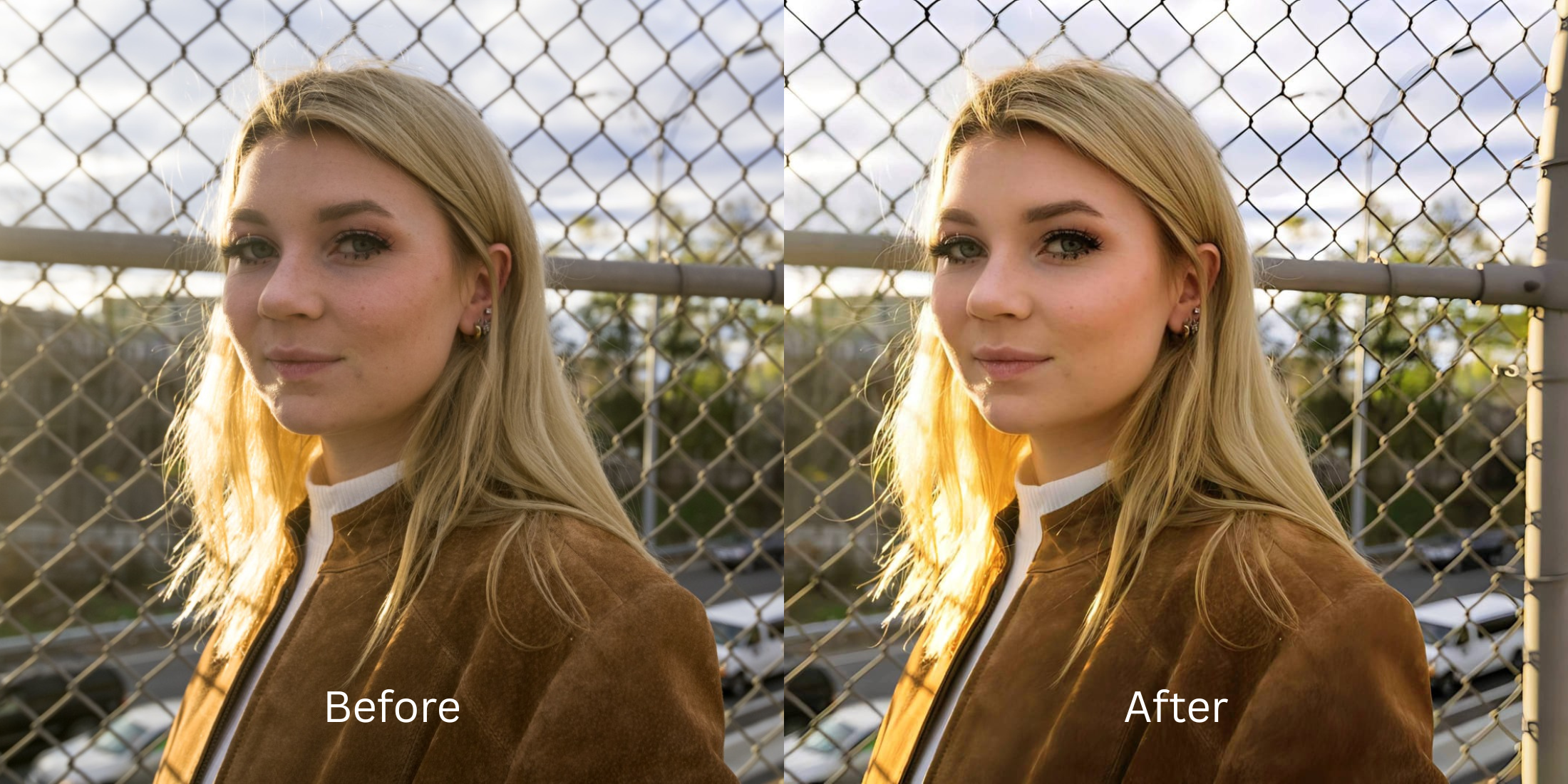
To successfully retouch a selfie for free without looking fake, you must fix the camera's lighting before attempting any beauty edits. In Citrus, skip the manual blurring brushes. Tap Enhance -> Colors & Lighting to automatically correct the harsh shadows that make your skin look uneven. Once the light is balanced, use Face -> Glass Skin for a subtle, hydrating polish that keeps your natural pores visible.
Why standard retouching apps make you look artificial
The core issue with traditional "beauty" sliders is a process called pixel averaging. When you try to hide a blemish or tired eyes, the app blends all the surrounding pixels together. This destroys the micro-shadows that give your face depth, resulting in a cloned, heavily filtered appearance. Discovering editors that keep real skin texture means finding software that restores photographic contrast rather than just painting over it.
- Paying expensive monthly subscriptions just to export a clear photo
- Using heavy generative AI that replaces your unique features with a generic template
- Having massive watermarks stamped across your face on free tiers
- Looking like a digital avatar because all your freckles and pores were erased
- Getting professional-level lighting correction without any hidden paywalls
- Fixing overall image contrast so your face naturally regains authentic depth
- Applying targeted hydration adjustments that isolate your features safely
- Stopping the edit while your natural skin and character remain completely visible
If your final image looks perfectly flawless but you seem like a stranger, the edit has failed. Using a smart tool allows you to enhance your image without changing your real face, ensuring you stay authentic online.
Restore contrast instantly. A smart edit keeps reality intact.
How to naturally retouch your face for free in 5 steps
Select a selfie that needs a light boost
Find a picture in your gallery where your features look a bit flat or exhausted. You do not need to spend time dragging manual sliders to fix it. Finding a proper alternative to overprocessed beauty editors lets you bring the real energy back in seconds.

Let the instant preview analyze the contrast
Citrus provides a first correction immediately without asking for a credit card. This ensures that any underlying exposure errors are recognized before you start attempting any facial refinements.
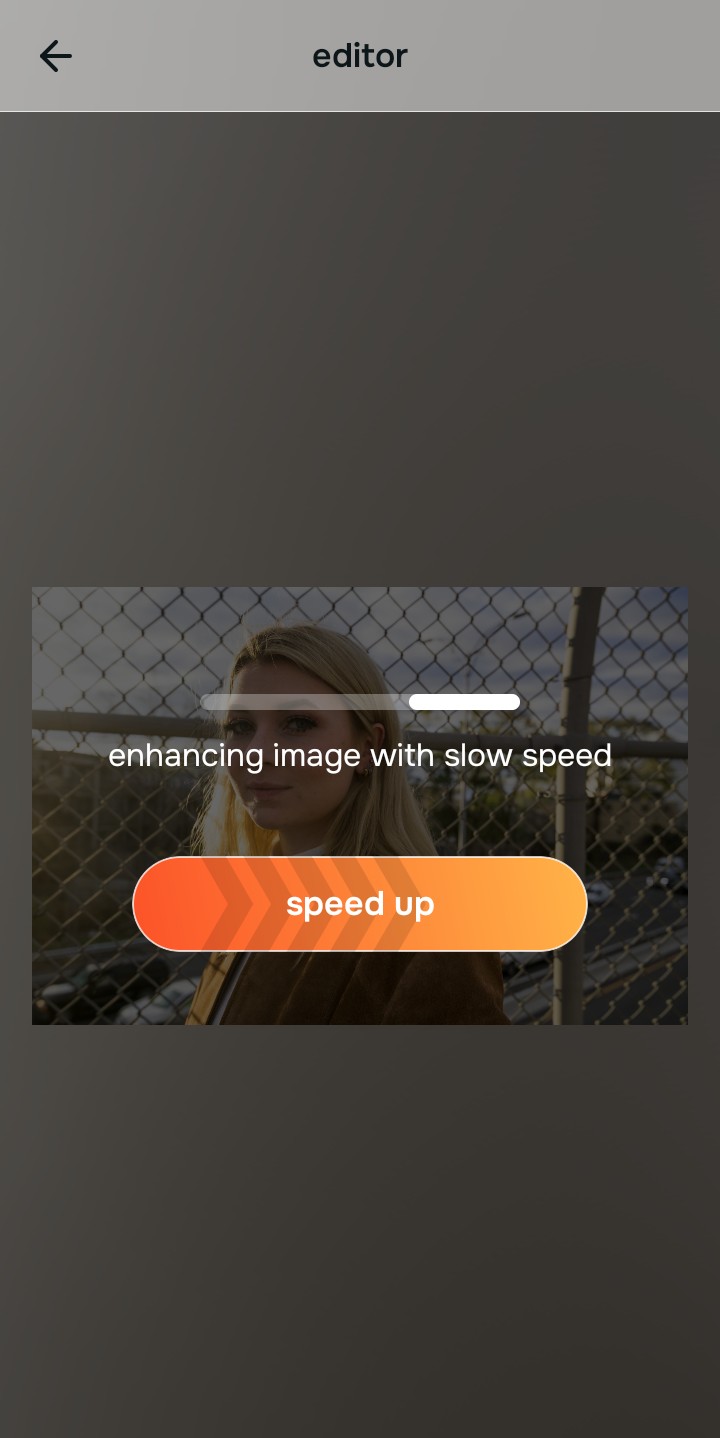
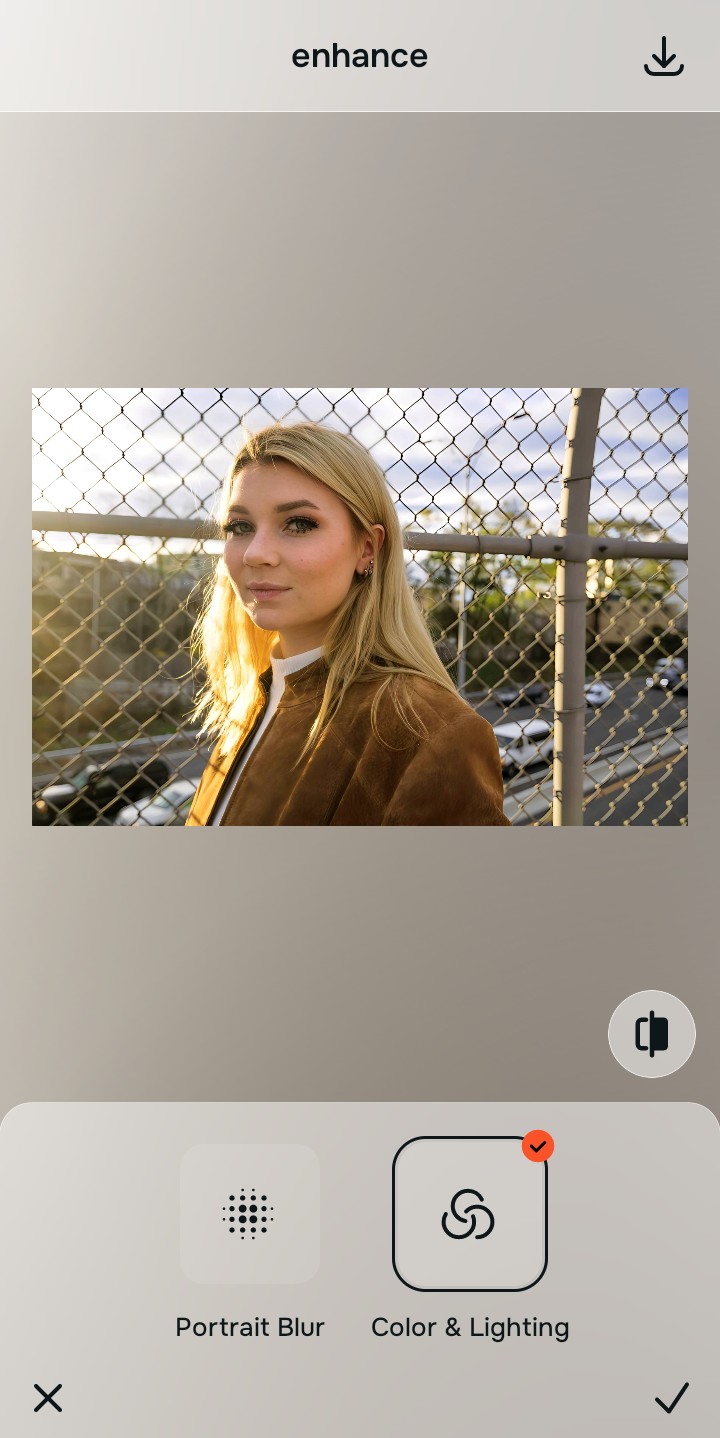
Use Enhance to fix Colors & Lighting first
Because the "fake" look usually comes from blurring over bad shadows, tap Enhance -> Colors & Lighting. This strips away the muddy wash and restores deep, realistic contrast. It is the absolute fastest way to handle quick selfie retouching without looking artificial.

Always fix the flat lighting before using a beauty tool. Tap the Enhance options to build a strong photographic foundation first.
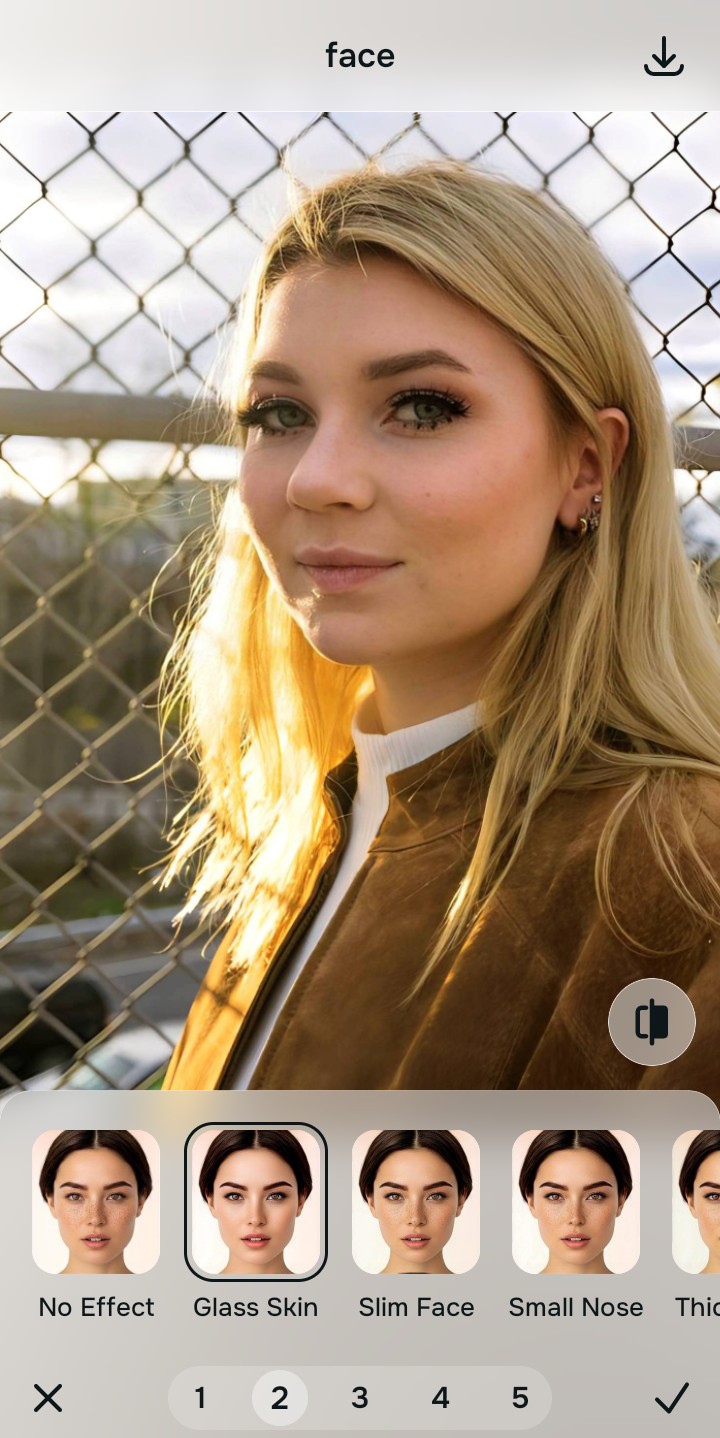
Apply Face tools to gently hydrate your skin
Once the lighting is perfectly balanced, you can give your skin a natural polish. Tap Face -> Glass Skin to add a healthy, dewy finish. Using enhancers for natural results ensures your pores remain completely visible.
Save the high-resolution photo instantly
Unlike premium apps that charge you to export a rescued memory, you can save your results for free. You can enhance your image without over smoothing and enjoy a watermark-free save instantly.

Why does your current app make you look artificial?
Choose the description that fits best. Your starting point changes depending on what is actually flattening your features.
Which free Citrus tool delivers the best authentic finish
Different problems require entirely different tools. The goal is to get a professional result by matching the tool to the actual photographic failure. This stops you from ruining a great selfie with an automated, paid filter.
| Tool | What it helps fix | When to use it |
|---|---|---|
| Enhance Start here | Overall darkness, harsh shadows, and missing visual depth | Use this first when the whole image feels flat. Choose Colors & Lighting to restore the depth for free. |
| Looks | Photos that are technically clear but lack a professional, attractive impression | Use this after Enhance when the issue is a dead vibe. Tap Soft Glow for a cohesive, natural energy instantly. |
| Face | Specific dry spots, uneven complexions, or a lack of surface hydration | Use this last, applying targeted tools like Glass Skin to safely add a natural dewiness without blurring your pores. |
“A great selfie isn't about erasing your pores. It is about recovering the lost light data so you look as vibrant on the screen as you did in person.”
Why contrast recovery beats destructive beauty filters
There is a massive difference between adding dimension and wiping out reality. When you use an aggressive, paid beauty algorithm to hide a flat face, you turn the entire image into a plastic wash. The human brain instantly recognizes this loss of detail as a cheap edit that lowers trust.
Real quality comes from correcting the underlying data instantly. Choosing a free solution ensures you get high-resolution results without the premium subscription trap. This allows you to look polished and vibrant while you stay true to your human identity.