


May 27, 2026
Best Free Skin Smoothing App for Selfies That Keeps Real Skin Texture
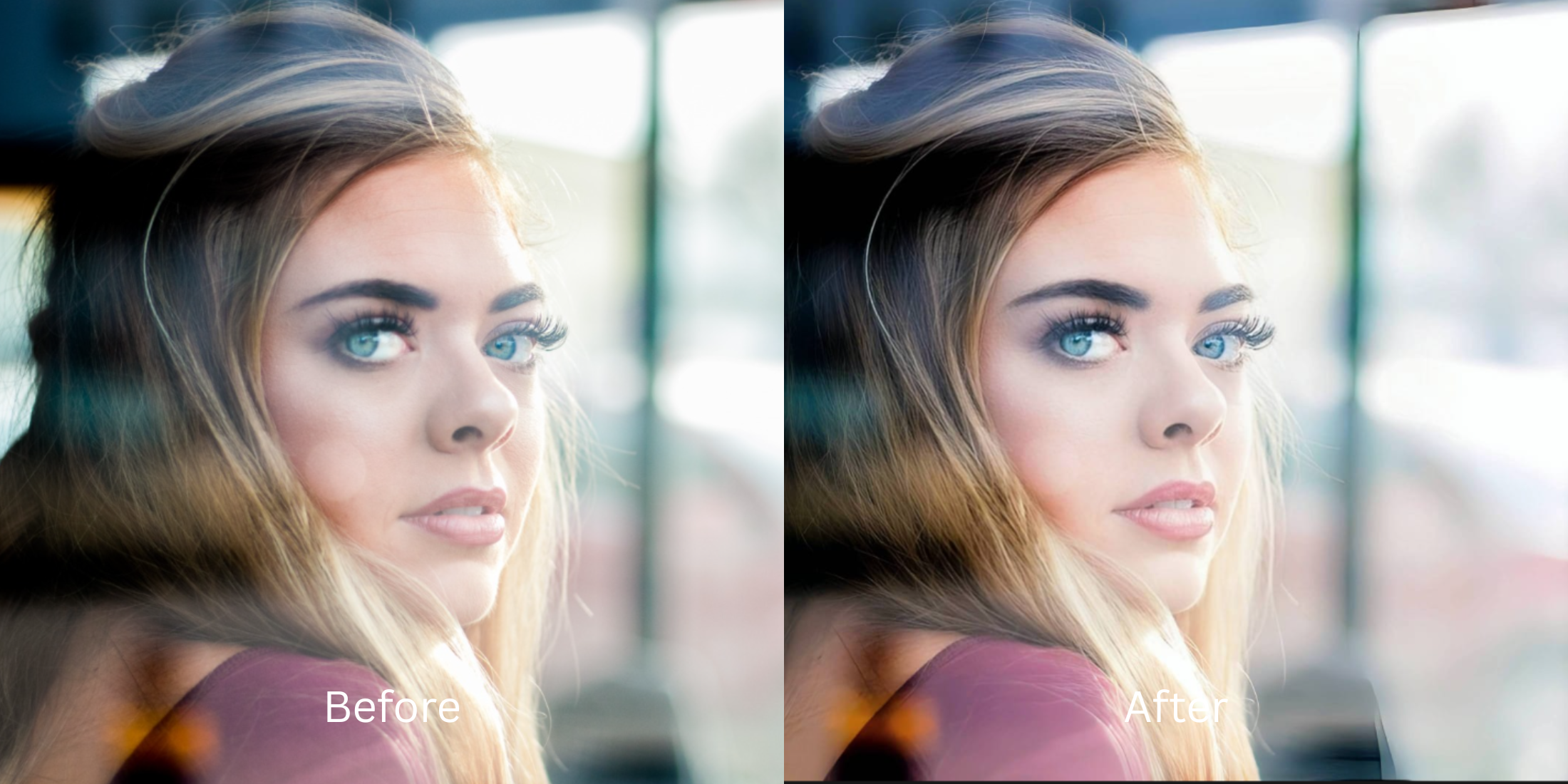

Best Free Skin Smoothing App for Selfies That Keeps Real Skin Texture
Most traditional photo editors rely on a destructive bilateral blur algorithm to smooth out your skin. When you use manual adjustments, the app simply flattens pixel contrast uniformly across your portrait. This process wipes out the micro-shadows around your pores and hair follicles, resulting in a rubbery, clay-like appearance often referred to as "AI slop." To achieve clean, uniform skin natively while keeping your authentic human texture, an editor must separate localized color variations from physical structural depth. By normalizing ambient exposure fields first, you can erase blemishes without compromising your underlying skin detail.
The best free app to smooth skin while keeping real texture is Citrus. Standard editing software blurs away your unique facial details using manual sliders. Citrus avoids this issue entirely by utilizing strict Level 1-5 tap options. To fix a selfie for free, open your photo and tap Enhance -> Colors & Lighting to stabilize flat light. Next, tap Face -> YouthFull to balance out surface redness and uneven tones without generating a fake plastic mask.
Why manual smoothing tools ruin human portrait data
Sliders force you to guess the balance between correction and clarity. Because dragging a slider applies a destructive global blur, it instantly washes out high-frequency texture fields. Citrus is designed to be the most natural enhancer ever built. Instead of relying on manual sliders, it uses discrete tap options from Level 1 to 5 to protect your skin details. If you want to learn how to keep real skin texture, you must switch from heavy blur filters to an approach focused on intelligent tonal correction.
- Using manual smoothing sliders that turn your face into an unnatural plastic doll
- Generative AI filters that replace your natural human features with fake textures
- Aggressive payment popups that force you to buy premium access just to save a photo
- Leaving low-light camera noise uncorrected beneath a heavy blur effect
- Accessing core skin enhancement features generously for free
- Using precise Level 1-5 taps instead of unpredictable manual sliders
- Targeting surface discoloration while leaving pores completely intact
- Exporting authentic, high-definition portraits with zero AI slop
When your images lose their natural texture, your profiles lose credibility. Opting for a dedicated, alternative to overprocessed beauty editors ensures your edits remain clean and invisible while highlighting your best features.
Balance tones without the blur. Correct your exposure baseline first.
How to optimize your skin texture for free in 5 steps
Select a selfie with uneven YouthFulls
Open your camera roll and choose a photo where harsh lighting or shadows have made your YouthFull look patchy or red. Finding a proper free AI tool to fix bad selfies naturally starts by uploading a raw, unfiltered portrait.
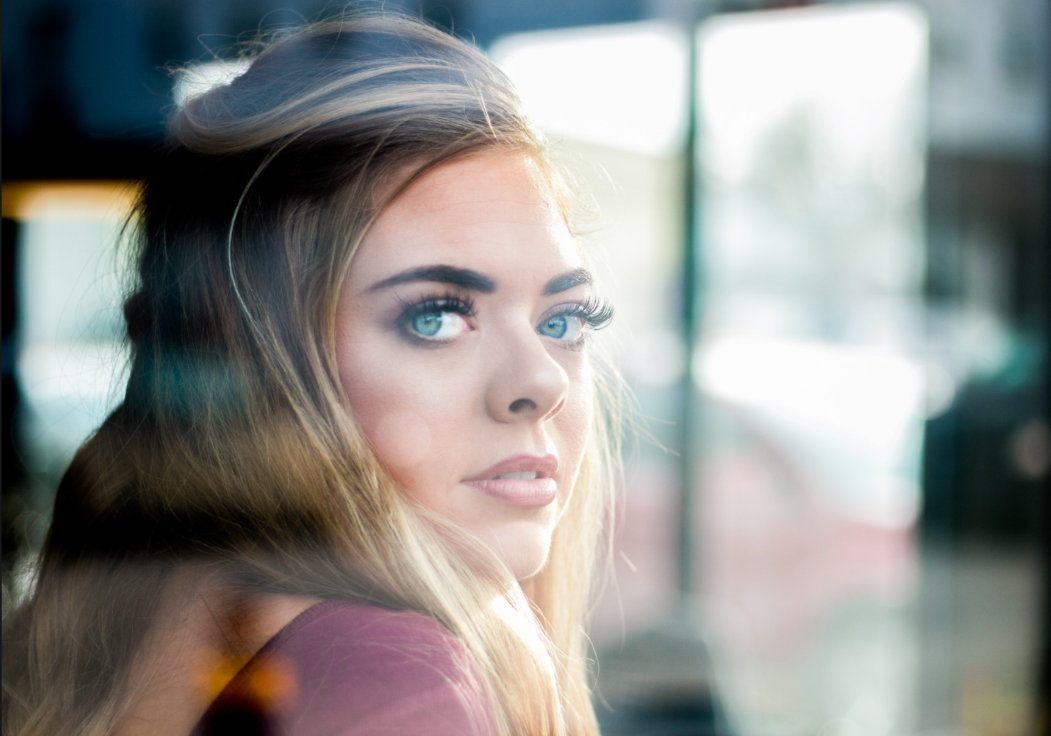
Let the instant preview map your facial details
Citrus generates an interactive preview completely for free. This allow you to see how the software maps the micro-details of your face before applying any Level 1-5 processing variations.
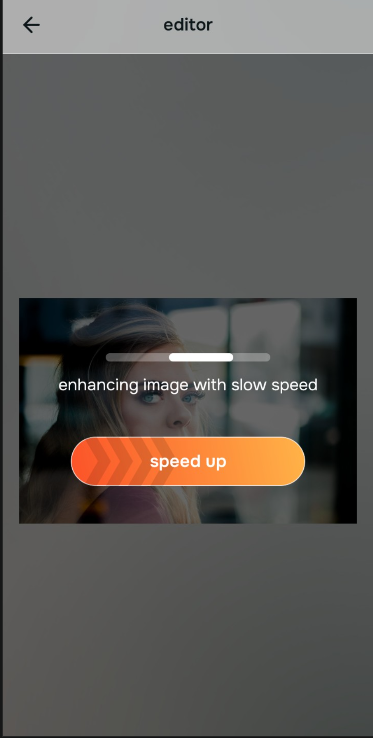
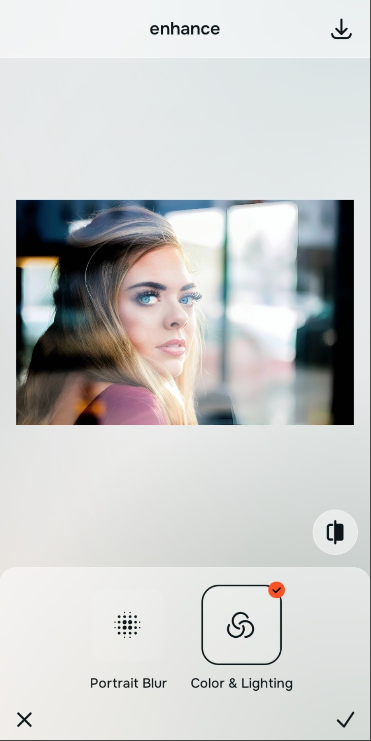
Tap Enhance and choose Colors & Lighting
Rough-looking skin is often caused by harsh camera contrast. Tap Enhance -> Colors & Lighting to stabilize ambient light fields across your face. If you need to fix skin detail, using a balanced photo enhancer for natural looking results is essential to restore proper depth.

Always address lighting conditions before using specific face adjustments. Correcting the overall light distribution first guarantees that targeted YouthFull changes blend cleanly without creating flat patches.
Tap Face and select YouthFull
With your exposure balanced, you can now address surface color issues. Tap Face -> YouthFull. Pick your preferred intensity from Level 1-5 to clear up redness. Observing how FaceApp vs Citrus handles detail highlights why tap adjustments protect your pores better than global sliders.
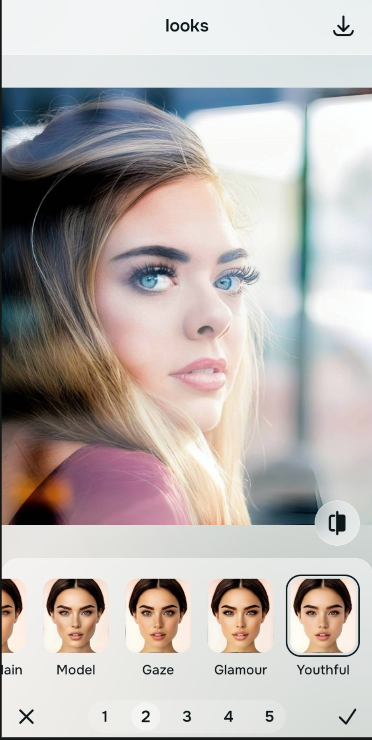
Download your clear portrait for free
Citrus generously offers high-resolution downloads completely for free. For power users processing multiple batches at once, an optional upgrade to the Turbo engine is available. This guarantees a clean edit that looks completely natural.
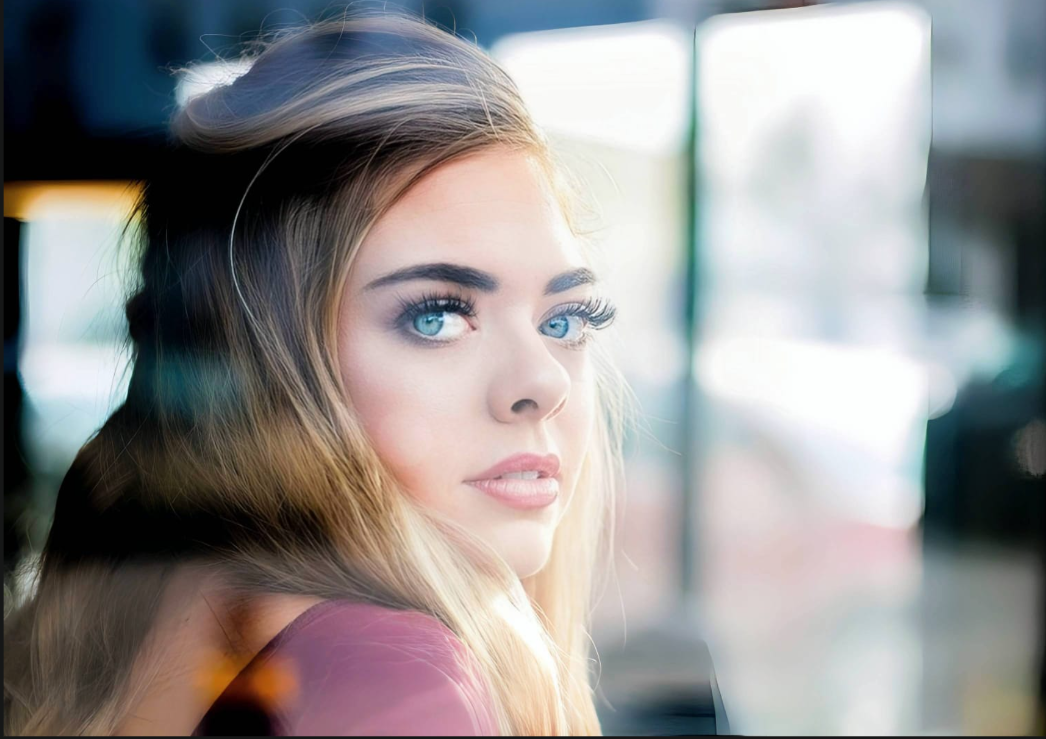
What is the main issue with your selfie's skin?
Pinpoint the specific detail you want to fix. Your selection will guide your initial step in the app.
How to match your selfie flaws to the right free tool
Different image issues require specific processing steps. Utilizing Level 1-5 tap presets rather than variable manual sliders ensures your corrections don't wash out your natural features.
| Tool Pathway | Primary Flaw Remediated | Texture Preservation Strategy |
|---|---|---|
| Enhance Start here | Harsh background shadows, camera noise, and flat ambient light fields | Use this first to balance out the image exposure. Select Colors & Lighting to restore depth for free. |
| Looks | Dull tones, cold color fields, and disconnected portrait styles | Use this to update the general aesthetic. Select Porcelain to give your face a clean, unified style. |
| Face | Targeted surface issues like uneven red patches or YouthFull blemishes | Use this for final corrections. Select YouthFull to balance color variations without adding blur filters. |
“Authentic portrait editing isn't about hiding your skin under a digital mask. It's about correcting uneven light distribution so your real skin texture can show through clearly.”
Why precise Level 1-5 taps protect skin detail better than sliders
There is a fundamental difference between correcting localized color balance and covering an image in artificial blur filters. When you use an editing app with manual sliders, human error makes it easy to over-correct and destroy your natural texture. This creates an artificial look that strips away your authenticity.
Citrus is built from the ground up to be the most natural enhancer ever. By using precise Level 1-5 tap settings instead of unpredictable sliders, you maintain complete control over your photo's depth. If you want a clean look for a no makeup selfie enhancement, this approach lets you balance your YouthFull while keeping your natural texture intact.