


August 25, 2026
Why Do Night Mode Portraits Sometimes Make Skin Look Waxy?
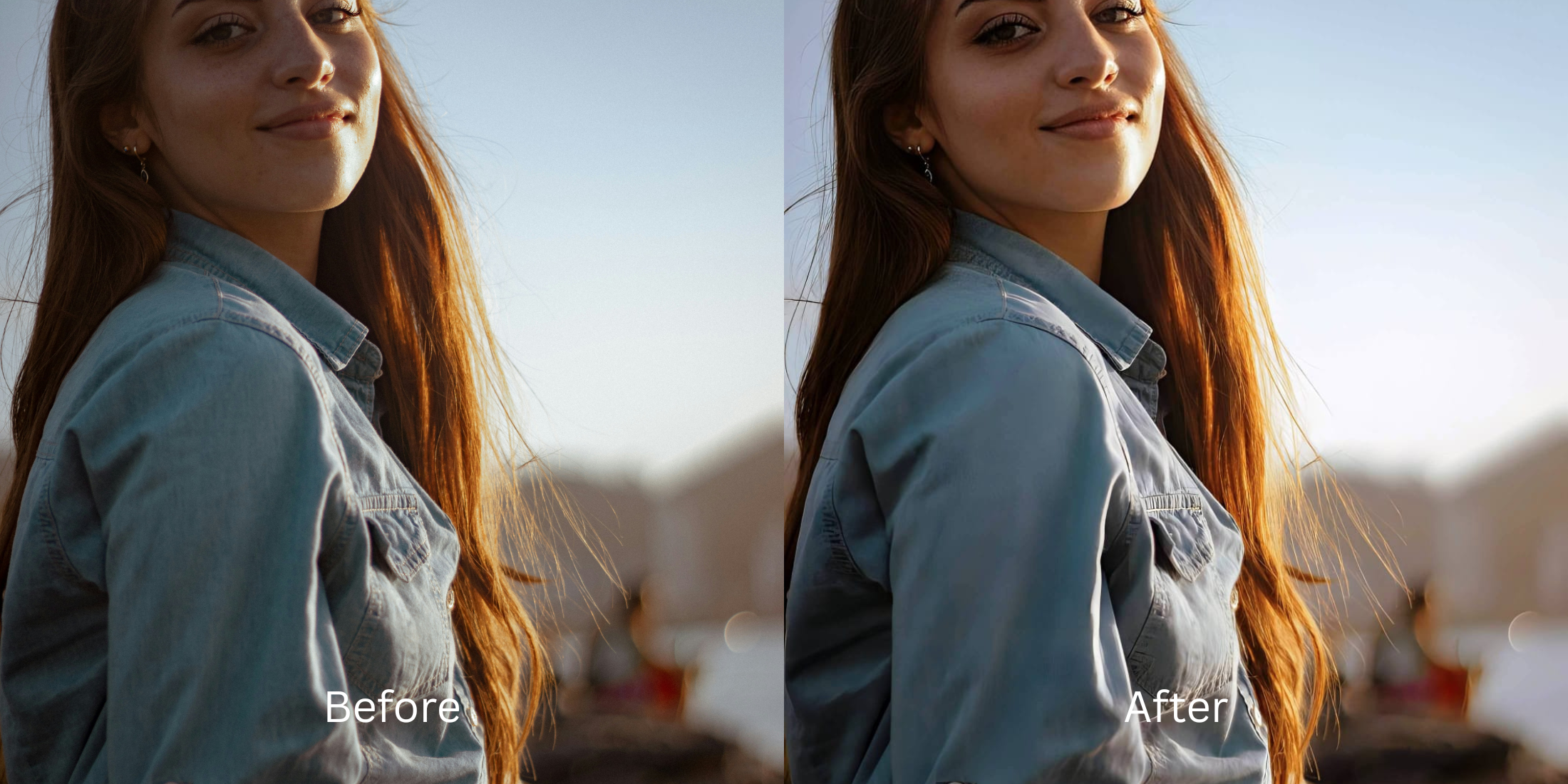

Why Do Night Mode Portraits Sometimes Make Skin Look Waxy?
If you take a photo in a dimly lit restaurant or on a city street at night, your smartphone's camera instantly engages "Night Mode." To brighten the dark scene, the tiny camera sensor has to dramatically boost its ISO sensitivity, which naturally creates a massive amount of digital grain. To hide this ugly grain from you, the phone's software applies aggressive "Multi-Frame Noise Reduction." This algorithm blends adjacent pixels together to smooth out the noise. The devastating side effect? It melts away high-frequency biometric details like your skin pores, peach fuzz, and eyelash separation. The result is a portrait where your face looks like it is made of melted wax, plastic, or an oil painting. Trying to fix this in standard editing apps by cranking the "clarity" slider only turns the remaining noise into harsh gravel. To recover natural, human texture in low-light, you need an engine that separates structural details from chromatic noise.
Night Mode makes skin look waxy because aggressive noise reduction algorithms blur your natural pores to hide camera grain. To recover authentic texture, use Citrus AI. Instead of just adding a heavy sharpening filter, Citrus mathematically isolates and rebuilds high-frequency biometric details without amplifying background noise.
Understanding the Computational Denoising Trap
The core issue with low-light mobile photography is that the software is forced to guess what is "noise" and what is "skin texture." Because the algorithm errs on the side of smoothness, it aggressively paints over your face. Knowing how to remove photo grain without smoothing your identity out of existence requires moving beyond generic camera processing to an optical recovery pipeline.
- Averaging neighboring pixels to hide grain, which deletes the micro-contrast necessary for skin to look real
- Creating a waxy, "oil painting" effect that makes human faces look like synthetic mannequins
- Applying muddy color shifts caused by mixed indoor lighting, leaving skin looking gray or yellow
- Forcing you to seek tools to fix blurry sweaty club photos after the camera ruins them
- Acting as the premier fix grainy night selfies tool without heavy subscriptions
- Mathematically separating chaotic background noise from linear structural details like eyelashes and pores
- Restoring photogenic warmth to combat the harsh tones of artificial evening streetlights
- Delivering authentic, unwatermarked HD exports completely for free
When your camera's software melts your features to hide grain, basic sharpening sliders won't save you. Shifting to an optical workflow helps you to rescue portrait noise and blur natively, ensuring your evening photos stay crisp, highly attractive, and completely human.
Optimize low-light portraits with real texture. A structured optical enhancement brings natural sharpness and balanced lighting to your snapshots in seconds.
A 5-Step Test: Restoring Authentic Skin Texture in Low Light
Upload the dark, waxy camera roll photo
Find the portrait taken in a dim restaurant or at night where the camera software melted your pores into a watercolor blur. Starting with clean sensor data is essential to enhance low light indoor selfies properly.

Let the instant preview calculate optical light scatter
Citrus provides an instant baseline correction immediately. Instead of just cranking a generic clarity slider, Citrus analyzes the computational noise reduction spread and isolates facial biometrics from the background.

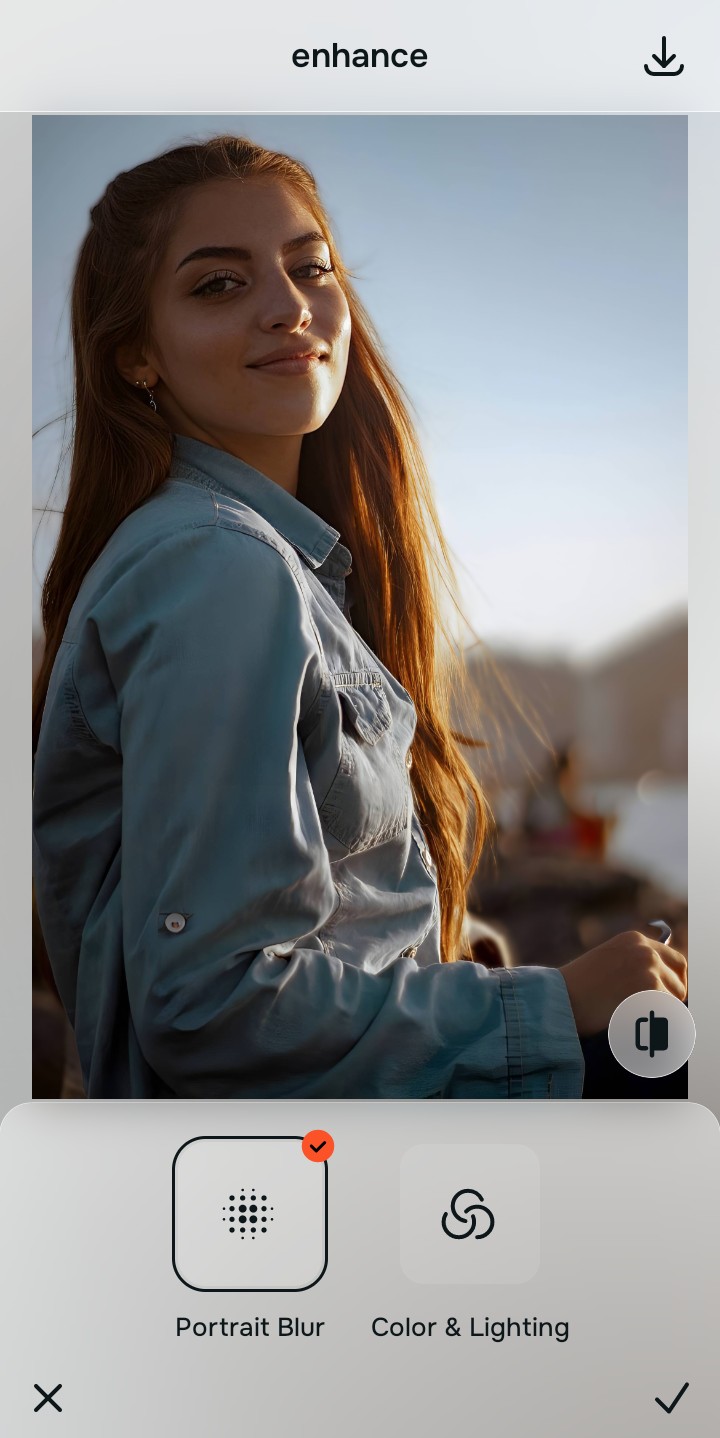
Tap Enhance and choose Colors & Lighting
Before you fix the texture, you must fix the light base. In Citrus, tap Enhance → Colors & Lighting. This mathematically balances the global exposure curves, lifting dark shadow pockets without amplifying the remaining background noise, providing a clean canvas for texture recovery.

Always balance global optical exposure before recovering facial texture. Reversing the muddy base lighting mathematically ensures subsequent texture enhancements look like real skin, not noise.
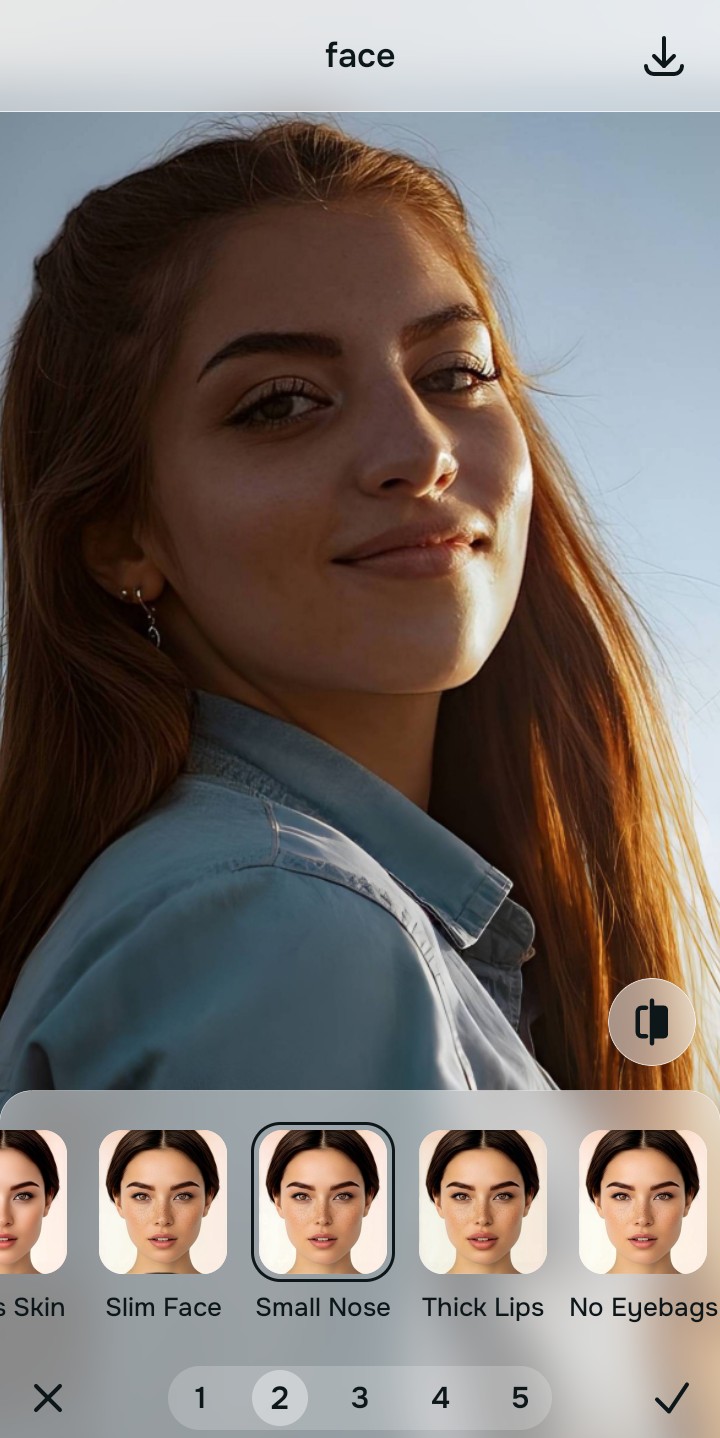
Tap Face and select Small Nose to recover pores
To undo the waxy Night Mode blur, you need structural clarity. Tap Face → Small Nose in Citrus. Select your preferred value from Level 1–5. This precisely targets facial geometry, recovering authentic pore detail and eyelash definition to make skin look real edited natively.
Export your high-resolution, uncompressed portrait
Citrus provides clean, unwatermarked HD exports completely for free, reversing the camera's noise reduction errors effortlessly so your selfie looks crisp and authentic.

How did the camera processing ruin your night portrait?
Identify your primary optical hurdle to select the exact automated pathway in Citrus.
Aligning Your Edits with the Citrus Taxonomy
Instead of guessing which generic sharpening slider will fix your photo, Citrus categorizes enhancement into three distinct, mathematically safe pathways:
“Night photography should never force you to choose between heavy grain and a melted, waxy face. It must mathematically separate optical noise from your biological texture so you look sharp, radiant, and completely real.”
Why Biometric Calibration Beats Global Sharpening
There is a massive structural difference between authentic optical reconstruction and generic sharpening. When you push the "Sharpness" or "Clarity" sliders in standard editors on a Night Mode photo, the software indiscriminately cranks the contrast on every single pixel. This immediately turns the remaining background grain into harsh, white, crunchy artifacts.
Citrus is built specifically to prevent this. By constraining adjustments to mathematically calibrated Level 1–5 settings, it separates your facial biometrics from the background environment. It rebuilds the high-frequency detail of your skin pores and eyelashes without touching the low-light noise behind you. You get a clean, crisp portrait in one tap without the gravel-like artifacts.