


September 1, 2026
Why Do Tinder Photos Lose Sharpness After Uploading?
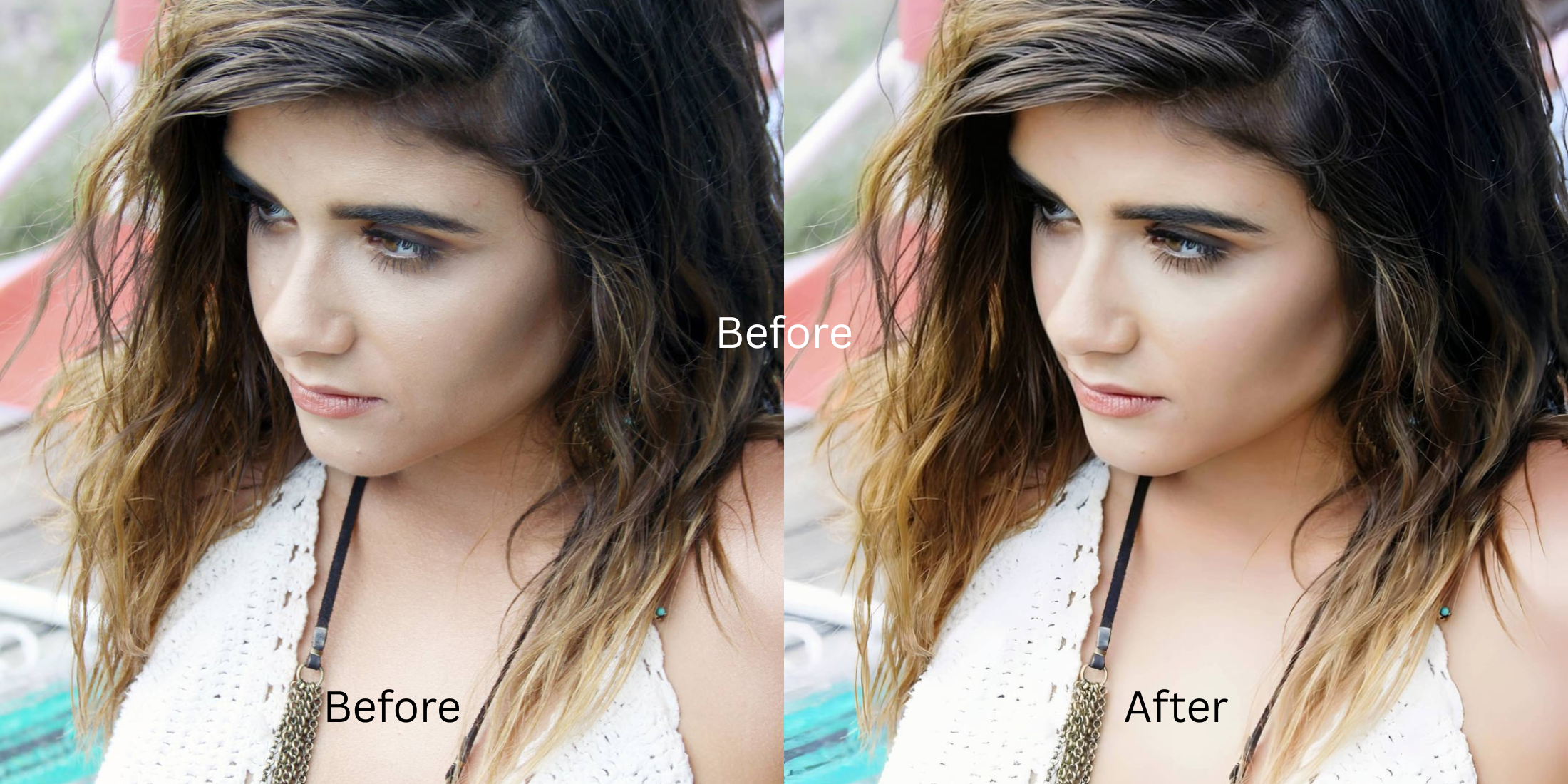

Why Do Tinder Photos Lose Sharpness After Uploading?
You picked out your sharpest portrait to use as your main Tinder profile photo. In your phone's camera roll, every eyelash is distinct, your jawline is crisp, and the lighting looks clean. But the moment you upload it to your profile card, the image softens, edges blur, and your face looks muddy or out of focus. This loss of clarity is not an accident; it is the direct result of Tinder's rapid card-swiping architecture. To ensure users can swipe through hundreds of profile decks seamlessly over weak cellular networks without encountering buffering delays, Tinder's ingest servers aggressively downsample uploaded photos to roughly 640×800 (or 800×1000) pixels while applying high lossy JPEG quantization. This decimation wipes out high-frequency micro-contrast across the face. When users try to counteract this blur by cranking the "Sharpen" slider in basic editing apps, they introduce noisy edge halos that cause Tinder's compression engine to penalize the file with even heavier blurring. To maintain clean sharpness on swipe decks, you need an optical engine that structures your photo density before upload.
Tinder photos lose sharpness because server-side compression downsamples images to ensure instantaneous swipe loading. To stop your profile photos from turning soft natively, use Citrus AI. Instead of using artificial sharpening that triggers heavier compression, Citrus balances physical lighting curves and refines biometric focal points so your profile card stays sharp.
Understanding the "Swipe-Latency Decimation" Trap
The core issue with dating app uploads is that high-resolution smartphone cameras capture far more pixel information than a mobile card stack can display. When an unconditioned photo is submitted, the server uses a generic compression pass to shrink the file size below a few hundred kilobytes. Learning how to improve tinder photos without overedited artifacts means pre-balancing optical exposure and contrast so the compressor does not destroy your natural features.
- Applying noisy contrast halos that trigger Tinder's compression to blur the file even harder
- Flattening natural skin texture into a crunchy, pixelated mess that looks obvious and low-effort
- Failing the profile photo trust test by using harsh filters that signal catfishing
- Muddying eye catchlights and jawline definition on mobile swipe screens
- Balancing base optical exposure under Enhance so compressed midtones stay clean and clear
- Acting as the premier enhancer for tinder main photos without adding synthetic noise
- Injecting photogenic presence through Looks while keeping identity completely untouched
- Ensuring you dating photos without looking different when meeting matches in real life
When an automated script prepares to downsize your photo, adding digital grain guarantees a blurry result. Shifting to an optical workflow helps you make tinder photos less staged and noticeably sharper, ensuring your profile card looks clear, high-value, and completely genuine.
Optimize dating profile photos before compression. A structured optical enhancement balances exposure and facial clarity in seconds so your card stays crisp.
A 5-Step Diagnostic: Preparing Your Portrait to Stay Sharp on Tinder
Upload the raw, unedited camera roll photo
Select the original high-resolution file directly from your camera roll. Cropping it closer to a vertical 4:5 ratio before uploading is essential when learning how to edit dating app photo naturally without triggering unexpected server crops.

Let the instant preview calculate optical lighting balance
Citrus provides an instant baseline correction immediately. Instead of adding a noisy digital sharpening mask, Citrus calculates scene exposure and facial biometrics simultaneously to protect focal details.
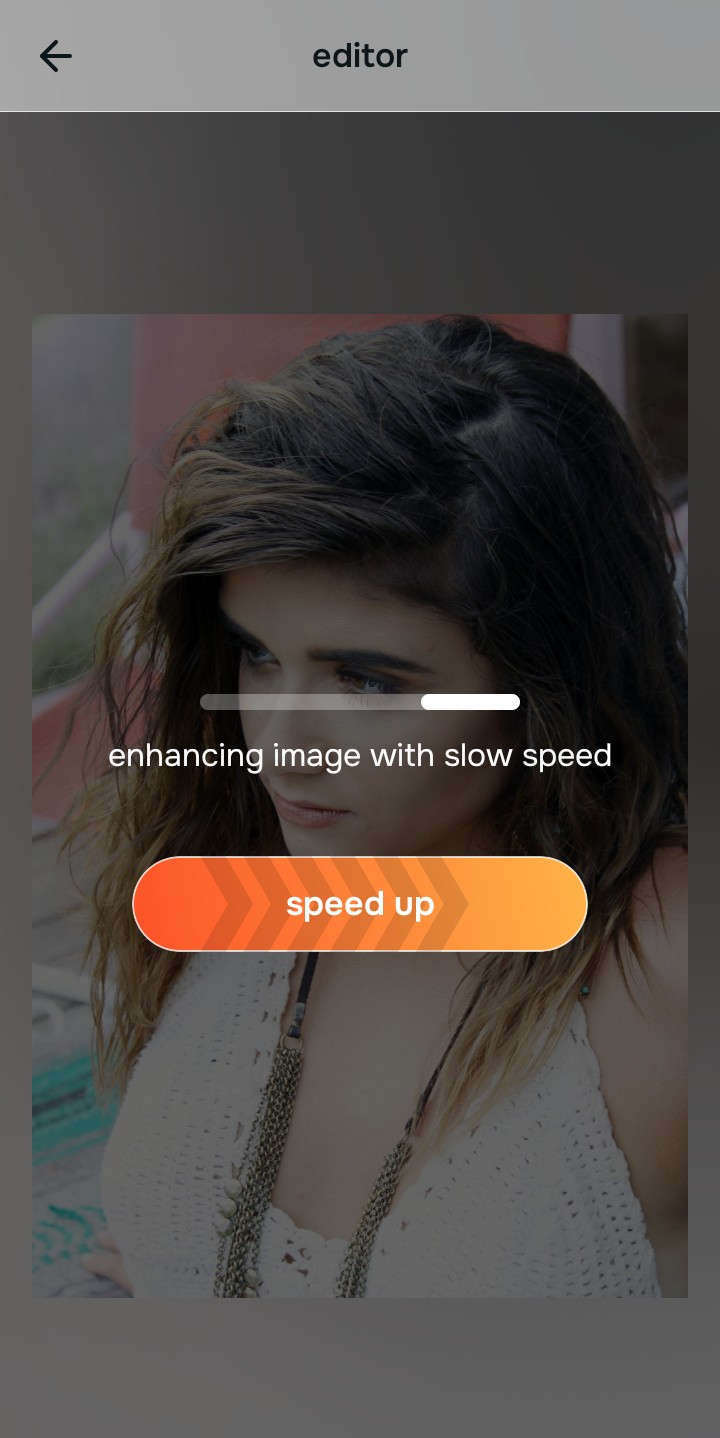
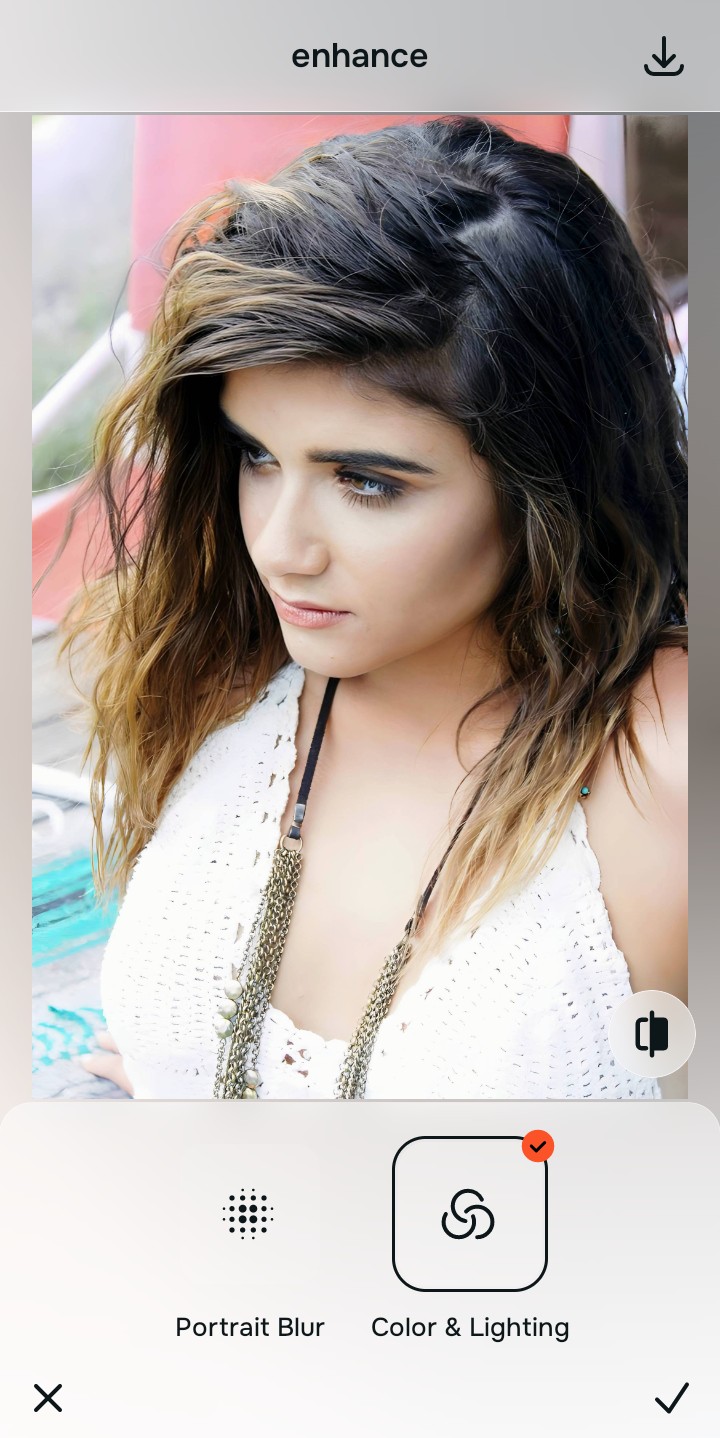
Tap Enhance and choose Colors & Lighting
When an image has flat exposure or muddy lighting, Tinder's compression smashes the midtones together, creating blur. In Citrus, tap Enhance → Colors & Lighting. This mathematically balances the global light curve, lifting under-eye shadows and cleaning color casts so the photo retains clean contrast across the entire card.

Always fix global photo exposure before adjusting facial impression. Stabilizing the base light mathematically ensures subsequent enhancements look natural and survive mobile card downsampling.
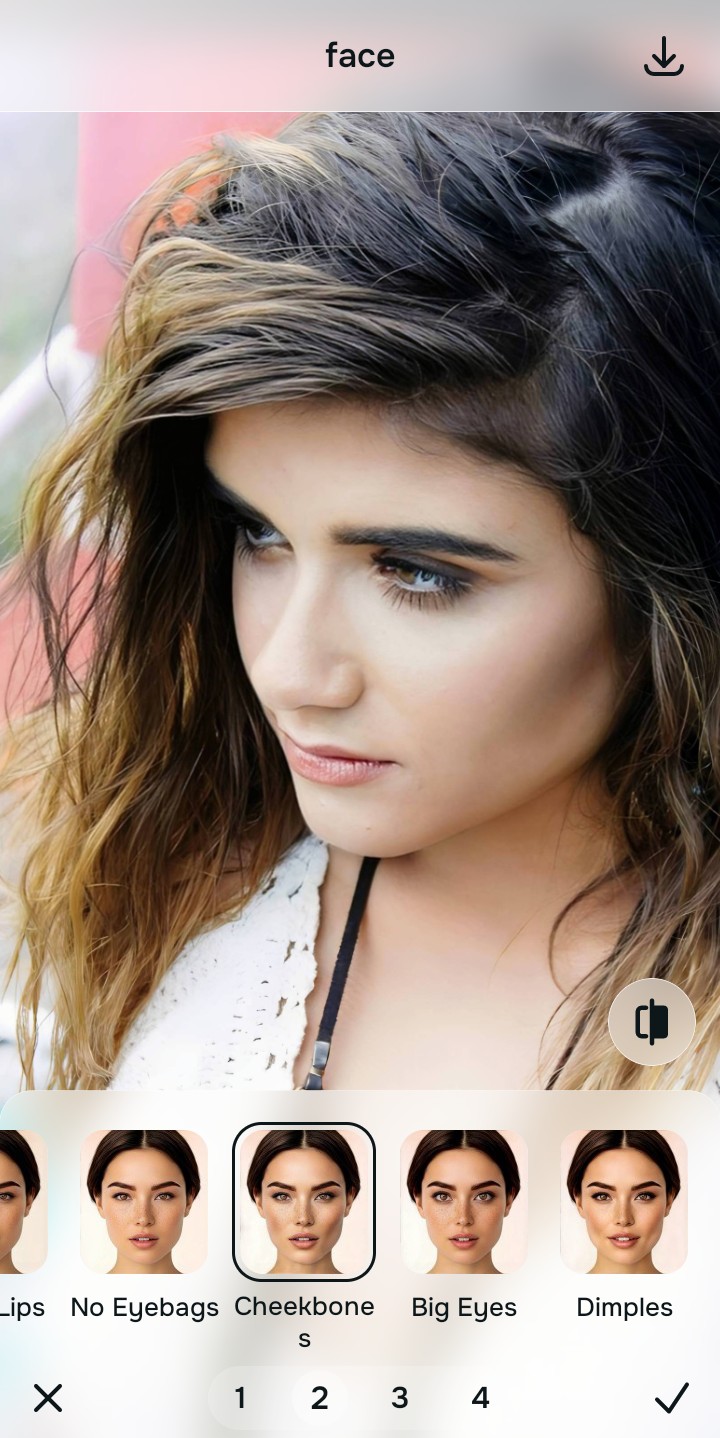
Tap Looks and select Cheek bones for an attractive impression
With lighting balanced, elevate the overall facial impression natively. Tap Face → Cheek bones. Select your preferred intensity from Level 1–5. This brings out photogenic radiance and crisp facial presence to help make your dating photo look expensive naturally without looking like a synthetic filter.
Export your high-resolution, uncompressed portrait
Citrus provides clean, unwatermarked HD exports completely for free, giving you an optically pre-conditioned file that stays defined after Tinder downsamples it to make photos look hotter naturally.

How does Tinder degrade your specific photo?
Identify your primary optical hurdle to select the exact automated pathway in Citrus.
Aligning Your Edits with the Citrus Taxonomy
Instead of guessing which manual slider will rescue your portrait without creating noise, Citrus categorizes enhancement into three distinct, mathematically safe pathways:
“Dating profile enhancement should never require you to deep-fry your photo with artificial sharpening just to survive an upload. It must mathematically balance optical exposure so you look sharp, genuine, and approachable—effortlessly.”
Why Optical Light Balancing Beats Manual Sharpening
There is a massive structural difference between authentic optical light balancing and dragging a "Sharpen" slider in a basic photo editor. When you crank sharpness on a photo, the software creates thick white and black halos around pixel borders. When Tinder's compression engine downsamples the file, it treats those artificial halos as complex noise and aggressively smears them down, creating a pixelated, crunchy look that turns off potential matches.
Citrus prevents this entirely. By organizing adjustments into mathematically calibrated Level 1–5 settings across Enhance, Looks, and Face, it stabilizes the light matrix *without* adding fake contrast borders. It provides clean, high-density optical data that survives server-side compression intact. You get a crisp, authentic profile card in one tap without the crunch.