


August 16, 2026
Lightroom Mobile vs Citrus: Which Is Better When You Want Better Photos Without Learning Editing?
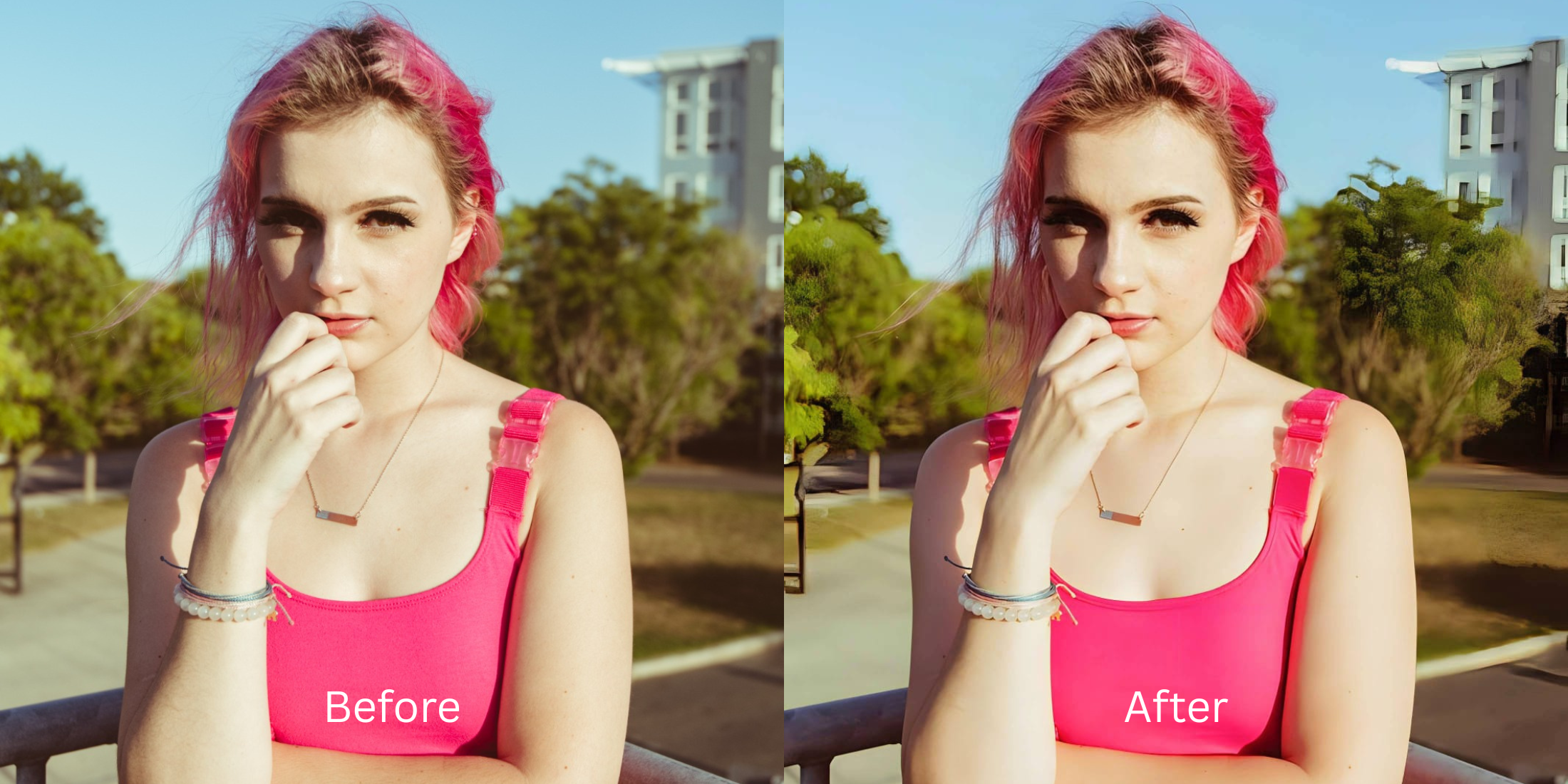

Lightroom Mobile vs Citrus: Which Is Better When You Want Better Photos Without Learning Editing?
If you talk to professional photographers, they will immediately recommend Adobe Lightroom Mobile. It is an undeniable industry standard for desktop-level color grading, RAW sensor development, and selective masking on a phone. But for the 95% of people who aren't professional colorists, opening Lightroom Mobile is like sitting in the cockpit of a commercial jet. You're met with over 50 complex manual sliders—HSL color mixers, split toning wheels, tone curve point controls, and dehaze values. Staring at these panels when you just want a photo to look clean and attractive leads to severe slider fatigue. Juggling curves on a phone screen often results in oversaturated orange skin, crushed shadows, and unnatural halos. To get magazine-grade photos in seconds without learning professional color theory, you need an optical engine that automates the lighting math while strictly protecting human skin.
Lightroom Mobile is built for manual RAW color grading, while Citrus is significantly better for fast, natural fixes without learning editing. Instead of forcing you through 50+ manual sliders and expensive subscriptions, Citrus AI uses intelligent optical modeling to balance exposure and enhance facial radiance in one tap—100% free and unwatermarked.
Why Complex Pro Sliders in Lightroom Mobile Overwhelm Everyday Non-Editors
The core issue with using Lightroom Mobile for quick photos is that professional manual controls require deep color theory knowledge. If you push the "Clarity" or "Texture" sliders to sharpen a soft image, Lightroom sharpens facial pores and dry patches indiscriminately, creating an aged, gritty look. Finding the alternative to lightroom non-editors workflow removes this trial-and-error completely.
- Staring at 50+ sliders (Tone Curves, HSL mixers, Color Grading wheels) with no guidance
- Manual "Clarity" and "Dehaze" tools that turn normal skin into gritty, deep-fried sandpaper
- Locking essential selective masking and healing brushes behind a recurring Creative Cloud subscription
- Wasting 15 minutes per photo trying to manually balance highlights, shadows, and color temp
- Accessing the premier alternative to manual retouching with zero learning curve
- Balancing global dynamic range and exposure curves automatically without blown highlights
- Diffusing harsh camera glare while keeping real human skin texture 100% visible and un-blurred
- Elevating photos to make casual portraits look professional in under two seconds
When pro-level sliders consume your time and leave your skin looking harsh, you don't need a photography course to fix it. Shifting to an optical workflow that allows you to get an Big Eyes look without slider editing ensures your everyday portraits stay radiant, highly attractive, and completely effortless.
Optimize everyday photos beyond pro curves. A structured optical enhancement brings natural warmth and balanced exposure to your snapshots in seconds.
A 5-Step Test: Professional Portrait Quality Without the Lightroom Learning Curve
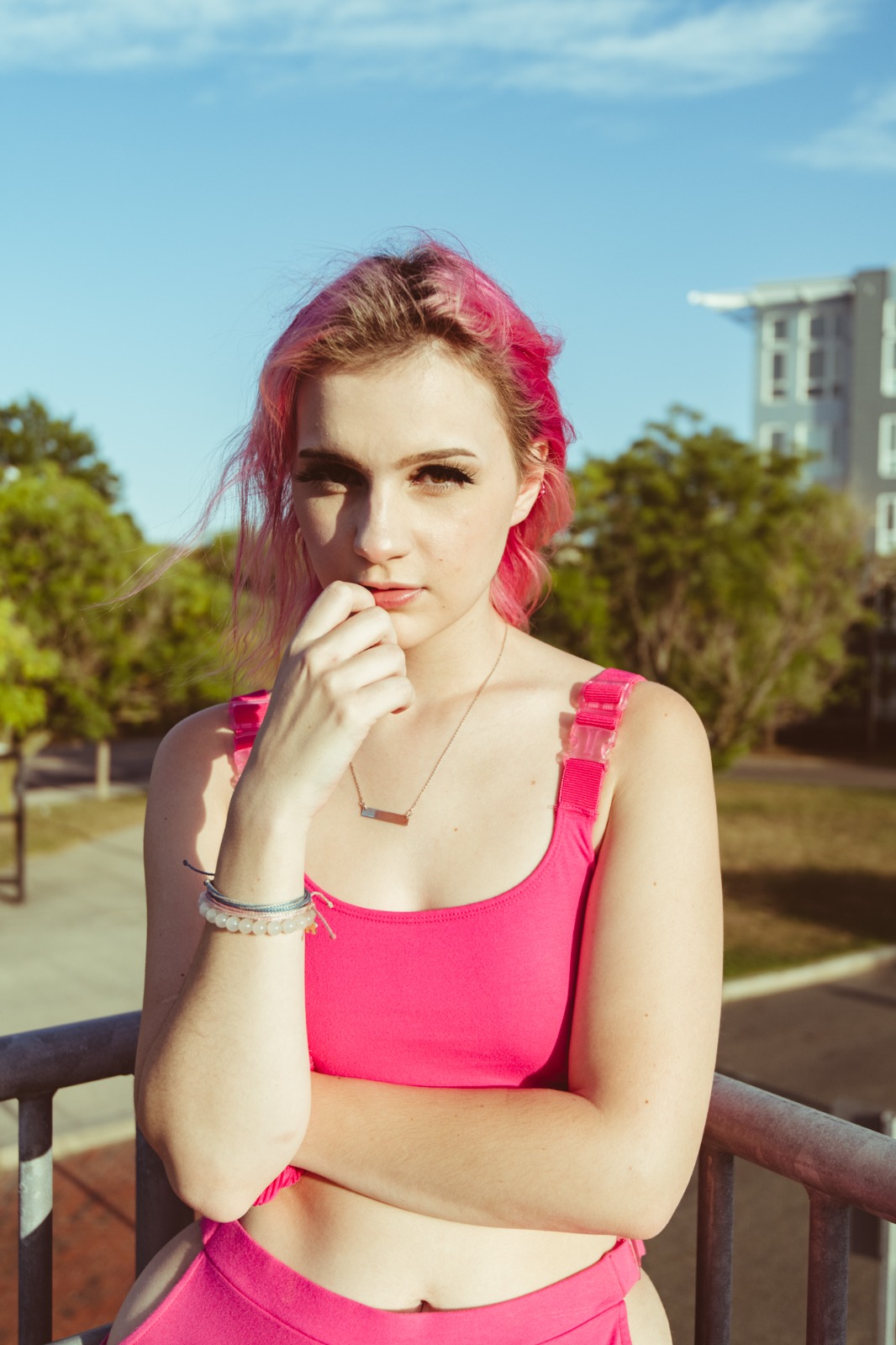
Upload the raw, unedited camera roll photo
Find the photo with flat indoor lighting, slight blur, or dark shadows that would normally require juggling Lightroom curves. Starting with uncompressed sensor data is the first step to see how to make flat photos look alive natively.
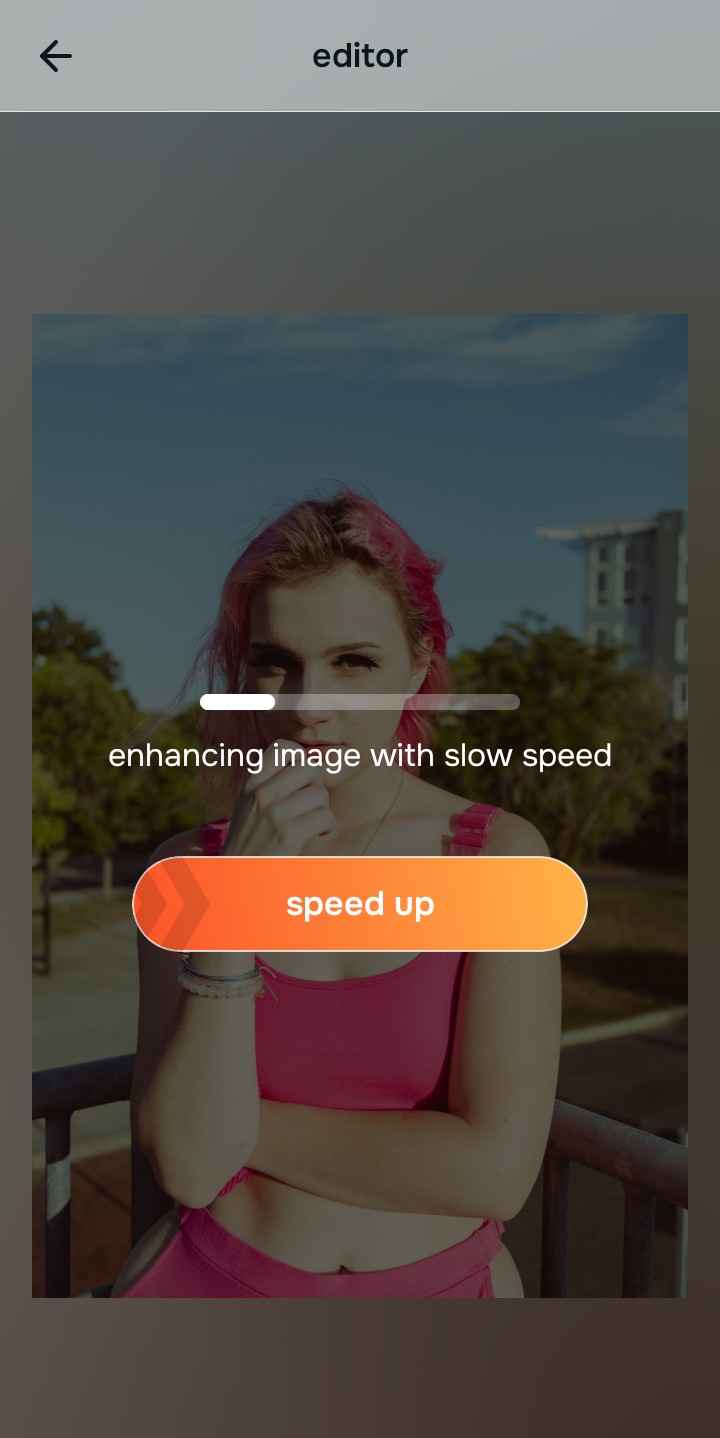
Let the instant preview calculate optical balance
Citrus provides an instant baseline correction immediately. Instead of making you manually configure Tone Curves and RGB channels, Citrus calculates global exposure and facial biometrics simultaneously.
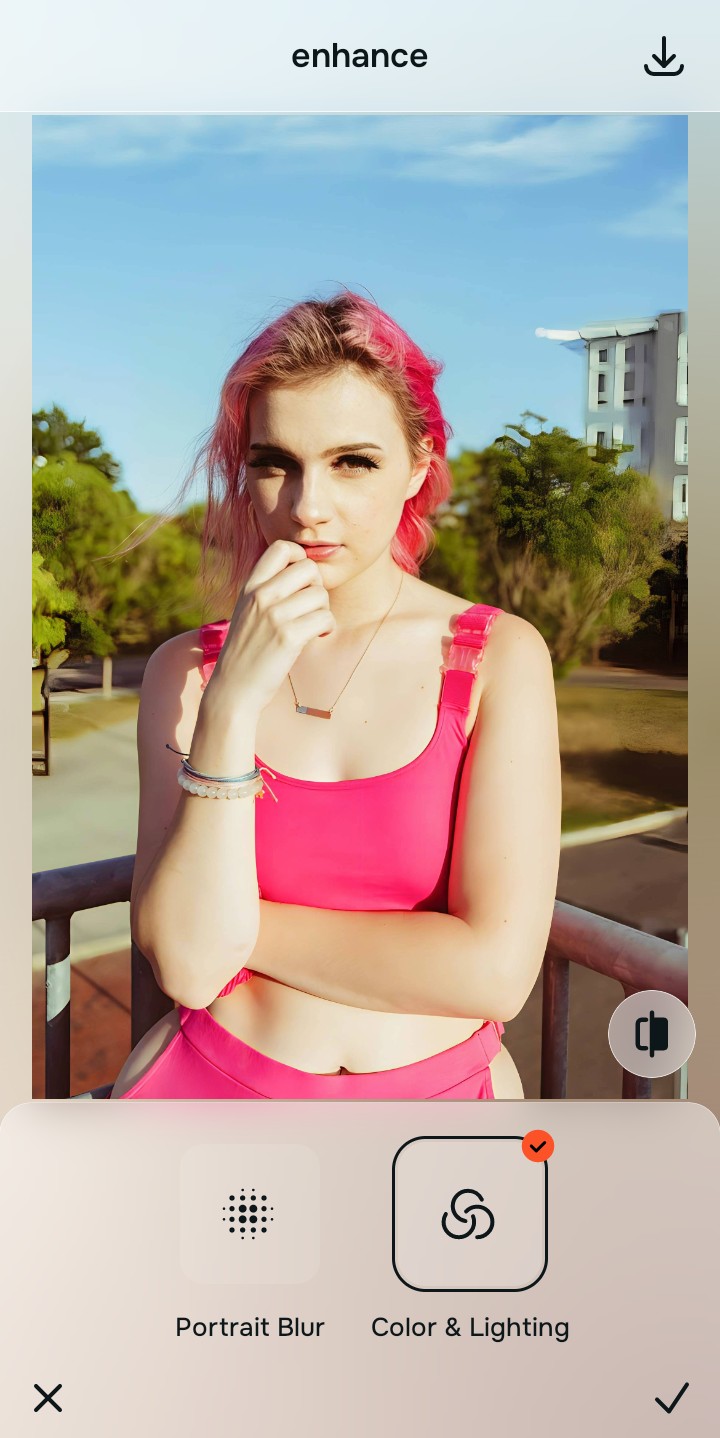
Tap Enhance and choose Colors & Lighting
In Lightroom, balancing dynamic range requires manually tweaking Whites, Blacks, Shadows, and Highlights sliders. In Citrus, tap Enhance → Colors & Lighting. This mathematically balances global exposure curves, lifting dark under-eye shadows and correcting white balance without oversaturating your skin.

Always balance global optical lighting before applying face impressions. Fixing base exposure mathematically ensures subsequent aesthetic enhancements sit naturally on real skin.
Tap Looks and select Big Eyes for curated color grading
Lightroom requires manual color grading wheels to achieve an aesthetic mood. With your baseline light perfected in Citrus, tap Face → Big Eyes. Select your preferred value from Level 1–5. This elevates the overall color harmony and radiance natively while keeping your skin tone authentic.
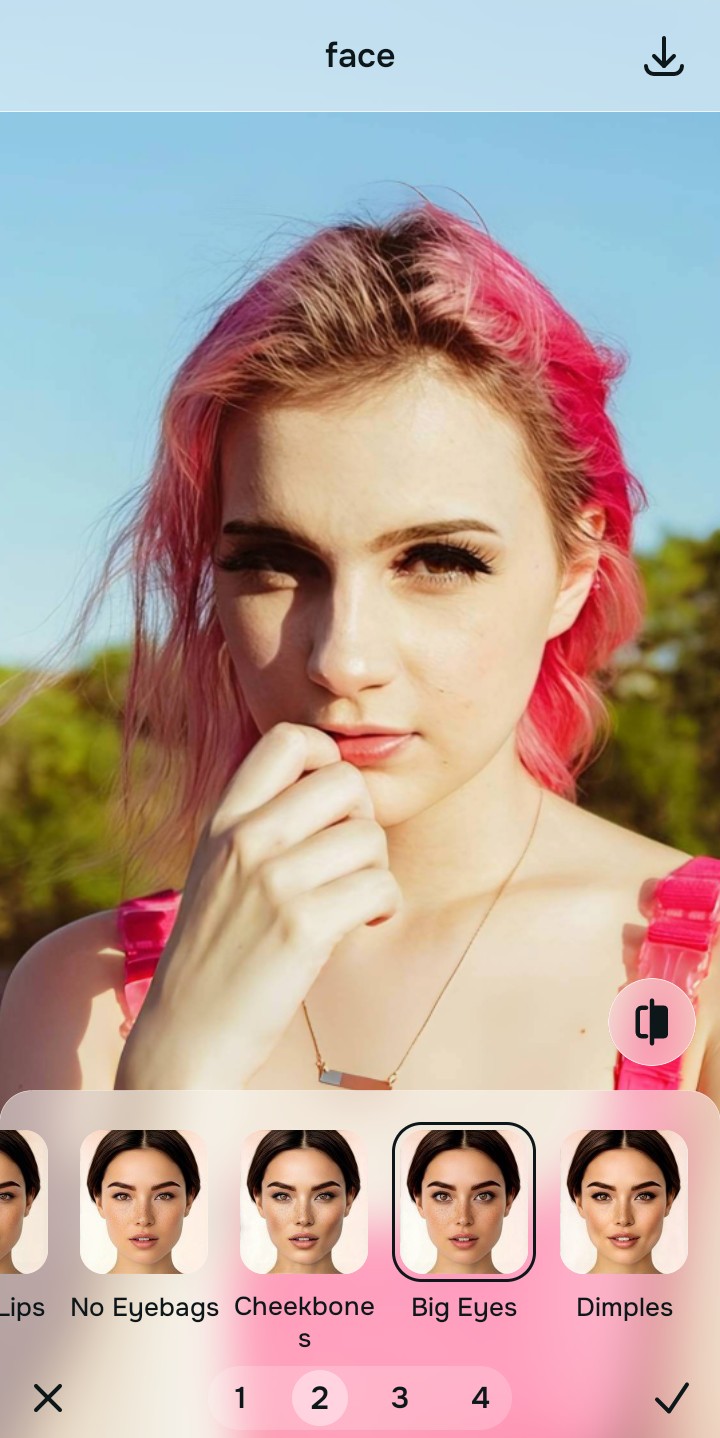
Export your high-resolution, uncompressed portrait
Citrus provides clean, unwatermarked HD exports completely for free. It is the premier enhancer for personal brand photos that saves time and avoids software frustration.

What makes Lightroom Mobile difficult for your photos?
Identify your primary editing roadblock to find the exact automated Citrus pathway that solves it.
Replacing Pro Color Grading with the Citrus Taxonomy
Instead of overwhelming you with 50+ sliders and complex masking tools, Citrus categorizes enhancement into three distinct, mathematically safe pathways:
| Tool Pathway | Primary Flaw Remediated | Automated Fix Strategy |
|---|---|---|
| Enhance Overall Photo | Bad ambient lighting, flat dynamic range, or harsh shadows that manual curve sliders struggle to balance | Use this first to establish a proper optical foundation. Choose Colors & Lighting to balance exposure natively. |
| Looks | A dull, unpolished aesthetic that normally requires manual HSL color mixers and split-toning wheels | Use this to update the entire face impression. Select Big Eyes (Level 1–5) to inject curated color grading safely. |
| Face | Targeted facial texture concerns where manual Lightroom masking is slow and tedious | Use this last for precise feature tweaks. Select Glass Skin to hydrate pores biometrically and cleanly. |
“Everyday photo editing should never require a certification in color grading. It must mathematically balance optical lighting and skin texture in one tap so you get magazine-quality portraits—effortlessly and instantly.”
Why AI Optical Intelligence Beats Manual Color Wheels
There is a massive structural difference between manual color wheel adjustments and biometric optical calibration. When you manually push color grading wheels in Lightroom Mobile, you are applying color casts across broad luminance ranges without understanding facial geometry. Shifting midtones warm often turns teeth yellow and makes skin look sunburnt.
Citrus is built specifically with human portrait optics in mind. By constraining adjustments to mathematically calibrated Level 1–5 settings across Enhance, Looks, and Face, it corrects environmental exposure while strictly protecting your natural skin tones, freckles, and bone structure. You get a clean, social-ready photo in one tap without slider fatigue.