


May 18, 2026
How to Improve a Smile Photo Without Overwhitening the Whole Face
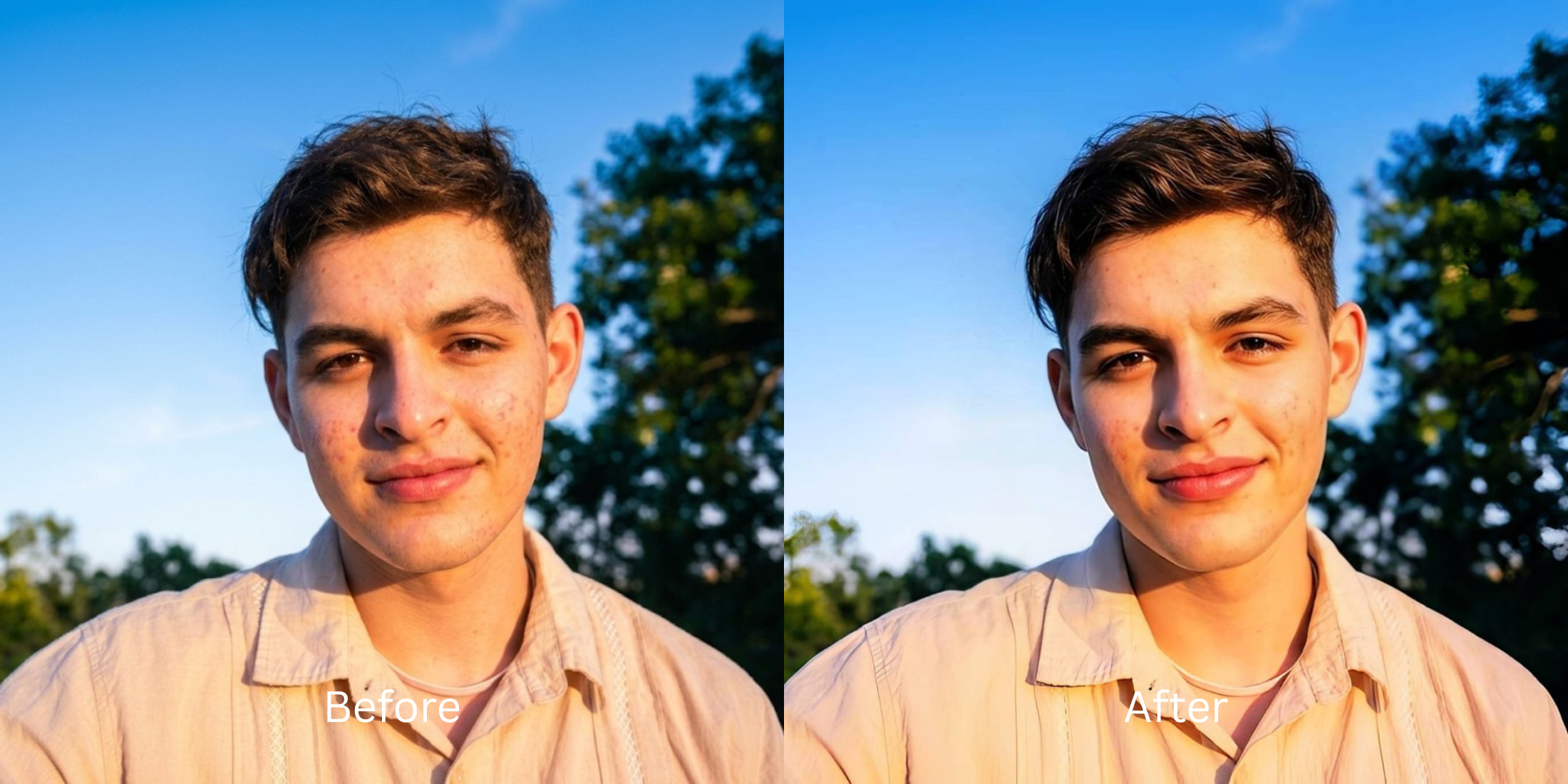

How to Improve a Smile Photo Without Overwhitening the Whole Face
We have all taken a photo where a great smile gets ruined by bad yellow indoor lighting. When you try to fix this using standard "teeth whitening" apps, disaster strikes. These apps apply a global exposure boost that bleaches the entire image. Your skin turns ghostly pale, your lips lose all their color, and your gums take on a terrifying, unnatural gray hue. To improve bad camera lighting safely, you must neutralize the yellow room glare before enhancing the physical structure of your smile.
To fix yellow teeth without bleaching your skin, you must correct the room's color temperature first. In Citrus, skip the manual teeth-whitening brushes. Tap Enhance -> Colors & Lighting to instantly strip away the yellow indoor glare, revealing natural whiteness. Then, use Face -> Dimples to add structural depth to your cheek creases, making your smile pop authentically without hitting a paywall.
Why teeth whitening apps make you look like a vampire
The core issue with "beauty" apps is that they do not understand context. When you drag a whitening slider, the software simply forces every pixel in the selected area closer to pure white. It completely ignores the natural contrast of the mouth. If you want to fix yellow indoor lighting properly, you need structural tools that restore the lost shadows. A bright white smile looks terrifying if the lips and gums surrounding it have been drained of their natural pink and red tones.
- Using global whitening sliders that turn your skin pale and ghostly
- Paying expensive monthly subscriptions just to export a rescued memory
- Having massive watermarks stamped across your face on free app tiers
- Bleaching your gums until they look like an unnatural, zombie-like gray
- Getting professional-level lighting correction without any hidden paywalls
- Stripping yellow room glare so your teeth look naturally white, not painted
- Exporting your final, high-definition photo for free without watermarks
- Enhancing the structural lines of your smile while keeping lips colorful
If your edited picture features neon white teeth but your face looks exhausted, the edit has failed. Using natural photo enhancers ensures that your unique coloring remains trustworthy and dimensional.
Fix yellow glare instantly. A smart edit keeps color authentic.
How to rescue a smile portrait for free in 5 steps
Select a selfie where your smile looks yellow or dull
Find a picture in your gallery where bad room lighting ruined a great moment. You can easily improve photo without changing face shapes by simply relying on the right structural contrast tools.

Let the instant preview analyze the lighting
Citrus provides a first correction immediately without asking for a credit card. This ensures that the specific exposure errors are recognized before you start attempting any facial feature adjustments.
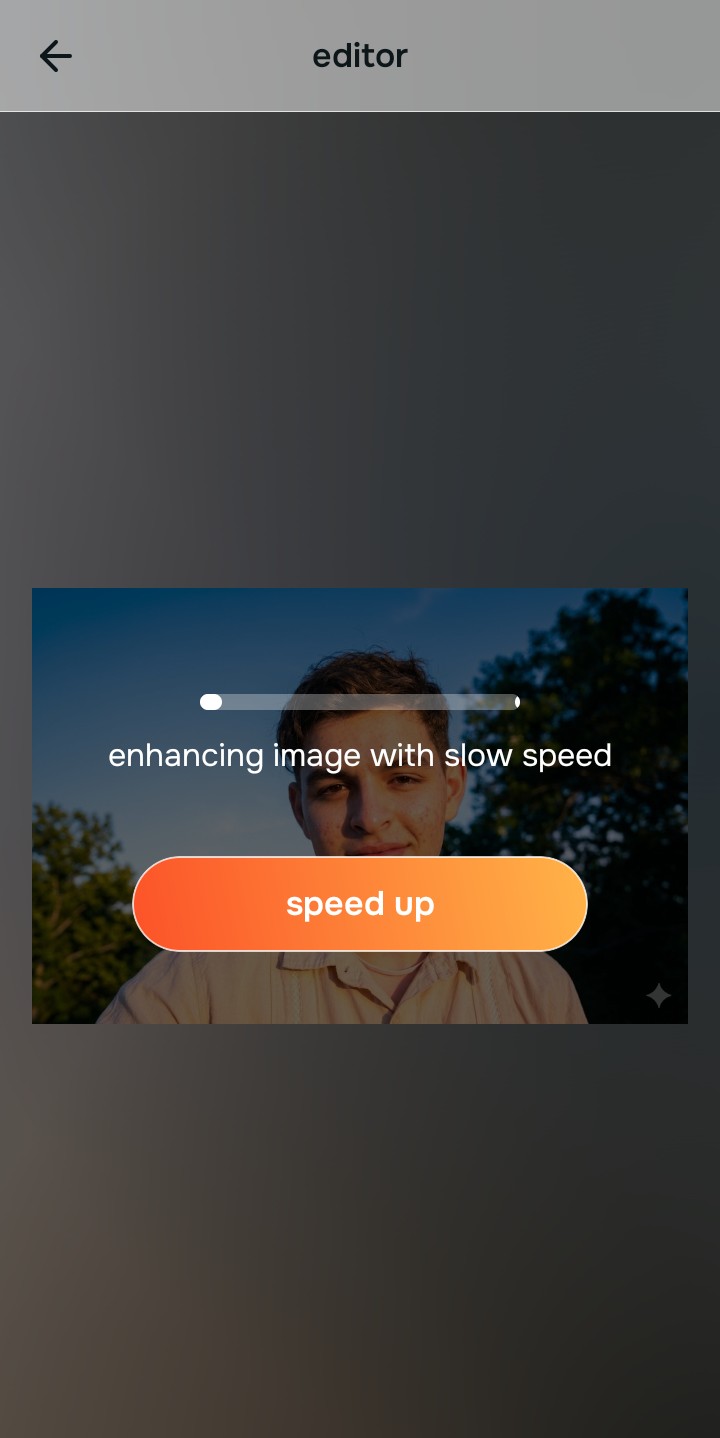
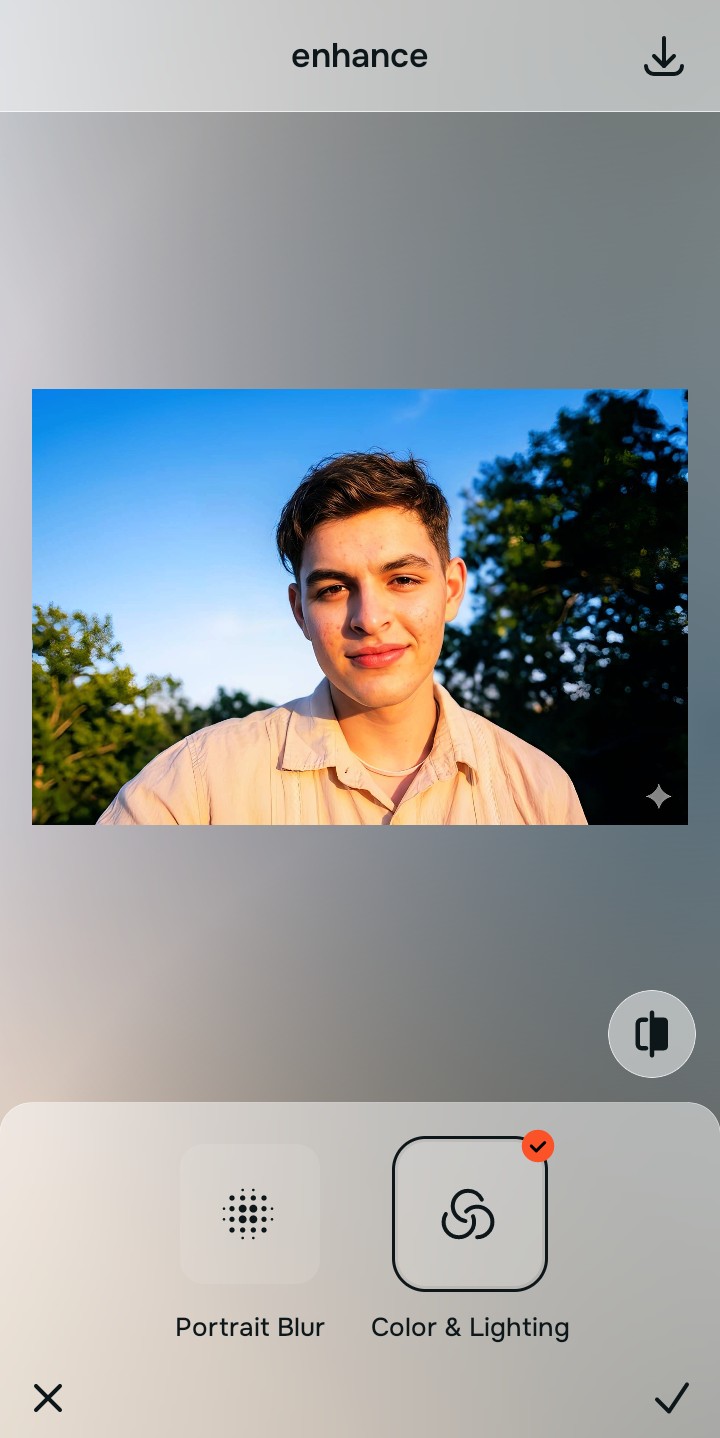
Use Enhance to fix Colors & Lighting first
Because yellow teeth are usually a fundamental lighting problem, tap Enhance -> Colors & Lighting. This bypasses the phone's fake metering and strips away the warm room glare. Making your face look better in pictures requires fixing this baseline contrast before doing anything else.

Always fix the core contrast before using an aesthetic tool. Tap the Enhance options to build a strong, evenly lit foundation first.
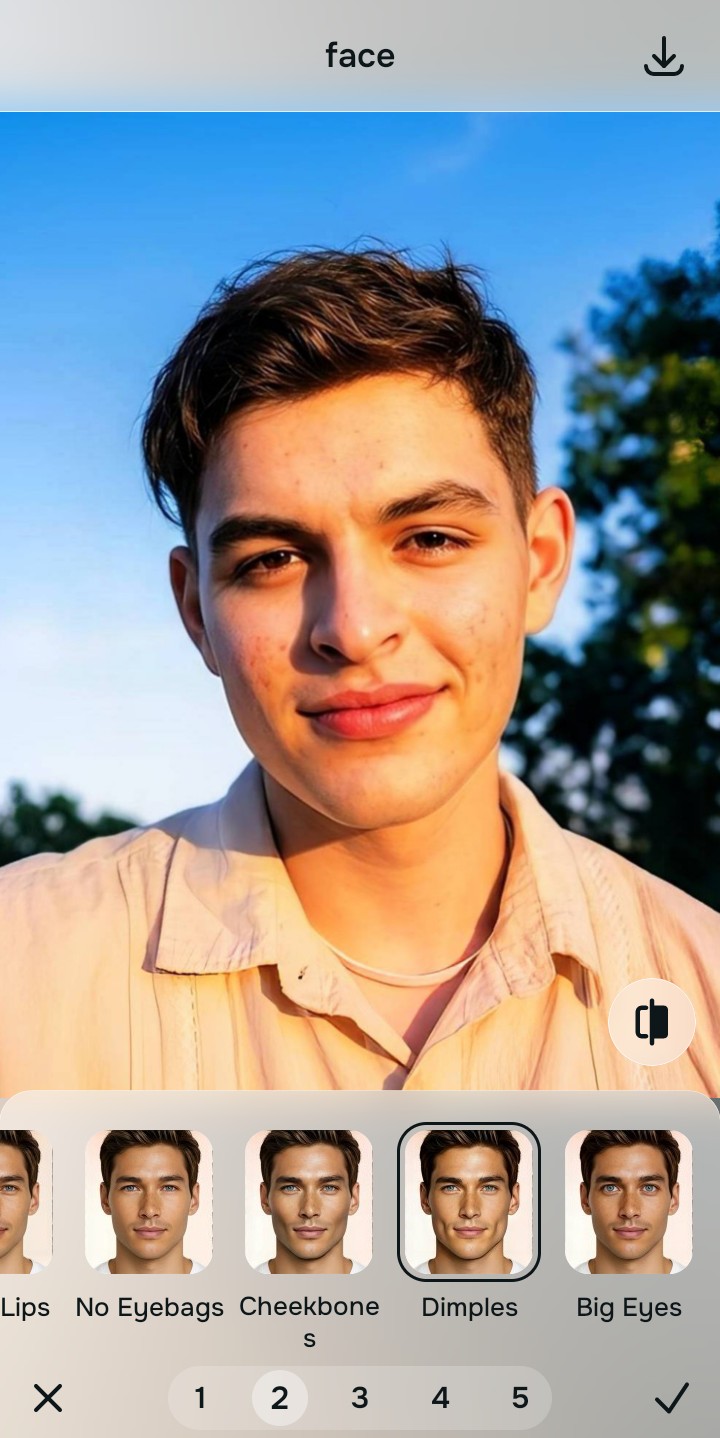
Apply Face tools to define your smile structure
Once the lighting is balanced and the natural white is recovered, you can safely give your expression depth. Tap Face -> Dimples to gently enhance the physical cheek creases of your smile. A free ai face editor allows you to look genuinely happy rather than just flashing bleached teeth.
Save the high-resolution photo instantly
Unlike premium apps that charge you a fee just to export a rescued memory, you can save your results instantly. Stop the edit before the image looks filtered and enjoy your authentic photo completely for free.

Why does your smile look bad in this selfie?
Choose the description that fits best. Your starting point changes depending on what is actually ruining the color and depth.
Which free Citrus tool delivers the best balanced finish
Different photographic challenges require entirely different pathways. The goal is to get a professional result by matching the tool to the actual camera error. This stops you from ruining a beautiful portrait with an automated, paid filter.
| Tool | What it helps fix | When to use it |
|---|---|---|
| Enhance Start here | Bad auto white-balance, yellow indoor glare, and muddy contrast | Use this first when your teeth look yellow from bad lighting. Choose Colors & Lighting to restore the true color for free. |
| Looks | Photos that are clear but lack a beautiful, approachable warmth | Use this after Enhance when the issue is a dull vibe. Tap Sweet to add a friendly finish without faking your smile. |
| Face | Specific flat expressions caused by camera compression erasing your cheek creases | Use this last, applying targeted tools like Dimples to safely restore physical depth to your face without bleaching your skin. |
“A great smile selfie isn't about using a teeth whitening slider. It is about removing the yellow room light so your natural brightness returns without washing out your lips or gums.”
Why contrast recovery beats global bleaching tools
There is a massive difference between defining light and faking it. When you use an aggressive, paid bleaching slider on your teeth, you inevitably turn the delicate tones of your skin and lips into a flat, gray wash. The human brain instantly recognizes this loss of detail as a cheap edit that destroys the professional vibe of the photo.
Real quality comes from correcting the underlying lighting data instantly. To make lips look fuller and your teeth look naturally white, you must fix the contrast first. This allows you to look incredibly sharp while you stay true to your human identity.