


August 18, 2026
Canva Photo Enhancer vs Citrus: Which Is Better for Fixing a Photo Before You Post It?
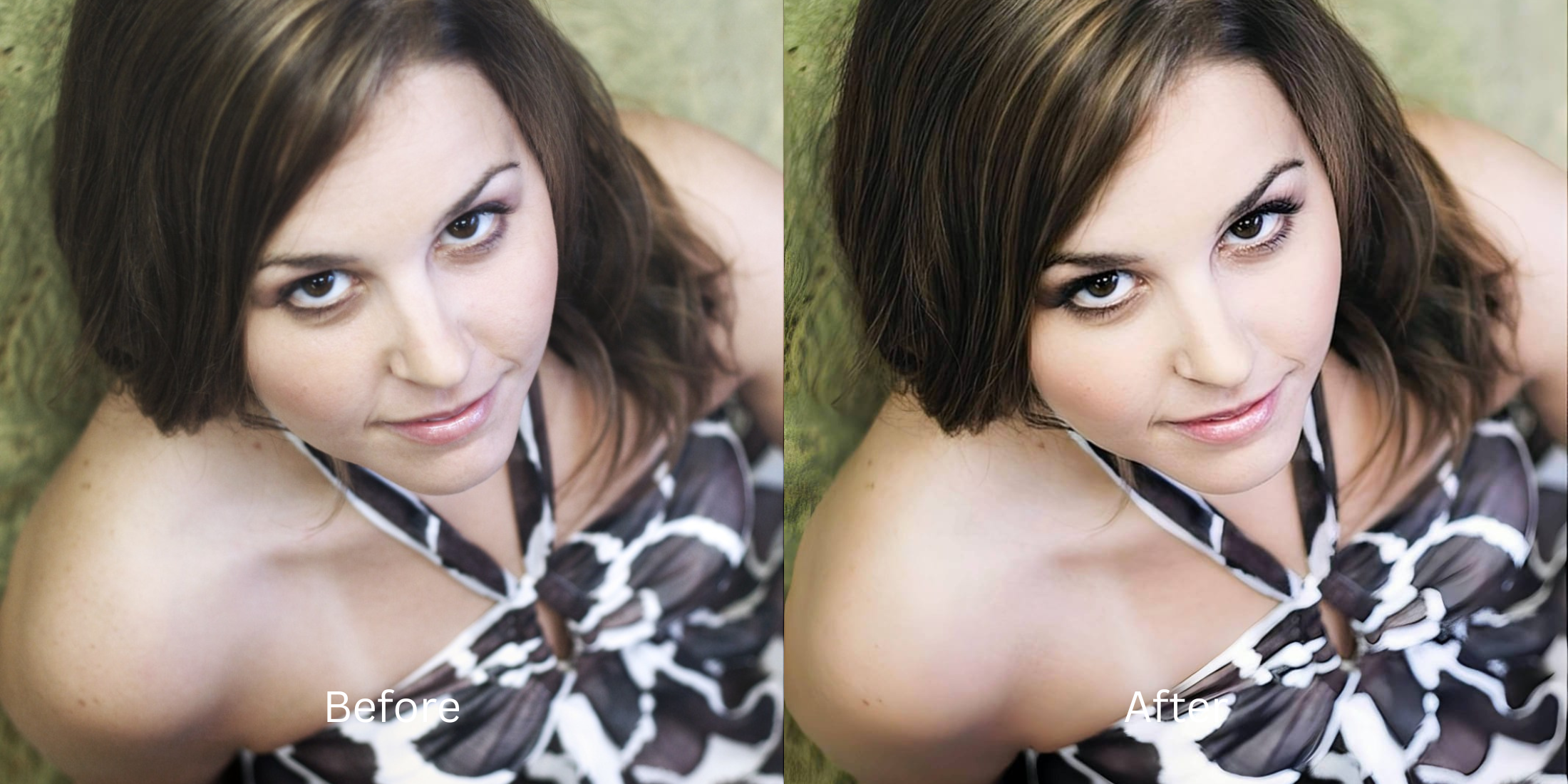

Canva Photo Enhancer vs Citrus: Which Is Better for Fixing a Photo Before You Post It?
Canva is an undisputed giant for creating pitch decks, marketing flyers, and graphic design collages. Because of this, millions of users try to use its built-in "Auto-Enhance" tool to fix everyday selfies or portraits before posting them. The problem? Canva treats your face like a graphic asset on a poster. When you hit the auto-adjust button, it applies a blunt, canvas-wide brightness and contrast boost that frequently blows out the highlights on your skin, crushes shadows, and makes human features look overly digital. It has no understanding of facial biometrics. To fix a photo perfectly before you share it on social media, you shouldn't have to upload it to a blank design canvas or wrestle with bounding boxes. You need a dedicated optical engine designed exclusively for portrait science.
Canva is perfect for graphic design and layouts, but Citrus is significantly better for natural photo enhancement. While Canva applies flat, generic adjustments that often ruin skin tones, Citrus AI uses dedicated optical modeling to balance ambient lighting and elevate facial radiance in one tap—keeping your human features 100% authentic.
Why Canva's Graphic Design Layout Fails at Subtle Photo Retouching
The core issue with using Canva as a photo editor is that its primary function is layout design. Its enhancement tools are meant to make stock photos "pop" inside a PDF presentation. When applied to a candid selfie, this translates to aggressive saturation and harsh exposure curves. Escaping this rigid design environment requires an engine that can natively make bad photo good enough for social media without turning it into a flyer.
- Applying blunt, canvas-wide contrast that blows out natural skin highlights and makes faces look shiny
- Forcing you to upload photos into a design document and wrestle with bounding boxes just to edit a picture
- Compressing final exports into web-friendly JPEGs or PDFs meant for slides rather than high-res photography
- Completely lacking dedicated biometric tools to smooth skin or target facial details natively
- Accessing the premier fix a selfie before instagram workflow in a clean, one-tap environment
- Balancing global dynamic range and exposure automatically without treating your face like a stock image
- Diffusing harsh camera glare while keeping real human skin texture 100% visible and un-blurred
- Elevating photos to act as the perfect enhancer for personal brand photos in seconds
When your editor treats you like a clipart asset, your portraits lose their natural charm. Shifting to an optical workflow helps you make casual portraits look professional natively, ensuring your skin tones stay warm, highly attractive, and completely human.
Optimize photos without opening a design canvas. A structured optical enhancement brings natural warmth and balanced exposure to your snapshots instantly.
A 5-Step Test: Flawless Portrait Enhancement Without the Design Studio Clutter
Upload the raw, unedited camera roll photo
Find the photo with flat indoor lighting, slight blur, or dark shadows that you would normally paste into a Canva template. Starting with clean sensor data is essential to achieve a true viral pinterest pin photo look naturally.

Let the instant preview calculate optical balance
Citrus provides an instant baseline correction immediately. Instead of waiting for a browser-based design canvas to load, Citrus calculates global exposure and facial biometrics simultaneously with zero friction.
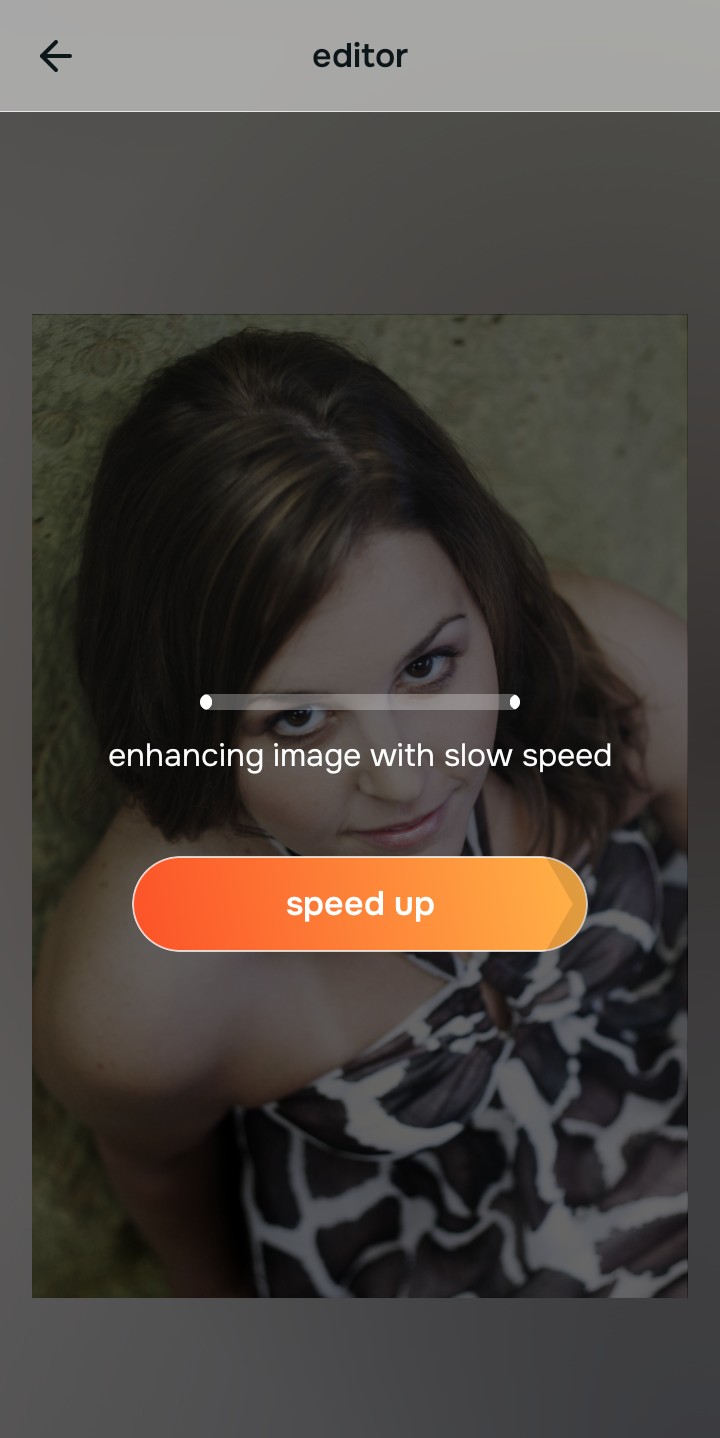
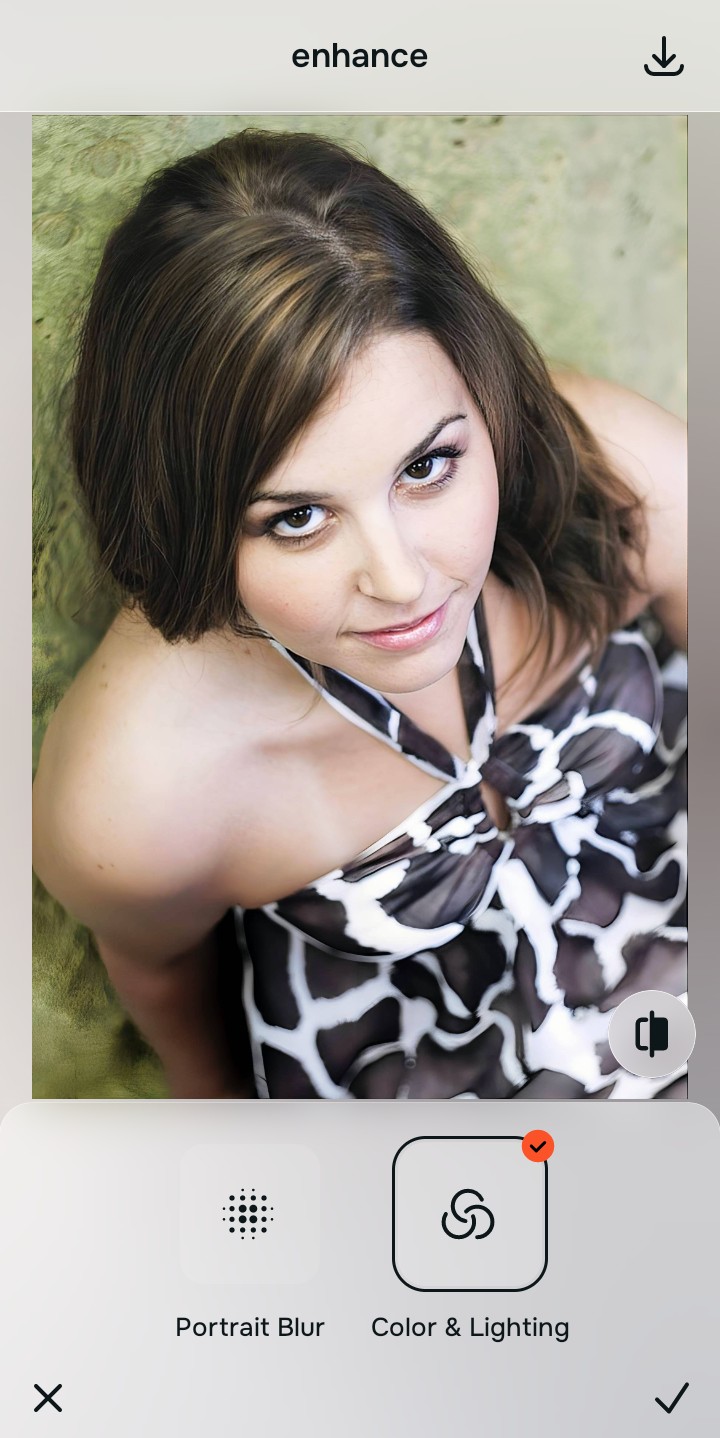
Tap Enhance and choose Colors & Lighting
Canva's auto-adjust forces an aggressive HDR stretch intended for graphic design. In Citrus, tap Enhance → Colors & Lighting. This mathematically balances the global exposure curves, lifting dark shadows and correcting white balance without turning your face radioactive orange.

Always balance global optical lighting before applying face impressions. Fixing the base exposure mathematically ensures subsequent aesthetic enhancements sit naturally on real skin.
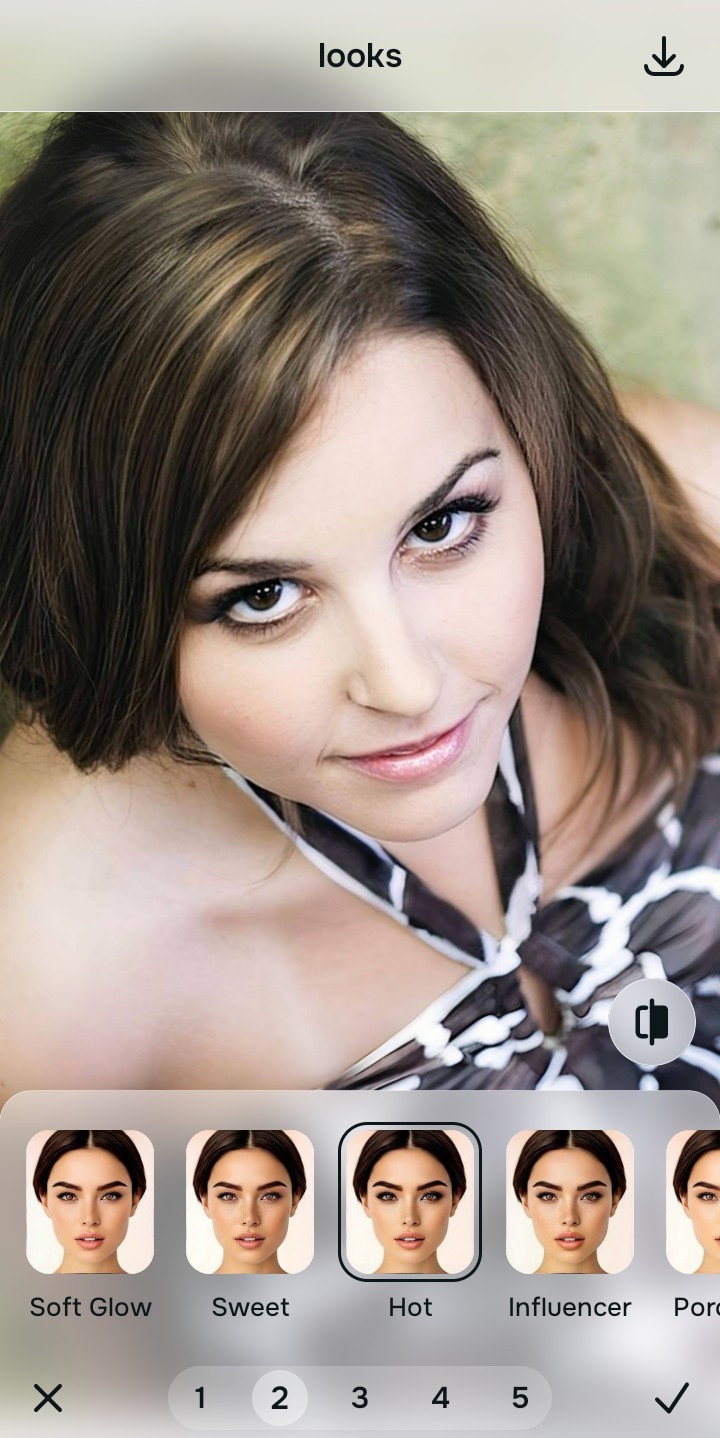
Tap Looks and select Hot for social polish
Instead of manually layering graphic color blocks, tap Looks → Hot in Citrus. Select your preferred value from Level 1–5. This elevates the overall color harmony and radiance natively, providing the exact photo enhancer for ugc creators vibe without looking like a marketing flyer.
Export your high-resolution, uncompressed portrait
Citrus provides clean, unwatermarked HD exports completely for free, without forcing you to figure out PDF print margins or web compression. It is the premier photo enhancer for profile pictures that saves time and preserves real quality.

What makes graphic design apps frustrating for your photos?
Identify your primary editing roadblock to find the exact automated Citrus pathway that solves it.
Replacing Graphic Design Tools with the Citrus Taxonomy
Instead of forcing you to open a blank presentation canvas just to tweak a photo, Citrus categorizes enhancement into three distinct, mathematically safe pathways:
| Tool Pathway | Primary Flaw Remediated | Automated Fix Strategy |
|---|---|---|
| Enhance Overall Photo | Bad ambient lighting and flat contrast that generic design tools oversaturate into orange skin | Use this first to establish a proper optical foundation. Choose Colors & Lighting to balance exposure natively. |
| Looks | A dull aesthetic that normally requires manually layering color blocks and transparency filters | Use this to update the entire face impression. Select Hot (Level 1–5) to inject curated color grading safely. |
| Face | Targeted facial texture concerns where graphic design software lacks dedicated biometric tools entirely | Use this last for precise feature tweaks. Select Glass Skin to hydrate pores biometrically and cleanly. |
“Everyday photo editing should never require uploading your face into a slide deck presentation. It must mathematically balance optical lighting and skin texture natively so you get magazine-quality portraits—effortlessly and instantly.”
Why AI Optical Intelligence Beats Generic Graphic Adjustments
There is a massive structural difference between graphic design adjustments and biometric optical calibration. When you push the auto-enhance button in Canva, you are applying a blunt formula designed to make stock photos readable behind text. It treats the human face exactly like a corporate building, blowing out highlights and crushing shadows indiscriminately.
Citrus is built specifically with human portrait optics in mind. By constraining adjustments to mathematically calibrated Level 1–5 settings across Enhance, Looks, and Face, it corrects environmental exposure while strictly protecting your natural skin tones, freckles, and bone structure. You get a clean, social-ready photo in one tap without the design studio bloat.