


September 1, 2026
Why Does My LinkedIn Profile Photo Look Blurry After Uploading?
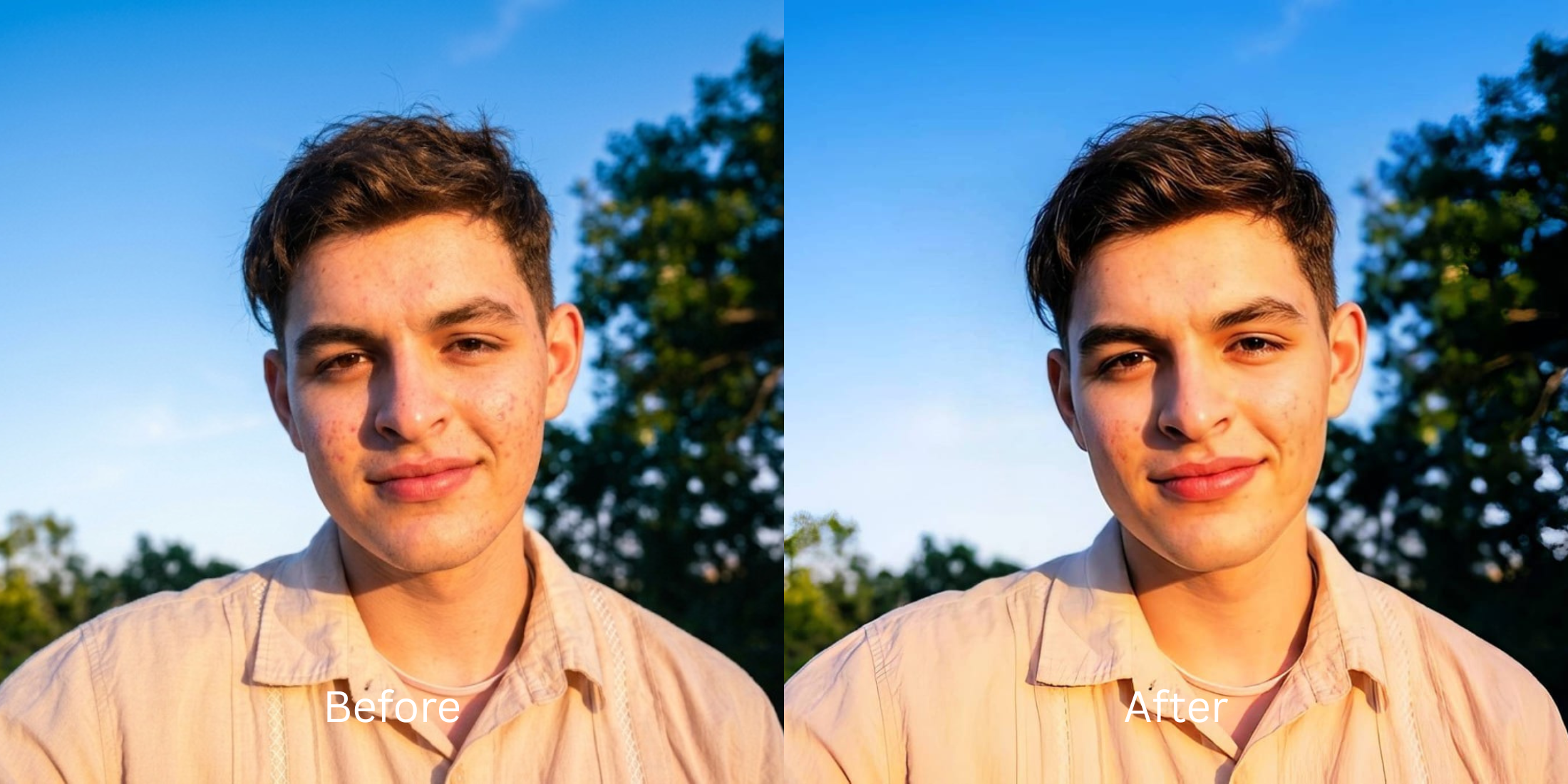

Why Does My LinkedIn Profile Photo Look Blurry After Uploading?
You just paid for an expensive, high-resolution DSLR headshot. On your computer screen, the image is incredibly sharp—you can see every texture in your suit and every detail in your eyes. But the second you upload it to your LinkedIn profile, the photo turns into a soft, blurry, muddy circle. This is not an error; it is a feature of enterprise software architecture. LinkedIn is a text-heavy networking platform that prioritizes rapid page loads for recruiters scrolling through hundreds of candidates. The platform enforces a strict 400x400 pixel display size for profile pictures. When you upload a massive 4K photo, LinkedIn’s backend uses a fast, low-quality "resampling" algorithm to aggressively crush the file down to that exact 400px square. This massive downscaling obliterates high-frequency contrast, ruining the sharp details that make a headshot look professional. Standard editing apps suggest adding "Sharpness," which only creates jagged digital halos that LinkedIn's compressor interprets as noise, blurring it even harder. To project competence, you need an optical engine that structurally fortifies pixel density before the corporate algorithm decimates it.
LinkedIn headshots look blurry because the platform's enterprise servers aggressively compress high-res uploads into a tiny 400x400 pixel square. To survive this downsampling natively, use Citrus AI. Instead of using artificial sharpening that triggers jagged compression, Citrus mathematically structures your facial density so your portrait stays crisp and professional.
Understanding the "Enterprise 400px Resampling" Trap
The core issue with professional networking uploads is that massive file sizes actually hurt your display quality. When an un-optimized 6000x4000 pixel file hits the server, the algorithm has to discard over 95% of your data instantly. Knowing how to find photo enhancers linkedin profile pictures need requires pre-conditioning your image structure so the remaining 5% of data actually looks good.
- Applying noisy contrast halos that trigger LinkedIn's compression algorithm to blur the file even harder
- Destroying the smooth gradient of your skin, leaving a crunchy texture that looks highly unprofessional
- Failing the crucial profile photo trust test by using obvious, low-quality edits
- Melting eye catchlights and jawline definition, completely ruining the impact of a high-end camera
- Using advanced optical models to mathematically upscale baseline resolution before the server crushes it
- Acting as a free profile picture enhancer natural workflow without adding synthetic grain
- Biometrically fortifying focal edges (eyes, jawline) so you look authoritative even in a 400px circle
- Allowing you to improve headshots linkedin without photographer reshoots
When an enterprise algorithm prepares to shrink your file drastically, adding chaotic noise is the worst thing you can do. Shifting to an optical workflow helps you make casual portraits look professional natively, ensuring your headshot stays defined, authoritative, and incredibly crisp online.
Fortify your headshot against 400px downsampling. A structured optical enhancement brings true geometric density and clean professional clarity to your photo in seconds.
A 5-Step Test: Pre-Conditioning Your Headshot to Survive LinkedIn Compression
Upload the raw, unedited camera roll portrait
Find the portrait that looks incredibly sharp on your computer but turns to mush when set as your LinkedIn photo. Starting with clean sensor data is essential when learning to pull a linkedin headshot from random selfie files.

Let the instant preview map structural density
Citrus provides an instant baseline correction immediately. Instead of just adding a blanket noise layer, Citrus analyzes the structural geometry of the face, preparing it to handle severe server-side resampling.
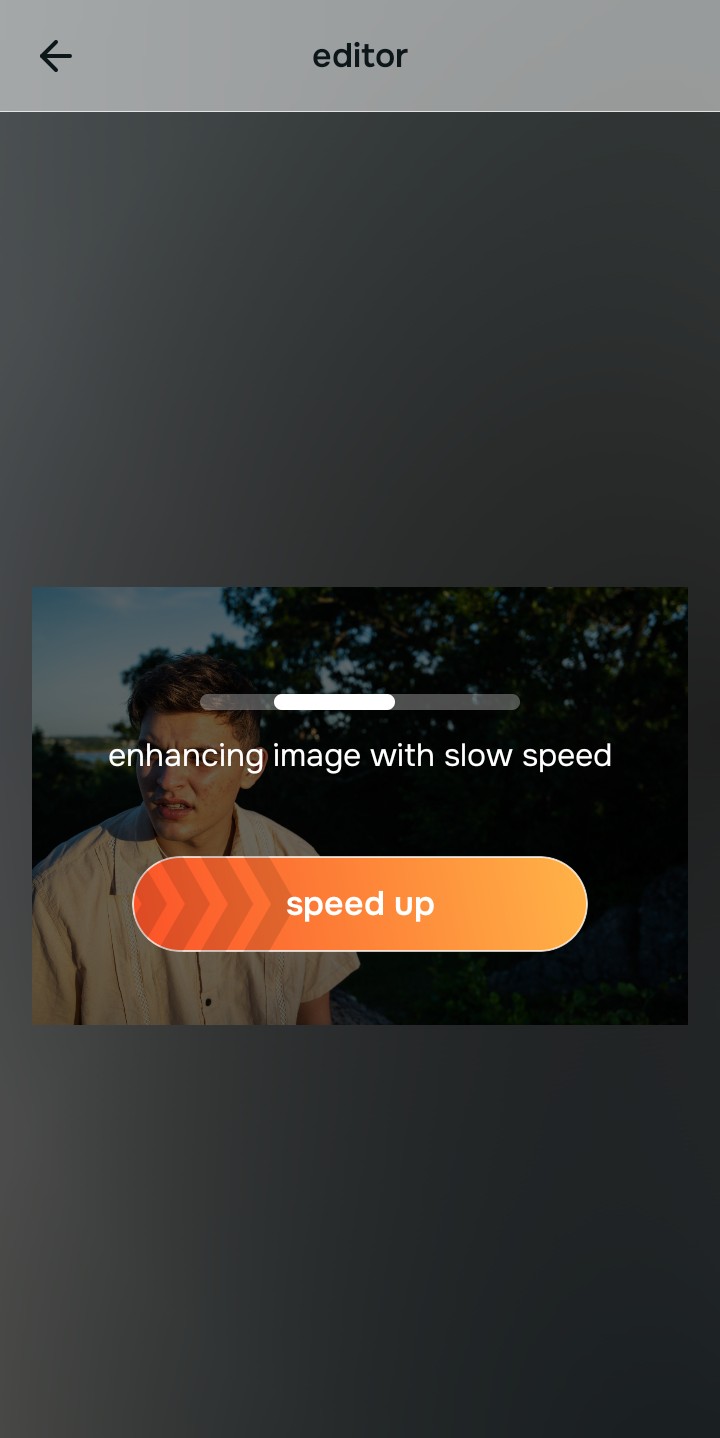
Tap Enhance and choose Colors & Lighting
You cannot survive extreme downsampling without dense baseline data. In Citrus, tap Enhance → Colors & Lighting. This mathematically increases the structural resolution of the file. By providing the algorithm with a significantly denser foundation of clean pixel data, the resulting compressed 400px circle remains objectively sharper than a standard upload.

Always structure the baseline resolution before adding aesthetic polish. Increasing optical density mathematically ensures subsequent enhancements survive the extreme corporate crop.
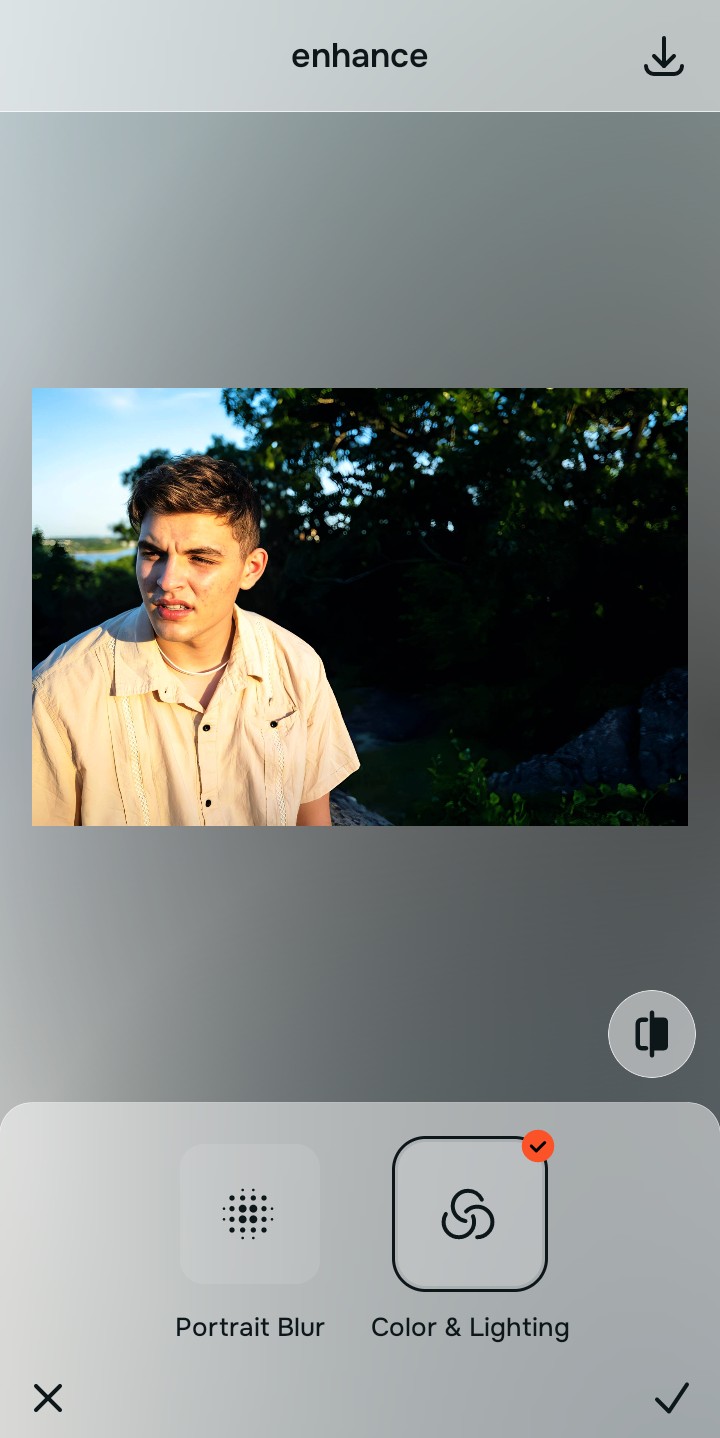
Tap Looks and select Slim Face for professional polish
On a networking site, you need to project high-trust competence, not fake perfection. Tap Face → Slim Face in Citrus. Select your preferred value from Level 1–5. This biometrically injects clean, well-rested radiance into your skin, ensuring the photo looks high-end without relying on obvious AR beauty filters.
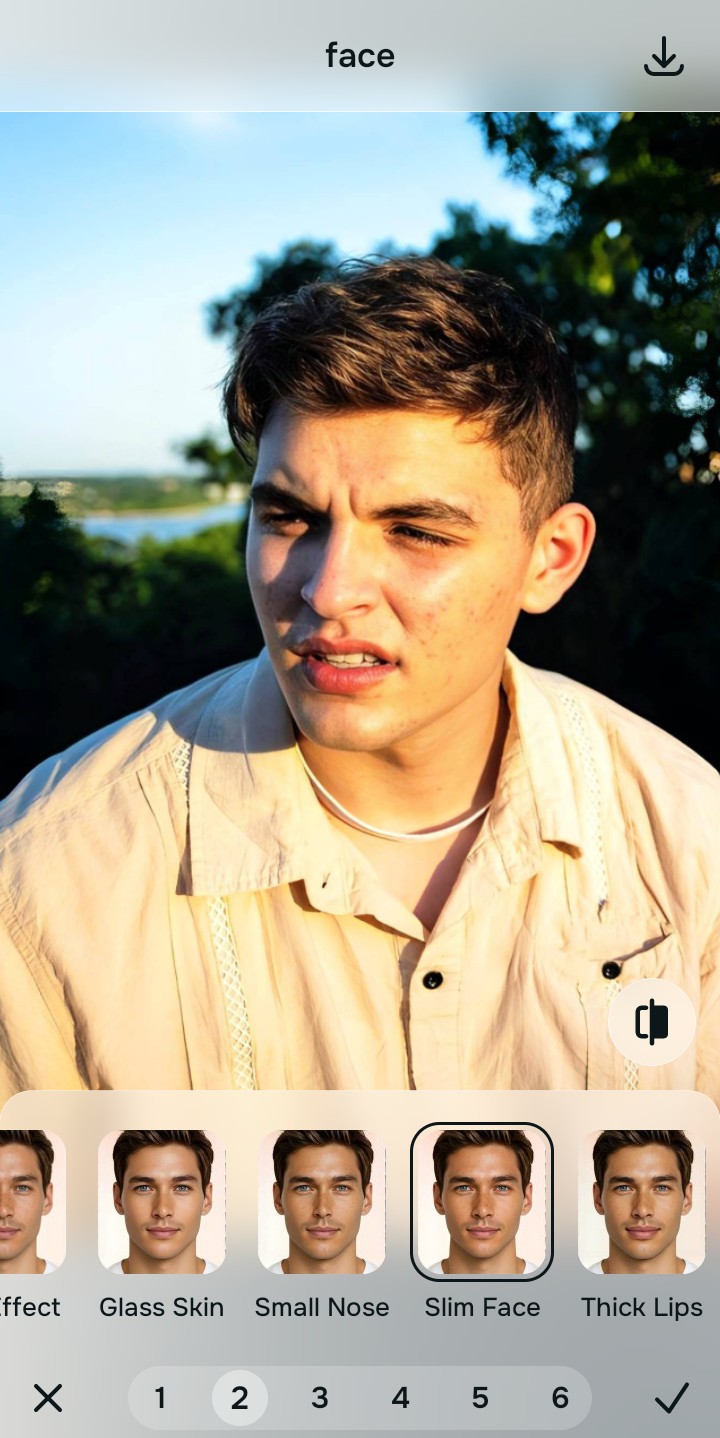
Export your high-resolution, uncompressed portrait
Citrus provides clean, unwatermarked HD exports completely for free, acting as the ultimate ai photo enhancer profile pictures tool to conquer the algorithm seamlessly.

How does the 400px crop ruin your headshot?
Identify your primary optical hurdle to select the exact automated pathway in Citrus.
Aligning Your Edits with the Citrus Taxonomy
Instead of guessing how much to artificially sharpen your photo before ruining it, Citrus categorizes enhancement into three distinct, mathematically safe pathways:
“Professional headshot enhancement should never require you to deep-fry your photo with artificial sharpening just to survive an upload. It must mathematically increase structural density so you look competent and authoritative at any size—effortlessly.”
Why Pre-Compression Structuring Beats Generic Sharpening
There is a massive structural difference between authentic optical upscaling and dragging a "Sharpen" slider in a basic photo editor. When you turn up the sharpness on a high-res photo, the software creates thick white and black halos around every single pixel edge. When LinkedIn's enterprise algorithm shrinks that down to a 400px circle, it crushes those halos into blocky, jagged artifacts that make your expensive headshot look incredibly cheap and overedited.
Citrus is built specifically to prevent this. By constraining adjustments to mathematically calibrated Level 1–5 settings across Enhance, Looks, and Face, it physically increases the geometric density of the image *without* adding those artificial contrast halos. It provides the clean, high-resolution structural baseline necessary to survive the extreme circle crop intact. You get a crisp, authoritative profile picture in one tap without the crunch.