


August 23, 2026
Pixel 11 Camera Looks Explained: Digi, Original, and When to Enhance After Shooting
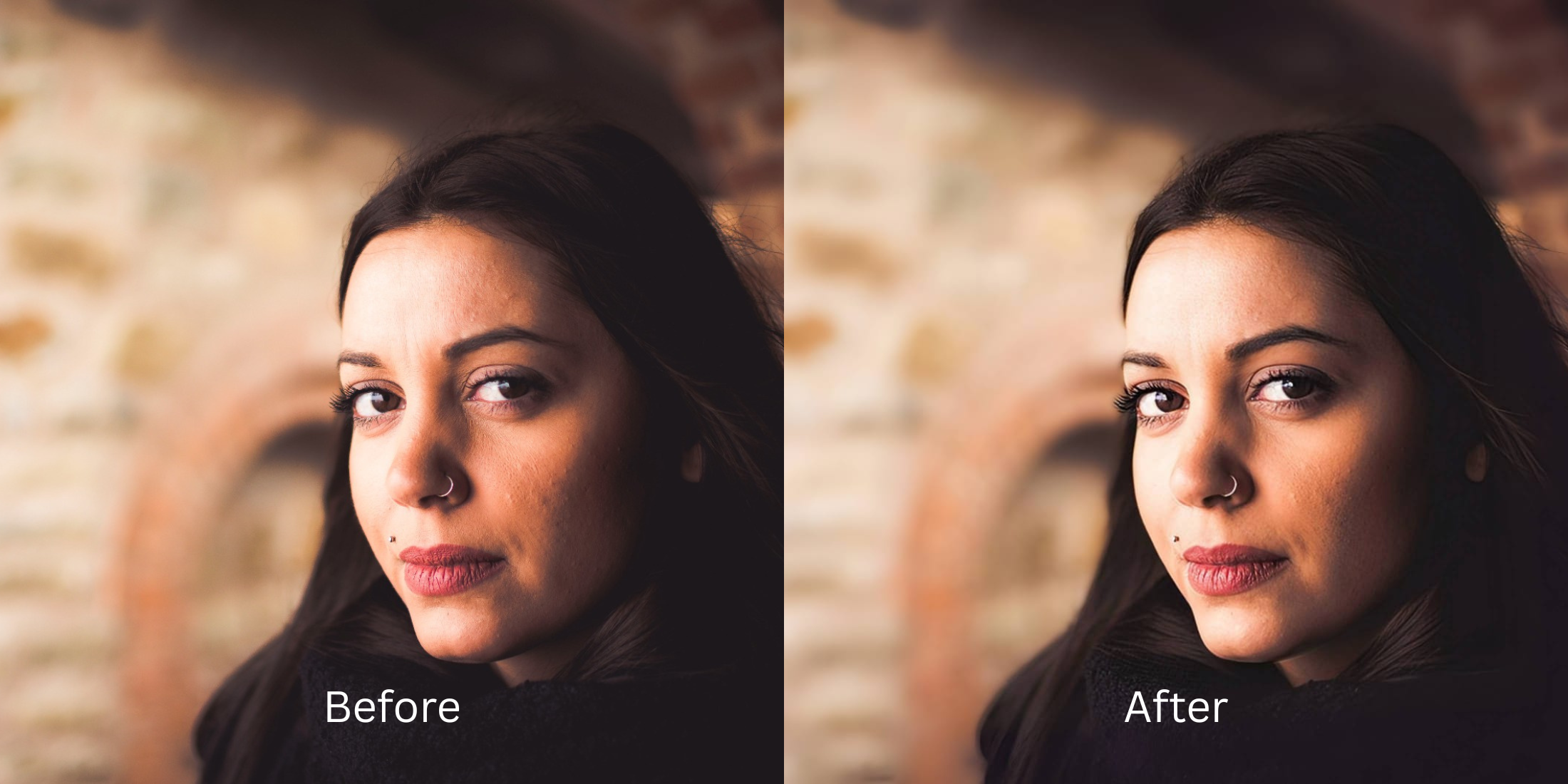

Pixel 11 Camera Looks Explained: Digi, Original, and When to Enhance After Shooting
With the release of the Pixel 11, Google completely transformed how everyday users take photos by introducing built-in "Camera Looks" directly into the viewfinder. Prominent options like "Original" (the standard, cool-toned HDR) and "Digi" (a harsh, high-contrast retro digicam aesthetic) allow you to apply complex color science *before* you press the shutter. While this sounds convenient for creating instant social media vibes, it carries a massive hidden risk. The moment you shoot a portrait using one of these profiles, the software permanently bakes artificial color casts, crushed shadows, and synthetic grain into the final JPEG. If the "Digi" look makes your skin look muddy in bad lighting, you cannot undo it. To guarantee authentic, magazine-quality portraits, you need an optical workflow that separates raw camera capture from aesthetic post-processing.
Pixel 11's built-in Camera Looks permanently bake artificial contrast and color shifts into your photos. Instead of ruining a memory with a harsh filter you can't undo, shoot in a neutral profile. Then, use Citrus AI to apply true optical film aesthetics and correct your lighting safely in one tap after the fact.
The Danger of "Baked-In" Camera Aesthetics
The core issue with relying on built-in software aesthetics like the Pixel 11's "Digi" mode is the loss of optical control. These profiles apply aggressive digital contrast and false noise to simulate vintage cameras. However, they lack the biometric awareness required for human portraits. They treat your face exactly like a brick wall, often resulting in hyper-textured skin and muddy shadows. Understanding how to look like a digital camera without permanently destroying your sensor data is essential for preserving your memories.
- Permanently burning harsh contrast and synthetic grain into your original JPEG file
- Crushing dynamic range, making it impossible to recover under-eye shadows or dark hair detail
- Applying a global aesthetic that fails to understand human skin tones, leaving faces looking plastic or muddy
- Forcing you to edit without looking like different person to fix the camera's mistakes
- Applying high-end retro aesthetics mathematically *after* capturing a clean, safe exposure
- Balancing global dynamic range natively so you can achieve an authentic look like posted in 2016
- Elevating photogenic radiance without adding fake noise that ruins your actual facial features
- Delivering true, unwatermarked HD exports completely for free
When your camera's software forces an unchangeable vibe on your portraits, you lose the ability to refine the image later. Shifting to an optical workflow helps you get a true retro flash look without instagram filters ruining your face.
Optimize everyday photos beyond baked-in camera profiles. A structured optical enhancement brings natural depth and authentic film aesthetics to your snapshots safely.
A 5-Step Test: Perfecting Pixel 11 Portraits Without Baked-In Artifacts
Upload the raw, neutral camera roll photo
Shoot your Pixel 11 photo using a standard, un-stylized profile. Upload this clean file. Starting with raw sensor data is the first step to achieving an unedited influencer pictures editing style naturally.
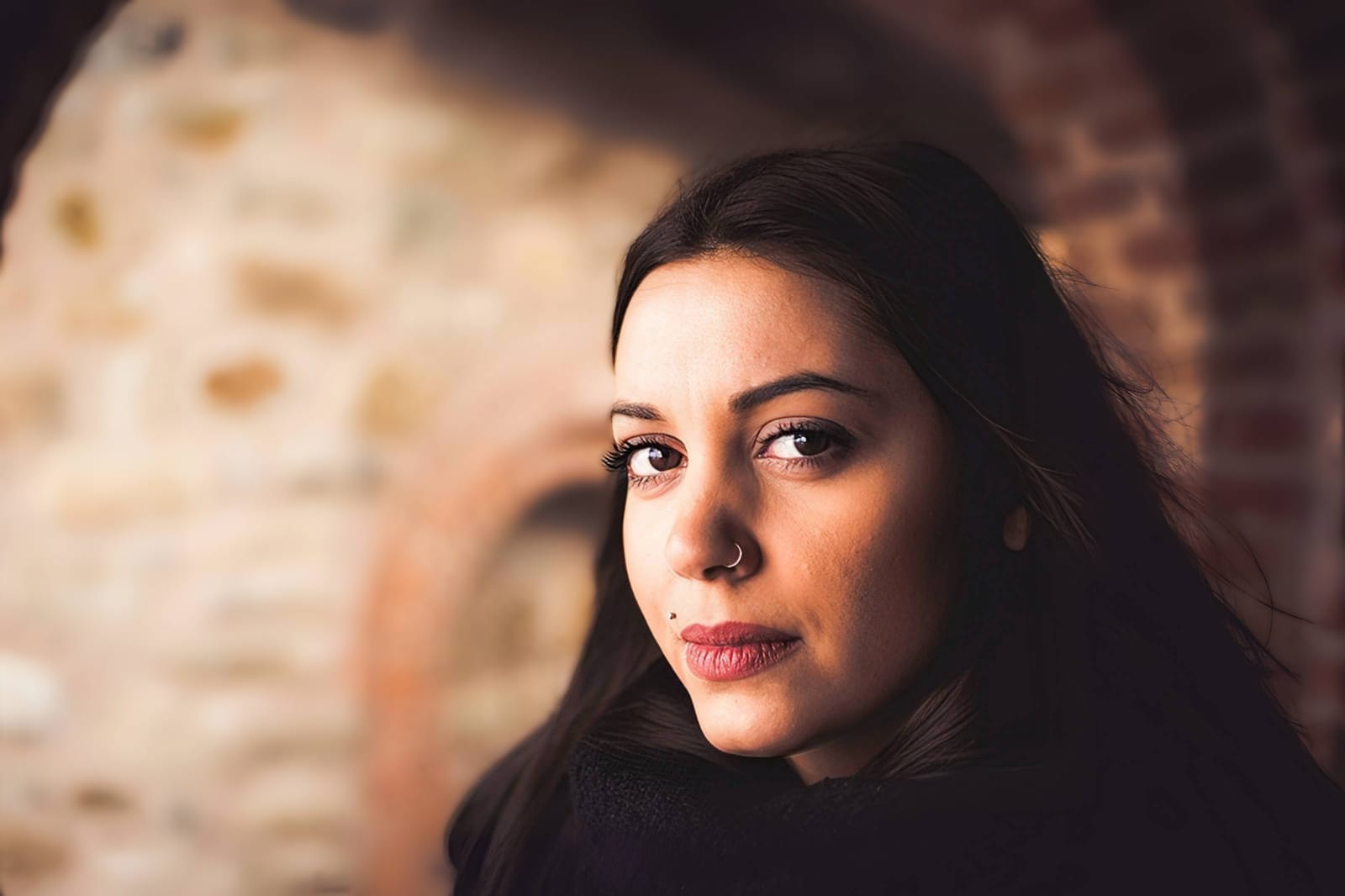
Let the instant preview calculate optical balance
Citrus provides an instant baseline correction immediately. Instead of just splashing a flat color grade over the image, Citrus analyzes the underlying facial biometrics and environmental light simultaneously.
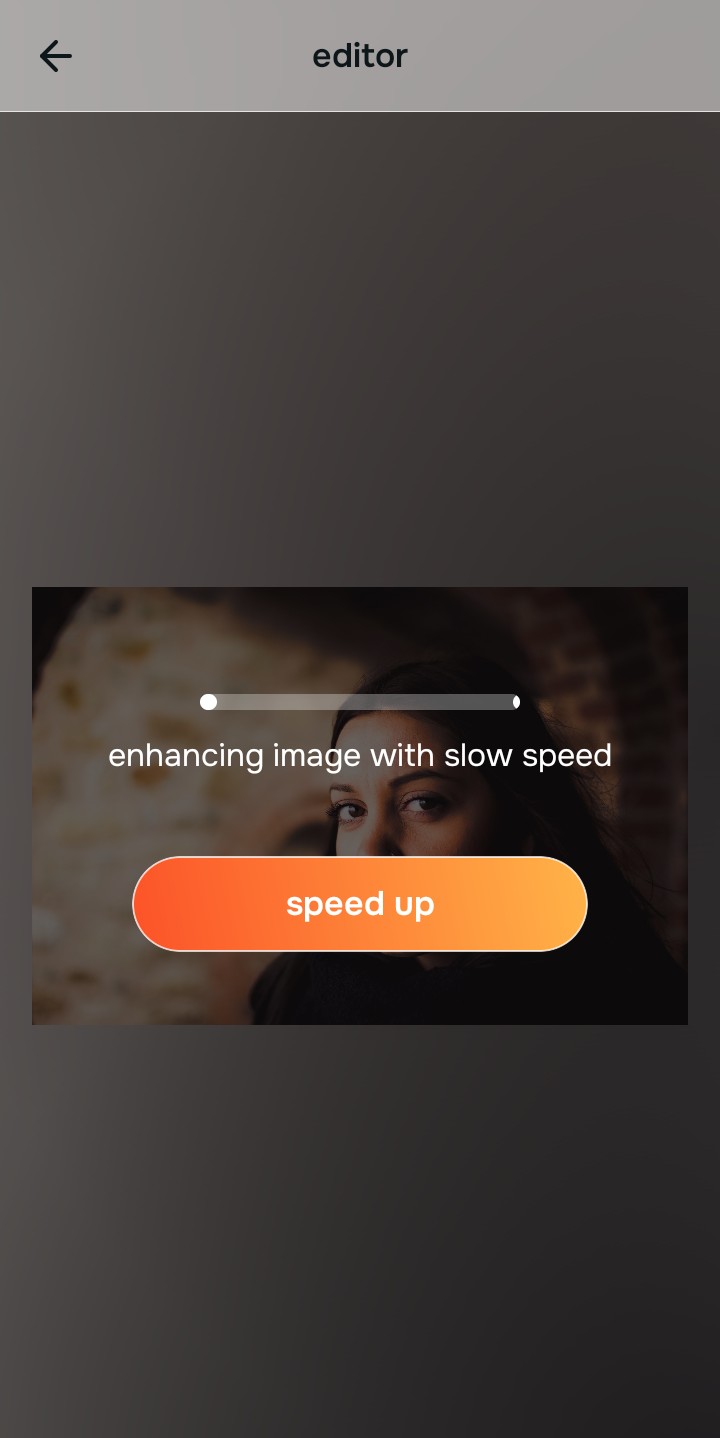
Tap Enhance and choose Colors & Lighting
Google's default HDR processing is famously cold and contrast-heavy. In Citrus, tap Enhance → Colors & Lighting. This mathematically balances the global exposure curves, lifting crushed shadows and correcting the cool Pixel tint. This neutralizes computational damage before you apply an aesthetic vibe.

Always balance global optical exposure before applying aesthetic impressions. Fixing base dynamic range mathematically ensures subsequent film aesthetics sit naturally on real skin.
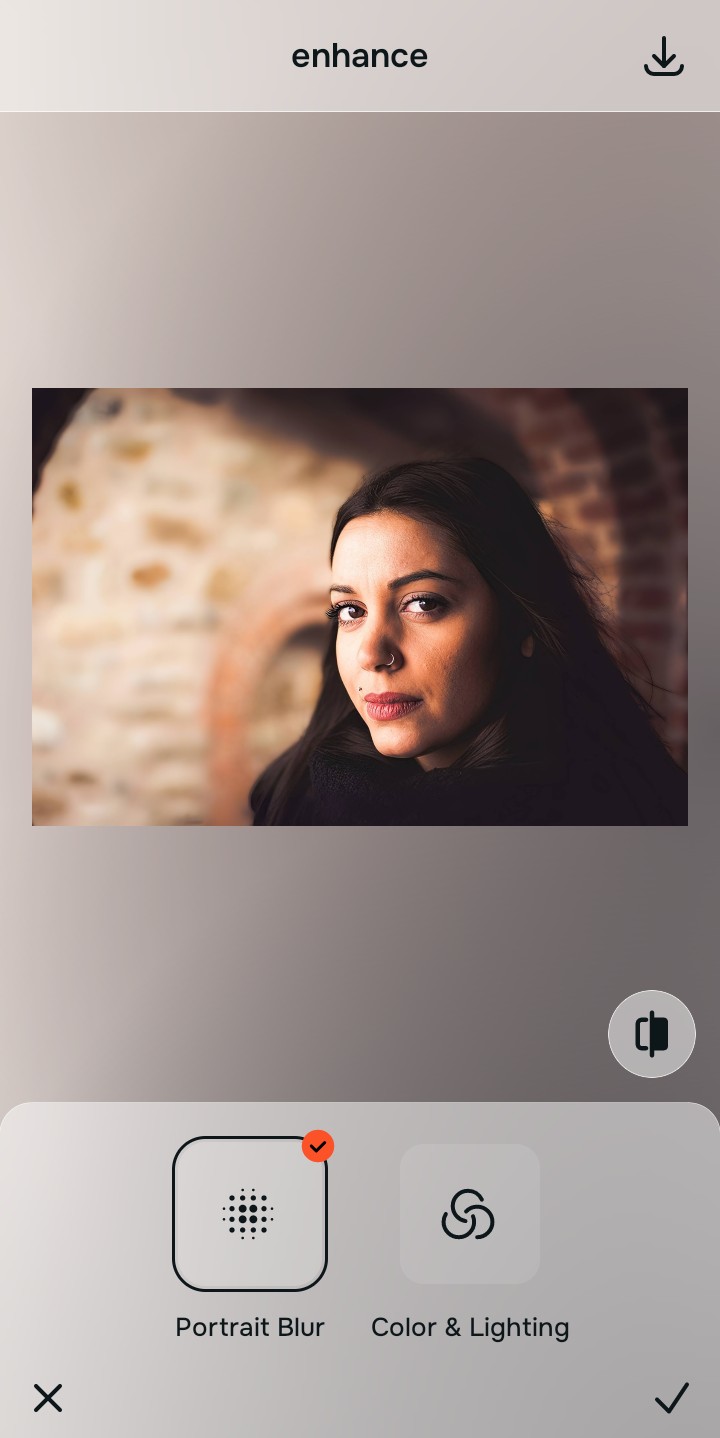
Tap Looks and select Glass Skin
Instead of relying on the Pixel 11's destructive "Digi" filter, you can safely introduce retro vibes natively. Tap Face → Glass Skin in Citrus. Select your preferred value from Level 1–5. This elevates the overall aesthetic harmony and radiance, allowing you to make photos look candid and authentic without compressing the file into mush.
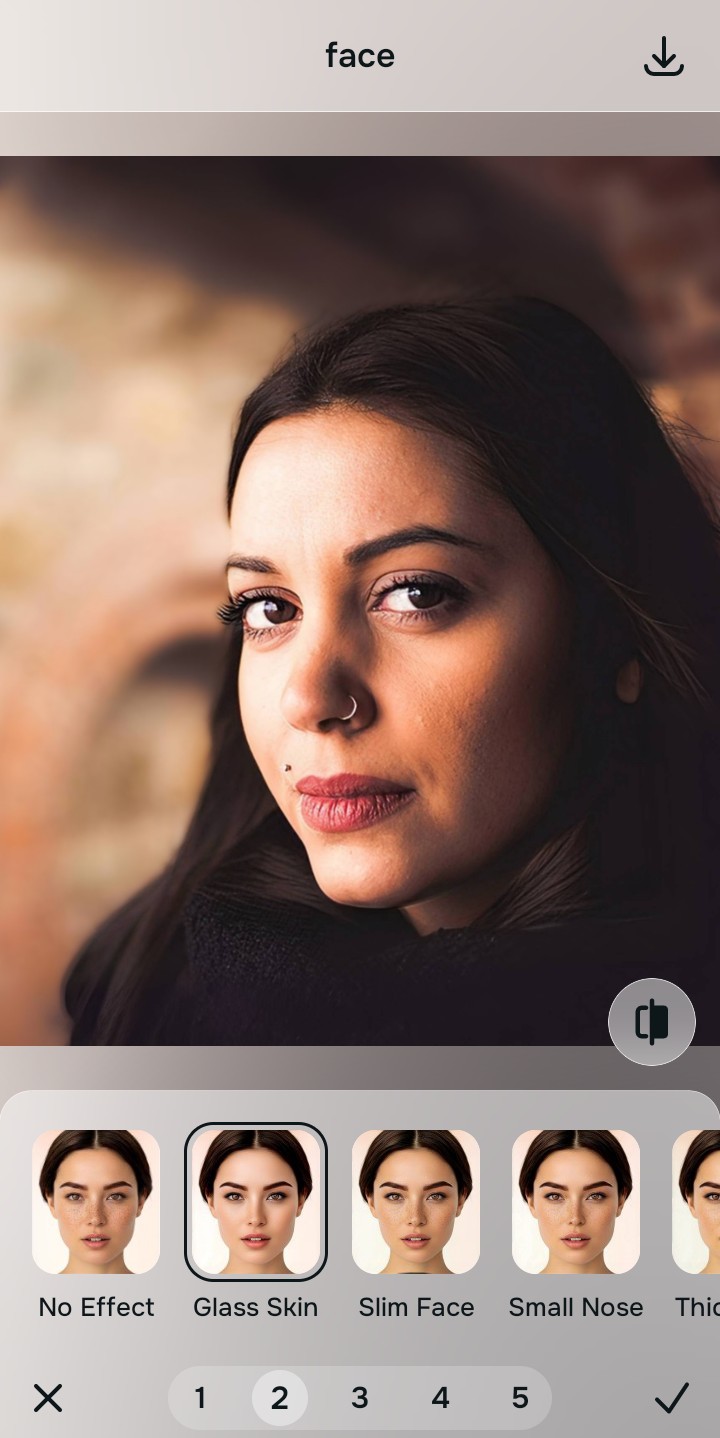
Export your high-resolution, uncompressed portrait
Citrus provides clean, unwatermarked HD exports completely for free. You achieve true professional editing without people saying facetune or noticing heavy computational damage.

How did the camera process ruin your selfie?
Identify your primary optical hurdle to select the exact automated pathway in Citrus.
Aligning Your Edits with the Citrus Taxonomy
Instead of guessing which baked-in camera look will ruin your photo, Citrus categorizes enhancement into three distinct, mathematically safe post-capture pathways:
“Portrait photography should never force you to bake in a destructive aesthetic before you even see the photo. It must mathematically separate optical capture from stylistic impressions so you maintain total control—effortlessly.”
Why Post-Capture Optical Calibration Beats Real-Time Filters
There is a massive structural difference between authentic post-capture optical depth and real-time software filters. When a modern phone applies a stylized "Look" in the viewfinder, it physically discards pixel data to force the aesthetic. If the contrast crushes the shadow under your eye, that data is gone forever.
Citrus is built specifically to prevent this. By constraining adjustments to mathematically calibrated Level 1–5 settings across Enhance, Looks, and Face *after* you shoot in a clean profile, it simulates true optical aesthetics while strictly protecting your true facial geometry. You get a clean, stylized photo in one tap without the permanent damage.