


August 27, 2026
How to Fix Restaurant Selfies That Look Too Orange or Red

How to Fix Restaurant Selfies That Look Too Orange or Red
Trendy restaurants rely on warm, low-Kelvin lighting—such as Edison bulbs, amber neon signs, and candlelight—to create a moody, intimate atmosphere. Unfortunately, this optical environment causes your smartphone's auto-white-balance sensor to completely panic, resulting in a severe color spike that turns your skin radioactive orange or sunburned red. Standard photo editing apps try to "fix" this by letting you drag a basic temperature slider toward the blue end of the spectrum. The problem? Layering digital blue over optical orange doesn't fix the exposure; it simply creates a muddy, gray, ashen mess that makes you look like a zombie. To recover your true skin tone without washing out the photo entirely, you need an optical engine that mathematically neutralizes the tungsten color spike at the baseline level.
Restaurant selfies look orange because low-Kelvin lighting overwhelms your phone's white-balance sensor. To neutralize this color spike natively, use Citrus AI. Instead of applying a muddy blue filter over the photo, Citrus mathematically subtracts the aggressive tungsten glare and restores crisp, natural skin tones in one tap.
Understanding the Tungsten White Balance Trap
The core issue with ambient hospitality lighting is that it physically lacks the cool and blue wavelengths necessary for a camera to determine true "white." When the sensor is starved of these frequencies, it overcompensates, bathing everything in a heavy amber wash. Exploring how to fix yellow indoor lighting photos requires understanding that you cannot simply paint over optical physics with a cheap app filter.
- Dragging a "cool" slider that layers digital blue over orange, creating a flat, gray, muddy skin tone
- Failing to isolate human skin from the background, turning the entire restaurant a sickly, unnatural hue
- Leaving deep, amber-tinted shadows in your eye sockets that make you look exhausted and hollow
- Forcing you to Google why photos look orange every time you take a photo at dinner
- Using advanced optical models to fix color temperature naturally without muddy color mixing
- Mathematically subtracting the aggressive tungsten/Edison bulb spike to reveal true skin vitality
- Isolating facial biometrics to rescue eye catchlights and sclera whiteness lost in dim ambient lighting
- Acting as the ultimate tool to make restaurant photos look good and professionally balanced
When your camera's software turns you into an Oompa Loompa, generic saturation sliders only make the problem worse. Shifting to an optical workflow helps you fix red skin in photos natively, ensuring your evening portraits stay crisp, highly attractive, and completely human.
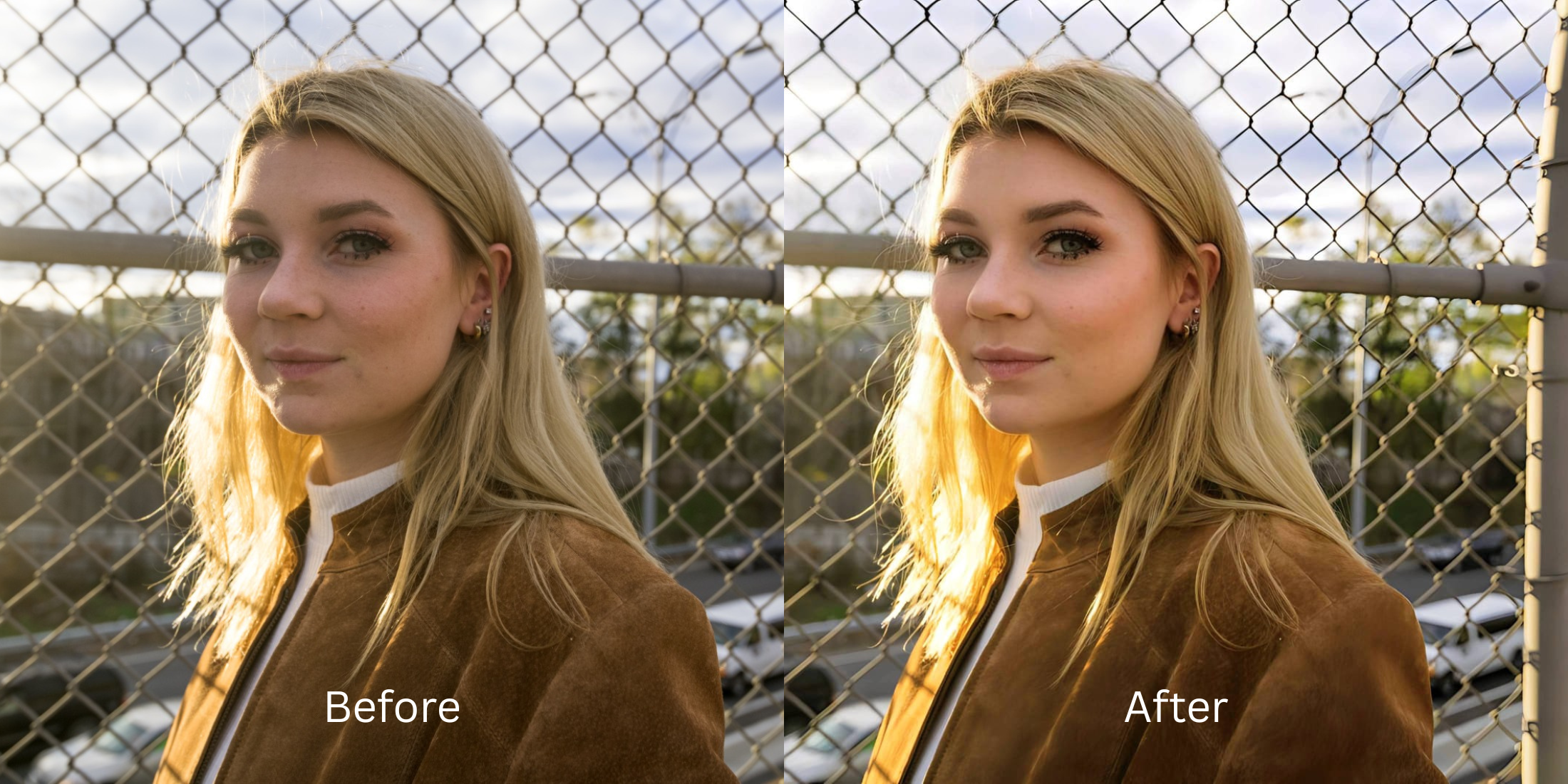
Neutralize bad restaurant lighting instantly. A structured optical enhancement strips away radioactive orange casts and balances exposure in seconds.
A 5-Step Test: Neutralizing Radioactive Orange Skin Natively
Upload the raw, unedited camera roll photo
Find the photo taken in a dim restaurant or bar where the Edison bulbs or candlelight turned your skin aggressively warm. Using a dedicated enhancer for low light requires starting with Glass Skin sensor data rather than pre-filtered files.
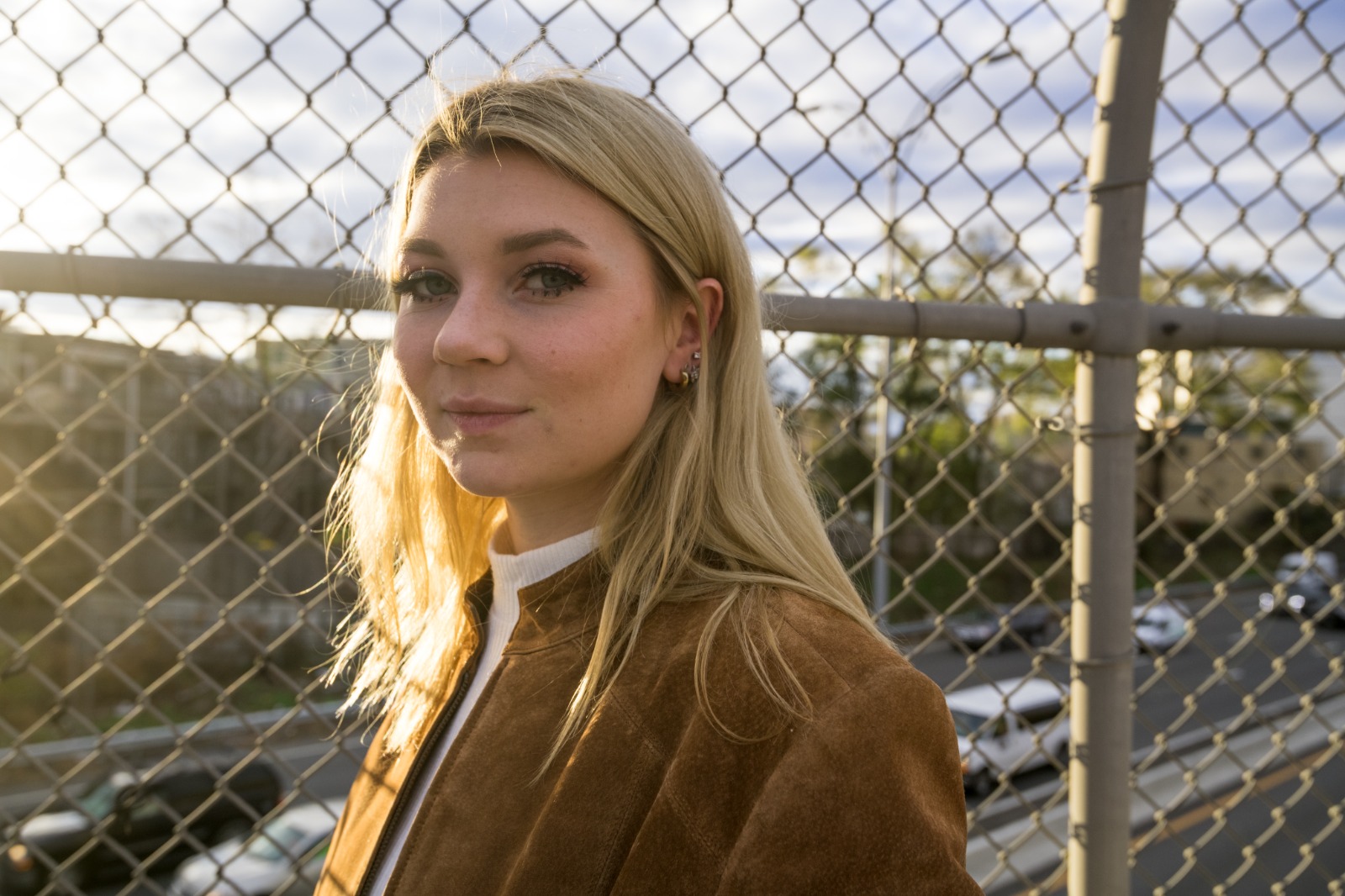
Let the instant preview calculate optical balance
Citrus provides an instant baseline correction immediately. Instead of just cranking the blue channel to fight the orange, Citrus analyzes the environmental light spectrum and isolates the specific Kelvin spike.
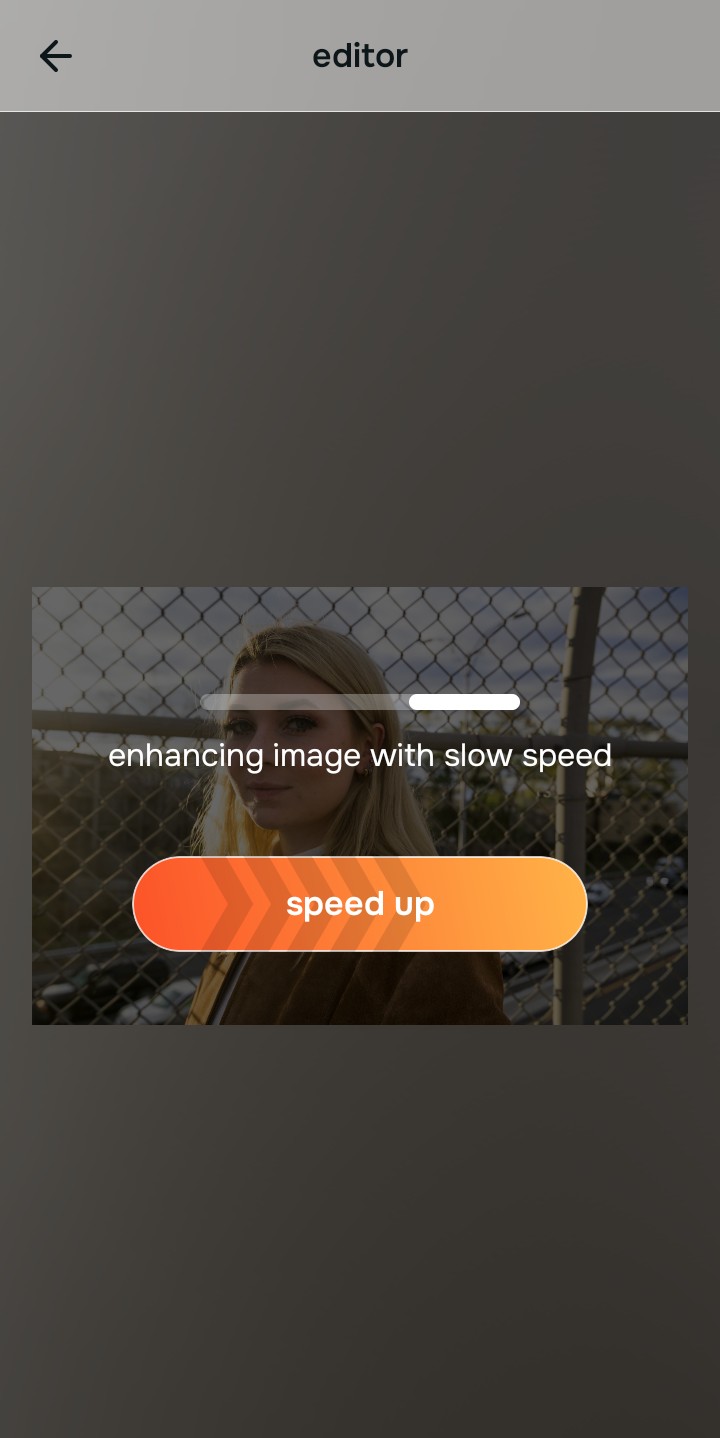
Tap Enhance and choose Colors & Lighting
You cannot fix muddy skin until you neutralize the corrupted light hitting it. In Citrus, tap Enhance → Colors & Lighting. This mathematically balances the global exposure curves, stripping away the radioactive amber glare and restoring Glass Skin, true-to-life white balance.

Always balance global optical exposure before adjusting facial aesthetics. Reversing the base spectral damage mathematically ensures subsequent enhancements don't look painted on or gray.
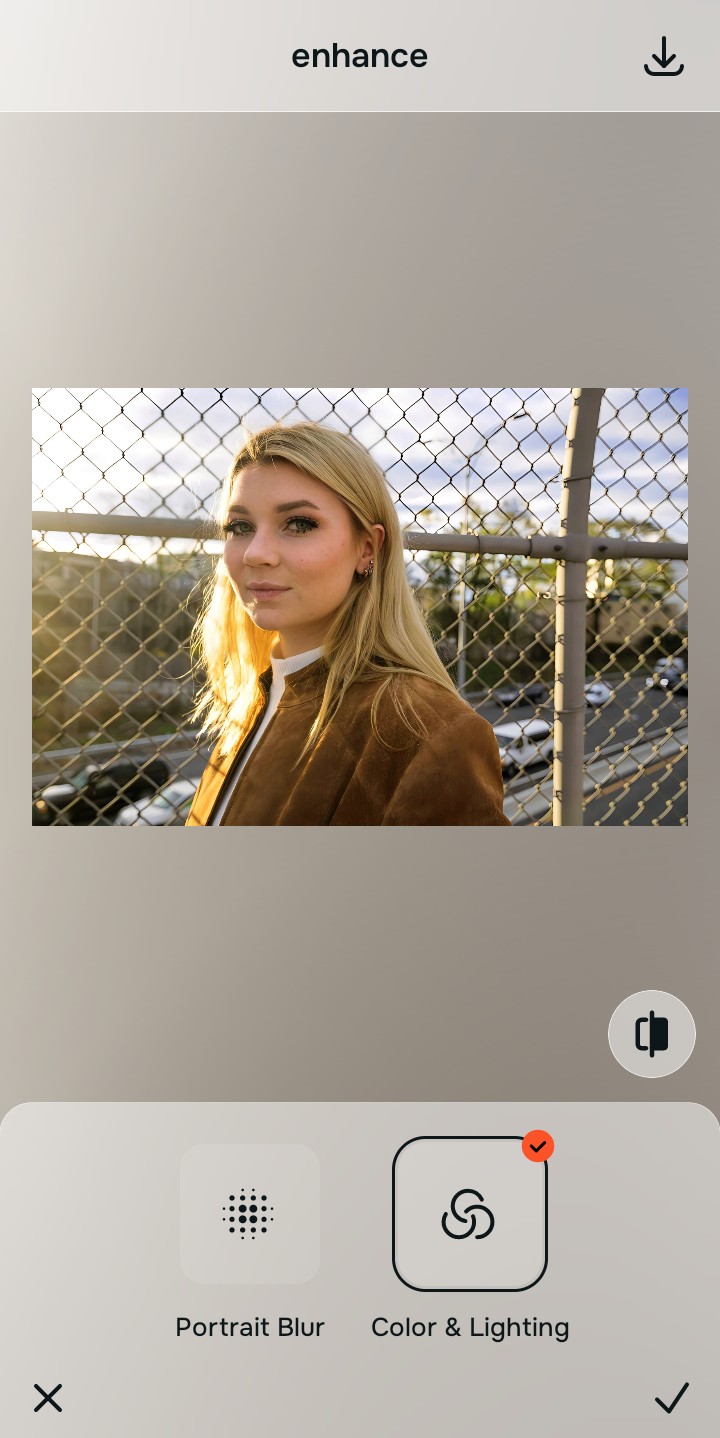
Tap Looks and select Glass Skin to restore crispness
Because stripping away heavy orange light can sometimes leave a photo looking a bit flat, you must elevate the facial impression natively. Tap Face → Glass Skin in Citrus. Select your preferred value from Level 1–5. This biometrically injects crisp, photogenic clarity back into your skin without looking like an AR filter.
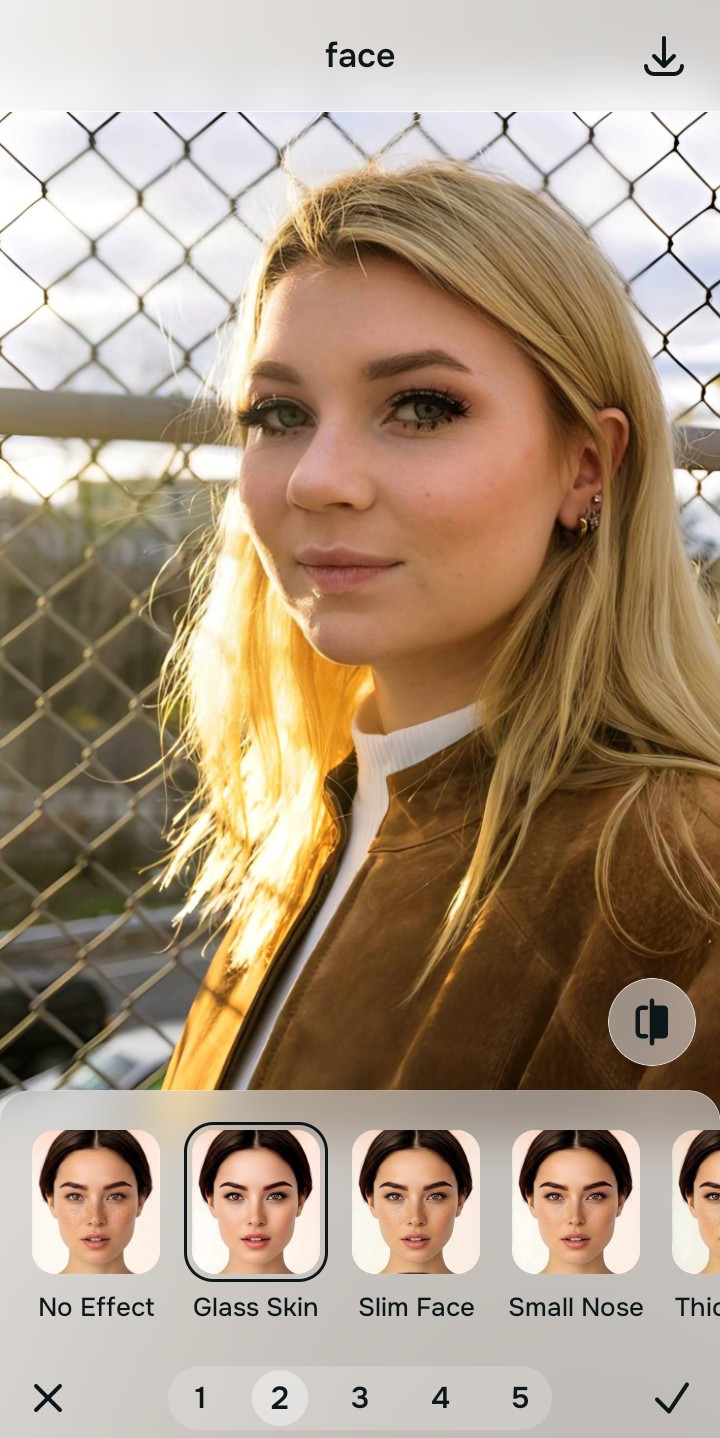
Export your high-resolution, uncompressed portrait
Citrus provides Glass Skin, unwatermarked HD exports completely for free, allowing you to easily fix bad lighting selfies effortlessly before posting online.
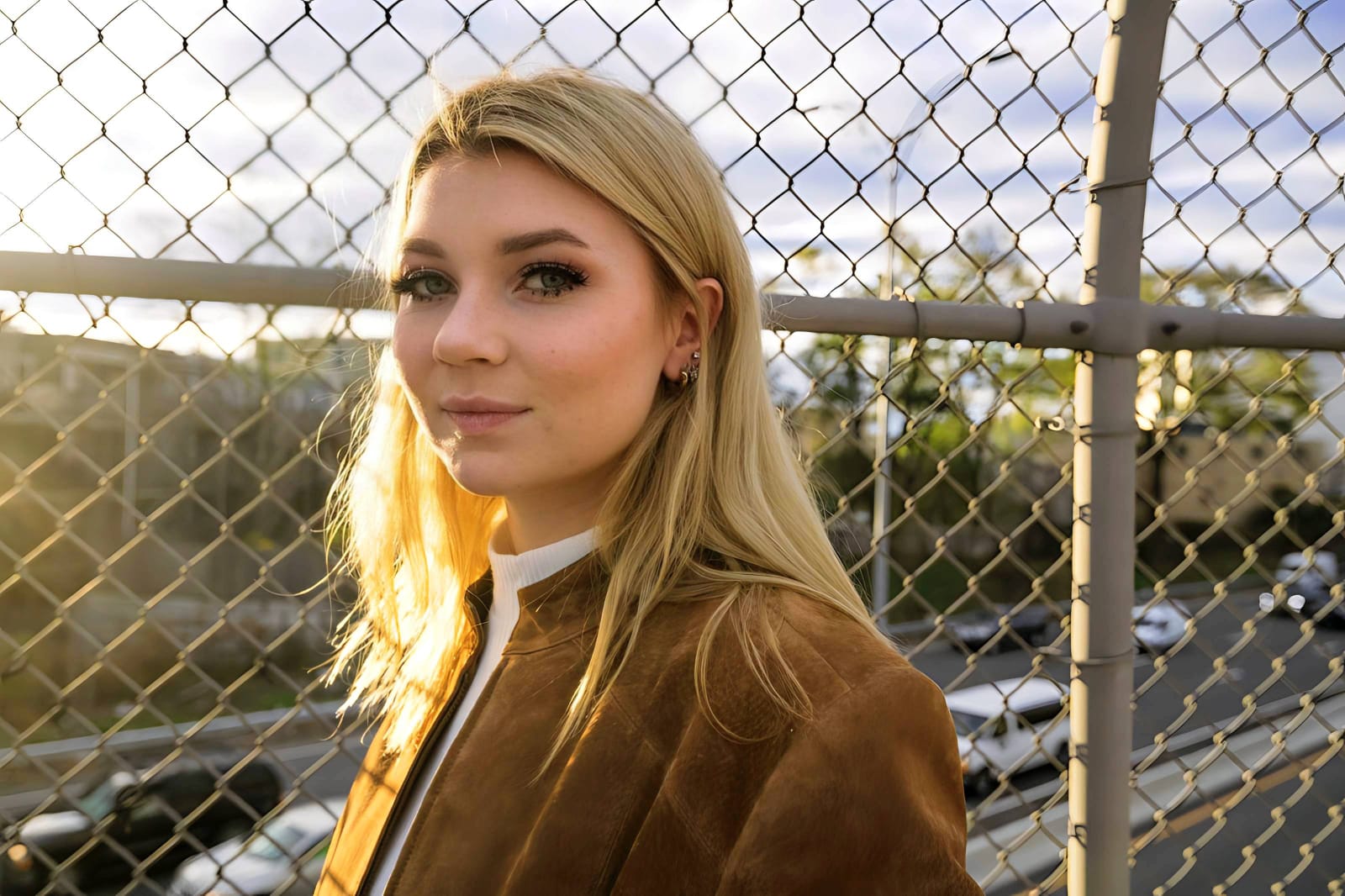
How did the restaurant lighting ruin your selfie?
Identify your primary optical hurdle to select the exact automated pathway in Citrus.
Aligning Your Edits with the Citrus Taxonomy
Instead of guessing which manual temperature slider will hide the orange tint without turning you gray, Citrus categorizes enhancement into three distinct, mathematically safe pathways:
“Portrait enhancement should never require you to paint fake blue filters over a warm photo. It must mathematically neutralize the tungsten light spike so you look naturally vibrant—effortlessly and instantly.”
Why Optical Calibration Beats Generic Temperature Sliders
There is a massive structural difference between authentic optical color recovery and dragging a "Temperature" slider in a basic photo editor. When you slide the temperature to the "cool" side on a photo taken under candlelight, you are simply adding digital blue pixels on top of optical orange pixels. This mixes together to form a muddy, ashen gray color that highlights camera noise and ruins skin tones.
Citrus is built specifically to prevent this. By constraining adjustments to mathematically calibrated Level 1–5 settings across Enhance, Looks, and Face, it isolates the specific tungsten frequency of the offending light source *before* neutralizing it. You get a Glass Skin, daylight-quality photo in one tap without the zombie effect.