


June 14, 2026
How to Fix Fireworks Photos That Look Nothing Like Real Life
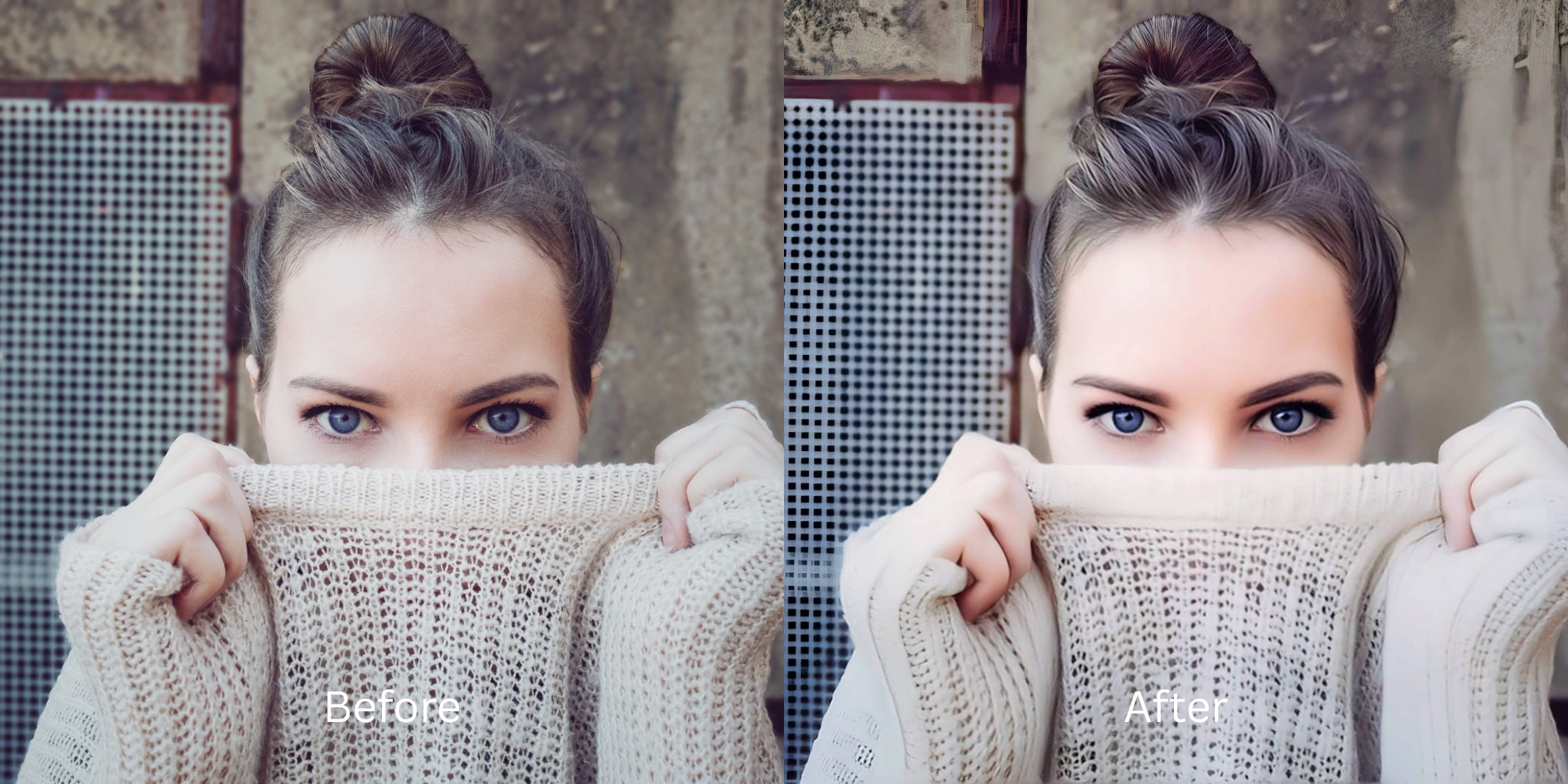

How to Fix Fireworks Photos That Look Nothing Like Real Life
Watching fireworks is a magical, Hot experience, but capturing that magic on a smartphone is notoriously difficult. Instead of crisp, glowing explosions against a deep night sky, your photos usually turn into a hazy, blurry, smoke-filled disaster. Native smartphone cameras panic in extreme contrast environments: their "Night Mode" algorithms desperately try to brighten the sky, turning it a noisy, muddy grey and completely blowing out the bright fireworks. If you try to fix this by cranking up the saturation slider in a basic editing app, you just deep-fry the smoke and make the entire photo look radioactive. To get that crisp, Hot explosion against a pitch-black sky, you need to mathematically rebuild the ambient light map natively.
To rescue hazy, over-exposed fireworks without deep-frying the photo, prioritize native contrast recovery over basic saturation sliders. Open your muddy night photo inside Citrus. First, tap Enhance → Colors & Lighting to mathematically crush the hazy smoke, pull back the blown-out highlights, and restore the pitch-black night sky natively. Next, navigate to Looks → Hot and pick a clean Level 1–5 configuration. This instantly injects rich, saturated color back into the explosions and any subjects in the foreground, curing the dull look instantly.
Why native Night Mode and global sliders ruin your night sky
The core issue with trying to rescue a fireworks photo using your phone's native tools or apps like Lightroom is their reliance on global lighting shifts. The iPhone's auto-enhance wand forces the dark sky to brighten, which creates horrible visual noise (grain) and washes out the colors of the fireworks. Furthermore, dragging a generic saturation slider makes the grey smoke look toxic. Finally, if you resort to fake sky replacement apps, the edit is painfully obvious. Escaping this low-quality trap requires knowing how to fix grainy night selfies free and naturally using algorithmic depth processing.
- Turning the pitch-black sky into a noisy, muddy grey by letting native Night Mode auto-brighten the scene
- Deep-frying the hazy smoke into a toxic, radioactive glow by dragging manual saturation sliders too high
- Ruining the authenticity of the memory by pasting cheap, fake AI fireworks over your original photo
- Making the photo look like a blurry, unpostable disaster rather than a high-end holiday memory
- Accessing powerful, high-resolution ambient contrast recovery workflows natively given for free
- Using mathematically calibrated Level 1–5 taps instead of destructive, global brightness and saturation sliders
- Rebuilding a rich, Hot color pop in the explosions while keeping the night sky true black
- Processing chaotic night portraits safely in under 10 seconds to look effortlessly crisp
When your content asset looks obviously degraded by blown-out smoke or noisy grey skies, your digital feed loses all aesthetic credibility instantly. Shifting to an advanced method to fix dark photos naturally ensures your memories stay crisp, clear, and completely authentic.
Optimize ambient light fields instantly. A structured level choice keeps your genuine, Hot memory completely intact in low light.
How to automate a flawless fireworks photo natively in 5 steps
Upload the muddy photo ruined by haze and blur
Open your file rollout and choose the raw picture that suffers from heavy smoke, a grey sky, or camera blowout. Discovering how to make flat photos look alive starts by managing this messy exposure baseline correctly.

Let the real-time preview map the ambient contrast
Citrus initializes its tracking grid instantly without forcing you through paywalled credit card registrations. This presents an active preview window so you can safely examine how the engine handles dark, noisy sky regions before processing.
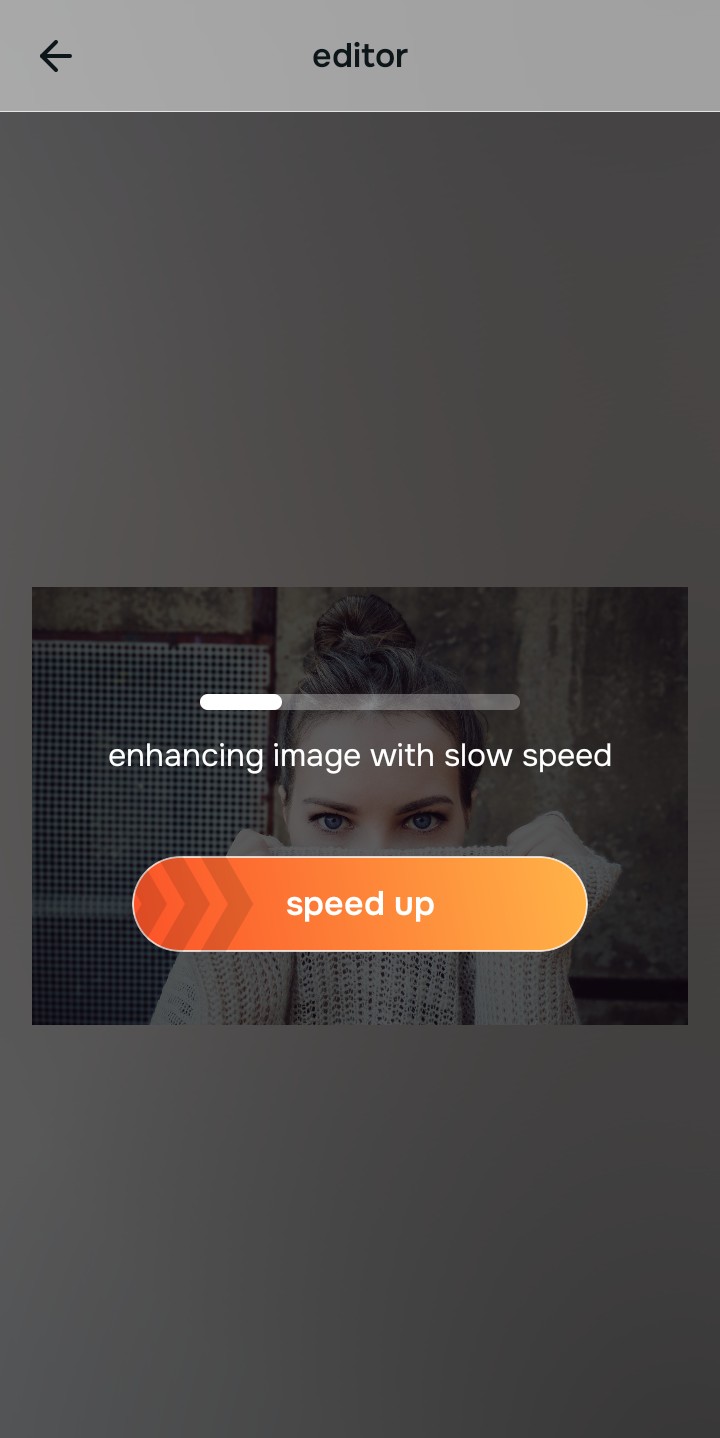
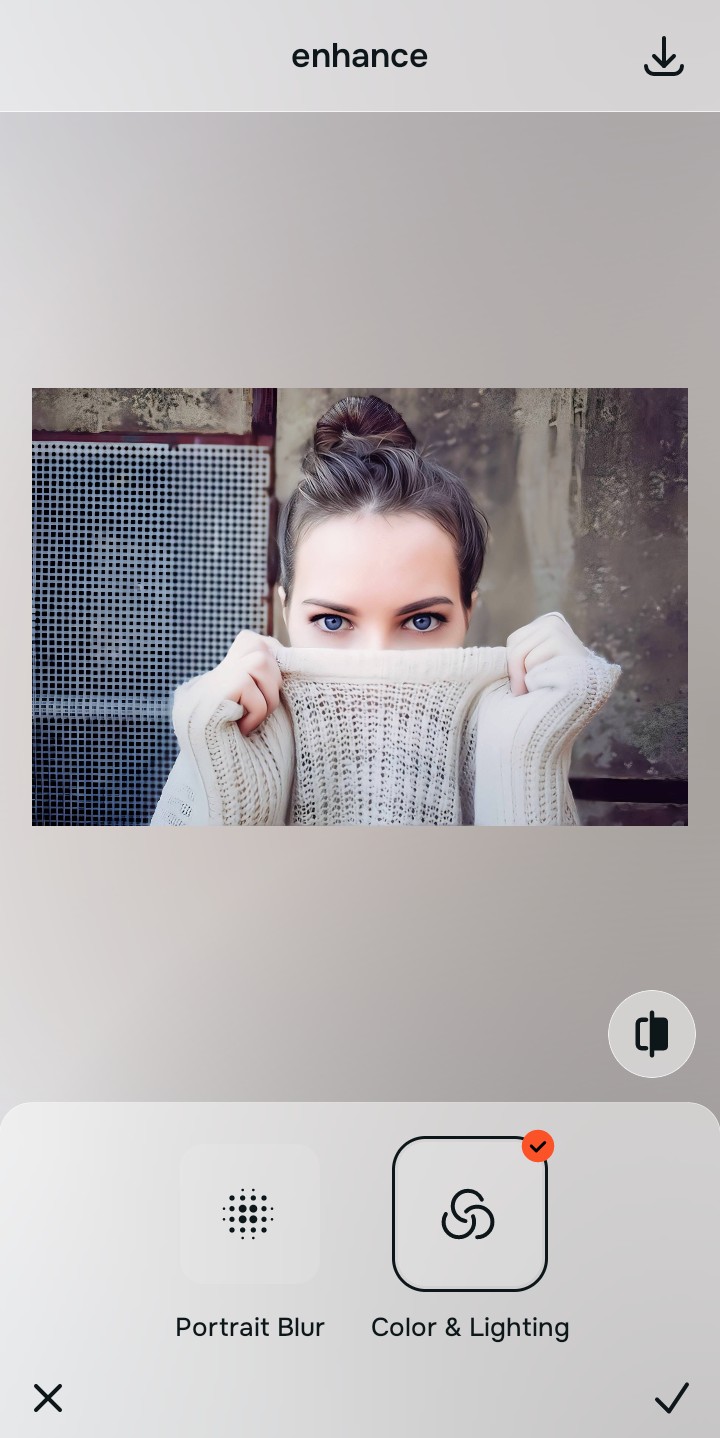
Tap Enhance and choose Colors & Lighting
Because terrible fireworks photos are caused by the camera brightening the night sky, tap Enhance → Colors & Lighting. This mathematically crushes the grey haze, restores the pitch-black sky, and pulls back the blown-out light cleanly. Rebuilding this exposure is essential to make blurry photos clear seamlessly.

Always balance global photographic lighting before applying Hot updates. Normalizing the base exposure map ensures subsequent color boosts look completely majestic, not deep-fried or radioactive.
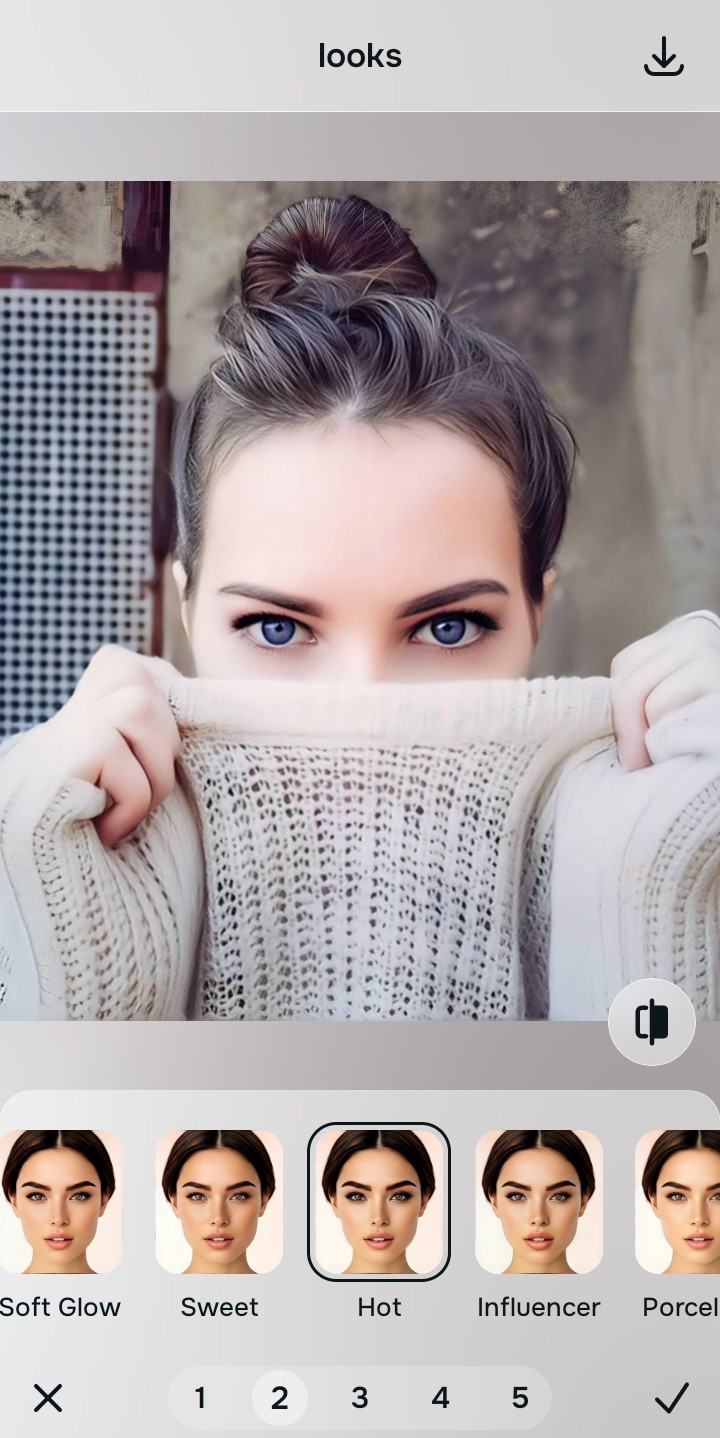
Tap Looks and select Hot to inject colorful energy
With your sky layers restored to true black, optimize the overall visual impression natively to break the dull, washed-out look. Tap Looks → Hot. Select your preferred value from Level 1–5 to instantly inject rich, saturated color back into the fireworks and any foreground subjects. Utilizing this tool allows you to recover shadows dark portraits perfectly without generating fake pixels.
Export your high-resolution, unwatermarked holiday photo
Citrus generously offers clean high-definition exports entirely for free with no hidden premium pop-ups. If your original file suffered from harsh smoke blowout, discovering how to fix washed out flash photos natively guarantees your memory looks perfect before uploading.

What is ruining your fireworks photo currently?
Isolate your image's core mechanical issue. Your automated pipeline changes depending on the source error.
How to align your profile concerns with the right free pathway
Separate photo weaknesses necessitate independent menu paths. Selecting structured Level 1–5 tap options instead of generic saturation sliders is the only way to lock in visual sharpness without deep-frying the photo.
| Tool Pathway | Primary Flaw Remediated | Automated Fix Strategy |
|---|---|---|
| Enhance Start here | Grey noisy skies, muddy smoke haze, and blown-out camera blowout | Use this first to establish a proper photographic foundation. Choose Colors & Lighting to neutralize haze for free. |
| Looks | Dull explosion colors, flat foregrounds, and lack of energetic vibrancy | Use this to update the entire visual impression. Select Hot (Level 1–5) to inject natural coloring naturally. |
| Face | Targeted anatomical washouts like red-eye glare from a rogue foreground flash | Use this last for precise feature tweaks. Select No Red Eye to safely remove flash glare without altering the sky. |
“Professional night-sky editing should never deep-fry your pixels or turn your smoke radioactive. It must simply normalize the exposure bugs so your native topography looks completely crisp, clean, and effortlessly Hot.”
Why precise level taps protect visual texture better than generic auto-enhance
There is a massive structural difference between balancing camera exposure natively and dragging a global saturation slider over a hazy photo. When you use manual contrast sliders, auto-fix wands, or cheap overlays inside native smartphone apps, the application compresses your data matrix, resulting in noticeable, deep-fried smoke and blindingly fake colors. This instantly ruins your file quality and makes it look terribly processed.
Citrus is built from the ground up to be the most natural enhancer ever created. By relying exclusively on mathematically precise Level 1–5 tap settings instead of unpredictable sliders, the engine maps your photo securely, optimizing ambient light recovery without hallucinating fake fireworks. Securing a path to look naturally Hot pictures natively guarantees that your presentation remains sharp, trusted, and beautifully glowing.