


July 10, 2026
How to Make a Passport Photo Look Normal Without Breaking the Rules

How to Make a Passport Photo Look Normal Without Breaking the Rules
Passport photos are notoriously terrible. Between the harsh, uncomplimentary fluorescent lighting at the post office or pharmacy and the requirement to look dead straight at the camera without smiling, you almost always end up looking like you took a mugshot. However, the government rules for biometric photos are incredibly strict: you cannot alter your facial geometry, you cannot use apps that smooth your skin into plastic, and you cannot apply obvious filters. If you try to fix your photo using apps like Facetune, your passport application will be instantly rejected. To successfully make your passport photo look normal and awake without breaking the law, you must solely rely on native light balancing that leaves your biometric data 100% untouched.
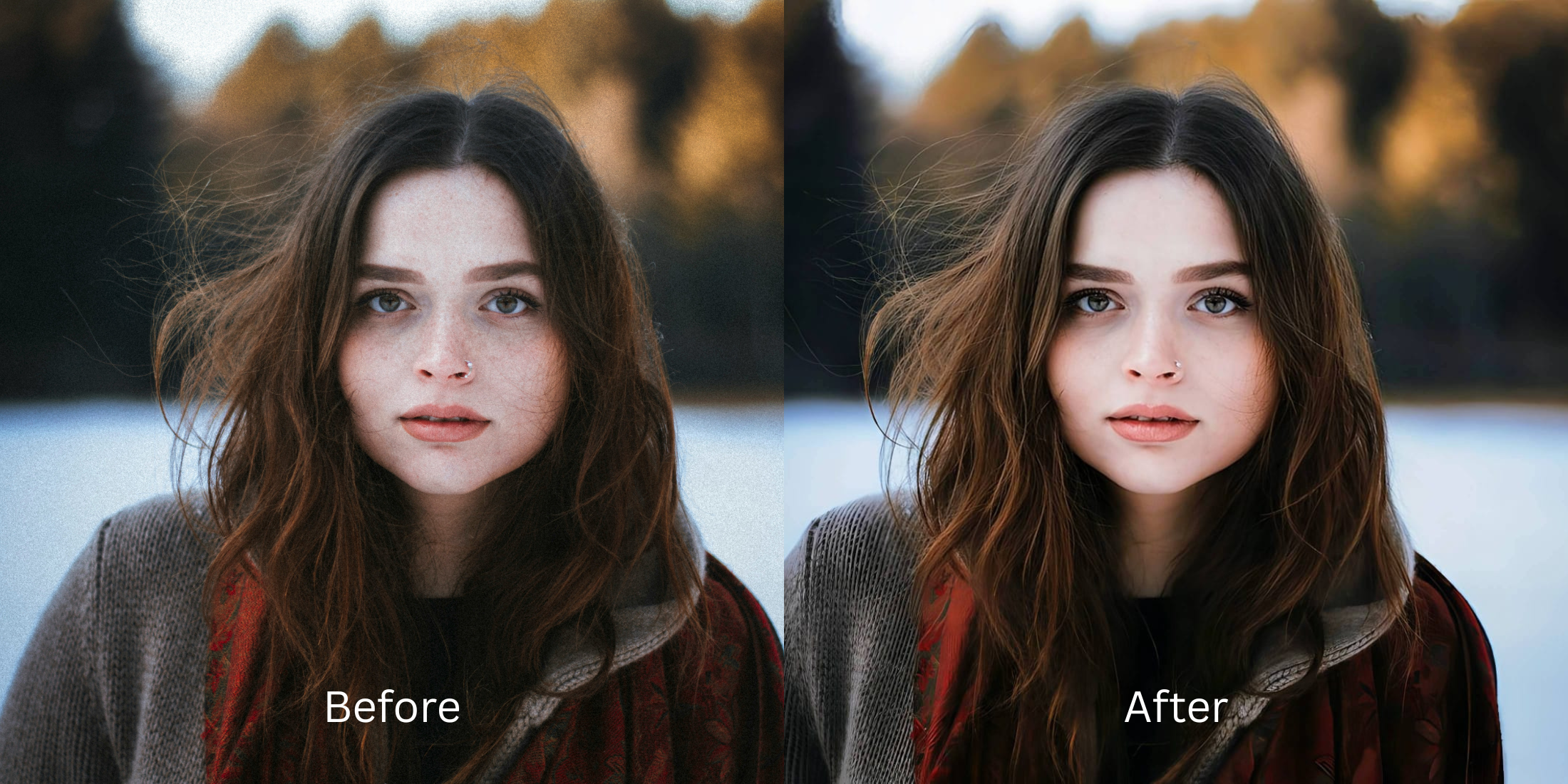
To fix a harsh passport photo without getting it rejected, use native light recovery instead of facial manipulation. Open your terrible "mugshot" inside Citrus. First, tap Enhance → Colors & Lighting to mathematically strip away the harsh overhead post office glare without altering the required white background. Next, navigate to Looks → Glow up and pick a clean Level 1–5 configuration. This gently lifts the heavy, exhausted shadows under your eyes and normalizes your expression without breaking any biometric constraints.
Why fake AI and liquify tools will get your passport rejected
The core issue with trying to "fix" a passport photo using apps like FaceApp or Facetune is their reliance on biometric destruction. Dragging a manual liquify slider to thin your face or using AI to generate a synthetic smile literally alters the biometric mapping points the government uses for facial recognition. Heavy smoothing wipes away the required texture. Escaping this rejection trap requires finding a Glow up results photo enhancer that operates entirely by correcting light exposure, ensuring your photo passes inspection.
- Guaranteeing a rejected application by using FaceApp to generate a synthetic, unapproved smile
- Destroying required biometric texture by over-smoothing your skin into flat plastic via Facetune
- Warping your actual facial geometry with manual liquify tools to look thinner
- Failing the white-background test by applying global color filters that tint the entire image
- Accessing powerful, high-resolution light processing workflows that preserve biometric data perfectly
- Using mathematically calibrated Level 1–5 taps to lift heavy shadows instead of altering geometry
- Rebuilding a Glow up, awake facial appearance natively without generating fake AI pixels
- Processing compliant ID portraits safely in under 10 seconds without leaving a digital footprint
When your ID photo looks obviously degraded by fake smoothing or AI, border control systems will flag it. Shifting to an advanced method to fix harsh camera glare natively ensures your features stay crisp, awake, and completely legal.
Optimize portrait light fields instantly. A structured level choice keeps your legal, biometric texture completely intact.
How to automate a normal, compliant passport photo in 5 steps
Upload the harsh, unedited mugshot
Open your file rollout and choose the raw picture that suffers from terrible pharmacy lighting and heavy shadows. Knowing how to improve without changing face structures starts by managing this exposure baseline correctly.
Let the real-time preview map the true contrast
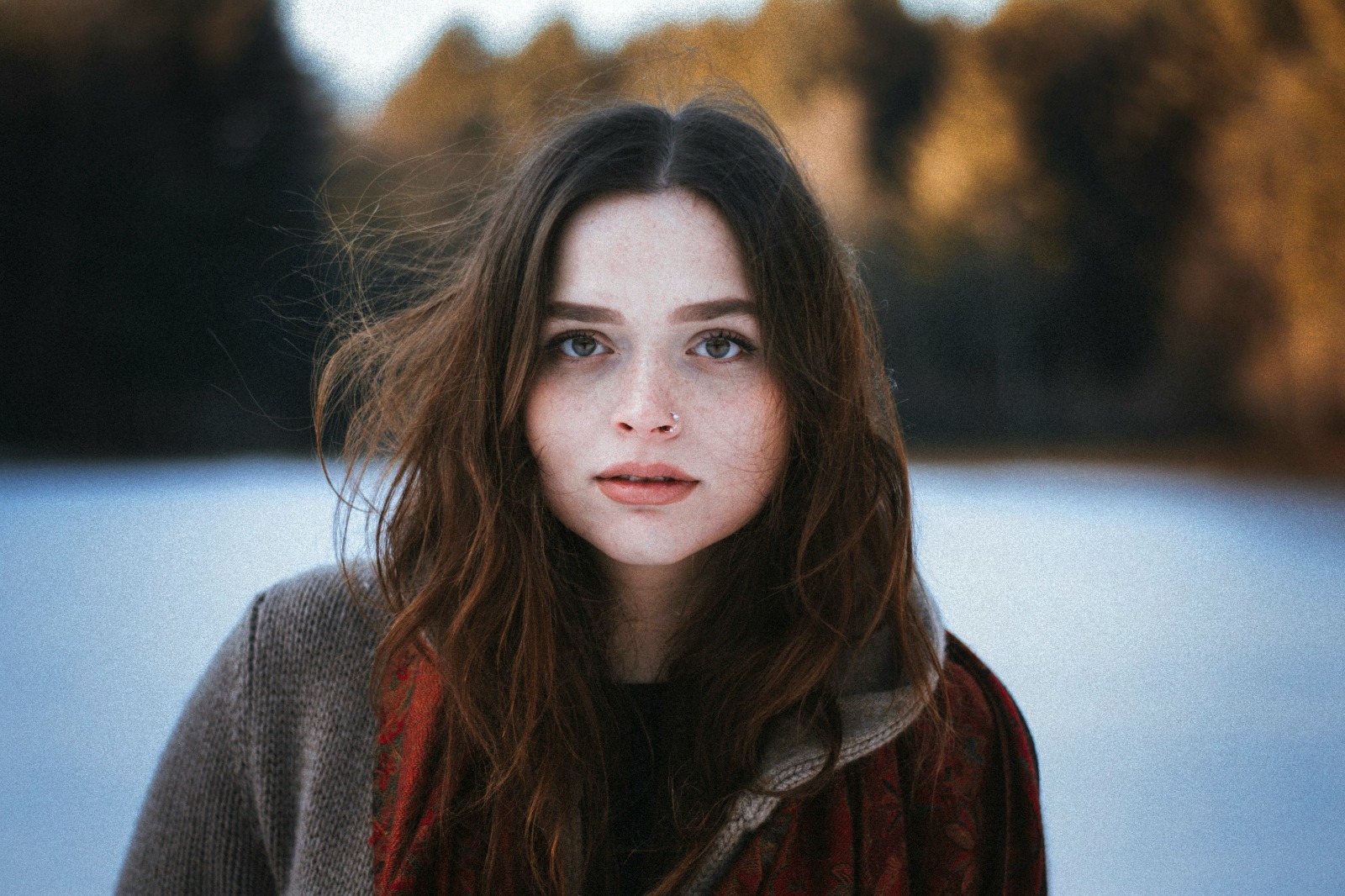
Citrus initializes its tracking grid instantly without forcing you through paywalled credit card registrations. This presents an active preview window so you can safely examine how the engine handles harsh shadow regions before processing.
Tap Enhance and choose Colors & Lighting
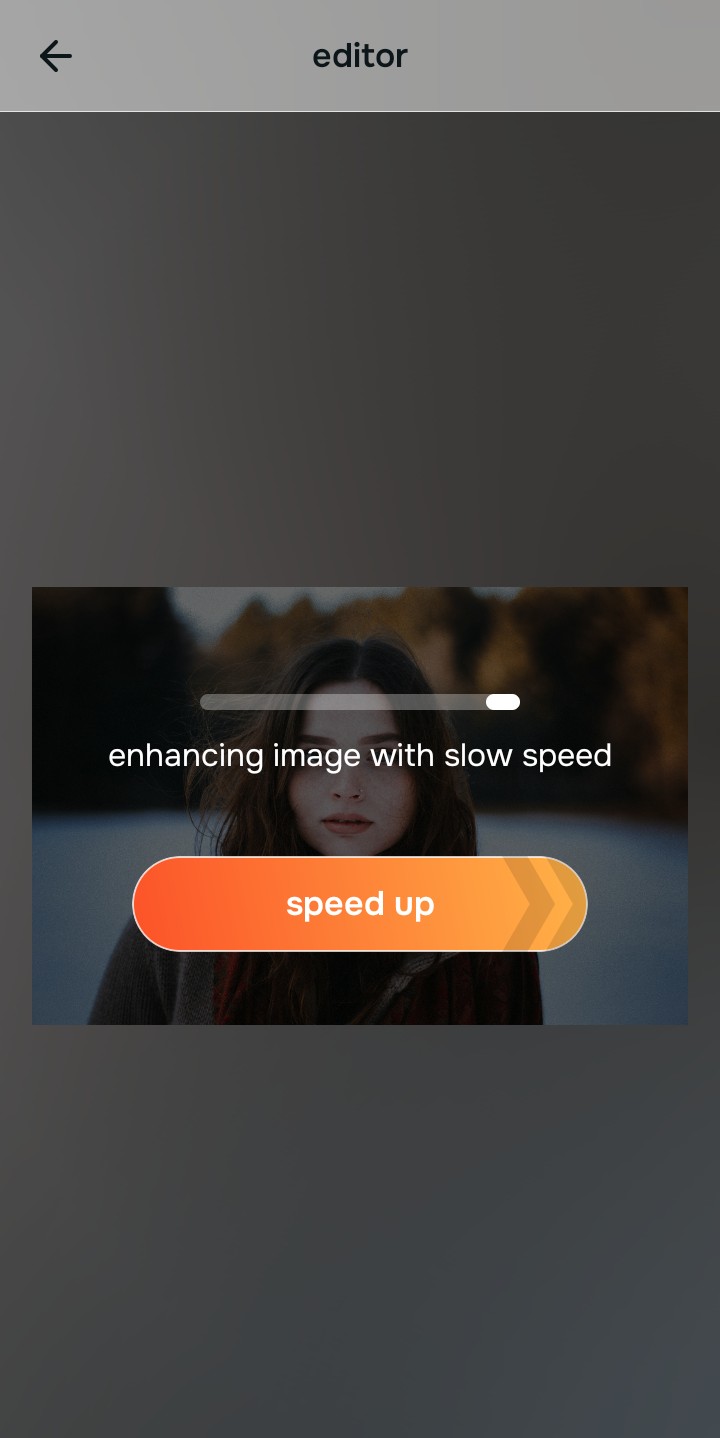
Because terrible ID photos are caused by harsh overhead fluorescent lighting, tap Enhance → Colors & Lighting. This strips away the artificial glare and neutralizes the wash-out effect without altering the background. Rebuilding this exposure is essential to finding a subtle edits facetune alternative that complies with rules.

Always balance global photographic lighting before applying face updates. Normalizing the base exposure map ensures subsequent Glow up updates sit perfectly without shifting the required background color.
Tap Looks and select Glow up to lift exhausted shadows
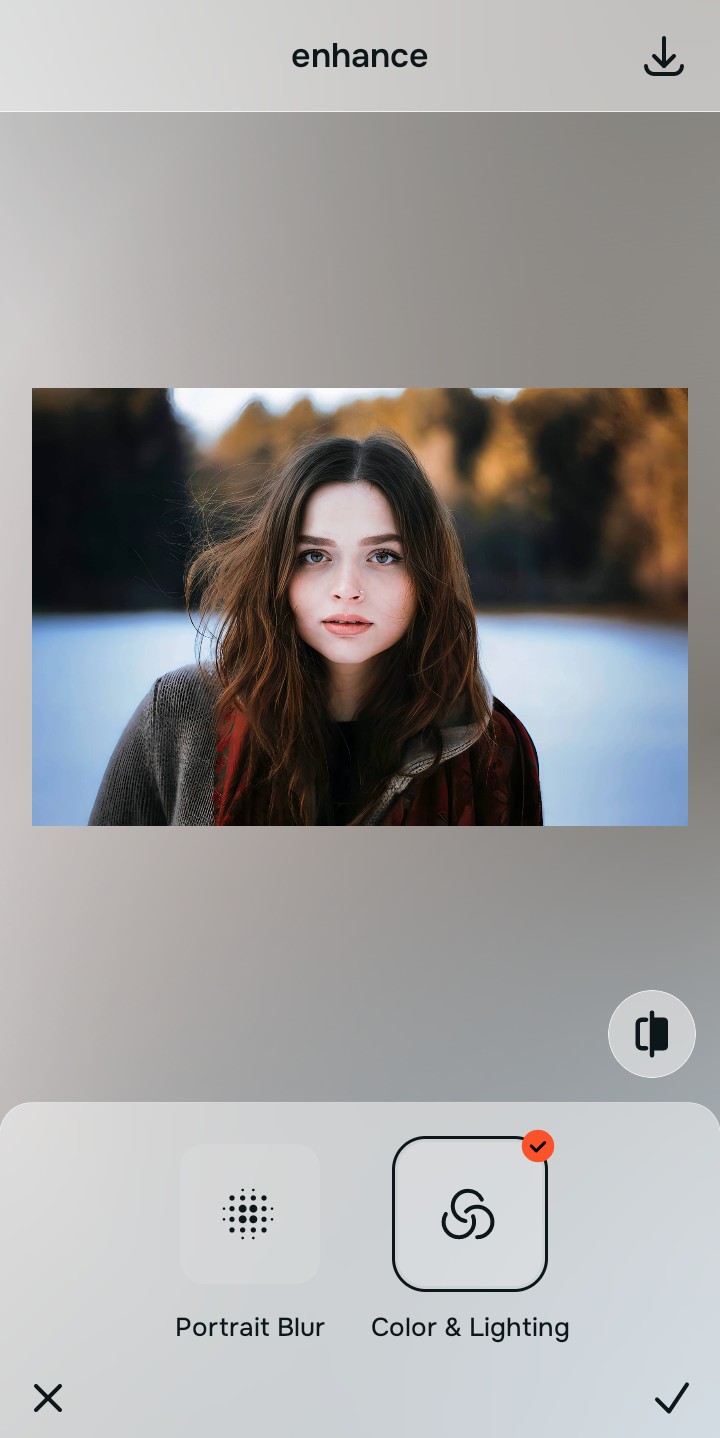
With your base light layers normalized, optimize your overall face impression natively to break the tired mugshot look. Tap Looks → Glow up. Select your preferred value from Level 1–5 to layer an awake, human style that feels completely compliant. Utilizing this algorithmic tool is the best way to fix tired puffy selfies without generating fake pixels.
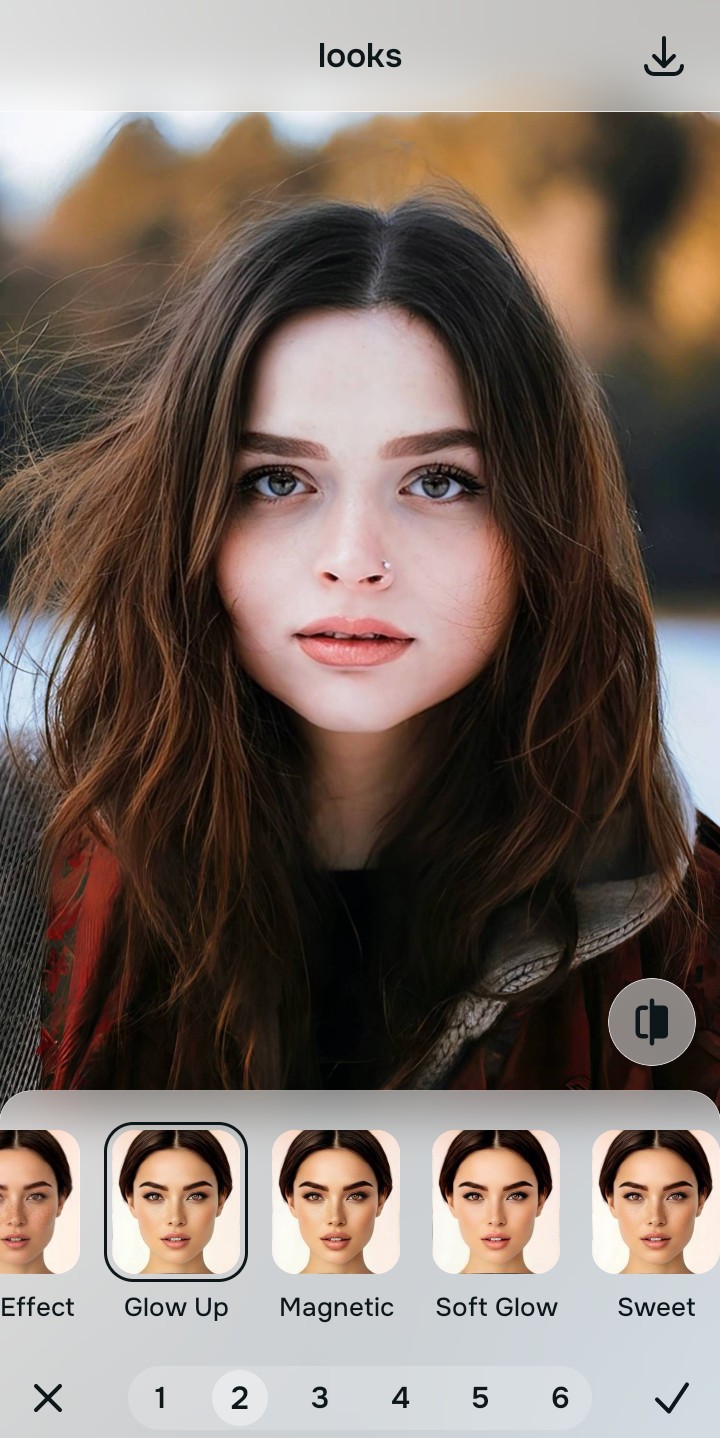
Export your high-resolution, unwatermarked ID photo
Citrus generously offers clean high-definition exports entirely for free with no hidden premium pop-ups. Knowing how to make blurry photos clear safely ensures your final print file is crisp, legal, and ready for submission.
What is ruining your passport photo currently?
Isolate your image's core mechanical issue. Your automated pipeline changes depending on the source error.
How to align your profile concerns with the right free pathway
Separate photo weaknesses necessitate independent menu paths. Selecting structured Level 1–5 tap options instead of heavy manual liquify tools is the only way to lock in visual sharpness without failing biometric tests.
| Tool Pathway | Primary Flaw Remediated | Automated Fix Strategy |
|---|---|---|
| Enhance Start here | Harsh facial illumination, deep fluorescent shadows, and washed-out skin tones | Use this first to establish a proper photographic foundation. Choose Colors & Lighting to balance layers for free. |
| Looks | Exhausted expressions, heavy under-eye bags, and tense overall image vibrancy | Use this to update the entire face impression. Select Glow up (Level 1–5) to gently lift the heavy shadows safely. |
| Face | Targeted temporary flaws like a pimple that wasn't there yesterday | Use this last for precise feature tweaks. Select Blemish Removal to safely clean temporary spots without altering geometry. |
“Professional ID photo editing should never alter your facial geometry or delete your pores. It must simply normalize the harsh exposure bugs so your native topography looks human, awake, and 100% legal.”
Why precise level taps protect biometric data better than Facetune
There is a massive structural difference between balancing camera exposure natively and pasting fake plastic smoothing over your identity. When you use manual liquify tools, heavy skin smoothers, or cheap overlays inside legacy platforms, the application compresses your data matrix, resulting in altered geometric points across your face. This instantly invalidates the photo for government systems, leading to application rejection.
Citrus is built from the ground up to be the most Glow up enhancer ever created. By relying exclusively on mathematically precise Level 1–5 tap settings instead of AI hallucination or pixel warping, the engine maps your face securely, optimizing highlight tracking without replacing your facial characteristics. Using a Glow up face enhancer app natively guarantees that your presentation remains sharp, trusted, and perfectly compliant.