


August 29, 2026
How to Fix Snow Photos That Make Skin Look Blue, Gray, or Underexposed

How to Fix Snow Photos That Make Skin Look Blue, Gray, or Underexposed
Taking photos in the snow should result in bright, magical winter memories, but smartphone cameras often ruin the shot entirely. The problem is a physical optical trap: snow has an incredibly high "albedo" (reflectivity). When you frame a shot, the camera sensor is blinded by the vast expanse of bright, blue-tinted UV light bouncing off the ice. The camera's Auto-Exposure (AE) panics, thinking the scene is too bright, and immediately darkens the entire photo—plunging your face into muddy, underexposed darkness. Simultaneously, the Auto-White-Balance (AWB) gets confused by all the cool light and cools down the entire image, turning human skin sickly blue or ash-gray. Standard editing apps fail to fix this because if you drag a global "Warmth" or "Brightness" slider, the snow instantly blows out into a blinding white void or turns radioactive orange. To fix your face without destroying the winter wonderland, you need an optical engine capable of separating the background from the subject.
Snow photos look blue and dark because the highly reflective ice tricks the camera into lowering exposure and cooling the white balance. To fix this natively, use Citrus AI. Instead of blasting the whole photo with an orange filter, Citrus mathematically separates the background to lift your facial exposure and restore rosy warmth while keeping the snow crisp and white.
Understanding the "Snow Albedo & AWB Confusion" Trap
The core issue with winter photography is that smartphone algorithms are designed for average, neutral gray environments. When presented with 90% bright white pixels, the math fails. If you attempt to fix underexposed snow photos manually with a basic brightness slider, you will immediately lose all the texture in the snow, turning it into a flat, featureless wall of white clipping.
- Dragging up the brightness, which completely blows out the snow and destroys all background detail
- Using a "Warmth" filter that turns the beautiful white snow into a muddy, radioactive yellow or orange
- Leaving skin looking dead, gray, and blue, making you question why snow pictures look blue
- Exaggerating flat, unnatural under-chin shadows caused by light bouncing upward off the ice
- Mathematically balancing the exposure curve to lift your dark face while strictly protecting the snow
- Biometrically injecting healthy, rosy vitality to fix gray skin tone naturally
- Neutralizing the sickly blue color cast on human skin without applying an orange tint to the background
- Acting as the best app for winter selfies by correcting upward bounce lighting
When your camera's sensor is blinded by the elements, generic filters only make the disaster worse. Shifting to an optical workflow helps you restore warmth to pale photos natively, ensuring your winter portraits stay crisp, highly attractive, and completely human.
Neutralize cold, underexposed snow lighting. A structured optical enhancement brings natural warmth and balanced exposure to your frozen snapshots in seconds.
A 5-Step Test: Rescuing Frozen Skin Tones Without Ruining the Snow
Upload the raw, underexposed camera roll photo
Find the photo taken on the slopes or in the snow where your face looks dark, flat, and bluish-gray. It is vital to avoid orange snow filters by starting with clean, uncompressed sensor data rather than pre-edited files.
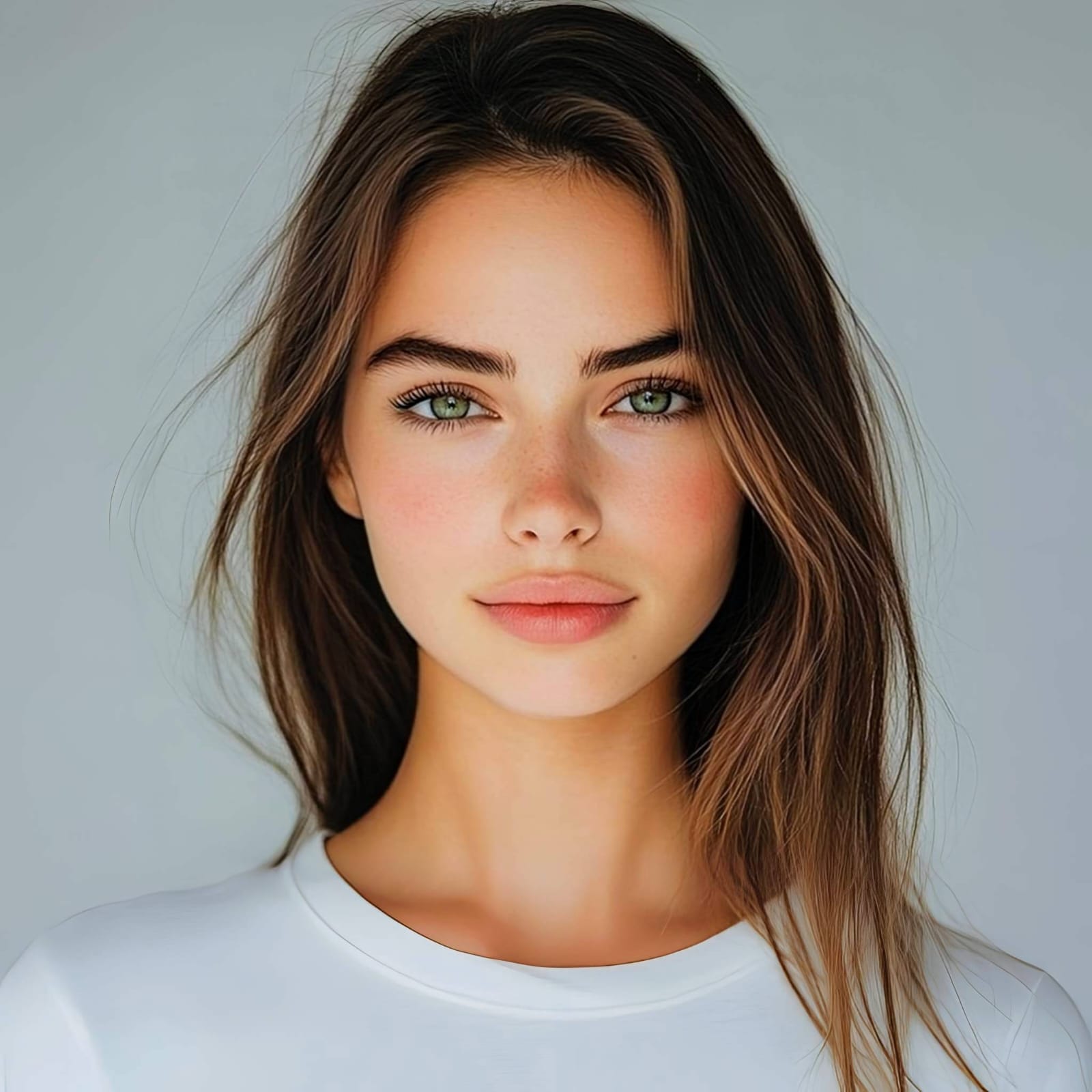
Let the instant preview calculate optical depth
Citrus provides an instant baseline correction immediately. Instead of just cranking the exposure globally, Citrus analyzes the depth of the scene and separates the high-albedo background (the snow) from the dark foreground (your face).
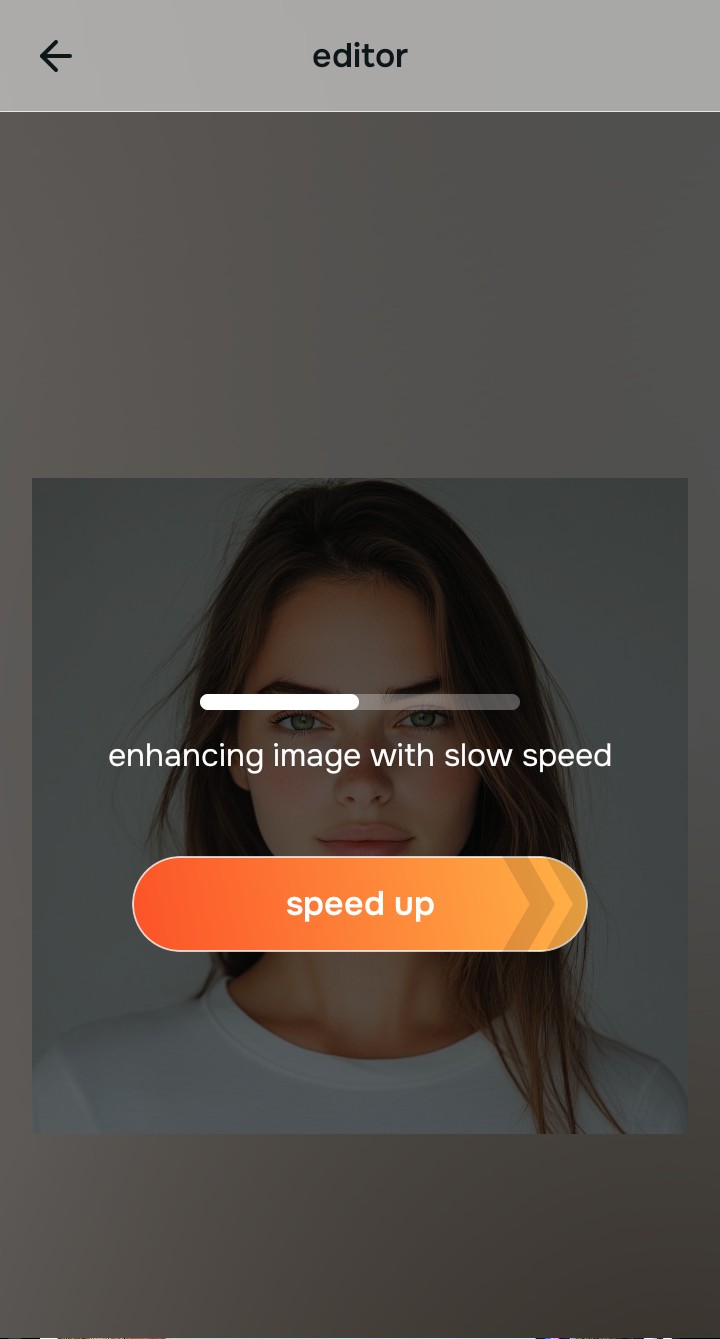
Tap Enhance and choose Colors & Lighting
You must fix the massive exposure gap before adding any aesthetic vibes. In Citrus, tap Enhance → Colors & Lighting. This mathematically balances the physical light curve, lifting the muddy darkness from your face and neutralizing the sickly blue cast without blowing out or tinting the snow.

Always balance global optical exposure before adjusting facial vitality. Reversing the base AE/AWB camera failure mathematically ensures subsequent enhancements don't look painted on.
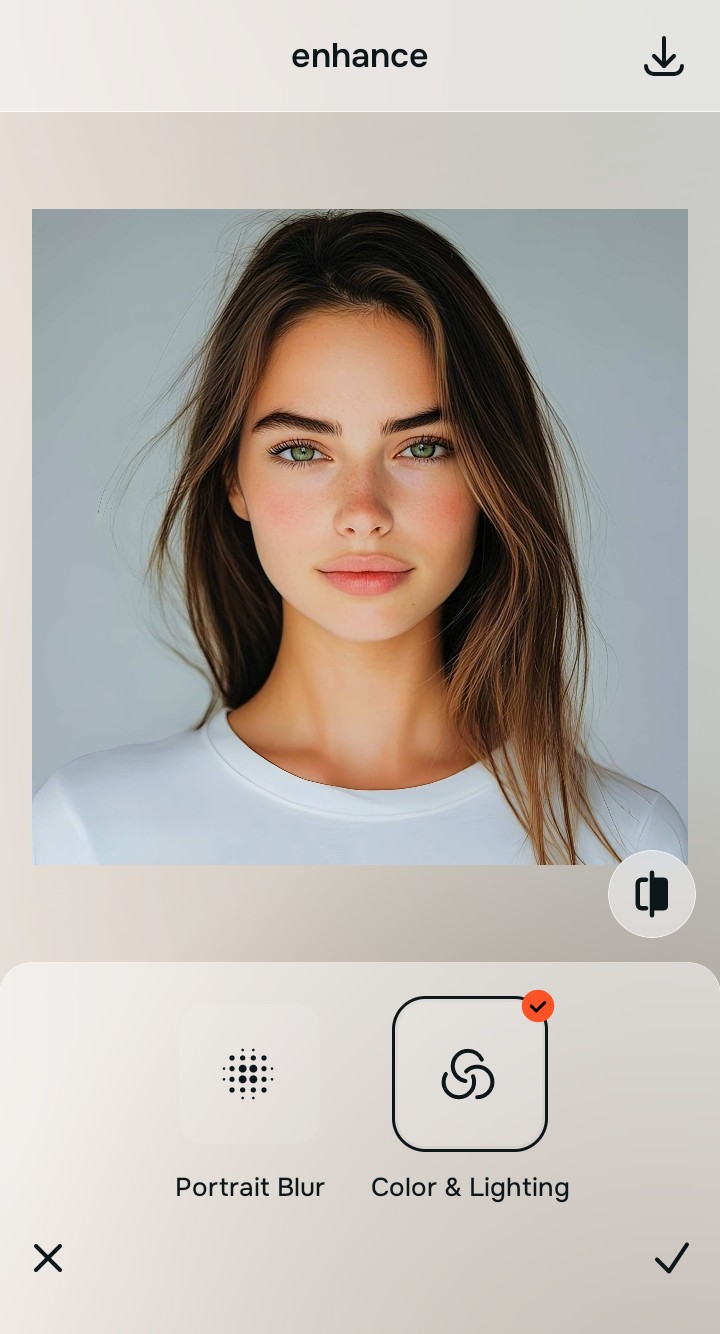
Tap Looks and select Glow Up to restore healthy color
Cold weather naturally drains blood from the face, and fixing underexposure can leave skin looking a bit pale. Tap Looks → Glow Up in Citrus. Select your preferred value from Level 1–5. This biometrically injects healthy, rosy vitality back into your cheeks and lips, helping you brighten dark faces against snow with an authentic glow.

Export your high-resolution, uncompressed portrait
Citrus provides clean, unwatermarked HD exports completely for free, reversing the camera's snow-blindness errors effortlessly so your selfie looks professional and perfectly lit.
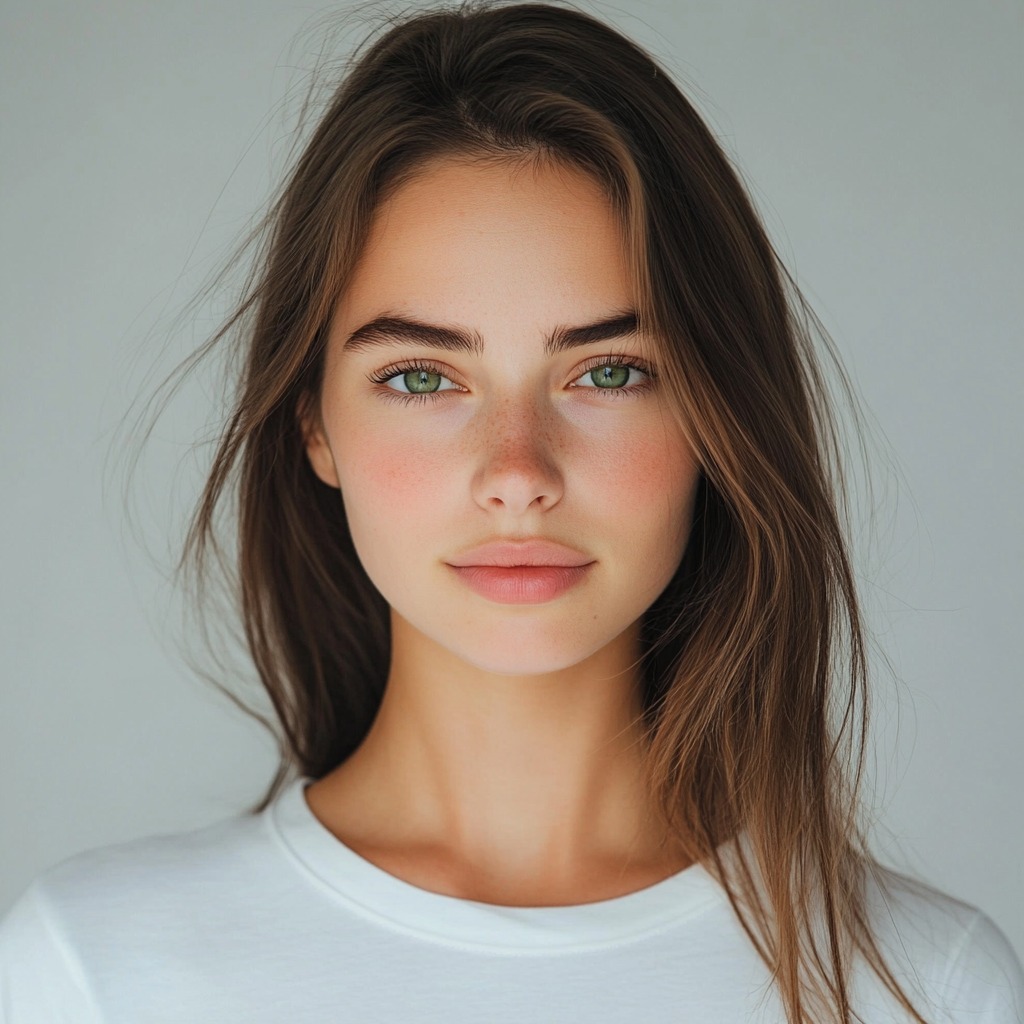
How did the snow ruin your selfie?
Identify your primary optical hurdle to select the exact automated pathway in Citrus.
Aligning Your Edits with the Citrus Taxonomy
Instead of guessing which manual warmth slider will fix your face without turning the snow yellow, Citrus categorizes enhancement into three distinct, mathematically safe pathways:
“Winter photography should never force you to choose between a dark, blue face or neon yellow snow. It must mathematically isolate the subject from the background so you look naturally vibrant—effortlessly and instantly.”
Why Optical Isolation Beats Generic Warmth Sliders
There is a massive structural difference between authentic optical depth mapping and dragging a "Warmth" or "Brightness" slider in a basic photo editor. When you turn up the warmth on a snow photo, the software indiscriminately adds orange pixels to the entire image. Your skin might look better, but the crisp, beautiful white snow turns into a muddy, radioactive yellow disaster.
Citrus is built specifically to prevent this. By constraining adjustments to mathematically calibrated Level 1–5 settings across Enhance, Looks, and Face, it identifies the physical separation between the human subject and the high-albedo background. It cleanly lifts the luminance and warmth of the face while rigorously protecting the white balance of the snow behind you. You get a clean, perfectly balanced photo in one tap.